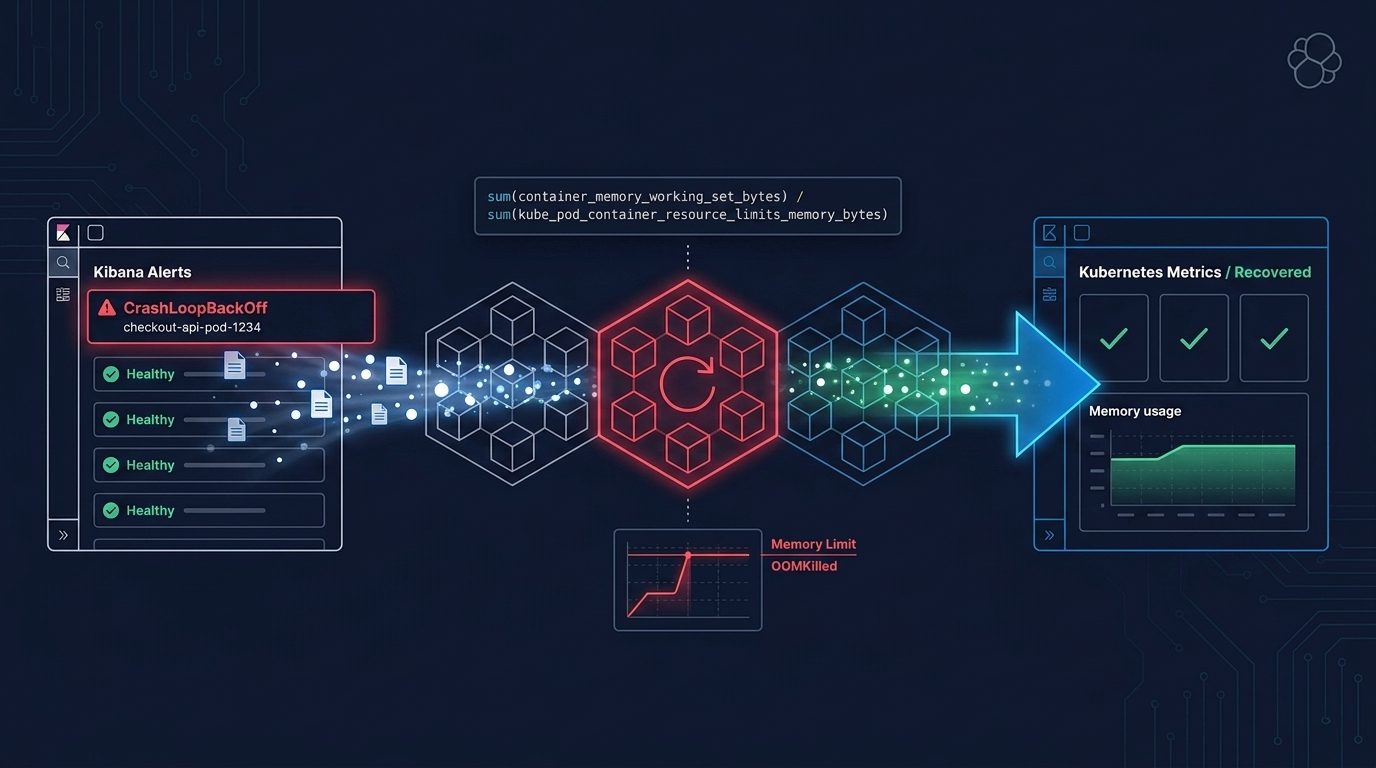
How to Troubleshoot Kubernetes Pod Restarts & OOMKilled Events with Agent Builder
Learn how to immediately troubleshoot Kubernetes pod restarts and OOMKilled events with Elastic Agent Builder. We’ll show how to detect, analyze, and remediate failures.
Monitor clusters, pods, and nodes with full application context across EKS, GKE, AKS, and OpenShift.
Join our on-demand webinar: Kubernetes management with Elastic & agentic AI to level up your skills. You can also start a free cloud trial, or run Elasticsearch locally.
Initial Summary
- Detect Kubernetes pod restarts and OOMKill events using Elastic Agent Builder
- Analyze CPU and memory pressure using ES|QL over Kubernetes metrics
- Generate troubleshooting summaries and remediation guidance
This article explains how to use Elastic Agent Builder to automatically detect, analyze, and remediate Kubernetes pod failures caused by resource pressure (CPU and memory), with a focus on pods experiencing frequent restarts and OOMKilled events. Elastic Agent Builder lets you quickly create precise agents that utilize all your data with powerful tools (such as ES|QL queries), chat interfaces, and custom agents.
Introduction: What is the Elastic Agent Builder?
Elastic has an AI Agent embedded that you can use to get more insights from all of the logs, metrics and traces that you’ve ingested. While that’s great, you can take it one step further and streamline the process by creating tools that the agent can use.
Giving the agent tools means it spends less time ‘thinking’ and quickly gets to assessing what’s important to you. For example, if I have a Kubernetes environment that needs monitoring, and I want to keep an eye on pod restarts and memory and CPU usage without hanging out at the terminal, I can have Elastic alert me if something goes wrong.
Having an alert is great, but how do I get the bigger picture, faster? You need to know what service is having (or creating) the issues, why, and how to fix it.
Assumptions
This guide assumes:
- A running Kubernetes cluster
- An Elastic Observability deployment
- Kubernetes metrics indexed in Elastic
Step 1: Create a New Elastic Agent
In Elastic Observability, use the top search bar to search for Agents. Create a new agent.
This agent is going to be the Kubernetes Pod Troubleshooter agent, designed to help users troubleshoot pod restarts, OOMKill terminations and evaluate CPU or memory pressure.
The Kubernetes Pod Troubleshooter agent will:
- Identify pods that have restarted more than once
- Filter for pods that are not in a running state
- Retrieve the container termination reason (e.g., OOMKilled)
- Analyze CPU and memory utilization for affected services
- Flag resource utilization above 60% (warning) and 80% (critical)
- Provide remediation recommendations
The agent requires instructions to guide how the agent behaves when interacting with tools or responding to queries. This description can set tone, priorities or special behaviours. The instructions below tell the agent to execute the steps outlined above.
You will help users troubleshoot problematic pods by searching the metrics for pods that have restarted more than once and the status is not running. Pods that have the highest number of restarts will be returned to the user.
Once the containers that are not running and have restarted multiple times are found you will use their container ID or image name to to look up the container status reason and reason for the last termination. You will return that reason to the user.
You will also begin basic troubleshooting steps, such as checking  for insufficient cluster resources (CPU or memory) from the metrics and tools available.
Any CPU or memory utilization percentages over 60%, and definitely over 80% should be flagged to the user with remediation steps.
Getting answers quickly is critical when troubleshooting high-value systems and environments. Using Tools ensures that the workflow is repeatable and that you can trust the results. You also get complete oversight of the process, as the Elastic Agent outlines every step and query that it took and you can explore the results in Discover.
You will create custom tools that the agent will run to complete the Kubernetes troubleshooting tasks that the custom instructions references such as: look up the container status reason and reason for the last termination and checking for insufficient cluster resources (CPU or memory).
Step 2: Create Tools - Pod Restarts
The first tool takes the Kubernetes metrics and assesses if the pod has restarted and it has a last terminated reason, and if it has the agent will present that information to the user.
This pod-restarts tool uses a custom ES|QL query that interrogates the Kubernetes metrics data coming from OTel.
The ES|QL query:
- Filters for containers that have restarted and have a reason for termination; then
- Calculates the number of restarts; then
- Returns the number of restarts and termination reason per service.
FROM metrics-k8sclusterreceiver.otel-default
| WHERE metrics.k8s.container.restarts > 0
| WHERE resource.attributes.k8s.container.status.last_terminated_reason IS NOT NULL
| STATS total_restarts = SUM(metrics.k8s.container.restarts),
        reasons = VALUES(resource.attributes.k8s.container.status.last_terminated_reason)
  BY resource.attributes.service.name
| SORT total_restarts DESC
Step 3: Create Tools - Service Memory
The custom tools can take input variables, which increases speed and accuracy of the results.
Common reasons for pods not scheduling, or restarting often, is due to the cluster or nodes being under-resourced. The pod-restarts tool returns services that have many restarts and OOMKill termination reasons, which indicate memory pressure.
The eval-pod-memory tool is a custom ES|QL that:
- Filters for metrics data that match the service name returned from the
pod-restartstool within the last 12 hours; then - Converts memory usage, requests, limits and utilization into megabytes; then
- Calculates the average of each of those metrics; then
- Groups them into 1 minute groupings and sorts them.
FROM metrics-*
| WHERE resource.attributes.service.name == ?servicename
| WHERE @timestamp >= NOW() - 12 hours
| EVAL
  memory_usage_mb = metrics.container.memory.usage / 1024 / 1024,
   memory_request_mb = metrics.k8s.container.memory_request / 1024 / 1024,
   memory_limit_mb = metrics.k8s.container.memory_limit / 1024 / 1024,
   memory_utilization_pct = metrics.k8s.container.memory_limit_utilization * 100
| STATS
   avg_memory_usage = AVG(memory_usage_mb),
   avg_memory_request = AVG(memory_request_mb),
   avg_memory_limit = AVG(memory_limit_mb),
   avg_memory_utilization = AVG(memory_utilization_pct)
   BY bucket = BUCKET(@timestamp, 1 minute)
| SORT bucket ASC
Step 4: Create Tools: Service CPU
As CPU usage is another common reason for pods to fail scheduling or be stuck in endless restart loops, the next tool will evaluate CPU usage, requests and limits.
The eval-pod-cpu tool is a custom ES|QL that:
- Filters for metrics data that match the service name returned from the
pod-restartstool within the last 12 hours; then - Calculates the average for CPU usage, CPU request utilization and CPU limit utilization.
FROM metrics-kubeletstatsreceiver.otel-default
| WHERE k8s.container.name == ?servicename OR resource.attributes.k8s.container.name == ?servicename
| STATS
  avg_cpu_usage = AVG(container.cpu.usage),
  avg_cpu_request_utilization = AVG(k8s.container.cpu_request_utilization) * 100,
  avg_cpu_limit_utilization = AVG(k8s.container.cpu_limit_utilization) * 100
| LIMIT 100
Step 5: Assign Tools to Kubernetes Pod Troubleshooter Agent
Once all of the tools are built you need to assign them to the agent.
This image shows the Kubernetes Pod Troubleshooter agent with the three tools: pod-restarts, eval-pod-cpu and eval-pod-memory assigned to it and active.
Step 6: Test the Kubernetes Pod Troubleshooter Agent
To simulate memory pressure the Open Telemetry demo is running inside the cluster. Artificially lowering the memory requests and limits and increasing the service load will cause pods to restart.
To do this to the open telemetry demo in your cluster, follow these steps.
Reduce the cart service to one replica by scaling the deployment. Once that is complete, change the resources on the deployment by lowering the memory requests and limits as shown in this command:
kubectl -n otel-demo scale deploy/cart --replicas=1
kubectl -n otel-demo set resources deploy/cart -c cart --requests=memory=50Mi --limits=memory=60Mi
The OpenTelemetry demo application comes with a load-generator. This is used to simulate requests to the demo site by modifying the users and spawn rate in the load generator deployment, as shown in this command:
kubectl -n otel-demo set env deploy/load-generator LOCUST_USERS=800 LOCUST_SPAWN_RATE=200 LOCUST_BROWSER_TRAFFIC_ENABLED=false
If you list all of your pods in the cluster or namespace, you should begin to see restarts.
You can now chat with the Kubernetes Pod Troubleshooter agent and ask “Are any of my Kubernetes pods having issues?”.
The screenshot shows the final response from the Kubernetes Pod Troubleshooter agent. It provides a problem summary of its findings from each tool, showing which services were experiencing the most restarts and memory and CPU utilization.
The threshold interpretations were described in the initial agent instructions, where >60% utilization is a warning (sustained pressure) and >80% utilization is critical (high likelihood of restarts or throttling). This aligns with findings presented by the Kubernetes Pod Troubleshooter agent, where the services that had the highest restarts were all above 90% memory utilization. The agent needs clearly defined threshold values to correctly assess the returned memory and CPU utilization values.
Problem summary returned by the Kubernetes Pod Troubleshooter agent:
Conclusion and Final Thoughts
Elastic Agent Builder enables fast, repeatable Kubernetes troubleshooting by combining ES|QL-driven analysis with constrained AI reasoning.
The creation of custom tools that use specific ES|QL queries combined with downstream queries that take input variables from the output of previous tools eliminates or reduces error propagation and hallucinations. In comparison to generic AI troubleshooting without purpose-built tools, you run the risk of it analyzing too many services (that aren’t relevant to the issue at hand). This will slow down the thinking process and generate longer responses, increasing the likelihood of error propagation and hallucinations.
With the Elastic Agent Builder, you can inspect the output of every tool if you need to, to explore and verify the outputs.
Having a succinct problem summary is a game-changer, bringing your attention straight to the most affected services.
Reasoning returned by the Kubernetes Pod Troubleshooter agent:
Not only that, but the agent can go one step further and offer recommendations for remediation based on what outputs the tools delivered.
Remediation recommendation returned by the Kubernetes Pod Troubleshooter agent:
Sign up for Elastic Cloud Serverless and try this out with your Kubernetes clusters.
Frequently Asked Questions
1. When to use the Elastic Agent Builder for Troubleshooting
Use the Elastic Agent Builder for Troubleshooting that works best if:
-
You need repeatable, auditable troubleshooting workflows
-
You want deterministic analysis instead of free-form AI responses
-
You’re investigating something that is reported in the logs or metrics (i.e. pod restarts, OOMKills, or resource pressure)
-
You want to reduce mean time to resolution (MTTR)
2. Do I need OpenTelemetry to use Elastic Agent Builder for Kubernetes troubleshooting?
No, you don’t need to use OpenTelemetry. You have two options:
-
You can collect logs and metrics from Kubernetes using the Elastic Agent; or
-
You can collect logs, traces and metrics with the Elastic Distro for OTel (EDOT) Collector
When following the steps above, this would change the field names that are used in the tools above. For example, kubernetes.container.memory.usage.bytes vs metrics.container.memory.usage.
3. Can this agent be adapted for node-level failures?
Yes, Elastic has hundreds of integrations, including AWS (for EKS), Azure (for AKS), Google Cloud (for GKE), as well as host operating system monitoring.
The queries shown above would be modified to use the correct field.
4. Can these tools be reused in automation workflows?
Yes, Elastic Workflows can reuse the same scripted automations and AI agents you build in Elastic. An agent can handle the initial analysis and investigation (reducing manual effort), and the workflow can continue with structured steps, such as running Elasticsearch queries, transforming data, branching on conditions and calling external APIs or tools like Slack, Jira and PagerDuty. Workflows can also be exposed to Agent Builder as reusable tools, just like the tool created in this guide.
For more advanced automation from a similar scenario as described in this guide, learn how to integrate AI agents into GitHub Actions to monitor K8s health and improve deployment reliability via Observability.
5. Can these tools be triggered by alerts?
Yes, alerts can trigger Elastic Workflows, and pass the alert context to the workflow. This workflow may be integrated with an Elastic Agent, as described above.
Additionally, Elastic Alerts allow you to publish investigation guides alongside alerts so an SRE has all of the information they need to begin investigating. Any troubleshooting or investigative agents can be linked to from the investigation guide, meaning the SRE doesn’t have to follow manual processes outlined in an investigation guide and instead let the agent handle the manual, repetitive investigations.
6. How can I get started with Agent Builder?
Sign up for Elastic Cloud Serverless, a new fully managed, stateless architecture that auto-scales no matter your data, usage, and performance needs.