Lens visualizations using ES|QL queries
Creating visualizations using an ES|QL query is particularly useful when you need to:
- Query data across multiple indices without a pre-configured data view
- Apply complex filtering, transforms, or custom calculations in a single query
- Prototype a visualization directly from an ES|QL query in Discover
For less advanced aggregations on a known index, the point-and-click mode is a good alternative.
You can add ES|QL visualizations to a dashboard directly from queries in Discover, or you can start from a dashboard.
If your visualization's query uses exactly one STATS command, dashboard users can turn on
Fast mode to get faster, estimated results for it. Refer to Use ES|QL in Kibana > Get faster results with approximate STATS.
In Discover, an ES|QL query shows a visualization when the query transforms the results, for example, with STATS or KEEP, or when the results have a time field. The time field is @timestamp, or the field that the query compares with the ?_tstart and ?_tend parameters. The query determines the visualization type, such as a histogram or a bar chart. To change the visualization type and display options, select
Edit visualization.
To add the visualization to an existing or a new dashboard, select Save visualization to dashboard. In earlier versions, select Save visualization.
Add a new panel from your dashboard.
-
Select Add in the application menu and, if required, New panel. -
Select Add panel in the application menu.
TipIf you haven't created a data view and you don't have a dashboard yet, the Dashboards page offers you the possibility to Try ES|QL right away. By selecting this option, a dashboard is created with an ES|QL visualization that you can interact with and configure using ES|QL.
-
Select Create visualization (query) (Visualization (query) or ES|QL under Visualizations in earlier versions).
An ES|QL editor appears and lets you configure your query and its associated visualization. The Suggestions panel can help you find alternative ways to configure the visualization.
TipCheck the ES|QL reference to get familiar with the syntax and optimize your query.
When editing your query or its configuration, run the query to update the preview of the visualization.
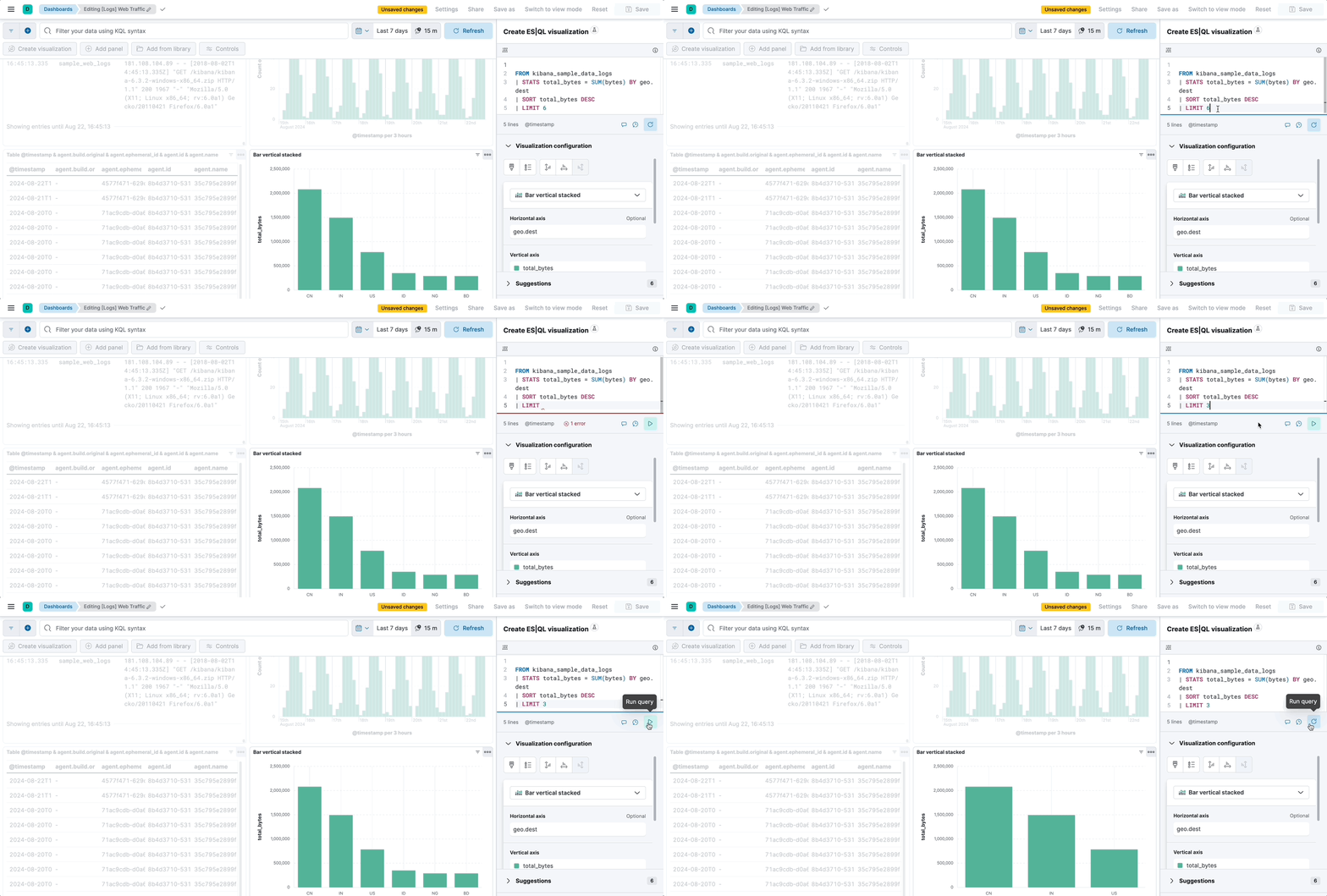 Note
NoteWhen you edit the query and run it again, the visualization configuration persists as long as it is compatible with the query changes. Refer to Lens visualizations using ES|QL queries > Chart configuration persistence over ES|QL query update for more details.
You can bind controls to your ES|QL visualizations in dashboards by creating ES|QL controls.
Select Apply and close to save the visualization to the dashboard.
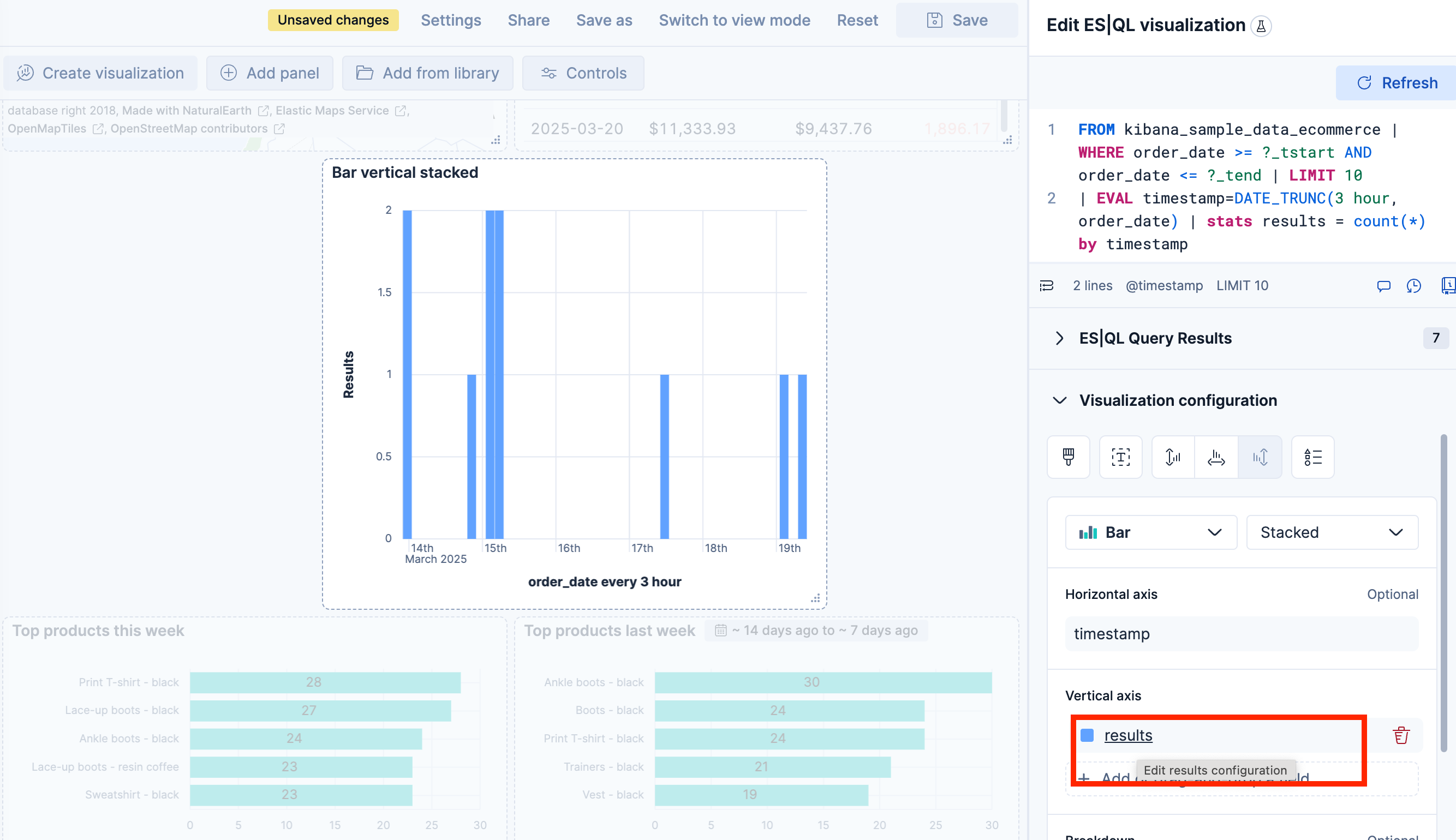
When editing an ES|QL visualization, you can customize the appearance of the chart. To do that:
Click one of the fields representing an axis of the chart to open its details.
Define the appearance of your choice from the available options.
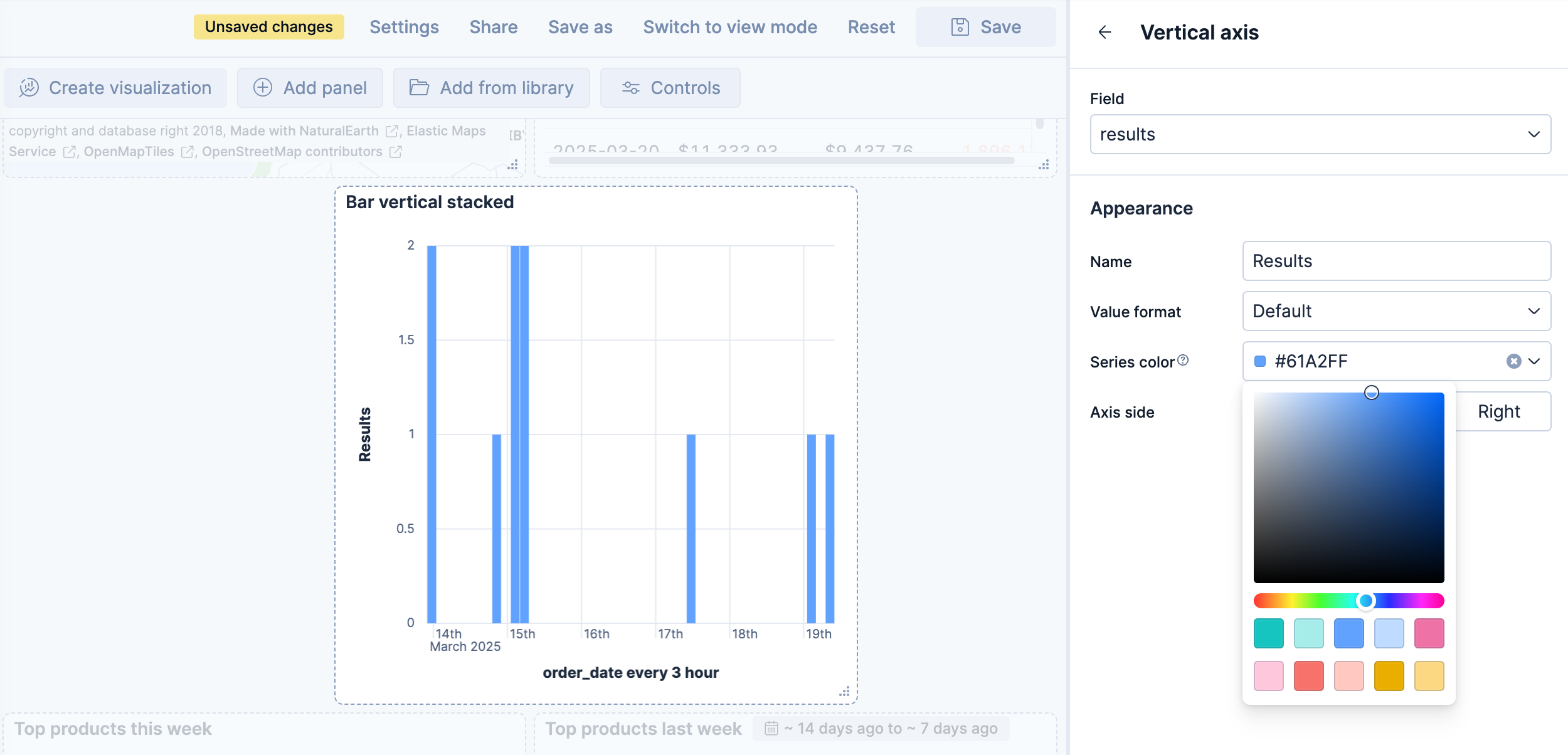
Return to the previous menu, then Apply and close the configuration to save your changes.
On bar, line, and area charts built from an ES|QL query, the Breakdown dimension can hold more than one field at the same time. Each unique combination of values is rendered as its own series, with the values joined by a › separator in the legend.
When the query groups a metric by more than one field, Kibana places the first field on the Horizontal axis and the remaining fields in the Breakdown dimension. For example, the following query counts web log events over time, broken down by host and file extension:
FROM kibana_sample_data_logs
| WHERE extension.keyword != ""
| STATS count(*) BY BUCKET(@timestamp, 100, ?_tstart, ?_tend), host.keyword, extension.keyword
In the resulting chart, the time buckets are placed on the Horizontal axis, while host.keyword and extension.keyword are combined in the Breakdown dimension. Each legend entry represents a unique combination, such as artifacts.elastic.co › deb or artifacts.elastic.co › gz.
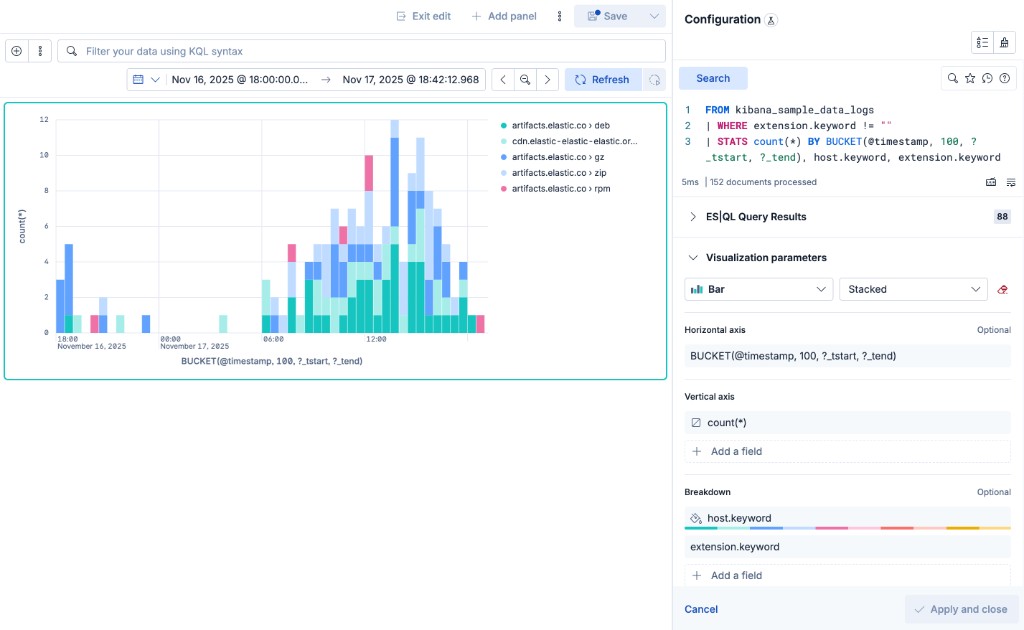
To add another field to the breakdown, select Add a field under Breakdown and choose a column from your query. You can also drag the fields inside the Breakdown dimension to change the order in which their values appear in the combined label.
When you edit the ES|QL query and run it again, the visualization configuration persists as you defined it as long as it is compatible with the query changes.
The chart configuration resets or follows automatic suggestions when:
-
You manually select a different chart type incompatible with the one previously selected. -
You create a new chart and haven't edited the visualization's options yet. - The query changes significantly and no longer returns compatible columns.
When cross-project search is enabled and you have linked projects, your ES|QL visualization queries data based on the current cross-project search scope.
To target specific projects from within the query, add SET project_routing at the beginning of your ES|QL query. When you do this, the visualization panel displays a Custom CPS scope badge on the dashboard, indicating that it uses a different scope than the CPS scope selector. Refer to View data from multiple projects for details.
An ES|QL query returns a table. When you use the result to build a visualization, each returned column is available as a chart dimension. Shape the query result to provide the dimensions required by the chart:
| Result column | How to produce it | Common uses |
|---|---|---|
| Grouping column | Return a source column, group values with a BY clause, or derive a column with EVAL. |
Categories, rows, regions, series, and non-time axes |
| Time-bucket column | Group a time field with BUCKET or DATE_TRUNC. |
The horizontal axis of a time-series chart |
| Numeric metric column | Calculate a value with a STATS aggregation such as COUNT, SUM, or AVG. |
Plotted values, sizes, color intensity, metrics, and gauges |
The chart type determines the combination of columns you need. Open a page from the visualization types list to find an ES|QL query pattern and learn how to assign its result columns to the chart dimensions.
A time series chart plots a metric over time. The query must return a time-bucket column for the Horizontal axis and a numeric metric column for the Vertical axis.
In this query, WHERE applies the dashboard time range, BUCKET divides that range into 50 groups, and COUNT returns one value for each group:
FROM kibana_sample_data_logs
| WHERE @timestamp <= ?_tend AND @timestamp > ?_tstart
| STATS requests = COUNT(*) BY time_bucket = BUCKET(@timestamp, 50, ?_tstart, ?_tend)
If your time field isn't named @timestamp, replace @timestamp with that field in both WHERE and BUCKET. Refer to Use ES|QL in Kibana > Custom time parameters.
To build the chart:
- Create an ES|QL visualization and run the query.
- Set the visualization type to a chart type compatible with time series, typically Line, Area, or Bar.
- Assign
time_bucketto the Horizontal axis andrequeststo the Vertical axis. - Select Apply and close.
The chart preview shows how the request count changes over time.
For more query patterns and chart settings, refer to Build a line chart with an ES|QL query and Build an area chart with an ES|QL query.
To compare the current period with a previous period of the same duration, compute both windows in one STATS command. Use a per-aggregation WHERE filter for each window.
This example uses the Kibana sample web logs. It compares the last 7 days with the 7 days before that, per host. Add that data set if you don't have it yet. Sample data timestamps are relative to when you installed the data set.
To create the visualization:
Open a dashboard and add a new ES|QL visualization:
-
Select Add in the application menu, then select Create visualization (query) (Visualization (query) or New panel → ES|QL under Visualizations in earlier versions). -
Select Add panel in the application menu, then select ES|QL.
-
Set the time filter to the last 15 days so both 7-day windows have data.
Enter the following query:
FROM kibana_sample_data_logs | EVAL current_start = ?_tend - 7 days, previous_start = ?_tend - 14 days | STATS current_count = COUNT(*) WHERE @timestamp >= current_start AND @timestamp <= ?_tend, previous_count = COUNT(*) WHERE @timestamp >= previous_start AND @timestamp < current_start BY host.keyword | EVAL pct_diff = CASE( previous_count > 0, ROUND(100.0 * TO_DOUBLE(current_count - previous_count) / previous_count, 1), null ) | SORT ABS(pct_diff) DESC- Bound both windows from the end of the time filter.
?_tendstays in sync with the dashboard time filter. - Count events in each window in a single pass. Refer to
STATSwithWHERE. - Compute the percent change.
CASEreturnsnullwhen the previous window has no events.
- Bound both windows from the end of the time filter.
Run the query. A visualization appears with one row per host. If Kibana suggests a different visualization type, select Table from the visualization type dropdown.
Select Apply and close to save the visualization to your dashboard.
To use your own data, change the FROM source and the BY grouping field. If your time field isn't @timestamp, replace @timestamp in the STATS filters. To apply the dashboard time filter to a custom time field, add a WHERE clause with ?_tstart and ?_tend. Refer to Filter by time.
To compare a different duration or offset, change the two EVAL time spans. For the last hour versus the same hour a week ago, set current_start to ?_tend - 1 hour and previous_start to ?_tend - 7 days - 1 hour. Set the time filter to cover both windows.
To set Time shift in the point-and-click editor, refer to Compare differences over time.
ES|QL visualizations support the following drilldown types:
- Dashboard drilldowns: Open another dashboard from a data point.
- URL drilldowns: Open an external URL from a data point.
-
Discover drilldowns: Open Discover from a data point. Dashboard filters and the dashboard KQL or Lucene query are translated into the panel's ES|QL query, so the same context applies.
Drilldowns are compatible only with indexed fields. Fields created at query time are not supported. Refer to Values that cannot open a drilldown.
By default, an ES|QL visualization applies the filters and the KQL or Lucene query set at the dashboard level. To force a layer to run its query without these filters:
- Select the Settings icon on the layer header.
- Turn off Use global filters.
This option covers the dashboard's filter pills and the query from the search bar. The dashboard time range is a separate control that always applies, whether or not the option is turned on.
Once you've created an ES|QL panel, you can create an Elasticsearch threshold rule directly from the visualization panel, based on the data it displays. When you do this, the rule query is automatically generated and either describes the data and sets a specific threshold, or describes the data without setting a specific threshold.
Elastic Security rule types are not supported.
To create a rule with the threshold pre-specified:
- Right-click a data point in the visualization and click Add alert rule. This opens the Create rule flyout. The generated query will define a threshold that corresponds to the data point you selected.
- Configure your Elasticsearch rule.
To create a rule without the threshold pre-specified:
- Open the More actions (three dots) menu in the upper right of the panel and select Add alert rule. This opens the Create rule flyout. The generated query will define a threshold that corresponds to the data point you selected.
- Configure your Elasticsearch rule.
ES|QL query results can include emoji characters, which means you can use them in your ES|QL visualizations. Combined with EVAL and CASE functions, this opens up options like mapping values to colored status indicators (🟢, 🟠, 🔴), adding visual labels, or highlighting specific categories.
This example uses the Kibana sample web logs data to build a status table that shows the success rate per host, with a colored status indicator.
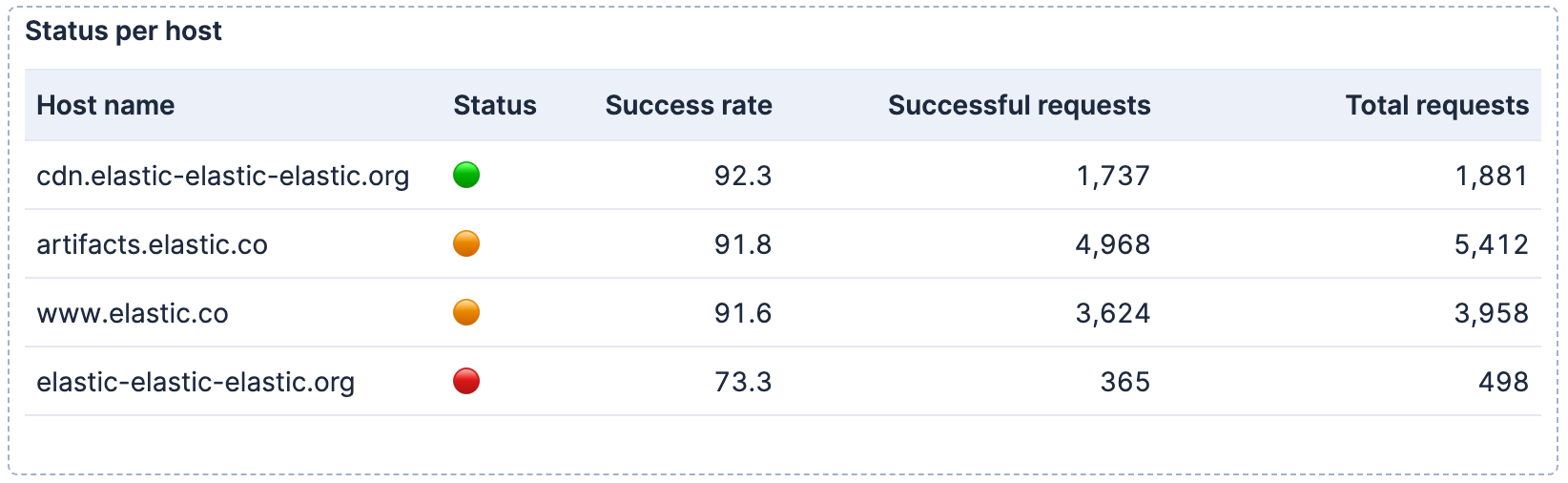
Because they're part of the query results, you can use them in any visualization type that displays text fields, such as bar charts with emoji labels or metric panels with status indicators.
Before you begin, ensure you have the sample web logs data installed. In Kibana, go to Integrations and search for Sample data. On the Sample data page, add Sample web logs.
To create the visualization:
Open a dashboard and add a new ES|QL visualization:
-
Select Add in the application menu, then select Create visualization (query) (Visualization (query) or New panel → ES|QL under Visualizations in earlier versions). -
Select Add panel in the application menu, then select ES|QL.
-
Enter the following query:
FROM kibana_sample_data_logs | EVAL is_success = CASE(response >= "200" AND response < "300", 1, 0) | STATS total_requests = COUNT(*), successful_requests = SUM(is_success) BY host.keyword | EVAL success_rate = ROUND(successful_requests * 100.0 / total_requests, 1) | EVAL status = CASE( success_rate >= 92, "🟢", success_rate >= 90, "🟠", "🔴" ) | KEEP host.keyword, status, success_rate, successful_requests, total_requests | SORT success_rate DESC- Create a binary flag: 1 for successful responses (2xx), 0 otherwise.
- Group by host and use
SUMto count successes. - Calculate the success rate as a percentage.
- Map the success rate to emoji indicators based on thresholds.
- Select and order the columns for the table output.
Run the query. A visualization appears with one row per host and an emoji status column. If Kibana suggests a different visualization type, select Table from the visualization type dropdown.
Optionally, configure the table appearance in the visualization settings:
- To reorder columns, rearrange the metrics in the Metrics section.
- To rename a column, select the metric and update its Name in the appearance options.
Select Apply and close to save the visualization to your dashboard.
Optionally, once the panel is saved, select the panel title to give it a meaningful name like
Status per host.
Once you have your visualization working, you can add controls to filter by host or time range, use LOOKUP JOIN to enrich your data with metadata from other indices, or create alerts based on the same query to get notified when status changes.