Chat with Elastic Agent Builder agents
Agent Chat is the chat interface for natural language conversations with your agents.
The chat GUI and programmatic interfaces enable real-time communication where you can ask questions, request data analysis, and receive immediate responses from your configured agents.
The chat UI is available in both standalone and flyout modes. For more information, refer to Chat UI modes.
Refer to the getting started guide if you need to enable the feature and ingest some data.
Find Agents in the navigation menu to begin chatting. You can also search for Agent Builder in the global search bar.
This takes you to the chat GUI:
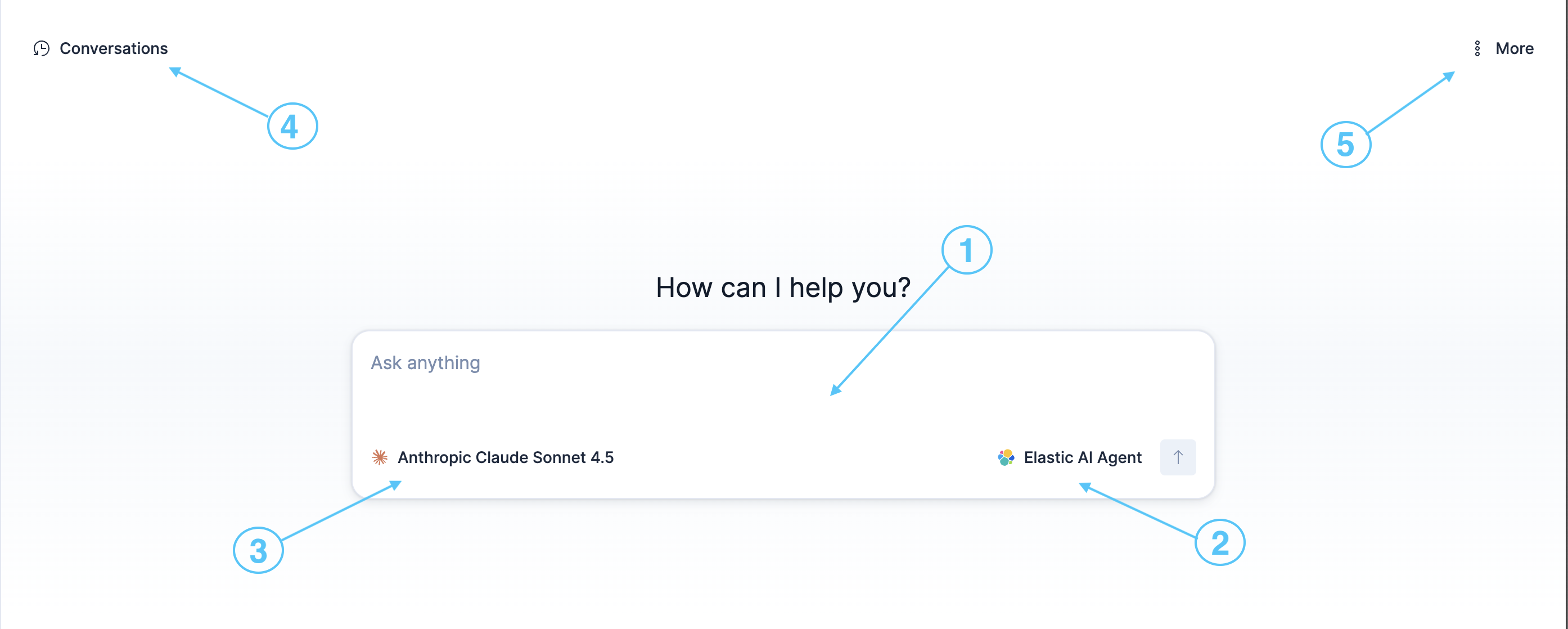
- Chat input area
- Agent selector
- Model selector
- Chats (conversation history)
- Options menu
- Customize accordion
- Manage components link
Use the text input area to chat with an agent in real time. Check the agent selector to see which agent is active. To switch agents, refer to Select a different agent.
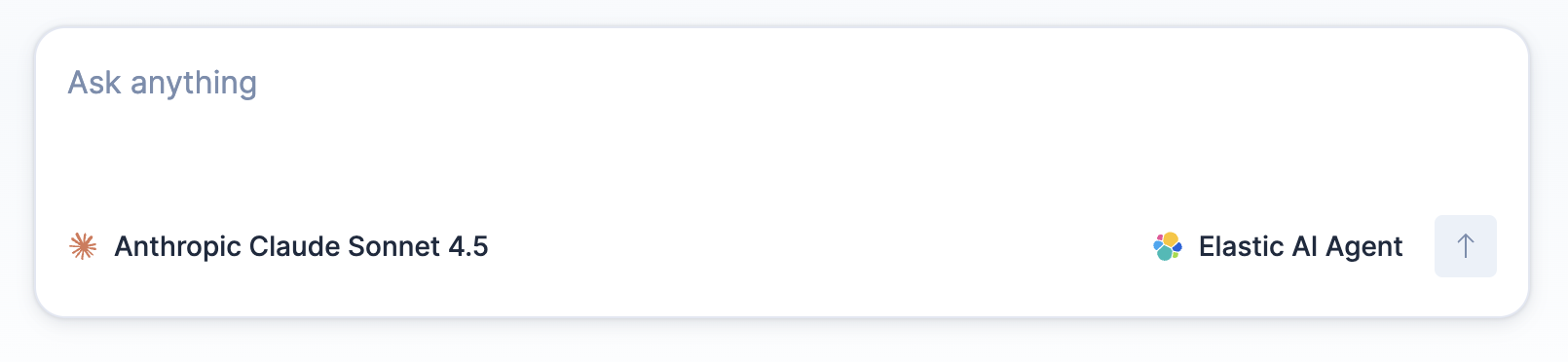
Conversations with agents consume tokens. To understand how usage is calculated, refer to Token usage in Elastic Agent Builder.
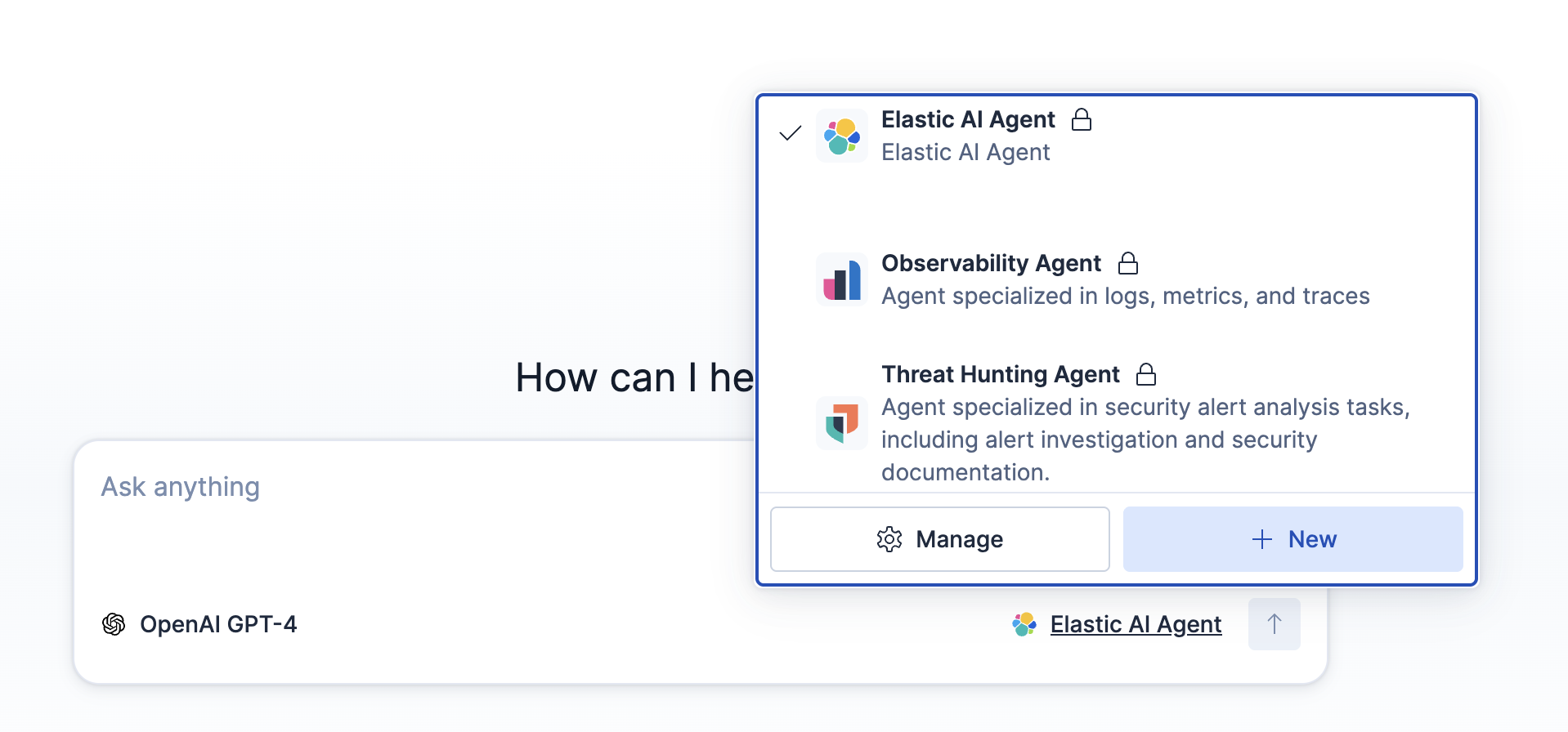
Use the agent selector to switch agents, to navigate to the agent management section, or to create a new agent. An agent's behavior is defined by its custom instructions and available tools. Switch agents when you need different capabilities for your tasks.
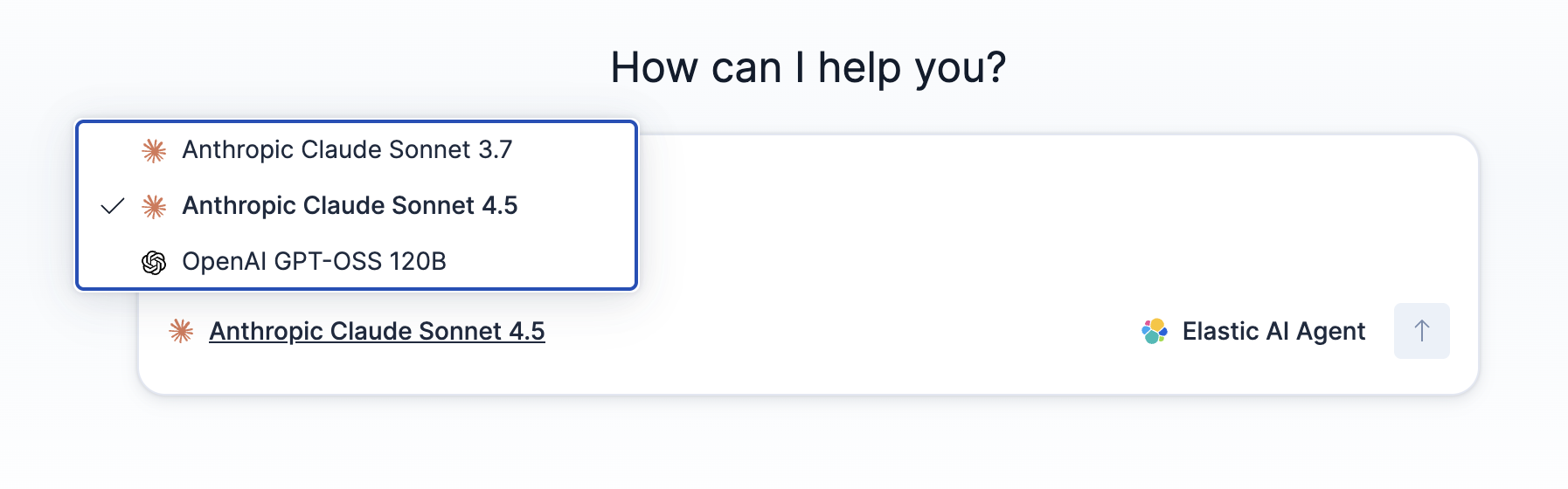
Use the model selector to switch the underlying model the agent uses to generate responses. Switch models to prioritize faster responses, lower costs, or more complex reasoning, depending on your use case.
Paste an image from your clipboard into the chat input to give the agent visual context, such as a screenshot, a photo, or a diagram. Pasting is the only way to attach an image. Dragging a file onto the input and selecting one from a file picker aren't supported.
To attach an image, copy it to your clipboard, then press CtrlCmd + v in the chat input. A chip with the file name appears in the message text, and a thumbnail appears above the input. To remove an image before you submit the message, hover over its thumbnail and select the Remove attachment icon .
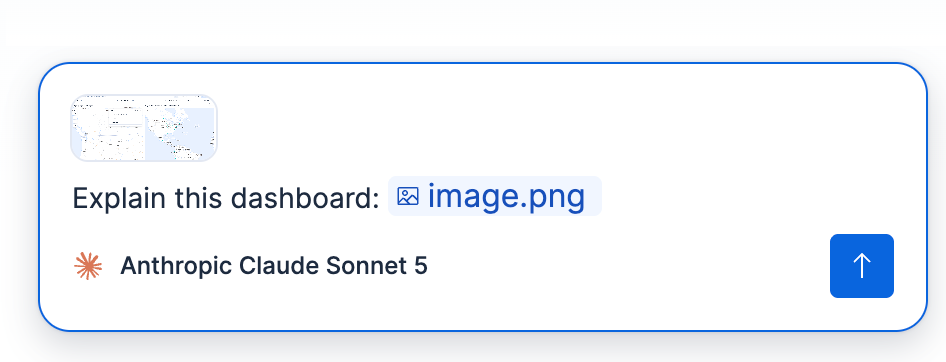
You can attach up to 10 images to a single message. Each image must be a PNG or JPEG file no larger than 3.5 MB. You can't submit the message until all attached images finish uploading.
After you submit the message, the image appears in the conversation history, and the agent can refer to it in later messages in the same conversation.
When your projects are linked through cross-project search (CPS), an agent searches the projects selected in the CPS scope selector in the header.
You can change the selector at any time. Each new message uses the current selection. Earlier messages in the conversation keep the results they already returned.
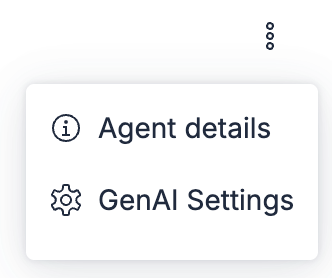
Click the three-dot menu icon in the top-right corner to access additional options.

The options menu provides access to:
- Agent details: View information about the currently selected agent.
- GenAI Settings: Open the global GenAI settings page to configure default connectors and other AI settings. Refer to Manage access to AI features.
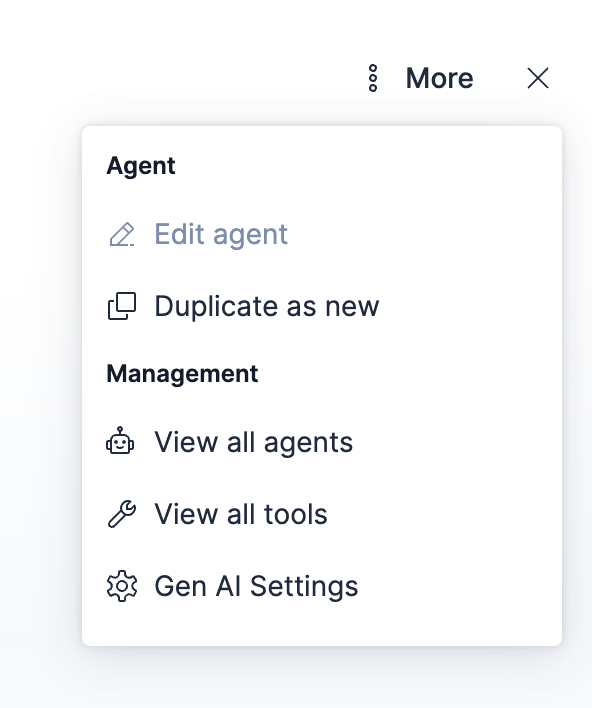
To manage agents and tools, use the Manage components link at the bottom of the left sidebar, or the Customize accordion to configure the current agent.
This menu provides links to key actions and management pages, including agent management, tool management, agent editing, and duplication.
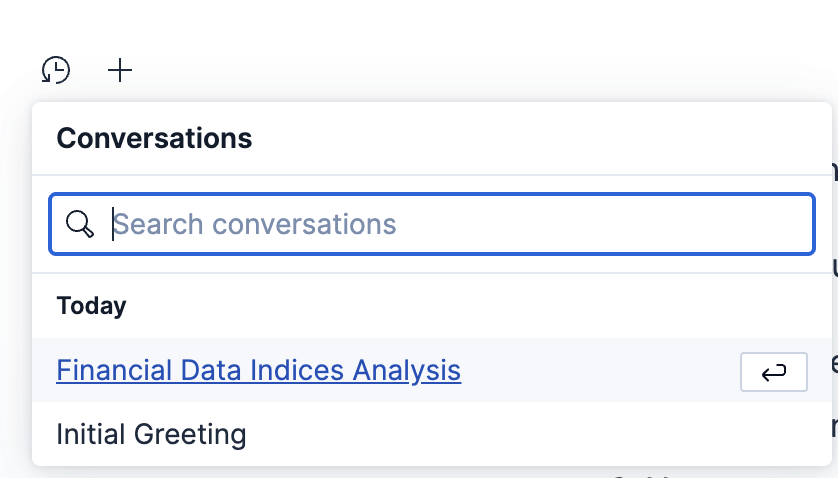
Use the chat history panel to access previous conversations.
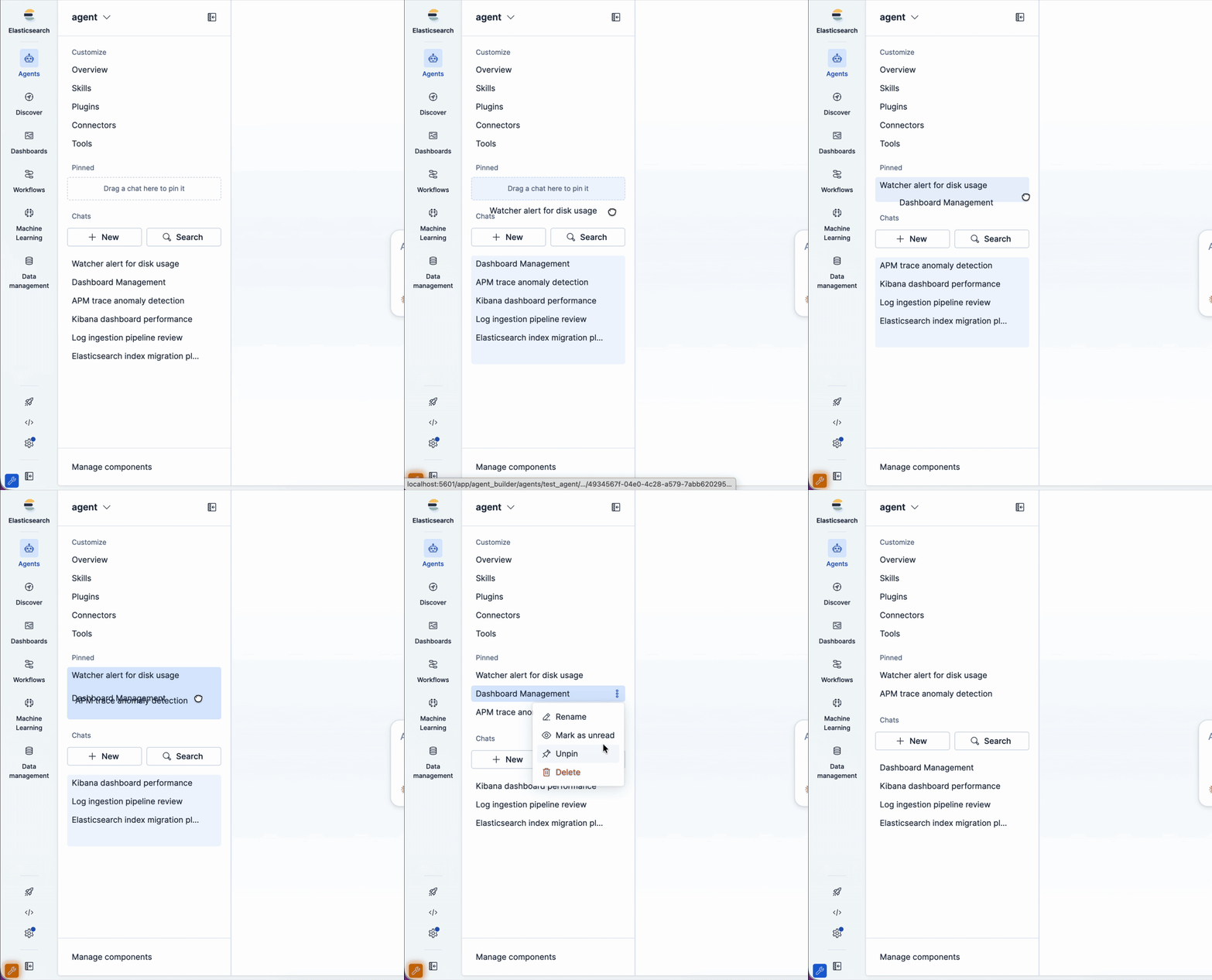
Pin conversations that you want to access quickly. Pinned conversations appear in the Pinned section above Chats and remain pinned after you reload the page.
You can pin or unpin a conversation in either of the following ways:
- Drag the conversation from Chats to Pinned to pin it. Drag it back to Chats to unpin it.
- Click the Open conversation menu icon , then select Pin or Unpin.
Conversations are private to you by default. As the owner of a conversation, you can share it with specific users or make it public. Users you share a conversation with can read its full history and continue it. For details about who can do what, refer to Conversation access control.
You can share a conversation in standalone mode only. The sharing button doesn't appear in sidebar mode.
To share a conversation:
- Open the conversation. The sharing button appears after you send the first message.
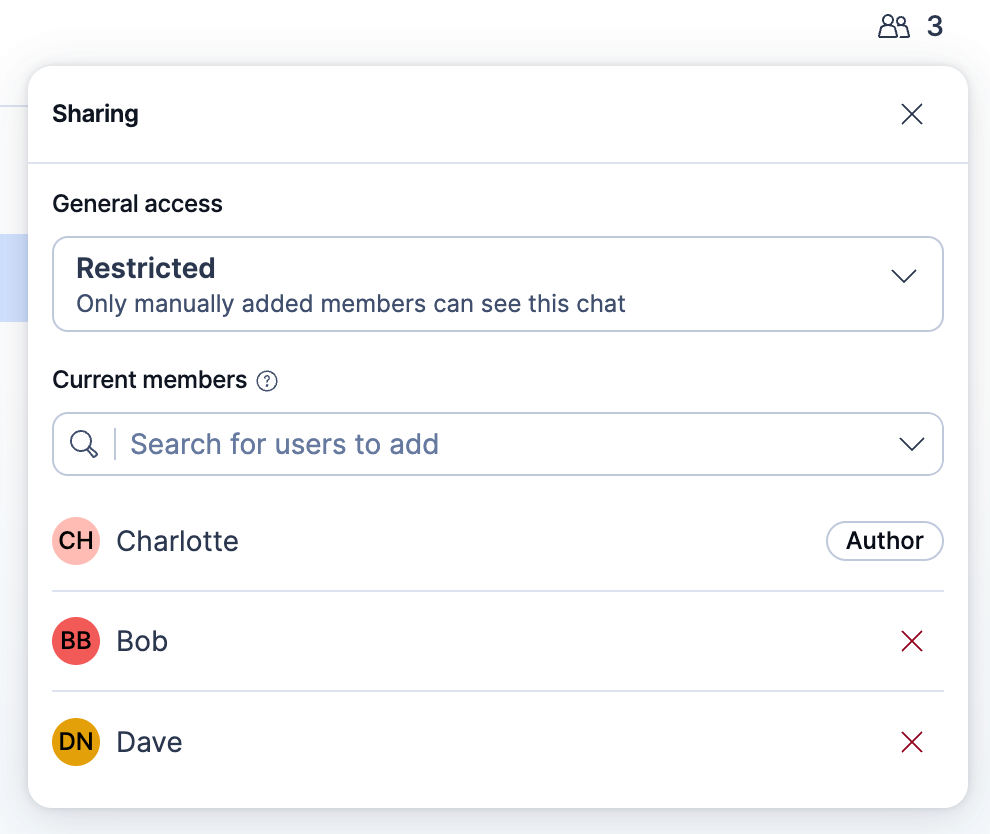
- In the conversation header, click the sharing button. It shows the icon and the number of users with access, including you.
- Under General access, select Restricted (the default) to share with specific users, or Public to share with any user who can access the conversation's agent.
- If you selected Restricted, enter a name in the Search for users to add field, then select a user. The user appears under Current members, listed alphabetically after you, the Author.
Your changes save immediately. If a change fails, the popover shows the error "Failed to update sharing settings" and reverts the change.
The user search includes users who can log in to the current space, but a member can open the conversation only if they can also access its agent. You can't add users who have never logged in to Kibana.
To remove a member, click the Remove member icon next to their name. Switching to Public removes all members, and switching back to Restricted doesn't restore them.
When a conversation is public, the sharing button shows the icon and Public.
The following example shows a restricted conversation shared with two users:
Conversations shared with you appear in the chat history panel with your own conversations, along with public conversations for agents you can access. The panel lists conversations for the selected agent only, so select the conversation's agent to find it. You can read the full history and send new messages.
Only the owner can add or remove members, change the access mode, rename the conversation, or delete it. A user whose role grants all Kibana application privileges, such as the superuser role or the Admin role in Serverless, can also rename or delete a public conversation they don't own. This doesn't give them access to private conversations. Like any other user, they can open a private conversation only if they own it or it's shared with them.
To view a conversation's details, click its title in the conversation header. Visibility shows Private if only the owner can access the conversation, Restricted if it's shared with specific users, or Public if any user who can access the agent can open it. In the sharing popover, both Private and Restricted conversations appear under Restricted, which the API calls private.
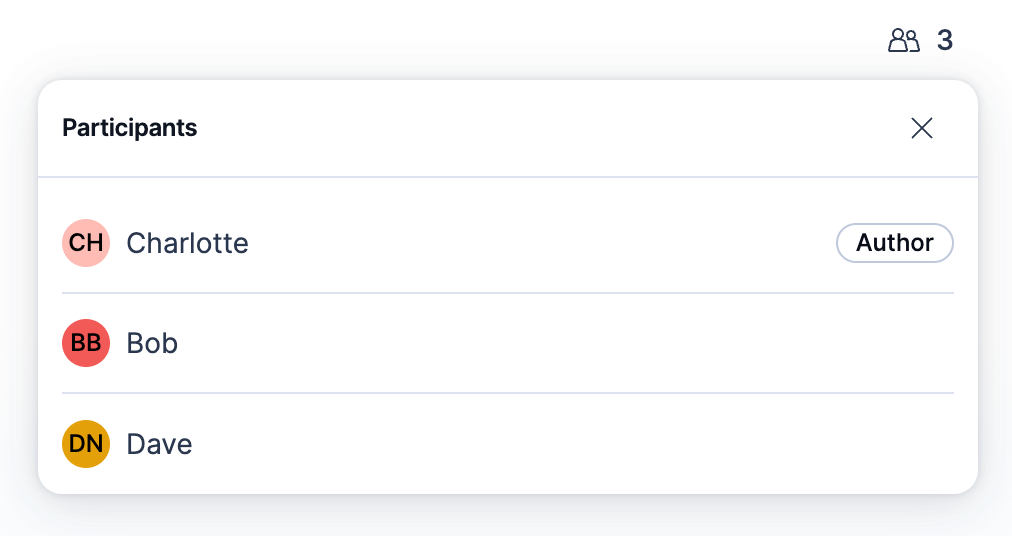
For a restricted conversation, click the sharing button to view the Participants list. Public conversations that you don't own don't show a sharing button. The following example shows the Participants list as a member sees it:
In a shared or public conversation, you can post a message for the other participants without asking the agent to respond. In the chat input, click Include agent, select Skip agent, then send your message. While Skip agent is selected, the input shows Leaving a post to the team and the model selector doesn't appear. The agent doesn't respond, but your message is saved to the conversation and included in the agent's context the next time it runs.
The selector appears only in shared and public conversations, for everyone who can open them. Your choice applies only to the current conversation. If a conversation stops being shared, new messages run the agent again.
The following example shows the chat input with Skip agent selected:

An open shared or public conversation refreshes about every five seconds, so messages from other participants appear shortly after they're sent, not instantly. It doesn't refresh while the browser tab is in the background.
The chat history panel doesn't refresh on a timer. A conversation that someone shares with you appears the next time the list refreshes, for example when you return to the browser tab or reload the page.
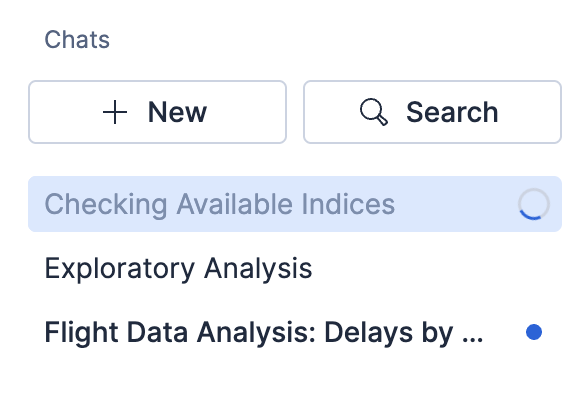
The chat history panel shows the status of each conversation at a glance, so you can keep track of what your agents are doing across conversations:
| Icon | Status | Meaning |
|---|---|---|
 |
In progress | The agent is generating a response. |
 |
Awaiting your input | The agent paused and needs you to respond before it can continue, for example to answer a human-in-the-loop prompt. |
 |
Unread | The agent finished responding in a conversation you weren't viewing. |
 |
Error
|
The agent stopped because of an error. |
For example, the following chat history panel shows one conversation in progress and another with unread activity:
Conversations run independently, so you can work in several at the same time: start an agent in one conversation, switch to another while the first keeps working, and come back later without interrupting either one. New conversations appear in the panel as soon as you start them, before the agent finishes its first response.
The agent's progress appears only in the chat where you sent the message or answered a human-in-the-loop prompt, and only while that chat stays open. The agent keeps working if you reload the page, close the sidebar, or open the conversation in another browser tab or in the other chat mode. In those cases, the conversation doesn't show In progress and doesn't update while the agent works. After the agent finishes, its steps and response appear when you switch back to that browser tab, reopen the conversation, or reload the page.
Inline reasoning events replace the Reasoning panel.
The agent runs tools in a loop until it achieves its goal or exceeds the maximum conversation length.
Tool call events show whether a tool is still running or has returned a response. How you inspect tool calls and reasoning depends on your version:
Each tool call shows the tool ID followed by its status: running…, ran, or stopped if the response stopped or failed before the tool returned. A tool call that returned an error appears in red.
When the agent runs two or more tools in a row, the chat groups them under a label such as 3 tools ran. Groups are collapsed by default. Expand a group to see its tool calls.
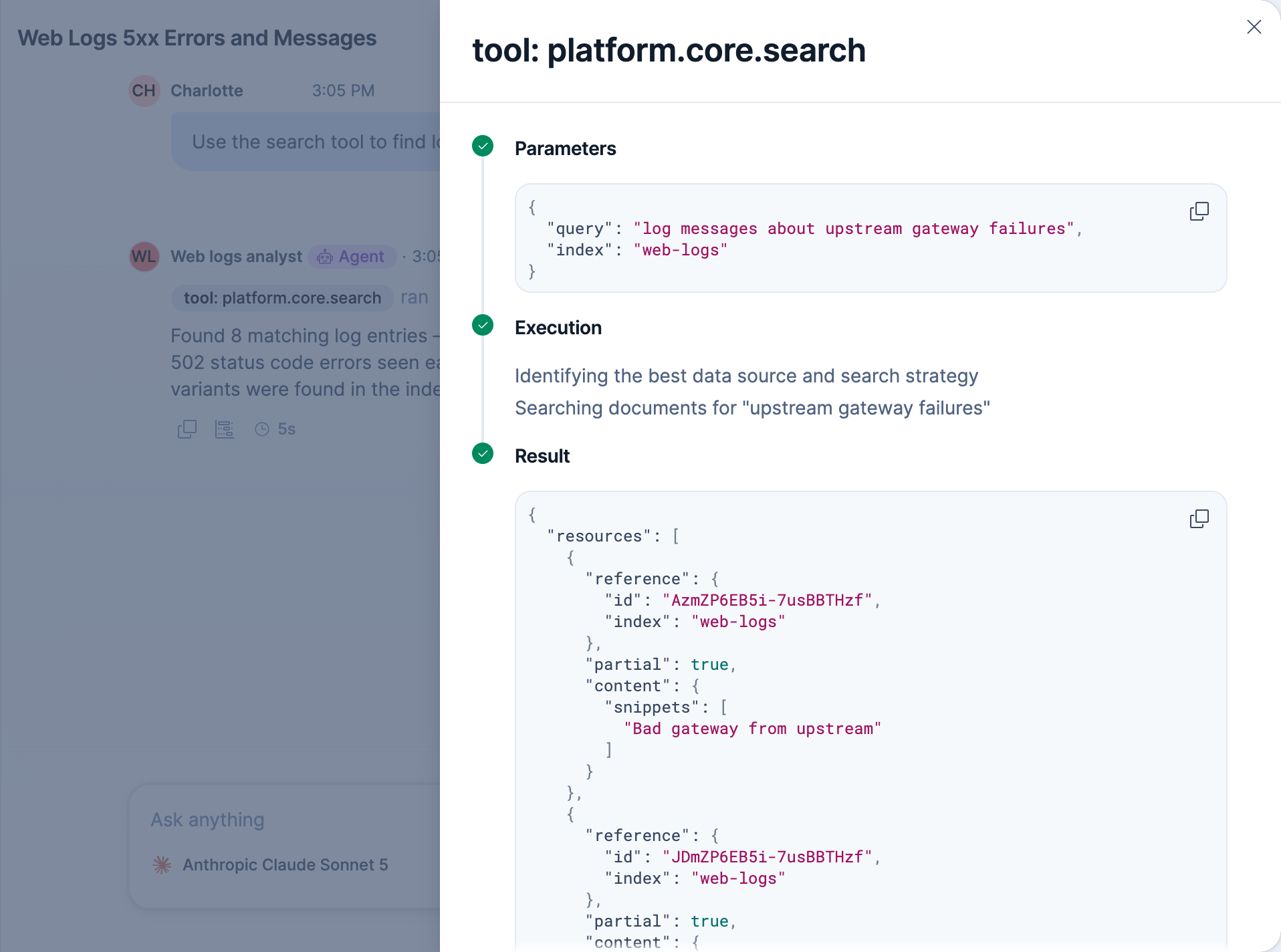
Select a tool call to open a flyout with its details. The flyout title shows the tool ID, and the flyout has the following sections:
- Parameters: The parameters the agent sent to the tool.
- Execution: Progress messages that the tool reported while it ran. This section appears only for tools that report progress and for sub-agent calls.
- Result: The tool's response, including any error. This section appears after the tool returns.
For example, the following flyout shows the details of a platform.core.search tool call:
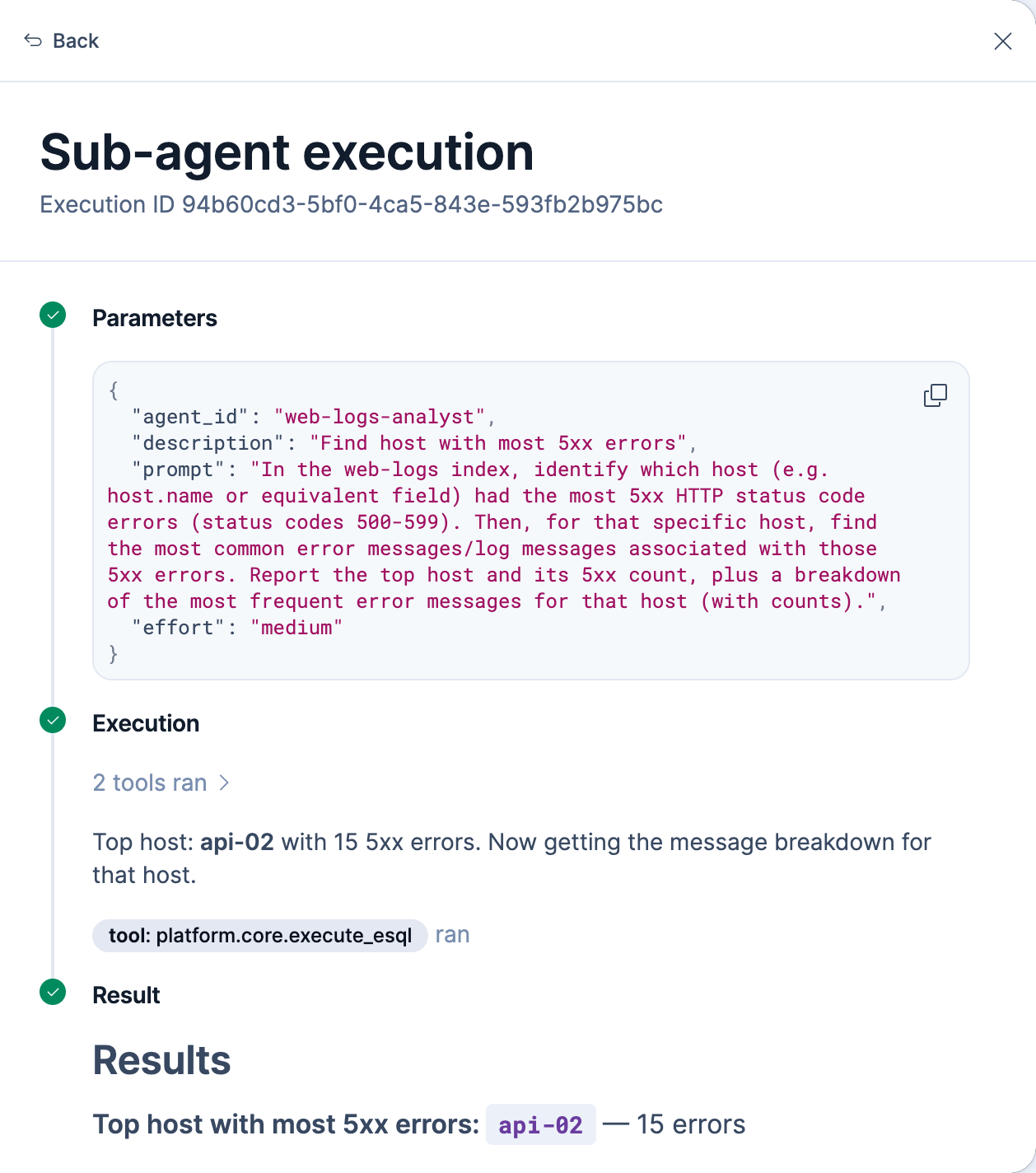
For a sub-agent call, the Execution section shows a Sub-agent execution link followed by the execution ID. Select the link to open the sub-agent's execution in another flyout, with its own Parameters, Execution, and Result sections. Its Execution section shows the sub-agent's reasoning and tool calls, and you can select a tool call to inspect it. Select Back to return to the previous flyout.
For example, the following flyout shows a sub-agent's execution, opened from a tool call's Sub-agent execution link:
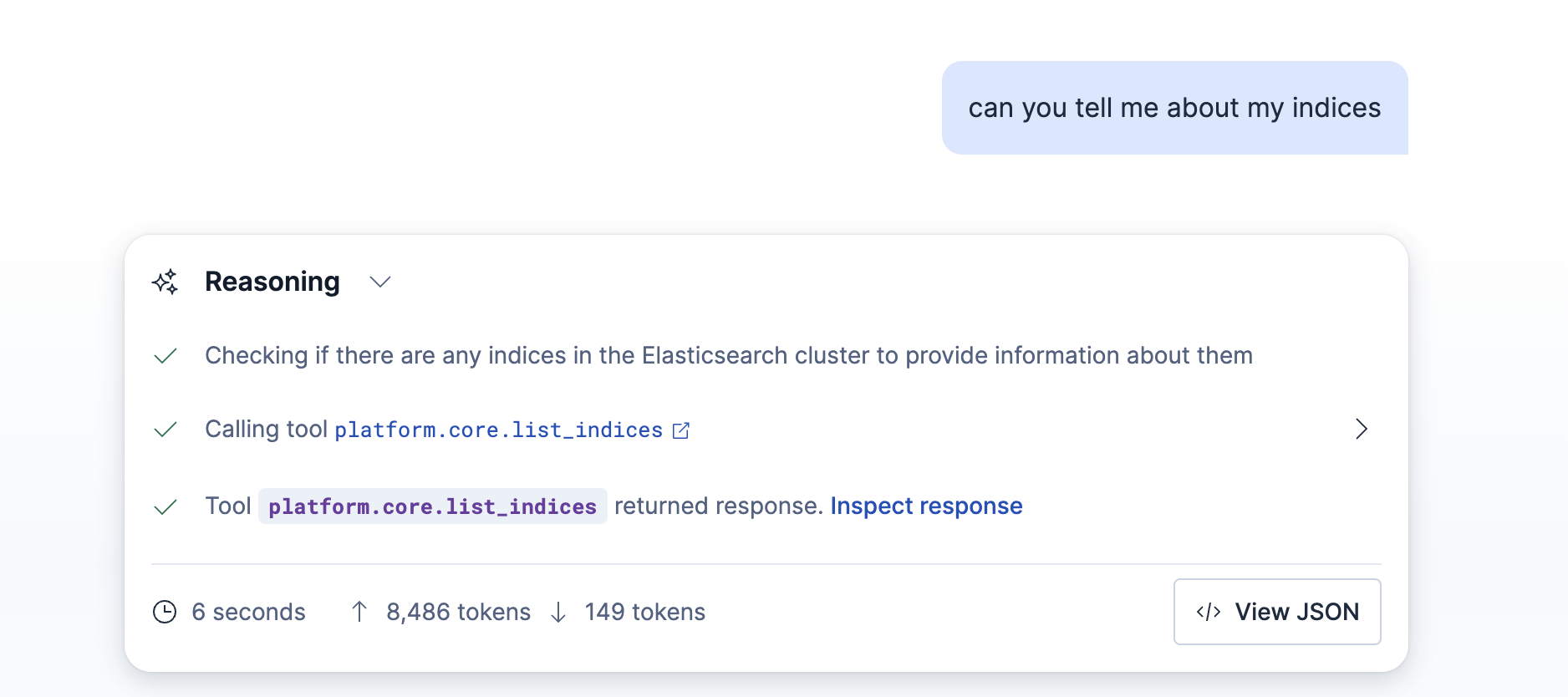
Expand a tool call to inspect Parameters sent and Response returned. Some results render inline; other results provide View JSON or View execution links for more detail.
For example, the following response shows inline reasoning events and tool calls:
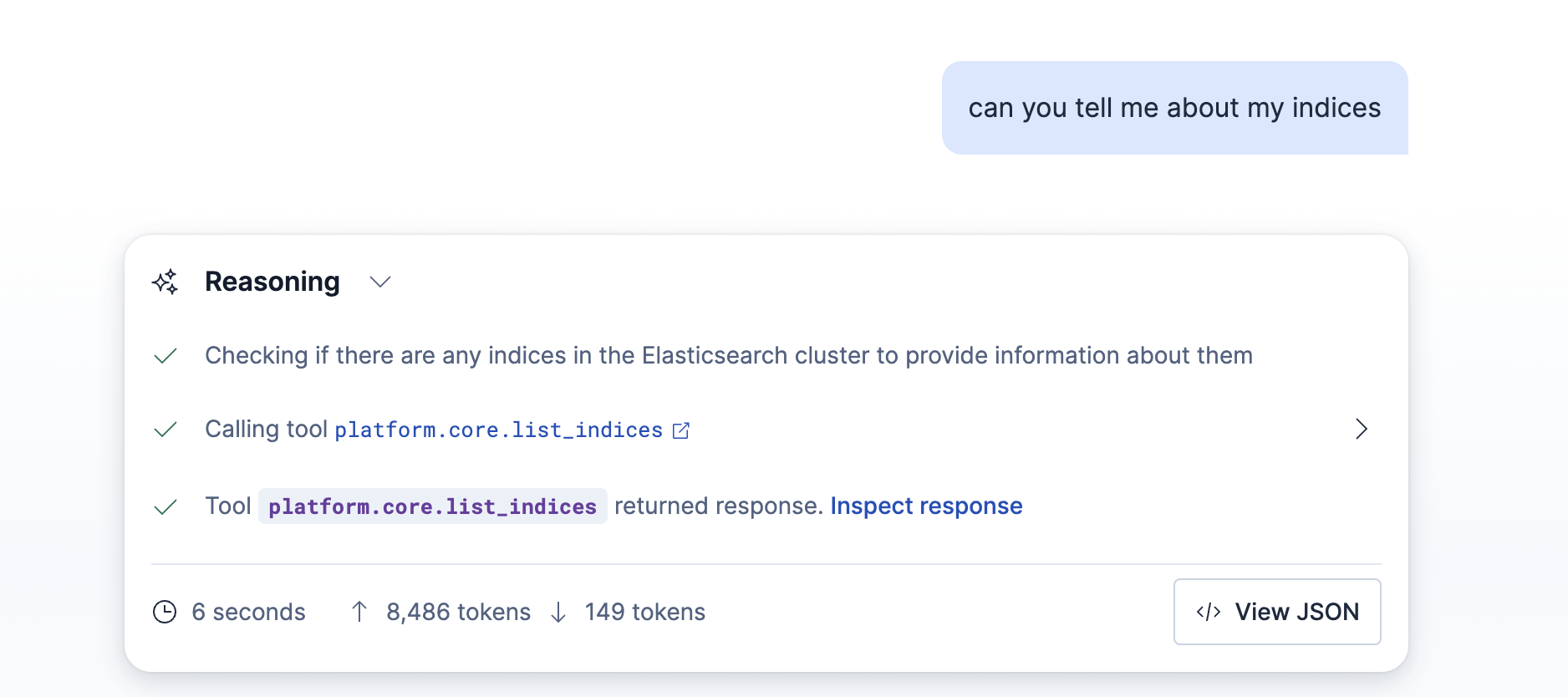
Select Completed reasoning in the agent's response to open the Reasoning panel. While the agent is still working, the label shows the agent's current step or Thinking…. The panel lists the agent's reasoning steps and tool calls in the order they happen.
- Expand a tool call to view the Parameters the agent sent.
- Generated ES|QL queries, query results, and errors appear in the panel. For other results, select Inspect response to open the tool response in a flyout.
- Select View JSON to inspect the raw response for the round.
For example, the following Reasoning panel shows a tool call with its Inspect response link:
To stop the agent while it responds, click the Stop icon in the chat input. Stop replaces the Submit icon after the agent starts working on your message.
Stop is available only in the chat where you sent the message or responded to a human-in-the-loop prompt, and only while that chat stays open. You can't stop a response that's already running if you:
- Reload the page.
- Close the sidebar or leave the standalone chat.
- Open the conversation in another tab or chat mode.
- Didn't start the response yourself, for example in a shared conversation.
When you stop a response, the conversation keeps your message, its attachments, and the steps the agent has taken so far, but discards any partial answer. Your message doesn't return to the chat input.
The end of the response shows why it ended:
- Response stopped by and a user name: That user stopped the response.
- Response stopped: Kibana stopped the response, for example because it ran for more than 20 minutes.
- An error occurred: An error interrupted the agent. Select it to expand the error details.
Stopped and failed responses:
- Stay in the conversation when you reload the page or open another conversation.
- Don't include the Copy response icon, the response metadata menu, or the View Trace icon.
- Can't be retried. To try again or change your request, send a new message. The agent can see the steps and any error from the stopped or failed response.
Agents can call Elasticsearch and Kibana APIs through the built-in HTTP API tools. When API discovery is off, an agent can call only operations whose identifier it already knows. To have the agent use a specific operation, include the operation's identifier in your message. For example:
Use the indices.get_mapping Elasticsearch API to show the mapping of the logs-web index.
Each conversation round can record OpenTelemetry traces of how the agent ran. To inspect them, select the View Trace icon on the round. A Trace flyout opens with a waterfall of the round's spans, including model calls and tool calls.
The flyout is titled with the trace id and reports the span count and total duration. Each row in the waterfall shows the span's kind and duration, and model calls also show their input and output token counts.
Select a span to open its details, including its generative AI attributes and any captured input and output. Message content appears only when the matching trace privacy settings are on. Otherwise the span reports that no input or output data is available.
The View Trace icon appears only when trace collection is enabled and the conversation round has a trace. If trace collection is off, or the round produced no trace, the icon doesn't appear.
To learn how traces are collected, configured, and secured, refer to Collect agent traces.
At certain points an agent pauses and hands control back to you before it continues. This pattern is known as human-in-the-loop (HITL). While a conversation is paused this way, it shows an Awaiting your input status in the chat history panel.
Elastic Agent Builder uses different prompts depending on why the agent needs your input:
| Prompt | When it appears | Available responses |
|---|---|---|
| Tool confirmation | A tool or skill requires approval before it performs an action | Confirm the action or deny it |
| Connector authorization
|
An external connector needs access to continue | Authorize access or deny it |
| Clarifying question
|
The agent needs more information to continue | Answer or skip the question |
HITL prompts do not replace role-based access control or grant additional privileges. Actions still run with your existing permissions.
HITL prompts require an interactive conversation, so sub-agent executions cannot answer them.
Some tools and skills pause for confirmation before they perform consequential actions. Elastic-built tools and skills decide for themselves when to ask.
For custom tools, you decide when the agent asks: set Require user confirmation to Never, Once, or Always.
What the prompt shows depends on the tool:
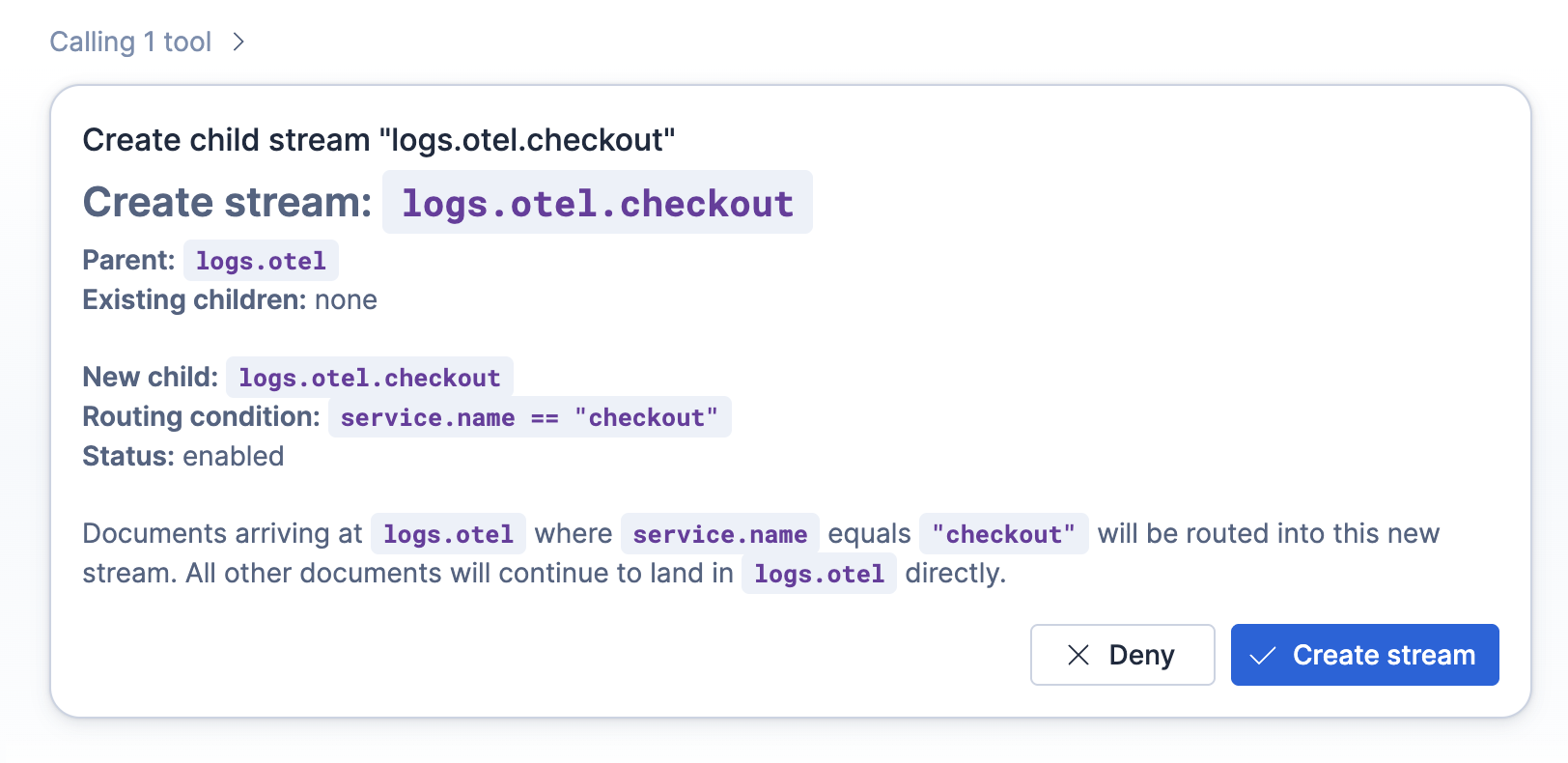
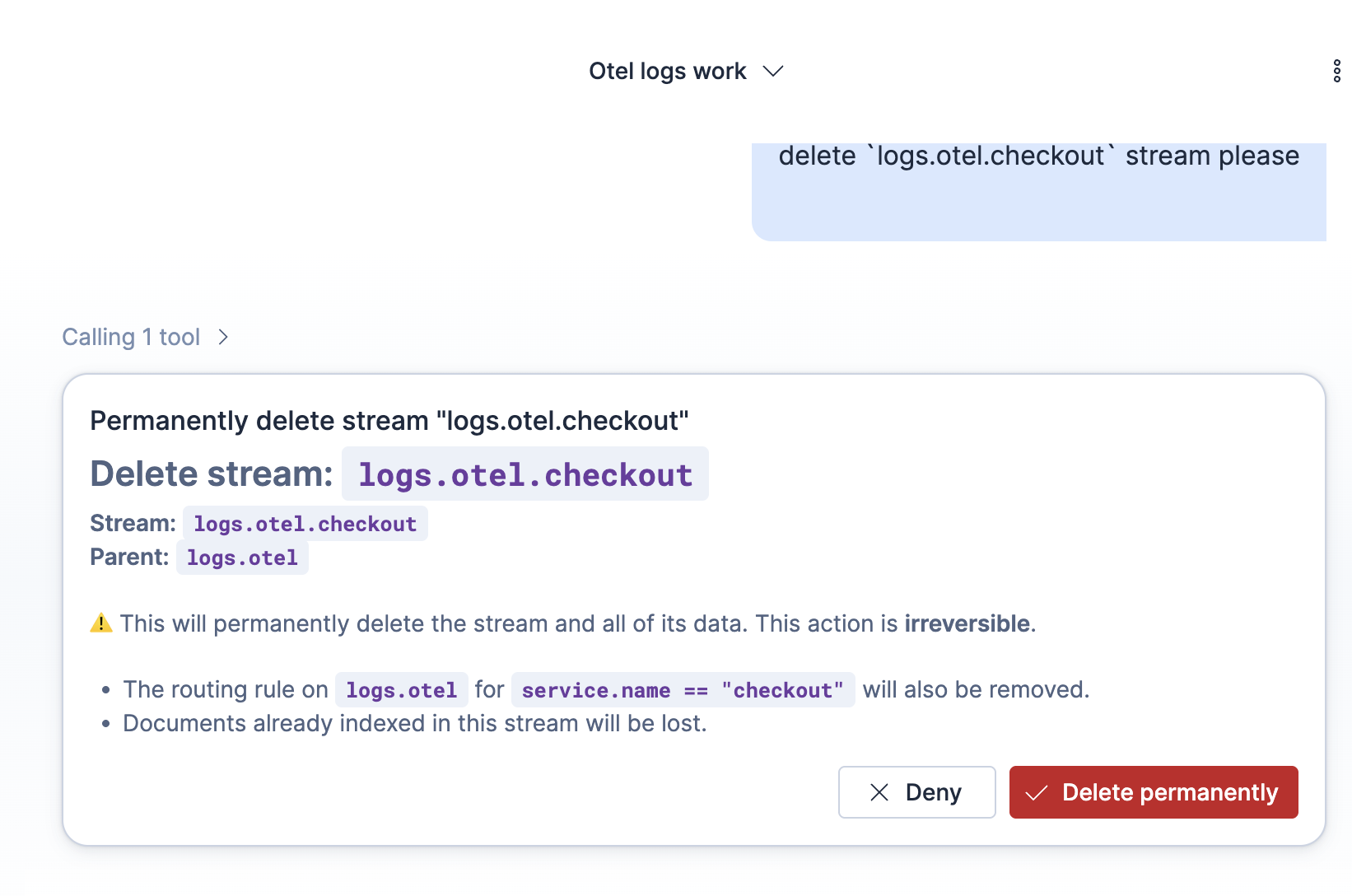
- Some Elastic-built tools and skills preview the change before it takes effect. The preview format and the button labels depend on the tool or skill: a prompt to delete a stream offers Delete permanently, and a prompt to create one offers Create stream. Review the preview, then confirm the action to proceed or deny it to cancel.
-
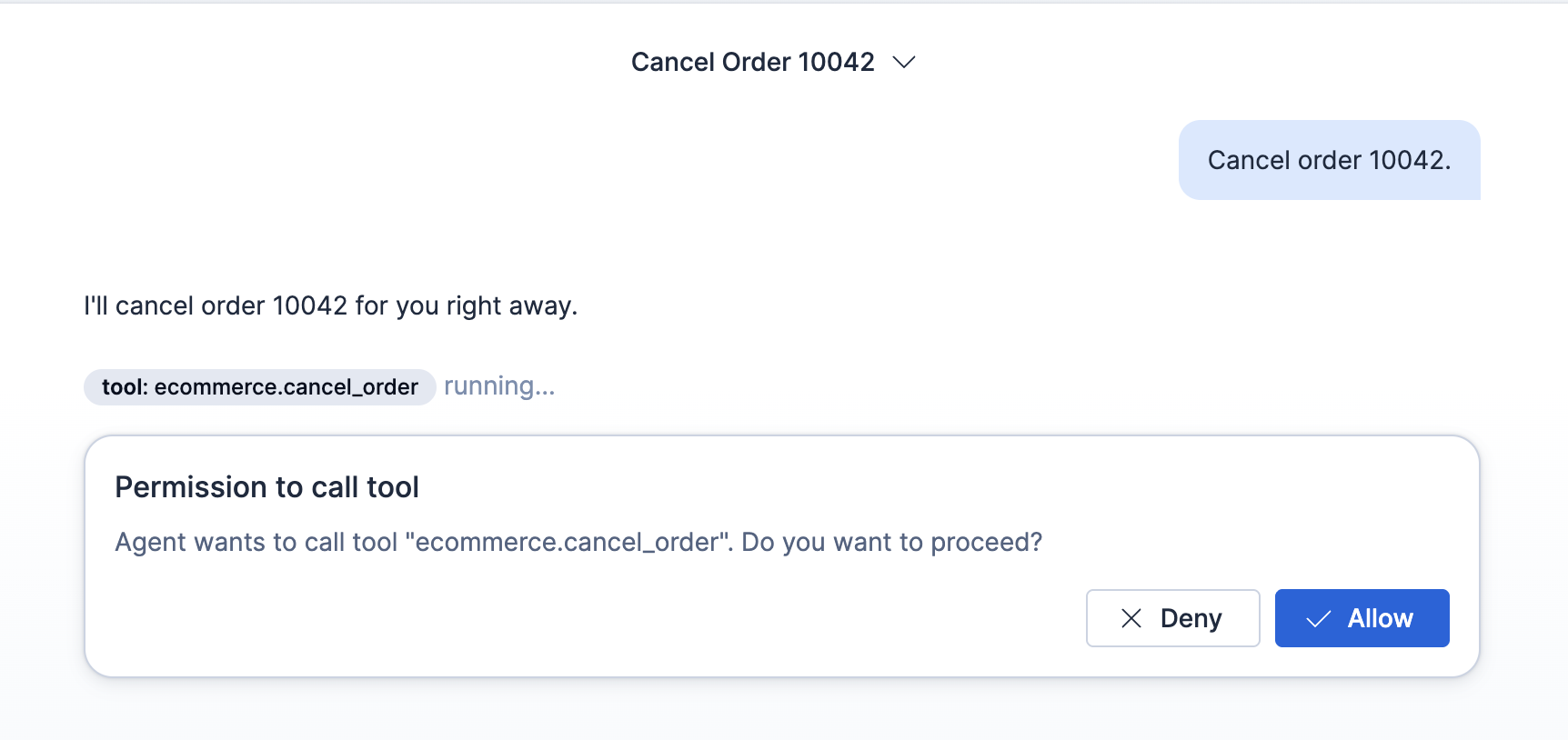
The built-in execute_apitool shows an API confirmation prompt. Refer to Confirm an API operation. - Other tools, including all custom tools, show a generic prompt that names the tool and asks whether to proceed. Select Allow to proceed or Deny to cancel. The prompt identifies the tool by its ID and doesn't show the parameters that the agent passes to it, so give custom tools descriptive IDs.
For example, when an agent updates a workflow, it shows the proposed change as a diff and waits for you to review it before applying:
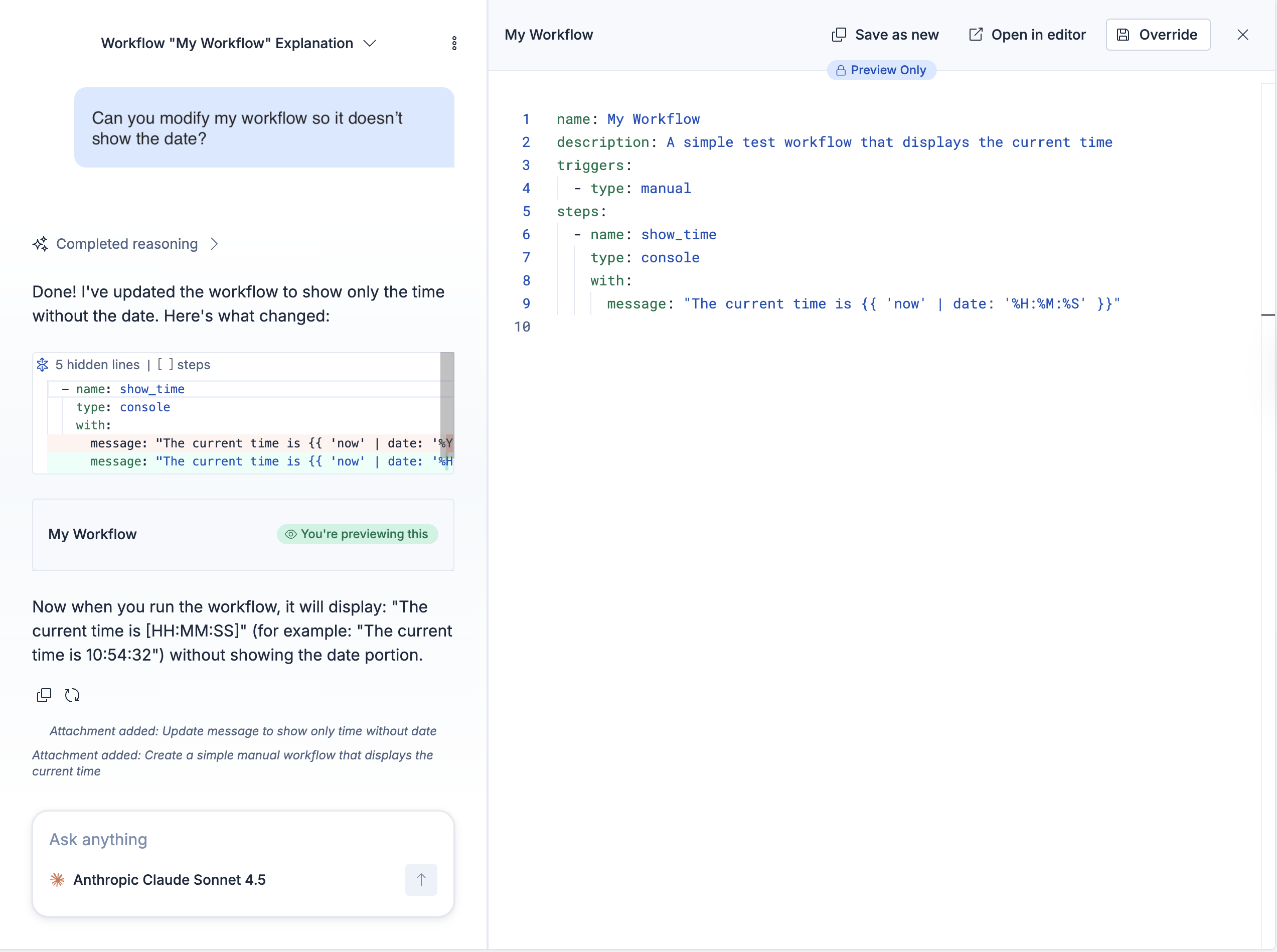
The Streams management skill also previews the proposed configuration when it creates a stream:
For irreversible actions, the prompt highlights the consequences before you proceed:
Custom tools show the generic prompt instead. Here, a tool that cancels an order asks for permission before it runs. The prompt names the tool but not the order:
The built-in execute_api tool asks for confirmation before each call to an Elasticsearch or Kibana API operation that can change or delete existing data, unless the agent auto-approves the operation.
Whether you see a prompt depends on the operation, not on its HTTP method:
- Most write and delete operations require confirmation, including bulk indexing, document updates, and index deletion.
- Read operations, including searches, run without a prompt.
- Some operations that only create something new also run without a prompt, such as creating an index or an API key.
The prompt shows the HTTP method, path, and whether the call goes to Elasticsearch or Kibana. It doesn't show the request body.
Select Approve to proceed or Deny to cancel the call. Approving one call doesn't approve later ones.
A parent agent can also ask you to approve operations before starting a sub-agent. For approval scope and what happens when no one can respond to a prompt, refer to Human-in-the-loop limitations.
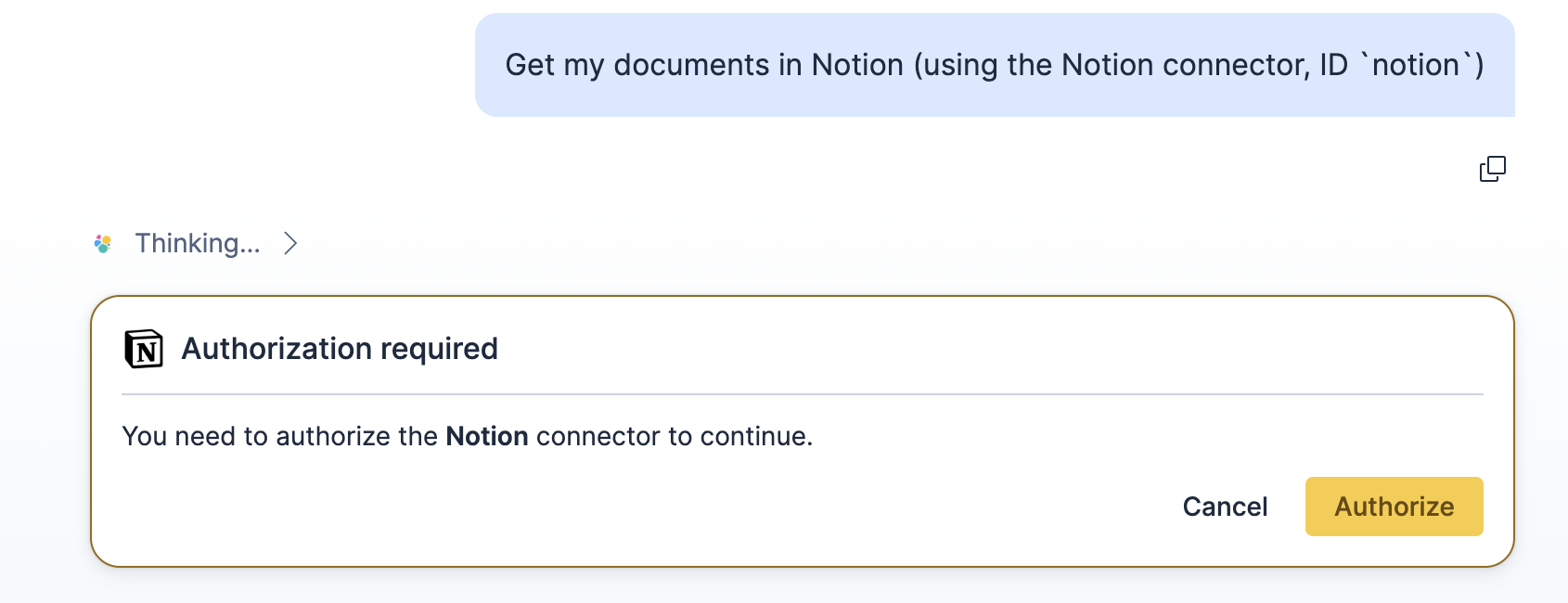
When an agent uses a connector to reach an external service that requires authorization, the chat pauses so you can grant access. Select Authorize to complete the sign-in flow for the connector, or Deny to decline. After you authorize, the agent retries the tool call and continues.
For example, an agent that needs to read your Notion workspace pauses until you authorize the connector:
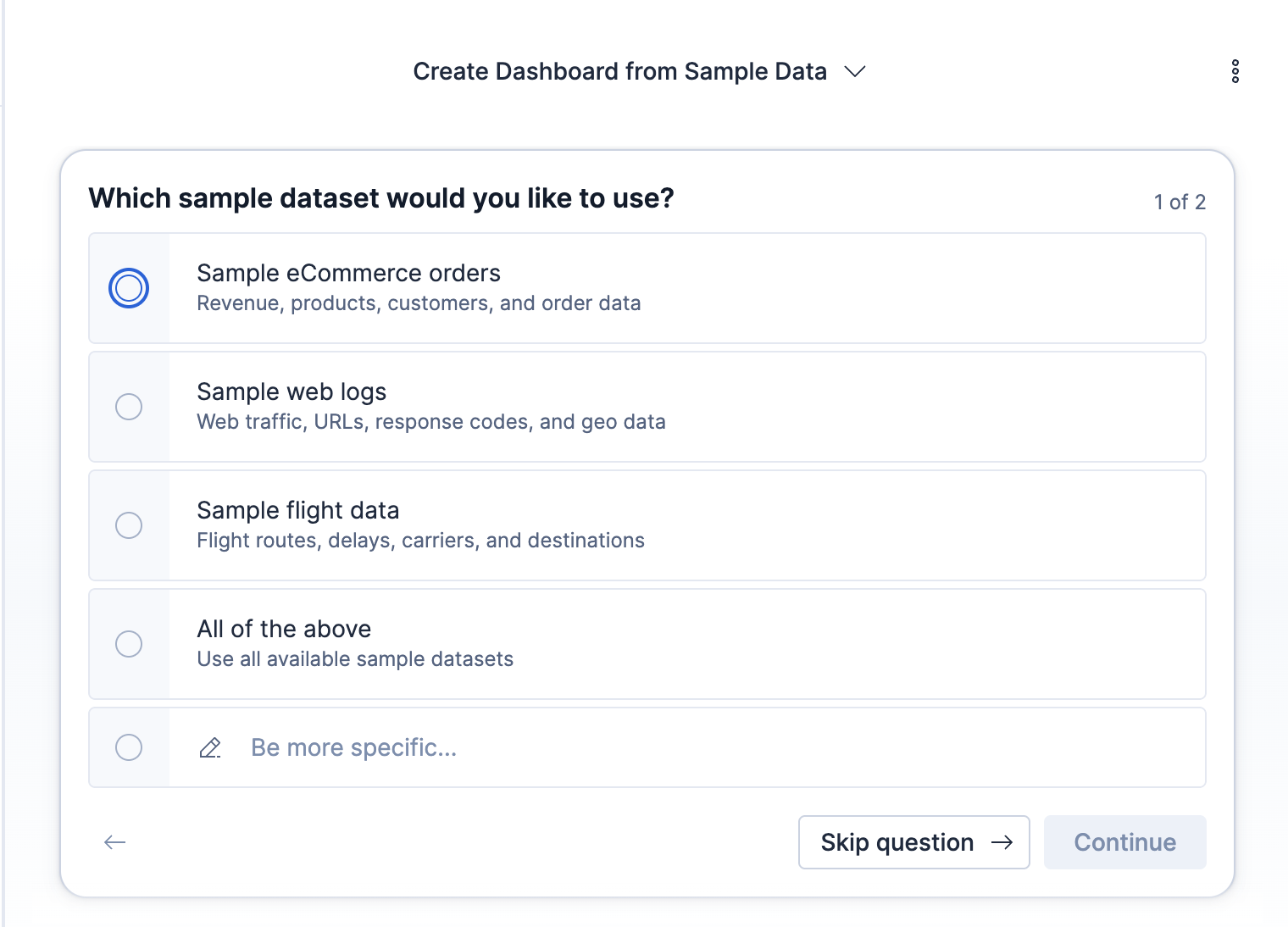
When your request is ambiguous, an agent can pause and ask you up to five multiple-choice questions instead of guessing. For each question, select one of the options, or choose the custom option and type your own answer. Some questions let you select more than one option. To move on without answering, select Skip question.
When there's more than one question, use Back and Continue to move between them, then select Submit on the last question. After you respond, the agent resumes. The agent's questions and your answers stay in the conversation, so you can revisit what was asked and how you responded.
For example, before creating a dashboard the agent might ask which sample data set to use:
In addition to answering questions and analyzing data, agents can help you create reusable skills and Elastic Workflows without leaving the conversation. Describe what you want to build in natural language:
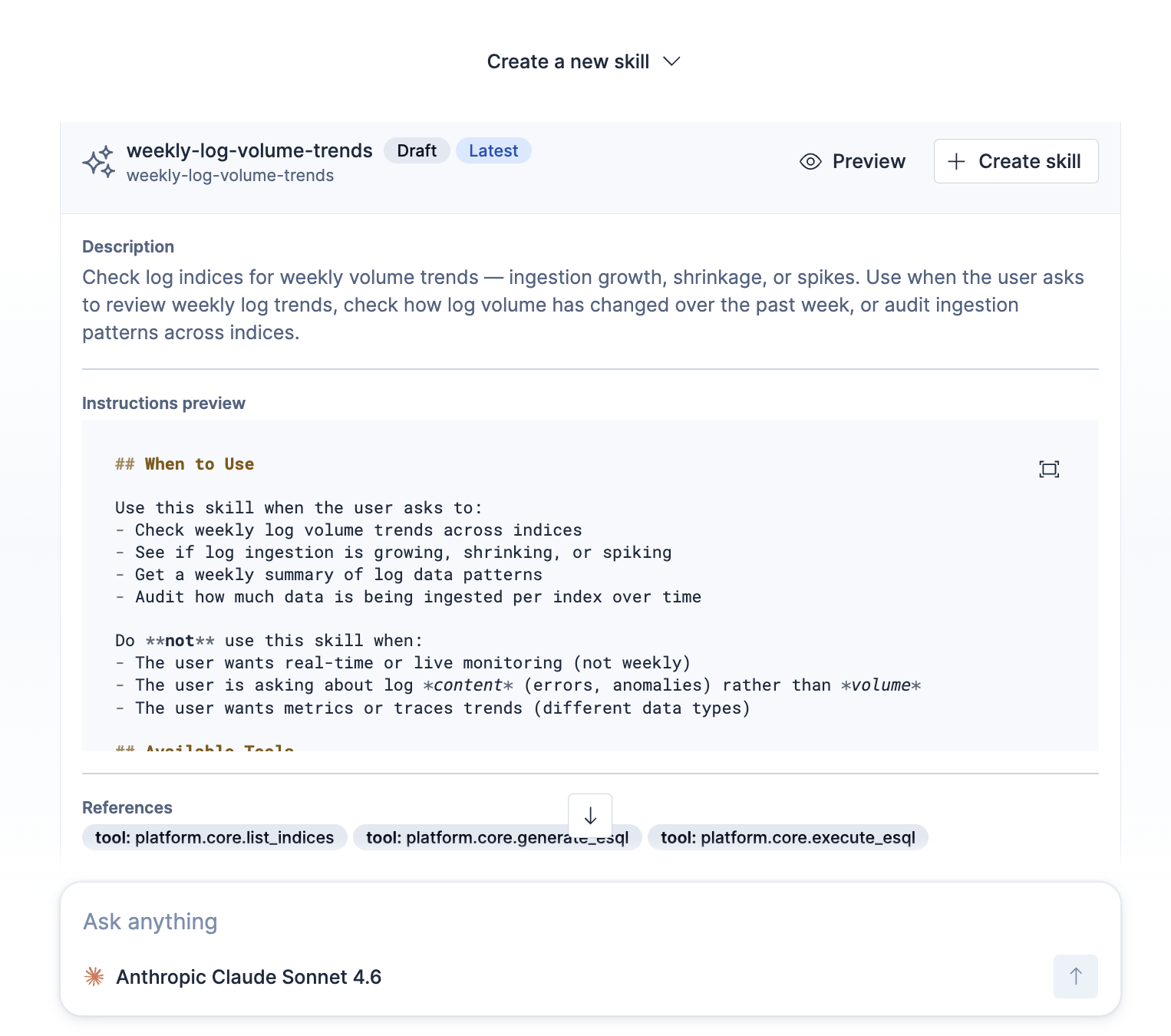
- Skills: For example, "Create a skill that handles production alerts using our incident runbook."
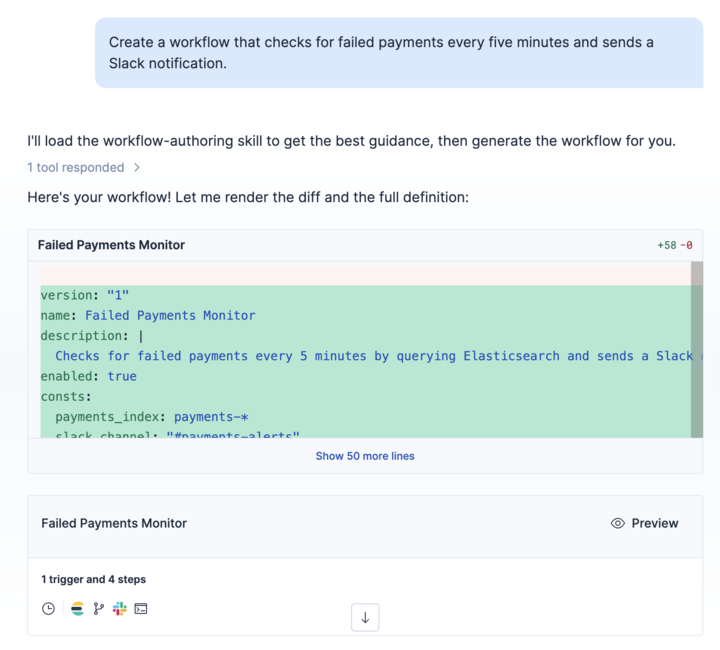
- Workflows: For example, "Create a workflow that checks for failed payments every five minutes and sends a Slack notification."
Creating a resource from chat is a human-in-the-loop process:
The agent gathers the requirements from your request. If important information is missing or ambiguous, it pauses to ask clarifying questions.
The agent generates a draft and presents it in the conversation. You can review the configuration and ask for changes in natural language.
When the draft is ready, confirm creation from the preview:
- For skills, select Create skill.
- For workflows, select Preview, review the definition, then select Save. If you are replacing an existing workflow, select Override.
The resource is not created until you complete this step.
When you create a workflow, include details such as its trigger, inputs, data sources, conditions, and connectors. The agent asks for any missing information, generates and validates the workflow YAML, and shows the proposed changes for you to review. You can continue refining the draft in the conversation before you open the preview.
For example, the following response includes the generated workflow definition and a summary of its trigger and steps. Select Preview to review and save the workflow:
For example, the following preview shows a skill draft that you can review before selecting Create skill:
You need the same privileges that are required to create the resource in its management UI. For resource-specific fields, limitations, and alternative creation methods, refer to:
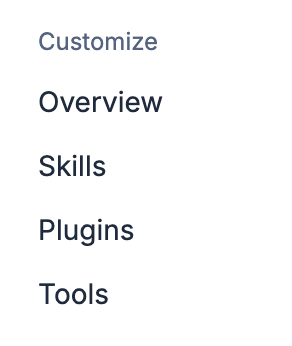
The Customize accordion in the left sidebar provides agent-scoped configuration for the currently selected agent. Expand it to access the following pages:
- Overview
-
Displays a summary of the selected agent, including the total count of assigned skills and tools. Use the quick links to edit the agent's instructions or settings. The page also shows a row of agent metadata that includes the agent's ID, followed by the access control level for custom agents or a Read-only badge for built-in agents. Select the copy icon to copy the ID.
The row begins with Created by and, when available, Updated by. These values correspond to the Created by and Last updated by columns in the agent list. If a timestamp is available, a relative time is shown. Point to or focus on it to view the exact date and time. Created by displays Unknown if no creator was recorded. - Skills
- Lists the skills assigned to the current agent. Click a skill to open a read-only detail panel on the right side. To assign new skills, click Add skill. To view and manage all skills across the deployment, click Manage all skills. Skills you import into the library must be turned on with their toggle in this list before the agent can use them. For how skills work and how to manage them, refer to Skills in Elastic Agent Builder.
- Plugins
- Lists the plugins assigned to the current agent. Each plugin bundles a set of related skills that install together. To assign a plugin, click Add plugins. To view and manage all plugins, click Manage all plugins.
The Plugins option is hidden until you turn on the agentBuilder:experimentalFeatures advanced setting in Kibana.
- Tools
- Lists the tools assigned to the current agent. Click a tool to open a read-only detail panel. To assign new tools, click Add tool. To view and manage all tools, click Manage all tools.
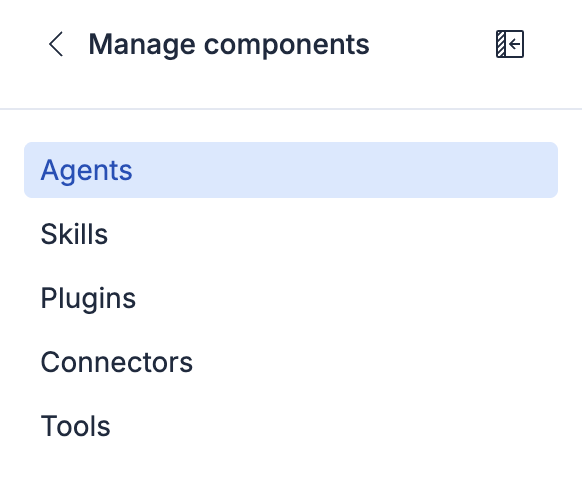
The Manage components link at the bottom of the left sidebar exits the single-agent view. It provides an overview of all agents, skills, plugins, connectors, and tools available across the deployment.
- Agents
-
View all agents available in the current Kibana space. The list displays each agent's name and access control level (Public, Shared, or Private), a Read-only badge for built-in agents, and any labels. From this page, you can create new agents, edit existing ones, or start a chat.
Agents that individual users have been granted access to also show a badge with the number of those users. The list also includes Created by and Last updated by columns. When available, each column displays the user's name and a relative time, such as 3 months ago. Point to or focus on the relative time to view the exact date and time. If the user's full name is unavailable, their username appears instead. The default agent and other agents installed automatically by Kibana display Elastic. Read-only built-in agents display a dash in both columns because no creator or editor is recorded for them. If only one value is recorded, only the corresponding column displays a value. - Skills
- View and manage all skills available in the deployment. Create new skills or edit existing ones.
- Plugins
- View and install plugins across the deployment. Install a plugin from a URL or by uploading a ZIP file. Each plugin bundles related skills that you can assign to agents.
The Plugins option is hidden until you turn on the agentBuilder:experimentalFeatures advanced setting in Kibana.
- Connectors
- View and manage the Elastic Agent Builder connectors library, which gives agents access to external data sources and systems.
To let an agent use a connector, assign it to the agent.
The Connectors option is hidden until you turn on the agentBuilder:experimentalFeatures advanced setting in Kibana.
- Tools
- View and manage all tools. The global Tools page includes a search bar, Labels filter, Manage MCP dropdown, Manage agents link, and + New tool button.
You can also reach the global agents list from the Manage agents button in the agent selector dropdown.
Agents can create and manage dashboards and visualizations directly in the conversation. To learn more, refer to Dashboards and visualizations in chat.
The Agent Chat API provides programmatic access to chat functionality through REST endpoints.
For a quick overview of the REST API for conversations, refer to Chat and conversations API.
For the complete API reference, refer to the Kibana API reference.