Region and hosting
EIS is available to all Elastic customers in all regions on Elastic Cloud Serverless, Hosted, and also via Cloud Connect. This page lists the AWS, Azure, and GCP regions where Elastic Inference Service (EIS) is currently deployed and explains how inference requests are routed.
AWS:
ap-northeast-1(Tokyo, Japan)ap-southeast-2(Sydney, Australia)ca-central-1(Montreal, Canada)eu-central-1(Frankfurt, Germany)eu-central-2(Zurich, Switzerland)eu-west-2(London, UK)us-east-1(N. Virginia, US)us-west-2(Oregon, US)
Azure:
eastus(Virginia, US)
GCP:
asia-southeast1(Singapore)europe-west1(Belgium)us-east4(N. Virginia, US)
All inference requests sent through EIS are routed to the nearest region, regardless of where your Elasticsearch deployment or Serverless project is hosted. For deployments and projects in an EU region, we will route to the nearest EIS presence in an EU region.
Depending on the model being used, request processing can involve Elastic inference infrastructure and, in some cases, trusted third-party model providers. For example, ELSER and Jina requests are processed entirely within Elastic inference infrastructure. Other models, such as large language models or third-party embedding models, can involve additional processing by their respective model providers, which can operate in different cloud platforms or regions.
Region preferences let you restrict where EIS processes inference requests. Use them when your organization needs inference to stay within approved geographies for compliance or data residency.
You can express preferences in one of two ways:
- Geographies: Broader geographic areas, such as North America.
- Regions: Specific cloud service provider regions, for example US East (N. Virginia) - AWS.
You must choose either geographies or regions. The two modes are mutually exclusive.
When no region policy is configured, EIS uses the default nearest-region routing described on this page.
After you save a region policy:
EIS routes inference requests only to locations that match your allowed geographies or regions.
EIS does not silently fall back to a disallowed region during outages or capacity events.
Models that aren't available in any of your allowed locations become unavailable for use. In model details, check the Regions field to see where each model can run.
By default, the models list on the Elastic Inference Service page hides models that aren't available in your allowed locations. To show them, refer to Show models that are hidden by default. If a request targets a model that isn't available in your allowed locations, inference fails with a
403error that includes:Requested model is not available in the allowed inference regionsIf you try to save a policy that would deny access to inference endpoints that are already in use by ingest pipelines or indices, Elasticsearch rejects the change with a conflict error.
Changing region preferences affects all Elastic Inference Service endpoints across all spaces. Before you save, check Regions in the details for any models you rely on. Models that aren't available in your allowed locations become unavailable.
To open Elastic inference, you typically need the Inference Endpoints: all and Advanced Settings: read Kibana privileges.
To load and save region preferences, you also need the manage_inference Elasticsearch cluster privilege.
If you can't edit region preferences, you can still check the current policy. When a region policy is set, select the Restricted regions badge in the header of the Elastic Inference Service page to see which geographies or regions it allows.
The Region preferences dialog lists only the geographies and regions currently available for your deployment. It can show fewer options than the full EIS hosting list on this page.
To open the dialog, go to the Elastic Inference Service page by using the navigation menu or the global search field, and then select Region preferences.
Turn on Use custom region policy.
Select Geographies or Regions, then select the locations to allow:
- Geographies: Allows all current and future regions in each geographic zone you select.
- Regions: Allows only the cloud provider regions you select.
Select Save.
In Review region preferences, check the allowed geographies or regions under Pending changes.
Select Save policy.
If the policy would deny access to in-use inference endpoints, Review region preferences stays open and shows a Policy could not be saved message. To save the policy anyway, select Ignore inference endpoint errors with affected models, and then select Save policy. Ingest or index operations that use endpoints for models outside the selected locations then fail.
Turn on Restrict inference to specific locations.
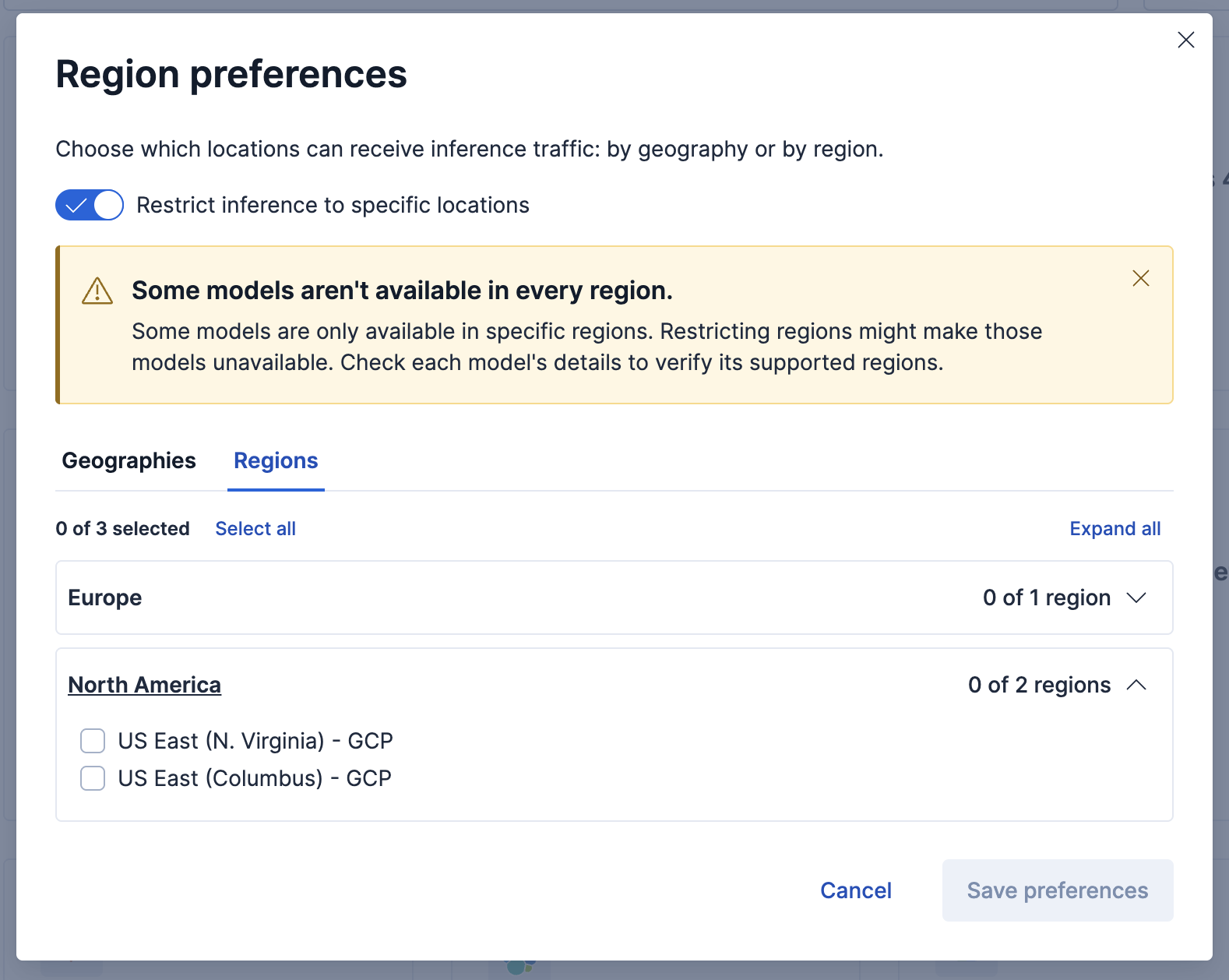
Choose a mode:
- Geographies: Select one or more geographic areas.
- Regions: Expand a geography and select one or more cloud provider regions.
Select Save preferences.
In the confirmation dialog, review your pending allowed geographies or regions.
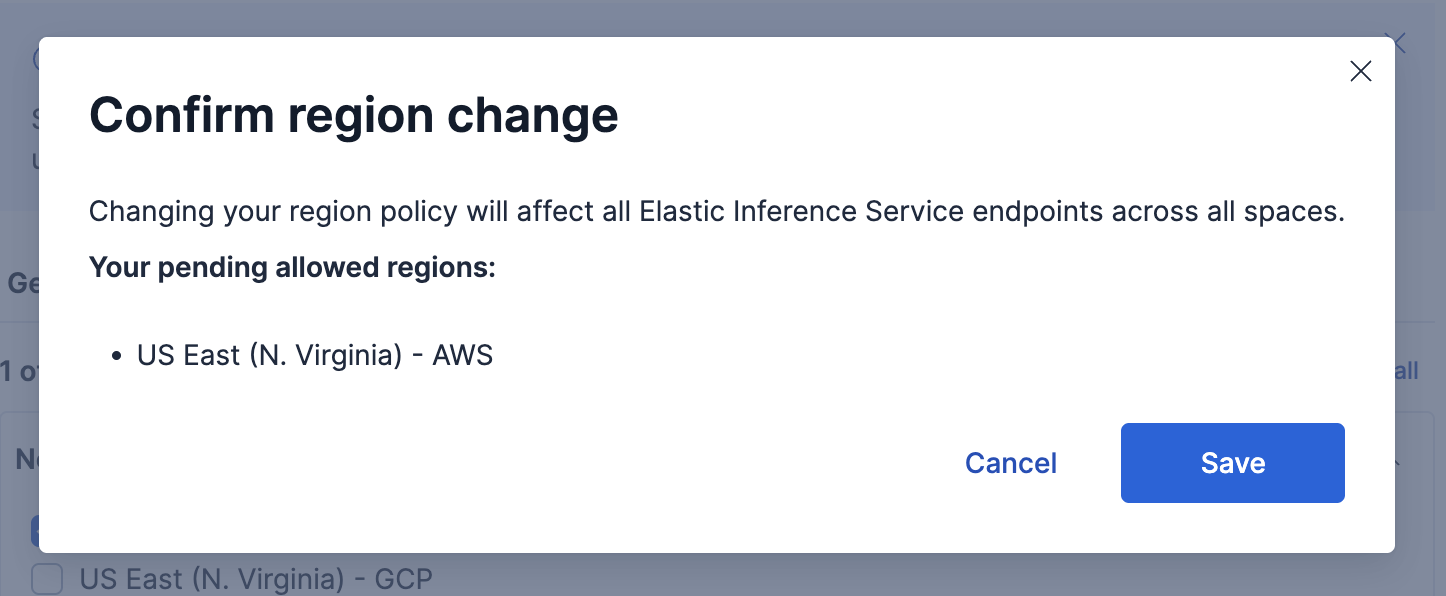
- Select Save.
If the policy would deny access to in-use inference endpoints, Kibana blocks the update and shows Region policy update blocked.
When the update succeeds, Kibana shows the Region preferences saved message.
Open Region preferences.
Turn off Use custom region policy (or Restrict inference to specific locations in earlier versions).
Select Save (or Save preferences in earlier versions).
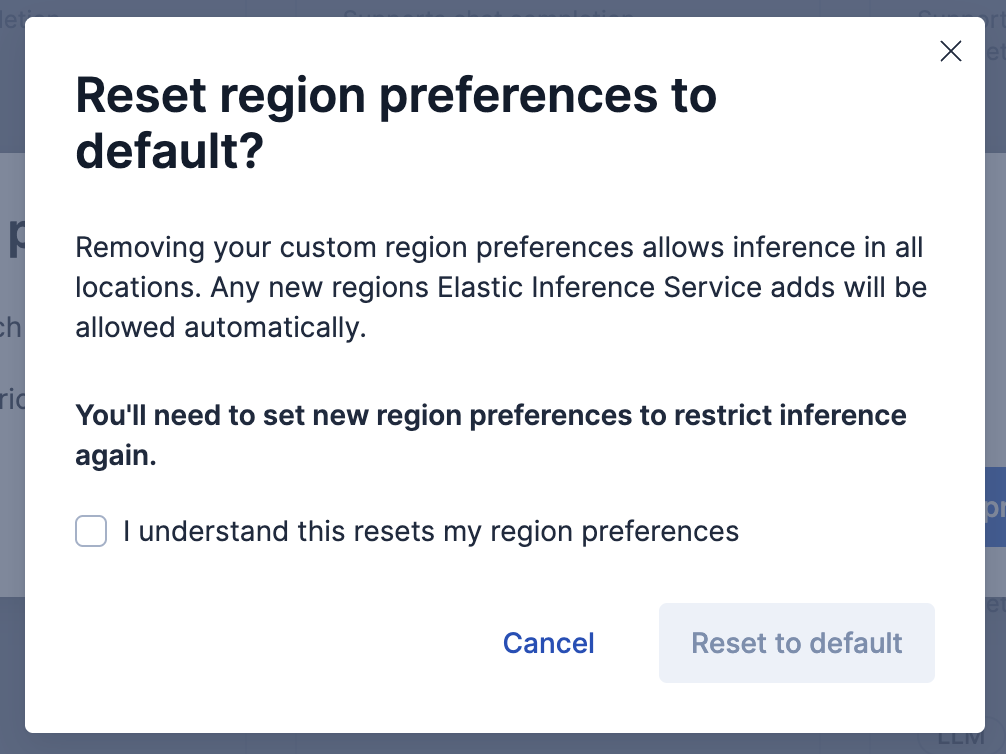
Select I understand this resets my region preferences in the Reset region preferences to default? dialog.
Select Reset to default.
You can also manage the region policy with the Elasticsearch Inference APIs.
These APIs require the manage_inference cluster privilege to create, update, or delete a policy, and monitor_inference to retrieve it.
To allow specific geographies:
				PUT _inference/_region_policy
					{
  "region_policy": {
    "allowed_geos": ["us", "eu"]
  }
}
Supported geography codes include us, eu, and apac.
To allow specific cloud provider regions:
				PUT _inference/_region_policy
					{
  "region_policy": {
    "allowed_regions": [
      { "csp": "aws", "region": "us-east-1" },
      { "csp": "gcp", "region": "europe-west1" }
    ]
  }
}
If the new policy would deny access to inference endpoints that are currently referenced by ingest pipelines or indices, the request fails with a conflict (409) error similar to:
Cannot put the region policy because it would deny access to the following in-use inference endpoints: <endpoint-ids>. Ensure that these inference endpoints are not in use, or use force to ignore this warning and proceed anyway.
Resolve the conflict by removing those endpoint references first, or use the force parameter on the create or update inference region policy API if you intentionally want to apply the policy anyway.
To retrieve the current policy:
GET _inference/_region_policy
If no policy is configured, the response is a 404 error with the reason No region policy is configured for this deployment.
To remove the policy and restore default nearest-region routing:
DELETE _inference/_region_policy
For full request and response details, refer to the create or update inference region policy, get inference region policy, and delete inference region policy APIs.