ExtraHop Integration for Elastic
| Version | 0.5.0
|
| Managed integration release status | GA |
| Subscription level What's this? |
Basic |
| Developed by What's this? |
Elastic |
| Ingestion method(s) | API |
| Minimum Kibana version(s) | 9.1.2 9.0.5 8.19.2 8.18.5 |
You can use this integration as an Elastic Managed integration on Elastic Cloud Hosted deployments running this version or later.
To use pre-release integrations, go to the Integrations page in Kibana, scroll down, and toggle on the Display beta integrations option.
ExtraHop delivers complete network visibility through its agentless RevealX NDR platform, empowering security teams to close detection gaps left by EDR, SIEM, and logs. ExtraHop provides the deep intelligence needed to detect threats faster, investigate with greater context, and respond at the speed of modern risk.
The ExtraHop integration for Elastic allows you to collect logs from ExtraHop RevealX 360 API, then visualise the data in Kibana.
The ExtraHop integration is compatible with RevealX 360 version 25.2 and v1 version of ExtraHop RevealX 360 APIs.
This integration periodically queries the ExtraHop RevealX 360 API to retrieve detections and investigation.
This integration collects log messages of the following types:
Detection: Collects detections that have been identified by the ExtraHop system via Detection API endpoint.Investigation: Collects investigations from ExtraHop via Investigation API endpoint.
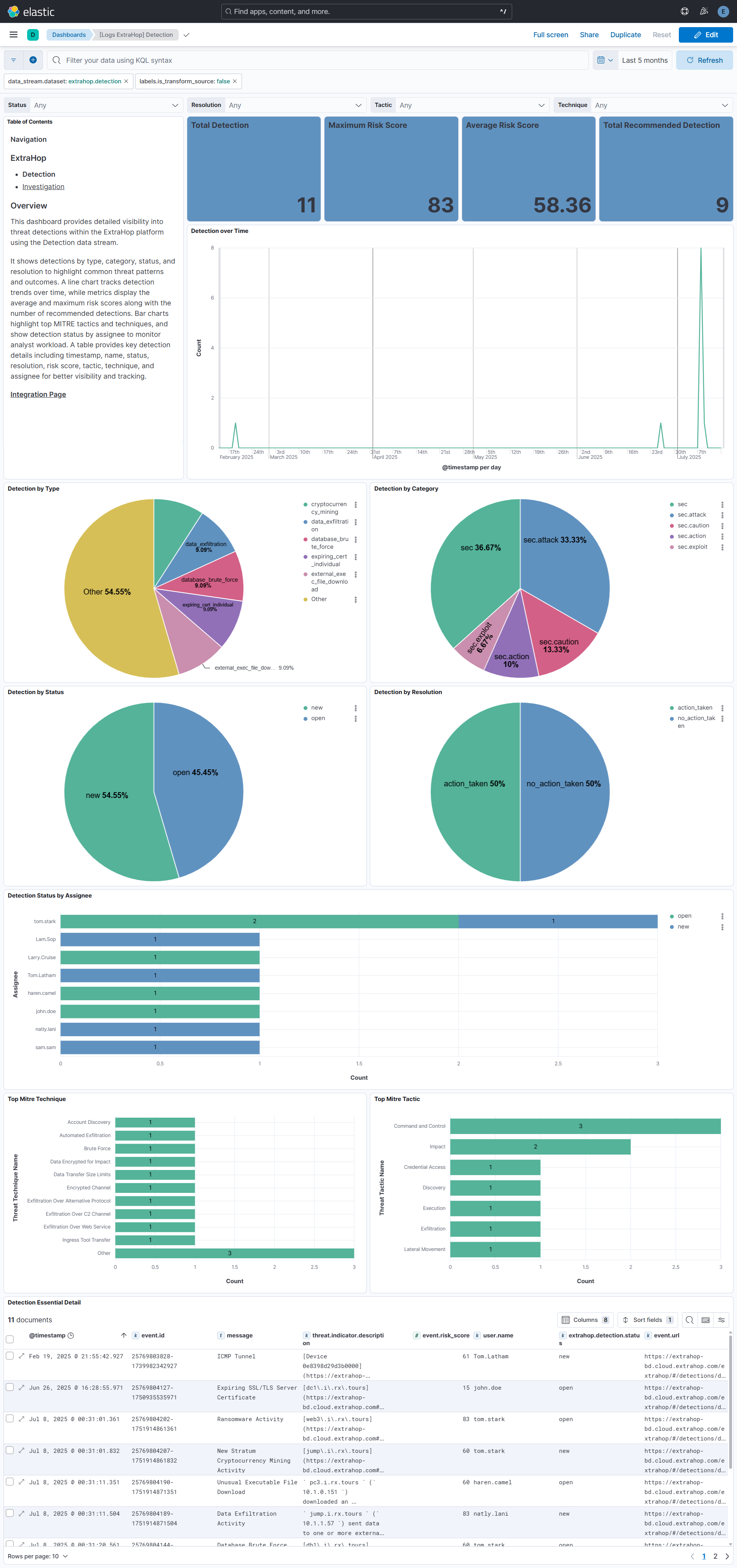
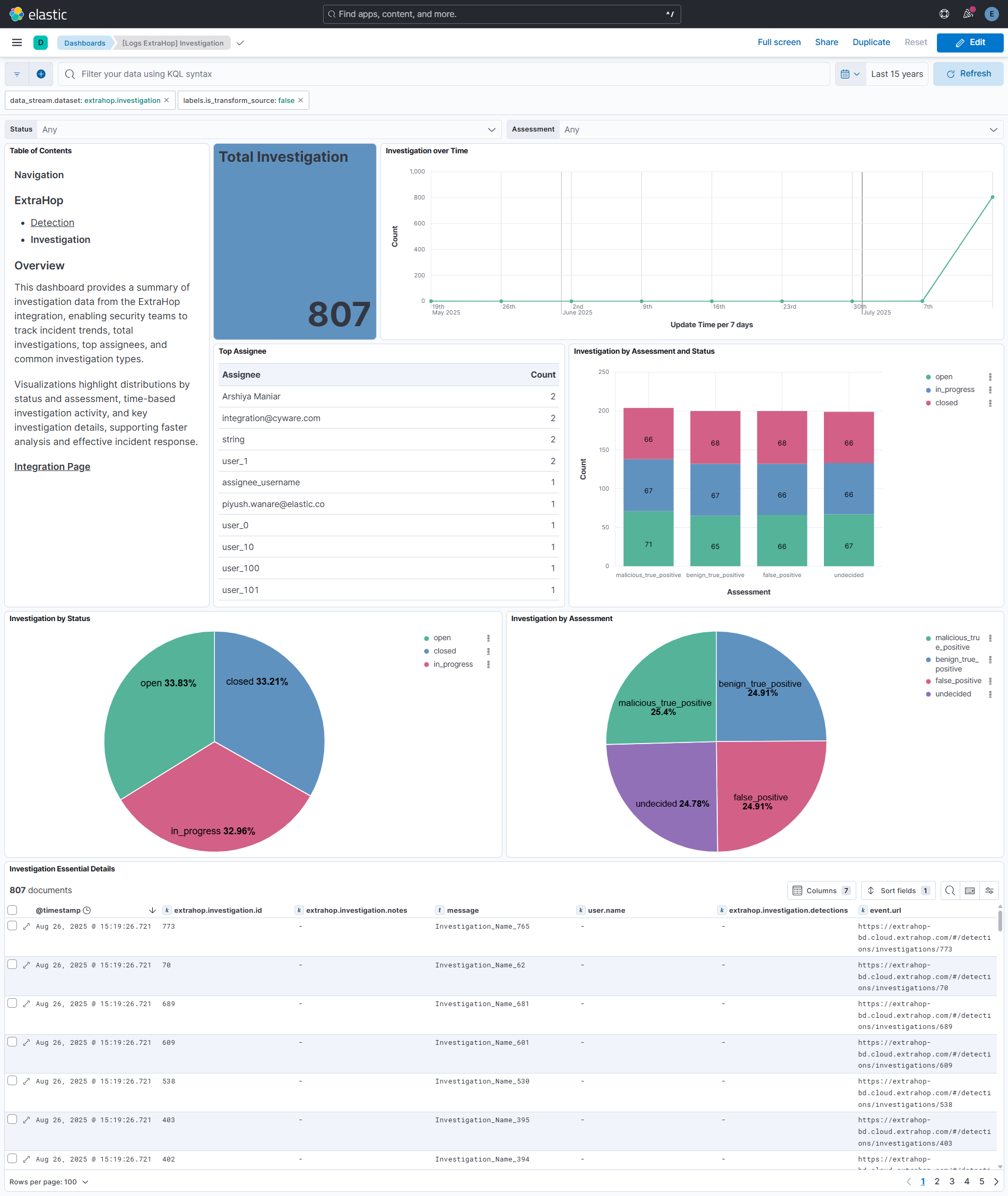
Integrating ExtraHop with Elastic SIEM provides comprehensive visibility by turning high-fidelity wire-data detections into actionable insights while also capturing investigation data for deeper analysis. This integration strengthens threat hunting, accelerates incident response, and closes visibility gaps across the network. Dedicated Kibana dashboards for detections present detailed breakdowns by type, category, status, resolution, and assignee, supporting efficient triage and response. In parallel, investigation dashboards deliver insights into total investigations, time-based trends, top assignees, and distributions by status and assessment, giving analysts clear context to prioritize and manage cases. Together, these capabilities streamline SOC workflows and improve accountability across detection and investigation processes.
This integration installs Elastic latest transforms. For more details, check the Transform setup and requirements.
To collect data through the ExtraHop APIs, API Access must be enabled. Authentication is handled using a Client ID and Client Secret, which serve as the required credentials. Any requests made without credentials will be rejected by the ExtraHop APIs.
- Log in to RevealX 360.
- Click the System Settings icon at the top right of the page and then click All Administration.
- Click API Access.
- In the Manage API Access section, click Enable.
If you disable and then re-enable the REST API, the REST API might be unavailable for approximately 15 minutes due to DNS propagation, even if the Status section indicates that access is enabled. We recommend that you do not disable and re-enable the REST API often.
- Log in to RevealX 360.
- Click the System Settings icon at the top right of the page and then click All Administration.
- Click API Access.
- Click Create Credentials.
- In the Name field, type a name for the credentials.
- In the Privileges field, specify a privilege level for the credentials. For more information about each privilege level, see ExtraHop user account privileges.
- In the Packet Access field, specify whether you can retrieve packets and session keys with the credentials.
- Click Save.
- Copy REST API Credentials.
For more details, check Documentation.
You must have system and access administration privileges.
This integration supports both Elastic Agentless-based and Agent-based installations.
Agentless integrations allow you to collect data without having to manage Elastic Agent in your cloud. They make manual agent deployment unnecessary, so you can focus on your data instead of the agent that collects it. For more information, refer to Agentless integrations and the Agentless integrations FAQ.
Agentless deployments are only supported in Elastic Serverless and Elastic Cloud environments. This functionality is in beta and is subject to change. Beta features are not subject to the support SLA of official GA features.
Elastic Agent must be installed. For more details, check the Elastic Agent installation instructions. You can install only one Elastic Agent per host.
In the top search bar in Kibana, search for Integrations.
In the search bar, type ExtraHop.
Select the ExtraHop integration from the search results.
Select Add ExtraHop to add the integration.
Enable and configure only the collection methods which you will use.
To Collect ExtraHop logs via API, you'll need to:
- Configure URL, Client ID, and Client Secret.
- Enable/Disable the required datasets.
- For each dataset, adjust the integration configuration parameters if required, including the Initial Interval, Interval, etc. to enable data collection.
Select Save and continue to save the integration.
- In the top search bar in Kibana, search for Dashboards.
- In the search bar, type extrahop.
- Select a dashboard for the dataset you are collecting, and verify the dashboard information is populated.
- In the top search bar in Kibana, search for Transforms.
- Select the Data / Transforms from the search results.
- In the search bar, type extrahop.
- All transforms from the search results should indicate Healthy under the Health column.
For more information on architectures that can be used for scaling this integration, check the Ingest Architectures documentation.
Exported fields
| Field | Description | Type |
|---|---|---|
| @timestamp | Event timestamp. | date |
| data_stream.dataset | Data stream dataset. | constant_keyword |
| data_stream.namespace | Data stream namespace. | constant_keyword |
| data_stream.type | Data stream type. | constant_keyword |
| event.dataset | Event dataset. | constant_keyword |
| event.module | Event module. | constant_keyword |
| extrahop.detection.appliance_id | keyword | |
| extrahop.detection.assignee | keyword | |
| extrahop.detection.categories | keyword | |
| extrahop.detection.create_time | date | |
| extrahop.detection.description | keyword | |
| extrahop.detection.id | keyword | |
| extrahop.detection.is_user_created | boolean | |
| extrahop.detection.mitre_tactics.id | keyword | |
| extrahop.detection.mitre_tactics.name | keyword | |
| extrahop.detection.mitre_tactics.url | keyword | |
| extrahop.detection.mitre_techniques.id | keyword | |
| extrahop.detection.mitre_techniques.legacy_ids | keyword | |
| extrahop.detection.mitre_techniques.name | keyword | |
| extrahop.detection.mitre_techniques.url | keyword | |
| extrahop.detection.mod_time | date | |
| extrahop.detection.participants.endpoint | keyword | |
| extrahop.detection.participants.external | boolean | |
| extrahop.detection.participants.hostname | keyword | |
| extrahop.detection.participants.id | keyword | |
| extrahop.detection.participants.object_id | keyword | |
| extrahop.detection.participants.object_type | keyword | |
| extrahop.detection.participants.object_value | ip | |
| extrahop.detection.participants.role | keyword | |
| extrahop.detection.participants.scanner_service | keyword | |
| extrahop.detection.participants.username | keyword | |
| extrahop.detection.properties.certificate | keyword | |
| extrahop.detection.properties.client_port | long | |
| extrahop.detection.properties.hacking_tool_name | keyword | |
| extrahop.detection.properties.server_port | long | |
| extrahop.detection.recommended | boolean | |
| extrahop.detection.recommended_factors | keyword | |
| extrahop.detection.resolution | keyword | |
| extrahop.detection.risk_score | float | |
| extrahop.detection.start_time | date | |
| extrahop.detection.status | keyword | |
| extrahop.detection.ticket_id | keyword | |
| extrahop.detection.ticket_url | keyword | |
| extrahop.detection.title | match_only_text | |
| extrahop.detection.type | keyword | |
| extrahop.detection.update_time | date | |
| extrahop.detection.url | keyword | |
| input.type | Type of filebeat input. | keyword |
| labels.is_transform_source | Indicates whether a detection is in the raw source data stream, or in the latest destination index. | constant_keyword |
| log.offset | Log offset. | long |
| observer.product | The product name of the observer. | constant_keyword |
| observer.type | The type of the observer the data is coming from. There is no predefined list of observer types. Some examples are forwarder, firewall, ids, ips, proxy, poller, sensor, APM server. |
constant_keyword |
| observer.vendor | Vendor name of the observer. | constant_keyword |
Exported fields
| Field | Description | Type |
|---|---|---|
| @timestamp | Date/time when the event originated. This is the date/time extracted from the event, typically representing when the event was generated by the source. If the event source has no original timestamp, this value is typically populated by the first time the event was received by the pipeline. Required field for all events. | date |
| data_stream.dataset | The field can contain anything that makes sense to signify the source of the data. Examples include nginx.access, prometheus, endpoint etc. For data streams that otherwise fit, but that do not have dataset set we use the value "generic" for the dataset value. event.dataset should have the same value as data_stream.dataset. Beyond the Elasticsearch data stream naming criteria noted above, the dataset value has additional restrictions: * Must not contain - * No longer than 100 characters |
constant_keyword |
| data_stream.namespace | A user defined namespace. Namespaces are useful to allow grouping of data. Many users already organize their indices this way, and the data stream naming scheme now provides this best practice as a default. Many users will populate this field with default. If no value is used, it falls back to default. Beyond the Elasticsearch index naming criteria noted above, namespace value has the additional restrictions: * Must not contain - * No longer than 100 characters |
constant_keyword |
| data_stream.type | An overarching type for the data stream. Currently allowed values are "logs" and "metrics". We expect to also add "traces" and "synthetics" in the near future. | constant_keyword |
| event.dataset | Name of the dataset. If an event source publishes more than one type of log or events (e.g. access log, error log), the dataset is used to specify which one the event comes from. It's recommended but not required to start the dataset name with the module name, followed by a dot, then the dataset name. | constant_keyword |
| event.module | Name of the module this data is coming from. If your monitoring agent supports the concept of modules or plugins to process events of a given source (e.g. Apache logs), event.module should contain the name of this module. |
constant_keyword |
| extrahop.investigation.assessment | The assessment of the investigation. | keyword |
| extrahop.investigation.assignee | The username of the investigation assignee. | keyword |
| extrahop.investigation.created_by | keyword | |
| extrahop.investigation.creation_time | date | |
| extrahop.investigation.description | keyword | |
| extrahop.investigation.detections | keyword | |
| extrahop.investigation.end_time | date | |
| extrahop.investigation.id | keyword | |
| extrahop.investigation.investigation_types | keyword | |
| extrahop.investigation.is_user_created | boolean | |
| extrahop.investigation.last_interaction_by | keyword | |
| extrahop.investigation.last_interaction_time | date | |
| extrahop.investigation.name | The name of the investigation. | match_only_text |
| extrahop.investigation.notes | The notes about the investigation. | keyword |
| extrahop.investigation.start_time | date | |
| extrahop.investigation.status | The status of the investigation. | keyword |
| extrahop.investigation.update_time | date | |
| extrahop.investigation.url | keyword | |
| input.type | Type of filebeat input. | keyword |
| labels.is_transform_source | Indicates whether an investigation is in the raw source data stream, or in the latest destination index. | constant_keyword |
| log.offset | Log offset. | long |
| observer.product | constant_keyword | |
| observer.type | constant_keyword | |
| observer.vendor | constant_keyword |
Example
{
    "@timestamp": "2025-02-19T16:25:42.927Z",
    "agent": {
        "ephemeral_id": "2771a69d-7394-4328-9019-49735bd8f885",
        "id": "3804bd48-1872-46b7-9dbc-0390cbbea830",
        "name": "elastic-agent-34521",
        "type": "filebeat",
        "version": "8.18.0"
    },
    "data_stream": {
        "dataset": "extrahop.detection",
        "namespace": "60020",
        "type": "logs"
    },
    "device": {
        "id": "6"
    },
    "ecs": {
        "version": "8.17.0"
    },
    "elastic_agent": {
        "id": "3804bd48-1872-46b7-9dbc-0390cbbea830",
        "snapshot": false,
        "version": "8.18.0"
    },
    "event": {
        "agent_id_status": "verified",
        "category": [
            "threat"
        ],
        "created": "2025-02-19T16:24:44.047Z",
        "dataset": "extrahop.detection",
        "id": "25769803828-1739982342927",
        "ingested": "2025-07-14T06:54:49Z",
        "kind": "event",
        "original": "{\"appliance_id\":6,\"assignee\":\"sam.joe\",\"categories\":[\"sec\",\"sec.command\",\"sec.attack\"],\"create_time\":1739982284047,\"description\":\"[Device 0e8398d29d3b0000](https://extrahop-bd.cloud.extrahop.com#/metrics/devices/71c6ffe3ae8548bbbb9bf279c912d3ae.0e8398d29d3b0000/overview?from=1739982210\\u0026interval_type=DT\\u0026until=1739982300) sent ICMP requests that contain unique payloads to an external IP address. The number of requests was unusually high compared to past activity for this device. Check for unexpected or unauthorized activity, such as hidden information within ping packets.\\n\\nThis device sent approximately 13000 ICMP requests with unique payloads to external hosts.\",\"end_time\":1739982300000,\"id\":25769803828,\"is_user_created\":false,\"mitre_tactics\":[{\"id\":\"TA0011\",\"name\":\"Command and Control\",\"url\":\"https://attack.mitre.org/tactics/TA0011\"}],\"mitre_techniques\":[{\"id\":\"T1095\",\"legacy_ids\":[\"T1094\",\"T1095\"],\"name\":\"Non-Application Layer Protocol\",\"url\":\"https://attack.mitre.org/techniques/T1095\"},{\"id\":\"T1572\",\"name\":\"Protocol Tunneling\",\"url\":\"https://attack.mitre.org/techniques/T1572\"}],\"mod_time\":1739982342927,\"participants\":[{\"endpoint\":\"receiver\",\"external\":true,\"hostname\":\"09i2TY0xVtw7DPECOJQte01i7IK8B9FV.rx.tours\",\"id\":7189,\"object_id\":25769803780,\"object_type\":\"ipaddr\",\"object_value\":\"175.16.199.0\",\"role\":\"offender\",\"scanner_service\":null,\"username\":null},{\"endpoint\":\"sender\",\"external\":false,\"id\":7167,\"object_id\":25769803807,\"object_type\":\"device\",\"object_value\":\"81.2.69.142\",\"role\":\"victim\",\"scanner_service\":null,\"username\":null}],\"properties\":{},\"recommended\":true,\"recommended_factors\":[\"rare_type\",\"top_offender\"],\"resolution\":\"action_taken\",\"risk_score\":61,\"start_time\":1739982210001,\"status\":\"open\",\"ticket_id\":\"2996\",\"title\":\"ICMP Tunnel\",\"type\":\"icmp_tunnel\",\"update_time\":1739982300000,\"url\":\"https://extrahop-bd.cloud.extrahop.com/extrahop/#/detections/detail/25769803828/?from=1739981310\\u0026until=1739983200\\u0026interval_type=DT\"}",
        "risk_score": 61,
        "start": "2025-02-19T16:23:30.001Z",
        "type": [
            "indicator"
        ],
        "url": "https://extrahop-bd.cloud.extrahop.com/extrahop/#/detections/detail/25769803828/?from=1739981310&until=1739983200&interval_type=DT"
    },
    "extrahop": {
        "detection": {
            "appliance_id": "6",
            "assignee": "sam.joe",
            "categories": [
                "sec",
                "sec.command",
                "sec.attack"
            ],
            "create_time": "2025-02-19T16:24:44.047Z",
            "description": "[Device 0e8398d29d3b0000](https://extrahop-bd.cloud.extrahop.com#/metrics/devices/71c6ffe3ae8548bbbb9bf279c912d3ae.0e8398d29d3b0000/overview?from=1739982210&interval_type=DT&until=1739982300) sent ICMP requests that contain unique payloads to an external IP address. The number of requests was unusually high compared to past activity for this device. Check for unexpected or unauthorized activity, such as hidden information within ping packets.\n\nThis device sent approximately 13000 ICMP requests with unique payloads to external hosts.",
            "id": "25769803828",
            "is_user_created": false,
            "mitre_tactics": [
                {
                    "id": "TA0011",
                    "name": "Command and Control",
                    "url": "https://attack.mitre.org/tactics/TA0011"
                }
            ],
            "mitre_techniques": [
                {
                    "id": "T1095",
                    "legacy_ids": [
                        "T1094",
                        "T1095"
                    ],
                    "name": "Non-Application Layer Protocol",
                    "url": "https://attack.mitre.org/techniques/T1095"
                },
                {
                    "id": "T1572",
                    "name": "Protocol Tunneling",
                    "url": "https://attack.mitre.org/techniques/T1572"
                }
            ],
            "mod_time": "2025-02-19T16:25:42.927Z",
            "participants": [
                {
                    "endpoint": "receiver",
                    "external": true,
                    "hostname": "09i2TY0xVtw7DPECOJQte01i7IK8B9FV.rx.tours",
                    "id": "7189",
                    "object_id": "25769803780",
                    "object_type": "ipaddr",
                    "object_value": "175.16.199.0",
                    "role": "offender"
                },
                {
                    "endpoint": "sender",
                    "external": false,
                    "id": "7167",
                    "object_id": "25769803807",
                    "object_type": "device",
                    "object_value": "81.2.69.142",
                    "role": "victim"
                }
            ],
            "recommended": true,
            "recommended_factors": [
                "rare_type",
                "top_offender"
            ],
            "resolution": "action_taken",
            "risk_score": 61,
            "start_time": "2025-02-19T16:23:30.001Z",
            "status": "open",
            "ticket_id": "2996",
            "title": "ICMP Tunnel",
            "type": "icmp_tunnel",
            "update_time": "2025-02-19T16:25:00.000Z",
            "url": "https://extrahop-bd.cloud.extrahop.com/extrahop/#/detections/detail/25769803828/?from=1739981310&until=1739983200&interval_type=DT"
        }
    },
    "input": {
        "type": "cel"
    },
    "message": "ICMP Tunnel",
    "related": {
        "hosts": [
            "09i2TY0xVtw7DPECOJQte01i7IK8B9FV.rx.tours"
        ],
        "ip": [
            "175.16.199.0",
            "81.2.69.142"
        ],
        "user": [
            "sam.joe"
        ]
    },
    "tags": [
        "preserve_original_event",
        "preserve_duplicate_custom_fields",
        "forwarded",
        "extrahop-detection"
    ],
    "threat": {
        "indicator": {
            "description": "[Device 0e8398d29d3b0000](https://extrahop-bd.cloud.extrahop.com#/metrics/devices/71c6ffe3ae8548bbbb9bf279c912d3ae.0e8398d29d3b0000/overview?from=1739982210&interval_type=DT&until=1739982300) sent ICMP requests that contain unique payloads to an external IP address. The number of requests was unusually high compared to past activity for this device. Check for unexpected or unauthorized activity, such as hidden information within ping packets.\n\nThis device sent approximately 13000 ICMP requests with unique payloads to external hosts.",
            "modified_at": "2025-02-19T16:25:42.927Z"
        },
        "tactic": {
            "id": [
                "TA0011"
            ],
            "name": [
                "Command and Control"
            ],
            "reference": [
                "https://attack.mitre.org/tactics/TA0011"
            ]
        },
        "technique": {
            "id": [
                "T1095",
                "T1572"
            ],
            "name": [
                "Non-Application Layer Protocol",
                "Protocol Tunneling"
            ],
            "reference": [
                "https://attack.mitre.org/techniques/T1095",
                "https://attack.mitre.org/techniques/T1572"
            ]
        }
    },
    "user": {
        "name": "sam.joe"
    }
}
Example
{
    "@timestamp": "2025-08-19T06:29:55.274Z",
    "agent": {
        "ephemeral_id": "4b0de889-c5ed-40ed-acc1-324704aabc98",
        "id": "4e3a91b3-f2a6-4168-958d-20dc25789f3b",
        "name": "elastic-agent-38848",
        "type": "filebeat",
        "version": "8.18.0"
    },
    "data_stream": {
        "dataset": "extrahop.investigation",
        "namespace": "87926",
        "type": "logs"
    },
    "ecs": {
        "version": "8.17.0"
    },
    "elastic_agent": {
        "id": "4e3a91b3-f2a6-4168-958d-20dc25789f3b",
        "snapshot": false,
        "version": "8.18.0"
    },
    "event": {
        "agent_id_status": "verified",
        "created": "2025-05-21T11:08:13.321Z",
        "dataset": "extrahop.investigation",
        "duration": 788188113000000,
        "end": "2025-05-30T14:04:41.434Z",
        "id": "3-1755584998257",
        "ingested": "2025-08-19T06:29:58Z",
        "kind": "event",
        "original": "{\"assessment\":\"benign_true_positive\",\"assignee\":\"user1\",\"created_by\":\"integration@example.com\",\"creation_time\":1747825693321,\"description\":\"This investigation focuses on potential enumeration behavior observed through BloodHound. Review AD logs and user group mappings to verify intent and exposure.\",\"detections\":[25769803958],\"end_time\":1748613881434,\"id\":3,\"investigation_types\":[\"Active Directory\",\"Threat Hunting\"],\"is_user_created\":true,\"last_interaction_by\":\"user1\",\"last_interaction_time\":1748613881434,\"name\":\"BloodHound Enumeration Investigation\",\"notes\":\"Investigate Internally with AD logs\",\"start_time\":1747825693321,\"status\":\"closed\",\"update_time\":1747825693321,\"url\":\"https://example.com/#/detections/investigations/3\"}",
        "start": "2025-05-21T11:08:13.321Z",
        "type": [
            "info"
        ],
        "url": "https://example.com/#/detections/investigations/3"
    },
    "extrahop": {
        "investigation": {
            "assessment": "benign_true_positive",
            "assignee": "user1",
            "created_by": "integration@example.com",
            "creation_time": "2025-05-21T11:08:13.321Z",
            "description": "This investigation focuses on potential enumeration behavior observed through BloodHound. Review AD logs and user group mappings to verify intent and exposure.",
            "detections": [
                "25769803958"
            ],
            "end_time": "2025-05-30T14:04:41.434Z",
            "id": "3",
            "investigation_types": [
                "Active Directory",
                "Threat Hunting"
            ],
            "is_user_created": true,
            "last_interaction_by": "user1",
            "last_interaction_time": "2025-05-30T14:04:41.434Z",
            "name": "BloodHound Enumeration Investigation",
            "notes": "Investigate Internally with AD logs",
            "start_time": "2025-05-21T11:08:13.321Z",
            "status": "closed",
            "update_time": "2025-05-21T11:08:13.321Z",
            "url": "https://example.com/#/detections/investigations/3"
        }
    },
    "input": {
        "type": "cel"
    },
    "message": "BloodHound Enumeration Investigation",
    "related": {
        "user": [
            "user1",
            "integration@example.com"
        ]
    },
    "tags": [
        "preserve_original_event",
        "preserve_duplicate_custom_fields",
        "forwarded",
        "extrahop-investigation"
    ],
    "user": {
        "domain": "example.com",
        "name": "integration"
    }
}
These inputs can be used in this integration:
This integration datasets use the following APIs:
Detections: RevealX 360 API.Investigation: RevealX 360 API.
The data streams below collect a full snapshot of ExtraHop investigations on every polling interval, so their backing indices hold one copy of each record per interval. The package-level data stream lifecycle also covers the detection data stream on Serverless, although it collects incrementally.
The package bounds the growth of these source data streams with a retention that depends on the deployment type:
| Data stream | Self-managed and Elastic Cloud Hosted (ILM policy) | Serverless (data stream lifecycle) |
|---|---|---|
logs-extrahop.investigation-* |
logs-extrahop.investigation-default_policy: roll over after 30d, delete 30d after rollover |
delete 30d after rollover |
logs-extrahop.detection-* |
none, so the default logs policy applies (no deletion) |
delete 30d after rollover |
On self-managed and Elastic Cloud Hosted deployments the ILM policy applies. The data stream lifecycle shipped with the package is not used there. ILM counts the delete age from the rollover of a backing index, so a document can remain for up to the rollover age plus the delete age. On Serverless, ILM is not available and the data stream lifecycle applies instead. It also works per backing index: Elasticsearch rolls the write index over automatically on age, size, or document count, and deletes a backing index once the retention has passed since it rolled over. A document therefore stays for the retention plus up to one rollover interval. The rollover age is derived from the retention and is an implementation detail that Elasticsearch may change. Where the package installs a transform, the transform's destination indices are not affected by either.
To keep data for a different period:
- Self-managed and Elastic Cloud Hosted: edit the ILM policy in Kibana under Stack Management → Index Lifecycle Policies, or with
PUT _ilm/policy/<policy name>. A package upgrade reinstalls the package's ILM policies, so check your change after upgrading. - Self-managed and Elastic Cloud Hosted: no package policy is attached to
logs-extrahop.detection-*, so the defaultlogspolicy applies. To set a retention, create an ILM policy and addindex.lifecycle.name: <policy name>to thelogs-extrahop.detection@customcomponent template. Fleet keeps@customtemplates across package upgrades, and the change applies from the next rollover. - Serverless: set the retention on the data stream, for example
PUT _data_stream/logs-extrahop.investigation-default/_lifecyclewith the body{"data_retention": "90d"}. Replacedefaultwith your namespace.
This integration includes one or more Kibana dashboards that visualizes the data collected by the integration. The screenshots below illustrate how the ingested data is displayed.
Changelog
| Version | Details | Minimum Kibana version |
|---|---|---|
| 0.5.0 | Enhancement (View pull request) Document the retention applied to source data streams on stateful and Serverless deployments, and how to change it. |
9.1.2 9.0.5 8.19.2 8.18.5 |
| 0.4.0 | Enhancement (View pull request) Add tags to ingest pipeline processors and add preserve_original_event to pipeline-level on_failure handlers.Bug fix (View pull request) Correct the detection data stream's participants.id on_failure handler, which removed the unrelated object_id field. The handler is unreachable today, so there is no change in behaviour. |
9.1.2 9.0.5 8.19.2 8.18.5 |
| 0.3.2 | Enhancement (View pull request) Set agentless deployment mode release field to ga. |
9.1.2 9.0.5 8.19.2 8.18.5 |
| 0.3.1 | Bug fix (View pull request) Fix kibana.version constraint to use tilde ranges for intermediate version bounds. |
9.1.2 9.0.5 8.19.2 8.18.5 |
| 0.3.0 | Enhancement (View pull request) Use new release field for agentless deployment mode to establish as beta. |
9.1.2 9.0.5 8.19.2 8.18.5 |
| 0.2.1 | Bug fix (View pull request) Downgrade the format_version to the minimum version that supports all the necessary features for the package. |
9.1.2 9.0.5 8.19.2 8.18.5 |
| 0.2.0 | Enhancement (View pull request) Add Investigation data-stream. |
9.1.2 9.0.5 8.19.2 8.18.5 |
| 0.1.0 | Enhancement (View pull request) Initial release. |
9.0.0 8.18.0 |