Microsoft Exchange Online Message Trace
| Version | 2.3.0 (View all) |
| Managed integration release status | GA |
| Subscription level What's this? |
Basic |
| Developed by What's this? |
Elastic |
| Ingestion method(s) | API, File |
| Minimum Kibana version(s) | 9.1.4 9.0.7 8.19.4 |
You can use this integration as an Elastic Managed integration on Elastic Cloud Hosted deployments running this version or later.
This integration is for Microsoft Exchange Online Message Trace logs. It includes the following datasets for receiving logs over the Microsoft Exchange Online Message Trace API or read from a file:
logdataset: supports Microsoft Exchange Online Message Trace logs.
Agentless integrations allow you to collect data without having to manage Elastic Agent in your cloud. They make manual agent deployment unnecessary, so you can focus on your data instead of the agent that collects it. For more information, refer to Agentless integrations and the Agentless integrations FAQ. Agentless deployments are only supported in Elastic Serverless and Elastic Cloud environments. This functionality is in beta and is subject to change. Beta features are not subject to the support SLA of official GA features.
Microsoft has announced the deprecation on March 18th, 2026 of the legacy Message Trace API support in the Reporting Webservice.
This integration has been updated to use the new Graph-based message trace API. New credential setup will be required, as described below.
The new Message Trace experience includes an updated PowerShell cmdlet, Get-MessageTraceV2, in General Availability since June 3rd, 2025, which can be used to collect data with a manual script, to be ingested from a log file. However, the Graph-based message trace API is preferred.
To collect message trace logs from Microsoft's Graph API, you need to:
Create an Entra app and record the Directory ID (tenant ID) and Application ID (client ID).
Add the
ExchangeMessageTrace.Read.Allpermission of typeApplicationand grant admin consent for it.Create a client secret and record it.
Create a service principal for Microsoft's internal Message Trace app in the tenant.
The Graph-based Message Trace API is backed by a Microsoft first-party application with App ID
8bd644d1-64a1-4d4b-ae52-2e0cbf64e373. This is a Microsoft-owned application, separate from your own app registration. Every tenant must provision a service principal for it before the API will accept authenticated requests. Without this step, the API returns a 401 error referencing this App ID.Run the following PowerShell commands once in your tenant to provision it:
Connect-MgGraph -Scopes "Application.ReadWrite.All"
Import-Module Microsoft.Graph.Applications
$params = @{ appId = "8bd644d1-64a1-4d4b-ae52-2e0cbf64e373" }
New-MgServicePrincipal -BodyParameter $params
Provisioning may take several hours to propagate. During that time, 401 errors will continue.
For more details, refer to Microsoft's Graph-based message trace API onboarding guide.
After that is done, you can configure the Microsoft Exchange Online Message Trace integration using the Tenant ID, Client ID and Client Secret.
These are different from the OAuth credentials used previously with the legacy Message Trace API in the Reporting Webservice.
To configure Local Domains you can check your Microsoft Admin Exchange Center for the domains
available in your organization. They are usually under the sections Accepted Domains and Remote Domains.
It is possible to collect data using a PowerShell script and have the integration ingest it from a log file. However, the Graph API-based method above is preferred.
Disclaimer: You may need to adapt the authentication method of the script
below to match your environment. For more information about authentication
methods available in PowerShell, please see the
guides here.
Note that basic authentication (with -Authentication Basic) is no longer
supported.
The following example PowerShell script can be adapted to fetch the logs and write them into a JSON file that the integration can consume (via the logfile input).
Prerequisites:
Install the Exchange Online Management module by running the following command:
Install-Module -Name ExchangeOnlineManagement
Import the Exchange Online Management module by running the following command:
Import-Module -Name ExchangeOnlineManagement
This script would have to be triggered at a certain interval, in accordance
with the look-back interval specified. In this example script, the look back
is 24 hours, so the interval would need to be daily. For more information about
the Get-MessageTraceV2 cmdlet, please refer to its
documentation.
# Username and Password
$username = "USERNAME@DOMAIN.TLD"
$password = "PASSWORD"
# Lookback in Hours
$lookback = "-24"
# Results per request (maximum 5000)
$resultSize = "5000"
# Output of the json file
# This would then be ingested via the integration
$output_location = "C:\temp\messageTrace.json"

$password = ConvertTo-SecureString $password -AsPlainText -Force
$Credential = New-Object System.Management.Automation.PSCredential ($username, $password)
$startDate = (Get-Date).AddHours($lookback)
$endDate = Get-Date

Connect-ExchangeOnline -Credential $Credential

$paginate = 1
$output = @()

# Initialize V2-style pagination cursor values
$startingRecipientAddress = $null
$currentEndDate = $endDate

while ($paginate -eq 1)
{
    if ($startingRecipientAddress) {
        $messageTrace = Get-MessageTraceV2 -ResultSize $resultSize -StartDate $startDate -EndDate $currentEndDate -StartingRecipientAddress $startingRecipientAddress
    }
    else {
        $messageTrace = Get-MessageTraceV2 -ResultSize $resultSize -StartDate $startDate -EndDate $currentEndDate
    }

    if (!$messageTrace)
    {
        $paginate = 0
    }
    else
    {
        $output = $output + $messageTrace

        # If we got fewer than ResultSize rows, we've reached the end
        if ($messageTrace.Count -lt [int]$resultSize)
        {
            $paginate = 0
        }
        else
        {
            # Prepare the cursor data for the next query
            $last = $messageTrace[-1]
            $startingRecipientAddress = $last.RecipientAddress
            $currentEndDate = $last.Received
        }
    }
}

if (Test-Path $output_location)
{
    Remove-Item $output_location
}
foreach ($event in $output)
{
    $event.StartDate = [Xml.XmlConvert]::ToString(($event.StartDate), [Xml.XmlDateTimeSerializationMode]::Utc)
    $event.EndDate   = [Xml.XmlConvert]::ToString(($event.EndDate),   [Xml.XmlDateTimeSerializationMode]::Utc)
    $event.Received  = [Xml.XmlConvert]::ToString(($event.Received),  [Xml.XmlDateTimeSerializationMode]::Utc)
    $event = $event | ConvertTo-Json -Compress
    Add-Content $output_location $event -Encoding UTF8
}
Example
{
    "@timestamp": "2025-11-29T14:22:31.109Z",
    "agent": {
        "ephemeral_id": "5348c840-193d-4e9d-8849-bb4d2c6b88f0",
        "id": "ed6593d9-b251-42d5-9c26-b5222d3a9ce1",
        "name": "elastic-agent-79838",
        "type": "filebeat",
        "version": "8.19.4"
    },
    "data_stream": {
        "dataset": "microsoft_exchange_online_message_trace.log",
        "namespace": "75301",
        "type": "logs"
    },
    "destination": {
        "domain": "elastic595.onmicrosoft.com",
        "registered_domain": "onmicrosoft.com",
        "subdomain": "elastic595",
        "top_level_domain": "com",
        "user": {
            "domain": "elastic595.onmicrosoft.com",
            "email": "dan.o'connor@elastic595.onmicrosoft.com",
            "id": "dan.o'connor@elastic595.onmicrosoft.com",
            "name": "dan.o'connor"
        }
    },
    "ecs": {
        "version": "8.11.0"
    },
    "elastic_agent": {
        "id": "ed6593d9-b251-42d5-9c26-b5222d3a9ce1",
        "snapshot": false,
        "version": "8.19.4"
    },
    "email": {
        "attachments": {
            "file": {
                "size": 298412
            }
        },
        "delivery_timestamp": "2025-11-29T14:22:31.109Z",
        "direction": "external",
        "from": {
            "address": [
                "MSSecurity-noreply@microsoft.com"
            ]
        },
        "local_id": "a1b2c3d4-e5f6-7890-abcd-ef1234567890",
        "message_id": "<7a8b9c0d-e1f2-3456-7890-abcdef123456@az.northeurope.microsoft.com>",
        "subject": "Microsoft Entra ID Protection Weekly Digest",
        "to": {
            "address": [
                "dan.o'connor@elastic595.onmicrosoft.com"
            ]
        }
    },
    "event": {
        "agent_id_status": "verified",
        "category": [
            "email"
        ],
        "dataset": "microsoft_exchange_online_message_trace.log",
        "ingested": "2026-06-05T13:14:47Z",
        "original": "{\"fromIP\":\"2a02:cf41:d675:a90d:c0ef:b23f:f053:947e\",\"id\":\"a1b2c3d4-e5f6-7890-abcd-ef1234567890\",\"messageId\":\"\\u003c7a8b9c0d-e1f2-3456-7890-abcdef123456@az.northeurope.microsoft.com\\u003e\",\"receivedDateTime\":\"2025-11-29T14:22:31.109Z\",\"recipientAddress\":\"dan.o'connor@elastic595.onmicrosoft.com\",\"senderAddress\":\"MSSecurity-noreply@microsoft.com\",\"size\":298412,\"status\":\"delivered\",\"subject\":\"Microsoft Entra ID Protection Weekly Digest\",\"toIP\":\"\"}",
        "outcome": "success",
        "type": [
            "info"
        ]
    },
    "input": {
        "type": "cel"
    },
    "microsoft": {
        "online_message_trace": {
            "FromIP": "2a02:cf41:d675:a90d:c0ef:b23f:f053:947e",
            "MessageId": "<7a8b9c0d-e1f2-3456-7890-abcdef123456@az.northeurope.microsoft.com>",
            "MessageTraceId": "a1b2c3d4-e5f6-7890-abcd-ef1234567890",
            "Received": "2025-11-29T14:22:31.109Z",
            "RecipientAddress": "dan.o'connor@elastic595.onmicrosoft.com",
            "SenderAddress": "MSSecurity-noreply@microsoft.com",
            "Size": 298412,
            "Status": "delivered",
            "Subject": "Microsoft Entra ID Protection Weekly Digest"
        }
    },
    "related": {
        "user": [
            "dan.o'connor@elastic595.onmicrosoft.com",
            "MSSecurity-noreply@microsoft.com",
            "dan.o'connor",
            "MSSecurity-noreply"
        ]
    },
    "source": {
        "domain": "microsoft.com",
        "geo": {
            "continent_name": "Europe",
            "country_iso_code": "NO",
            "country_name": "Norway",
            "location": {
                "lat": 62,
                "lon": 10
            }
        },
        "ip": "2a02:cf41:d675:a90d:c0ef:b23f:f053:947e",
        "registered_domain": "microsoft.com",
        "top_level_domain": "com",
        "user": {
            "domain": "microsoft.com",
            "email": "MSSecurity-noreply@microsoft.com",
            "id": "MSSecurity-noreply@microsoft.com",
            "name": "MSSecurity-noreply"
        }
    },
    "tags": [
        "preserve_original_event",
        "forwarded"
    ]
}
Exported fields
| Field | Description | Type |
|---|---|---|
| @timestamp | Date/time when the event originated. This is the date/time extracted from the event, typically representing when the event was generated by the source. If the event source has no original timestamp, this value is typically populated by the first time the event was received by the pipeline. Required field for all events. | date |
| data_stream.dataset | The field can contain anything that makes sense to signify the source of the data. Examples include nginx.access, prometheus, endpoint etc. For data streams that otherwise fit, but that do not have dataset set we use the value "generic" for the dataset value. event.dataset should have the same value as data_stream.dataset. Beyond the Elasticsearch data stream naming criteria noted above, the dataset value has additional restrictions: * Must not contain - * No longer than 100 characters |
constant_keyword |
| data_stream.namespace | A user defined namespace. Namespaces are useful to allow grouping of data. Many users already organize their indices this way, and the data stream naming scheme now provides this best practice as a default. Many users will populate this field with default. If no value is used, it falls back to default. Beyond the Elasticsearch index naming criteria noted above, namespace value has the additional restrictions: * Must not contain - * No longer than 100 characters |
constant_keyword |
| data_stream.type | An overarching type for the data stream. Currently allowed values are "logs" and "metrics". We expect to also add "traces" and "synthetics" in the near future. | constant_keyword |
| email.attachments | A list of objects describing the attachment files sent along with an email message. | nested |
| email.attachments.file.size | Attachment file size in bytes. | long |
| event.dataset | Event dataset | constant_keyword |
| input.type | keyword | |
| log.offset | long | |
| microsoft.online_message_trace.EndDate | This field is used to limit the report period. Use this field in a $filter query option to set the end date and time of the reporting period. If you supply EndDate in the $filter option, you must also supply StartDate. In this report, this field corresponds to the date and time of the last processing step recorded for the message. | date_nanos |
| microsoft.online_message_trace.FromIP | The IPv4 or IPv6 address that transmitted the message to the Office 365 email system. | keyword |
| microsoft.online_message_trace.Index | long | |
| microsoft.online_message_trace.MessageId | The Internet MessageID header of the message, if one was supplied. This value can also be explicitly null.</p></td> | keyword |
| microsoft.online_message_trace.MessageTraceId | An identifier used to get the detailed message transfer trace information.</p></td> | keyword |
| microsoft.online_message_trace.Organization | The fully qualified domain name that was processing the email.</p></td> | keyword |
| microsoft.online_message_trace.Received | The date and time when the email was received by the Office 365 email system. This corresponds to the Date field of the first message trace detail entry.</p></td> | date_nanos |
| microsoft.online_message_trace.RecipientAddress | The SMTP email address of the user that the message was addressed to.</p></td> | keyword |
| microsoft.online_message_trace.SenderAddress | The SMTP email address of the user the message was purportedly from. Because sender addresses are commonly spoofed in spam email, they are not considered completely reliable.</p></td> | keyword |
| microsoft.online_message_trace.Size | The size of the message, in bytes. | long |
| microsoft.online_message_trace.StartDate | This field is used to limit the report period. Use this field in a $filter query option to set the start date and time of the reporting period. If you provide a StartDate in the $filter option, you must also specify an EndDate. In this report, this field corresponds to the date and time of the first processing step recorded for the message.</p></td> | date_nanos |
| microsoft.online_message_trace.Status | The status of the message in the Office 365 email system. This corresponds to the Detail field of the last processing step recorded for the message.</p></td> | keyword |
| microsoft.online_message_trace.Subject | The subject line of the message, if one was present for the message.</p></td> | keyword |
| microsoft.online_message_trace.ToIP | The IPv4 or IPv6 address that the Office 365 email system sent the message to.</p></td> | keyword |
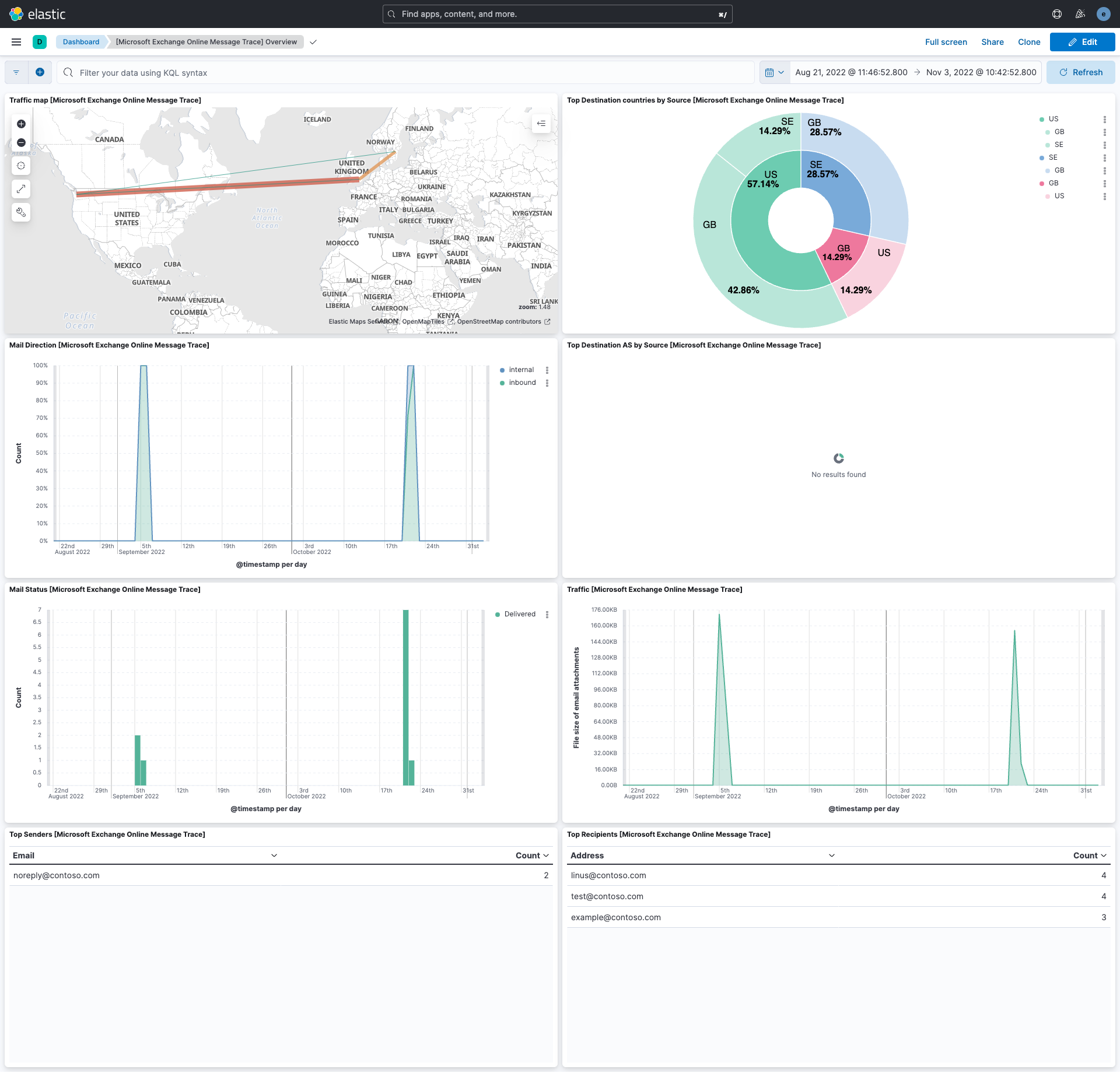
This integration includes one or more Kibana dashboards that visualizes the data collected by the integration. The screenshots below illustrate how the ingested data is displayed.
Changelog
| Version | Details | Minimum Kibana version |
|---|---|---|
| 2.3.0 | Enhancement (View pull request) Add tags to ingest pipeline processors. |
9.1.4 9.0.7 8.19.4 |
| 2.2.5 | Enhancement (View pull request) Set agentless deployment mode release field to ga. |
9.1.4 9.0.7 8.19.4 |
| 2.2.4 | Bug fix (View pull request) Use case-insensitive comparison when matching source.domain and destination.domain against local domains for mailflow direction calculation. |
9.1.4 9.0.7 8.19.4 |
| 2.2.3 | Bug fix (View pull request) Set default value for enable_request_tracer to prevent unintended activation of request tracing. |
9.1.4 9.0.7 8.19.4 |
| 2.2.2 | Bug fix (View pull request) Work around Microsoft Graph beta API defect where single-quote-escaped recipient addresses in the skiptoken cause pagination to fail with 400 errors. |
9.1.4 9.0.7 8.19.4 |
| 2.2.1 | Bug fix (View pull request) Use the ECS definition for email.attachments. |
9.1.4 9.0.7 8.19.4 |
| 2.2.0 | Enhancement (View pull request) Use new release field for agentless deployment mode to establish as beta. |
9.1.4 9.0.7 8.19.4 |
| 2.1.1 | Bug fix (View pull request) Change page_size/batch_size variable type from text to integer for Fleet input validation. |
9.1.4 9.0.7 8.19.4 |
| 2.1.0 | Enhancement (View pull request) Enable Agentless deployment. |
9.1.4 9.0.7 8.19.4 |
| 2.0.4 | Enhancement (View pull request) Expand the Graph API setup instructions to include the Microsoft-owned App ID and PowerShell commands required to provision its service principal in the tenant. |
9.1.4 9.0.7 8.19.4 |
| 2.0.3 | Bug fix (View pull request) Work around Microsoft Graph beta API defect where double-quoted values encoded in the skiptoken cause pagination to fail with 400 errors. |
9.1.4 9.0.7 8.19.4 |
| 2.0.2 | Enhancement (View pull request) Adapt README.md concerning permissions of type 'Application'. |
9.1.4 9.0.7 8.19.4 |
| 2.0.1 | Bug fix (View pull request) Use triple-brace Mustache templating when referencing variables in ingest pipelines. |
9.1.4 9.0.7 8.19.4 |
| 2.0.0 | Breaking change (View pull request) Migrate to the Graph-based message trace API. Using the Graph-based message trace API requires new credential setup that is different from the deprecated legacy Message Trace API in the Reporting Webservice. Read the updated setup details in the integration's README. |
9.1.4 9.0.7 8.19.4 |
| 1.29.1 | Bug fix (View pull request) Update the README's Logfile collection section. |
9.1.4 9.0.7 8.19.4 |
| 1.29.0 | Enhancement (View pull request) Prevent updating fleet health status to degraded. |
9.1.4 9.0.7 8.19.4 |
| 1.28.0 | Enhancement (View pull request) Improve documentation |
9.0.0 8.13.0 |
| 1.27.0 | Enhancement (View pull request) Update Kibana constraint to support 9.0.0. |
9.0.0 8.13.0 |
| 1.26.1 | Bug fix (View pull request) Updated SSL description in package manifest.yml to be uniform and to include links to documentation. |
8.13.0 |
| 1.26.0 | Enhancement (View pull request) Allow the usage of deprecated log input and support for stack 9.0 |
8.13.0 |
| 1.25.3 | Bug fix (View pull request) Remove incorrect use of event.start, event.end. |
8.13.0 |
| 1.25.2 | Bug fix (View pull request) Fix handling of SenderAddress where the value is '<>'. |
8.13.0 |
| 1.25.1 | Bug fix (View pull request) Added the 'end_interval' input parameter to support sliding window logic with updates to some default values. |
8.13.0 |
| 1.25.0 | Enhancement (View pull request) Do not remove event.original in main ingest pipeline. |
8.13.0 |
| 1.24.0 | Enhancement (View pull request) Add "preserve_original_event" tag to documents with event.kind set to "pipeline_error". |
8.13.0 |
| 1.23.1 | Bug fix (View pull request) Improve document fingerprinting resolution. |
8.13.0 |
| 1.23.0 | Enhancement (View pull request) Add event.category and event.type to all events. |
8.13.0 |
| 1.22.1 | Bug fix (View pull request) Clarify configuration documentation. |
8.13.0 |
| 1.22.0 | Enhancement (View pull request) Update the kibana constraint to ^8.13.0. Modified the field definitions to remove ECS fields made redundant by the ecs@mappings component template. |
8.13.0 |
| 1.21.2 | Bug fix (View pull request) Fix template to not fail without local domains. |
8.12.0 |
| 1.21.1 | Bug fix (View pull request) Fix sample event. |
8.12.0 |
| 1.21.0 | Enhancement (View pull request) Make event.outcome field conform to ECS field definition. |
8.12.0 |
| 1.20.0 | Enhancement (View pull request) Improve handling of empty responses. |
8.12.0 |
| 1.19.0 | Enhancement (View pull request) Set sensitive values as secret. |
8.12.0 |
| 1.18.1 | Enhancement (View pull request) Changed owners |
8.7.1 |
| 1.18.0 | Enhancement (View pull request) Add ability to configure addition look-back time. Bug fix (View pull request) Fix issue with cursor potentially causing data gaps. |
8.7.1 |
| 1.17.2 | Bug fix (View pull request) Fix exclude_files pattern. |
8.7.1 |
| 1.17.1 | Bug fix (View pull request) Updated httpjson template to fix a breaking issue due to an extra ']' present. Updated tests parameters to suit the change. |
8.7.1 |
| 1.17.0 | Enhancement (View pull request) Updated httpjson template to parse data correctly, reworked the documentation and updated the default template values. |
8.7.1 |
| 1.16.0 | Enhancement (View pull request) Limit request tracer log count to five. |
8.7.1 |
| 1.15.0 | Enhancement (View pull request) ECS version updated to 8.11.0. |
8.7.1 |
| 1.14.0 | Enhancement (View pull request) Improve 'event.original' check to avoid errors if set. |
8.7.1 |
| 1.13.1 | Bug fix (View pull request) Cleaned up documentation and fixed the default values for scope & login_url. |
8.7.1 |
| 1.13.0 | Enhancement (View pull request) ECS version updated to 8.10.0. |
8.7.1 |
| 1.12.0 | Enhancement (View pull request) The format_version in the package manifest changed from 2.11.0 to 3.0.0. Removed dotted YAML keys from package manifest. Added 'owner.type: elastic' to package manifest. |
8.7.1 |
| 1.11.0 | Enhancement (View pull request) Add tags.yml file so that integration's dashboards and saved searches are tagged with "Security Solution" and displayed in the Security Solution UI. |
8.7.1 |
| 1.10.0 | Enhancement (View pull request) Update package to ECS 8.9.0. |
8.7.1 |
| 1.9.0 | Enhancement (View pull request) Document duration units. |
8.7.1 |
| 1.8.0 | Enhancement (View pull request) Update package-spec to 2.9.0. |
8.7.1 |
| 1.7.0 | Enhancement (View pull request) Convert dashboards to Lens. |
8.7.1 |
| 1.6.0 | Enhancement (View pull request) Document valid duration units. |
8.7.1 |
| 1.5.0 | Enhancement (View pull request) Ensure event.kind is correctly set for pipeline errors. |
8.7.1 |
| 1.4.0 | Enhancement (View pull request) Update package to ECS 8.8.0. |
8.7.1 |
| 1.3.0 | Enhancement (View pull request) Add a new flag to enable request tracing |
8.7.1 |
| 1.2.0 | Enhancement (View pull request) Update package to ECS 8.7.0. |
8.0.0 |
| 1.1.0 | Enhancement (View pull request) Deprecated basic auth fields and added support for OAuth2. |
8.0.0 |
| 1.0.0 | Enhancement (View pull request) Release Microsoft Exchange Online Message Trace as GA. |
8.0.0 |
| 0.4.1 | Enhancement (View pull request) Added categories and/or subcategories. |
8.0.0 |
| 0.4.0 | Enhancement (View pull request) Added the ability to configure request.timeout Bug fix (View pull request) Add Missing event.created and event.start ECS mappings |
8.0.0 |
| 0.3.0 | Enhancement (View pull request) Retain original data in structured format. Enhancement (View pull request) Map fields to ECS. |
8.0.0 |
| 0.2.0 | Enhancement (View pull request) Update package to ECS 8.6.0. |
8.0.0 |
| 0.1.0 | Enhancement (View pull request) Update package to ECS 8.5.0. |
8.0.0 |
| 0.0.1 | Enhancement (View pull request) Initial draft of the package for Microsoft Exchange Online Message Trace logs |
8.0.0 |