Vectra RUX
| Version | 0.7.0
|
| Managed integration release status | GA |
| Subscription level What's this? |
Basic |
| Developed by What's this? |
Elastic |
| Ingestion method(s) | API |
| Minimum Kibana version(s) | 9.0.0 8.18.0 |
You can use this integration as an Elastic Managed integration on Elastic Cloud Hosted deployments running this version or later.
To use pre-release integrations, go to the Integrations page in Kibana, scroll down, and toggle on the Display beta integrations option.
Vectra AI is a provider of cybersecurity solutions, including threat detection and response solutions. Vectra AI also provides cloud security, detects ransomware, secures remote workplaces, hunts and investigates threats, and offers investigations, risk and compliance services.
This integration enables to collect, parse Audit, Detection Event, Entity Event, Health and Lockdown data via Vectra RUX REST API, then visualise the data in Kibana.
The Vectra RUX integration collects logs for five types of events.
Audit: Audit allows collecting Audit Log Events, which are recorded whenever a user performs an action on the system. These events are sequential and provide a reliable audit trail of user activity.
Detection Event: Detection Event allows collecting Detection Events, which are generated upon the initial detection and each subsequent update.
Entity Event: Entity Event allows collecting Entity scoring events, which are generated whenever an entity's score changes, such as during initial threat detection, the discovery of additional detections, or updates to existing ones.
Health: Health allows collecting system health data, with API responses that may vary based on product subscriptions such as Network, AWS, or M365.
Lockdown: Lockdown allows collecting entities lockdown status for accounts and hosts type, that are currently in lockdown mode.
The data streams below collect a full snapshot of Vectra RUX health status on every polling interval, so their backing indices hold one copy of each record per interval.
The package bounds the growth of these source data streams with a retention that depends on the deployment type:
| Data stream | Self-managed and Elastic Cloud Hosted (ILM policy) | Serverless (data stream lifecycle) |
|---|---|---|
logs-vectra_rux.health-* |
logs-vectra_rux.health-default_policy: roll over after 30d, delete 30d after rollover |
delete 30d after rollover |
On self-managed and Elastic Cloud Hosted deployments the ILM policy applies. The data stream lifecycle shipped with the package is not used there. ILM counts the delete age from the rollover of a backing index, so a document can remain for up to the rollover age plus the delete age. On Serverless, ILM is not available and the data stream lifecycle applies instead. It also works per backing index: Elasticsearch rolls the write index over automatically on age, size, or document count, and deletes a backing index once the retention has passed since it rolled over. A document therefore stays for the retention plus up to one rollover interval. The rollover age is derived from the retention and is an implementation detail that Elasticsearch may change. Where the package installs a transform, the transform's destination indices are not affected by either.
To keep data for a different period:
- Self-managed and Elastic Cloud Hosted: edit the ILM policy in Kibana under Stack Management → Index Lifecycle Policies, or with
PUT _ilm/policy/<policy name>. A package upgrade reinstalls the package's ILM policies, so check your change after upgrading. - Serverless: set the retention on the data stream, for example
PUT _data_stream/logs-vectra_rux.health-default/_lifecyclewith the body{"data_retention": "90d"}. Replacedefaultwith your namespace.
Elastic Managed integrations allow you to collect data without having to manage Elastic Agent in your cloud. They make manual agent deployment unnecessary, so you can focus on your data instead of the agent that collects it. For more information, refer to Elastic Managed integrations and the Elastic Managed integrations FAQ.
Elastic Managed deployments are only supported in Elastic Serverless and Elastic Cloud environments. This functionality is in beta and is subject to change. Beta features are not subject to the support SLA of official GA features.
Elastic Agent must be installed. For more details, check the Elastic Agent installation instructions. You can install only one Elastic Agent per host. Elastic Agent is required to stream data from the GCP Pub/Sub or REST API and ship the data to Elastic, where the events will then be processed via the integration's ingest pipelines.
For Rest API, this module has been tested against the v3.4 version.
- Navigate to Manage > API Clients in Vectra Console.
- Click on Add API Client.
- Add Client Name, Description and select the appropriate Role based on the endpoint, as outlined in the below table:
Endpoint Role Audit Auditor Detection Event Read-Only Entity Event Read-Only Health Auditor Lockdown Read-Only - Click Generate Credentials.
- Copy Client ID and Secret Key.
For more details, see Documentation.
- In Kibana navigate to Management > Integrations.
- In "Search for integrations" top bar, search for
Vectra RUX. - Select the "Vectra RUX" integration from the search results.
- Select "Add Vectra RUX" to add the integration.
- Add all the required integration configuration parameters, including the URL, Client ID, Client Secret, Interval, and Initial Interval, to enable data collection for REST API input type.
- Select "Save and continue" to save the integration.
This is the Audit dataset.
Example
{
    "@timestamp": "2025-02-01T00:00:00.000Z",
    "agent": {
        "ephemeral_id": "2ad22f71-fc0e-431f-ac9b-5cce9186e1ef",
        "id": "22610512-ee45-4ec8-8a19-124542ad0a82",
        "name": "elastic-agent-97577",
        "type": "filebeat",
        "version": "8.18.0"
    },
    "data_stream": {
        "dataset": "vectra_rux.audit",
        "namespace": "34718",
        "type": "logs"
    },
    "ecs": {
        "version": "8.17.0"
    },
    "elastic_agent": {
        "id": "22610512-ee45-4ec8-8a19-124542ad0a82",
        "snapshot": false,
        "version": "8.18.0"
    },
    "event": {
        "action": "updated",
        "agent_id_status": "verified",
        "category": [
            "configuration"
        ],
        "dataset": "vectra_rux.audit",
        "ingested": "2025-05-08T05:10:37Z",
        "kind": "event",
        "original": "{\"api_client_id\":\"0cc5c3a9-4b1d-4b3a-9c5c-3a9b1d4b3a9b\",\"event_action\":\"updated\",\"event_data\":{},\"event_object\":\"account_tags\",\"event_timestamp\":\"2025-02-01T00:00:00.000Z\",\"id\":3,\"message\":\"[table:linked_account][id:1] with tags [] was changed to ['tag1', 'tag2', 'tag3', 'tag4', 'tag5', 'tag6']\",\"result_status\":\"success\",\"source_ip\":\"89.160.20.156\",\"user_id\":3,\"user_role\":\"Security Analyst\",\"user_type\":\"API_CLIENT\",\"username\":\"admin\",\"version\":\"2022.0.0\"}",
        "outcome": "success",
        "type": [
            "change"
        ]
    },
    "input": {
        "type": "cel"
    },
    "message": "[table:linked_account][id:1] with tags [] was changed to ['tag1', 'tag2', 'tag3', 'tag4', 'tag5', 'tag6']",
    "observer": {
        "product": "Vectra RUX",
        "version": "2022.0.0"
    },
    "related": {
        "ip": [
            "89.160.20.156"
        ],
        "user": [
            "3",
            "admin"
        ]
    },
    "source": {
        "as": {
            "number": 29518,
            "organization": {
                "name": "Bredband2 AB"
            }
        },
        "geo": {
            "city_name": "Linköping",
            "continent_name": "Europe",
            "country_iso_code": "SE",
            "country_name": "Sweden",
            "location": {
                "lat": 58.4167,
                "lon": 15.6167
            },
            "region_iso_code": "SE-E",
            "region_name": "Östergötland County"
        },
        "ip": "89.160.20.156"
    },
    "tags": [
        "preserve_original_event",
        "preserve_duplicate_custom_fields",
        "forwarded",
        "vectra_rux-audit"
    ],
    "user": {
        "id": "3",
        "name": "admin",
        "roles": [
            "Security Analyst"
        ]
    },
    "vectra_rux": {
        "audit": {
            "api_client_id": "0cc5c3a9-4b1d-4b3a-9c5c-3a9b1d4b3a9b",
            "event": {
                "action": "updated",
                "object": "account_tags",
                "timestamp": "2025-02-01T00:00:00.000Z"
            },
            "id": "3",
            "message": "[table:linked_account][id:1] with tags [] was changed to ['tag1', 'tag2', 'tag3', 'tag4', 'tag5', 'tag6']",
            "result_status": "success",
            "source_ip": "89.160.20.156",
            "user": {
                "id": "3",
                "name": "admin",
                "role": "Security Analyst",
                "type": "API_CLIENT"
            },
            "version": "2022.0.0"
        }
    }
}
Exported fields
| Field | Description | Type |
|---|---|---|
| @timestamp | Event timestamp. | date |
| data_stream.dataset | Data stream dataset. | constant_keyword |
| data_stream.namespace | Data stream namespace. | constant_keyword |
| data_stream.type | Data stream type. | constant_keyword |
| event.dataset | Event dataset. | constant_keyword |
| event.module | Event module. | constant_keyword |
| input.type | Type of Filebeat input. | keyword |
| log.offset | Log offset. | long |
| observer.vendor | constant_keyword | |
| vectra_rux.audit.api_client_id | API client ID, if an event was caused by an API client interaction. | keyword |
| vectra_rux.audit.event.action | What type of action is being audited. | keyword |
| vectra_rux.audit.event.data | JSON data specific to the event type. | flattened |
| vectra_rux.audit.event.object | The object type the audited action is being performed on. | keyword |
| vectra_rux.audit.event.timestamp | Event timestamp (UTC) in ISO-8601 format. | date |
| vectra_rux.audit.id | Auto incrementing ID. | keyword |
| vectra_rux.audit.message | Message describing the event. | keyword |
| vectra_rux.audit.result_status | Result status of the event. "success" or "failure". | keyword |
| vectra_rux.audit.source_ip | IP address of the user/API client. | ip |
| vectra_rux.audit.user.id | User ID of the user account associated with the event. | keyword |
| vectra_rux.audit.user.name | Username of the account associated with the event, at the time of the event. | keyword |
| vectra_rux.audit.user.role | Role the user/API client had at the time of the event. | keyword |
| vectra_rux.audit.user.type | User type. | keyword |
| vectra_rux.audit.version | Vectra UI version at the time of the event. | keyword |
This is the Detection Event dataset.
Example
{
    "@timestamp": "2022-09-13T16:31:35.000Z",
    "agent": {
        "ephemeral_id": "f902a8e6-4c67-4620-9db4-c0a260f8c994",
        "id": "e1f117dc-bfd4-4ff6-9b98-2e4040a1b329",
        "name": "elastic-agent-18657",
        "type": "filebeat",
        "version": "8.18.0"
    },
    "data_stream": {
        "dataset": "vectra_rux.detection_event",
        "namespace": "24621",
        "type": "logs"
    },
    "ecs": {
        "version": "8.17.0"
    },
    "elastic_agent": {
        "id": "e1f117dc-bfd4-4ff6-9b98-2e4040a1b329",
        "snapshot": false,
        "version": "8.18.0"
    },
    "event": {
        "agent_id_status": "verified",
        "category": [
            "threat"
        ],
        "dataset": "vectra_rux.detection_event",
        "id": "959",
        "ingested": "2025-05-08T05:11:36Z",
        "kind": "alert",
        "original": "{\"category\":\"command_and_control\",\"certainty\":50,\"d_type_vname\":\"Azure AD Redundant Access Creation\",\"detail\":{},\"detection_href\":\"https://207031206993.uw2.devportal.vectra.ai/detections/959?detail_id=94341\",\"detection_id\":959,\"detection_type\":\"Azure AD Redundant Access Creation\",\"entity_href\":\"https://207031206993.uw2.devportal.vectra.ai/accounts/1\",\"entity_id\":1,\"entity_uid\":\"O365:ServicePrincipal_3fb87dda-882a-49e1-88b9-67d2499b2fd4\",\"event_timestamp\":\"2022-09-13T16:31:35Z\",\"id\":5,\"mitre\":[\"T1526\"],\"severity\":5,\"src_entity\":\"O365:ServicePrincipal_3fb87dda-882a-49e1-88b9-67d2499b2fd4\",\"threat\":50,\"triaged\":false,\"type\":\"account\",\"url\":\"https://207031206993.uw2.devportal.vectra.ai/detections/959\"}",
        "reference": "https://207031206993.uw2.devportal.vectra.ai/detections/959?detail_id=94341",
        "severity": 5,
        "type": [
            "indicator"
        ],
        "url": "https://207031206993.uw2.devportal.vectra.ai/detections/959"
    },
    "input": {
        "type": "cel"
    },
    "observer": {
        "product": "Vectra RUX"
    },
    "related": {
        "user": [
            "1"
        ]
    },
    "rule": {
        "name": "Azure AD Redundant Access Creation"
    },
    "tags": [
        "preserve_original_event",
        "preserve_duplicate_custom_fields",
        "forwarded",
        "vectra_rux-detection_event"
    ],
    "threat": {
        "indicator": {
            "reference": "https://207031206993.uw2.devportal.vectra.ai/detections/959?detail_id=94341"
        },
        "tactic": {
            "name": [
                "command_and_control"
            ]
        },
        "technique": {
            "id": [
                "T1526"
            ]
        }
    },
    "url": {
        "domain": "207031206993.uw2.devportal.vectra.ai",
        "original": "https://207031206993.uw2.devportal.vectra.ai/detections/959?detail_id=94341",
        "path": "/detections/959",
        "query": "detail_id=94341",
        "scheme": "https"
    },
    "user": {
        "id": "1",
        "risk": {
            "calculated_score": 50
        }
    },
    "vectra_rux": {
        "detection_event": {
            "category": "command_and_control",
            "certainty": 50,
            "d_type_vname": "Azure AD Redundant Access Creation",
            "detection": {
                "href": "https://207031206993.uw2.devportal.vectra.ai/detections/959?detail_id=94341",
                "id": "959",
                "type": "Azure AD Redundant Access Creation"
            },
            "entity": {
                "id": "1",
                "uid": "O365:ServicePrincipal_3fb87dda-882a-49e1-88b9-67d2499b2fd4"
            },
            "event_timestamp": "2022-09-13T16:31:35.000Z",
            "id": "5",
            "mitre": [
                "T1526"
            ],
            "severity": 5,
            "src_entity": "O365:ServicePrincipal_3fb87dda-882a-49e1-88b9-67d2499b2fd4",
            "threat": 50,
            "triaged": false,
            "type": "account",
            "url": "https://207031206993.uw2.devportal.vectra.ai/detections/959"
        }
    }
}
Exported fields
| Field | Description | Type |
|---|---|---|
| @timestamp | Event timestamp. | date |
| data_stream.dataset | Data stream dataset. | constant_keyword |
| data_stream.namespace | Data stream namespace. | constant_keyword |
| data_stream.type | Data stream type. | constant_keyword |
| event.dataset | Event dataset. | constant_keyword |
| event.module | Event module. | constant_keyword |
| input.type | Type of Filebeat input. | keyword |
| log.offset | Log offset. | long |
| observer.vendor | constant_keyword | |
| vectra_rux.detection_event.category | The detection category. | keyword |
| vectra_rux.detection_event.certainty | The certainty score attributed to the detection. | long |
| vectra_rux.detection_event.d_type_vname | The detection name. | keyword |
| vectra_rux.detection_event.detail | The detection detail. | flattened |
| vectra_rux.detection_event.detection.href | Link to the detection. | keyword |
| vectra_rux.detection_event.detection.id | The ID of the detection. | keyword |
| vectra_rux.detection_event.detection.type | Type of detection. | keyword |
| vectra_rux.detection_event.entity.id | Id of the related entity. | keyword |
| vectra_rux.detection_event.entity.uid | UID of the related entity. | keyword |
| vectra_rux.detection_event.event_timestamp | Timestamp when the Account Detection Event occurred. | date |
| vectra_rux.detection_event.id | The ID of the Account Detection Event. | keyword |
| vectra_rux.detection_event.mitre | Type of Mitre Technique. | keyword |
| vectra_rux.detection_event.severity | The severity of the detection. | long |
| vectra_rux.detection_event.src_entity | keyword | |
| vectra_rux.detection_event.threat | The threat score attributed to the detection. | long |
| vectra_rux.detection_event.triaged | Indicates whether the detection has been triaged. | boolean |
| vectra_rux.detection_event.type | Type of the related entity. | keyword |
| vectra_rux.detection_event.url | Corresponding URL of the detection event. | keyword |
This is the Entity Event dataset.
Example
{
    "@timestamp": "2022-07-07T00:14:31.000Z",
    "agent": {
        "ephemeral_id": "8e279852-4243-469f-91ad-8d0997ef64f6",
        "id": "e80a9f22-25ca-45f5-9e14-925407b71763",
        "name": "elastic-agent-21664",
        "type": "filebeat",
        "version": "8.18.0"
    },
    "data_stream": {
        "dataset": "vectra_rux.entity_event",
        "namespace": "67167",
        "type": "logs"
    },
    "ecs": {
        "version": "8.17.0"
    },
    "elastic_agent": {
        "id": "e80a9f22-25ca-45f5-9e14-925407b71763",
        "snapshot": false,
        "version": "8.18.0"
    },
    "event": {
        "agent_id_status": "verified",
        "category": [
            "host"
        ],
        "dataset": "vectra_rux.entity_event",
        "id": "100",
        "ingested": "2025-05-08T05:12:29Z",
        "kind": "event",
        "original": "{\"active_detection_types\":[\"hidden_https_tunnel_cnc\"],\"attack_rating\":0,\"breadth_contrib\":0,\"category\":\"HOST_SCORING\",\"entity_id\":100,\"event_timestamp\":\"2022-07-07T00:14:31Z\",\"id\":1,\"importance\":0,\"is_prioritized\":false,\"last_detection\":{\"id\":103,\"type\":\"hidden_https_tunnel_cnc\",\"url\":\"https://200888808432.uw2.devportal.vectra.ai/detections/103\"},\"name\":\"piper-desktop\",\"severity\":\"Low\",\"type\":\"host\",\"urgency_reason\":\"Ransomware: This entity was prioritized because it was implicated in an active ransomware detection\",\"urgency_score\":0,\"url\":\"https://200888808432.uw2.devportal.vectra.ai/accounts/8\",\"velocity_contrib\":0}",
        "reference": "https://200888808432.uw2.devportal.vectra.ai/detections/103",
        "severity": 33,
        "type": [
            "info"
        ],
        "url": "https://200888808432.uw2.devportal.vectra.ai/accounts/8"
    },
    "host": {
        "id": "100",
        "name": "piper-desktop"
    },
    "input": {
        "type": "cel"
    },
    "message": "Ransomware: This entity was prioritized because it was implicated in an active ransomware detection",
    "observer": {
        "product": "Vectra RUX"
    },
    "related": {
        "hosts": [
            "100",
            "piper-desktop"
        ]
    },
    "tags": [
        "preserve_original_event",
        "preserve_duplicate_custom_fields",
        "forwarded",
        "vectra_rux-entity_event",
        "vectra_rux-entity_event-host"
    ],
    "threat": {
        "indicator": {
            "reference": "https://200888808432.uw2.devportal.vectra.ai/detections/103"
        }
    },
    "url": {
        "domain": "200888808432.uw2.devportal.vectra.ai",
        "original": "https://200888808432.uw2.devportal.vectra.ai/detections/103",
        "path": "/detections/103",
        "scheme": "https"
    },
    "vectra_rux": {
        "entity_event": {
            "active_detection_types": [
                "hidden_https_tunnel_cnc"
            ],
            "attack_rating": 0,
            "breadth_contrib": 0,
            "category": "HOST_SCORING",
            "entity_id": "100",
            "event_timestamp": "2022-07-07T00:14:31.000Z",
            "id": "1",
            "importance": 0,
            "is_prioritized": false,
            "last_detection": {
                "id": "103",
                "type": "hidden_https_tunnel_cnc",
                "url": "https://200888808432.uw2.devportal.vectra.ai/detections/103"
            },
            "name": "piper-desktop",
            "severity": "Low",
            "type": "host",
            "urgency": {
                "reason": "Ransomware: This entity was prioritized because it was implicated in an active ransomware detection",
                "score": 0
            },
            "url": "https://200888808432.uw2.devportal.vectra.ai/accounts/8",
            "velocity_contrib": 0
        }
    }
}
Exported fields
| Field | Description | Type |
|---|---|---|
| @timestamp | Event timestamp. | date |
| data_stream.dataset | Data stream dataset. | constant_keyword |
| data_stream.namespace | Data stream namespace. | constant_keyword |
| data_stream.type | Data stream type. | constant_keyword |
| event.dataset | Event dataset. | constant_keyword |
| event.module | Event module. | constant_keyword |
| input.type | Type of Filebeat input. | keyword |
| log.offset | Log offset. | long |
| observer.vendor | constant_keyword | |
| vectra_rux.entity_event.active_detection_types | A list of all active detection types on the entity. | keyword |
| vectra_rux.entity_event.attack_rating | long | |
| vectra_rux.entity_event.breadth_contrib | Breadth contribution of the entity. | long |
| vectra_rux.entity_event.category | The event category. | keyword |
| vectra_rux.entity_event.entity_id | Entity ID. | keyword |
| vectra_rux.entity_event.event_timestamp | Timestamp when the detection event occurred. | date |
| vectra_rux.entity_event.id | keyword | |
| vectra_rux.entity_event.importance | Importance score of the entity. | long |
| vectra_rux.entity_event.is_prioritized | Whether or not the priority of this entity is above the configured priority threshold. | boolean |
| vectra_rux.entity_event.last_detection.id | keyword | |
| vectra_rux.entity_event.last_detection.type | keyword | |
| vectra_rux.entity_event.last_detection.url | keyword | |
| vectra_rux.entity_event.name | The name associated with the account, or the learned hostname. | keyword |
| vectra_rux.entity_event.severity | Entity severity. | keyword |
| vectra_rux.entity_event.type | Entity type. | keyword |
| vectra_rux.entity_event.urgency.reason | Reason behind the urgency_score. | keyword |
| vectra_rux.entity_event.urgency.score | Priority or urgency of the entity. | long |
| vectra_rux.entity_event.url | The URL link directly to this entity. | keyword |
| vectra_rux.entity_event.velocity_contrib | Velocity contribution of the entity. | long |
This is the Health dataset.
Example
{
    "@timestamp": "2025-04-15T09:39:45.146Z",
    "agent": {
        "ephemeral_id": "179cd6a3-65f7-4a00-adde-438057bab374",
        "id": "25cd8358-4959-42d7-b298-4f4de6a30faf",
        "name": "elastic-agent-32052",
        "type": "filebeat",
        "version": "8.18.0"
    },
    "data_stream": {
        "dataset": "vectra_rux.health",
        "namespace": "68011",
        "type": "logs"
    },
    "ecs": {
        "version": "8.17.0"
    },
    "elastic_agent": {
        "id": "25cd8358-4959-42d7-b298-4f4de6a30faf",
        "snapshot": false,
        "version": "8.18.0"
    },
    "event": {
        "agent_id_status": "verified",
        "dataset": "vectra_rux.health",
        "ingested": "2025-05-08T05:13:27Z",
        "kind": "event",
        "original": "{\"connectivity\":{\"sensors\":[{\"affected_metadata_hours\":[\"2025-04-18T00:00:00Z\",\"2025-04-18T01:00:00Z\"],\"error\":\"metadata replication seems fine\",\"ip_address\":\"216.160.83.56\",\"luid\":\"w4ftj0a8\",\"name\":\"EDR Sensor\",\"serial_number\":\"V421353ef386550fb2f9a959fa3f52aee\",\"status\":\"OK\"},{\"affected_metadata_hours\":[\"2025-04-18T00:00:00Z\",\"2025-04-18T01:00:00Z\"],\"error\":\"metadata replication seems fine\",\"ip_address\":\"81.2.69.142\",\"luid\":\"w4ftj0a8\",\"name\":\"XDR Sensor\",\"serial_number\":\"V423ef386550fb2f9a959fa3f52aee\",\"status\":\"OK\"}],\"updated_at\":\"2025-04-18 07:17:35+00:00\"},\"cpu\":{\"idle_percent\":43.9,\"nice_percent\":0,\"system_percent\":24.9,\"updated_at\":\"2025-04-18 07:17:35+00:00\",\"user_percent\":30},\"detection\":{\"detection_type\":\"AWS\",\"message\":\"This is detection message\",\"name\":\"Detection 1\",\"status\":\"OK\",\"updated_at\":\"2025-04-18 07:17:33+00:00\"},\"disk\":{\"degraded_raid_volume\":{\"error\":\"error\",\"output\":\"output\",\"status\":\"OK\"},\"disk_raid\":{\"error\":\"error\",\"output\":\"output\",\"status\":\"OK\"},\"disk_utilization\":{\"free_bytes\":10000109,\"total_bytes\":67444477952,\"usage_percent\":47,\"used_bytes\":33078743040},\"raid_disks_missing\":{\"error\":\"error\",\"output\":\"output\",\"status\":\"OK\"},\"updated_at\":\"2025-04-18 07:17:34+00:00\"},\"event_timestamp\":\"2025-04-15T09:39:45.146Z\",\"hostid\":{\"artifact_counts\":{\"TestEDR\":0,\"arsenic\":0,\"carbon_black\":0,\"cb_cloud\":0,\"clear_state\":0,\"cookie\":0,\"crowdstrike\":0,\"cybereason\":0,\"dhcp\":6606,\"dns\":27818,\"end_time\":0,\"fireeye\":0,\"generic_edr\":0,\"idle_end\":27818,\"idle_start\":27936,\"invalid\":0,\"kerberos\":209,\"kerberos_user\":0,\"mdns\":18575,\"netbios\":15596,\"proxy_ip\":0,\"rdns\":0,\"sentinelone\":0,\"split\":0,\"src_port\":0,\"static_ip\":0,\"total\":134681,\"uagent\":10122,\"vmachine_info\":0,\"windows_defender\":1,\"zpa_user\":0},\"ip_always_percent\":18.52,\"ip_never_percent\":79.01,\"ip_sometimes_percent\":2.47,\"updated_at\":\"2025-04-18 07:17:35+00:00\"},\"memory\":{\"free_bytes\":5597118464,\"total_bytes\":67444477952,\"updated_at\":\"2025-04-18 07:17:35+00:00\",\"usage_percent\":47,\"used_bytes\":33078743040},\"network\":{\"updated_at\":\"2025-04-18 07:17:34+00:00\",\"vlans\":{\"count\":1,\"vlan_ids\":[\"7\",\"8\"]}},\"power\":{\"error\":\"Power check for this device is not supported\",\"status\":\"SKIP\",\"updated_at\":\"2025-04-18 07:17:35+00:00\"},\"sensors\":[{\"headend_uri\":\"175.16.199.24\",\"id\":3,\"ip_address\":\"175.16.199.0\",\"last_seen\":\"2025-04-18T07:15:37.685Z\",\"location\":\"hyp-2-37\",\"luid\":\"w4ftj0a8\",\"mode\":\"sensor\",\"name\":\"EDR Sensor\",\"original_version\":\"7.9.0-17-38\",\"product_name\":\"DCS\",\"public_key\":\"-----BEGIN PUBLIC KEY-----\\nMIIBIjANBgkqhkiG9w0BAQEFAAOCAQ8AMIIBCgKCAQEA1y0zv2goBjkol/8TggJJ\\nMgP03tIZ6B6w9PVpF/bK8KTT0/hinX8PHP/MdDS58sVE6DuAqAkkELqN55f35AhB\\nOqztY9xWDH8bO7Y0P0kbBIQ9+/abyfNpaxbiQe5Yk8oClyEgtXH4GKJCNxkGgbIb\\n-----END PUBLIC KEY-----\\n\",\"serial_number\":\"V421353ef386550fb2f9a959fa3f52aee\",\"ssh_tunnel_port\":\"38113\",\"status\":\"paired\",\"update_count\":0,\"version\":\"9.0.3-1-62\"},{\"headend_uri\":\"175.16.199.24\",\"id\":2,\"ip_address\":\"175.16.199.0\",\"last_seen\":\"2025-04-18T07:15:37.685Z\",\"location\":\"hyp-2-35\",\"luid\":\"w4ftj0a8\",\"mode\":\"sensor\",\"name\":\"XDR Sensor\",\"original_version\":\"7.9.0-17-38\",\"product_name\":\"DCS\",\"public_key\":\"-----BEGIN PUBLIC KEY-----\\nMIIBIjANBgkqhkiG9w0BAQEFAAOCAQ8AMIIBCgKCAQEA1y0zv2goBjkol/8TggJJ\\nMgP03tIZ6B6w9PVpF/bK8KTT0/hinX8PHP/MdDS58sVE6DuAqAkkELqN55f35AhB\\nOqztY9xWDH8bO7Y0P0kbBIQ9+/abyfNpaxbiQe5Yk8oClyEgtXH4GKJCNxkGgbIb\\n-----END PUBLIC KEY-----\\n\",\"serial_number\":\"12421353ef386550fb2f9a959fa3f52aee\",\"ssh_tunnel_port\":\"38113\",\"status\":\"paired\",\"update_count\":0,\"version\":\"9.0.3-1-62\"},{\"headend_uri\":\"http://headend_uri/\",\"id\":1,\"ip_address\":\"175.16.199.0\",\"last_seen\":\"2025-04-18T07:15:37.685Z\",\"location\":\"hyp-2-30\",\"luid\":\"w4ftj0a8\",\"mode\":\"sensor\",\"name\":\"DR Sensor\",\"original_version\":\"7.9.0-17-38\",\"product_name\":\"DCS\",\"public_key\":\"-----BEGIN PUBLIC KEY-----\\nMIIBIjANBgkqhkiG9w0BAQEFAAOCAQ8AMIIBCgKCAQEA1y0zv2goBjkol/8TggJJ\\nMgP03tIZ6B6w9PVpF/bK8KTT0/hinX8PHP/MdDS58sVE6DuAqAkkELqN55f35AhB\\nOqztY9xWDH8bO7Y0P0kbBIQ9+/abyfNpaxbiQe5Yk8oClyEgtXH4GKJCNxkGgbIb\\n-----END PUBLIC KEY-----\\n\",\"serial_number\":\"V4121353ef386550fb2f9a959fa3f52aee\",\"ssh_tunnel_port\":\"38113\",\"status\":\"paired\",\"update_count\":0,\"version\":\"9.0.3-1-62\"}],\"system\":{\"serial_number\":\"VHE66258a5e8dafe76d9a5dd741abd94ee8\",\"updated_at\":\"2025-04-18 07:17:33+00:00\",\"uptime\":\"261 days, 13 hours, 33 minutes\",\"version\":{\"cloud_bridge\":true,\"gmt\":\"2025-04-18T07:14:09.593927Z\",\"last_update\":\"Wed Apr  9 02:03:16 2025\",\"last_update_utc\":\"2025-04-09T02:03:16+00:00\",\"mode\":\"brain\",\"model\":\"VHE\",\"vectra_instance_type\":\"medium\",\"vectra_version\":\"9.0.3-2-62\",\"vm_type\":\"vmware\"}},\"trafficdrop\":{\"sensors\":[{\"error\":\"All interfaces have traffic volume within range\",\"ip_address\":\"1.128.0.0\",\"luid\":\"w4ftj0a8\",\"name\":\"EDR Sensor\",\"serial_number\":\"V421353ef386550fb2f9a959fa3f52aee\",\"status\":\"OK\"},{\"error\":\"Interface have traffic volume within range\",\"ip_address\":\"1.128.0.11\",\"luid\":\"w4ftj0a8\",\"name\":\"XDR Sensor\",\"serial_number\":\"1421353ef386550fb2f9a959fa3f52aee\",\"status\":\"OK\"}],\"updated_at\":\"2025-04-18 07:17:35+00:00\"}}"
    },
    "host": {
        "cpu": {
            "usage": 30
        },
        "id": "VHE66258a5e8dafe76d9a5dd741abd94ee8",
        "type": "vmware"
    },
    "input": {
        "type": "cel"
    },
    "message": "This is detection message",
    "network": {
        "vlan": {
            "id": [
                "7",
                "8"
            ]
        }
    },
    "observer": {
        "ip": [
            "175.16.199.0"
        ],
        "name": [
            "EDR Sensor",
            "XDR Sensor",
            "DR Sensor"
        ],
        "product": "Vectra RUX",
        "serial_number": [
            "V421353ef386550fb2f9a959fa3f52aee",
            "12421353ef386550fb2f9a959fa3f52aee",
            "V4121353ef386550fb2f9a959fa3f52aee"
        ],
        "version": [
            "9.0.3-1-62"
        ]
    },
    "related": {
        "ip": [
            "216.160.83.56",
            "81.2.69.142",
            "175.16.199.0",
            "175.16.199.24",
            "1.128.0.0",
            "1.128.0.11"
        ]
    },
    "rule": {
        "name": "Detection 1"
    },
    "tags": [
        "preserve_original_event",
        "preserve_duplicate_custom_fields",
        "forwarded",
        "vectra_rux-health"
    ],
    "threat": {
        "indicator": {
            "description": "This is detection message"
        }
    },
    "vectra_rux": {
        "health": {
            "connectivity": {
                "sensors": [
                    {
                        "affected_metadata_hours": [
                            "2025-04-18T00:00:00Z",
                            "2025-04-18T01:00:00Z"
                        ],
                        "error": "metadata replication seems fine",
                        "ip_address": "216.160.83.56",
                        "luid": "w4ftj0a8",
                        "name": "EDR Sensor",
                        "serial_number": "V421353ef386550fb2f9a959fa3f52aee",
                        "status": "OK"
                    },
                    {
                        "affected_metadata_hours": [
                            "2025-04-18T00:00:00Z",
                            "2025-04-18T01:00:00Z"
                        ],
                        "error": "metadata replication seems fine",
                        "ip_address": "81.2.69.142",
                        "luid": "w4ftj0a8",
                        "name": "XDR Sensor",
                        "serial_number": "V423ef386550fb2f9a959fa3f52aee",
                        "status": "OK"
                    }
                ]
            },
            "cpu": {
                "idle_percent": 43.9,
                "nice_percent": 0,
                "system_percent": 24.9,
                "updated_at": "2025-04-18T07:17:35.000Z",
                "user_percent": 30
            },
            "detection": {
                "detection_type": "AWS",
                "message": "This is detection message",
                "name": "Detection 1",
                "status": "OK",
                "updated_at": "2025-04-18T07:17:33.000Z"
            },
            "disk": {
                "degraded_raid_volume": {
                    "error": "error",
                    "output": "output",
                    "status": "OK"
                },
                "disk_raid": {
                    "error": "error",
                    "output": "output",
                    "status": "OK"
                },
                "disk_utilization": {
                    "free_bytes": 10000109,
                    "total_bytes": 67444477952,
                    "usage_percent": 47,
                    "used_bytes": 33078743040
                },
                "raid_disks_missing": {
                    "error": "error",
                    "output": "output",
                    "status": "OK"
                },
                "updated_at": "2025-04-18T07:17:34.000Z"
            },
            "event_timestamp": "2025-04-15T09:39:45.146Z",
            "hostid": {
                "artifact_counts": {
                    "TestEDR": 0,
                    "arsenic": 0,
                    "carbon_black": 0,
                    "cb_cloud": 0,
                    "clear_state": 0,
                    "cookie": 0,
                    "crowdstrike": 0,
                    "cybereason": 0,
                    "dhcp": 6606,
                    "dns": 27818,
                    "end_time": 0,
                    "fireeye": 0,
                    "generic_edr": 0,
                    "idle_end": 27818,
                    "idle_start": 27936,
                    "invalid": 0,
                    "kerberos": 209,
                    "kerberos_user": 0,
                    "mdns": 18575,
                    "netbios": 15596,
                    "proxy_ip": 0,
                    "rdns": 0,
                    "sentinelone": 0,
                    "split": 0,
                    "src_port": 0,
                    "static_ip": 0,
                    "total": 134681,
                    "uagent": 10122,
                    "vmachine_info": 0,
                    "windows_defender": 1,
                    "zpa_user": 0
                },
                "ip_always_percent": 18.52,
                "ip_never_percent": 2.47,
                "ip_sometimes_percent": 79.01,
                "updated_at": "2025-04-18T07:17:35.000Z"
            },
            "memory": {
                "free_bytes": 5597118464,
                "total_bytes": 67444477952,
                "updated_at": "2025-04-18T07:17:35.000Z",
                "usage_percent": 47,
                "used_bytes": 33078743040
            },
            "network": {
                "updated_at": "2025-04-18T07:17:34.000Z",
                "vlans": {
                    "count": 1,
                    "vlan_ids": [
                        "7",
                        "8"
                    ]
                }
            },
            "power": {
                "error": "Power check for this device is not supported",
                "status": "SKIP",
                "updated_at": "2025-04-18T07:17:35.000Z"
            },
            "sensors": [
                {
                    "headend_ip": "175.16.199.24",
                    "id": "3",
                    "location": "hyp-2-37",
                    "luid": "w4ftj0a8",
                    "mode": "sensor",
                    "name": "EDR Sensor",
                    "original_version": "7.9.0-17-38",
                    "product_name": "DCS",
                    "public_key": "-----BEGIN PUBLIC KEY-----\nMIIBIjANBgkqhkiG9w0BAQEFAAOCAQ8AMIIBCgKCAQEA1y0zv2goBjkol/8TggJJ\nMgP03tIZ6B6w9PVpF/bK8KTT0/hinX8PHP/MdDS58sVE6DuAqAkkELqN55f35AhB\nOqztY9xWDH8bO7Y0P0kbBIQ9+/abyfNpaxbiQe5Yk8oClyEgtXH4GKJCNxkGgbIb\n-----END PUBLIC KEY-----\n",
                    "serial_number": "V421353ef386550fb2f9a959fa3f52aee",
                    "ssh_tunnel_port": "38113",
                    "status": "paired",
                    "update_count": 0,
                    "version": "9.0.3-1-62"
                },
                {
                    "headend_ip": "175.16.199.24",
                    "id": "2",
                    "location": "hyp-2-35",
                    "luid": "w4ftj0a8",
                    "mode": "sensor",
                    "name": "XDR Sensor",
                    "original_version": "7.9.0-17-38",
                    "product_name": "DCS",
                    "public_key": "-----BEGIN PUBLIC KEY-----\nMIIBIjANBgkqhkiG9w0BAQEFAAOCAQ8AMIIBCgKCAQEA1y0zv2goBjkol/8TggJJ\nMgP03tIZ6B6w9PVpF/bK8KTT0/hinX8PHP/MdDS58sVE6DuAqAkkELqN55f35AhB\nOqztY9xWDH8bO7Y0P0kbBIQ9+/abyfNpaxbiQe5Yk8oClyEgtXH4GKJCNxkGgbIb\n-----END PUBLIC KEY-----\n",
                    "serial_number": "12421353ef386550fb2f9a959fa3f52aee",
                    "ssh_tunnel_port": "38113",
                    "status": "paired",
                    "update_count": 0,
                    "version": "9.0.3-1-62"
                },
                {
                    "headend_url": "http://headend_uri/",
                    "id": "1",
                    "location": "hyp-2-30",
                    "luid": "w4ftj0a8",
                    "mode": "sensor",
                    "name": "DR Sensor",
                    "original_version": "7.9.0-17-38",
                    "product_name": "DCS",
                    "public_key": "-----BEGIN PUBLIC KEY-----\nMIIBIjANBgkqhkiG9w0BAQEFAAOCAQ8AMIIBCgKCAQEA1y0zv2goBjkol/8TggJJ\nMgP03tIZ6B6w9PVpF/bK8KTT0/hinX8PHP/MdDS58sVE6DuAqAkkELqN55f35AhB\nOqztY9xWDH8bO7Y0P0kbBIQ9+/abyfNpaxbiQe5Yk8oClyEgtXH4GKJCNxkGgbIb\n-----END PUBLIC KEY-----\n",
                    "serial_number": "V4121353ef386550fb2f9a959fa3f52aee",
                    "ssh_tunnel_port": "38113",
                    "status": "paired",
                    "update_count": 0,
                    "version": "9.0.3-1-62"
                }
            ],
            "system": {
                "serial_number": "VHE66258a5e8dafe76d9a5dd741abd94ee8",
                "updated_at": "2025-04-18T07:17:33.000Z",
                "uptime": "261 days, 13 hours, 33 minutes",
                "version": {
                    "cloud_bridge": true,
                    "gmt": "2025-04-18T07:14:09.593Z",
                    "last_update": "2025-04-09T02:03:16.000Z",
                    "last_update_utc": "2025-04-09T02:03:16.000Z",
                    "mode": "brain",
                    "model": "VHE",
                    "vectra_instance_type": "medium",
                    "vectra_version": "9.0.3-2-62",
                    "vm_type": "vmware"
                }
            },
            "trafficdrop": {
                "sensors": [
                    {
                        "error": "All interfaces have traffic volume within range",
                        "ip_address": "1.128.0.0",
                        "luid": "w4ftj0a8",
                        "name": "EDR Sensor",
                        "serial_number": "V421353ef386550fb2f9a959fa3f52aee",
                        "status": "OK"
                    },
                    {
                        "error": "Interface have traffic volume within range",
                        "ip_address": "1.128.0.11",
                        "luid": "w4ftj0a8",
                        "name": "XDR Sensor",
                        "serial_number": "1421353ef386550fb2f9a959fa3f52aee",
                        "status": "OK"
                    }
                ],
                "updated_at": "2025-04-18T07:17:35.000Z"
            }
        }
    }
}
Exported fields
| Field | Description | Type |
|---|---|---|
| @timestamp | Event timestamp. | date |
| data_stream.dataset | Data stream dataset. | constant_keyword |
| data_stream.namespace | Data stream namespace. | constant_keyword |
| data_stream.type | Data stream type. | constant_keyword |
| event.dataset | Event dataset. | constant_keyword |
| event.module | Event module. | constant_keyword |
| input.type | Type of Filebeat input. | keyword |
| log.offset | Log offset. | long |
| observer.vendor | constant_keyword | |
| vectra_rux.health.connectivity.sensors.affected_metadata_hours | Field not present if status is 'OK'. | keyword |
| vectra_rux.health.connectivity.sensors.error | keyword | |
| vectra_rux.health.connectivity.sensors.ip_address | ip | |
| vectra_rux.health.connectivity.sensors.luid | keyword | |
| vectra_rux.health.connectivity.sensors.name | keyword | |
| vectra_rux.health.connectivity.sensors.output | flattened | |
| vectra_rux.health.connectivity.sensors.serial_number | keyword | |
| vectra_rux.health.connectivity.sensors.status | Status can be OK, WARNING, CRITICAL, or UNKNOWN. | keyword |
| vectra_rux.health.cpu.idle_percent | Percentage of CPU idle. | double |
| vectra_rux.health.cpu.nice_percent | Percentage of CPU processing higher prioritized tasks. | double |
| vectra_rux.health.cpu.system_percent | Percentage of CPU processing system specific tasks. | double |
| vectra_rux.health.cpu.updated_at | date | |
| vectra_rux.health.cpu.user_percent | Percentage of CPU processing tasks. | double |
| vectra_rux.health.detection.check_results | One entry per failing detection model, or exactly one entry if all detection models are healthy. | flattened |
| vectra_rux.health.detection.detection_type | keyword | |
| vectra_rux.health.detection.message | keyword | |
| vectra_rux.health.detection.name | keyword | |
| vectra_rux.health.detection.status | Status can be OK or CRITICAL. | keyword |
| vectra_rux.health.detection.updated_at | date | |
| vectra_rux.health.disk.degraded_raid_volume.error | keyword | |
| vectra_rux.health.disk.degraded_raid_volume.output | keyword | |
| vectra_rux.health.disk.degraded_raid_volume.status | keyword | |
| vectra_rux.health.disk.disk_raid.error | keyword | |
| vectra_rux.health.disk.disk_raid.output | keyword | |
| vectra_rux.health.disk.disk_raid.status | keyword | |
| vectra_rux.health.disk.disk_utilization.free_bytes | long | |
| vectra_rux.health.disk.disk_utilization.total_bytes | long | |
| vectra_rux.health.disk.disk_utilization.usage_percent | double | |
| vectra_rux.health.disk.disk_utilization.used_bytes | long | |
| vectra_rux.health.disk.raid_disks_missing.error | keyword | |
| vectra_rux.health.disk.raid_disks_missing.output | keyword | |
| vectra_rux.health.disk.raid_disks_missing.status | keyword | |
| vectra_rux.health.disk.updated_at | date | |
| vectra_rux.health.event_timestamp | date | |
| vectra_rux.health.hostid.artifact_counts | object | |
| vectra_rux.health.hostid.ip_always_percent | double | |
| vectra_rux.health.hostid.ip_never_percent | double | |
| vectra_rux.health.hostid.ip_sometimes_percent | double | |
| vectra_rux.health.hostid.updated_at | date | |
| vectra_rux.health.memory.free_bytes | long | |
| vectra_rux.health.memory.total_bytes | long | |
| vectra_rux.health.memory.updated_at | date | |
| vectra_rux.health.memory.usage_percent | double | |
| vectra_rux.health.memory.used_bytes | long | |
| vectra_rux.health.network.interfaces | flattened | |
| vectra_rux.health.network.traffic | flattened | |
| vectra_rux.health.network.updated_at | date | |
| vectra_rux.health.network.vlans.count | long | |
| vectra_rux.health.network.vlans.vlan_ids | keyword | |
| vectra_rux.health.power.error | keyword | |
| vectra_rux.health.power.power_supplies | flattened | |
| vectra_rux.health.power.status | keyword | |
| vectra_rux.health.power.updated_at | date | |
| vectra_rux.health.sensors.headend_ip | ip | |
| vectra_rux.health.sensors.headend_url | keyword | |
| vectra_rux.health.sensors.id | keyword | |
| vectra_rux.health.sensors.ip_address | ip | |
| vectra_rux.health.sensors.last_seen | date | |
| vectra_rux.health.sensors.location | keyword | |
| vectra_rux.health.sensors.luid | keyword | |
| vectra_rux.health.sensors.mode | keyword | |
| vectra_rux.health.sensors.name | keyword | |
| vectra_rux.health.sensors.original_version | keyword | |
| vectra_rux.health.sensors.product_name | keyword | |
| vectra_rux.health.sensors.public_key | keyword | |
| vectra_rux.health.sensors.serial_number | keyword | |
| vectra_rux.health.sensors.ssh_tunnel_port | keyword | |
| vectra_rux.health.sensors.status | keyword | |
| vectra_rux.health.sensors.update_count | long | |
| vectra_rux.health.sensors.version | keyword | |
| vectra_rux.health.system.serial_number | keyword | |
| vectra_rux.health.system.updated_at | date | |
| vectra_rux.health.system.uptime | keyword | |
| vectra_rux.health.system.version.cloud_bridge | boolean | |
| vectra_rux.health.system.version.gmt | date | |
| vectra_rux.health.system.version.last_update | date | |
| vectra_rux.health.system.version.last_update_utc | date | |
| vectra_rux.health.system.version.mode | keyword | |
| vectra_rux.health.system.version.model | keyword | |
| vectra_rux.health.system.version.vectra_instance_type | keyword | |
| vectra_rux.health.system.version.vectra_version | keyword | |
| vectra_rux.health.system.version.vm_type | keyword | |
| vectra_rux.health.trafficdrop.sensors.error | keyword | |
| vectra_rux.health.trafficdrop.sensors.ip_address | ip | |
| vectra_rux.health.trafficdrop.sensors.luid | keyword | |
| vectra_rux.health.trafficdrop.sensors.name | keyword | |
| vectra_rux.health.trafficdrop.sensors.output | flattened | |
| vectra_rux.health.trafficdrop.sensors.serial_number | keyword | |
| vectra_rux.health.trafficdrop.sensors.status | Status can be OK, WARNING, UNKNOWN, or SKIP. | keyword |
| vectra_rux.health.trafficdrop.updated_at | date |
This is the Lockdown dataset.
Example
{
    "@timestamp": "2023-03-06T22:30:06.000Z",
    "agent": {
        "ephemeral_id": "37d3c565-b736-4b82-a0ad-be1e92db36ed",
        "id": "03e0c104-ccc5-42d7-ac56-8d19b25af6ac",
        "name": "elastic-agent-31520",
        "type": "filebeat",
        "version": "8.18.0"
    },
    "data_stream": {
        "dataset": "vectra_rux.lockdown",
        "namespace": "46084",
        "type": "logs"
    },
    "ecs": {
        "version": "8.17.0"
    },
    "elastic_agent": {
        "id": "03e0c104-ccc5-42d7-ac56-8d19b25af6ac",
        "snapshot": false,
        "version": "8.18.0"
    },
    "event": {
        "agent_id_status": "verified",
        "category": [
            "host"
        ],
        "dataset": "vectra_rux.lockdown",
        "end": "2023-04-07T23:50:00.000Z",
        "ingested": "2025-05-08T05:14:19Z",
        "kind": "event",
        "original": "{\"certainty\":0,\"entity_id\":1184,\"entity_name\":\"Windows10_Jump\",\"id\":1,\"lock_event_timestamp\":\"2023-03-06T22:30:06Z\",\"locked_by\":\"vadmin\",\"type\":\"host\",\"unlock_event_timestamp\":\"2023-04-07T23:50:00Z\"}",
        "start": "2023-03-06T22:30:06.000Z",
        "type": [
            "info"
        ]
    },
    "host": {
        "id": "1184",
        "name": "Windows10_Jump"
    },
    "input": {
        "type": "cel"
    },
    "observer": {
        "product": "Vectra RUX"
    },
    "related": {
        "hosts": [
            "1184",
            "Windows10_Jump"
        ],
        "user": [
            "vadmin"
        ]
    },
    "tags": [
        "preserve_original_event",
        "preserve_duplicate_custom_fields",
        "forwarded",
        "vectra_rux-lockdown"
    ],
    "user": {
        "name": "vadmin"
    },
    "vectra_rux": {
        "lockdown": {
            "certainty": 0,
            "entity_id": "1184",
            "entity_name": "Windows10_Jump",
            "id": "1",
            "lock_event_timestamp": "2023-03-06T22:30:06.000Z",
            "locked_by": "vadmin",
            "type": "host",
            "unlock_event_timestamp": "2023-04-07T23:50:00.000Z"
        }
    }
}
Exported fields
| Field | Description | Type |
|---|---|---|
| @timestamp | Event timestamp. | date |
| data_stream.dataset | Data stream dataset. | constant_keyword |
| data_stream.namespace | Data stream namespace. | constant_keyword |
| data_stream.type | Data stream type. | constant_keyword |
| event.dataset | Event dataset. | constant_keyword |
| event.module | Event module. | constant_keyword |
| input.type | Type of Filebeat input. | keyword |
| log.offset | Log offset. | long |
| observer.vendor | constant_keyword | |
| vectra_rux.lockdown.certainty | long | |
| vectra_rux.lockdown.entity_id | ID of the related entity. | keyword |
| vectra_rux.lockdown.entity_name | Name of the related entity. | keyword |
| vectra_rux.lockdown.id | Autoincrementing ID. | keyword |
| vectra_rux.lockdown.lock_event_timestamp | Time when the lockdown occurred. | date |
| vectra_rux.lockdown.locked_by | User who issued the lockdown. | keyword |
| vectra_rux.lockdown.type | Type of the related entity. | keyword |
| vectra_rux.lockdown.unlock_event_timestamp | Time when the lockdown expires. | date |
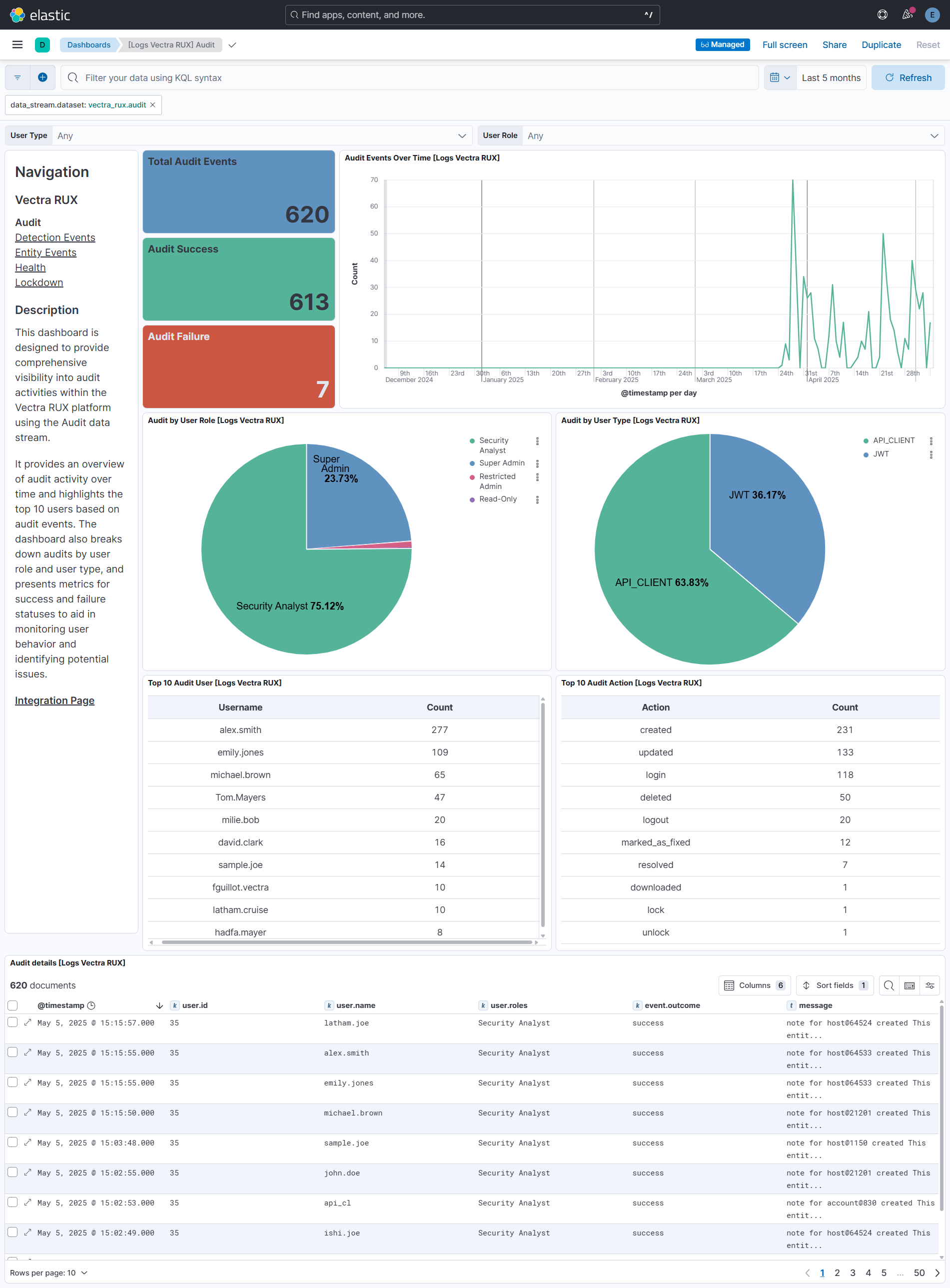
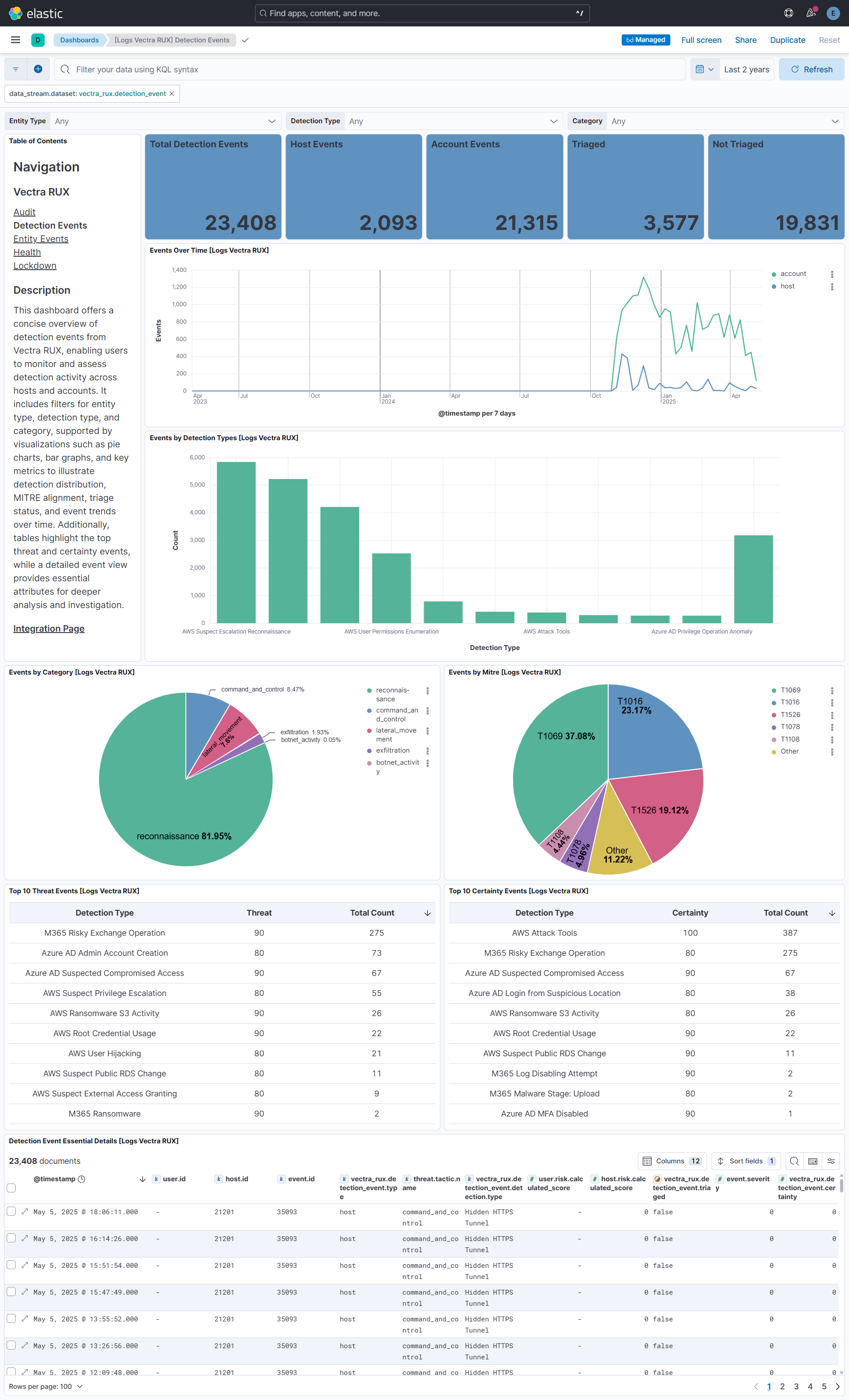
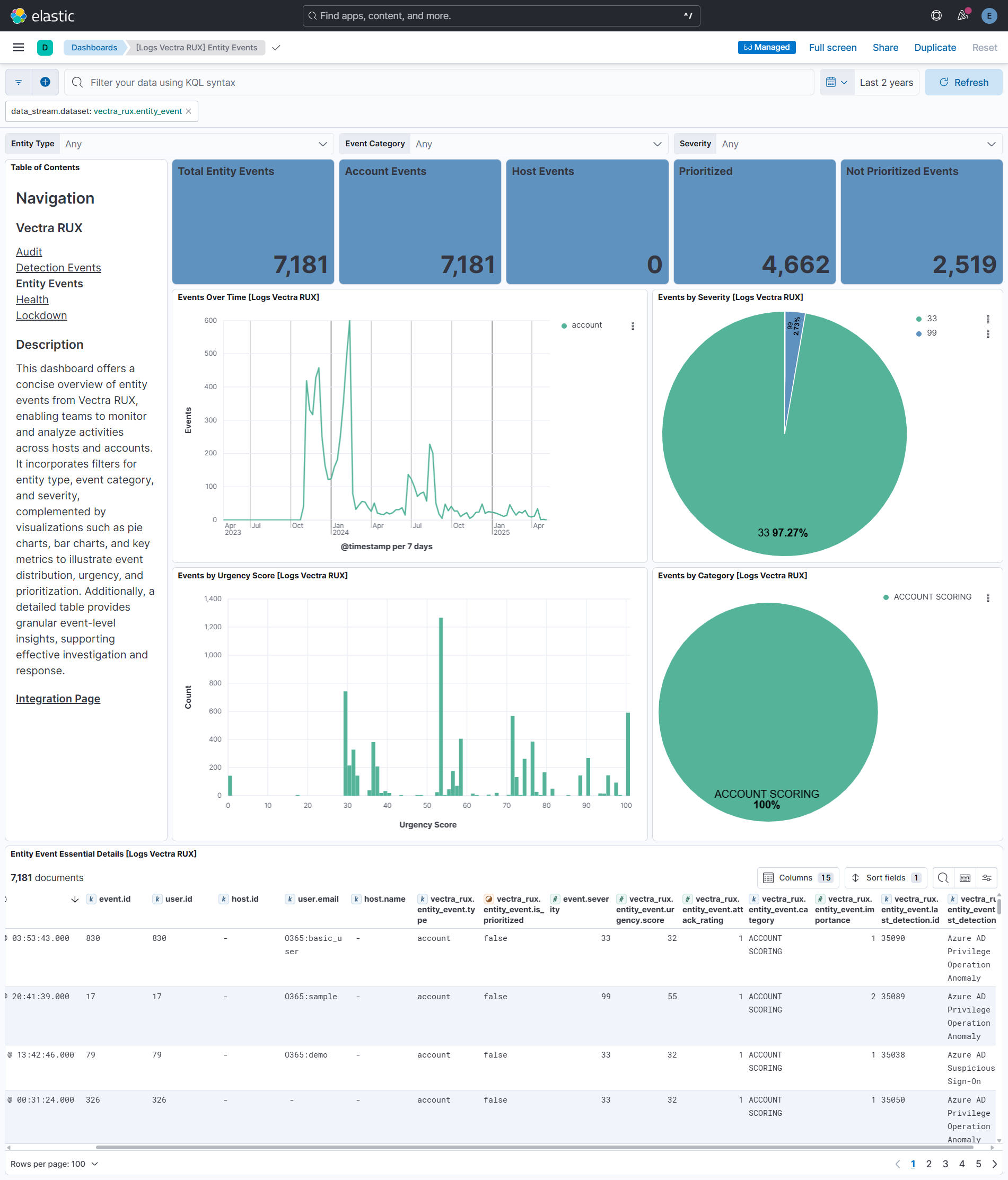
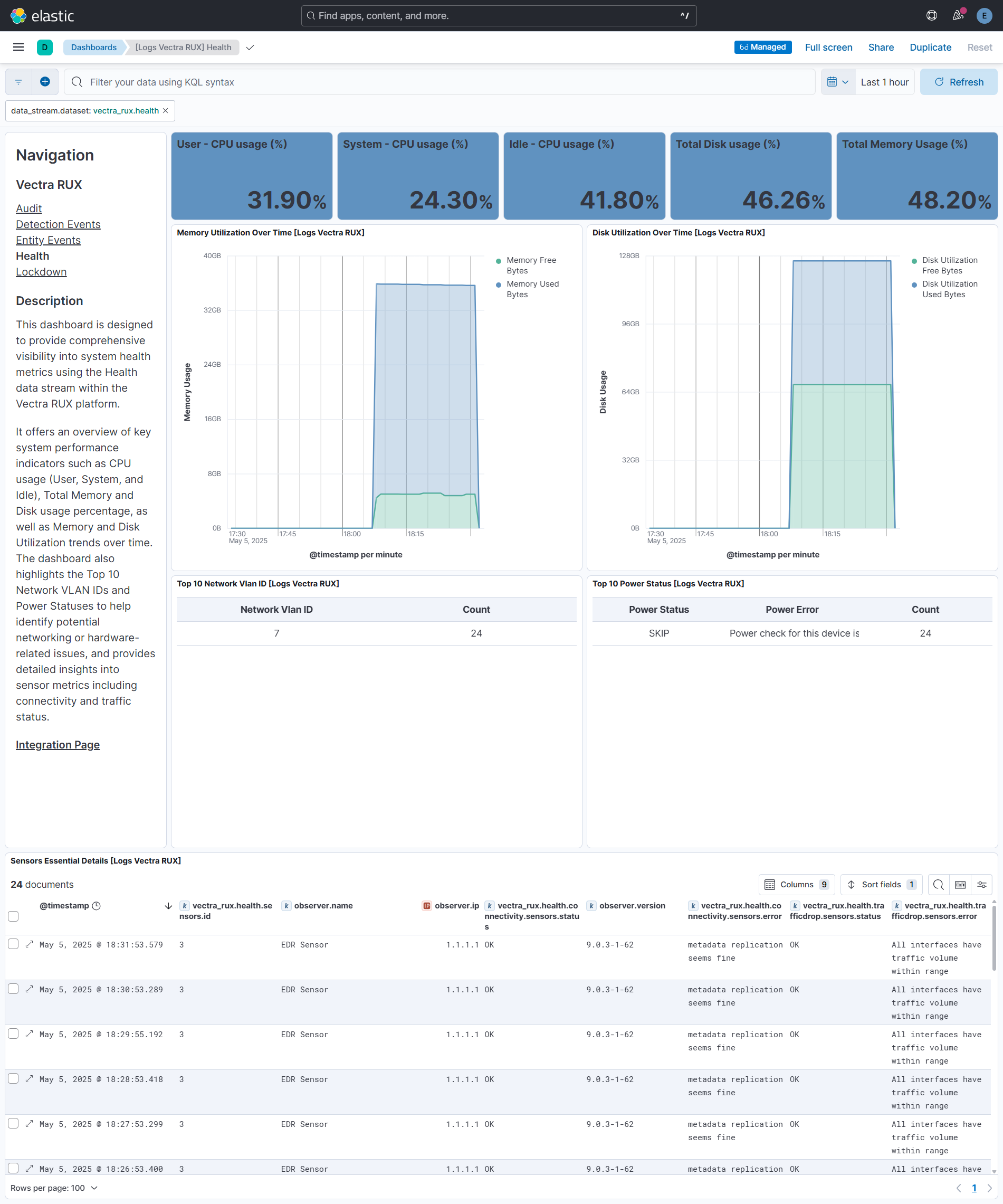
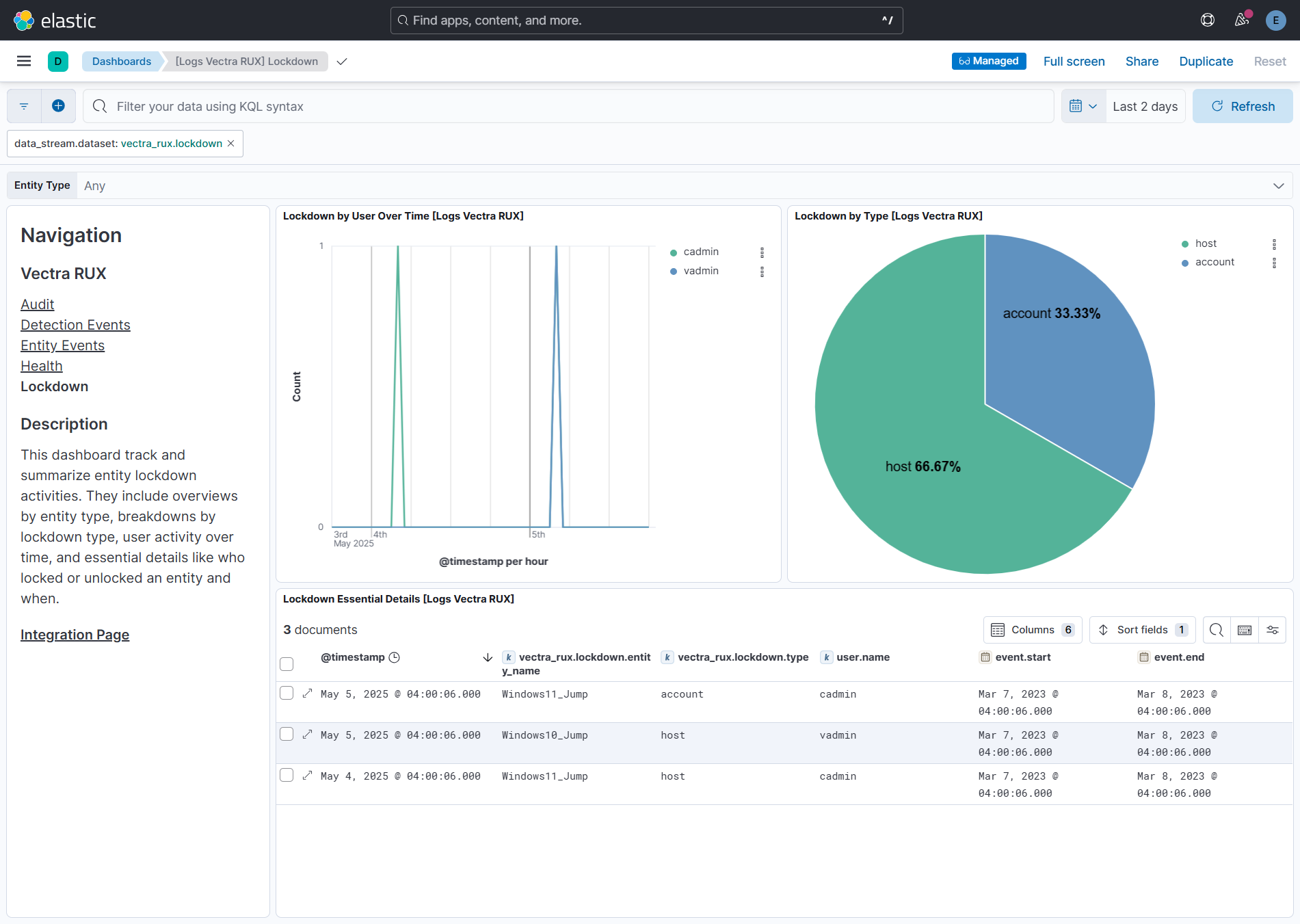
This integration includes one or more Kibana dashboards that visualizes the data collected by the integration. The screenshots below illustrate how the ingested data is displayed.
Changelog
| Version | Details | Minimum Kibana version |
|---|---|---|
| 0.7.0 | Enhancement (View pull request) Document the retention applied to source data streams on stateful and Serverless deployments, and how to change it. |
9.0.0 8.18.0 |
| 0.6.0 | Enhancement (View pull request) Add tags to ingest pipeline processors and add preserve_original_event to pipeline-level on_failure handlers. |
9.0.0 8.18.0 |
| 0.5.1 | Enhancement (View pull request) Set agentless deployment mode release field to ga. |
9.0.0 8.18.0 |
| 0.5.0 | Enhancement (View pull request) Publish Agentless to Elastic Managed integrations name change. |
9.0.0 8.18.0 |
| 0.4.0 | Enhancement (View pull request) Use new release field for agentless deployment mode to establish as beta. |
9.0.0 8.18.0 |
| 0.3.3 | Bug fix (View pull request) Downgrade the format_version to the minimum version that supports all the necessary features for the package. |
9.0.0 8.18.0 |
| 0.3.2 | Bug fix (View pull request) Fix CEL code to properly handle from query parameter. |
9.0.0 8.18.0 |
| 0.3.1 | Bug fix (View pull request) Validate pagination parameters from API responses. |
9.0.0 8.18.0 |
| 0.3.0 | Enhancement (View pull request) Use terminate processor instead of fail processor to handle agent errors. |
9.0.0 8.18.0 |
| 0.2.0 | Enhancement (View pull request) Standardize user fields processing across integrations. |
9.0.0 8.18.0 |
| 0.1.1 | Bug fix (View pull request) Add temporary processor to remove the fields added by the Agentless policy. |
9.0.0 8.18.0 |
| 0.1.0 | Enhancement (View pull request) Initial release. |
9.0.0 8.18.0 |