TrendAI Vision One Integration for Elastic
| Version | 2.13.2 (View all) |
| Managed integration release status | GA |
| Subscription level What's this? |
Basic |
| Developed by What's this? |
Elastic |
| Ingestion method(s) | API |
| Minimum Kibana version(s) | 9.1.4 9.0.7 8.19.4 |
You can use this integration as an Elastic Managed integration on Elastic Cloud Hosted deployments running this version or later.
The TrendAI Vision One integration allows you to monitor Alert, Audit, Detection, Endpoint activity, Network activity, and Telemetry activity. TrendAI Vision One refers to the ability to do detection and response across email, endpoints, servers, cloud workloads, and networks using a single TrendAI Vision One platform or the managed TrendAI Vision One service.
This module has been tested against TrendAI Vision One API version 3.0.
This integration periodically queries the TrendAI Vision One REST API to retrieve Alert, Audit, Detection, Endpoint activity, Network activity, and Telemetry logs.
This integration collects log messages of the following types:
Alert: Displays information about workbench alerts. Refer to more details in the doc here.Audit: Displays log entries that match the specified search criteria. Refer to more details in the doc here.Detection: Displays search results from the Detection Data source. Refer to more details in the doc here.Endpoint activity: Displays search results from the Endpoint activity Data source. Refer to more details in the doc here.Network activity: Displays search results from the Network activity Data source. Refer to more details in the doc here.Telemetry: Displays telemetry events from the Datalake Pipeline API. Refer to more details in the doc here.
Integrating TrendAI Vision One alert, audit, detection, endpoint activity, network activity, and telemetry events with Elastic SIEM provides centralized visibility into security events and operations.
Log on to the TrendAI Vision One console.
On the TrendAI Vision One console, go to Administration -> API Keys.
Generate a new API Key. Click Add API key. Specify the settings of the new API key.
Name: A meaningful name that can help you identify the API key.
Role: The user role assigned to the key. API keys can use either predefined or custom user roles. Custom roles can be created by navigating to Administration -> User Roles -> Add Role. The role must have appropriate API access permission to fetch relevant data. The following table outlines the access permissions to apps and features needed to fetch relevant data from TrendAI Vision API.
Datastream Section Permissions Alert Platform Capabilities > Agentic SIEM & XDR > Workbench View, filter, and search.Audit Settings > Administration > Audit Logs View, filter, and search,Export and Download.Detection Platform Capabilities > Agentic SIEM and XDR > XDR Data Explorer View queries and Watchlist, and filter and search queries.Endpoint activity Platform Capabilities > Agentic SIEM and XDR > XDR Data Explorer View queries and Watchlist, and filter and search queries.Network activity Platform Capabilities > Agentic SIEM and XDR > XDR Data Explorer View queries and Watchlist, and filter and search queries.Telemetry Platform Capabilities > Agentic SIEM and XDR > XDR Data Explorer View queries and Watchlist, and filter and search queries.Refer to Account Role Permissions for more details.
Expiration time: The time the API key remains valid. By default, API keys expire one year after creation. However, a master administrator can delete and re-generate API keys at any time.
Status: Whether the API key is enabled.
Details: Extra information about the API key.
Click Add.
Copy the value of the API key.
Refer to First steps toward using the APIs for more details on setting up an API key.
For the Telemetry data stream, which uses the Datalake Pipeline APIs, you need to allocate Trend Vision One credits for Data Transfer. For more information, see Credit requirements for Trend Vision One solutions, capabilities and services > Data Transfer.
When the Telemetry data stream starts for the first time it will use the Datalake Pipeline API to bind all telemetry data types to a new pipeline with a distinctive description. If a pipeline with that description already exists, it will be reused. It will never delete the pipeline, so if you stop using the integration, that pipeline should be removed manually.
Elastic Agent must be installed. For more details, check the Elastic Agent installation instructions. You can install only one Elastic Agent per host.
Elastic Agent is required to stream data from the syslog or log file receiver and ship the data to Elastic, where the events will then be processed using the integration's ingest pipelines.
Agentless integrations allow you to collect data without having to manage Elastic Agent in your cloud. They make manual agent deployment unnecessary, so you can focus on your data instead of the agent that collects it. For more information, refer to Agentless integrations and the Agentless integrations FAQ. Agentless deployments are only supported in Elastic Serverless and Elastic Cloud environments. This functionality is in beta and is subject to change. Beta features are not subject to the support SLA of official GA features.
In the top search bar in Kibana, search for Integrations.
In the search bar, type TrendAI Vision One.
Select the TrendAI Vision One integration from the search results.
Select Add TrendAI Vision One to add the integration.
Enable and configure only the collection methods which you will use.
To collect the logs from TrendAI Vision One using API, you'll need to:
- Configure Regional Domain URL and API Token.
- Adjust the integration configuration parameters if required, including the Interval, Preserve original event etc. to enable data collection.
Select Save and continue to save the integration.
- In the top search bar in Kibana, search for Dashboards.
- In the search bar, type TrendAI Vision One.
- Select a dashboard for the dataset you are collecting, and verify the dashboard information is populated.
For help with Elastic ingest tools, check Common problems.
For more information on architectures that can be used for scaling this integration, check the Ingest Architectures documentation.
This is the alert dataset.
Example
{
    "@timestamp": "2023-04-30T00:01:16.000Z",
    "agent": {
        "ephemeral_id": "e7fa0bb4-3653-4f58-ab8d-717f2f6a252d",
        "id": "f9c41a16-2f2e-40a2-8140-c9303a4cb0a9",
        "name": "elastic-agent-40765",
        "type": "filebeat",
        "version": "8.19.4"
    },
    "data_stream": {
        "dataset": "trend_micro_vision_one.alert",
        "namespace": "71705",
        "type": "logs"
    },
    "ecs": {
        "version": "9.3.0"
    },
    "elastic_agent": {
        "id": "f9c41a16-2f2e-40a2-8140-c9303a4cb0a9",
        "snapshot": false,
        "version": "8.19.4"
    },
    "event": {
        "agent_id_status": "verified",
        "category": [
            "email"
        ],
        "created": "2020-04-30T00:01:15.000Z",
        "dataset": "trend_micro_vision_one.alert",
        "id": "WB-9002-20200427-0002",
        "ingested": "2026-03-13T09:42:49Z",
        "kind": "alert",
        "original": "{\"alertProvider\":\"SAE\",\"createdDateTime\":\"2020-04-30T00:01:15Z\",\"description\":\"A backdoor was possibly implanted after a user received a possible spear phishing email message.\",\"id\":\"WB-9002-20200427-0002\",\"impactScope\":{\"accountCount\":0,\"desktopCount\":0,\"emailAddressCount\":0,\"entities\":[{\"entityId\":\"5257b401-2fd7-469c-94fa-39a4f11eb925\",\"entityType\":\"host\",\"entityValue\":\"user@email.com\",\"provenance\":[\"Alert\"],\"relatedEntities\":[\"CODERED\\\\\\\\user\"],\"relatedIndicatorIds\":[1]}],\"serverCount\":0},\"indicators\":[{\"field\":\"request url\",\"filterIds\":[\"f862df72-7f5e-4b2b-9f7f-9148e875f908\"],\"id\":1,\"provenance\":[\"Alert\"],\"relatedEntities\":[\"user@example.com\"],\"type\":\"url\",\"value\":\"http://www.example.com/ab001.zip\"}],\"investigationStatus\":\"New\",\"matchedRules\":[{\"id\":\"5f52d1f1-53e7-411a-b74f-745ee81fa30b\",\"matchedFilters\":[{\"id\":\"ccf86fc1-688f-4131-a46f-1d7a6ee2f88e\",\"matchedDateTime\":\"2019-08-02T04:00:01Z\",\"matchedEvents\":[{\"matchedDateTime\":\"2019-08-02T04:00:01Z\",\"type\":\"TELEMETRY_REGISTRY\",\"uuid\":\"fa9ff47c-e1b8-459e-a3d0-a5b104b854a5\"}],\"mitreTechniqueIds\":[\"T1192\"],\"name\":\"(T1192) Spearphishing Link\"}],\"name\":\"Possible SpearPhishing Email\"}],\"model\":\"Possible APT Attack\",\"schemaVersion\":\"1.0\",\"score\":63,\"severity\":\"critical\",\"updatedDateTime\":\"2023-04-30T00:01:16Z\",\"workbenchLink\":\"https://THE_WORKBENCH_URL\"}",
        "severity": 99,
        "type": [
            "info"
        ]
    },
    "input": {
        "type": "httpjson"
    },
    "log": {
        "level": "critical"
    },
    "message": "Possible APT Attack",
    "tags": [
        "preserve_original_event",
        "preserve_duplicate_custom_fields",
        "forwarded",
        "trend_micro_vision_one-alert"
    ],
    "threat": {
        "framework": "MITRE ATT&CK",
        "technique": {
            "id": [
                "T1192"
            ]
        }
    },
    "trend_micro_vision_one": {
        "alert": {
            "alert_provider": "SAE",
            "created_date": "2020-04-30T00:01:15.000Z",
            "description": "A backdoor was possibly implanted after a user received a possible spear phishing email message.",
            "id": "WB-9002-20200427-0002",
            "impact_scope": {
                "account_count": 0,
                "desktop_count": 0,
                "email_address_count": 0,
                "entities": [
                    {
                        "id": "5257b401-2fd7-469c-94fa-39a4f11eb925",
                        "provenance": [
                            "Alert"
                        ],
                        "related_entities": [
                            "CODERED\\\\user"
                        ],
                        "related_indicator_id": [
                            1
                        ],
                        "type": "host",
                        "value": {
                            "account_value": "user@email.com"
                        }
                    }
                ],
                "server_count": 0
            },
            "indicators": [
                {
                    "field": "request url",
                    "filter_id": [
                        "f862df72-7f5e-4b2b-9f7f-9148e875f908"
                    ],
                    "id": 1,
                    "provenance": [
                        "Alert"
                    ],
                    "related_entities": [
                        "user@example.com"
                    ],
                    "type": "url",
                    "value": "http://www.example.com/ab001.zip"
                }
            ],
            "investigation_status": "New",
            "matched_rule": [
                {
                    "filter": [
                        {
                            "date": "2019-08-02T04:00:01.000Z",
                            "events": [
                                {
                                    "date": "2019-08-02T04:00:01.000Z",
                                    "type": "TELEMETRY_REGISTRY",
                                    "uuid": "fa9ff47c-e1b8-459e-a3d0-a5b104b854a5"
                                }
                            ],
                            "id": "ccf86fc1-688f-4131-a46f-1d7a6ee2f88e",
                            "mitre_technique_id": [
                                "T1192"
                            ],
                            "name": "(T1192) Spearphishing Link"
                        }
                    ],
                    "id": "5f52d1f1-53e7-411a-b74f-745ee81fa30b",
                    "name": "Possible SpearPhishing Email"
                }
            ],
            "model": "Possible APT Attack",
            "schema_version": "1.0",
            "score": 63,
            "severity": "critical",
            "updated_date": "2023-04-30T00:01:16.000Z",
            "workbench_link": "https://THE_WORKBENCH_URL"
        }
    },
    "url": {
        "original": "https://THE_WORKBENCH_URL",
        "scheme": "https"
    }
}
Exported fields
| Field | Description | Type |
|---|---|---|
| @timestamp | Date/time when the event originated. This is the date/time extracted from the event, typically representing when the event was generated by the source. If the event source has no original timestamp, this value is typically populated by the first time the event was received by the pipeline. Required field for all events. | date |
| data_stream.dataset | The field can contain anything that makes sense to signify the source of the data. Examples include nginx.access, prometheus, endpoint etc. For data streams that otherwise fit, but that do not have dataset set we use the value "generic" for the dataset value. event.dataset should have the same value as data_stream.dataset. Beyond the Elasticsearch data stream naming criteria noted above, the dataset value has additional restrictions: * Must not contain - * No longer than 100 characters |
constant_keyword |
| data_stream.namespace | A user defined namespace. Namespaces are useful to allow grouping of data. Many users already organize their indices this way, and the data stream naming scheme now provides this best practice as a default. Many users will populate this field with default. If no value is used, it falls back to default. Beyond the Elasticsearch index naming criteria noted above, namespace value has the additional restrictions: * Must not contain - * No longer than 100 characters |
constant_keyword |
| data_stream.type | An overarching type for the data stream. Currently allowed values are "logs" and "metrics". We expect to also add "traces" and "synthetics" in the near future. | constant_keyword |
| event.dataset | Name of the dataset. If an event source publishes more than one type of log or events (e.g. access log, error log), the dataset is used to specify which one the event comes from. It's recommended but not required to start the dataset name with the module name, followed by a dot, then the dataset name. | constant_keyword |
| event.module | Name of the module this data is coming from. If your monitoring agent supports the concept of modules or plugins to process events of a given source (e.g. Apache logs), event.module should contain the name of this module. |
constant_keyword |
| input.type | Input type | keyword |
| log.offset | Log offset | long |
| trend_micro_vision_one.alert.alert_provider | Alert provider. | keyword |
| trend_micro_vision_one.alert.campaign | An object-ref to a campaign object. | keyword |
| trend_micro_vision_one.alert.case_id | The unique identifier of a case. | keyword |
| trend_micro_vision_one.alert.created_by | Created by. | keyword |
| trend_micro_vision_one.alert.created_date | Datetime in ISO 8601 format (yyyy-MM-ddThh:mm:ssZ in UTC) that indicates the created date time of the alert. | date |
| trend_micro_vision_one.alert.description | Description of the detection model that triggered the alert. | keyword |
| trend_micro_vision_one.alert.first_investigated_date | The date and time the case status was changed to 'In progress' in ISO 8601 format (yyyy-MM-ddThh:mm:ssZ, UTC). | date |
| trend_micro_vision_one.alert.id | Workbench ID. | keyword |
| trend_micro_vision_one.alert.impact_scope.account_count | Count of affected account. | long |
| trend_micro_vision_one.alert.impact_scope.cloud_identity_count | The number of affected cloud resources (cloud identity). | long |
| trend_micro_vision_one.alert.impact_scope.cloud_workload_count | The number of affected cloud resources (cloud workload). | long |
| trend_micro_vision_one.alert.impact_scope.container_count | The number of affected containers. | long |
| trend_micro_vision_one.alert.impact_scope.desktop_count | Count of affected desktop. | long |
| trend_micro_vision_one.alert.impact_scope.email_address_count | Count of affected email address. | long |
| trend_micro_vision_one.alert.impact_scope.entities.id | keyword | |
| trend_micro_vision_one.alert.impact_scope.entities.management_scope_group_id | Group ID for management scope. | keyword |
| trend_micro_vision_one.alert.impact_scope.entities.management_scope_instance_id | The instance ID for asset visibility scope. | keyword |
| trend_micro_vision_one.alert.impact_scope.entities.management_scope_partition_key | The partition key for asset visibility scope. | keyword |
| trend_micro_vision_one.alert.impact_scope.entities.provenance | keyword | |
| trend_micro_vision_one.alert.impact_scope.entities.related_entities | keyword | |
| trend_micro_vision_one.alert.impact_scope.entities.related_indicator_id | keyword | |
| trend_micro_vision_one.alert.impact_scope.entities.type | keyword | |
| trend_micro_vision_one.alert.impact_scope.entities.value.account_value | Account or emailAddress. | keyword |
| trend_micro_vision_one.alert.impact_scope.entities.value.guid | GUID. | keyword |
| trend_micro_vision_one.alert.impact_scope.entities.value.ips | Set of IPs. | ip |
| trend_micro_vision_one.alert.impact_scope.entities.value.name | Host name. | keyword |
| trend_micro_vision_one.alert.impact_scope.server_count | Count of affected server. | long |
| trend_micro_vision_one.alert.incident_id | The incident ID which is the resource ID returned from the insight API. | keyword |
| trend_micro_vision_one.alert.indicators.field | Detailed description of the indicator. | keyword |
| trend_micro_vision_one.alert.indicators.fields | Detailed description of the indicator. | keyword |
| trend_micro_vision_one.alert.indicators.filter_id | Related matched filter ids. | keyword |
| trend_micro_vision_one.alert.indicators.first_seen_date | First seen date times from related entities, datetime in ISO 8601 format (yyyy-MM-ddThh:mm:ssZ in UTC). | date |
| trend_micro_vision_one.alert.indicators.id | Indicator ID. | keyword |
| trend_micro_vision_one.alert.indicators.last_seen_date | Last seen date times from related entities, datetime in ISO 8601 format (yyyy-MM-ddThh:mm:ssZ in UTC). | date |
| trend_micro_vision_one.alert.indicators.matched_indicator.pattern_id | Matched indicator pattern ids. | keyword |
| trend_micro_vision_one.alert.indicators.provenance | Provenance. | keyword |
| trend_micro_vision_one.alert.indicators.related_entities | Related entities. | keyword |
| trend_micro_vision_one.alert.indicators.type | Indicator type. | keyword |
| trend_micro_vision_one.alert.indicators.value | Indicator value. | keyword |
| trend_micro_vision_one.alert.indicators.value_object.guid | GUID. | keyword |
| trend_micro_vision_one.alert.indicators.value_object.ips | Set of IPs. | ip |
| trend_micro_vision_one.alert.indicators.value_object.name | Host name. | keyword |
| trend_micro_vision_one.alert.industry | Industry. | keyword |
| trend_micro_vision_one.alert.investigation_result | The findings of a case or investigation. | keyword |
| trend_micro_vision_one.alert.investigation_status | Workbench alert status. | keyword |
| trend_micro_vision_one.alert.matched_indicator_count | Matched indicator pattern count. | long |
| trend_micro_vision_one.alert.matched_indicators_pattern.id | Pattern ID. | keyword |
| trend_micro_vision_one.alert.matched_indicators_pattern.matched_log | Pattern matched log. | keyword |
| trend_micro_vision_one.alert.matched_indicators_pattern.pattern | STIX indicator will be a pattern. | keyword |
| trend_micro_vision_one.alert.matched_indicators_pattern.tags | Tags defined by STIX. | keyword |
| trend_micro_vision_one.alert.matched_rule.filter.date | Datetime in ISO 8601 format (yyyy-MM-ddThh:mm:ssZ in UTC). | date |
| trend_micro_vision_one.alert.matched_rule.filter.events.date | Matched event date. | date |
| trend_micro_vision_one.alert.matched_rule.filter.events.type | Matched event type. | keyword |
| trend_micro_vision_one.alert.matched_rule.filter.events.uuid | Matched event uuid. | keyword |
| trend_micro_vision_one.alert.matched_rule.filter.id | Matched filter id. | keyword |
| trend_micro_vision_one.alert.matched_rule.filter.mitre_technique_id | Mitre technique id. | keyword |
| trend_micro_vision_one.alert.matched_rule.filter.name | Filter name. | keyword |
| trend_micro_vision_one.alert.matched_rule.id | The rules are triggered. | keyword |
| trend_micro_vision_one.alert.matched_rule.name | Matched rule name. | keyword |
| trend_micro_vision_one.alert.model | Name of the detection model that triggered the alert. | keyword |
| trend_micro_vision_one.alert.model_id | ID of the detection model that triggered the alert. | keyword |
| trend_micro_vision_one.alert.model_type | Type of the detection model that triggered the alert. | keyword |
| trend_micro_vision_one.alert.owner_ids | The owners of the Workbench alert. | keyword |
| trend_micro_vision_one.alert.region_and_country | region/country. | keyword |
| trend_micro_vision_one.alert.report_link | A refrerence url which links to the report details analysis. For TrendMico research report, the link would link to trend blog. | keyword |
| trend_micro_vision_one.alert.schema_version | The version of the JSON schema, not the version of alert trigger content. | keyword |
| trend_micro_vision_one.alert.score | Overall severity assigned to the alert based on the severity of the matched detection model and the impact scope. | long |
| trend_micro_vision_one.alert.severity | Workbench alert severity. | keyword |
| trend_micro_vision_one.alert.status | The status of a case or investigation. | keyword |
| trend_micro_vision_one.alert.total_indicator_count | Total indicator pattern count. | long |
| trend_micro_vision_one.alert.updated_date | The date and time the alert was last updated in ISO 8601 format (yyyy-MM-ddThh:mm:ssZ, UTC). | date |
| trend_micro_vision_one.alert.workbench_link | Workbench URL. | keyword |
This is the audit dataset.
Example
{
    "@timestamp": "2022-02-24T07:29:48.000Z",
    "agent": {
        "ephemeral_id": "523385a1-5bd8-4dbf-a811-fc2b873f62e1",
        "id": "27fb6f67-7090-4890-8822-de904c0f896e",
        "name": "elastic-agent-88838",
        "type": "filebeat",
        "version": "8.19.4"
    },
    "data_stream": {
        "dataset": "trend_micro_vision_one.audit",
        "namespace": "82038",
        "type": "logs"
    },
    "ecs": {
        "version": "9.3.0"
    },
    "elastic_agent": {
        "id": "27fb6f67-7090-4890-8822-de904c0f896e",
        "snapshot": false,
        "version": "8.19.4"
    },
    "event": {
        "agent_id_status": "verified",
        "category": [
            "authentication"
        ],
        "created": "2026-03-13T09:43:26.242Z",
        "dataset": "trend_micro_vision_one.audit",
        "ingested": "2026-03-13T09:43:29Z",
        "kind": "event",
        "original": "{\"accessType\":\"Console\",\"activity\":\"string\",\"category\":\"Logon and Logoff\",\"details\":{\"property1\":\"string\",\"property2\":\"string\"},\"loggedDateTime\":\"2022-02-24T07:29:48Z\",\"loggedRole\":\"Master Administrator\",\"loggedUser\":\"Root Account\",\"result\":\"Unsuccessful\"}",
        "outcome": "failure",
        "type": [
            "info"
        ]
    },
    "input": {
        "type": "httpjson"
    },
    "related": {
        "user": [
            "Root Account"
        ]
    },
    "source": {
        "user": {
            "name": "Root Account",
            "roles": [
                "Master Administrator"
            ]
        }
    },
    "tags": [
        "preserve_original_event",
        "preserve_duplicate_custom_fields",
        "forwarded",
        "trend_micro_vision_one-audit"
    ],
    "trend_micro_vision_one": {
        "audit": {
            "access_type": "Console",
            "activity": "string",
            "category": "Logon and Logoff",
            "details": {
                "property1": "string",
                "property2": "string"
            },
            "logged_date_time": "2022-02-24T07:29:48.000Z",
            "logged_role": "Master Administrator",
            "logged_user": "Root Account",
            "result": "Unsuccessful"
        }
    }
}
Exported fields
| Field | Description | Type |
|---|---|---|
| @timestamp | Date/time when the event originated. This is the date/time extracted from the event, typically representing when the event was generated by the source. If the event source has no original timestamp, this value is typically populated by the first time the event was received by the pipeline. Required field for all events. | date |
| data_stream.dataset | The field can contain anything that makes sense to signify the source of the data. Examples include nginx.access, prometheus, endpoint etc. For data streams that otherwise fit, but that do not have dataset set we use the value "generic" for the dataset value. event.dataset should have the same value as data_stream.dataset. Beyond the Elasticsearch data stream naming criteria noted above, the dataset value has additional restrictions: * Must not contain - * No longer than 100 characters |
constant_keyword |
| data_stream.namespace | A user defined namespace. Namespaces are useful to allow grouping of data. Many users already organize their indices this way, and the data stream naming scheme now provides this best practice as a default. Many users will populate this field with default. If no value is used, it falls back to default. Beyond the Elasticsearch index naming criteria noted above, namespace value has the additional restrictions: * Must not contain - * No longer than 100 characters |
constant_keyword |
| data_stream.type | An overarching type for the data stream. Currently allowed values are "logs" and "metrics". We expect to also add "traces" and "synthetics" in the near future. | constant_keyword |
| event.dataset | Name of the dataset. If an event source publishes more than one type of log or events (e.g. access log, error log), the dataset is used to specify which one the event comes from. It's recommended but not required to start the dataset name with the module name, followed by a dot, then the dataset name. | constant_keyword |
| event.module | Name of the module this data is coming from. If your monitoring agent supports the concept of modules or plugins to process events of a given source (e.g. Apache logs), event.module should contain the name of this module. |
constant_keyword |
| input.type | Input type | keyword |
| log.offset | Log offset | long |
| trend_micro_vision_one.audit.access_type | Source of the activity. | keyword |
| trend_micro_vision_one.audit.activity | The activity that was performed. | keyword |
| trend_micro_vision_one.audit.category | The category that the performed activity belongs to. | keyword |
| trend_micro_vision_one.audit.details | Object that contains a list of elements to be retrieved from the "details" field. | flattened |
| trend_micro_vision_one.audit.ingested_date_time | Timestamp that indicates when the audit log was ingested. | date |
| trend_micro_vision_one.audit.logged_date_time | Timestamp that indicates when an activity occured. | date |
| trend_micro_vision_one.audit.logged_role | Role of the account. | keyword |
| trend_micro_vision_one.audit.logged_user | The account that was used to perform the activity. | keyword |
| trend_micro_vision_one.audit.result | Result. | keyword |
This is the detection dataset.
Example
{
    "@timestamp": "2020-10-15T01:16:32.000Z",
    "agent": {
        "ephemeral_id": "a09ecd66-623e-486e-95cc-f12693b96c06",
        "id": "444369db-cefa-482a-a1f7-9c0df276ca22",
        "name": "elastic-agent-14943",
        "type": "filebeat",
        "version": "8.19.4"
    },
    "data_stream": {
        "dataset": "trend_micro_vision_one.detection",
        "namespace": "23938",
        "type": "logs"
    },
    "destination": {
        "domain": "Workgroup",
        "ip": [
            "81.2.69.142"
        ],
        "port": 53
    },
    "ecs": {
        "version": "9.3.0"
    },
    "elastic_agent": {
        "id": "444369db-cefa-482a-a1f7-9c0df276ca22",
        "snapshot": false,
        "version": "8.19.4"
    },
    "event": {
        "action": "clean",
        "agent_id_status": "verified",
        "category": [
            "intrusion_detection"
        ],
        "created": "2026-03-13T09:44:05.199Z",
        "dataset": "trend_micro_vision_one.detection",
        "id": "100117",
        "ingested": "2026-03-13T09:44:08Z",
        "kind": "event",
        "original": "{\"act\":\"Clean\",\"actResult\":\"Quarantined successfully\",\"app\":\"HTTP\",\"appGroup\":\"HTTP\",\"aptRelated\":\"0\",\"behaviorCat\":\"Grey-Detection\",\"blocking\":\"Web reputation\",\"cat\":50,\"cccaDetection\":\"Yes\",\"cccaDetectionSource\":\"GLOBAL_INTELLIGENCE\",\"cccaRiskLevel\":3,\"clientFlag\":\"dst\",\"cnt\":\"1\",\"component\":[\"PATTERN_VSAPI 17.101.92 2021-09-30 04:23:27-07:00\"],\"compressedFileSize\":\"0\",\"detectionType\":\"File\",\"deviceDirection\":\"outbound\",\"deviceGUID\":\"xxxxxxxx-xxxx-xxxx-xxxx-xxxxxxxxxxxx\",\"deviceMacAddress\":\"00-00-5E-00-53-23\",\"deviceProcessName\":\"/snap/core/10126/usr/lib/snapd/snapd\",\"dhost\":\"samplehost\",\"domainName\":\"Workgroup\",\"dpt\":53,\"dst\":[\"81.2.69.142\"],\"dstGroup\":\"Default\",\"end\":\"2021-09-30T09:40:04-08:00\",\"endpointGUID\":\"1234-1234-1234\",\"endpointHostName\":\"abc-docker\",\"endpointIp\":[\"81.2.69.142\"],\"endpointMacAddress\":\"00-00-5E-00-53-23\",\"engType\":\"Virus Scan Engine (OS 2003, x64)\",\"engVer\":\"12.500.1004\",\"eventId\":\"100117\",\"eventName\":\"INTEGRITY_MONITORING_EVENT\",\"eventSubName\":\"Attack Discovery\",\"eventTime\":1602724592000,\"eventTimeDT\":\"2021-06-10T01:38:38+00:00\",\"fileHash\":\"3395856ce81f2b7382dee72602f798b642f14140\",\"fileName\":[\"Unconfirmed 145081.crdownload\"],\"fileOperation\":\"Deleted\",\"filePath\":\"/etc/systemd/system\",\"filePathName\":\"/etc/systemd/system/snap-xxxx-1246.xxxx\",\"fileSize\":\"0\",\"firstAct\":\"Clean\",\"firstActResult\":\"Unable to clean file\",\"fullPath\":\"C:\\\\\\\\Users\\\\\\\\user1\\\\\\\\Downloads\\\\\\\\Unconfirmed 145081.crdownload\",\"hostName\":\"samplehost\",\"httpReferer\":\"http://www.example.com/\",\"interestedHost\":\"abc-docker\",\"interestedIp\":[\"81.2.69.192\"],\"interestedMacAddress\":\"00-00-5E-00-53-23\",\"mDevice\":[\"81.2.69.192\"],\"mDeviceGUID\":\"C5B09EDD-C725-907F-29D9-B8C30D18C48F\",\"malName\":\"Eicar_test_1\",\"malType\":\"Virus/Malware\",\"mitreMapping\":[\"T1090 (TA0005)\"],\"mitreVersion\":\"v6\",\"mpname\":\"Cloud One - Workload Security\",\"mpver\":\"Deep Security/20.0.222\",\"objectCmd\":[\"C:\\\\\\\\Program Files (x86)\\\\\\\\Microsoft\\\\\\\\Edge\\\\\\\\Application\\\\\\\\msedge.exe --profile-directory=Default\"],\"objectFileHashMd5\":\"761AEFF7E6B110970285B9C20C9E1DCA\",\"objectFileHashSha1\":\"00496B4D53CEFE031B9702B3385C9F4430999932\",\"objectFileHashSha256\":\"7778ED68F4646BAA38C4F36B16A1AE393ACECD694948102B5CF0773AB08237D7\",\"objectFileName\":\"Unconfirmed 142899.crdownload:SmartScreen\",\"objectFilePath\":\"C:\\\\\\\\Users\\\\\\\\user1\\\\\\\\Downloads\\\\\\\\Unconfirmed 142899.crdownload:SmartScreen\",\"objectName\":\"CloudEndpointService.exe\",\"objectPid\":7660,\"objectSigner\":[\"OS\"],\"parentCmd\":\"C:\\\\\\\\os\\\\\\\\system32\\\\\\\\svchost.exe -k DcomLaunch -p\",\"parentFileHashSha1\":\"00496B4D53CEFE031B9702B3385C9F4430999932\",\"parentFileHashSha256\":\"7778ED68F4646BAA38C4F36B16A1AE393ACECD694948102B5CF0773AB08237D7\",\"parentFilePath\":\"C:\\\\\\\\os\\\\\\\\System32\\\\\\\\svchost.exe\",\"peerHost\":\"samplehost\",\"peerIp\":[\"81.2.69.192\"],\"pname\":\"Apex One\",\"processCmd\":\"-ServerName:App.AppX9yct9q388jvt4h7y0gn06smzkxcsnt8m.mca\",\"processFileHashMd5\":\"761AEFF7E6B110970285B9C20C9E1DCA\",\"processFileHashSha1\":\"00496B4D53CEFE031B9702B3385C9F4430999932\",\"processFileHashSha256\":\"7778ED68F4646BAA38C4F36B16A1AE393ACECD694948102B5CF0773AB08237D7\",\"processFilePath\":\"C:\\\\\\\\Program Files (x86)\\\\\\\\os\\\\\\\\Application\\\\\\\\msedge.exe\",\"processName\":\"string\",\"processPid\":0,\"processSigner\":\"OS Publisher\",\"productCode\":\"sao\",\"pver\":\"20.0.0.877\",\"request\":\"https://example.com\",\"requestClientApplication\":\"Mozilla/5.0 (iPhone; CPU iPhone OS 12_1 like Mac OS X) AppleWebKit/605.1.15 (KHTML, like Gecko) Version/12.0 Mobile/15E148 Safari/604.1\",\"rt\":\"2020-10-15T01:16:32.000Z\",\"rt_utc\":\"2020-10-15T01:16:32.000Z\",\"searchDL\":\"DDL\",\"spt\":58871,\"src\":\"81.2.69.192\",\"srcGroup\":\"Default\",\"tacticId\":[\"TA0005\"],\"tags\":[\"XSAE.F2140\",\"XSAE.F3066\"],\"threatName\":\"Malicious_identified_CnC_querying_on_UDP_detected\",\"uuid\":\"1234-1234-1234\"}",
        "type": [
            "info"
        ]
    },
    "file": {
        "hash": {
            "md5": "761AEFF7E6B110970285B9C20C9E1DCA",
            "sha1": "00496B4D53CEFE031B9702B3385C9F4430999932",
            "sha256": "7778ED68F4646BAA38C4F36B16A1AE393ACECD694948102B5CF0773AB08237D7"
        },
        "name": [
            "Unconfirmed 145081.crdownload"
        ],
        "path": "/etc/systemd/system/snap-xxxx-1246.xxxx",
        "size": 0
    },
    "host": {
        "hostname": "samplehost",
        "id": "1234-1234-1234",
        "ip": [
            "81.2.69.142"
        ],
        "mac": [
            "00-00-5E-00-53-23"
        ],
        "name": "abc-docker"
    },
    "http": {
        "request": {
            "referrer": "http://www.example.com/"
        }
    },
    "input": {
        "type": "httpjson"
    },
    "network": {
        "direction": "outbound",
        "protocol": "http"
    },
    "observer": {
        "hostname": "samplehost",
        "mac": [
            "00-00-5E-00-53-23"
        ]
    },
    "process": {
        "command_line": "-ServerName:App.AppX9yct9q388jvt4h7y0gn06smzkxcsnt8m.mca",
        "name": "string",
        "pid": 0
    },
    "related": {
        "hash": [
            "761AEFF7E6B110970285B9C20C9E1DCA",
            "00496B4D53CEFE031B9702B3385C9F4430999932",
            "7778ED68F4646BAA38C4F36B16A1AE393ACECD694948102B5CF0773AB08237D7",
            "3395856ce81f2b7382dee72602f798b642f14140"
        ],
        "hosts": [
            "samplehost",
            "abc-docker"
        ],
        "ip": [
            "81.2.69.142",
            "81.2.69.192"
        ]
    },
    "source": {
        "ip": "81.2.69.192",
        "port": 58871
    },
    "tags": [
        "preserve_original_event",
        "preserve_duplicate_custom_fields",
        "forwarded",
        "trend_micro_vision_one-detection"
    ],
    "threat": {
        "framework": "MITRE ATT&CK",
        "tactic": {
            "id": [
                "TA0005"
            ]
        }
    },
    "trend_micro_vision_one": {
        "detection": {
            "action": "Clean",
            "action_result": "Quarantined successfully",
            "behavior_category": "Grey-Detection",
            "block": "Web reputation",
            "client_flag": "dst",
            "component_version": [
                "PATTERN_VSAPI 17.101.92 2021-09-30 04:23:27-07:00"
            ],
            "compressed_file_size": 0,
            "destination": {
                "ip": [
                    "81.2.69.142"
                ],
                "ip_group": "Default",
                "port": 53
            },
            "detection": "Yes",
            "detection_source": "GLOBAL_INTELLIGENCE",
            "detection_type": "File",
            "device": {
                "direction": "outbound",
                "guid": "C5B09EDD-C725-907F-29D9-B8C30D18C48F",
                "host": "samplehost",
                "id": "xxxxxxxx-xxxx-xxxx-xxxx-xxxxxxxxxxxx",
                "ip": [
                    "81.2.69.192"
                ],
                "mac": "00-00-5E-00-53-23",
                "process_name": "/snap/core/10126/usr/lib/snapd/snapd"
            },
            "domain": {
                "name": "Workgroup"
            },
            "end_time": "2021-09-30T17:40:04.000Z",
            "endpoint": {
                "guid": "1234-1234-1234",
                "hostname": "abc-docker",
                "ip": [
                    "81.2.69.142"
                ],
                "mac": "00-00-5E-00-53-23"
            },
            "engine_type": "Virus Scan Engine (OS 2003, x64)",
            "engine_version": "12.500.1004",
            "event_id": "100117",
            "event_name": "INTEGRITY_MONITORING_EVENT",
            "event_time": "2020-10-15T01:16:32.000Z",
            "event_time_dt": "2021-06-10T01:38:38.000Z",
            "file_hash": "3395856ce81f2b7382dee72602f798b642f14140",
            "file_name": [
                "Unconfirmed 145081.crdownload"
            ],
            "file_operation": "Deleted",
            "file_path": "/etc/systemd/system",
            "file_path_name": "/etc/systemd/system/snap-xxxx-1246.xxxx",
            "file_size": 0,
            "first_action": "Clean",
            "first_action_result": "Unable to clean file",
            "full_path": "C:\\\\Users\\\\user1\\\\Downloads\\\\Unconfirmed 145081.crdownload",
            "hostname": "samplehost",
            "http_referer": "http://www.example.com/",
            "interested": {
                "host": "abc-docker",
                "ip": [
                    "81.2.69.192"
                ],
                "mac": "00-00-5E-00-53-23"
            },
            "malware_name": "Eicar_test_1",
            "malware_type": "Virus/Malware",
            "mproduct": {
                "name": "Cloud One - Workload Security",
                "version": "Deep Security/20.0.222"
            },
            "object": {
                "cmd": [
                    "C:\\\\Program Files (x86)\\\\Microsoft\\\\Edge\\\\Application\\\\msedge.exe --profile-directory=Default"
                ],
                "file": {
                    "hash": {
                        "md5": "761AEFF7E6B110970285B9C20C9E1DCA",
                        "sha1": "00496B4D53CEFE031B9702B3385C9F4430999932",
                        "sha256": "7778ED68F4646BAA38C4F36B16A1AE393ACECD694948102B5CF0773AB08237D7"
                    },
                    "name": "Unconfirmed 142899.crdownload:SmartScreen",
                    "path": "C:\\\\Users\\\\user1\\\\Downloads\\\\Unconfirmed 142899.crdownload:SmartScreen"
                },
                "name": "CloudEndpointService.exe",
                "pid": 7660,
                "signer": [
                    "OS"
                ]
            },
            "parent": {
                "cmd": "C:\\\\os\\\\system32\\\\svchost.exe -k DcomLaunch -p",
                "file": {
                    "hash": {
                        "sha1": "00496B4D53CEFE031B9702B3385C9F4430999932",
                        "sha256": "7778ED68F4646BAA38C4F36B16A1AE393ACECD694948102B5CF0773AB08237D7"
                    },
                    "path": "C:\\\\os\\\\System32\\\\svchost.exe"
                }
            },
            "peer": {
                "host": "samplehost",
                "ip": [
                    "81.2.69.192"
                ]
            },
            "process": {
                "cmd": "-ServerName:App.AppX9yct9q388jvt4h7y0gn06smzkxcsnt8m.mca",
                "file": {
                    "hash": {
                        "md5": "761AEFF7E6B110970285B9C20C9E1DCA",
                        "sha1": "00496B4D53CEFE031B9702B3385C9F4430999932",
                        "sha256": "7778ED68F4646BAA38C4F36B16A1AE393ACECD694948102B5CF0773AB08237D7"
                    },
                    "path": "C:\\\\Program Files (x86)\\\\os\\\\Application\\\\msedge.exe"
                },
                "name": "string",
                "pid": 0,
                "signer": "OS Publisher"
            },
            "product": {
                "code": "sao",
                "name": "Apex One",
                "version": "20.0.0.877"
            },
            "protocol": "HTTP",
            "protocol_group": "HTTP",
            "related_apt": false,
            "request": "https://example.com",
            "request_client_application": "Mozilla/5.0 (iPhone; CPU iPhone OS 12_1 like Mac OS X) AppleWebKit/605.1.15 (KHTML, like Gecko) Version/12.0 Mobile/15E148 Safari/604.1",
            "risk_level": 3,
            "risk_level_value": "SLF_CCCA_RISKLEVEL_HIGH",
            "rt": "2020-10-15T01:16:32.000Z",
            "rt_utc": "2020-10-15T01:16:32.000Z",
            "search_data_lake": "DDL",
            "security_analytics": {
                "engine": {
                    "name": [
                        "T1090 (TA0005)"
                    ],
                    "version": "v6"
                }
            },
            "severity_level": 50,
            "source": {
                "group": "Default",
                "ip": "81.2.69.192",
                "port": 58871
            },
            "sub_name": "Attack Discovery",
            "tactic_id": [
                "TA0005"
            ],
            "tags": [
                "XSAE.F2140",
                "XSAE.F3066"
            ],
            "threat_name": "Malicious_identified_CnC_querying_on_UDP_detected",
            "total_count": 1,
            "uuid": "1234-1234-1234"
        }
    },
    "url": {
        "domain": "example.com",
        "original": "https://example.com",
        "scheme": "https"
    },
    "user_agent": {
        "device": {
            "name": "iPhone"
        },
        "name": "Mobile Safari",
        "original": "Mozilla/5.0 (iPhone; CPU iPhone OS 12_1 like Mac OS X) AppleWebKit/605.1.15 (KHTML, like Gecko) Version/12.0 Mobile/15E148 Safari/604.1",
        "os": {
            "full": "iOS 12.1",
            "name": "iOS",
            "version": "12.1"
        },
        "version": "12.0"
    }
}
Exported fields
| Field | Description | Type |
|---|---|---|
| @timestamp | Date/time when the event originated. This is the date/time extracted from the event, typically representing when the event was generated by the source. If the event source has no original timestamp, this value is typically populated by the first time the event was received by the pipeline. Required field for all events. | date |
| data_stream.dataset | The field can contain anything that makes sense to signify the source of the data. Examples include nginx.access, prometheus, endpoint etc. For data streams that otherwise fit, but that do not have dataset set we use the value "generic" for the dataset value. event.dataset should have the same value as data_stream.dataset. Beyond the Elasticsearch data stream naming criteria noted above, the dataset value has additional restrictions: * Must not contain - * No longer than 100 characters |
constant_keyword |
| data_stream.namespace | A user defined namespace. Namespaces are useful to allow grouping of data. Many users already organize their indices this way, and the data stream naming scheme now provides this best practice as a default. Many users will populate this field with default. If no value is used, it falls back to default. Beyond the Elasticsearch index naming criteria noted above, namespace value has the additional restrictions: * Must not contain - * No longer than 100 characters |
constant_keyword |
| data_stream.type | An overarching type for the data stream. Currently allowed values are "logs" and "metrics". We expect to also add "traces" and "synthetics" in the near future. | constant_keyword |
| event.dataset | Name of the dataset. If an event source publishes more than one type of log or events (e.g. access log, error log), the dataset is used to specify which one the event comes from. It's recommended but not required to start the dataset name with the module name, followed by a dot, then the dataset name. | constant_keyword |
| event.module | Name of the module this data is coming from. If your monitoring agent supports the concept of modules or plugins to process events of a given source (e.g. Apache logs), event.module should contain the name of this module. |
constant_keyword |
| input.type | Input type | keyword |
| log.offset | Log offset | long |
| trend_micro_vision_one.detection.action | Action by detect product. | keyword |
| trend_micro_vision_one.detection.action_result | Action result by detect product. | keyword |
| trend_micro_vision_one.detection.aggregated_count | Aggregated count. | long |
| trend_micro_vision_one.detection.attachment.attachment_file_hash | keyword | |
| trend_micro_vision_one.detection.attachment.attachment_file_name | keyword | |
| trend_micro_vision_one.detection.attachment.attachment_file_size | long | |
| trend_micro_vision_one.detection.attachment.attachment_file_tlsh | keyword | |
| trend_micro_vision_one.detection.attachment_file_hashes | keyword | |
| trend_micro_vision_one.detection.attachment_file_hashs | keyword | |
| trend_micro_vision_one.detection.attachment_file_name | keyword | |
| trend_micro_vision_one.detection.attachment_file_sizes | long | |
| trend_micro_vision_one.detection.attachment_file_tlshes | keyword | |
| trend_micro_vision_one.detection.attachment_file_tlshs | keyword | |
| trend_micro_vision_one.detection.behavior_category | The matched policy category (policy section) in the BM patterns, which will always Grey-Detection here. | keyword |
| trend_micro_vision_one.detection.block | blocking Reason. | keyword |
| trend_micro_vision_one.detection.client_flag | 0:Unknown 1:src 2:dst. | keyword |
| trend_micro_vision_one.detection.client_ip | Client IP. | ip |
| trend_micro_vision_one.detection.component_version | Product component version. | keyword |
| trend_micro_vision_one.detection.compressed_file_size | File size after compressed. | long |
| trend_micro_vision_one.detection.data_type | keyword | |
| trend_micro_vision_one.detection.dce_hash1 | keyword | |
| trend_micro_vision_one.detection.dce_hash2 | keyword | |
| trend_micro_vision_one.detection.description | keyword | |
| trend_micro_vision_one.detection.destination.ip | Destination IP address. | ip |
| trend_micro_vision_one.detection.destination.ip_group | Destination IP address group. | keyword |
| trend_micro_vision_one.detection.destination.mac | keyword | |
| trend_micro_vision_one.detection.destination.port | Destination port. | long |
| trend_micro_vision_one.detection.destination.user | keyword | |
| trend_micro_vision_one.detection.destination.zone | keyword | |
| trend_micro_vision_one.detection.detection | Yes (Tag it when it appears and the value is 1). | keyword |
| trend_micro_vision_one.detection.detection_source | Detection source use by Deep Discovery Inspector. | keyword |
| trend_micro_vision_one.detection.detection_type | Product detection type. | keyword |
| trend_micro_vision_one.detection.device.direction | 0: inbound 1: outbound 2: unknown (If cannot be parsed correctly, 2 is assigned). | keyword |
| trend_micro_vision_one.detection.device.guid | Device GUID. | keyword |
| trend_micro_vision_one.detection.device.host | device host. | keyword |
| trend_micro_vision_one.detection.device.id | Device identity. | keyword |
| trend_micro_vision_one.detection.device.ip | Devices ip list. | ip |
| trend_micro_vision_one.detection.device.mac | Mac address. | keyword |
| trend_micro_vision_one.detection.device.payload_id | keyword | |
| trend_micro_vision_one.detection.device.process_name | Process name in device. | keyword |
| trend_micro_vision_one.detection.device.risk_confidence_level | long | |
| trend_micro_vision_one.detection.domain.name | Domain name. | keyword |
| trend_micro_vision_one.detection.dvc | ip | |
| trend_micro_vision_one.detection.dvchost | keyword | |
| trend_micro_vision_one.detection.end_time | End time. | date |
| trend_micro_vision_one.detection.endpoint.guid | endpoint GUID for identity. | keyword |
| trend_micro_vision_one.detection.endpoint.hostname | Hostname of the endpoint on which the event was generated. | keyword |
| trend_micro_vision_one.detection.endpoint.ip | Endpoint IP address list. | ip |
| trend_micro_vision_one.detection.endpoint.mac | Endpoint Mac address. | keyword |
| trend_micro_vision_one.detection.engine_type | Product scan engine type. | keyword |
| trend_micro_vision_one.detection.engine_version | Product scan engine version. | keyword |
| trend_micro_vision_one.detection.event_id | Event ID. | keyword |
| trend_micro_vision_one.detection.event_name | Predefined event enumerator. | keyword |
| trend_micro_vision_one.detection.event_source_type | keyword | |
| trend_micro_vision_one.detection.event_time | Detect time. | date |
| trend_micro_vision_one.detection.event_time_dt | Detect time. | date |
| trend_micro_vision_one.detection.file_hash | Detect file hash value. | keyword |
| trend_micro_vision_one.detection.file_name | Detect file name. | keyword |
| trend_micro_vision_one.detection.file_operation | Operation for detect file. | keyword |
| trend_micro_vision_one.detection.file_path | Full file path without file name. | keyword |
| trend_micro_vision_one.detection.file_path_name | Full file path. | keyword |
| trend_micro_vision_one.detection.file_size | Detect file size. | long |
| trend_micro_vision_one.detection.file_type | Detect file type. | keyword |
| trend_micro_vision_one.detection.filter_risk_level | keyword | |
| trend_micro_vision_one.detection.first_action | First action. | keyword |
| trend_micro_vision_one.detection.first_action_result | First action result. | keyword |
| trend_micro_vision_one.detection.full_path | File full path. | keyword |
| trend_micro_vision_one.detection.group_id | keyword | |
| trend_micro_vision_one.detection.group_id_corr_key | keyword | |
| trend_micro_vision_one.detection.group_id_corr_values | keyword | |
| trend_micro_vision_one.detection.hasdtasres | keyword | |
| trend_micro_vision_one.detection.hostname | host name. | keyword |
| trend_micro_vision_one.detection.http_referer | http referer url. | keyword |
| trend_micro_vision_one.detection.interested.group | keyword | |
| trend_micro_vision_one.detection.interested.host | Highlighted indicator for incident response members. | keyword |
| trend_micro_vision_one.detection.interested.ip | Highlighted indicator for incident response members. | ip |
| trend_micro_vision_one.detection.interested.mac | Highlighted indicator for incident response members. | keyword |
| trend_micro_vision_one.detection.is_hidden | keyword | |
| trend_micro_vision_one.detection.log_received_time | date | |
| trend_micro_vision_one.detection.mail_msg_direction | long | |
| trend_micro_vision_one.detection.mail_msg_subject | keyword | |
| trend_micro_vision_one.detection.mailbox | keyword | |
| trend_micro_vision_one.detection.malware_name | Malware name. | keyword |
| trend_micro_vision_one.detection.malware_type | Malware type. | keyword |
| trend_micro_vision_one.detection.malware_type_group | keyword | |
| trend_micro_vision_one.detection.mime_type | Mime type. | keyword |
| trend_micro_vision_one.detection.mproduct.name | Product name. | keyword |
| trend_micro_vision_one.detection.mproduct.version | Product Version. | keyword |
| trend_micro_vision_one.detection.msg_id | keyword | |
| trend_micro_vision_one.detection.msg_uuid | keyword | |
| trend_micro_vision_one.detection.object.cmd | The command line that a process detected by Attack Discovery uses to execute other processes. | keyword |
| trend_micro_vision_one.detection.object.file.hash.md5 | File Hash Md5 value. | keyword |
| trend_micro_vision_one.detection.object.file.hash.sha1 | File Hash Sha1 value. | keyword |
| trend_micro_vision_one.detection.object.file.hash.sha256 | File Hash Sha256 value. | keyword |
| trend_micro_vision_one.detection.object.file.name | File name. | keyword |
| trend_micro_vision_one.detection.object.file.path | File path. | keyword |
| trend_micro_vision_one.detection.object.name | Detect object name. | keyword |
| trend_micro_vision_one.detection.object.pid | Detect object Pid. | long |
| trend_micro_vision_one.detection.object.signer | Signer. | keyword |
| trend_micro_vision_one.detection.org_id | keyword | |
| trend_micro_vision_one.detection.os.name | Supported values: Linux, Windows, macOS, macOSX. | keyword |
| trend_micro_vision_one.detection.over_ssl | keyword | |
| trend_micro_vision_one.detection.p_comp | keyword | |
| trend_micro_vision_one.detection.parent.cmd | The command line that parent process. | keyword |
| trend_micro_vision_one.detection.parent.file.hash.sha1 | Parent file sha1. | keyword |
| trend_micro_vision_one.detection.parent.file.hash.sha256 | Parent file sha256. | keyword |
| trend_micro_vision_one.detection.parent.file.path | Parent file path. | keyword |
| trend_micro_vision_one.detection.peer.group | keyword | |
| trend_micro_vision_one.detection.peer.host | Peer host name. | keyword |
| trend_micro_vision_one.detection.peer.ip | Peer ip list. | ip |
| trend_micro_vision_one.detection.policy.logkey | Policy logkey. | keyword |
| trend_micro_vision_one.detection.policy.name | Policy name. | keyword |
| trend_micro_vision_one.detection.policy.uuid | Policy uuid. | keyword |
| trend_micro_vision_one.detection.potential_risk | long | |
| trend_micro_vision_one.detection.principal_name | Principal name. | keyword |
| trend_micro_vision_one.detection.process.cmd | The command line used to launch this process. | keyword |
| trend_micro_vision_one.detection.process.file.hash.md5 | Process file hash MD5 value. | keyword |
| trend_micro_vision_one.detection.process.file.hash.sha1 | Process file hash Sha1 value. | keyword |
| trend_micro_vision_one.detection.process.file.hash.sha256 | Process file hash Sha256 value. | keyword |
| trend_micro_vision_one.detection.process.file.path | The process file path. | keyword |
| trend_micro_vision_one.detection.process.name | Process name. | keyword |
| trend_micro_vision_one.detection.process.pid | Process Pid. | long |
| trend_micro_vision_one.detection.process.signer | Process signer. | keyword |
| trend_micro_vision_one.detection.product.code | Product code name. | keyword |
| trend_micro_vision_one.detection.product.name | product name. | keyword |
| trend_micro_vision_one.detection.product.version | Product version. | keyword |
| trend_micro_vision_one.detection.profile | Profile | keyword |
| trend_micro_vision_one.detection.protocol | Protocol detect by Deep Discovery Inspector. | keyword |
| trend_micro_vision_one.detection.protocol_group | Protocol group detect by Deep Discovery Inspector. | keyword |
| trend_micro_vision_one.detection.related_apt | 0:False, 1:True. | boolean |
| trend_micro_vision_one.detection.remarks | keyword | |
| trend_micro_vision_one.detection.request | URL. | keyword |
| trend_micro_vision_one.detection.request_base | Request base. | keyword |
| trend_micro_vision_one.detection.request_client_application | Browser user agent. | keyword |
| trend_micro_vision_one.detection.risk_level | SLF_CCCA_RISKLEVEL_UNKNOWN (0) SLF_CCCA_RISKLEVEL_LOW (1) SLF_CCCA_RISKLEVEL_MEDIUM (2) SLF_CCCA_RISKLEVEL_HIGH (3). | long |
| trend_micro_vision_one.detection.risk_level_value | keyword | |
| trend_micro_vision_one.detection.rt | Detect time. | date |
| trend_micro_vision_one.detection.rt_date | date | |
| trend_micro_vision_one.detection.rt_hour | long | |
| trend_micro_vision_one.detection.rt_utc | Detect utc time. | date |
| trend_micro_vision_one.detection.rt_week_day | keyword | |
| trend_micro_vision_one.detection.rule_id | keyword | |
| trend_micro_vision_one.detection.rule_name | keyword | |
| trend_micro_vision_one.detection.sam_user | keyword | |
| trend_micro_vision_one.detection.scan_type | keyword | |
| trend_micro_vision_one.detection.search_data_lake | Datalake name. | keyword |
| trend_micro_vision_one.detection.security_analytics.engine.name | Security Analytics Engine. | keyword |
| trend_micro_vision_one.detection.security_analytics.engine.version | Security Analytics Engine version. | keyword |
| trend_micro_vision_one.detection.sender | Sender. | keyword |
| trend_micro_vision_one.detection.sender_guid | keyword | |
| trend_micro_vision_one.detection.sender_ip | ip | |
| trend_micro_vision_one.detection.severity | long | |
| trend_micro_vision_one.detection.severity_level | severity score. | long |
| trend_micro_vision_one.detection.source.group | Source IP address group. | keyword |
| trend_micro_vision_one.detection.source.host | keyword | |
| trend_micro_vision_one.detection.source.ip | Source IP address. | ip |
| trend_micro_vision_one.detection.source.mac | keyword | |
| trend_micro_vision_one.detection.source.port | Source port. | long |
| trend_micro_vision_one.detection.source.user | keyword | |
| trend_micro_vision_one.detection.source.zone | keyword | |
| trend_micro_vision_one.detection.sub_name | Detect event subscribe name. | keyword |
| trend_micro_vision_one.detection.sub_rule_name | keyword | |
| trend_micro_vision_one.detection.suid | Suid. | keyword |
| trend_micro_vision_one.detection.tactic_id | Security Agent or product policy. | keyword |
| trend_micro_vision_one.detection.tags | Detected by Security Analytics Engine filters. | keyword |
| trend_micro_vision_one.detection.threat_name | Threat name. | keyword |
| trend_micro_vision_one.detection.threat_type | keyword | |
| trend_micro_vision_one.detection.total_count | total count. | long |
| trend_micro_vision_one.detection.url_cat | URL cat. | keyword |
| trend_micro_vision_one.detection.user.domain | User domain. | keyword |
| trend_micro_vision_one.detection.uuid | Log unique id. | keyword |
| trend_micro_vision_one.detection.v_lanid | keyword |
This is the endpoint activity dataset.
Example
{
    "@timestamp": "2023-11-13T10:15:43.210Z",
    "agent": {
        "ephemeral_id": "67d982ff-ef90-411f-888f-ab4c09cf4702",
        "id": "a1413348-4e8f-4339-8376-665313f59bcc",
        "name": "elastic-agent-37315",
        "type": "filebeat",
        "version": "8.19.4"
    },
    "data_stream": {
        "dataset": "trend_micro_vision_one.endpoint_activity",
        "namespace": "89023",
        "type": "logs"
    },
    "destination": {
        "address": "81.2.69.142",
        "geo": {
            "city_name": "London",
            "continent_name": "Europe",
            "country_iso_code": "GB",
            "country_name": "United Kingdom",
            "location": {
                "lat": 51.5142,
                "lon": -0.0931
            },
            "region_iso_code": "GB-ENG",
            "region_name": "England"
        },
        "ip": "81.2.69.142",
        "port": 442
    },
    "ecs": {
        "version": "9.3.0"
    },
    "elastic_agent": {
        "id": "a1413348-4e8f-4339-8376-665313f59bcc",
        "snapshot": false,
        "version": "8.19.4"
    },
    "event": {
        "agent_id_status": "verified",
        "code": "4624",
        "dataset": "trend_micro_vision_one.endpoint_activity",
        "id": "29",
        "ingested": "2026-03-13T09:44:49Z",
        "kind": "event",
        "original": "{\"dpt\":442,\"dst\":\"81.2.69.142\",\"endpointGuid\":\"72436165-b5a5-471a-9389-0bdc3647bc33\",\"endpointHostName\":\"workstation-pc01\",\"endpointIp\":[\"1.128.0.0\"],\"eventId\":\"29\",\"eventSubId\":2,\"eventTime\":1699876543210,\"eventTimeDT\":\"2023-11-13T10:15:43.210000+00:00\",\"hostName\":\"workstation-pc01\",\"logonUser\":[\"john.doe@example.com\"],\"objectCmd\":\"C:\\\\Windows\\\\System32\\\\cmd.exe /c whoami\",\"objectFileHashSha1\":\"A1B2C3D4E5F6789012345678901234567890ABCD\",\"objectFilePath\":\"C:\\\\Windows\\\\System32\\\\cmd.exe\",\"objectHostName\":\"api.example.com\",\"objectIntegrityLevel\":8192,\"objectIp\":\"81.2.69.144\",\"objectIps\":[\"81.2.69.144\",\"175.16.199.0\"],\"objectPort\":8080,\"objectRegistryData\":\"C:\\\\Program Files\\\\MyApp\\\\startup.exe\",\"objectRegistryKeyHandle\":\"hklm\\\\software\\\\microsoft\\\\windows\\\\currentversion\\\\run\",\"objectRegistryValue\":\"MyAppStartup\",\"objectSigner\":[\"Microsoft Windows\"],\"objectSignerValid\":[true],\"objectSubTrueType\":7002,\"objectTrueType\":7,\"objectUser\":\"DOMAIN\\\\john.doe\",\"os\":\"Windows 10\",\"parentCmd\":\"C:\\\\Windows\\\\explorer.exe\",\"parentFileHashSha1\":\"B2C3D4E5F67890123456789012345678901ABCDE\",\"parentFilePath\":\"C:\\\\Windows\\\\explorer.exe\",\"processCmd\":\"C:\\\\Windows\\\\System32\\\\cmd.exe /c whoami\",\"processFileHashSha1\":\"C3D4E5F678901234567890123456789012ABCDEF\",\"processFilePath\":\"C:\\\\Windows\\\\System32\\\\cmd.exe\",\"request\":\"https://api.example.com/v1/auth\",\"searchDL\":\"EDR\",\"spt\":49152,\"src\":\"1.128.0.0\",\"srcFileHashSha1\":\"D4E5F6789012345678901234567890123ABCDEFG\",\"srcFilePath\":\"C:\\\\Users\\\\john.doe\\\\Downloads\\\\installer.exe\",\"tags\":[\"MITRE.T1059.001\",\"XSAE.F1001\"],\"uuid\":\"a1b2c3d4-e5f6-7890-abcd-ef1234567890\",\"winEventId\":4624}"
    },
    "file": {
        "hash": {
            "sha1": "A1B2C3D4E5F6789012345678901234567890ABCD"
        },
        "path": "C:\\Windows\\System32\\cmd.exe"
    },
    "host": {
        "hostname": "workstation-pc01",
        "ip": [
            "1.128.0.0"
        ],
        "name": "workstation-pc01",
        "os": {
            "name": "Windows 10"
        }
    },
    "input": {
        "type": "cel"
    },
    "process": {
        "command_line": "C:\\Windows\\System32\\cmd.exe /c whoami",
        "executable": "C:\\Windows\\System32\\cmd.exe",
        "hash": {
            "sha1": "C3D4E5F678901234567890123456789012ABCDEF"
        },
        "parent": {
            "command_line": "C:\\Windows\\explorer.exe",
            "executable": "C:\\Windows\\explorer.exe",
            "hash": {
                "sha1": "B2C3D4E5F67890123456789012345678901ABCDE"
            }
        }
    },
    "registry": {
        "path": "hklm\\software\\microsoft\\windows\\currentversion\\run",
        "value": "MyAppStartup"
    },
    "related": {
        "hash": [
            "A1B2C3D4E5F6789012345678901234567890ABCD",
            "C3D4E5F678901234567890123456789012ABCDEF",
            "B2C3D4E5F67890123456789012345678901ABCDE",
            "D4E5F6789012345678901234567890123ABCDEFG"
        ],
        "hosts": [
            "workstation-pc01",
            "api.example.com"
        ],
        "ip": [
            "1.128.0.0",
            "81.2.69.144",
            "175.16.199.0",
            "81.2.69.142"
        ],
        "user": [
            "john.doe@example.com",
            "DOMAIN\\john.doe"
        ]
    },
    "source": {
        "ip": "1.128.0.0",
        "port": 49152
    },
    "tags": [
        "preserve_original_event",
        "preserve_duplicate_custom_fields",
        "forwarded",
        "trend_micro_vision_one-endpoint_activity"
    ],
    "trend_micro_vision_one": {
        "endpoint_activity": {
            "destination": {
                "address": "81.2.69.142",
                "port": 442
            },
            "endpoint": {
                "guid": "72436165-b5a5-471a-9389-0bdc3647bc33",
                "host_name": "workstation-pc01",
                "ip": [
                    "1.128.0.0"
                ]
            },
            "event": {
                "id": "29",
                "sub_id": 2,
                "sub_id_value": "XDR_PROCESS_CREATE",
                "time": "2023-11-13T11:55:43.210Z",
                "time_dt": "2023-11-13T10:15:43.210Z"
            },
            "host_name": "workstation-pc01",
            "logon_user": [
                "john.doe@example.com"
            ],
            "object": {
                "cmd": "C:\\Windows\\System32\\cmd.exe /c whoami",
                "file": {
                    "hash_sha1": "A1B2C3D4E5F6789012345678901234567890ABCD",
                    "path": "C:\\Windows\\System32\\cmd.exe"
                },
                "host_name": "api.example.com",
                "integrity_level": 8192,
                "integrity_level_value": "Medium",
                "ip": "81.2.69.144",
                "ips": [
                    "81.2.69.144",
                    "175.16.199.0"
                ],
                "port": 8080,
                "registry": {
                    "data": "C:\\Program Files\\MyApp\\startup.exe",
                    "key_handle": "hklm\\software\\microsoft\\windows\\currentversion\\run",
                    "value": "MyAppStartup"
                },
                "signer": [
                    "Microsoft Windows"
                ],
                "signer_valid": [
                    true
                ],
                "sub_true_type": 7002,
                "sub_true_type_value": "WIN32 EXE",
                "true_type": 7,
                "true_type_value": "EXE",
                "user": "DOMAIN\\john.doe"
            },
            "os": "Windows 10",
            "parent": {
                "cmd": "C:\\Windows\\explorer.exe",
                "file": {
                    "hash_sha1": "B2C3D4E5F67890123456789012345678901ABCDE",
                    "path": "C:\\Windows\\explorer.exe"
                }
            },
            "process": {
                "cmd": "C:\\Windows\\System32\\cmd.exe /c whoami",
                "file": {
                    "hash_sha1": "C3D4E5F678901234567890123456789012ABCDEF",
                    "path": "C:\\Windows\\System32\\cmd.exe"
                }
            },
            "request": "https://api.example.com/v1/auth",
            "search_dl": "EDR",
            "source": {
                "ip": "1.128.0.0",
                "port": 49152
            },
            "source_file": {
                "hash_sha1": "D4E5F6789012345678901234567890123ABCDEFG",
                "path": "C:\\Users\\john.doe\\Downloads\\installer.exe"
            },
            "tags": [
                "MITRE.T1059.001",
                "XSAE.F1001"
            ],
            "uuid": "a1b2c3d4-e5f6-7890-abcd-ef1234567890",
            "win_event_id": 4624,
            "win_event_id_value": "An account was successfully logged on"
        }
    },
    "url": {
        "original": "https://api.example.com/v1/auth"
    },
    "user": {
        "name": [
            "john.doe@example.com"
        ],
        "target": {
            "name": "DOMAIN\\john.doe"
        }
    }
}
Exported fields
| Field | Description | Type |
|---|---|---|
| @timestamp | Date/time when the event originated. This is the date/time extracted from the event, typically representing when the event was generated by the source. If the event source has no original timestamp, this value is typically populated by the first time the event was received by the pipeline. Required field for all events. | date |
| data_stream.dataset | The field can contain anything that makes sense to signify the source of the data. Examples include nginx.access, prometheus, endpoint etc. For data streams that otherwise fit, but that do not have dataset set we use the value "generic" for the dataset value. event.dataset should have the same value as data_stream.dataset. Beyond the Elasticsearch data stream naming criteria noted above, the dataset value has additional restrictions: * Must not contain - * No longer than 100 characters |
constant_keyword |
| data_stream.namespace | A user defined namespace. Namespaces are useful to allow grouping of data. Many users already organize their indices this way, and the data stream naming scheme now provides this best practice as a default. Many users will populate this field with default. If no value is used, it falls back to default. Beyond the Elasticsearch index naming criteria noted above, namespace value has the additional restrictions: * Must not contain - * No longer than 100 characters |
constant_keyword |
| data_stream.type | An overarching type for the data stream. Currently allowed values are "logs" and "metrics". We expect to also add "traces" and "synthetics" in the near future. | constant_keyword |
| event.dataset | Name of the dataset. If an event source publishes more than one type of log or events (e.g. access log, error log), the dataset is used to specify which one the event comes from. It's recommended but not required to start the dataset name with the module name, followed by a dot, then the dataset name. | constant_keyword |
| event.module | Name of the module this data is coming from. If your monitoring agent supports the concept of modules or plugins to process events of a given source (e.g. Apache logs), event.module should contain the name of this module. |
constant_keyword |
| input.type | Type of filebeat input. | keyword |
| log.offset | Log offset. | long |
| trend_micro_vision_one.endpoint_activity.destination.address | Destination IP address. | keyword |
| trend_micro_vision_one.endpoint_activity.destination.port | Destination port. | long |
| trend_micro_vision_one.endpoint_activity.endpoint.guid | Endpoint GUID for identity. | keyword |
| trend_micro_vision_one.endpoint_activity.endpoint.host_name | Hostname of the endpoint on which the event was generated. | keyword |
| trend_micro_vision_one.endpoint_activity.endpoint.ip | Endpoint IP address list. | ip |
| trend_micro_vision_one.endpoint_activity.event.id | Event ID for data field mapping. | keyword |
| trend_micro_vision_one.endpoint_activity.event.id_value | keyword | |
| trend_micro_vision_one.endpoint_activity.event.sub_id | Event sub ID for data field mapping. | long |
| trend_micro_vision_one.endpoint_activity.event.sub_id_value | keyword | |
| trend_micro_vision_one.endpoint_activity.event.time | Log collect time utc format. | date |
| trend_micro_vision_one.endpoint_activity.event.time_dt | Log collect time. | date |
| trend_micro_vision_one.endpoint_activity.host_name | Hostname of the endpoint on which the event was generated. | keyword |
| trend_micro_vision_one.endpoint_activity.logon_user | Logon user name. | keyword |
| trend_micro_vision_one.endpoint_activity.object.cmd | Command line entry of target process. | keyword |
| trend_micro_vision_one.endpoint_activity.object.file.hash_sha1 | The SHA1 hash of target process image or target file. | keyword |
| trend_micro_vision_one.endpoint_activity.object.file.path | File path location of target process image or target file. | keyword |
| trend_micro_vision_one.endpoint_activity.object.host_name | Server name where Internet event was detected. | keyword |
| trend_micro_vision_one.endpoint_activity.object.integrity_level | Object integrity level for data field mapping. | long |
| trend_micro_vision_one.endpoint_activity.object.integrity_level_value | keyword | |
| trend_micro_vision_one.endpoint_activity.object.ip | IP address of internet event. | ip |
| trend_micro_vision_one.endpoint_activity.object.ips | IP address list of internet event. | ip |
| trend_micro_vision_one.endpoint_activity.object.port | The port number used by internet event. | long |
| trend_micro_vision_one.endpoint_activity.object.registry.data | The registry value data. | keyword |
| trend_micro_vision_one.endpoint_activity.object.registry.key_handle | The registry key. | keyword |
| trend_micro_vision_one.endpoint_activity.object.registry.value | Registry value name. | keyword |
| trend_micro_vision_one.endpoint_activity.object.signer | Certificate signer of object process or file. | keyword |
| trend_micro_vision_one.endpoint_activity.object.signer_valid | Validity of certificate signer. | boolean |
| trend_micro_vision_one.endpoint_activity.object.sub_true_type | Object sub true type for data field mapping. | long |
| trend_micro_vision_one.endpoint_activity.object.sub_true_type_value | keyword | |
| trend_micro_vision_one.endpoint_activity.object.true_type | Object true type for data field mapping. | long |
| trend_micro_vision_one.endpoint_activity.object.true_type_value | keyword | |
| trend_micro_vision_one.endpoint_activity.object.user | The owner name of target process / The logon user name. | keyword |
| trend_micro_vision_one.endpoint_activity.os | Operating system. | keyword |
| trend_micro_vision_one.endpoint_activity.parent.cmd | The command line that parent process. | keyword |
| trend_micro_vision_one.endpoint_activity.parent.file.hash_sha1 | The SHA1 hash of parent process. | keyword |
| trend_micro_vision_one.endpoint_activity.parent.file.path | The file path location of parent process. | keyword |
| trend_micro_vision_one.endpoint_activity.process.cmd | The command line used to launch this process. | keyword |
| trend_micro_vision_one.endpoint_activity.process.file.hash_sha1 | The process file sha1. | keyword |
| trend_micro_vision_one.endpoint_activity.process.file.path | The process file path. | keyword |
| trend_micro_vision_one.endpoint_activity.request | Request URL (normally detected by Web Reputation Services). | keyword |
| trend_micro_vision_one.endpoint_activity.search_dl | Search data lake. | keyword |
| trend_micro_vision_one.endpoint_activity.source.ip | Source IP address. | ip |
| trend_micro_vision_one.endpoint_activity.source.port | Source port. | long |
| trend_micro_vision_one.endpoint_activity.source_file.hash_sha1 | Source file sha1. | keyword |
| trend_micro_vision_one.endpoint_activity.source_file.path | Source file path. | keyword |
| trend_micro_vision_one.endpoint_activity.tags | Detected by Security Analytics Engine filters. | keyword |
| trend_micro_vision_one.endpoint_activity.uuid | Log unique identity. | keyword |
| trend_micro_vision_one.endpoint_activity.win_event_id | Windows event ID for data field mapping. | long |
| trend_micro_vision_one.endpoint_activity.win_event_id_value | keyword |
This is the network activity dataset.
Example
{
    "@timestamp": "2023-11-13T11:55:43.000Z",
    "agent": {
        "ephemeral_id": "7e7b30fd-d308-46ec-b785-ecc6c9f2a1a3",
        "id": "da7f7a8b-495e-465e-90bd-2b02cebfd1db",
        "name": "elastic-agent-59142",
        "type": "filebeat",
        "version": "8.19.4"
    },
    "client": {
        "geo": {
            "city_name": "Changchun",
            "continent_name": "Asia",
            "country_iso_code": "CN",
            "country_name": "China",
            "location": {
                "lat": 43.88,
                "lon": 125.3228
            },
            "region_iso_code": "CN-22",
            "region_name": "Jilin Sheng"
        },
        "ip": "175.16.199.0"
    },
    "data_stream": {
        "dataset": "trend_micro_vision_one.network_activity",
        "namespace": "46703",
        "type": "logs"
    },
    "destination": {
        "geo": {
            "city_name": "London",
            "continent_name": "Europe",
            "country_iso_code": "GB",
            "country_name": "United Kingdom",
            "location": {
                "lat": 51.5142,
                "lon": -0.0931
            },
            "region_iso_code": "GB-ENG",
            "region_name": "England"
        },
        "ip": "81.2.69.142",
        "port": 443
    },
    "ecs": {
        "version": "9.3.0"
    },
    "elastic_agent": {
        "id": "da7f7a8b-495e-465e-90bd-2b02cebfd1db",
        "snapshot": false,
        "version": "8.19.4"
    },
    "event": {
        "agent_id_status": "verified",
        "dataset": "trend_micro_vision_one.network_activity",
        "duration": 45000000,
        "ingested": "2026-03-13T09:45:29Z",
        "kind": "event",
        "original": "{\"act\":1,\"application\":\"Microsoft 365\",\"clientIp\":\"175.16.199.0\",\"companyName\":\"Acme Corporation\",\"customerId\":\"a1b2c3d4-e5f6-7890-abcd-ef1234567890\",\"detectionType\":10,\"deviceGUID\":\"c3d4e5f6-7890-1234-cdef-345678901234\",\"dpt\":443,\"dst\":\"81.2.69.142\",\"duration\":45,\"endpointGuid\":\"72436165-b5a5-471a-9389-0bdc3647bc33\",\"endpointHostName\":\"workstation-pc01\",\"eventName\":\"SWG_ACTIVITY_LOG\",\"eventSubName\":\"SharePoint file download\",\"eventTime\":1699876543,\"fileHash\":\"a1b2c3d4e5f6789012345678901234567890abcd\",\"fileHashSha256\":\"ba9edecdd09de1307714564c24409bd25508e22fe11c768053a08f173f263e93\",\"fileName\":\"quarterly_report.xlsx\",\"fileSize\":245678,\"fileType\":\"Microsoft Excel\",\"malName\":\"\",\"mimeType\":\"application/vnd.openxmlformats-officedocument.spreadsheetml.sheet\",\"objectId\":\"e5f67890-1234-5678-ef01-567890123456\",\"osName\":\"Windows 10\",\"pname\":\"2200\",\"policyUuid\":\"f6789012-3456-7890-f012-678901234567\",\"principalName\":\"john.doe@example.com\",\"profile\":\"standard\",\"pver\":\"2.1\",\"request\":\"https://portal.example.com/dashboard\",\"requestBase\":\"portal.example.com\",\"requestMethod\":\"GET\",\"requestMimeType\":\"application/json\",\"rt\":1699876545,\"ruleName\":\"Corporate_Access_Policy\",\"ruleType\":\"access\",\"ruleUuid\":\"d4e5f678-9012-3456-def0-456789012345\",\"score\":95,\"sender\":\"Corporate Gateway\",\"serverProtocol\":\"HTTP/2\",\"serverTls\":\"TLS 1.3\",\"spt\":49152,\"src\":\"1.128.0.0\",\"start\":1699876500,\"suid\":\"John Doe\",\"tenantGuid\":\"b2c3d4e5-f678-9012-bcde-f23456789012\",\"userAgent\":\"Mozilla/5.0 (Windows NT 10.0; Win64; x64) AppleWebKit/537.36 (KHTML, like Gecko) Chrome/119.0.0.0 Safari/537.36\",\"userDepartment\":\"Finance\",\"userDomain\":\"example.com\"}",
        "start": 1699876500
    },
    "file": {
        "hash": {
            "sha1": "a1b2c3d4e5f6789012345678901234567890abcd",
            "sha256": "ba9edecdd09de1307714564c24409bd25508e22fe11c768053a08f173f263e93"
        },
        "mime_type": "application/vnd.openxmlformats-officedocument.spreadsheetml.sheet",
        "name": "quarterly_report.xlsx",
        "size": 245678,
        "type": "Microsoft Excel"
    },
    "host": {
        "hostname": "workstation-pc01",
        "os": {
            "name": "Windows 10"
        }
    },
    "http": {
        "request": {
            "method": "GET",
            "mime_type": "application/json"
        }
    },
    "input": {
        "type": "cel"
    },
    "network": {
        "protocol": "HTTP/2"
    },
    "organization": {
        "name": "Acme Corporation"
    },
    "related": {
        "hash": [
            "a1b2c3d4e5f6789012345678901234567890abcd",
            "ba9edecdd09de1307714564c24409bd25508e22fe11c768053a08f173f263e93"
        ],
        "hosts": [
            "workstation-pc01",
            "portal.example.com"
        ],
        "ip": [
            "1.128.0.0",
            "81.2.69.142",
            "175.16.199.0"
        ],
        "user": [
            "John Doe",
            "john.doe@example.com"
        ]
    },
    "rule": {
        "category": "access",
        "name": "Corporate_Access_Policy",
        "uuid": "d4e5f678-9012-3456-def0-456789012345"
    },
    "source": {
        "ip": "1.128.0.0",
        "port": 49152
    },
    "tags": [
        "preserve_original_event",
        "preserve_duplicate_custom_fields",
        "forwarded",
        "trend_micro_vision_one-network_activity"
    ],
    "tls": {
        "version": "TLS 1.3"
    },
    "trend_micro_vision_one": {
        "network_activity": {
            "act": 1,
            "act_value": "monitor",
            "application": "Microsoft 365",
            "client": {
                "ip": "175.16.199.0"
            },
            "company_name": "Acme Corporation",
            "customer": {
                "id": "a1b2c3d4-e5f6-7890-abcd-ef1234567890"
            },
            "destination": {
                "ip": "81.2.69.142",
                "port": 443
            },
            "detection": {
                "type": 10
            },
            "device": {
                "guid": "c3d4e5f6-7890-1234-cdef-345678901234"
            },
            "duration": 45,
            "endpoint": {
                "guid": "72436165-b5a5-471a-9389-0bdc3647bc33",
                "host_name": "workstation-pc01"
            },
            "event": {
                "name": "SWG_ACTIVITY_LOG",
                "sub_name": "SharePoint file download",
                "time": "2023-11-13T11:55:43.000Z"
            },
            "file": {
                "hash_sha1": "a1b2c3d4e5f6789012345678901234567890abcd",
                "hash_sha256": "ba9edecdd09de1307714564c24409bd25508e22fe11c768053a08f173f263e93",
                "mime_type": "application/vnd.openxmlformats-officedocument.spreadsheetml.sheet",
                "name": "quarterly_report.xlsx",
                "size": 245678,
                "type": "Microsoft Excel"
            },
            "object": {
                "id": "e5f67890-1234-5678-ef01-567890123456"
            },
            "os": {
                "name": "Windows 10"
            },
            "pname": "2200",
            "policy": {
                "uuid": "f6789012-3456-7890-f012-678901234567"
            },
            "profile": "standard",
            "pver": "2.1",
            "request": {
                "base": "portal.example.com",
                "method": "GET",
                "mime_type": "application/json",
                "url": "https://portal.example.com/dashboard"
            },
            "rt": 1699876545,
            "rule": {
                "name": "Corporate_Access_Policy",
                "type": "access",
                "uuid": "d4e5f678-9012-3456-def0-456789012345"
            },
            "score": 95,
            "sender": "Corporate Gateway",
            "server": {
                "protocol": "HTTP/2",
                "tls": "TLS 1.3"
            },
            "source": {
                "ip": "1.128.0.0",
                "port": 49152
            },
            "start": 1699876500,
            "tenant": {
                "guid": "b2c3d4e5-f678-9012-bcde-f23456789012"
            },
            "user": {
                "department": "Finance",
                "domain": "example.com",
                "id": "John Doe",
                "principal_name": "john.doe@example.com"
            },
            "user_agent": "Mozilla/5.0 (Windows NT 10.0; Win64; x64) AppleWebKit/537.36 (KHTML, like Gecko) Chrome/119.0.0.0 Safari/537.36"
        }
    },
    "url": {
        "original": "https://portal.example.com/dashboard"
    },
    "user": {
        "domain": "example.com",
        "email": "john.doe@example.com",
        "name": "John Doe"
    },
    "user_agent": {
        "original": "Mozilla/5.0 (Windows NT 10.0; Win64; x64) AppleWebKit/537.36 (KHTML, like Gecko) Chrome/119.0.0.0 Safari/537.36"
    }
}
Exported fields
| Field | Description | Type |
|---|---|---|
| @timestamp | Date/time when the event originated. This is the date/time extracted from the event, typically representing when the event was generated by the source. If the event source has no original timestamp, this value is typically populated by the first time the event was received by the pipeline. Required field for all events. | date |
| data_stream.dataset | The field can contain anything that makes sense to signify the source of the data. Examples include nginx.access, prometheus, endpoint etc. For data streams that otherwise fit, but that do not have dataset set we use the value "generic" for the dataset value. event.dataset should have the same value as data_stream.dataset. Beyond the Elasticsearch data stream naming criteria noted above, the dataset value has additional restrictions: * Must not contain - * No longer than 100 characters |
constant_keyword |
| data_stream.namespace | A user defined namespace. Namespaces are useful to allow grouping of data. Many users already organize their indices this way, and the data stream naming scheme now provides this best practice as a default. Many users will populate this field with default. If no value is used, it falls back to default. Beyond the Elasticsearch index naming criteria noted above, namespace value has the additional restrictions: * Must not contain - * No longer than 100 characters |
constant_keyword |
| data_stream.type | An overarching type for the data stream. Currently allowed values are "logs" and "metrics". We expect to also add "traces" and "synthetics" in the near future. | constant_keyword |
| event.dataset | Name of the dataset. If an event source publishes more than one type of log or events (e.g. access log, error log), the dataset is used to specify which one the event comes from. It's recommended but not required to start the dataset name with the module name, followed by a dot, then the dataset name. | constant_keyword |
| event.module | Name of the module this data is coming from. If your monitoring agent supports the concept of modules or plugins to process events of a given source (e.g. Apache logs), event.module should contain the name of this module. |
constant_keyword |
| input.type | Type of filebeat input. | keyword |
| log.offset | Log offset. | long |
| trend_micro_vision_one.network_activity.act | Action taken for the violation. | long |
| trend_micro_vision_one.network_activity.act_value | keyword | |
| trend_micro_vision_one.network_activity.application | Name of the requested application. | keyword |
| trend_micro_vision_one.network_activity.client.ip | Internal IP address of source endpoint. | ip |
| trend_micro_vision_one.network_activity.company_name | Company name. | keyword |
| trend_micro_vision_one.network_activity.customer.id | Company ID. | keyword |
| trend_micro_vision_one.network_activity.destination.ip | Destination IP address. | ip |
| trend_micro_vision_one.network_activity.destination.port | Destination port of private application server. | long |
| trend_micro_vision_one.network_activity.detection.type | Scan type. | long |
| trend_micro_vision_one.network_activity.device.guid | GUID of the agent which reported this detection. | keyword |
| trend_micro_vision_one.network_activity.duration | Scan complete time, in milliseconds. | long |
| trend_micro_vision_one.network_activity.endpoint.guid | GUID of the agent which reported the detection. | keyword |
| trend_micro_vision_one.network_activity.endpoint.host_name | Endpoint hostname. | keyword |
| trend_micro_vision_one.network_activity.event.name | Event type name. | keyword |
| trend_micro_vision_one.network_activity.event.sub_name | Event type subname. | keyword |
| trend_micro_vision_one.network_activity.event.time | Event generation time on the agent side. | date |
| trend_micro_vision_one.network_activity.file.hash_sha1 | The SHA-1 of the file which violated the policy. | keyword |
| trend_micro_vision_one.network_activity.file.hash_sha256 | The SHA-256 of the file which violated the policy. | keyword |
| trend_micro_vision_one.network_activity.file.mime_type | The MIME type/content type of the response body. | keyword |
| trend_micro_vision_one.network_activity.file.name | File name of the file which violated the policy. | keyword |
| trend_micro_vision_one.network_activity.file.size | Size of the file which violated the policy. | long |
| trend_micro_vision_one.network_activity.file.type | File type of the file which violated the policy. | keyword |
| trend_micro_vision_one.network_activity.malware.name | Name of the malware detected. | keyword |
| trend_micro_vision_one.network_activity.object.id | UUID of private access application. | keyword |
| trend_micro_vision_one.network_activity.os.name | Endpoint device operating system. | keyword |
| trend_micro_vision_one.network_activity.pname | Internal product ID (Deprecated use productCode). | keyword |
| trend_micro_vision_one.network_activity.policy.uuid | UUID of the triggered Private Access or Risk Control rule. | keyword |
| trend_micro_vision_one.network_activity.profile | Name of the Threat Protection template or Data Loss Prevention profile triggered. | keyword |
| trend_micro_vision_one.network_activity.pver | Product version. | keyword |
| trend_micro_vision_one.network_activity.request.base | Domain of the requested URL. | keyword |
| trend_micro_vision_one.network_activity.request.method | HTTP/HTTPS request method. | keyword |
| trend_micro_vision_one.network_activity.request.mime_type | Requested content type. | keyword |
| trend_micro_vision_one.network_activity.request.url | The requested destination URL the user is accessing. | keyword |
| trend_micro_vision_one.network_activity.rt | Report received time. | long |
| trend_micro_vision_one.network_activity.rule.name | Name of the rule that triggered the event. | keyword |
| trend_micro_vision_one.network_activity.rule.type | Type of rule which triggered. | keyword |
| trend_micro_vision_one.network_activity.rule.uuid | UUID of the triggered rule. | keyword |
| trend_micro_vision_one.network_activity.score | Web Reputation Services URL rating. | long |
| trend_micro_vision_one.network_activity.sender | Roaming users or gateway where the web traffic passed. | keyword |
| trend_micro_vision_one.network_activity.server.protocol | HTTP protocol version of destination server. | keyword |
| trend_micro_vision_one.network_activity.server.tls | Server TLS/SSL version. | keyword |
| trend_micro_vision_one.network_activity.source.ip | Source IP address that is connecting to the Internet Access gateway. | ip |
| trend_micro_vision_one.network_activity.source.port | Source virtual port assigned to endpoint Secure Access Module. | long |
| trend_micro_vision_one.network_activity.start | Secure Access Module session start time. | long |
| trend_micro_vision_one.network_activity.tenant.guid | Tenant GUID of the Internet Access Gateway. | keyword |
| trend_micro_vision_one.network_activity.user.department | User department. | keyword |
| trend_micro_vision_one.network_activity.user.domain | Domain of the username. | keyword |
| trend_micro_vision_one.network_activity.user.id | User name or IP address. | keyword |
| trend_micro_vision_one.network_activity.user.principal_name | User principal name used to log on to TrendAI Web Security admin portal. | keyword |
| trend_micro_vision_one.network_activity.user_agent | Name of the web browser app user connects from. | keyword |
This is the telemetry dataset.
Example
{
    "@timestamp": "2025-03-03T23:53:20.111Z",
    "agent": {
        "ephemeral_id": "d05571e1-bb1b-4e0d-9abe-c75371892864",
        "id": "6d745c5b-bff6-4f74-8d75-3f04e141a09a",
        "name": "elastic-agent-90171",
        "type": "filebeat",
        "version": "8.19.4"
    },
    "data_stream": {
        "dataset": "trend_micro_vision_one.telemetry",
        "namespace": "83605",
        "type": "logs"
    },
    "ecs": {
        "version": "9.3.0"
    },
    "elastic_agent": {
        "id": "6d745c5b-bff6-4f74-8d75-3f04e141a09a",
        "snapshot": false,
        "version": "8.19.4"
    },
    "event": {
        "agent_id_status": "verified",
        "code": "2",
        "dataset": "trend_micro_vision_one.telemetry",
        "id": "b3d95071-ccad-44c3-9c99-f08be03bc786",
        "ingested": "2026-03-13T09:46:19Z",
        "kind": "event",
        "original": "{\"eventTime\":\"1741046000111\",\"authId\":\"999\",\"deviceType\":0,\"endpointGuid\":\"af2c07d7-9f44-4e6f-bf1b-a884745eb4bd\",\"endpointHostName\":\"tvo-5901-3\",\"endpointIp\":[\"fe80::57b7:a740:883f:9b14\",\"10.2.0.6\"],\"endpointMacAddress\":[\"60:45:bd:a7:0d:17\"],\"eventHashId\":\"-4294745173759834457\",\"eventId\":2,\"eventSourceType\":1,\"eventSubId\":109,\"firstSeen\":\"1741046568230\",\"groupId\":\"f37ba03c-5b7e-42b1-ab5b-39e63c9ed2b4\",\"integrityLevel\":16384,\"lastSeen\":\"1741046568230\",\"logReceivedTime\":\"1741046864669\",\"nativeDeviceCharacteristics\":131072,\"nativeDeviceType\":7,\"nativeStorageDeviceBusType\":10,\"objectCurrentFileSize\":\"334168\",\"objectFileCreation\":\"1735285868903\",\"objectFileModifiedTime\":\"1735285868903\",\"objectFilePath\":\"C:\\\\Windows\\\\Prefetch\\\\AgAppLaunch.db\",\"objectFileSize\":\"334168\",\"objectFileSizeModified\":false,\"objectFirstSeen\":\"1741046568230\",\"objectHashId\":\"4074796453632858305\",\"objectLastSeen\":\"1741046568230\",\"objectSubTrueType\":0,\"osDescription\":\"Windows 10 Pro (64 bit) build 19045\",\"osName\":\"Windows\",\"osType\":\"0x00000030\",\"osVer\":\"10.0.19045\",\"plang\":1,\"pname\":\"Endpoint Sensor\",\"pplat\":5889,\"processCmd\":\"C:\\\\Windows\\\\system32\\\\svchost.exe -k LocalSystemNetworkRestricted -p -s SysMain\",\"processFileCreation\":\"1733468133525\",\"processFileHashId\":\"-821808160829839906\",\"processFileHashMd5\":\"7469cc568ad6821fd9d925542730a7d8\",\"processFileHashSha1\":\"e4e3f6bbad17b41a42687b3d75ade4a10b0870ec\",\"processFileHashSha256\":\"6fc3bf1fdfd76860be782554f8d25bd32f108db934d70f4253f1e5f23522e503\",\"processFileModifiedTime\":\"1733468133525\",\"processFilePath\":\"C:\\\\Windows\\\\System32\\\\svchost.exe\",\"processFileSize\":\"57528\",\"processHashId\":\"-7291293652695135564\",\"processLaunchTime\":\"1739418294389\",\"processName\":\"C:\\\\Windows\\\\System32\\\\svchost.exe\",\"processPid\":1708,\"processSigner\":[\"Microsoft Windows Publisher\"],\"processSignerFlagsAdhoc\":[false],\"processSignerFlagsLibValid\":[false],\"processSignerFlagsRuntime\":[false],\"processSignerValid\":[true],\"processTrueType\":7,\"processUser\":\"SYSTEM\",\"processUserDomain\":\"NT AUTHORITY\",\"productCode\":\"xes\",\"pver\":\"1.2.0.5960\",\"sessionId\":0,\"timezone\":\"UTC+00:00\",\"uuid\":\"b3d95071-ccad-44c3-9c99-f08be03bc786\"}"
    },
    "file": {
        "created": [
            "2024-12-27T07:51:08.903Z",
            "2024-12-06T06:55:33.525Z"
        ],
        "mtime": [
            "2024-12-27T07:51:08.903Z",
            "2024-12-06T06:55:33.525Z"
        ],
        "path": "C:\\Windows\\Prefetch\\AgAppLaunch.db",
        "size": [
            334168,
            334168,
            57528
        ]
    },
    "group": {
        "id": "f37ba03c-5b7e-42b1-ab5b-39e63c9ed2b4"
    },
    "host": {
        "id": "af2c07d7-9f44-4e6f-bf1b-a884745eb4bd",
        "ip": [
            "fe80::57b7:a740:883f:9b14",
            "10.2.0.6"
        ],
        "mac": [
            "60-45-BD-A7-0D-17"
        ],
        "name": "tvo-5901-3"
    },
    "input": {
        "type": "cel"
    },
    "os": {
        "full": "Windows 10 Pro (64 bit) build 19045",
        "name": "Windows",
        "version": "10.0.19045"
    },
    "process": {
        "command_line": "C:\\Windows\\system32\\svchost.exe -k LocalSystemNetworkRestricted -p -s SysMain",
        "executable": "C:\\Windows\\System32\\svchost.exe",
        "hash": {
            "md5": "7469cc568ad6821fd9d925542730a7d8",
            "sha1": "e4e3f6bbad17b41a42687b3d75ade4a10b0870ec",
            "sha256": "6fc3bf1fdfd76860be782554f8d25bd32f108db934d70f4253f1e5f23522e503"
        },
        "name": "C:\\Windows\\System32\\svchost.exe",
        "pid": 1708,
        "start": "2025-02-13T03:44:54.389Z",
        "user": {
            "domain": "NT AUTHORITY",
            "name": "SYSTEM"
        }
    },
    "related": {
        "hash": [
            "7469cc568ad6821fd9d925542730a7d8",
            "e4e3f6bbad17b41a42687b3d75ade4a10b0870ec",
            "6fc3bf1fdfd76860be782554f8d25bd32f108db934d70f4253f1e5f23522e503"
        ],
        "hosts": [
            "af2c07d7-9f44-4e6f-bf1b-a884745eb4bd",
            "tvo-5901-3"
        ],
        "ip": [
            "fe80::57b7:a740:883f:9b14",
            "10.2.0.6"
        ],
        "user": [
            "SYSTEM"
        ]
    },
    "tags": [
        "preserve_original_event",
        "preserve_duplicate_custom_fields",
        "forwarded",
        "trend_micro_vision_one-telemetry"
    ],
    "trend_micro_vision_one": {
        "telemetry": {
            "auth_id": "999",
            "device_type": 0,
            "endpoint_guid": "af2c07d7-9f44-4e6f-bf1b-a884745eb4bd",
            "endpoint_host_name": "tvo-5901-3",
            "endpoint_ip": [
                "fe80::57b7:a740:883f:9b14",
                "10.2.0.6"
            ],
            "endpoint_mac_address": [
                "60:45:bd:a7:0d:17"
            ],
            "event_hash_id": "-4294745173759834457",
            "event_id": 2,
            "event_source_type": 1,
            "event_sub_id": 109,
            "event_subtype": "TELEMETRY_FILE_MODIFY",
            "event_time": "2025-03-03T23:53:20.111Z",
            "event_type": "TELEMETRY_FILE",
            "first_seen": "2025-03-04T00:02:48.230Z",
            "group_id": "f37ba03c-5b7e-42b1-ab5b-39e63c9ed2b4",
            "integrity_level": 16384,
            "last_seen": "2025-03-04T00:02:48.230Z",
            "log_received_time": "2025-03-04T00:07:44.669Z",
            "native_device_characteristics": 131072,
            "native_device_type": 7,
            "native_storage_device_bus_type": 10,
            "object_current_file_size": 334168,
            "object_file_creation": "2024-12-27T07:51:08.903Z",
            "object_file_modified_time": "2024-12-27T07:51:08.903Z",
            "object_file_path": "C:\\Windows\\Prefetch\\AgAppLaunch.db",
            "object_file_size": 334168,
            "object_file_size_modified": false,
            "object_first_seen": "2025-03-04T00:02:48.230Z",
            "object_hash_id": "4074796453632858305",
            "object_last_seen": "2025-03-04T00:02:48.230Z",
            "object_sub_true_type": 0,
            "os_description": "Windows 10 Pro (64 bit) build 19045",
            "os_name": "Windows",
            "os_type": "0x00000030",
            "os_ver": "10.0.19045",
            "plang": 1,
            "pname": "Endpoint Sensor",
            "pplat": 5889,
            "process_cmd": "C:\\Windows\\system32\\svchost.exe -k LocalSystemNetworkRestricted -p -s SysMain",
            "process_file_creation": "2024-12-06T06:55:33.525Z",
            "process_file_hash_id": "-821808160829839906",
            "process_file_hash_md5": "7469cc568ad6821fd9d925542730a7d8",
            "process_file_hash_sha1": "e4e3f6bbad17b41a42687b3d75ade4a10b0870ec",
            "process_file_hash_sha256": "6fc3bf1fdfd76860be782554f8d25bd32f108db934d70f4253f1e5f23522e503",
            "process_file_modified_time": "2024-12-06T06:55:33.525Z",
            "process_file_path": "C:\\Windows\\System32\\svchost.exe",
            "process_file_size": 57528,
            "process_hash_id": "-7291293652695135564",
            "process_launch_time": "2025-02-13T03:44:54.389Z",
            "process_name": "C:\\Windows\\System32\\svchost.exe",
            "process_pid": 1708,
            "process_signer": [
                "Microsoft Windows Publisher"
            ],
            "process_signer_flags_adhoc": [
                false
            ],
            "process_signer_flags_lib_valid": [
                false
            ],
            "process_signer_flags_runtime": [
                false
            ],
            "process_signer_valid": [
                true
            ],
            "process_true_type": 7,
            "process_user": "SYSTEM",
            "process_user_domain": "NT AUTHORITY",
            "product_code": "xes",
            "pver": "1.2.0.5960",
            "session_id": 0,
            "timezone": "UTC+00:00",
            "uuid": "b3d95071-ccad-44c3-9c99-f08be03bc786"
        }
    }
}
Exported fields
| Field | Description | Type |
|---|---|---|
| @timestamp | Date/time when the event originated. This is the date/time extracted from the event, typically representing when the event was generated by the source. If the event source has no original timestamp, this value is typically populated by the first time the event was received by the pipeline. Required field for all events. | date |
| data_stream.dataset | The field can contain anything that makes sense to signify the source of the data. Examples include nginx.access, prometheus, endpoint etc. For data streams that otherwise fit, but that do not have dataset set we use the value "generic" for the dataset value. event.dataset should have the same value as data_stream.dataset. Beyond the Elasticsearch data stream naming criteria noted above, the dataset value has additional restrictions: * Must not contain - * No longer than 100 characters |
constant_keyword |
| data_stream.namespace | A user defined namespace. Namespaces are useful to allow grouping of data. Many users already organize their indices this way, and the data stream naming scheme now provides this best practice as a default. Many users will populate this field with default. If no value is used, it falls back to default. Beyond the Elasticsearch index naming criteria noted above, namespace value has the additional restrictions: * Must not contain - * No longer than 100 characters |
constant_keyword |
| data_stream.type | An overarching type for the data stream. Currently allowed values are "logs" and "metrics". We expect to also add "traces" and "synthetics" in the near future. | constant_keyword |
| event.dataset | Name of the dataset. If an event source publishes more than one type of log or events (e.g. access log, error log), the dataset is used to specify which one the event comes from. It's recommended but not required to start the dataset name with the module name, followed by a dot, then the dataset name. | constant_keyword |
| event.module | Name of the module this data is coming from. If your monitoring agent supports the concept of modules or plugins to process events of a given source (e.g. Apache logs), event.module should contain the name of this module. |
constant_keyword |
| file.user.domain | keyword | |
| file.user.group.id | keyword | |
| file.user.name | keyword | |
| input.type | Input type | keyword |
| process.parent.user.domain | keyword | |
| process.user.domain | keyword | |
| process.user.group.id | keyword | |
| trend_micro_vision_one.telemetry.auth_id | keyword | |
| trend_micro_vision_one.telemetry.channel | keyword | |
| trend_micro_vision_one.telemetry.correlation_data.hash_id | keyword | |
| trend_micro_vision_one.telemetry.correlation_data.key | keyword | |
| trend_micro_vision_one.telemetry.correlation_data.value | keyword | |
| trend_micro_vision_one.telemetry.device_type | integer | |
| trend_micro_vision_one.telemetry.dpt | integer | |
| trend_micro_vision_one.telemetry.dst | ip | |
| trend_micro_vision_one.telemetry.endpoint_guid | keyword | |
| trend_micro_vision_one.telemetry.endpoint_host_name | keyword | |
| trend_micro_vision_one.telemetry.endpoint_ip | ip | |
| trend_micro_vision_one.telemetry.endpoint_mac_address | keyword | |
| trend_micro_vision_one.telemetry.event_data_task_name | keyword | |
| trend_micro_vision_one.telemetry.event_data_user_context | keyword | |
| trend_micro_vision_one.telemetry.event_hash_id | keyword | |
| trend_micro_vision_one.telemetry.event_id | keyword | |
| trend_micro_vision_one.telemetry.event_source_type | keyword | |
| trend_micro_vision_one.telemetry.event_sub_id | keyword | |
| trend_micro_vision_one.telemetry.event_subtype | keyword | |
| trend_micro_vision_one.telemetry.event_time | date | |
| trend_micro_vision_one.telemetry.event_type | keyword | |
| trend_micro_vision_one.telemetry.filter_risk_level | keyword | |
| trend_micro_vision_one.telemetry.first_seen | date | |
| trend_micro_vision_one.telemetry.group_id | keyword | |
| trend_micro_vision_one.telemetry.integrity_level | integer | |
| trend_micro_vision_one.telemetry.last_seen | date | |
| trend_micro_vision_one.telemetry.log_received_time | date | |
| trend_micro_vision_one.telemetry.native_device_characteristics | integer | |
| trend_micro_vision_one.telemetry.native_device_type | integer | |
| trend_micro_vision_one.telemetry.native_storage_device_bus_type | integer | |
| trend_micro_vision_one.telemetry.object_auth_id | keyword | |
| trend_micro_vision_one.telemetry.object_cmd | keyword | |
| trend_micro_vision_one.telemetry.object_current_file_size | long | |
| trend_micro_vision_one.telemetry.object_file_creation | date | |
| trend_micro_vision_one.telemetry.object_file_hash_id | keyword | |
| trend_micro_vision_one.telemetry.object_file_hash_md5 | keyword | |
| trend_micro_vision_one.telemetry.object_file_hash_sha1 | keyword | |
| trend_micro_vision_one.telemetry.object_file_hash_sha256 | keyword | |
| trend_micro_vision_one.telemetry.object_file_modified_time | date | |
| trend_micro_vision_one.telemetry.object_file_path | keyword | |
| trend_micro_vision_one.telemetry.object_file_size | long | |
| trend_micro_vision_one.telemetry.object_file_size_modified | boolean | |
| trend_micro_vision_one.telemetry.object_first_seen | date | |
| trend_micro_vision_one.telemetry.object_hash_id | keyword | |
| trend_micro_vision_one.telemetry.object_integrity_level | integer | |
| trend_micro_vision_one.telemetry.object_last_seen | date | |
| trend_micro_vision_one.telemetry.object_launch_time | date | |
| trend_micro_vision_one.telemetry.object_name | keyword | |
| trend_micro_vision_one.telemetry.object_pid | long | |
| trend_micro_vision_one.telemetry.object_run_as_local_account | boolean | |
| trend_micro_vision_one.telemetry.object_session_id | keyword | |
| trend_micro_vision_one.telemetry.object_signer | keyword | |
| trend_micro_vision_one.telemetry.object_signer_flags_adhoc | boolean | |
| trend_micro_vision_one.telemetry.object_signer_flags_lib_valid | boolean | |
| trend_micro_vision_one.telemetry.object_signer_flags_runtime | boolean | |
| trend_micro_vision_one.telemetry.object_signer_valid | boolean | |
| trend_micro_vision_one.telemetry.object_sub_true_type | integer | |
| trend_micro_vision_one.telemetry.object_true_type | integer | |
| trend_micro_vision_one.telemetry.object_user | keyword | |
| trend_micro_vision_one.telemetry.object_user_domain | keyword | |
| trend_micro_vision_one.telemetry.object_user_group_sids | keyword | |
| trend_micro_vision_one.telemetry.os_description | keyword | |
| trend_micro_vision_one.telemetry.os_name | keyword | |
| trend_micro_vision_one.telemetry.os_type | keyword | |
| trend_micro_vision_one.telemetry.os_ver | keyword | |
| trend_micro_vision_one.telemetry.parent_auth_id | keyword | |
| trend_micro_vision_one.telemetry.parent_cmd | keyword | |
| trend_micro_vision_one.telemetry.parent_file_creation | date | |
| trend_micro_vision_one.telemetry.parent_file_hash_id | keyword | |
| trend_micro_vision_one.telemetry.parent_file_hash_md5 | keyword | |
| trend_micro_vision_one.telemetry.parent_file_hash_sha1 | keyword | |
| trend_micro_vision_one.telemetry.parent_file_hash_sha256 | keyword | |
| trend_micro_vision_one.telemetry.parent_file_modified_time | date | |
| trend_micro_vision_one.telemetry.parent_file_path | keyword | |
| trend_micro_vision_one.telemetry.parent_file_size | long | |
| trend_micro_vision_one.telemetry.parent_hash_id | keyword | |
| trend_micro_vision_one.telemetry.parent_integrity_level | integer | |
| trend_micro_vision_one.telemetry.parent_launch_time | date | |
| trend_micro_vision_one.telemetry.parent_name | keyword | |
| trend_micro_vision_one.telemetry.parent_pid | long | |
| trend_micro_vision_one.telemetry.parent_session_id | integer | |
| trend_micro_vision_one.telemetry.parent_signer | keyword | |
| trend_micro_vision_one.telemetry.parent_signer_flags_adhoc | boolean | |
| trend_micro_vision_one.telemetry.parent_signer_flags_lib_valid | boolean | |
| trend_micro_vision_one.telemetry.parent_signer_flags_runtime | boolean | |
| trend_micro_vision_one.telemetry.parent_signer_valid | boolean | |
| trend_micro_vision_one.telemetry.parent_true_type | integer | |
| trend_micro_vision_one.telemetry.parent_user | keyword | |
| trend_micro_vision_one.telemetry.parent_user_domain | keyword | |
| trend_micro_vision_one.telemetry.plang | integer | |
| trend_micro_vision_one.telemetry.pname | keyword | |
| trend_micro_vision_one.telemetry.pplat | integer | |
| trend_micro_vision_one.telemetry.process_cmd | keyword | |
| trend_micro_vision_one.telemetry.process_file_creation | date | |
| trend_micro_vision_one.telemetry.process_file_hash_id | keyword | |
| trend_micro_vision_one.telemetry.process_file_hash_md5 | keyword | |
| trend_micro_vision_one.telemetry.process_file_hash_sha1 | keyword | |
| trend_micro_vision_one.telemetry.process_file_hash_sha256 | keyword | |
| trend_micro_vision_one.telemetry.process_file_modified_time | date | |
| trend_micro_vision_one.telemetry.process_file_path | keyword | |
| trend_micro_vision_one.telemetry.process_file_size | long | |
| trend_micro_vision_one.telemetry.process_hash_id | keyword | |
| trend_micro_vision_one.telemetry.process_launch_time | date | |
| trend_micro_vision_one.telemetry.process_name | keyword | |
| trend_micro_vision_one.telemetry.process_pid | long | |
| trend_micro_vision_one.telemetry.process_signer | keyword | |
| trend_micro_vision_one.telemetry.process_signer_flags_adhoc | boolean | |
| trend_micro_vision_one.telemetry.process_signer_flags_lib_valid | boolean | |
| trend_micro_vision_one.telemetry.process_signer_flags_runtime | boolean | |
| trend_micro_vision_one.telemetry.process_signer_valid | boolean | |
| trend_micro_vision_one.telemetry.process_true_type | integer | |
| trend_micro_vision_one.telemetry.process_user | keyword | |
| trend_micro_vision_one.telemetry.process_user_domain | keyword | |
| trend_micro_vision_one.telemetry.process_user_group_sids | keyword | |
| trend_micro_vision_one.telemetry.product_code | keyword | |
| trend_micro_vision_one.telemetry.proto | integer | |
| trend_micro_vision_one.telemetry.provider_guid | keyword | |
| trend_micro_vision_one.telemetry.provider_name | keyword | |
| trend_micro_vision_one.telemetry.pver | version | |
| trend_micro_vision_one.telemetry.raw_data_size | long | |
| trend_micro_vision_one.telemetry.raw_data_str | keyword | |
| trend_micro_vision_one.telemetry.rt | keyword | |
| trend_micro_vision_one.telemetry.session_id | integer | |
| trend_micro_vision_one.telemetry.spt | integer | |
| trend_micro_vision_one.telemetry.src | ip | |
| trend_micro_vision_one.telemetry.src_file_creation | date | |
| trend_micro_vision_one.telemetry.src_file_hash_id | keyword | |
| trend_micro_vision_one.telemetry.src_file_modified_time | date | |
| trend_micro_vision_one.telemetry.src_file_path | keyword | |
| trend_micro_vision_one.telemetry.src_file_size | long | |
| trend_micro_vision_one.telemetry.src_first_seen | date | |
| trend_micro_vision_one.telemetry.src_hash_id | keyword | |
| trend_micro_vision_one.telemetry.src_last_seen | date | |
| trend_micro_vision_one.telemetry.tags | keyword | |
| trend_micro_vision_one.telemetry.timezone | keyword | |
| trend_micro_vision_one.telemetry.uuid | keyword | |
| trend_micro_vision_one.telemetry.win_event_id | integer |
These inputs are used in this integration:
This integration dataset uses the following APIs:
Alert: Get alerts list.Audit: Get entries from audit logs.Detection: Get detection data.Endpoint activity: Get endpoint activity data.Network activity: Get network activity data.Telemetry: Datalake Pipeline.
This integration includes one or more Kibana dashboards that visualizes the data collected by the integration. The screenshots below illustrate how the ingested data is displayed.
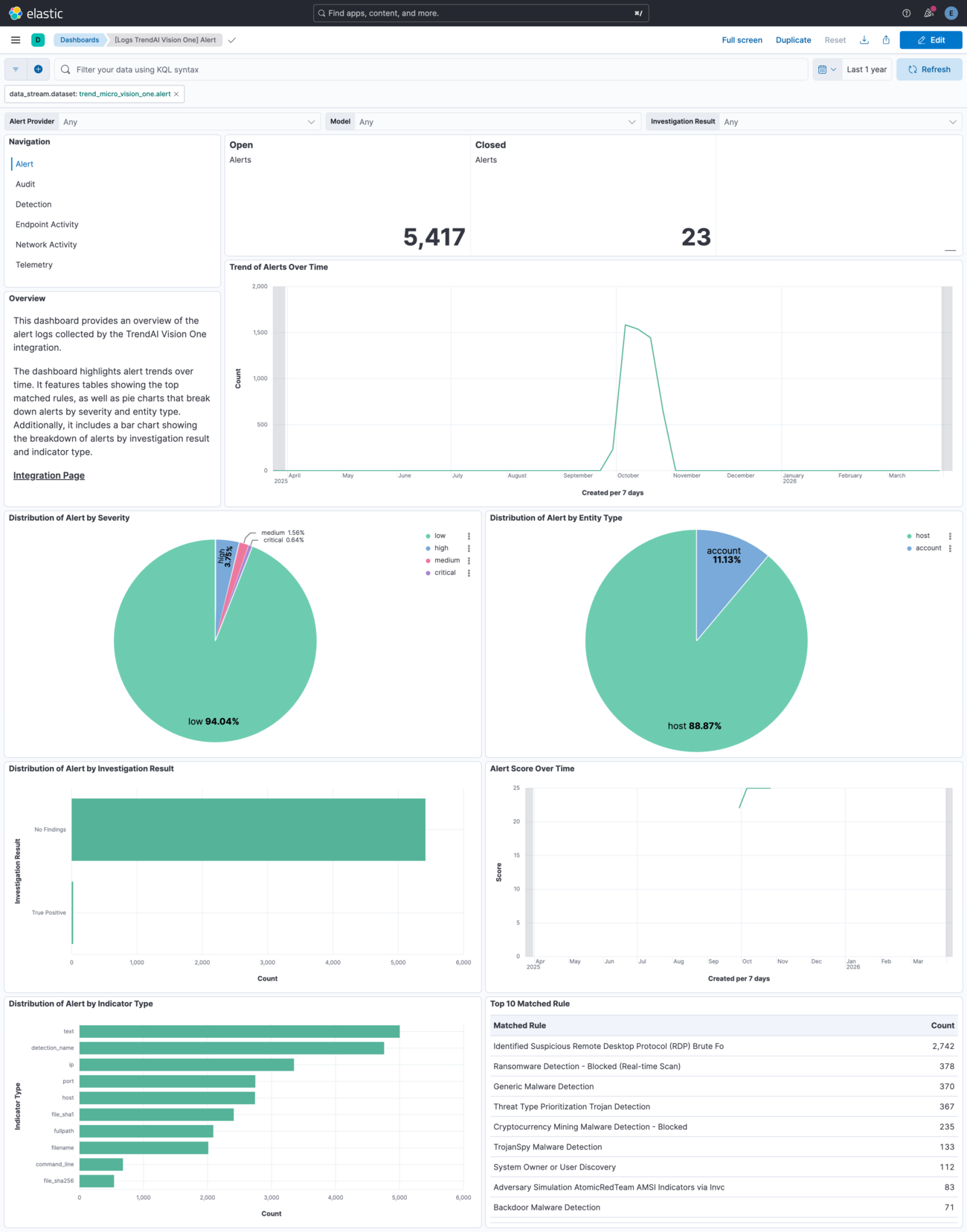
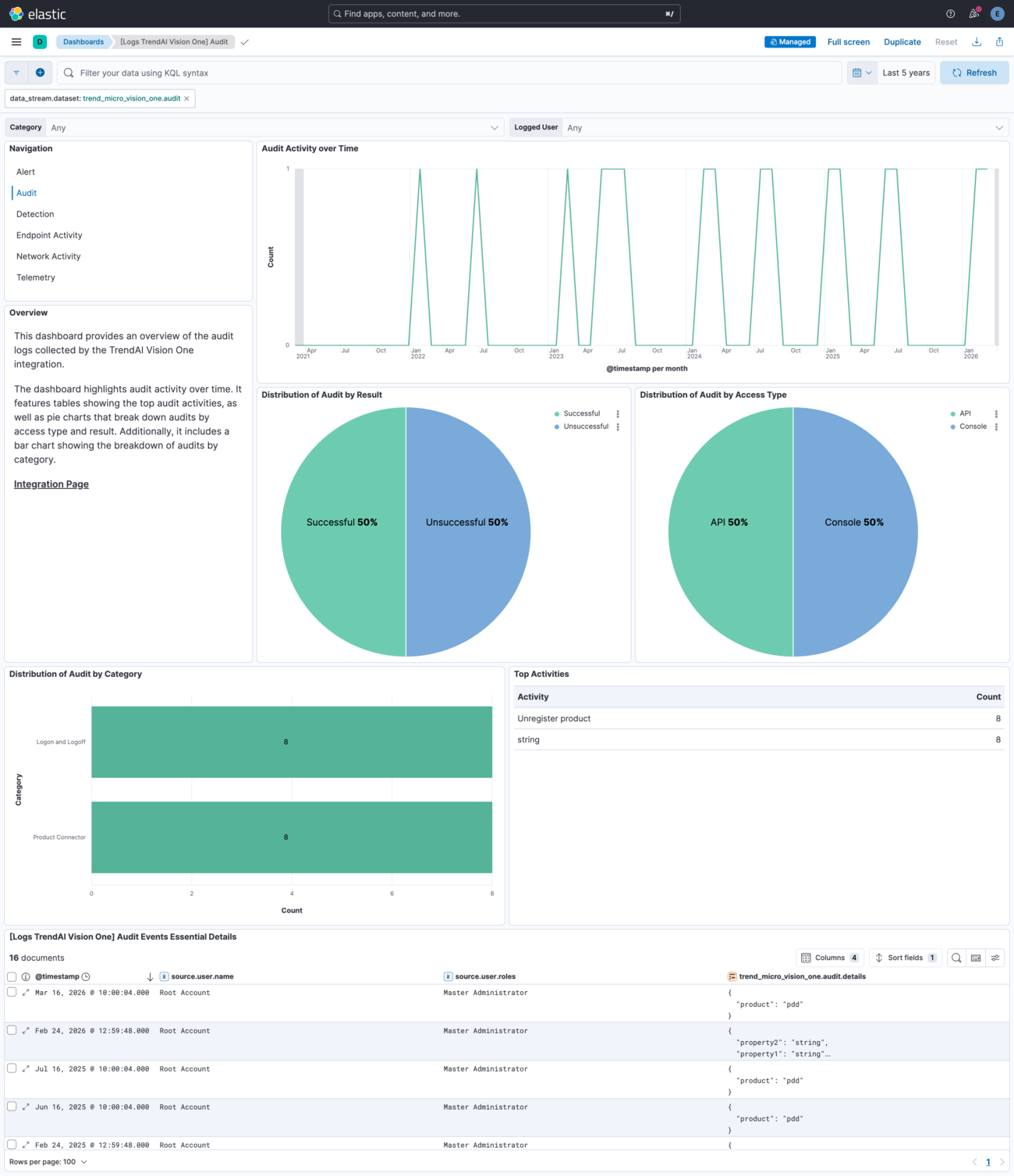
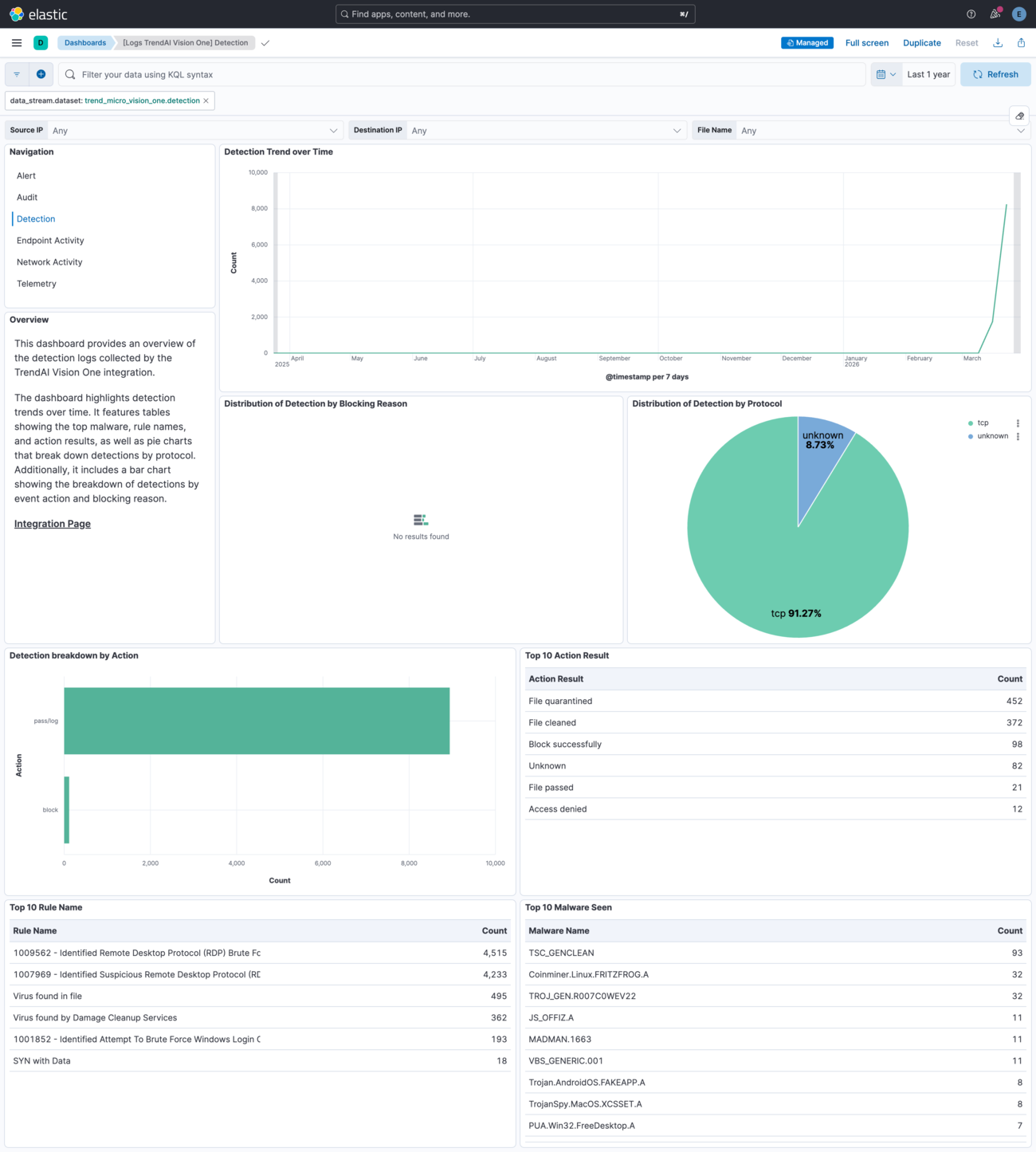
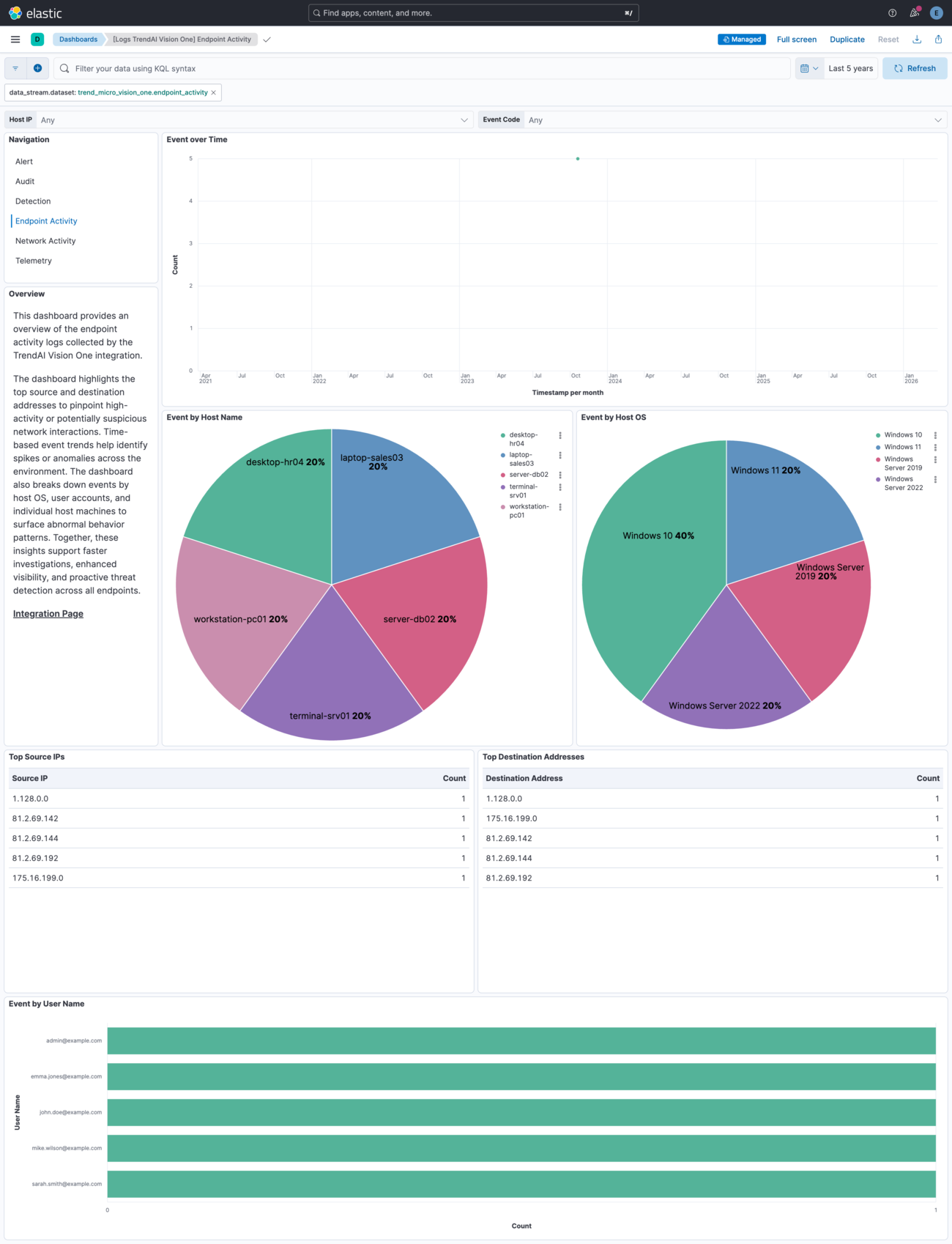
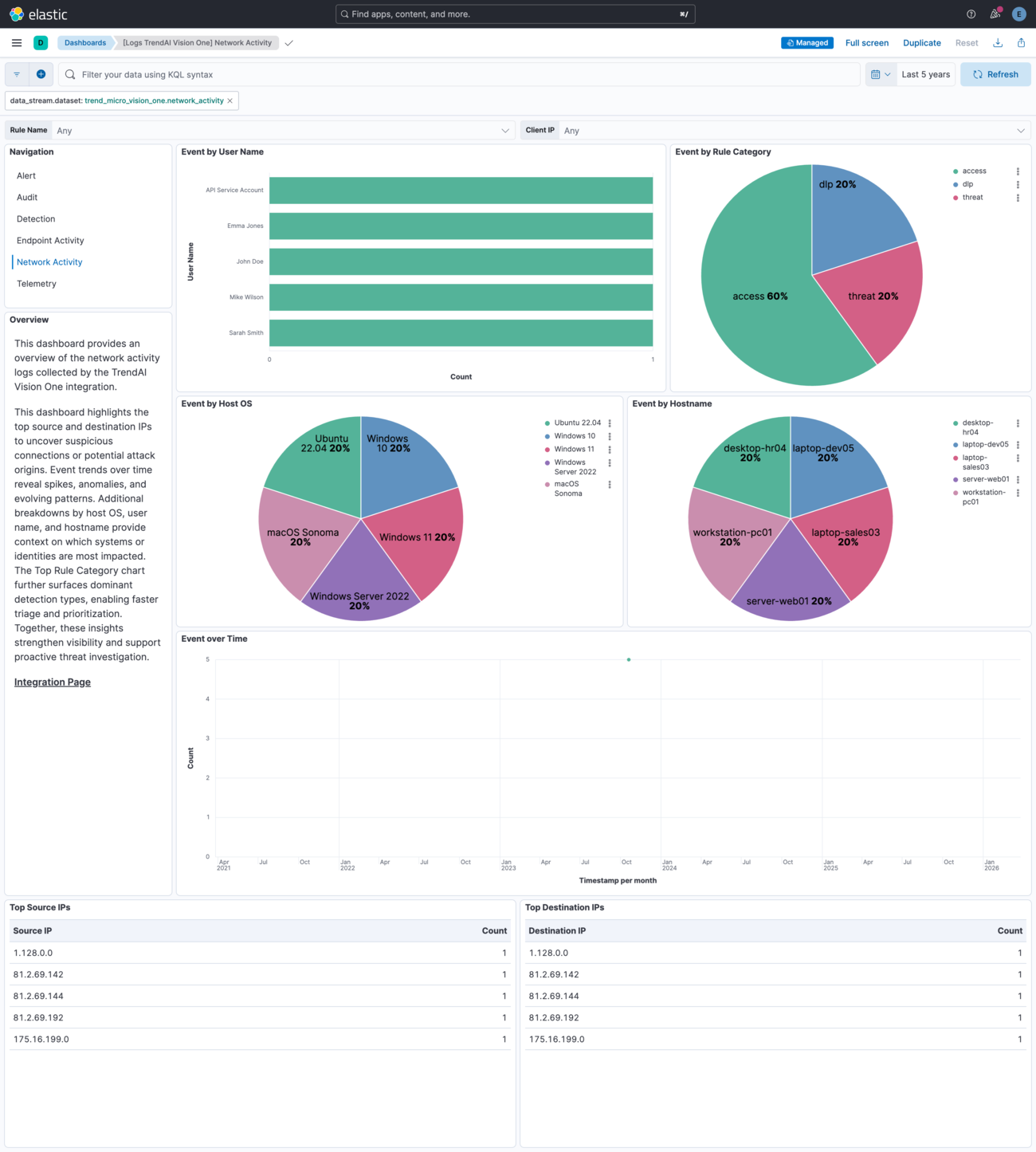
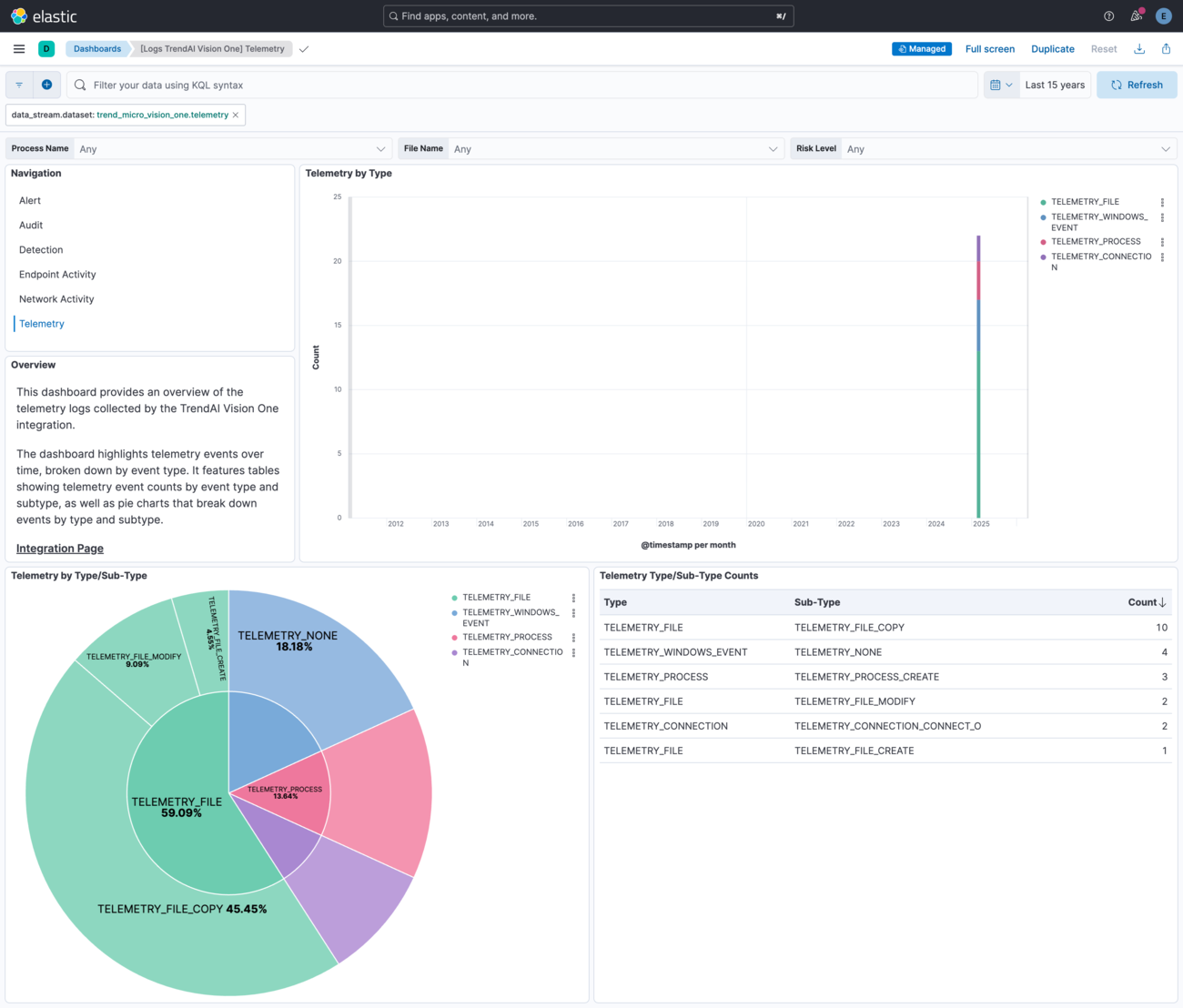
Changelog
| Version | Details | Minimum Kibana version |
|---|---|---|
| 2.13.2 | Enhancement (View pull request) Set agentless deployment mode release field to ga. |
9.1.4 9.0.7 8.19.4 |
| 2.13.1 | Bug fix (View pull request) Fix detection pipeline marking events as pipeline_error when risk_level is non-numeric or request URL is malformed. |
9.1.4 9.0.7 8.19.4 |
| 2.13.0 | Enhancement (View pull request) Use new release field for agentless deployment mode to establish as beta. |
9.1.4 9.0.7 8.19.4 |
| 2.12.1 | Bug fix (View pull request) Change page_size/batch_size variable type from text to integer for Fleet input validation. |
9.1.4 9.0.7 8.19.4 |
| 2.12.0 | Enhancement (View pull request) Reduce default batch_size from 1000 to 200 for endpoint_activity and network_activity data streams to lower peak memory use on memory-constrained agents. |
9.1.4 9.0.7 8.19.4 |
| 2.11.0 | Enhancement (View pull request) Update deprecated visualization charts and implemented best practices in the existing dashboards. |
9.1.4 9.0.7 8.19.4 |
| 2.10.2 | Bug fix (View pull request) Fix CEL programs' handling of missing state fields for endpoint_activity and network_activity data streams. |
9.1.4 9.0.7 8.19.4 |
| 2.10.1 | Bug fix (View pull request) Update product name to TrendAI in documentation. |
9.1.4 9.0.7 8.19.4 |
| 2.10.0 | Enhancement (View pull request) Enable Agentless deployment. |
9.1.4 9.0.7 8.19.4 |
| 2.9.0 | Enhancement (View pull request) Improve ingest pipeline structure, error handling, and ECS field mappings across all data streams. Normalize event.severity ECS field for alert data stream.Bug fix (View pull request) Fix request tracer config for httpjson inputs. |
9.1.4 9.0.7 8.19.4 |
| 2.8.0 | Enhancement (View pull request) Update README documentation as per new guideline. |
9.1.4 9.0.7 8.19.4 |
| 2.7.2 | Bug fix (View pull request) Remove duplicate security-solution-default tag references |
9.1.4 9.0.7 8.19.4 |
| 2.7.1 | Bug fix (View pull request) Fix the handling of different data types for indicators.value field by adding indicators.value_object field in alert data stream. |
9.1.4 9.0.7 8.19.4 |
| 2.7.0 | Enhancement (View pull request) Prevent updating fleet health status to degraded when pagination completes. |
9.1.4 9.0.7 8.19.4 |
| 2.6.0 | Enhancement (View pull request) Add support for Network Activity and Endpoint Activity Dataset. |
9.0.0 8.18.0 |
| 2.5.0 | Enhancement (View pull request) No error for unparsable trend_micro_vision_one.detection.request URI. |
9.0.0 8.15.0 |
| 2.4.0 | Breaking change (View pull request) Locate common configuration settings under each UI configuration section. This is a breaking change that requires re-introducing the URL and API token settings during upgrade. It avoids a bug in the UI that causes required options to be missing after upgrade. See https://github.com/elastic/kibana/issues/235242 for more details. Enhancement (View pull request) Add request tracing option to every data stream individually. This allows for more granular control of request tracing. Bug fix (View pull request) Disable telemetry data stream by default. This allows upgrades from versions prior to 2.2.0 without breaking changes. |
9.0.0 8.15.0 |
| 2.3.0 | Enhancement (View pull request) Support more date formats in detection data stream. |
9.0.0 8.15.0 |
| 2.2.0 | Enhancement (View pull request) Collect telemetry data via the Datalake Pipeline API. |
9.0.0 8.15.0 |
| 2.1.0 | Enhancement (View pull request) Add process.entity_id ECS mapping in detection data stream. |
9.0.0 8.13.0 |
| 2.0.0 | Breaking change (View pull request) Fixed pagination and cursor handling for detection data stream. Since cursor values are changed this is a breaking change which can lead to some data being re-ingested based on the default configuration. |
9.0.0 8.13.0 |
| 1.26.0 | Enhancement (View pull request) Update Kibana constraint to support 9.0.0. |
9.0.0 8.13.0 |
| 1.25.1 | Bug fix (View pull request) Updated SSL description in package manifest.yml to be uniform and to include links to documentation. |
8.13.0 |
| 1.25.0 | Enhancement (View pull request) Add configurable additional look-back time option to all the data streams. |
8.13.0 |
| 1.24.1 | Bug fix (View pull request) Fixed inconsistent time interval issue leading to data loss in the detections data stream. |
8.13.0 |
| 1.24.0 | Enhancement (View pull request) Add configurable page size option for the detection and audit data streams. |
8.13.0 |
| 1.23.0 | Enhancement (View pull request) Do not remove event.original in main ingest pipeline. |
8.13.0 |
| 1.22.0 | Enhancement (View pull request) Add "preserve_original_event" tag to documents with event.kind set to "pipeline_error". |
8.13.0 |
| 1.21.1 | Bug fix (View pull request) Add missing regional URL documentation. |
8.13.0 |
| 1.21.0 | Enhancement (View pull request) Update doc for setting up API Keys. |
8.13.0 |
| 1.20.0 | Enhancement (View pull request) Update the kibana constraint to ^8.13.0. Modified the field definitions to remove ECS fields made redundant by the ecs@mappings component template. |
8.13.0 |
| 1.19.1 | Bug fix (View pull request) Fix sample event. |
8.12.0 |
| 1.19.0 | Enhancement (View pull request) Make host.mac field conform to ECS field definition. |
8.12.0 |
| 1.18.0 | Enhancement (View pull request) Improve handling of empty responses. |
8.12.0 |
| 1.17.0 | Enhancement (View pull request) Update manifest format version to v3.0.3. |
8.12.0 |
| 1.16.0 | Enhancement (View pull request) Set sensitive values as secret. |
8.12.0 |
| 1.15.1 | Enhancement (View pull request) Changed owners |
8.7.1 |
| 1.15.0 | Enhancement (View pull request) Limit request tracer log count to five. |
8.7.1 |
| 1.14.0 | Enhancement (View pull request) ECS version updated to 8.11.0. |
8.7.1 |
| 1.13.0 | Enhancement (View pull request) Improve 'event.original' check to avoid errors if set. |
8.7.1 |
| 1.12.2 | Bug fix (View pull request) Fix missing request issue in pipeline |
8.7.1 |
| 1.12.1 | Bug fix (View pull request) Fix Detection API header |
8.7.1 |
| 1.12.0 | Enhancement (View pull request) Update the package format_version to 3.0.0. |
8.7.1 |
| 1.11.0 | Enhancement (View pull request) Handle detection documents that have a requests array instead of a request field. |
8.7.1 |
| 1.10.0 | Bug fix (View pull request) Correct invalid ECS field usages at root-level. |
8.7.1 |
| 1.9.0 | Enhancement (View pull request) ECS version updated to 8.10.0. |
8.7.1 |
| 1.8.0 | Enhancement (View pull request) Add tags.yml file so that integration's dashboards and saved searches are tagged with "Security Solution" and displayed in the Security Solution UI. |
8.7.1 |
| 1.7.0 | Enhancement (View pull request) Update package to ECS 8.9.0. |
8.7.1 |
| 1.6.0 | Enhancement (View pull request) Document duration units. |
8.7.1 |
| 1.5.0 | Enhancement (View pull request) Update package to package-spec 2.9.0. |
8.7.1 |
| 1.4.0 | Enhancement (View pull request) Ensure event.kind is correctly set for pipeline errors. |
8.7.1 |
| 1.3.0 | Enhancement (View pull request) Update package to ECS 8.8.0. |
8.7.1 |
| 1.2.0 | Enhancement (View pull request) Add a new flag to enable request tracing |
8.7.1 |
| 1.1.0 | Enhancement (View pull request) Update package to ECS 8.7.0. |
8.4.0 |
| 1.0.0 | Enhancement (View pull request) Release Trend Micro Vision One as GA. |
8.4.0 |
| 0.3.1 | Enhancement (View pull request) Added categories and/or subcategories. |
8.4.0 |
| 0.3.0 | Enhancement (View pull request) Update package to ECS 8.6.0. |
8.4.0 |
| 0.2.2 | Bug fix (View pull request) Added processor to drop empty documents when there are no events |
8.4.0 |
| 0.2.1 | Enhancement (View pull request) Update the pagination termination condition. |
8.4.0 |
| 0.2.0 | Enhancement (View pull request) Update package to ECS 8.5.0. |
8.4.0 |
| 0.1.0 | Enhancement (View pull request) Initial Release. |
8.4.0 |