authentik
| Version | 1.12.0 (View all) |
| Managed integration release status | GA |
| Subscription level What's this? |
Basic |
| Developed by What's this? |
Elastic |
| Ingestion method(s) | API |
| Minimum Kibana version(s) | 9.0.5 8.19.2 |
You can use this integration as an Elastic Managed integration on Elastic Cloud Hosted deployments running this version or later.
authentik is an IdP (Identity Provider) and SSO (single sign on) that is built with security at the forefront of every piece of code, every feature, with an emphasis on flexibility and versatility.
The authentik integration collects event, group, and user logs using REST API.
The authentik integration collects three types of logs:
Elastic Agent must be installed. For more details, check the Elastic Agent installation instructions.
This integration supports both Elastic Managed-based and Agent-based installations.
Elastic Managed integrations allow you to collect data without having to manage Elastic Agent in your cloud. They make manual agent deployment unnecessary, so you can focus on your data instead of the agent that collects it. For more information, refer to Elastic Managed integrations and the Elastic Managed integrations FAQ.
Elastic Managed deployments are only supported in Elastic Serverless and Elastic Cloud environments. This functionality is in beta and is subject to change. Beta features are not subject to the support SLA of official GA features.
Elastic Agent must be installed. For more details, check the Elastic Agent installation instructions. You can install only one Elastic Agent per host.
- Log in to your authentik instance to obtain your API Token.
- Open the Admin interface and navigate to Directory > Tokens and App passwords.
- Create the API Token, save and copy it somewhere.
- In Kibana navigate to Management > Integrations.
- In the search bar, type Authentik.
- Select the Authentik integration and add it.
- Add all the required integration configuration parameters, including API Token, Interval and Page Size to enable data collection.
- Save the integration.
This is the event dataset.
Example
{
    "@timestamp": "2024-08-05T15:41:18.411Z",
    "agent": {
        "ephemeral_id": "1306b1a8-e483-4b73-8a9f-0c9693b0850a",
        "id": "c92576df-b24c-47aa-bfeb-01fed074d411",
        "name": "elastic-agent-33100",
        "type": "filebeat",
        "version": "8.16.0"
    },
    "authentik": {
        "event": {
            "action": "user_write",
            "app": "authentik.events.signals",
            "brand": {
                "app": "authentik_brands",
                "model_name": "brand",
                "name": "Default brand",
                "pk": "fcba828076b94dedb2d5a6b4c5556fa1"
            },
            "client_ip": "67.43.156.0",
            "context": {
                "created": false,
                "email": "root@localhost",
                "http_request": {
                    "method": "GET",
                    "path": "/api/v3/flows/executor/default-user-settings-flow/"
                },
                "name": "authentik Default Admin",
                "username": "akadmin"
            },
            "created": "2024-08-05T15:41:18.411Z",
            "expires": "2024-08-06T15:41:18.410Z",
            "pk": "d012e8af-cb94-4fa2-9e92-961e4eebc060",
            "user": {
                "email": "root@localhost",
                "pk": "1",
                "username": "akadmin"
            }
        }
    },
    "data_stream": {
        "dataset": "authentik.event",
        "namespace": "99344",
        "type": "logs"
    },
    "ecs": {
        "version": "8.11.0"
    },
    "elastic_agent": {
        "id": "c92576df-b24c-47aa-bfeb-01fed074d411",
        "snapshot": false,
        "version": "8.16.0"
    },
    "event": {
        "action": "user-write",
        "agent_id_status": "verified",
        "category": [
            "iam"
        ],
        "created": "2024-08-05T15:41:18.411Z",
        "dataset": "authentik.event",
        "id": "d012e8af-cb94-4fa2-9e92-961e4eebc060",
        "ingested": "2025-07-09T09:38:33Z",
        "kind": "event",
        "original": "{\"action\":\"user_write\",\"app\":\"authentik.events.signals\",\"brand\":{\"app\":\"authentik_brands\",\"model_name\":\"brand\",\"name\":\"Default brand\",\"pk\":\"fcba828076b94dedb2d5a6b4c5556fa1\"},\"client_ip\":\"67.43.156.0\",\"context\":{\"attributes\":{\"settings\":{\"locale\":\"\"}},\"created\":false,\"email\":\"root@localhost\",\"http_request\":{\"args\":{\"query\":\"\"},\"method\":\"GET\",\"path\":\"/api/v3/flows/executor/default-user-settings-flow/\"},\"name\":\"authentik Default Admin\",\"username\":\"akadmin\"},\"created\":\"2024-08-05T15:41:18.411017Z\",\"expires\":\"2024-08-06T15:41:18.410276Z\",\"pk\":\"d012e8af-cb94-4fa2-9e92-961e4eebc060\",\"user\":{\"email\":\"root@localhost\",\"pk\":1,\"username\":\"akadmin\"}}",
        "type": [
            "change"
        ]
    },
    "http": {
        "request": {
            "method": "GET"
        }
    },
    "input": {
        "type": "cel"
    },
    "observer": {
        "product": "authentik",
        "vendor": "authentik"
    },
    "related": {
        "ip": [
            "67.43.156.0"
        ],
        "user": [
            "root@localhost",
            "1",
            "akadmin"
        ]
    },
    "source": {
        "geo": {
            "continent_name": "Asia",
            "country_iso_code": "BT",
            "country_name": "Bhutan",
            "location": {
                "lat": 27.5,
                "lon": 90.5
            }
        },
        "ip": "67.43.156.0"
    },
    "tags": [
        "preserve_original_event",
        "preserve_duplicate_custom_fields",
        "forwarded",
        "authentik-event"
    ],
    "url": {
        "path": "/api/v3/flows/executor/default-user-settings-flow/"
    },
    "user": {
        "domain": "localhost",
        "email": "root@localhost",
        "id": "1",
        "name": "akadmin"
    }
}
Exported fields
| Field | Description | Type |
|---|---|---|
| @timestamp | Event timestamp. | date |
| authentik.event.action | keyword | |
| authentik.event.app | keyword | |
| authentik.event.brand.app | keyword | |
| authentik.event.brand.model_name | keyword | |
| authentik.event.brand.name | keyword | |
| authentik.event.brand.pk | keyword | |
| authentik.event.client_ip | ip | |
| authentik.event.context.auth_method | keyword | |
| authentik.event.context.authorized_application.app | keyword | |
| authentik.event.context.authorized_application.model_name | keyword | |
| authentik.event.context.authorized_application.name | keyword | |
| authentik.event.context.authorized_application.pk | keyword | |
| authentik.event.context.binding.app | keyword | |
| authentik.event.context.binding.model_name | keyword | |
| authentik.event.context.binding.name | keyword | |
| authentik.event.context.binding.pk | keyword | |
| authentik.event.context.created | boolean | |
| authentik.event.context.diff | flattened | |
| authentik.event.context.email | keyword | |
| authentik.event.context.expression | keyword | |
| authentik.event.context.flow | keyword | |
| authentik.event.context.http_request.args.client_id | keyword | |
| authentik.event.context.http_request.args.format_result | keyword | |
| authentik.event.context.http_request.args.include_groups | keyword | |
| authentik.event.context.http_request.args.next | keyword | |
| authentik.event.context.http_request.args.page_size | keyword | |
| authentik.event.context.http_request.args.query | keyword | |
| authentik.event.context.http_request.args.redirect_uri | keyword | |
| authentik.event.context.http_request.args.response_type | keyword | |
| authentik.event.context.http_request.args.scope | keyword | |
| authentik.event.context.http_request.args.state | keyword | |
| authentik.event.context.http_request.method | keyword | |
| authentik.event.context.http_request.path | keyword | |
| authentik.event.context.http_request.user_agent | keyword | |
| authentik.event.context.message | keyword | |
| authentik.event.context.model.app | keyword | |
| authentik.event.context.model.model_name | keyword | |
| authentik.event.context.model.name | keyword | |
| authentik.event.context.model.pk | keyword | |
| authentik.event.context.name | keyword | |
| authentik.event.context.new_version | keyword | |
| authentik.event.context.password | keyword | |
| authentik.event.context.policy_uuid | keyword | |
| authentik.event.context.request.context.event.app | keyword | |
| authentik.event.context.request.context.event.model_name | keyword | |
| authentik.event.context.request.context.event.name | keyword | |
| authentik.event.context.request.context.event.pk | keyword | |
| authentik.event.context.request.obj.app | keyword | |
| authentik.event.context.request.obj.model_name | keyword | |
| authentik.event.context.request.obj.name | keyword | |
| authentik.event.context.request.obj.pk | keyword | |
| authentik.event.context.request.user.email | keyword | |
| authentik.event.context.request.user.pk | keyword | |
| authentik.event.context.request.user.username | keyword | |
| authentik.event.context.result.passing | boolean | |
| authentik.event.context.scopes | keyword | |
| authentik.event.context.secret.app | keyword | |
| authentik.event.context.secret.model_name | keyword | |
| authentik.event.context.secret.name | keyword | |
| authentik.event.context.secret.pk | keyword | |
| authentik.event.context.stage.app | keyword | |
| authentik.event.context.stage.model_name | keyword | |
| authentik.event.context.stage.name | keyword | |
| authentik.event.context.stage.pk | keyword | |
| authentik.event.context.token.app | keyword | |
| authentik.event.context.token.model_name | keyword | |
| authentik.event.context.token.name | keyword | |
| authentik.event.context.token.pk | keyword | |
| authentik.event.context.username | keyword | |
| authentik.event.created | date | |
| authentik.event.expires | date | |
| authentik.event.pk | keyword | |
| authentik.event.user.email | keyword | |
| authentik.event.user.is_anonymous | boolean | |
| authentik.event.user.on_behalf_of.email | keyword | |
| authentik.event.user.on_behalf_of.pk | keyword | |
| authentik.event.user.on_behalf_of.username | keyword | |
| authentik.event.user.pk | keyword | |
| authentik.event.user.username | keyword | |
| data_stream.dataset | Data stream dataset. | constant_keyword |
| data_stream.namespace | Data stream namespace. | constant_keyword |
| data_stream.type | Data stream type. | constant_keyword |
| event.dataset | Event dataset. | constant_keyword |
| event.module | Event module. | constant_keyword |
| input.type | Type of filebeat input. | keyword |
| log.offset | Log offset. | long |
This is the group dataset.
Example
{
    "@timestamp": "2025-07-08T10:42:33.381Z",
    "agent": {
        "ephemeral_id": "4b426494-b60b-4a12-b26d-371de0e70570",
        "id": "7e087d11-bca0-40d1-9322-dbe06d6900e6",
        "name": "elastic-agent-25925",
        "type": "filebeat",
        "version": "8.16.0"
    },
    "authentik": {
        "group": {
            "attributes": {
                "ldap_uniq": "S-1-5-21-1234567890-1234567890-1234567890-1234"
            },
            "is_superuser": false,
            "name": "AllUsers",
            "num_pk": 55003,
            "pk": "29613be9-2db3-4488-9338-60ec7762f60d",
            "users": [
                "12",
                "14",
                "15",
                "7",
                "9",
                "13",
                "8",
                "16",
                "11",
                "6",
                "4"
            ]
        }
    },
    "data_stream": {
        "dataset": "authentik.group",
        "namespace": "58753",
        "type": "logs"
    },
    "ecs": {
        "version": "8.11.0"
    },
    "elastic_agent": {
        "id": "7e087d11-bca0-40d1-9322-dbe06d6900e6",
        "snapshot": false,
        "version": "8.16.0"
    },
    "event": {
        "agent_id_status": "verified",
        "category": [
            "iam"
        ],
        "dataset": "authentik.group",
        "ingested": "2025-07-08T10:42:36Z",
        "kind": "asset",
        "module": "authentik",
        "original": "{\"attributes\":{\"ldap_uniq\":\"S-1-5-21-1234567890-1234567890-1234567890-1234\"},\"is_superuser\":false,\"name\":\"AllUsers\",\"num_pk\":55003,\"parent\":null,\"parent_name\":null,\"pk\":\"29613be9-2db3-4488-9338-60ec7762f60d\",\"roles\":[],\"roles_obj\":[],\"users\":[12,14,15,7,9,13,8,16,11,6,4],\"users_obj\":null}",
        "type": [
            "group",
            "info"
        ]
    },
    "group": {
        "id": "29613be9-2db3-4488-9338-60ec7762f60d",
        "name": "AllUsers"
    },
    "input": {
        "type": "cel"
    },
    "observer": {
        "product": "authentik",
        "vendor": "authentik"
    },
    "related": {
        "user": [
            "12",
            "14",
            "15",
            "7",
            "9",
            "13",
            "8",
            "16",
            "11",
            "6",
            "4"
        ]
    },
    "tags": [
        "preserve_original_event",
        "preserve_duplicate_custom_fields",
        "forwarded",
        "authentik-group"
    ],
    "user": {
        "id": [
            "12",
            "14",
            "15",
            "7",
            "9",
            "13",
            "8",
            "16",
            "11",
            "6",
            "4"
        ]
    }
}
Exported fields
| Field | Description | Type |
|---|---|---|
| @timestamp | Event timestamp. | date |
| authentik.group.attributes.ldap_uniq | keyword | |
| authentik.group.attributes.notes | keyword | |
| authentik.group.is_superuser | Users added to this group will be superusers. | boolean |
| authentik.group.name | keyword | |
| authentik.group.num_pk | long | |
| authentik.group.parent | keyword | |
| authentik.group.parent_name | keyword | |
| authentik.group.pk | keyword | |
| authentik.group.roles | keyword | |
| authentik.group.roles_obj.name | keyword | |
| authentik.group.roles_obj.pk | keyword | |
| authentik.group.users | keyword | |
| data_stream.dataset | Data stream dataset. | constant_keyword |
| data_stream.namespace | Data stream namespace. | constant_keyword |
| data_stream.type | Data stream type. | constant_keyword |
| event.dataset | Event dataset. | constant_keyword |
| event.module | Event module. | constant_keyword |
| input.type | Type of filebeat input. | keyword |
| log.offset | Log offset. | long |
This is the user dataset.
Example
{
    "@timestamp": "2025-07-08T10:43:23.594Z",
    "agent": {
        "ephemeral_id": "e97d8aba-29ee-47eb-8a1e-68aa62bc843f",
        "id": "d49b6eed-3475-4699-ab32-ed8324592fcf",
        "name": "elastic-agent-69318",
        "type": "filebeat",
        "version": "8.16.0"
    },
    "authentik": {
        "user": {
            "avatar": "data:image/svg+xml;base64,PHN2ZyB4bWxucz0iaHR0cDovL3d3dy53My5vcmcvMjAwMC9zdmciIHdpZHRoPSI2NHB4IiBoZWlnaHQ9IjY0cHgiIHZpZXdCb3g9IjAgMCA2NCA2NCIgdmVyc2lvbj0iMS4xIj48cmVjdCBmaWxsPSIjMzc3YjM3IiBjeD0iMzIiIGN5PSIzMiIgd2lkdGg9IjY0IiBoZWlnaHQ9IjY0IiByPSIzMiIvPjx0ZXh0IHg9IjUwJSIgeT0iNTAlIiBzdHlsZT0iY29sb3I6ICNmZmY7IGxpbmUtaGVpZ2h0OiAxOyBmb250LWZhbWlseTogJ1JlZEhhdFRleHQnLCdPdmVycGFzcycsb3ZlcnBhc3MsaGVsdmV0aWNhLGFyaWFsLHNhbnMtc2VyaWY7ICIgZmlsbD0iI2ZmZiIgYWxpZ25tZW50LWJhc2VsaW5lPSJtaWRkbGUiIGRvbWluYW50LWJhc2VsaW5lPSJtaWRkbGUiIHRleHQtYW5jaG9yPSJtaWRkbGUiIGZvbnQtc2l6ZT0iMjgiIGZvbnQtd2VpZ2h0PSI0MDAiIGR5PSIuMWVtIj5BQTwvdGV4dD48L3N2Zz4=",
            "email": "root123@example.com",
            "groups": [
                "722c1c38-3f82-4b58-9f2f-bed1c7f16f84",
                "9eeda44b-9bd3-474e-84f9-39c661427772"
            ],
            "is_active": true,
            "is_superuser": true,
            "last_login": "2024-08-13T05:33:54.801Z",
            "name": "authentik Default Admin",
            "path": "users",
            "pk": "4",
            "type": "internal",
            "uid": "0abfaa5432568967abcdef895517d6d9b012345677899abcde78befef4f5cd4e99",
            "username": "akadmin",
            "uuid": "abcdef12-1234-5678-1725-abcdefabcdef"
        }
    },
    "data_stream": {
        "dataset": "authentik.user",
        "namespace": "29617",
        "type": "logs"
    },
    "ecs": {
        "version": "8.11.0"
    },
    "elastic_agent": {
        "id": "d49b6eed-3475-4699-ab32-ed8324592fcf",
        "snapshot": false,
        "version": "8.16.0"
    },
    "event": {
        "agent_id_status": "verified",
        "category": [
            "iam"
        ],
        "dataset": "authentik.user",
        "ingested": "2025-07-08T10:43:26Z",
        "kind": "asset",
        "module": "authentik",
        "original": "{\"attributes\":{},\"avatar\":\"data:image/svg+xml;base64,PHN2ZyB4bWxucz0iaHR0cDovL3d3dy53My5vcmcvMjAwMC9zdmciIHdpZHRoPSI2NHB4IiBoZWlnaHQ9IjY0cHgiIHZpZXdCb3g9IjAgMCA2NCA2NCIgdmVyc2lvbj0iMS4xIj48cmVjdCBmaWxsPSIjMzc3YjM3IiBjeD0iMzIiIGN5PSIzMiIgd2lkdGg9IjY0IiBoZWlnaHQ9IjY0IiByPSIzMiIvPjx0ZXh0IHg9IjUwJSIgeT0iNTAlIiBzdHlsZT0iY29sb3I6ICNmZmY7IGxpbmUtaGVpZ2h0OiAxOyBmb250LWZhbWlseTogJ1JlZEhhdFRleHQnLCdPdmVycGFzcycsb3ZlcnBhc3MsaGVsdmV0aWNhLGFyaWFsLHNhbnMtc2VyaWY7ICIgZmlsbD0iI2ZmZiIgYWxpZ25tZW50LWJhc2VsaW5lPSJtaWRkbGUiIGRvbWluYW50LWJhc2VsaW5lPSJtaWRkbGUiIHRleHQtYW5jaG9yPSJtaWRkbGUiIGZvbnQtc2l6ZT0iMjgiIGZvbnQtd2VpZ2h0PSI0MDAiIGR5PSIuMWVtIj5BQTwvdGV4dD48L3N2Zz4=\",\"email\":\"root123@example.com\",\"groups\":[\"722c1c38-3f82-4b58-9f2f-bed1c7f16f84\",\"9eeda44b-9bd3-474e-84f9-39c661427772\"],\"groups_obj\":null,\"is_active\":true,\"is_superuser\":true,\"last_login\":\"2024-08-13T05:33:54.801600Z\",\"name\":\"authentik Default Admin\",\"path\":\"users\",\"pk\":4,\"type\":\"internal\",\"uid\":\"0abfaa5432568967abcdef895517d6d9b012345677899abcde78befef4f5cd4e99\",\"username\":\"akadmin\",\"uuid\":\"abcdef12-1234-5678-1725-abcdefabcdef\"}",
        "type": [
            "user",
            "info"
        ]
    },
    "input": {
        "type": "cel"
    },
    "observer": {
        "product": "authentik",
        "vendor": "authentik"
    },
    "related": {
        "user": [
            "4",
            "akadmin",
            "authentik Default Admin",
            "root123@example.com",
            "0abfaa5432568967abcdef895517d6d9b012345677899abcde78befef4f5cd4e99",
            "abcdef12-1234-5678-1725-abcdefabcdef"
        ]
    },
    "tags": [
        "preserve_original_event",
        "preserve_duplicate_custom_fields",
        "forwarded",
        "authentik-user"
    ],
    "user": {
        "domain": "example.com",
        "email": "root123@example.com",
        "full_name": "authentik Default Admin",
        "group": {
            "id": [
                "722c1c38-3f82-4b58-9f2f-bed1c7f16f84",
                "9eeda44b-9bd3-474e-84f9-39c661427772"
            ]
        },
        "id": "4",
        "name": "akadmin"
    }
}
Exported fields
| Field | Description | Type |
|---|---|---|
| @timestamp | Event timestamp. | date |
| authentik.user.attributes.ldap_uniq | keyword | |
| authentik.user.attributes.sn | keyword | |
| authentik.user.attributes.upn | keyword | |
| authentik.user.avatar | keyword | |
| authentik.user.email | keyword | |
| authentik.user.groups | keyword | |
| authentik.user.is_active | boolean | |
| authentik.user.is_superuser | boolean | |
| authentik.user.last_login | date | |
| authentik.user.name | keyword | |
| authentik.user.path | keyword | |
| authentik.user.pk | keyword | |
| authentik.user.type | keyword | |
| authentik.user.uid | keyword | |
| authentik.user.username | keyword | |
| authentik.user.uuid | keyword | |
| data_stream.dataset | Data stream dataset. | constant_keyword |
| data_stream.namespace | Data stream namespace. | constant_keyword |
| data_stream.type | Data stream type. | constant_keyword |
| event.dataset | Event dataset. | constant_keyword |
| event.module | Event module. | constant_keyword |
| input.type | Type of filebeat input. | keyword |
| log.offset | Log offset. | long |
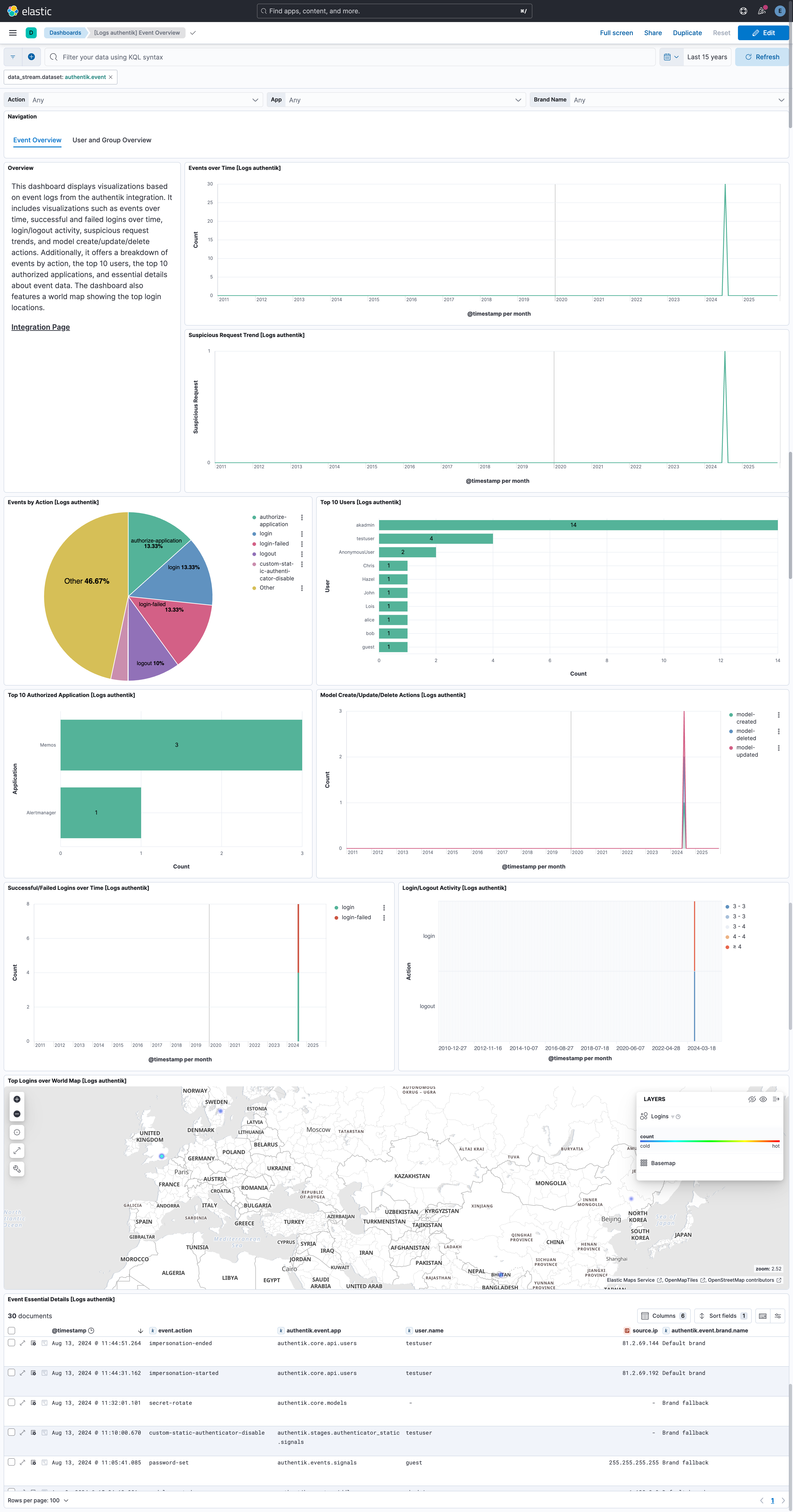
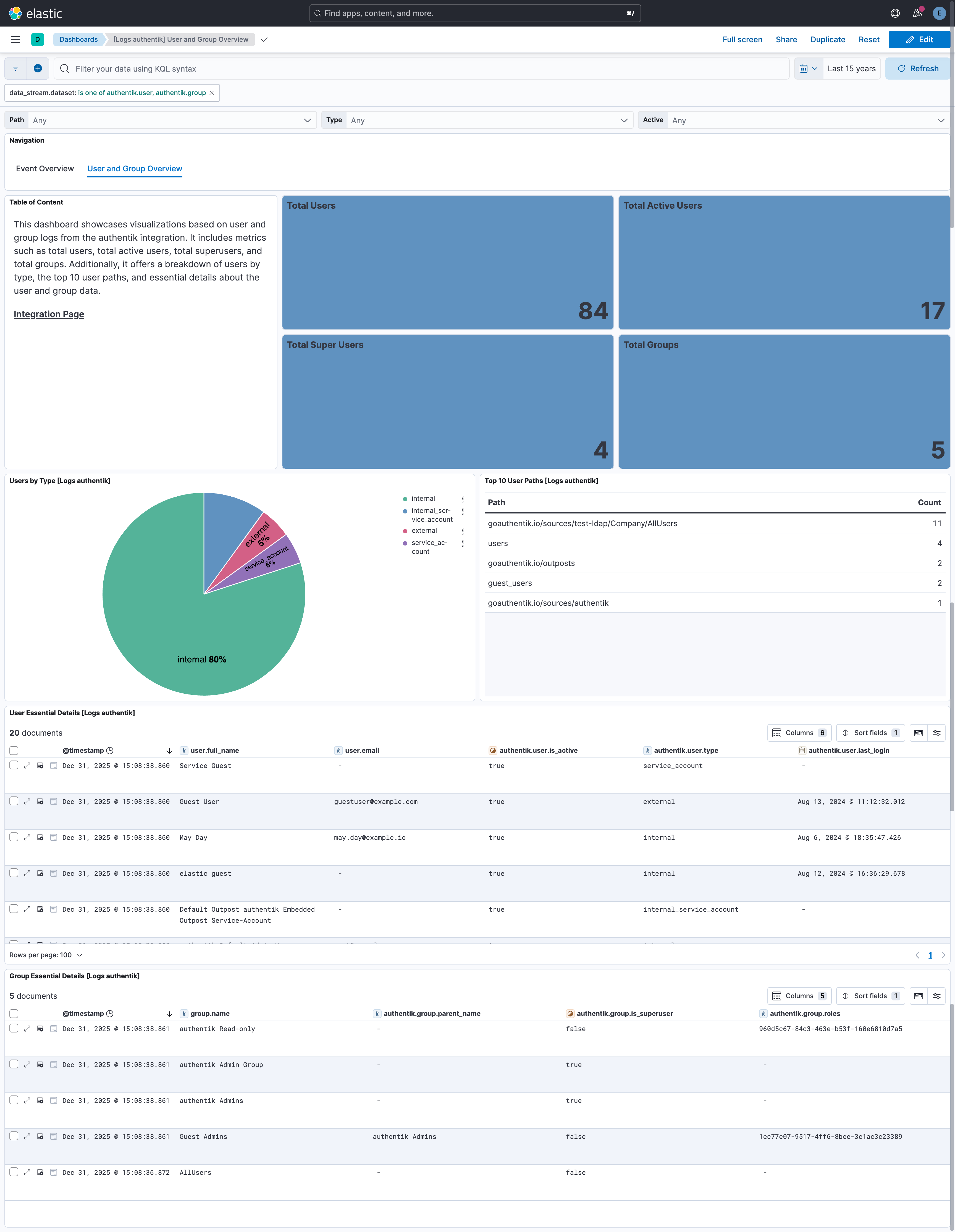
This integration includes one or more Kibana dashboards that visualizes the data collected by the integration. The screenshots below illustrate how the ingested data is displayed.
Changelog
| Version | Details | Minimum Kibana version |
|---|---|---|
| 1.12.0 | Enhancement (View pull request) Add tags to ingest pipeline processors. |
9.0.5 8.19.2 |
| 1.11.1 | Enhancement (View pull request) Set agentless deployment mode release field to ga. |
9.0.5 8.19.2 |
| 1.11.0 | Enhancement (View pull request) Publish Agentless to Elastic Managed integrations name change. |
9.0.5 8.19.2 |
| 1.10.0 | Enhancement (View pull request) Use new release field for agentless deployment mode to establish as beta. |
9.0.5 8.19.2 |
| 1.9.1 | Bug fix (View pull request) Change page_size/batch_size variable type from text to integer for Fleet input validation. |
9.0.5 8.19.2 |
| 1.9.0 | Enhancement (View pull request) Add Agentless deployment support. |
9.0.5 8.19.2 |
| 1.8.0 | Enhancement (View pull request) Enable request trace log removal. |
9.0.0 8.16.0 |
| 1.7.1 | Bug fix (View pull request) Remove duplicate security-solution-default tag references |
9.0.0 8.16.0 |
| 1.7.0 | Enhancement (View pull request) Use links panel in Dashboards. |
9.0.0 8.16.0 |
| 1.6.1 | Bug fix (View pull request) Downgrade the format_version to the minimum version that supports all the necessary features for the package. |
9.0.0 8.16.0 |
| 1.6.0 | Enhancement (View pull request) Improve documentation to align with new guidelines. |
9.0.0 8.16.0 |
| 1.5.0 | Enhancement (View pull request) Use terminate processor instead of fail processor to handle agent errors. |
9.0.0 8.16.0 |
| 1.4.0 | Enhancement (View pull request) Remove redundant installation instructions. |
9.0.0 8.13.0 |
| 1.3.0 | Enhancement (View pull request) Update Kibana constraint to support 9.0.0. |
9.0.0 8.13.0 |
| 1.2.2 | Bug fix (View pull request) Updated SSL description in package manifest.yml to be uniform and to include links to documentation. |
8.13.0 |
| 1.2.1 | Bug fix (View pull request) Defensively copy list parameters in 'Set ECS categorization fields' script. |
8.13.0 |
| 1.2.0 | Enhancement (View pull request) Add "preserve_original_event" tag to documents with event.kind manually set to "pipeline_error". |
8.13.0 |
| 1.1.1 | Bug fix (View pull request) Fix broken links in Security Service integrations packages. |
8.13.0 |
| 1.1.0 | Enhancement (View pull request) Add "preserve_original_event" tag to documents with event.kind set to "pipeline_error". |
8.13.0 |
| 1.0.0 | Enhancement (View pull request) Release package as GA. |
8.13.0 |
| 0.1.0 | Enhancement (View pull request) Initial release. |
8.13.0 |