Microsoft Intune Integration for Elastic
| Version | 0.3.0
|
| Subscription level What's this? |
Basic |
| Developed by What's this? |
Elastic |
| Ingestion method(s) | Azure Event Hub |
| Minimum Kibana version(s) | 9.3.0 9.2.4 9.1.10 8.19.10 |
To use pre-release integrations, go to the Integrations page in Kibana, scroll down, and toggle on the Display beta integrations option.
Microsoft Intune is a cloud-based endpoint management solution that helps organizations manage and secure their devices, applications, and data. It provides comprehensive mobile device management (MDM) and mobile application management (MAM) capabilities for iOS, Android, Windows, and macOS devices.
The Microsoft Intune integration for Elastic allows you to collect audit and managed device logs using Azure Event Hub, then visualize the data in Kibana. This integration provides visibility into device management activities, policy compliance, application deployments, and security events across your Intune-managed environment.
The Microsoft Intune integration uses Azure Event Hub to collect audit and managed device logs from Microsoft Intune.
This integration collects audit and managed device logs from Microsoft Intune by consuming events from an Azure Event Hub. Intune audit and managed device logs are forwarded to the Event Hub, and the Elastic Agent reads these events in real-time, processes them through ingest pipelines, and indexes them in Elasticsearch.
When the Elastic Agent must reach Azure Event Hubs through an HTTP/HTTPS proxy, set the Event Hubs transport protocol to AMQP-over-WebSockets. This routes Event Hub traffic over HTTPS (port 443) instead of AMQP (port 5671), which allows the proxy to handle it. Selecting AMQP-over-WebSockets automatically sets the processor version to v2.
Requirements:
- Elastic Agent 8.19.10, 9.1.10, 9.2.4, or later.
- Set
HTTPS_PROXYand, if needed,NO_PROXYin the Elastic Agent process environment (for example, a systemd drop-in file or container environment variable). These variables apply to the entire agent process, not just this integration. UseNO_PROXYto exclude traffic that should bypass the proxy.
Proxy allowlist: the proxy must allow HTTPS (port 443) connections to:
*.servicebus.windows.net— Event Hub traffic. Sovereign clouds use a different suffix (for example,*.servicebus.usgovcloudapi.netfor Azure Government).*.blob.core.windows.net— checkpoint storage. Sovereign clouds use the storage suffix derived from Authority Host (for example,*.blob.core.usgovcloudapi.netfor Azure Government).- The authority host (default
login.microsoftonline.com) — required for credential-based authentication.
TLS-intercepting proxies: if the proxy performs TLS interception, the corporate CA certificate must be present in the system trust store on the agent host.
Sovereign clouds: users on Azure Government, Azure China, or Azure Germany must set the Authority Host to the correct login endpoint. Processor v2 derives the storage endpoint suffix from this setting. The Resource Manager Endpoint setting is used only by processor v1 and is ignored by v2.
Note on processor version: selecting AMQP-over-WebSockets moves the processor from v1 to v2 if the agent was previously running v1. Existing checkpoints are migrated automatically. However, switching back to v1 afterwards resumes from stale v1 checkpoints and may cause duplicate events.
This integration collects Microsoft Intune audit and managed device logs.
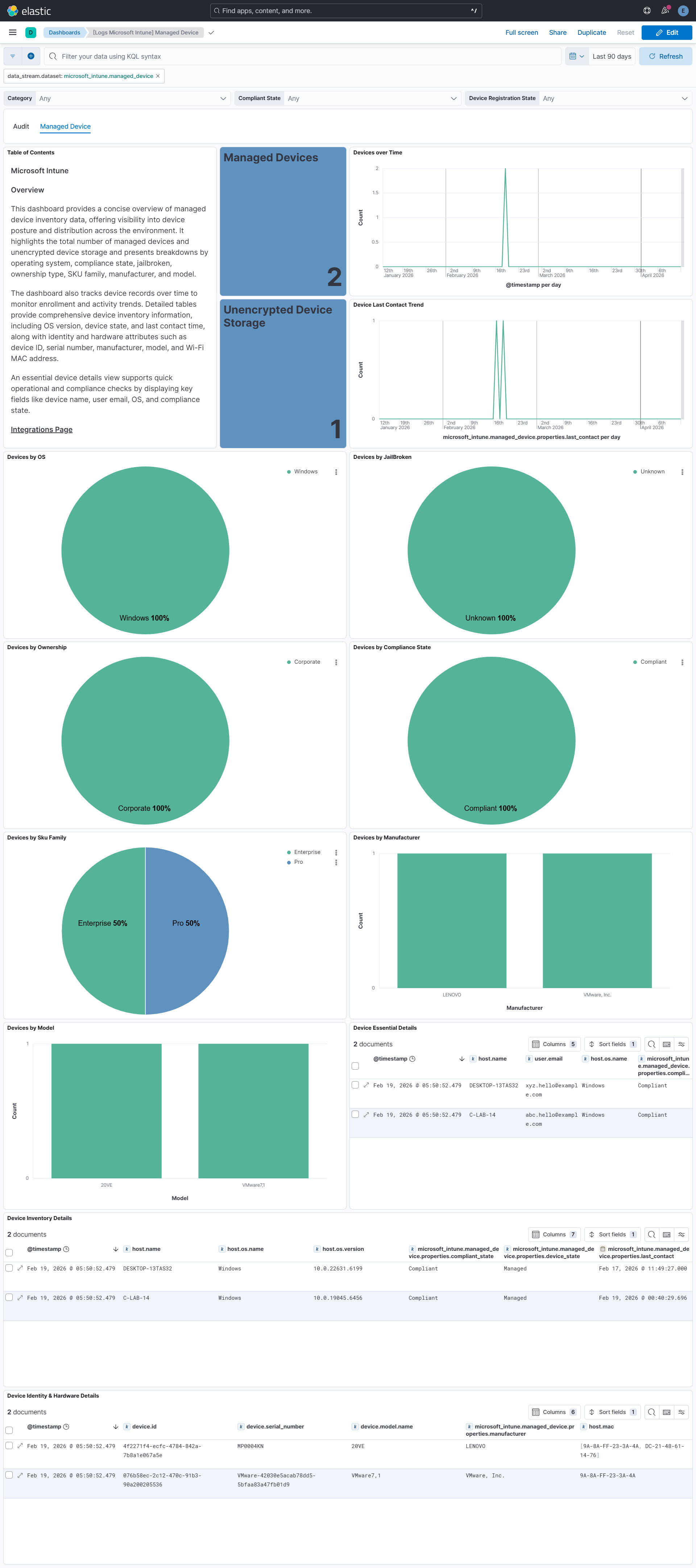
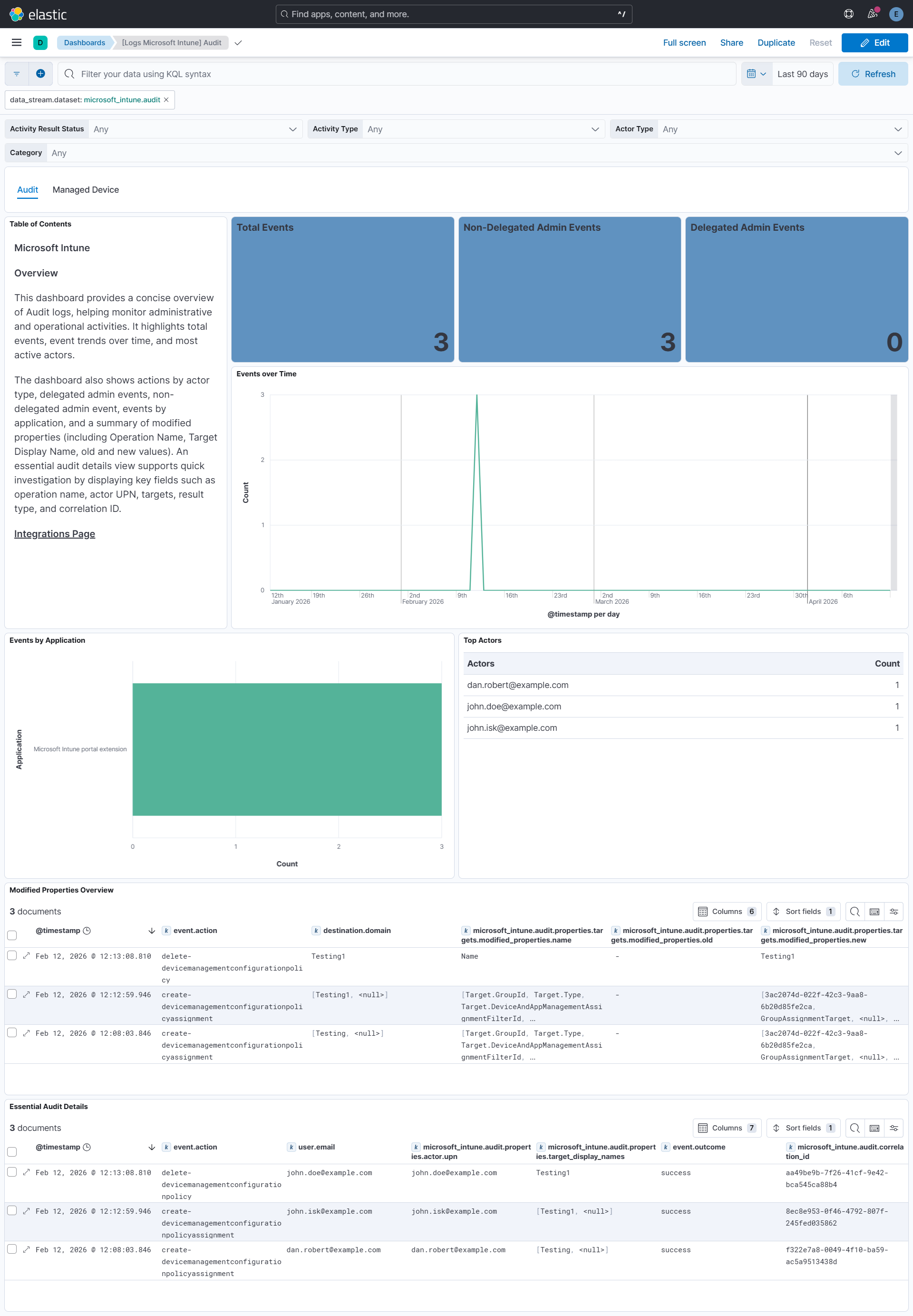
Integrating device inventory data and Microsoft Intune audit logs into SIEM dashboards provides a unified view of endpoint posture and administrative activity. It highlights device attributes like OS, ownership, and compliance status alongside audit insights such as total events, success vs. failure trends, top operations, and active actors. Combined breakdowns by actor type and context, along with detailed inventory and audit records, enable quick assessment, efficient investigation, and improved governance and security monitoring.
- Set up Azure Event Hub for Intune Audit Logs and Managed device logs and send audit logs and managed device logs from Intune to Azure Event Hub. For more detail, refer to the link here.
- Note:
- Audit: Select LOG > AuditLogs.
- Managed Device: Select LOG > IntuneDevices.
This integration supports Agent-based installations.
Elastic Agent must be installed. For more details, check the Elastic Agent installation instructions. You can install only one Elastic Agent per host.
- In Kibana navigate to Management > Integrations.
- In the search bar, type Microsoft Intune.
- Select the Microsoft Intune integration and add it.
- While adding the integration, to collect logs via Azure Event Hub, enter the following details:
- eventhub
- consumer_group
- connection_string
- storage_account
- storage_account_key
- storage_account_container (optional)
- resource_manager_endpoint (optional)
- Select Save and continue to save the integration.
- In the top search bar in Kibana, search for Dashboards.
- In the search bar, type Microsoft Intune.
- Select a dashboard for the dataset you are collecting, and verify the dashboard information is populated.
For more information on architectures that can be used for scaling this integration, check the Ingest Architectures documentation.
This is the managed_device dataset.
Exported fields
| Field | Description | Type |
|---|---|---|
| @timestamp | Event timestamp. | date |
| data_stream.dataset | Data stream dataset. | constant_keyword |
| data_stream.namespace | Data stream namespace. | constant_keyword |
| data_stream.type | Data stream type. | constant_keyword |
| event.dataset | Event dataset. | constant_keyword |
| event.module | Event module. | constant_keyword |
| input.type | Type of filebeat input. | keyword |
| log.offset | Log offset. | long |
| microsoft_intune.managed_device.category | Diagnostic category indicating the type of Intune data (Devices). | keyword |
| microsoft_intune.managed_device.operation_name | Name of the operation producing the device record. | keyword |
| microsoft_intune.managed_device.properties.aad_tenant_id | Azure Active Directory tenant identifier associated with the device. | keyword |
| microsoft_intune.managed_device.properties.android_patch_level | Android security patch level installed on the device. | keyword |
| microsoft_intune.managed_device.properties.batch_id | Identifier of the batch in which the device record was exported. | keyword |
| microsoft_intune.managed_device.properties.category_name | Category name assigned to the device in Intune. | keyword |
| microsoft_intune.managed_device.properties.compliant_state | Compliance status of the device as evaluated by Intune. | keyword |
| microsoft_intune.managed_device.properties.created_date | Date and time when the device object was created in Intune. | date |
| microsoft_intune.managed_device.properties.device_id | Unique identifier of the managed device in Intune. | keyword |
| microsoft_intune.managed_device.properties.device_name | Human-readable name assigned to the device. | keyword |
| microsoft_intune.managed_device.properties.device_registration_state | Registration state of the device with Intune. | keyword |
| microsoft_intune.managed_device.properties.device_state | Current management state of the device. | keyword |
| microsoft_intune.managed_device.properties.eas_id | Exchange ActiveSync identifier associated with the device. | keyword |
| microsoft_intune.managed_device.properties.encryption_status_string | Indicates whether the device storage is encrypted. | keyword |
| microsoft_intune.managed_device.properties.graph_device_is_managed | Indicates whether the device is managed according to Microsoft Graph. | boolean |
| microsoft_intune.managed_device.properties.imei | International Mobile Equipment Identity of the device, if applicable. | keyword |
| microsoft_intune.managed_device.properties.in_grace_period_until | Date and time until which the device remains in compliance grace period. | date |
| microsoft_intune.managed_device.properties.intune_account_id | Identifier of the Intune account managing the device. | keyword |
| microsoft_intune.managed_device.properties.jail_broken | Indicates whether the device is jail-broken or rooted. | keyword |
| microsoft_intune.managed_device.properties.join_type | Join type indicating how the device is joined to Azure AD. | keyword |
| microsoft_intune.managed_device.properties.last_contact | Date and time when the device last communicated with Intune. | date |
| microsoft_intune.managed_device.properties.managed_by | Management authority responsible for the device. | keyword |
| microsoft_intune.managed_device.properties.managed_device_name | Managed device name generated by Intune. | keyword |
| microsoft_intune.managed_device.properties.manufacturer | Name of the device manufacturer. | keyword |
| microsoft_intune.managed_device.properties.meid | Mobile Equipment Identifier of the device, if applicable. | keyword |
| microsoft_intune.managed_device.properties.model | Hardware model identifier reported by the device. | keyword |
| microsoft_intune.managed_device.properties.os | Operating system platform of the device. | keyword |
| microsoft_intune.managed_device.properties.os_version | Version of the operating system installed on the device. | keyword |
| microsoft_intune.managed_device.properties.ownership | Ownership type of the device (Corporate or Personal). | keyword |
| microsoft_intune.managed_device.properties.phone_number | Phone number associated with the device, if available. | keyword |
| microsoft_intune.managed_device.properties.primary_user | Identifier of the primary user object linked to the device. | keyword |
| microsoft_intune.managed_device.properties.reference_id | Azure Active Directory device identifier. | keyword |
| microsoft_intune.managed_device.properties.serial_number | Serial number assigned by the device manufacturer. | keyword |
| microsoft_intune.managed_device.properties.sku_family | Stock-keeping unit family associated with the device. | keyword |
| microsoft_intune.managed_device.properties.storage_free | Available free storage capacity on the device. | long |
| microsoft_intune.managed_device.properties.storage_total | Total storage capacity available on the device. | long |
| microsoft_intune.managed_device.properties.subscriber_carrier_network | Subscriber carrier network information for cellular devices. | keyword |
| microsoft_intune.managed_device.properties.supervised_status_string | Indicates whether the device is supervised. | keyword |
| microsoft_intune.managed_device.properties.upn | User Principal Name of the user associated with the device. | keyword |
| microsoft_intune.managed_device.properties.user_email | Email address of the primary user associated with the device. | keyword |
| microsoft_intune.managed_device.properties.user_name | Display name of the primary user associated with the device. | keyword |
| microsoft_intune.managed_device.properties.wifi_mac_address | Wi-Fi MAC address of the device network interface. | keyword |
| microsoft_intune.managed_device.result_type | Result of the operation associated with the device record. | keyword |
| microsoft_intune.managed_device.tenant_id | Unique identifier of the Microsoft Entra tenant associated with the device. | keyword |
| microsoft_intune.managed_device.time | Timestamp when the device record was emitted to Azure Event Hub. | date |
| observer.product | The product name of the observer. | constant_keyword |
| observer.vendor | Vendor name of the observer. | constant_keyword |
| tags | User defined tags. | keyword |
This is the audit dataset.
Exported fields
| Field | Description | Type |
|---|---|---|
| @timestamp | Event timestamp. | date |
| data_stream.dataset | Data stream dataset. | constant_keyword |
| data_stream.namespace | Data stream namespace. | constant_keyword |
| data_stream.type | Data stream type. | constant_keyword |
| event.dataset | Event dataset. | constant_keyword |
| event.module | Event module. | constant_keyword |
| input.type | Type of filebeat input. | keyword |
| log.offset | Log offset. | long |
| microsoft_intune.audit.category | Log category indicating the type of diagnostic data (always AuditLogs for Intune audit events). | keyword |
| microsoft_intune.audit.correlation_id | Correlation identifier used to link related operations across services. | keyword |
| microsoft_intune.audit.identity | Identity (UPN or app identity) that initiated the Intune operation. | keyword |
| microsoft_intune.audit.operation_name | Name of the Intune operation that was performed. | keyword |
| microsoft_intune.audit.properties.activity_date | Date and time when the audited Intune activity occurred. | date |
| microsoft_intune.audit.properties.activity_result_status | Numeric status code representing the outcome of the activity. | keyword |
| microsoft_intune.audit.properties.activity_type | Numeric code representing the type of activity performed. | keyword |
| microsoft_intune.audit.properties.actor.actor_type | Numeric code indicating the type of actor that initiated the action (user or application). | keyword |
| microsoft_intune.audit.properties.actor.application | Application (client) identifier used when the action was initiated by an app. | keyword |
| microsoft_intune.audit.properties.actor.application_name | Human-readable name of the application that initiated the action. | keyword |
| microsoft_intune.audit.properties.actor.is_delegated_admin | Indicates whether the action was performed by a delegated administrator. | boolean |
| microsoft_intune.audit.properties.actor.name | Display name of the actor who initiated the operation, if available. | keyword |
| microsoft_intune.audit.properties.actor.object_id | Object ID of the user or application that initiated the action. | keyword |
| microsoft_intune.audit.properties.actor.partner_tenant_id | Tenant ID of the partner tenant if the action was performed by a delegated partner. | keyword |
| microsoft_intune.audit.properties.actor.upn | User Principal Name (UPN) of the user who initiated the operation. | keyword |
| microsoft_intune.audit.properties.actor.user_permissions | List of permissions associated with the actor at the time of the operation. | keyword |
| microsoft_intune.audit.properties.additional_detail.original | Additional descriptive details related to the audit event provided as a formatted string. | keyword |
| microsoft_intune.audit.properties.additional_detail.parsed | flattened | |
| microsoft_intune.audit.properties.additional_details.key | Key name of additional contextual information associated with the audit event. | keyword |
| microsoft_intune.audit.properties.additional_details.value | Value corresponding to the additional contextual information key. | keyword |
| microsoft_intune.audit.properties.audit_event_id | Unique identifier of the audit event generated by Intune. | keyword |
| microsoft_intune.audit.properties.category | Numeric category code used internally by Intune for audit classification. | keyword |
| microsoft_intune.audit.properties.logged_by_service | Name of the Microsoft service that generated the audit log entry. | keyword |
| microsoft_intune.audit.properties.relation_id | Identifier used to relate multiple audit events generated as part of a single operation. | keyword |
| microsoft_intune.audit.properties.target_display_names | Display names of the Intune resources that were targeted by the operation. | keyword |
| microsoft_intune.audit.properties.target_object_ids | Object IDs of the Intune resources that were targeted by the operation. | keyword |
| microsoft_intune.audit.properties.targets.modified_properties.name | Name of the property that was modified on the target resource. | keyword |
| microsoft_intune.audit.properties.targets.modified_properties.new | New value of the modified property after the change. | keyword |
| microsoft_intune.audit.properties.targets.modified_properties.old | Previous value of the modified property before the change. | keyword |
| microsoft_intune.audit.properties.targets.name | Name of the individual target resource affected by the operation. | keyword |
| microsoft_intune.audit.result_description | Textual description of the operation result, if available. | keyword |
| microsoft_intune.audit.result_type | High-level result status of the operation (Success or Failure). | keyword |
| microsoft_intune.audit.tenant_id | Unique identifier of the Microsoft Entra tenant where the Intune action occurred. | keyword |
| microsoft_intune.audit.time | Timestamp when the audit event was generated and emitted to Azure Monitor / Event Hub. | date |
| observer.product | The product name of the observer. | constant_keyword |
| observer.vendor | Vendor name of the observer. | constant_keyword |
| tags | User defined tags. | keyword |
These inputs can be used in this integration:
This integration includes one or more Kibana dashboards that visualizes the data collected by the integration. The screenshots below illustrate how the ingested data is displayed.
Changelog
| Version | Details | Minimum Kibana version |
|---|---|---|
| 0.3.0 | Enhancement (View pull request) Add WebSocket transport, processor version, and related settings to Event Hub data streams for proxy support. |
9.3.0 9.2.4 9.1.10 8.19.10 |
| 0.2.1 | Bug fix (View pull request) Accept ISO 8601 timestamps with optional and variable fractional seconds in CreatedDate, InGracePeriodUntil, and LastContact. |
9.0.0 8.18.0 |
| 0.2.0 | Enhancement (View pull request) Add tags to ingest pipeline processors. |
9.0.0 8.18.0 |
| 0.1.1 | Bug fix (View pull request) Add T-separated ISO 8601 date format support for InGracePeriodUntil, LastContact, and CreatedDate fields in the managed_device pipeline. |
9.0.0 8.18.0 |
| 0.1.0 | Enhancement (View pull request) Initial release of package. Enhancement (View pull request) Add support for Managed Device Data Stream. Enhancement (View pull request) Add support for Audit Data Stream. |
9.0.0 8.18.0 |