Get started with EDOT iOS
Set up the Elastic Distribution of OpenTelemetry iOS (EDOT iOS) in your app and explore your app's data in Kibana.
| Requirement | Minimum version |
|---|---|
| Swift | 5.10 |
| iOS | 15
|
You also need a reachable OpenTelemetry Protocol (OTLP) endpoint provided by an Elastic Agent OTLP endpoint.
Add EDOT iOS to your app using Swift Package Manager.
To add EDOT iOS to an Xcode project:
- In Xcode, select File → Add Package Dependencies.
- Enter
https://github.com/elastic/apm-agent-ios.gitin the package URL field. - Select the version rule that matches your dependency policy.
- Add the
ElasticApmproduct to your application target.
Refer to Apple's Adding package dependencies to your app guide for more information.
Add the package and the ElasticApm product to your target:
// swift-tools-version: 5.10

import PackageDescription

let package = Package(
  name: "MyApp",
  dependencies: [
    .package(
      url: "https://github.com/elastic/apm-agent-ios.git",
      from: "2.3.0"
    ),
  ],
  targets: [
    .target(
      name: "MyApp",
      dependencies: [
        .product(name: "ElasticApm", package: "apm-agent-ios"),
      ]
    ),
  ]
)
Initialize EDOT iOS as early as possible in your app lifecycle. The following examples send data over OTLP/HTTP and authenticate with an APM agent key:
import ElasticApm
import Foundation

let configuration = AgentConfigBuilder()
  .withExportUrl(URL(string: "https://your-otlp-endpoint")!)
  .withApiKey("your-api-key")
  .build()

ElasticApmAgent.start(with: configuration)
OTLP/HTTP is the default transport. Use .useConnectionType(.grpc) only when
your OTLP endpoint requires gRPC, usually on port 4317. The URL scheme selects
transport security: https enables TLS and http uses plaintext.
- Replace this value with your OTLP endpoint. For deployment options, refer to OpenTelemetry ingest paths.
- Create an APM agent key for EDOT SDKs. You can use a secret token instead when your deployment requires one.
For a SwiftUI app, initialize EDOT iOS from an application delegate:
import ElasticApm
import SwiftUI
import UIKit

final class AppDelegate: NSObject, UIApplicationDelegate {
  func application(
    _ application: UIApplication,
    didFinishLaunchingWithOptions launchOptions: [UIApplication.LaunchOptionsKey: Any]? = nil
  ) -> Bool {
    let configuration = AgentConfigBuilder()
      .withExportUrl(URL(string: "https://your-otlp-endpoint")!)
      .withApiKey("your-api-key")
      .build()

    ElasticApmAgent.start(with: configuration)
    return true
  }
}

@main
struct MyApp: App {
  @UIApplicationDelegateAdaptor(AppDelegate.self) private var appDelegate

  var body: some Scene {
    WindowGroup {
      ContentView()
    }
  }
}
For a UIKit app, initialize EDOT iOS from application(_:didFinishLaunchingWithOptions:):
import ElasticApm
import UIKit

@main
final class AppDelegate: UIResponder, UIApplicationDelegate {
  func application(
    _ application: UIApplication,
    didFinishLaunchingWithOptions launchOptions: [UIApplication.LaunchOptionsKey: Any]?
  ) -> Bool {
    let configuration = AgentConfigBuilder()
      .withExportUrl(URL(string: "https://your-otlp-endpoint")!)
      .withApiKey("your-api-key")
      .build()

    ElasticApmAgent.start(with: configuration)
    return true
  }
}
With EDOT iOS initialized, you can start sending telemetry to Elastic.
The following example generates a span through manual instrumentation:
import OpenTelemetryApi

let tracer = OpenTelemetry.instance.tracerProvider.get(
  instrumentationName: "com.example.my-app"
)

let span = tracer.spanBuilder(spanName: "load-products").startSpan()
span.setAttribute(key: "app.screen", value: "products")

// Run the operation you want to measure.

span.end()
EDOT iOS can also generate telemetry on your behalf. For example, URLSession instrumentation creates spans for outgoing network requests without requiring manual span code.
The iOS OpenTelemetry Assets integration provides Kibana dashboards designed for telemetry from iOS applications. These dashboards provide an overview of application health and dedicated views for spans, crashes, sessions, and other iOS telemetry.
After your app has sent telemetry data, either manually or automatically, install the integration's content package to visualize it in Kibana.
-
Install the content package
- In Kibana, search for iOS OpenTelemetry Assets in the global search field.
- Select the integration, then click Install iOS OpenTelemetry Assets and confirm the action to add the iOS dashboards to Kibana.
-
Explore your data in the dashboard
Once the content package is installed, open the [iOS OTel] Application Overview dashboard:
- In Kibana, search for Dashboards in the global search field.
- Search for iOS OTel and open the [iOS OTel] Application Overview dashboard.
- Select your application in the Applications table of the Overview section.
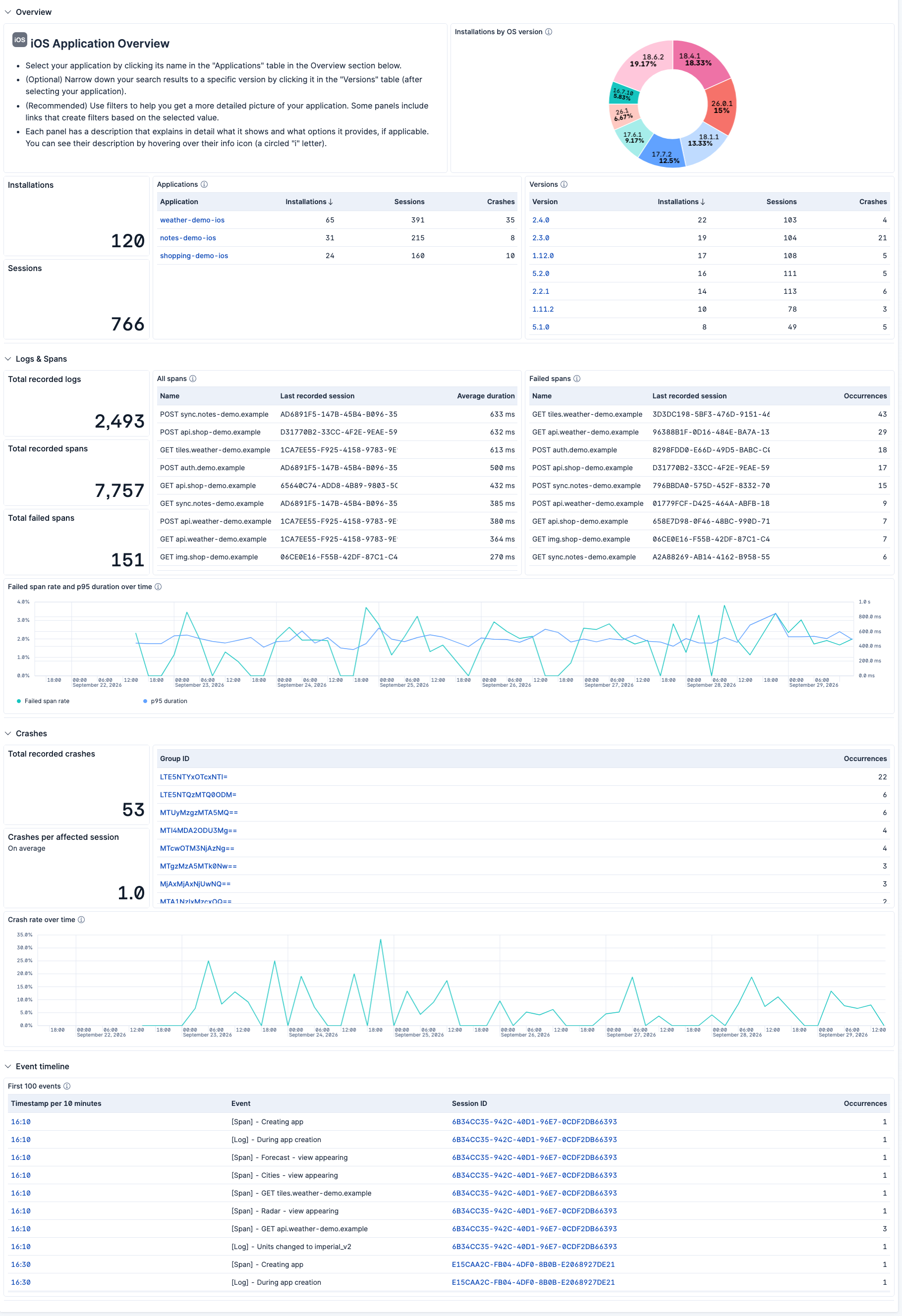
The dashboard provides a high-level view of your app's health, including span performance, crash analysis, and session-level insights.
-
View trace waterfall details
To inspect individual span traces in detail, go to a panel that shows a list of spans in the dashboard and click Explore in Discover .
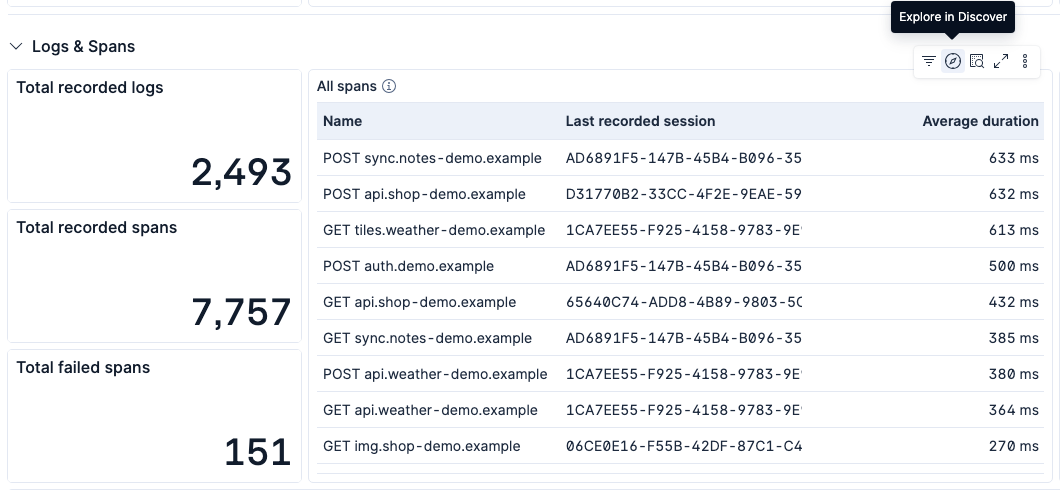
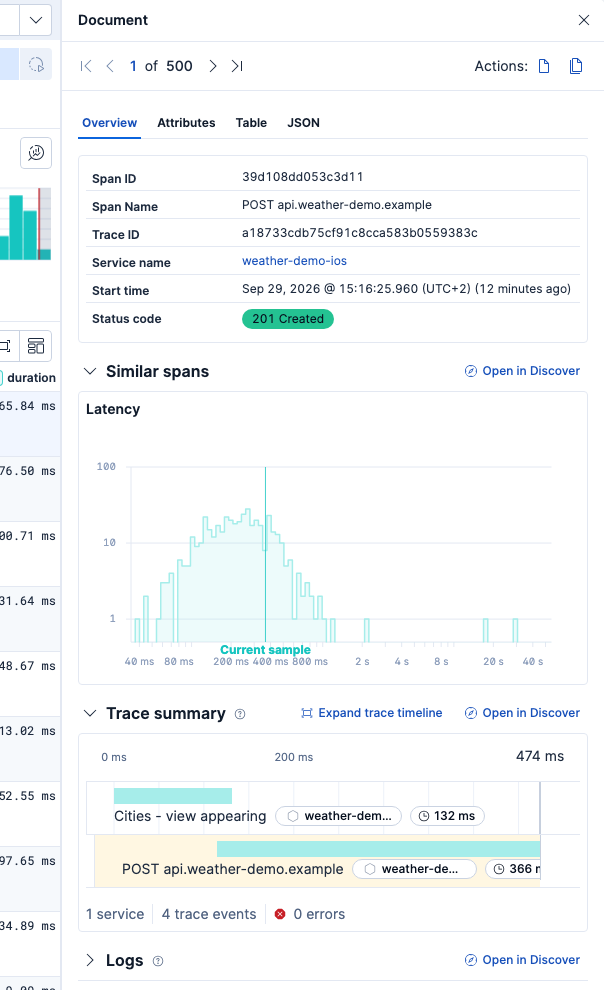
In Discover, click Toggle dialog with details to expand the details for one of the spans.

You'll see the trace waterfall UI, showing the full span hierarchy and timing. You can expand it to fullscreen and drill down into further details from there.
- View crash details — Learn how to visualize and drill into iOS crash reports in the dashboard.
- Troubleshoot dashboard issues — Find solutions to common issues with the Kibana dashboard experience.
- This guide uses the minimum configuration needed to initialize EDOT iOS. Refer to Configuration to customize connectivity, authentication, sampling, storage, and instrumentation.
- Review Automatic instrumentation to learn what EDOT iOS captures on your behalf.
- Use Manual instrumentation to create spans, metrics, and logs for your app's business logic.
- If data does not appear in Kibana, refer to Troubleshooting.