Fortinet FortiGate Firewall Logs Integration for Elastic
| Version | 1.36.11 (View all) |
| Subscription level What's this? |
Basic |
| Developed by What's this? |
Elastic |
| Ingestion method(s) | File, Network Protocol |
| Minimum Kibana version(s) | 9.0.0 8.11.0 |
The Fortinet FortiGate Firewall Logs integration for Elastic enables the collection of logs from Fortinet FortiGate firewalls. This allows for comprehensive security monitoring, threat detection, and network traffic analysis within the Elastic Stack. By ingesting FortiGate logs, users can gain visibility into firewall activity, monitor for security threats, audit policy compliance, and troubleshoot network issues.
This integration facilitates:
- Security monitoring and threat detection
- Network traffic analysis and monitoring
- Firewall policy compliance and auditing
- Intrusion detection and prevention system (IPS) event monitoring
- VPN connection monitoring and troubleshooting
- Web filtering and application control monitoring
This integration has been tested against FortiOS versions 6.x and 7.x up to 7.4.1. Newer versions are expected to work but have not been tested.
This integration is compatible with Elastic Stack version 8.11.0 or higher.
This integration collects logs from FortiGate firewalls by receiving syslog data over TCP or UDP, or by reading directly from log files. An Elastic Agent is deployed on a host that is configured as a syslog receiver or has access to the log files. The agent forwards the logs to your Elastic deployment, where they can be monitored or analyzed.
The Fortinet FortiGate Firewall Logs integration collects the following types of logs:
- Traffic logs: Records of firewall decisions to allow or deny traffic.
- UTM (Unified Threat Management) logs: Includes events from antivirus, web filter, application control, IPS, and DNS filter modules.
- Event logs: System-level events, high-availability (HA) events, and configuration changes.
- Authentication logs: Records of VPN, administrator, and user authentication events.
Integrating Fortinet FortiGate logs with Elastic provides a powerful solution for enhancing security posture and operational visibility. Key use cases include:
- Real-time Threat Detection: Leverage Elastic SIEM to detect and respond to threats identified in firewall logs.
- Network Traffic Analysis: Use Kibana dashboards to visualize and analyze network traffic patterns, helping to identify anomalies and optimize network performance.
- Compliance and Auditing: Maintain a searchable, long-term archive of firewall logs to meet compliance requirements and conduct security audits.
- Incident Response: Accelerate incident investigation by correlating firewall data with other security and observability data sources within Elastic.
- A FortiGate firewall with administrative access to configure syslog settings.
- Network connectivity between the FortiGate firewall and the Elastic Agent host.
- Elastic Stack version 8.11.0 or higher.
Elastic Agent must be installed on a host that will receive the syslog data or has access to the log files from the FortiGate firewall. For detailed installation instructions, refer to the Elastic Agent installation guide. Only one Elastic Agent is needed per host.
You can configure FortiGate to send logs to the Elastic Agent using either the GUI or the CLI.
GUI Configuration:
- Log in to the FortiGate web-based manager (GUI).
- Navigate to Log & Report -> Log Settings.
- Enable Send Logs to Syslog.
- In the IP address field, enter the IP address of the host where the Elastic Agent is installed.
- Click Apply.
- Under Log Settings, ensure that Event Logging and all desired log subtypes are enabled to generate and send the necessary logs.
CLI Configuration:
Log in to the FortiGate CLI.
Use the following commands to configure the syslog server settings:
config log syslogd setting set status enable set server "<elastic_agent_ip>" set port <port> set mode <udp|reliable> set format <default|rfc5424> end- Default syslog ports are 514 for UDP and TCP
mode: Useudp(the FortiGate default) with the integration's UDP input, orreliablewith the TCP input. Inreliablemode, FortiGate sends syslog over TCP using RFC 6587 octet-counting framing, which matches the TCP input's defaultframing: rfc6587. Every receiver between FortiGate and Elasticsearch must support this framing; see Troubleshooting.format: Usedefault(key-value syslog) orrfc5424(key-value message with an RFC 5424 syslog header). The integration does not parse thecsv,cef, orjsonformats.port: Must match the Listen Port configured in the integration.
Configure the appropriate log types and severity levels to be sent to the syslog server. For example:
config log syslogd filter
    set severity information
    set forward-traffic enable
    set local-traffic enable
    set web enable
    set antivirus enable
    // Enable other UTM and event logs as needed
end
For more detailed information, refer to the FortiGate CLI reference.
- In Kibana, navigate to Management > Integrations.
- Search for "Fortinet FortiGate Firewall Logs" and select the integration.
- Click Add Fortinet FortiGate Firewall Logs.
- Configure the integration by selecting an input type and providing the necessary settings. This integration supports
TCP,UDP, andLog fileinputs.
This input collects logs over a TCP socket.
| Setting | Description |
|---|---|
| Listen Address | The bind address for the TCP listener (e.g., localhost, 0.0.0.0). |
| Listen Port | The TCP port number to listen on (e.g., 9004). |
| Preserve original event | If checked, a raw copy of the original log is stored in the event.original field. |
Under Advanced Options, you can configure the following optional parameters:
| Setting | Description |
|---|---|
| Internal/External interfaces | Define your network interfaces to correctly map network direction. |
| Internal networks | Specify your internal network ranges (defaults to private address spaces). Supports CIDR notation and named ranges like private. |
| SSL Configuration | Configure SSL options for encrypted communication. See the SSL documentation for details. |
| Custom TCP Options | framing: Specifies how messages are framed. Defaults to rfc6587, which is required for FortiGate's reliable syslog mode. max_message_size: The maximum size of a log message (e.g., 50KiB). max_connections: The maximum number of simultaneous connections. |
| Timezone | Specify an IANA timezone or offset (e.g., +0200) for logs with no timezone information. |
| Timezone Map | A mapping of timezone strings from logs to standard IANA timezone formats. |
| Processors | Add custom processors to enhance or reduce event fields before parsing. |
This input collects logs over a UDP socket.
| Setting | Description |
|---|---|
| Listen Address | The bind address for the UDP listener (e.g., localhost, 0.0.0.0). |
| Listen Port | The UDP port number to listen on (e.g., 9004). |
| Preserve original event | If checked, a raw copy of the original log is stored in the event.original field. |
Under Advanced Options, you can configure the following optional parameters:
| Setting | Description |
|---|---|
| Internal/External interfaces | Define your network interfaces to correctly map network direction. |
| Internal networks | Specify your internal network ranges (defaults to private address spaces). |
| Custom UDP Options | read_buffer: The size of the read buffer for the UDP socket (e.g., 100MiB). max_message_size: The maximum size of a log message (e.g., 50KiB). timeout: The read timeout for the UDP socket (e.g., 300s). |
| Timezone | Specify an IANA timezone or offset (e.g., +0200) for logs with no timezone information. |
| Timezone Map | A mapping of timezone strings from logs to standard IANA timezone formats. |
| Processors | Add custom processors to enhance or reduce event fields before parsing. |
This input collects logs directly from log files on the host where the Elastic Agent is running.
| Setting | Description |
|---|---|
| Paths | A list of file paths to monitor (e.g., /var/log/fortinet-firewall.log). |
| Preserve original event | If checked, a raw copy of the original log is stored in the event.original field. |
Under Advanced Options, you can configure the following optional parameters:
| Setting | Description |
|---|---|
| Internal/External interfaces | Define your network interfaces to correctly map network direction. |
| Internal networks | Specify your internal network ranges (defaults to private address spaces). |
| Timezone | Specify an IANA timezone or offset (e.g., +0200) for logs with no timezone information. |
| Timezone Map | A mapping of timezone strings from logs to standard IANA timezone formats. |
| Processors | Add custom processors to enhance or reduce event fields before parsing. |
After configuring the input, assign the integration to an agent policy and click Save and continue.
- First, verify on the FortiGate device that logs are being actively sent to the configured Elastic Agent host.
- In Kibana, navigate to Discover.
- In the search bar, enter
data_stream.dataset: "fortinet_fortigate.log"and check for incoming documents. - Verify that events are appearing with recent timestamps.
- Navigate to Management > Dashboards and search for "Fortinet FortiGate Overview" to see if the visualizations are populated with data.
- Generate some test traffic that would be logged by the firewall and confirm that the corresponding logs appear in Kibana.
For help with Elastic ingest tools, check Common problems.
- No data is being collected:
- Verify network connectivity (e.g., using
pingornetcat) between the FortiGate firewall and the Elastic Agent host. - Ensure there are no firewalls or network ACLs blocking the syslog port.
- Confirm that the listening port configured in the Elastic integration matches the destination port configured on the FortiGate device.
- Verify network connectivity (e.g., using
- TCP framing issues:
- In
reliablemode, FortiGate always sends syslog over TCP with RFC 6587 octet-counting framing (each message is prefixed with its length, with no newline between messages). Keep the TCP input'sframingset torfc6587; other framing values will result in parsing errors or lost logs. - Any receiver placed in front of Elasticsearch must also split messages using RFC 6587 octet counting. A receiver that splits the stream on newlines (for example, the Logstash
tcpinput with its defaultlinecodec) combines all messages from a connection into one very large message. Such messages are indexed unparsed withevent.kind: pipeline_errorand anerror.messagereporting either that the message exceeds 900000 characters or that a key appears more than once. In that setup, either send from FortiGate withmode udp, or receive the TCP stream with Elastic Agent using this integration's TCP input.
- In
- FortiGate CLI Reference - Syslog Settings
- Fortinet Documentation Library
- FortiGate Administration Guide
For more information on architectures that can be used for scaling this integration, check the Ingest Architectures documentation.
Elastic Agent must receive syslog directly from the FortiGate devices. This integration's input settings, such as TCP framing, timezone, and network direction, are applied only by Elastic Agent, so placing Logstash in front of the Elastic Agents, or receiving FortiGate syslog with a Logstash input, is not covered by this integration. If you use FortiGate's reliable mode, keep the Elastic Agent TCP input's framing set to rfc6587.
If you need Logstash for additional processing or routing, place it after the Elastic Agents: send data from the Elastic Agents to Logstash using the elastic_agent input, and run the integration's ingest pipeline with the elastic_integration filter. For details, check Using Logstash with Elastic integrations.
The log data stream collects all log types from the FortiGate firewall, including traffic, UTM, event, and authentication logs.
Exported fields
| Field | Description | Type |
|---|---|---|
| @timestamp | Event timestamp. | date |
| cloud.account.id | The cloud account or organization id used to identify different entities in a multi-tenant environment. Examples: AWS account id, Google Cloud ORG Id, or other unique identifier. | keyword |
| cloud.availability_zone | Availability zone in which this host is running. | keyword |
| cloud.image.id | Image ID for the cloud instance. | keyword |
| cloud.instance.id | Instance ID of the host machine. | keyword |
| cloud.instance.name | Instance name of the host machine. | keyword |
| cloud.machine.type | Machine type of the host machine. | keyword |
| cloud.project.id | Name of the project in Google Cloud. | keyword |
| cloud.provider | Name of the cloud provider. Example values are aws, azure, gcp, or digitalocean. | keyword |
| cloud.region | Region in which this host is running. | keyword |
| container.id | Unique container id. | keyword |
| container.image.name | Name of the image the container was built on. | keyword |
| container.labels | Image labels. | object |
| container.name | Container name. | keyword |
| data_stream.dataset | Data stream dataset. | constant_keyword |
| data_stream.namespace | Data stream namespace. | constant_keyword |
| data_stream.type | Data stream type. | constant_keyword |
| destination.address | Some event destination addresses are defined ambiguously. The event will sometimes list an IP, a domain or a unix socket. You should always store the raw address in the .address field. Then it should be duplicated to .ip or .domain, depending on which one it is. |
keyword |
| destination.as.number | Unique number allocated to the autonomous system. The autonomous system number (ASN) uniquely identifies each network on the Internet. | long |
| destination.as.organization.name | Organization name. | keyword |
| destination.as.organization.name.text | Multi-field of destination.as.organization.name. |
match_only_text |
| destination.bytes | Bytes sent from the destination to the source. | long |
| destination.domain | The domain name of the destination system. This value may be a host name, a fully qualified domain name, or another host naming format. The value may derive from the original event or be added from enrichment. | keyword |
| destination.geo.city_name | City name. | keyword |
| destination.geo.continent_name | Name of the continent. | keyword |
| destination.geo.country_iso_code | Country ISO code. | keyword |
| destination.geo.country_name | Country name. | keyword |
| destination.geo.location | Longitude and latitude. | geo_point |
| destination.geo.name | User-defined description of a location, at the level of granularity they care about. Could be the name of their data centers, the floor number, if this describes a local physical entity, city names. Not typically used in automated geolocation. | keyword |
| destination.geo.region_iso_code | Region ISO code. | keyword |
| destination.geo.region_name | Region name. | keyword |
| destination.ip | IP address of the destination (IPv4 or IPv6). | ip |
| destination.mac | MAC address of the destination. The notation format from RFC 7042 is suggested: Each octet (that is, 8-bit byte) is represented by two [uppercase] hexadecimal digits giving the value of the octet as an unsigned integer. Successive octets are separated by a hyphen. | keyword |
| destination.nat.ip | Translated ip of destination based NAT sessions (e.g. internet to private DMZ) Typically used with load balancers, firewalls, or routers. | ip |
| destination.nat.port | Port the source session is translated to by NAT Device. Typically used with load balancers, firewalls, or routers. | long |
| destination.packets | Packets sent from the destination to the source. | long |
| destination.port | Port of the destination. | long |
| destination.user.email | User email address. | keyword |
| destination.user.group.name | Name of the group. | keyword |
| destination.user.name | Short name or login of the user. | keyword |
| destination.user.name.text | Multi-field of destination.user.name. |
match_only_text |
| dns.id | The DNS packet identifier assigned by the program that generated the query. The identifier is copied to the response. | keyword |
| dns.question.class | The class of records being queried. | keyword |
| dns.question.name | The name being queried. If the name field contains non-printable characters (below 32 or above 126), those characters should be represented as escaped base 10 integers (\DDD). Back slashes and quotes should be escaped. Tabs, carriage returns, and line feeds should be converted to \t, \r, and \n respectively. | keyword |
| dns.question.registered_domain | The highest registered domain, stripped of the subdomain. For example, the registered domain for "foo.example.com" is "example.com". This value can be determined precisely with a list like the public suffix list (https://publicsuffix.org). Trying to approximate this by simply taking the last two labels will not work well for TLDs such as "co.uk". | keyword |
| dns.question.subdomain | The subdomain is all of the labels under the registered_domain. If the domain has multiple levels of subdomain, such as "sub2.sub1.example.com", the subdomain field should contain "sub2.sub1", with no trailing period. | keyword |
| dns.question.top_level_domain | The effective top level domain (eTLD), also known as the domain suffix, is the last part of the domain name. For example, the top level domain for example.com is "com". This value can be determined precisely with a list like the public suffix list (https://publicsuffix.org). Trying to approximate this by simply taking the last label will not work well for effective TLDs such as "co.uk". | keyword |
| dns.question.type | The type of record being queried. | keyword |
| dns.resolved_ip | Array containing all IPs seen in answers.data. The answers array can be difficult to use, because of the variety of data formats it can contain. Extracting all IP addresses seen in there to dns.resolved_ip makes it possible to index them as IP addresses, and makes them easier to visualize and query for. |
ip |
| ecs.version | ECS version this event conforms to. ecs.version is a required field and must exist in all events. When querying across multiple indices -- which may conform to slightly different ECS versions -- this field lets integrations adjust to the schema version of the events. |
keyword |
| email.cc.address | The email address of CC recipient | keyword |
| email.from.address | The email address of the sender, typically from the RFC 5322 From: header field. |
keyword |
| email.sender.address | Per RFC 5322, specifies the address responsible for the actual transmission of the message. | keyword |
| email.subject | A brief summary of the topic of the message. | keyword |
| email.subject.text | Multi-field of email.subject. |
match_only_text |
| email.to.address | The email address of recipient | keyword |
| error.code | Error code describing the error. | keyword |
| error.message | Error message. | match_only_text |
| event.category | This is one of four ECS Categorization Fields, and indicates the second level in the ECS category hierarchy. event.category represents the "big buckets" of ECS categories. For example, filtering on event.category:process yields all events relating to process activity. This field is closely related to event.type, which is used as a subcategory. This field is an array. This will allow proper categorization of some events that fall in multiple categories. |
keyword |
| event.code | Identification code for this event, if one exists. Some event sources use event codes to identify messages unambiguously, regardless of message language or wording adjustments over time. An example of this is the Windows Event ID. | keyword |
| event.dataset | Name of the dataset. | constant_keyword |
| event.duration | Duration of the event in nanoseconds. If event.start and event.end are known this value should be the difference between the end and start time. |
long |
| event.ingested | Timestamp when an event arrived in the central data store. This is different from @timestamp, which is when the event originally occurred. It's also different from event.created, which is meant to capture the first time an agent saw the event. In normal conditions, assuming no tampering, the timestamps should chronologically look like this: @timestamp < event.created < event.ingested. |
date |
| event.kind | This is one of four ECS Categorization Fields, and indicates the highest level in the ECS category hierarchy. event.kind gives high-level information about what type of information the event contains, without being specific to the contents of the event. For example, values of this field distinguish alert events from metric events. The value of this field can be used to inform how these kinds of events should be handled. They may warrant different retention, different access control, it may also help understand whether the data is coming in at a regular interval or not. |
keyword |
| event.message | Log message optimized for viewing in a log viewer. | text |
| event.module | Name of the module this data is coming from. | constant_keyword |
| event.outcome | This is one of four ECS Categorization Fields, and indicates the lowest level in the ECS category hierarchy. event.outcome simply denotes whether the event represents a success or a failure from the perspective of the entity that produced the event. Note that when a single transaction is described in multiple events, each event may populate different values of event.outcome, according to their perspective. Also note that in the case of a compound event (a single event that contains multiple logical events), this field should be populated with the value that best captures the overall success or failure from the perspective of the event producer. Further note that not all events will have an associated outcome. For example, this field is generally not populated for metric events, events with event.type:info, or any events for which an outcome does not make logical sense. |
keyword |
| event.reference | Reference URL linking to additional information about this event. This URL links to a static definition of this event. Alert events, indicated by event.kind:alert, are a common use case for this field. |
keyword |
| event.start | event.start contains the date when the event started or when the activity was first observed. |
date |
| event.timezone | This field should be populated when the event's timestamp does not include timezone information already (e.g. default Syslog timestamps). It's optional otherwise. Acceptable timezone formats are: a canonical ID (e.g. "Europe/Amsterdam"), abbreviated (e.g. "EST") or an HH:mm differential (e.g. "-05:00"). | keyword |
| event.type | This is one of four ECS Categorization Fields, and indicates the third level in the ECS category hierarchy. event.type represents a categorization "sub-bucket" that, when used along with the event.category field values, enables filtering events down to a level appropriate for single visualization. This field is an array. This will allow proper categorization of some events that fall in multiple event types. |
keyword |
| file.extension | File extension, excluding the leading dot. Note that when the file name has multiple extensions (example.tar.gz), only the last one should be captured ("gz", not "tar.gz"). | keyword |
| file.name | Name of the file including the extension, without the directory. | keyword |
| file.size | File size in bytes. Only relevant when file.type is "file". |
long |
| fortinet.file.hash.crc32 | CRC32 Hash of file | keyword |
| fortinet.firewall.acct_stat | Accounting state (RADIUS) | keyword |
| fortinet.firewall.acktime | Alarm Acknowledge Time | keyword |
| fortinet.firewall.action | Action | keyword |
| fortinet.firewall.activity | HA activity message | keyword |
| fortinet.firewall.addr | IP Address | ip |
| fortinet.firewall.addr_type | Address Type | keyword |
| fortinet.firewall.addrgrp | Address Group | keyword |
| fortinet.firewall.adgroup | AD Group Name | keyword |
| fortinet.firewall.admin | Admin User | keyword |
| fortinet.firewall.advpnsc | Indicates that a VPN event is based on an ADVPN shortcut. | boolean |
| fortinet.firewall.age | Time in seconds - time passed since last seen | integer |
| fortinet.firewall.agent | User agent - eg. agent="Mozilla/5.0" | keyword |
| fortinet.firewall.alarmid | Alarm ID | integer |
| fortinet.firewall.alert | Alert | keyword |
| fortinet.firewall.analyticscksum | The checksum of the file submitted for analytics | keyword |
| fortinet.firewall.analyticssubmit | The flag for analytics submission | keyword |
| fortinet.firewall.ap | Access Point | keyword |
| fortinet.firewall.app-type | Address Type | keyword |
| fortinet.firewall.appact | The security action from app control | keyword |
| fortinet.firewall.appid | Application ID | integer |
| fortinet.firewall.applist | Application Control profile | keyword |
| fortinet.firewall.apprisk | Application Risk Level | keyword |
| fortinet.firewall.apscan | The name of the AP, which scanned and detected the rogue AP | keyword |
| fortinet.firewall.apsn | Access Point | keyword |
| fortinet.firewall.apstatus | Access Point status | keyword |
| fortinet.firewall.aptype | Access Point type | keyword |
| fortinet.firewall.assigned | Assigned IP Address | ip |
| fortinet.firewall.assignip | Assigned IP Address | ip |
| fortinet.firewall.attachment | The flag for email attachement | keyword |
| fortinet.firewall.attack | Attack Name | keyword |
| fortinet.firewall.attackcontext | The trigger patterns and the packetdata with base64 encoding | keyword |
| fortinet.firewall.attackcontextid | Attack context id / total | keyword |
| fortinet.firewall.attackid | Attack ID | integer |
| fortinet.firewall.auditid | Audit ID | long |
| fortinet.firewall.auditreporttype | The audit report type | keyword |
| fortinet.firewall.auditscore | The Audit Score | keyword |
| fortinet.firewall.audittime | The time of the audit | long |
| fortinet.firewall.authgrp | Authorization group | keyword |
| fortinet.firewall.authid | Authentication ID | keyword |
| fortinet.firewall.authmsg | Authentication message | keyword |
| fortinet.firewall.authproto | The protocol that initiated the authentication | keyword |
| fortinet.firewall.authserver | Authentication server | keyword |
| fortinet.firewall.bandwidth | Bandwidth | keyword |
| fortinet.firewall.banned_rule | NAC quarantine Banned Rule Name | keyword |
| fortinet.firewall.banned_src | NAC quarantine Banned Source IP | keyword |
| fortinet.firewall.banword | Banned word | keyword |
| fortinet.firewall.bibandwidth | Icoming and outcoming bandwidth | keyword |
| fortinet.firewall.botnetdomain | Botnet Domain Name | keyword |
| fortinet.firewall.botnetip | Botnet IP Address | ip |
| fortinet.firewall.bssid | Service Set ID | keyword |
| fortinet.firewall.call_id | Caller ID | keyword |
| fortinet.firewall.carrier | The FortiOS Carrier | keyword |
| fortinet.firewall.carrier_ep | The FortiOS Carrier end-point identification | keyword |
| fortinet.firewall.cat | DNS category ID | integer |
| fortinet.firewall.category | Authentication category | keyword |
| fortinet.firewall.cc | CC Email Address | keyword |
| fortinet.firewall.cdrcontent | Cdrcontent | keyword |
| fortinet.firewall.centralnatid | Central NAT ID | integer |
| fortinet.firewall.cert | Certificate | keyword |
| fortinet.firewall.cert-type | Certificate type | keyword |
| fortinet.firewall.certhash | Certificate hash | keyword |
| fortinet.firewall.cfgattr | Configuration attribute | keyword |
| fortinet.firewall.cfgobj | Configuration object | keyword |
| fortinet.firewall.cfgpath | Configuration path | keyword |
| fortinet.firewall.cfgtid | Configuration transaction ID | keyword |
| fortinet.firewall.cfgtxpower | Configuration TX power | integer |
| fortinet.firewall.channel | Wireless Channel | integer |
| fortinet.firewall.channeltype | SSH channel type | keyword |
| fortinet.firewall.chassisid | Chassis ID | integer |
| fortinet.firewall.checksum | The checksum of the scanned file | keyword |
| fortinet.firewall.chgheaders | HTTP Headers | keyword |
| fortinet.firewall.cldobjid | Connector object ID | keyword |
| fortinet.firewall.client_addr | Wifi client address | keyword |
| fortinet.firewall.cloudaction | Cloud Action | keyword |
| fortinet.firewall.clouduser | Cloud User | keyword |
| fortinet.firewall.clustername | Cluster Name | keyword |
| fortinet.firewall.column | VOIP Column | integer |
| fortinet.firewall.command | CLI Command | keyword |
| fortinet.firewall.community | SNMP Community | keyword |
| fortinet.firewall.configcountry | Configuration country | keyword |
| fortinet.firewall.connection_type | FortiClient Connection Type | keyword |
| fortinet.firewall.conserve | Flag for conserve mode | keyword |
| fortinet.firewall.constraint | WAF http protocol restrictions | keyword |
| fortinet.firewall.contentdisarmed | Email scanned content | keyword |
| fortinet.firewall.contenttype | Content Type from HTTP header | keyword |
| fortinet.firewall.cookies | VPN Cookie | keyword |
| fortinet.firewall.count | Counts of action type | integer |
| fortinet.firewall.countapp | Number of App Ctrl logs associated with the session | integer |
| fortinet.firewall.countav | Number of AV logs associated with the session | integer |
| fortinet.firewall.countcifs | Number of CIFS logs associated with the session | integer |
| fortinet.firewall.countdlp | Number of DLP logs associated with the session | integer |
| fortinet.firewall.countdns | Number of DNS logs associated with the session | integer |
| fortinet.firewall.countemail | Number of email logs associated with the session | integer |
| fortinet.firewall.countff | Number of ff logs associated with the session | integer |
| fortinet.firewall.countips | Number of IPS logs associated with the session | integer |
| fortinet.firewall.countssh | Number of SSH logs associated with the session | integer |
| fortinet.firewall.countssl | Number of SSL logs associated with the session | integer |
| fortinet.firewall.countwaf | Number of WAF logs associated with the session | integer |
| fortinet.firewall.countweb | Number of Web filter logs associated with the session | integer |
| fortinet.firewall.cpu | CPU Usage | integer |
| fortinet.firewall.craction | Client Reputation Action | integer |
| fortinet.firewall.criticalcount | Number of critical ratings | integer |
| fortinet.firewall.crl | Client Reputation Level | keyword |
| fortinet.firewall.crlevel | Client Reputation Level | keyword |
| fortinet.firewall.crscore | Some description | integer |
| fortinet.firewall.cveid | CVE ID | keyword |
| fortinet.firewall.daemon | Daemon name | keyword |
| fortinet.firewall.datarange | Data range for reports | keyword |
| fortinet.firewall.date | Date | keyword |
| fortinet.firewall.ddnsserver | DDNS server | ip |
| fortinet.firewall.deltabytes | Total bytes delta | long |
| fortinet.firewall.desc | Description | keyword |
| fortinet.firewall.detectionmethod | Detection method | keyword |
| fortinet.firewall.devcategory | Device category | keyword |
| fortinet.firewall.devintfname | HA device Interface Name | keyword |
| fortinet.firewall.devtype | Device type | keyword |
| fortinet.firewall.dhcp_msg | DHCP Message | keyword |
| fortinet.firewall.dintf | Destination interface | keyword |
| fortinet.firewall.disk | Assosciated disk | keyword |
| fortinet.firewall.disklograte | Disk logging rate | long |
| fortinet.firewall.dlpextra | DLP extra information | keyword |
| fortinet.firewall.docsource | DLP fingerprint document source | keyword |
| fortinet.firewall.domainctrlauthstate | CIFS domain auth state | integer |
| fortinet.firewall.domainctrlauthtype | CIFS domain auth type | integer |
| fortinet.firewall.domainctrldomain | CIFS domain auth domain | keyword |
| fortinet.firewall.domainctrlip | CIFS Domain IP | ip |
| fortinet.firewall.domainctrlname | CIFS Domain name | keyword |
| fortinet.firewall.domainctrlprotocoltype | CIFS Domain connection protocol | integer |
| fortinet.firewall.domainctrlusername | CIFS Domain username | keyword |
| fortinet.firewall.domainfilteridx | Domain filter ID | integer |
| fortinet.firewall.domainfilterlist | Domain filter name | keyword |
| fortinet.firewall.ds | Direction with distribution system | keyword |
| fortinet.firewall.dst_int | Destination interface | keyword |
| fortinet.firewall.dstcountry | Destination country | keyword |
| fortinet.firewall.dstdevcategory | Destination device category | keyword |
| fortinet.firewall.dstdevtype | Destination device type | keyword |
| fortinet.firewall.dstfamily | Destination OS family | keyword |
| fortinet.firewall.dsthwvendor | Destination HW vendor | keyword |
| fortinet.firewall.dsthwversion | Destination HW version | keyword |
| fortinet.firewall.dstinetsvc | Destination interface service | keyword |
| fortinet.firewall.dstintfrole | Destination interface role | keyword |
| fortinet.firewall.dstosname | Destination OS name | keyword |
| fortinet.firewall.dstosversion | Destination OS version | keyword |
| fortinet.firewall.dstserver | Destination server | integer |
| fortinet.firewall.dstssid | Destination SSID | keyword |
| fortinet.firewall.dstswversion | Destination software version | keyword |
| fortinet.firewall.dstunauthusersource | Destination unauthenticated source | keyword |
| fortinet.firewall.dstuuid | UUID of the Destination IP address | keyword |
| fortinet.firewall.duid | DHCP UID | keyword |
| fortinet.firewall.eapolcnt | EAPOL packet count | integer |
| fortinet.firewall.eapoltype | EAPOL packet type | keyword |
| fortinet.firewall.encrypt | Whether the packet is encrypted or not | integer |
| fortinet.firewall.encryption | Encryption method | keyword |
| fortinet.firewall.epoch | Epoch used for locating file | integer |
| fortinet.firewall.espauth | ESP Authentication | keyword |
| fortinet.firewall.esptransform | ESP Transform | keyword |
| fortinet.firewall.exch | Mail Exchanges from DNS response answer section | keyword |
| fortinet.firewall.exchange | Mail Exchanges from DNS response answer section | keyword |
| fortinet.firewall.expectedsignature | Expected SSL signature | keyword |
| fortinet.firewall.expiry | FortiGuard override expiry timestamp | keyword |
| fortinet.firewall.extrainfo | keyword | |
| fortinet.firewall.fams_pause | Fortinet Analysis and Management Service Pause | integer |
| fortinet.firewall.fazlograte | FortiAnalyzer Logging Rate | long |
| fortinet.firewall.fctemssn | FortiClient Endpoint SSN | keyword |
| fortinet.firewall.fctuid | FortiClient UID | keyword |
| fortinet.firewall.field | NTP status field | keyword |
| fortinet.firewall.filefilter | The filter used to identify the affected file | keyword |
| fortinet.firewall.filehashsrc | Filehash source | keyword |
| fortinet.firewall.filtercat | DLP filter category | keyword |
| fortinet.firewall.filteridx | DLP filter ID | integer |
| fortinet.firewall.filtername | DLP rule name | keyword |
| fortinet.firewall.filtertype | DLP filter type | keyword |
| fortinet.firewall.fortiguardresp | Antispam ESP value | keyword |
| fortinet.firewall.forwardedfor | Email address forwarded | keyword |
| fortinet.firewall.fqdn | FQDN | keyword |
| fortinet.firewall.frametype | Wireless frametype | keyword |
| fortinet.firewall.freediskstorage | Free disk integer | integer |
| fortinet.firewall.from | From email address | keyword |
| fortinet.firewall.from_vcluster | Source virtual cluster number | integer |
| fortinet.firewall.fsaverdict | FSA verdict | keyword |
| fortinet.firewall.fwserver_name | Web proxy server name | keyword |
| fortinet.firewall.gateway | Gateway ip address for PPPoE status report | ip |
| fortinet.firewall.green | Memory status | keyword |
| fortinet.firewall.groupid | User Group ID | integer |
| fortinet.firewall.ha-prio | HA Priority | integer |
| fortinet.firewall.ha_group | HA Group | keyword |
| fortinet.firewall.ha_role | HA Role | keyword |
| fortinet.firewall.handshake | SSL Handshake | keyword |
| fortinet.firewall.hash | Hash value of downloaded file | keyword |
| fortinet.firewall.hbdn_reason | Heartbeat down reason | keyword |
| fortinet.firewall.healthcheck | Healtcheck name | keyword |
| fortinet.firewall.highcount | Highcount fabric summary | integer |
| fortinet.firewall.host | Hostname | keyword |
| fortinet.firewall.iaid | DHCPv6 id | keyword |
| fortinet.firewall.iccid | SIM Card ICCID number | keyword |
| fortinet.firewall.icmpcode | Destination Port of the ICMP message | keyword |
| fortinet.firewall.icmpid | Source port of the ICMP message | keyword |
| fortinet.firewall.icmptype | The type of ICMP message | keyword |
| fortinet.firewall.identifier | Network traffic identifier | integer |
| fortinet.firewall.imei | Device IMEI | keyword |
| fortinet.firewall.imsi | Subscriber IMSI | keyword |
| fortinet.firewall.in_spi | IPSEC inbound SPI | keyword |
| fortinet.firewall.inbandwidth | Icoming bandwidth | keyword |
| fortinet.firewall.incidentserialno | Incident serial number | integer |
| fortinet.firewall.infected | Infected MMS | integer |
| fortinet.firewall.infectedfilelevel | DLP infected file level | integer |
| fortinet.firewall.informationsource | Information source | keyword |
| fortinet.firewall.init | IPSEC init stage | keyword |
| fortinet.firewall.initiator | Original login user name for Fortiguard override | keyword |
| fortinet.firewall.interface | Related interface | keyword |
| fortinet.firewall.intf | Related interface | keyword |
| fortinet.firewall.invalidmac | The MAC address with invalid OUI | keyword |
| fortinet.firewall.ip | Related IP | ip |
| fortinet.firewall.iptype | Related IP type | keyword |
| fortinet.firewall.jitter | Communitation jitter | float |
| fortinet.firewall.keyword | Keyword used for search | keyword |
| fortinet.firewall.kind | VOIP kind | keyword |
| fortinet.firewall.kxproto | Key exchange protocol | keyword |
| fortinet.firewall.lanin | LAN incoming traffic in bytes | long |
| fortinet.firewall.lanout | LAN outbound traffic in bytes | long |
| fortinet.firewall.latency | Communication latency. | float |
| fortinet.firewall.lease | DHCP lease | integer |
| fortinet.firewall.license_limit | Maximum Number of FortiClients for the License | keyword |
| fortinet.firewall.limit | Virtual Domain Resource Limit | integer |
| fortinet.firewall.line | VOIP line | keyword |
| fortinet.firewall.live | Time in seconds | integer |
| fortinet.firewall.local | Local IP for a PPPD Connection | ip |
| fortinet.firewall.log | Log message | keyword |
| fortinet.firewall.login | SSH login | keyword |
| fortinet.firewall.lowcount | Fabric lowcount | integer |
| fortinet.firewall.mac | DHCP mac address | keyword |
| fortinet.firewall.malform_data | VOIP malformed data | integer |
| fortinet.firewall.malform_desc | VOIP malformed data description | keyword |
| fortinet.firewall.manuf | Manufacturer name | keyword |
| fortinet.firewall.masterdstmac | Master mac address for a host with multiple network interfaces | keyword |
| fortinet.firewall.mastersrcmac | The master MAC address for a host that has multiple network interfaces | keyword |
| fortinet.firewall.mediumcount | Fabric medium count | integer |
| fortinet.firewall.mem | Memory usage system statistics | integer |
| fortinet.firewall.meshmode | Wireless mesh mode | keyword |
| fortinet.firewall.message_type | VOIP message type | keyword |
| fortinet.firewall.method | HTTP method | keyword |
| fortinet.firewall.metric | Metric name | keyword |
| fortinet.firewall.mgmtcnt | The number of unauthorized client flooding managemet frames | integer |
| fortinet.firewall.mitm | Indicates if it SSL MITM inspection is enabled. | keyword |
| fortinet.firewall.mode | IPSEC mode | keyword |
| fortinet.firewall.module | PCI-DSS module | keyword |
| fortinet.firewall.monitor-name | Health Monitor Name | keyword |
| fortinet.firewall.monitor-type | Health Monitor Type | keyword |
| fortinet.firewall.mpsk | Wireless MPSK | keyword |
| fortinet.firewall.msgproto | Message Protocol Number | keyword |
| fortinet.firewall.mtu | Max Transmission Unit Value | integer |
| fortinet.firewall.name | Name | keyword |
| fortinet.firewall.nat | NAT IP Address | keyword |
| fortinet.firewall.netid | Connector NetID | keyword |
| fortinet.firewall.new_status | New status on user change | keyword |
| fortinet.firewall.new_value | New Virtual Domain Name | keyword |
| fortinet.firewall.newchannel | New Channel Number | integer |
| fortinet.firewall.newchassisid | New Chassis ID | integer |
| fortinet.firewall.newslot | New Slot Number | integer |
| fortinet.firewall.newvalue | New Value | keyword |
| fortinet.firewall.nextstat | Time interval in seconds for the next statistics. | integer |
| fortinet.firewall.nf_type | Notification Type | keyword |
| fortinet.firewall.noise | Wifi Noise | integer |
| fortinet.firewall.old_status | Original Status | keyword |
| fortinet.firewall.old_value | Original Virtual Domain name | keyword |
| fortinet.firewall.oldchannel | Original channel | integer |
| fortinet.firewall.oldchassisid | Original Chassis Number | integer |
| fortinet.firewall.oldslot | Original Slot Number | integer |
| fortinet.firewall.oldsn | Old Serial number | keyword |
| fortinet.firewall.oldvalue | Old Value | keyword |
| fortinet.firewall.oldwprof | Old Web Filter Profile | keyword |
| fortinet.firewall.onwire | A flag to indicate if the AP is onwire or not | keyword |
| fortinet.firewall.opercountry | Operating Country | keyword |
| fortinet.firewall.opertxpower | Operating TX power | integer |
| fortinet.firewall.osname | Operating System name | keyword |
| fortinet.firewall.osversion | Operating System version | keyword |
| fortinet.firewall.out_spi | Out SPI | keyword |
| fortinet.firewall.outbandwidth | Outcoming bandwidth | keyword |
| fortinet.firewall.outintf | Out interface | keyword |
| fortinet.firewall.packetloss | Packet loss percentage. | keyword |
| fortinet.firewall.passedcount | Fabric passed count | integer |
| fortinet.firewall.passwd | Changed user password information | keyword |
| fortinet.firewall.path | Path of looped configuration for security fabric | keyword |
| fortinet.firewall.peer | WAN optimization peer | keyword |
| fortinet.firewall.peer_notif | VPN peer notification | keyword |
| fortinet.firewall.phase2_name | VPN phase2 name | keyword |
| fortinet.firewall.phone | VOIP Phone | keyword |
| fortinet.firewall.phonenumber | Phone number | keyword |
| fortinet.firewall.pid | Process ID | integer |
| fortinet.firewall.plan | Subscriber plan | keyword |
| fortinet.firewall.policytype | Policy Type | keyword |
| fortinet.firewall.poluuid | Policy UUID | keyword |
| fortinet.firewall.poolname | IP Pool name | keyword |
| fortinet.firewall.port | Log upload error port | integer |
| fortinet.firewall.portbegin | IP Pool port number to begin | integer |
| fortinet.firewall.portend | IP Pool port number to end | integer |
| fortinet.firewall.probeproto | Link Monitor Probe Protocol | keyword |
| fortinet.firewall.process | URL Filter process | keyword |
| fortinet.firewall.processtime | Process time for reports | integer |
| fortinet.firewall.profile | Profile Name | keyword |
| fortinet.firewall.profile_vd | Virtual Domain Name | keyword |
| fortinet.firewall.profilegroup | Profile Group Name | keyword |
| fortinet.firewall.profiletype | Profile Type | keyword |
| fortinet.firewall.qtypeval | DNS question type value | integer |
| fortinet.firewall.quarskip | Quarantine skip explanation | keyword |
| fortinet.firewall.quotaexceeded | If quota has been exceeded | keyword |
| fortinet.firewall.quotamax | Maximum quota allowed - in seconds if time-based - in bytes if traffic-based | long |
| fortinet.firewall.quotatype | Quota type | keyword |
| fortinet.firewall.quotaused | Quota used - in seconds if time-based - in bytes if trafficbased) | long |
| fortinet.firewall.radioband | Radio band | keyword |
| fortinet.firewall.radioid | Radio ID | integer |
| fortinet.firewall.radioidclosest | Radio ID on the AP closest the rogue AP | integer |
| fortinet.firewall.radioiddetected | Radio ID on the AP which detected the rogue AP | integer |
| fortinet.firewall.rate | Wireless rogue rate value | keyword |
| fortinet.firewall.rawdata | Raw data value | keyword |
| fortinet.firewall.rawdataid | Raw data ID | keyword |
| fortinet.firewall.rcvddelta | Received bytes delta | long |
| fortinet.firewall.reason | Alert reason | keyword |
| fortinet.firewall.received | Server key exchange received | integer |
| fortinet.firewall.receivedsignature | Server key exchange received signature | keyword |
| fortinet.firewall.red | Memory information in red | keyword |
| fortinet.firewall.referralurl | Web filter referralurl | keyword |
| fortinet.firewall.remote | Remote PPP IP address | ip |
| fortinet.firewall.remotewtptime | Remote Wifi Radius authentication time | keyword |
| fortinet.firewall.reporttype | Report type | keyword |
| fortinet.firewall.reqtype | Request type | keyword |
| fortinet.firewall.request_name | VOIP request name | keyword |
| fortinet.firewall.result | VPN phase result | keyword |
| fortinet.firewall.role | VPN Phase 2 role | keyword |
| fortinet.firewall.rsrp | Reference signal received power | integer |
| fortinet.firewall.rsrq | Reference signal received quality | integer |
| fortinet.firewall.rssi | Received signal strength indicator | integer |
| fortinet.firewall.rsso_key | RADIUS SSO attribute value | keyword |
| fortinet.firewall.ruledata | Rule data | keyword |
| fortinet.firewall.ruletype | Rule type | keyword |
| fortinet.firewall.scanned | Number of Scanned MMSs | integer |
| fortinet.firewall.scantime | Scanned time | long |
| fortinet.firewall.scope | FortiGuard Override Scope | keyword |
| fortinet.firewall.security | Wireless rogue security | keyword |
| fortinet.firewall.sensitivity | Sensitivity for document fingerprint | keyword |
| fortinet.firewall.sensor | NAC Sensor Name | keyword |
| fortinet.firewall.sentdelta | Sent bytes delta | long |
| fortinet.firewall.seq | Sequence number | keyword |
| fortinet.firewall.serial | WAN optimisation serial | keyword |
| fortinet.firewall.serialno | Serial number | keyword |
| fortinet.firewall.server | AD server FQDN or IP | keyword |
| fortinet.firewall.session_id | Session ID | keyword |
| fortinet.firewall.sessionid | WAD Session ID | integer |
| fortinet.firewall.setuprate | Session Setup Rate | long |
| fortinet.firewall.severity | Severity | keyword |
| fortinet.firewall.shaperdroprcvdbyte | Received bytes dropped by shaper | integer |
| fortinet.firewall.shaperdropsentbyte | Sent bytes dropped by shaper | integer |
| fortinet.firewall.shaperperipdropbyte | Dropped bytes per IP by shaper | integer |
| fortinet.firewall.shaperperipname | Traffic shaper name (per IP) | keyword |
| fortinet.firewall.shaperrcvdname | Traffic shaper name for received traffic | keyword |
| fortinet.firewall.shapersentname | Traffic shaper name for sent traffic | keyword |
| fortinet.firewall.shapingpolicyid | Traffic shaper policy ID | integer |
| fortinet.firewall.signal | Wireless rogue API signal | integer |
| fortinet.firewall.signalstrength | Signal strength | integer |
| fortinet.firewall.sinr | Signal to interference and noise ratio | integer |
| fortinet.firewall.size | Email size in bytes | long |
| fortinet.firewall.ski | x509 Subject Key Identifier | keyword |
| fortinet.firewall.slamap | SLA map. | keyword |
| fortinet.firewall.slatargetid | ID of the targeted SLA. | keyword |
| fortinet.firewall.slot | Slot number | integer |
| fortinet.firewall.sn | Security fabric serial number | keyword |
| fortinet.firewall.snclosest | SN of the AP closest to the rogue AP | keyword |
| fortinet.firewall.sndetected | SN of the AP which detected the rogue AP | keyword |
| fortinet.firewall.snmeshparent | SN of the mesh parent | keyword |
| fortinet.firewall.spi | IPSEC SPI | keyword |
| fortinet.firewall.src_int | Source interface | keyword |
| fortinet.firewall.srccountry | Source country | keyword |
| fortinet.firewall.srcfamily | Source family | keyword |
| fortinet.firewall.srchwvendor | Source hardware vendor | keyword |
| fortinet.firewall.srchwversion | Source hardware version | keyword |
| fortinet.firewall.srcinetsvc | Source interface service | keyword |
| fortinet.firewall.srcintfrole | Source interface role | keyword |
| fortinet.firewall.srcname | Source name | keyword |
| fortinet.firewall.srcserver | Source server | integer |
| fortinet.firewall.srcssid | Source SSID | keyword |
| fortinet.firewall.srcswversion | Source software version | keyword |
| fortinet.firewall.srcuuid | Source UUID | keyword |
| fortinet.firewall.sscname | SSC name | keyword |
| fortinet.firewall.ssid | Base Service Set ID | keyword |
| fortinet.firewall.sslaction | SSL Action | keyword |
| fortinet.firewall.ssllocal | WAD SSL local | keyword |
| fortinet.firewall.sslremote | WAD SSL remote | keyword |
| fortinet.firewall.stacount | Number of stations/clients | integer |
| fortinet.firewall.stage | IPSEC stage | keyword |
| fortinet.firewall.stamac | 802.1x station mac | keyword |
| fortinet.firewall.state | Admin login state | keyword |
| fortinet.firewall.status | Status | keyword |
| fortinet.firewall.stitch | Automation stitch triggered | keyword |
| fortinet.firewall.subject | Email subject | keyword |
| fortinet.firewall.submodule | Configuration Sub-Module Name | keyword |
| fortinet.firewall.subservice | AV subservice | keyword |
| fortinet.firewall.subtype | Log subtype | keyword |
| fortinet.firewall.suspicious | Number of Suspicious MMSs | integer |
| fortinet.firewall.switchproto | Protocol change information | keyword |
| fortinet.firewall.sync_status | The sync status with the master | keyword |
| fortinet.firewall.sync_type | The sync type with the master | keyword |
| fortinet.firewall.sysuptime | System uptime | keyword |
| fortinet.firewall.tamac | the MAC address of Transmitter, if none, then Receiver | keyword |
| fortinet.firewall.temperature | Temperature | integer |
| fortinet.firewall.threattype | WIDS threat type | keyword |
| fortinet.firewall.time | Time of the event | keyword |
| fortinet.firewall.timestamp | Timestamp of the event | keyword |
| fortinet.firewall.to | Email to field | keyword |
| fortinet.firewall.to_vcluster | destination virtual cluster number | integer |
| fortinet.firewall.total | Total memory | integer |
| fortinet.firewall.totalsession | Total Number of Sessions | integer |
| fortinet.firewall.trace_id | Session clash trace ID | keyword |
| fortinet.firewall.trandisp | NAT translation type | keyword |
| fortinet.firewall.tranip | NAT destination IP | ip |
| fortinet.firewall.transid | HTTP transaction ID | integer |
| fortinet.firewall.transip | NAT Source IP | ip |
| fortinet.firewall.translationid | DNS filter transaltion ID | keyword |
| fortinet.firewall.trigger | Automation stitch trigger | keyword |
| fortinet.firewall.trueclntip | File filter true client IP | ip |
| fortinet.firewall.tunnelid | IPSEC tunnel ID | integer |
| fortinet.firewall.tunnelip | IPSEC tunnel IP | ip |
| fortinet.firewall.tunneltype | IPSEC tunnel type | keyword |
| fortinet.firewall.type | Module type | keyword |
| fortinet.firewall.ui | Admin authentication UI type | keyword |
| fortinet.firewall.unauthusersource | Unauthenticated user source | keyword |
| fortinet.firewall.unit | Power supply unit | integer |
| fortinet.firewall.urlfilteridx | URL filter ID | integer |
| fortinet.firewall.urlfilterlist | URL filter list | keyword |
| fortinet.firewall.urlsource | URL filter source | keyword |
| fortinet.firewall.urltype | URL filter type | keyword |
| fortinet.firewall.used | Number of Used IPs | integer |
| fortinet.firewall.used_for_type | Connection for the type | integer |
| fortinet.firewall.utmaction | Security action performed by UTM | keyword |
| fortinet.firewall.utmref | UTM reference | keyword |
| fortinet.firewall.valid | integer | |
| fortinet.firewall.vap | Virtual AP | keyword |
| fortinet.firewall.vapmode | Virtual AP mode | keyword |
| fortinet.firewall.vcluster | virtual cluster id | integer |
| fortinet.firewall.vcluster_member | Virtual cluster member | integer |
| fortinet.firewall.vcluster_state | Virtual cluster state | keyword |
| fortinet.firewall.vd | Virtual Domain Name | keyword |
| fortinet.firewall.vdname | Virtual Domain Name | keyword |
| fortinet.firewall.vendorurl | Vulnerability scan vendor name | keyword |
| fortinet.firewall.version | Version | keyword |
| fortinet.firewall.vip | Virtual IP | keyword |
| fortinet.firewall.virus | Virus name | keyword |
| fortinet.firewall.virusid | Virus ID (unique virus identifier) | integer |
| fortinet.firewall.voip_proto | VOIP protocol | keyword |
| fortinet.firewall.vpn | VPN description | keyword |
| fortinet.firewall.vpntunnel | IPsec Vpn Tunnel Name | keyword |
| fortinet.firewall.vpntype | The type of the VPN tunnel | keyword |
| fortinet.firewall.vrf | VRF number | integer |
| fortinet.firewall.vulncat | Vulnerability Category | keyword |
| fortinet.firewall.vulnid | Vulnerability ID | integer |
| fortinet.firewall.vulnname | Vulnerability name | keyword |
| fortinet.firewall.vwlid | VWL ID | integer |
| fortinet.firewall.vwlquality | VWL quality | keyword |
| fortinet.firewall.vwlservice | VWL service | keyword |
| fortinet.firewall.vwpvlanid | VWP VLAN ID | integer |
| fortinet.firewall.wanin | WAN incoming traffic in bytes | long |
| fortinet.firewall.wanoptapptype | WAN Optimization Application type | keyword |
| fortinet.firewall.wanout | WAN outgoing traffic in bytes | long |
| fortinet.firewall.weakwepiv | Weak Wep Initiation Vector | keyword |
| fortinet.firewall.xauthgroup | XAuth Group Name | keyword |
| fortinet.firewall.xauthuser | XAuth User Name | keyword |
| fortinet.firewall.xid | Wireless X ID | integer |
| host.architecture | Operating system architecture. | keyword |
| host.containerized | If the host is a container. | boolean |
| host.domain | Name of the domain of which the host is a member. For example, on Windows this could be the host's Active Directory domain or NetBIOS domain name. For Linux this could be the domain of the host's LDAP provider. | keyword |
| host.hostname | Hostname of the host. It normally contains what the hostname command returns on the host machine. |
keyword |
| host.id | Unique host id. As hostname is not always unique, use values that are meaningful in your environment. Example: The current usage of beat.name. |
keyword |
| host.ip | Host ip addresses. | ip |
| host.mac | Host mac addresses. | keyword |
| host.name | Name of the host. It can contain what hostname returns on Unix systems, the fully qualified domain name, or a name specified by the user. The sender decides which value to use. |
keyword |
| host.os.build | OS build information. | keyword |
| host.os.codename | OS codename, if any. | keyword |
| host.os.family | OS family (such as redhat, debian, freebsd, windows). | keyword |
| host.os.kernel | Operating system kernel version as a raw string. | keyword |
| host.os.name | Operating system name, without the version. | keyword |
| host.os.name.text | Multi-field of host.os.name. |
text |
| host.os.platform | Operating system platform (such centos, ubuntu, windows). | keyword |
| host.os.version | Operating system version as a raw string. | keyword |
| host.type | Type of host. For Cloud providers this can be the machine type like t2.medium. If vm, this could be the container, for example, or other information meaningful in your environment. |
keyword |
| http.request.method | HTTP request method. The value should retain its casing from the original event. For example, GET, get, and GeT are all considered valid values for this field. |
keyword |
| http.request.referrer | Referrer for this HTTP request. | keyword |
| input.type | Type of Filebeat input. | keyword |
| log.file.path | Path to the log file. | keyword |
| log.flags | Flags for the log file. | keyword |
| log.level | Original log level of the log event. If the source of the event provides a log level or textual severity, this is the one that goes in log.level. If your source doesn't specify one, you may put your event transport's severity here (e.g. Syslog severity). Some examples are warn, err, i, informational. |
keyword |
| log.offset | Offset of the entry in the log file. | long |
| log.source.address | Source address from which the log event was read / sent from. | keyword |
| log.syslog.facility.code | The Syslog numeric facility of the log event, if available. According to RFCs 5424 and 3164, this value should be an integer between 0 and 23. | long |
| log.syslog.priority | Syslog numeric priority of the event, if available. According to RFCs 5424 and 3164, the priority is 8 * facility + severity. This number is therefore expected to contain a value between 0 and 191. | long |
| log.syslog.severity.code | The Syslog numeric severity of the log event, if available. If the event source publishing via Syslog provides a different numeric severity value (e.g. firewall, IDS), your source's numeric severity should go to event.severity. If the event source does not specify a distinct severity, you can optionally copy the Syslog severity to event.severity. |
long |
| message | For log events the message field contains the log message, optimized for viewing in a log viewer. For structured logs without an original message field, other fields can be concatenated to form a human-readable summary of the event. If multiple messages exist, they can be combined into one message. | match_only_text |
| network.application | When a specific application or service is identified from network connection details (source/dest IPs, ports, certificates, or wire format), this field captures the application's or service's name. For example, the original event identifies the network connection being from a specific web service in a https network connection, like facebook or twitter. The field value must be normalized to lowercase for querying. |
keyword |
| network.bytes | Total bytes transferred in both directions. If source.bytes and destination.bytes are known, network.bytes is their sum. |
long |
| network.direction | Direction of the network traffic. When mapping events from a host-based monitoring context, populate this field from the host's point of view, using the values "ingress" or "egress". When mapping events from a network or perimeter-based monitoring context, populate this field from the point of view of the network perimeter, using the values "inbound", "outbound", "internal" or "external". Note that "internal" is not crossing perimeter boundaries, and is meant to describe communication between two hosts within the perimeter. Note also that "external" is meant to describe traffic between two hosts that are external to the perimeter. This could for example be useful for ISPs or VPN service providers. | keyword |
| network.iana_number | IANA Protocol Number (https://www.iana.org/assignments/protocol-numbers/protocol-numbers.xhtml). Standardized list of protocols. This aligns well with NetFlow and sFlow related logs which use the IANA Protocol Number. | keyword |
| network.packets | Total packets transferred in both directions. If source.packets and destination.packets are known, network.packets is their sum. |
long |
| network.protocol | In the OSI Model this would be the Application Layer protocol. For example, http, dns, or ssh. The field value must be normalized to lowercase for querying. |
keyword |
| network.transport | Same as network.iana_number, but instead using the Keyword name of the transport layer (udp, tcp, ipv6-icmp, etc.) The field value must be normalized to lowercase for querying. | keyword |
| observer.egress.interface.name | Interface name as reported by the system. | keyword |
| observer.ingress.interface.name | Interface name as reported by the system. | keyword |
| observer.name | Custom name of the observer. This is a name that can be given to an observer. This can be helpful for example if multiple firewalls of the same model are used in an organization. If no custom name is needed, the field can be left empty. | keyword |
| observer.product | The product name of the observer. | keyword |
| observer.serial_number | Observer serial number. | keyword |
| observer.type | The type of the observer the data is coming from. There is no predefined list of observer types. Some examples are forwarder, firewall, ids, ips, proxy, poller, sensor, APM server. |
keyword |
| observer.vendor | Vendor name of the observer. | keyword |
| related.hash | All the hashes seen on your event. Populating this field, then using it to search for hashes can help in situations where you're unsure what the hash algorithm is (and therefore which key name to search). | keyword |
| related.hosts | All hostnames or other host identifiers seen on your event. Example identifiers include FQDNs, domain names, workstation names, or aliases. | keyword |
| related.ip | All of the IPs seen on your event. | ip |
| related.user | All the user names or other user identifiers seen on the event. | keyword |
| rule.category | A categorization value keyword used by the entity using the rule for detection of this event. | keyword |
| rule.description | The description of the rule generating the event. | keyword |
| rule.id | A rule ID that is unique within the scope of an agent, observer, or other entity using the rule for detection of this event. | keyword |
| rule.name | The name of the rule or signature generating the event. | keyword |
| rule.ruleset | Name of the ruleset, policy, group, or parent category in which the rule used to generate this event is a member. | keyword |
| rule.uuid | A rule ID that is unique within the scope of a set or group of agents, observers, or other entities using the rule for detection of this event. | keyword |
| source.address | Some event source addresses are defined ambiguously. The event will sometimes list an IP, a domain or a unix socket. You should always store the raw address in the .address field. Then it should be duplicated to .ip or .domain, depending on which one it is. |
keyword |
| source.as.number | Unique number allocated to the autonomous system. The autonomous system number (ASN) uniquely identifies each network on the Internet. | long |
| source.as.organization.name | Organization name. | keyword |
| source.as.organization.name.text | Multi-field of source.as.organization.name. |
match_only_text |
| source.bytes | Bytes sent from the source to the destination. | long |
| source.geo.city_name | City name. | keyword |
| source.geo.continent_name | Name of the continent. | keyword |
| source.geo.country_iso_code | Country ISO code. | keyword |
| source.geo.country_name | Country name. | keyword |
| source.geo.location | Longitude and latitude. | geo_point |
| source.geo.name | User-defined description of a location, at the level of granularity they care about. Could be the name of their data centers, the floor number, if this describes a local physical entity, city names. Not typically used in automated geolocation. | keyword |
| source.geo.region_iso_code | Region ISO code. | keyword |
| source.geo.region_name | Region name. | keyword |
| source.ip | IP address of the source (IPv4 or IPv6). | ip |
| source.mac | MAC address of the source. The notation format from RFC 7042 is suggested: Each octet (that is, 8-bit byte) is represented by two [uppercase] hexadecimal digits giving the value of the octet as an unsigned integer. Successive octets are separated by a hyphen. | keyword |
| source.nat.ip | Translated ip of source based NAT sessions (e.g. internal client to internet) Typically connections traversing load balancers, firewalls, or routers. | ip |
| source.nat.port | Translated port of source based NAT sessions. (e.g. internal client to internet) Typically used with load balancers, firewalls, or routers. | long |
| source.packets | Packets sent from the source to the destination. | long |
| source.port | Port of the source. | long |
| source.user.email | User email address. | keyword |
| source.user.group.name | Name of the group. | keyword |
| source.user.name | Short name or login of the user. | keyword |
| source.user.name.text | Multi-field of source.user.name. |
match_only_text |
| source.user.roles | Array of user roles at the time of the event. | keyword |
| tags | List of keywords used to tag each event. | keyword |
| threat.feed.name | The name of the threat feed in UI friendly format. | keyword |
| tls.cipher | String indicating the cipher used during the current connection. | keyword |
| tls.client.issuer | Distinguished name of subject of the issuer of the x.509 certificate presented by the client. | keyword |
| tls.client.server_name | Also called an SNI, this tells the server which hostname to which the client is attempting to connect to. When this value is available, it should get copied to destination.domain. |
keyword |
| tls.client.x509.issuer.common_name | List of common name (CN) of issuing certificate authority. | keyword |
| tls.client.x509.public_key_algorithm | Algorithm used to generate the public key. | keyword |
| tls.curve | String indicating the curve used for the given cipher, when applicable. | keyword |
| tls.established | Boolean flag indicating if the TLS negotiation was successful and transitioned to an encrypted tunnel. | boolean |
| tls.server.hash.sha1 | Certificate fingerprint using the SHA1 digest of DER-encoded version of certificate offered by the server. For consistency with other hash values, this value should be formatted as an uppercase hash. | keyword |
| tls.server.issuer | Subject of the issuer of the x.509 certificate presented by the server. | keyword |
| tls.server.not_after | Timestamp indicating when server certificate is no longer considered valid. | date |
| tls.server.not_before | Timestamp indicating when server certificate is first considered valid. | date |
| tls.server.x509.alternative_names | List of subject alternative names (SAN). Name types vary by certificate authority and certificate type but commonly contain IP addresses, DNS names (and wildcards), and email addresses. | keyword |
| tls.server.x509.issuer.common_name | List of common name (CN) of issuing certificate authority. | keyword |
| tls.server.x509.not_after | Time at which the certificate is no longer considered valid. | date |
| tls.server.x509.not_before | Time at which the certificate is first considered valid. | date |
| tls.server.x509.public_key_algorithm | Algorithm used to generate the public key. | keyword |
| tls.server.x509.public_key_size | The size of the public key space in bits. | long |
| tls.server.x509.serial_number | Unique serial number issued by the certificate authority. For consistency, this should be encoded in base 16 and formatted without colons and uppercase characters. | keyword |
| tls.server.x509.subject.common_name | List of common names (CN) of subject. | keyword |
| tls.version | Numeric part of the version parsed from the original string. | keyword |
| tls.version_protocol | Normalized lowercase protocol name parsed from original string. | keyword |
| url.domain | Domain of the url, such as "www.elastic.co". In some cases a URL may refer to an IP and/or port directly, without a domain name. In this case, the IP address would go to the domain field. If the URL contains a literal IPv6 address enclosed by [ and ] (IETF RFC 2732), the [ and ] characters should also be captured in the domain field. |
keyword |
| url.extension | The field contains the file extension from the original request url, excluding the leading dot. The file extension is only set if it exists, as not every url has a file extension. The leading period must not be included. For example, the value must be "png", not ".png". Note that when the file name has multiple extensions (example.tar.gz), only the last one should be captured ("gz", not "tar.gz"). | keyword |
| url.full | If full URLs are important to your use case, they should be stored in url.full, whether this field is reconstructed or present in the event source. |
wildcard |
| url.full.text | Multi-field of url.full. |
match_only_text |
| url.original | Unmodified original url as seen in the event source. Note that in network monitoring, the observed URL may be a full URL, whereas in access logs, the URL is often just represented as a path. This field is meant to represent the URL as it was observed, complete or not. | wildcard |
| url.original.text | Multi-field of url.original. |
match_only_text |
| url.path | Path of the request, such as "/search". | wildcard |
| url.query | The query field describes the query string of the request, such as "q=elasticsearch". The ? is excluded from the query string. If a URL contains no ?, there is no query field. If there is a ? but no query, the query field exists with an empty string. The exists query can be used to differentiate between the two cases. |
keyword |
| url.scheme | Scheme of the request, such as "https". Note: The : is not part of the scheme. |
keyword |
| user.name | Short name or login of the user. | keyword |
| user.name.text | Multi-field of user.name. |
match_only_text |
| user.roles | Array of user roles at the time of the event. | keyword |
| user_agent.original | Unparsed user_agent string. | keyword |
| user_agent.original.text | Multi-field of user_agent.original. |
match_only_text |
| vulnerability.category | The type of system or architecture that the vulnerability affects. These may be platform-specific (for example, Debian or SUSE) or general (for example, Database or Firewall). For example (https://qualysguard.qualys.com/qwebhelp/fo_portal/knowledgebase/vulnerability_categories.htm) This field must be an array. | keyword |
Example
{
    "@timestamp": "2019-05-15T18:03:36.000Z",
    "agent": {
        "ephemeral_id": "65ad5a4b-72ad-4878-905c-6f7f2a959ee4",
        "id": "2f63344b-97c9-4998-9535-0fc6454ddd4b",
        "name": "docker-fleet-agent",
        "type": "filebeat",
        "version": "8.9.0"
    },
    "data_stream": {
        "dataset": "fortinet_fortigate.log",
        "namespace": "ep",
        "type": "logs"
    },
    "destination": {
        "as": {
            "number": 35908
        },
        "geo": {
            "continent_name": "Asia",
            "country_iso_code": "BT",
            "country_name": "Bhutan",
            "location": {
                "lat": 27.5,
                "lon": 90.5
            }
        },
        "ip": "67.43.156.14",
        "port": 443
    },
    "ecs": {
        "version": "8.17.0"
    },
    "elastic_agent": {
        "id": "2f63344b-97c9-4998-9535-0fc6454ddd4b",
        "snapshot": false,
        "version": "8.9.0"
    },
    "event": {
        "action": "app-ctrl-all",
        "agent_id_status": "verified",
        "category": [
            "network"
        ],
        "code": "1059028704",
        "dataset": "fortinet_fortigate.log",
        "ingested": "2023-10-26T15:15:25Z",
        "kind": "event",
        "original": "<190>date=2019-05-15 time=18:03:36 logid=\"1059028704\" type=\"utm\" subtype=\"app-ctrl\" eventtype=\"app-ctrl-all\" level=\"information\" vd=\"root\" eventtime=1557968615 appid=40568 srcip=10.1.100.22 dstip=67.43.156.14 srcport=50798 dstport=443 srcintf=\"port10\" srcintfrole=\"lan\" dstintf=\"port9\" dstintfrole=\"wan\" proto=6 service=\"HTTPS\" direction=\"outgoing\" policyid=1 sessionid=4414 applist=\"block-social.media\" appcat=\"Web.Client\" app=\"HTTPS.BROWSER\" action=\"pass\" hostname=\"www.dailymotion.com\" incidentserialno=1962906680 url=\"/\" msg=\"Web.Client: HTTPS.BROWSER,\" apprisk=\"medium\" scertcname=\"*.dailymotion.com\" scertissuer=\"DigiCert SHA2 High Assurance Server CA\"",
        "outcome": "success",
        "start": "2019-05-16T01:03:35.000Z",
        "type": [
            "allowed"
        ]
    },
    "fortinet": {
        "firewall": {
            "action": "pass",
            "appid": "40568",
            "apprisk": "medium",
            "dstintfrole": "wan",
            "incidentserialno": "1962906680",
            "sessionid": "4414",
            "srcintfrole": "lan",
            "subtype": "app-ctrl",
            "type": "utm",
            "vd": "root"
        }
    },
    "input": {
        "type": "tcp"
    },
    "log": {
        "level": "information",
        "source": {
            "address": "172.24.0.4:57264"
        },
        "syslog": {
            "facility": {
                "code": 23
            },
            "priority": 190,
            "severity": {
                "code": 6
            }
        }
    },
    "message": "Web.Client: HTTPS.BROWSER,",
    "network": {
        "application": "HTTPS.BROWSER",
        "direction": "outbound",
        "iana_number": "6",
        "protocol": "https",
        "transport": "tcp"
    },
    "observer": {
        "egress": {
            "interface": {
                "name": "port9"
            }
        },
        "ingress": {
            "interface": {
                "name": "port10"
            }
        },
        "product": "Fortigate",
        "type": "firewall",
        "vendor": "Fortinet"
    },
    "related": {
        "ip": [
            "10.1.100.22",
            "67.43.156.14"
        ]
    },
    "rule": {
        "category": "Web-Client",
        "id": "1",
        "ruleset": "block-social.media"
    },
    "source": {
        "ip": "10.1.100.22",
        "port": 50798
    },
    "tags": [
        "preserve_original_event",
        "fortinet-fortigate",
        "fortinet-firewall",
        "forwarded"
    ],
    "tls": {
        "server": {
            "issuer": "DigiCert SHA2 High Assurance Server CA",
            "x509": {
                "issuer": {
                    "common_name": [
                        "DigiCert SHA2 High Assurance Server CA"
                    ]
                },
                "subject": {
                    "common_name": [
                        "*.dailymotion.com"
                    ]
                }
            }
        }
    },
    "url": {
        "domain": "www.dailymotion.com",
        "path": "/"
    }
}
These inputs can be used with this integration:
logfile
For more details about the logfile input settings, check the Filebeat documentation.
To collect logs via logfile, select Collect logs via the logfile input and configure the following parameter:
- Paths: List of glob-based paths to crawl and fetch log files from. Supports glob patterns like
/var/log/*.logor/var/log/*/*.logfor subfolder matching. Each file found starts a separate harvester.
tcp
For more details about the TCP input settings, check the Filebeat documentation.
To collect logs via TCP, select Collect logs via TCP and configure the following parameters:
Required Settings:
- Host
- Port
Common Optional Settings:
- Max Message Size - Maximum size of incoming messages
- Max Connections - Maximum number of concurrent connections
- Timeout - How long to wait for data before closing idle connections
- Line Delimiter - Character(s) that separate log messages
To enable encrypted connections, configure the following SSL settings:
SSL Settings:
- Enable SSL - Toggle to enable SSL/TLS encryption
- Certificate - Path to the SSL certificate file (
.crtor.pem) - Certificate Key - Path to the private key file (
.key) - Certificate Authorities - Path to CA certificate file for client certificate validation (optional)
- Client Authentication - Require client certificates (
none,optional, orrequired) - Supported Protocols - TLS versions to support (e.g.,
TLSv1.2,TLSv1.3)
Example SSL Configuration:
ssl.enabled: true
ssl.certificate: "/path/to/server.crt"
ssl.key: "/path/to/server.key"
ssl.certificate_authorities: ["/path/to/ca.crt"]
ssl.client_authentication: "optional"
udp
For more details about the UDP input settings, check the Filebeat documentation.
To collect logs via UDP, select Collect logs via UDP and configure the following parameters:
Required Settings:
- Host
- Port
Common Optional Settings:
- Max Message Size - Maximum size of UDP packets to accept (default: 10KB, max: 64KB)
- Read Buffer - UDP socket read buffer size for handling bursts of messages
- Read Timeout - How long to wait for incoming packets before checking for shutdown
This integration includes one or more Kibana dashboards that visualizes the data collected by the integration. The screenshots below illustrate how the ingested data is displayed.
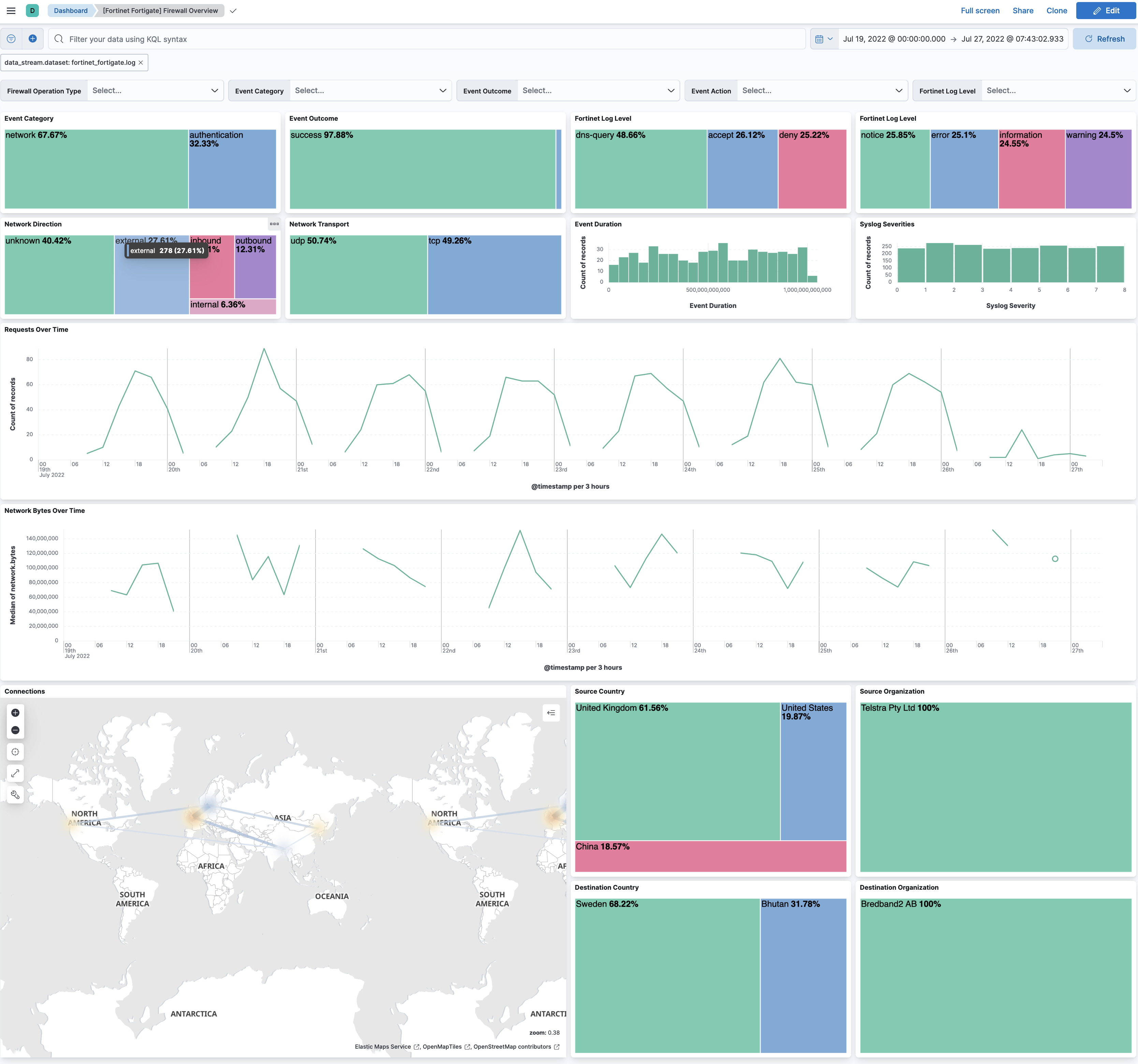
Changelog
| Version | Details | Minimum Kibana version |
|---|---|---|
| 1.36.11 | Bug fix (View pull request) Parse key-value messages in a single pass, and fail fast with a pipeline_error when a message exceeds 900000 characters or contains several concatenated events, which usually indicates missing RFC 6587 framing. |
9.0.0 8.11.0 |
| 1.36.10 | Bug fix (View pull request) Fix login pipeline incorrectly setting user.name to "and" when an admin accepts a login disclaimer (FortiOS 7.6.x). |
9.0.0 8.11.0 |
| 1.36.9 | Bug fix (View pull request) Fix NullPointerException in VPN swap script for administrative VPN events without IP address fields. |
9.0.0 8.11.0 |
| 1.36.8 | Bug fix (View pull request) Prevent pipeline failures when duration exceeds the maximum long value, and drop non-IP values from source.ip and destination.ip. |
9.0.0 8.11.0 |
| 1.36.7 | Enhancement (View pull request) Support plain word identifiers in login source field, such as FortiClient Flexible Communication (fgfm_fgc). |
9.0.0 8.11.0 |
| 1.36.6 | Bug fix (View pull request) Fix error with timezone map processing script. |
9.0.0 8.11.0 |
| 1.36.5 | Bug fix (View pull request) Populate url.full when URL parts are available and url.full is missing. |
9.0.0 8.11.0 |
| 1.36.4 | Bug fix (View pull request) Improve escaped quote handling in painless script. |
9.0.0 8.11.0 |
| 1.36.3 | Bug fix (View pull request) Fix README ssl settings reference. |
9.0.0 8.11.0 |
| 1.36.2 | Bug fix (View pull request) Update documentation |
9.0.0 8.11.0 |
| 1.36.1 | Bug fix (View pull request) Properly parse user names for login events messages. |
9.0.0 8.11.0 |
| 1.36.0 | Enhancement (View pull request) Preserve event.original on pipeline error. |
9.0.0 8.11.0 |
| 1.35.0 | Enhancement (View pull request) Add timezone mapping for Fortinet FortiGate logs. |
9.0.0 8.11.0 |
| 1.34.1 | Enhancement (View pull request) Generate processor tags and normalize error handler. |
9.0.0 8.11.0 |
| 1.34.0 | Enhancement (View pull request) Copy xauthuser to source.user.name for vpn logs, add mapping for advpnsc field. |
9.0.0 8.11.0 |
| 1.33.2 | Bug fix (View pull request) Handle login events from jsconsole. |
9.0.0 8.11.0 |
| 1.33.1 | Enhancement (View pull request) Changed owners. |
9.0.0 8.11.0 |
| 1.33.0 | Enhancement (View pull request) Allow @custom pipeline access to event.original without setting preserve_original_event. |
9.0.0 8.11.0 |
| 1.32.1 | Bug fix (View pull request) Set invalid url to url.original instead of causing an error. |
9.0.0 8.3.0 |
| 1.32.0 | Enhancement (View pull request) Add deltabytes field, ensure rcvddelta and sentdelta fields are integers. |
9.0.0 8.3.0 |
| 1.31.0 | Enhancement (View pull request) Support stack version 9.0. |
9.0.0 8.3.0 |
| 1.30.0 | Enhancement (View pull request) If url parsing fails, append failure message to error.message. |
8.3.0 |
| 1.29.2 | Bug fix (View pull request) Updated SSL description to be uniform and to include links to documentation. |
8.3.0 |
| 1.29.1 | Bug fix (View pull request) Update key-value script to account for "key=value" to have value "/url?thing=something+-d+other_thing=yes". |
8.3.0 |
| 1.29.0 | Enhancement (View pull request) Allow the usage of deprecated log input and support for stack 9.0 |
8.3.0 |
| 1.28.0 | Enhancement (View pull request) ECS version updated to 8.17.0. |
8.3.0 |
| 1.27.0 | Enhancement (View pull request) Add hostname parsing for syslog. |
8.3.0 |
| 1.26.0 | Bug fix (View pull request) Swap destination and source for vpn event type. |
8.3.0 |
| 1.25.8 | Bug fix (View pull request) Use triple-brace Mustache templating when referencing variables in ingest pipelines. |
8.3.0 |
| 1.25.7 | Bug fix (View pull request) Fixes TLS parsing bug for when tls map is not instantiated yet |
8.3.0 |
| 1.25.6 | Bug fix (View pull request) Fix test data |
8.3.0 |
| 1.25.5 | Bug fix (View pull request) Fix handling alternative logs for Administrator logins |
8.3.0 |
| 1.25.4 | Bug fix (View pull request) Fix parsing of URL fields |
8.3.0 |
| 1.25.3 | Bug fix (View pull request) Tolerate space after syslog priority when receiving messages from Fortinet Analyzer. |
8.3.0 |
| 1.25.2 | Bug fix (View pull request) Fix parsing failed logins from https. |
8.3.0 |
| 1.25.1 | Bug fix (View pull request) Ensure event.original matches the value of the message field. |
8.3.0 |
| 1.25.0 | Enhancement (View pull request) Add more sanitization for unwanted characters. |
8.3.0 |
| 1.24.0 | Enhancement (View pull request) Update package spec to 3.0.3. |
8.3.0 |
| 1.23.2 | Enhancement (View pull request) Changed owners |
8.3.0 |
| 1.23.1 | Bug fix (View pull request) Fix event.module value |
8.3.0 |
| 1.23.0 | Enhancement (View pull request) Parse login events Bug fix (View pull request) Fix possible null value for startsWith in event pipeline. |
8.3.0 |
| 1.22.2 | Bug fix (View pull request) Fix exclude_files pattern. |
8.3.0 |
| 1.22.1 | Enhancement (View pull request) Fix processor indentation in template files. |
8.3.0 |
| 1.22.0 | Enhancement (View pull request) ECS version updated to 8.11.0. |
8.3.0 |
| 1.21.0 | Enhancement (View pull request) Add support for FortiOS 7.x. Bug fix (View pull request) Fix network options for udp and tcp inputs. Enhancement (View pull request) Add network processor in addition to interface based direction resolution. Enhancement (View pull request) Clean value templates and remove ctx null checks in pipelines. |
8.3.0 |
| 1.20.0 | Enhancement (View pull request) Improve 'event.original' check to avoid errors if set. |
8.3.0 |
| 1.19.0 | Enhancement (View pull request) ECS version updated to 8.10.0. |
8.3.0 |
| 1.18.0 | Enhancement (View pull request) The format_version in the package manifest changed from 2.11.0 to 3.0.0. Removed dotted YAML keys from package manifest. Added 'owner.type: elastic' to package manifest. |
8.3.0 |
| 1.17.0 | Enhancement (View pull request) Add tags.yml file so that integration's dashboards and saved searches are tagged with "Security Solution" and displayed in the Security Solution UI. |
8.3.0 |
| 1.16.1 | Bug fix (View pull request) Enable RFC 6587 framing by default on TCP input. |
8.3.0 |
| 1.16.0 | Enhancement (View pull request) Update package to ECS 8.9.0. |
8.3.0 |
| 1.15.0 | Enhancement (View pull request) Allow syslog lines without a priority. |
8.3.0 |
| 1.14.0 | Enhancement (View pull request) Ensure event.kind is correctly set for pipeline errors. |
8.3.0 |
| 1.13.0 | Enhancement (View pull request) Update package to package-spec 2.7.0. |
8.3.0 |
| 1.12.0 | Enhancement (View pull request) Update package to ECS 8.8.0. |
8.3.0 |
| 1.11.0 | Enhancement (View pull request) Lowercase host.name field and add event.type denied when action is deny |
8.3.0 |
| 1.10.1 | Bug fix (View pull request) Fix syslog KV split to take into account quoted values. |
8.3.0 |
| 1.10.0 | Enhancement (View pull request) Update package to ECS 8.7.0. |
8.3.0 |
| 1.9.0 | Enhancement (View pull request) Add user.name, host.name and dns.question.registered_domain |
8.3.0 |
| 1.8.0 | Enhancement (View pull request) Include NAT and firewall IPs in related.ip. |
8.3.0 |
| 1.7.0 | Enhancement (View pull request) Handle broader range of timezone formats. |
8.3.0 |
| 1.6.1 | Enhancement (View pull request) Added categories and/or subcategories. |
8.3.0 |
| 1.6.0 | Enhancement (View pull request) Update package to ECS 8.6.0. |
8.3.0 |
| 1.5.0 | Enhancement (View pull request) Add udp_options to the UDP input. |
8.3.0 |
| 1.4.0 | Enhancement (View pull request) Add source and destination NAT IPs to related.ip. |
8.3.0 |
| 1.3.0 | Enhancement (View pull request) Update package to ECS 8.5.0. |
8.3.0 |
| 1.2.5 | Bug fix (View pull request) Improve compatibility with newer versions of FortiOS. |
8.3.0 |
| 1.2.4 | Bug fix (View pull request) Remove duplicate fields. |
8.3.0 |
| 1.2.3 | Bug fix (View pull request) Remove duplicate field. |
8.3.0 |
| 1.2.2 | Bug fix (View pull request) Ensure network.direction values conform to ECS. |
8.3.0 |
| 1.2.1 | Enhancement (View pull request) Use ECS geo.location definition. |
8.3.0 |
| 1.2.0 | Enhancement (View pull request) Update Ingest Pipeline with observer Fields |
8.3.0 |
| 1.1.0 | Enhancement (View pull request) Add dashboard. Enhancement (View pull request) Process syslog priority and facility. |
8.3.0 |
| 1.0.1 | Bug fix (View pull request) Fix handling of sip events. |
8.0.0 7.14.1 |
| 1.0.0 | Enhancement (View pull request) Initial version of Fortinet FortiGate as separate package |
8.0.0 7.14.1 |