Google Workspace Integration
| Version | 3.11.1 (View all) |
| Managed integration release status |
|
| Subscription level What's this? |
Basic |
| Developed by What's this? |
Elastic |
| Ingestion method(s) | API |
| Minimum Kibana version(s) | 9.5.3 9.4.6 8.19.21 |
You can use this integration as an Elastic Managed integration on Elastic Cloud Hosted deployments running this version or later.
The Google Workspace integration collects and parses data from the different Google Workspace audit reports APIs.
These blogs from our Security Labs will help you know more about the Google Workspace and how to it setup:
- To understand what Google Workspace is in Part One - Surveying the Land
- To set it up, step by step, in Part Two - Setup Threat Detection with Elastic
It is compatible with a subset of applications under the Google Reports API v1. As of today it supports:
| Google Workspace Service | Description |
|---|---|
| SAML help | View users’ successful and failed sign-ins to SAML applications. |
| User Accounts help | Audit actions carried out by users on their own accounts including password changes, account recovery details and 2-Step Verification enrollment. |
| Login help | Track user sign-in activity to your domain. |
| Rules help | View a record of actions to review your user’s attempts to share sensitive data. |
| Admin help | View administrator activity performed within the Google Admin console. |
| Drive help | Record user activity within Google Drive including content creation in such as Google Docs, as well as content created elsewhere that your users upload to Drive such as PDFs and Microsoft Word files. |
| Groups help | Track changes to groups, group memberships and group messages. |
| Group Enterprise help | The Group Enterprise activity report returns information about various types of Enterprise Groups Audit activity events. |
| Device help | The Mobile activity report returns information about various types of Device Audit activity events. |
| Token help | The Token activity report returns information about various types of OAuth Token Audit activity events. |
| Access Transparency help | The Access Transparency activity report returns information about various types of Access Transparency activity events. |
| Context Aware Access help | The Context Aware Access activity report returns information about various types of Context-Aware Access Audit activity events. |
| GCP | The GCP activity report returns information about various types of Google Cloud Platform activity events. |
| Chrome | The Chrome activity reports return information about Chrome browser and Chrome OS events. |
| Data Studio | Track and audit user interactions and changes made to Looker Studio assets. |
| Calendar | The Calendar activity report returns information about how your account's users manage and modify their Google Calendar events. |
| Chat | The Chat activity report returns information about how your account's users use and manage Spaces. |
| Vault | The Vault activity report returns information about various types of Vault Audit activity events. |
| Meet | The Meet activity report returns information about various aspects of call events. |
| Keep | The Keep activity report returns information about how your account's users manage and modify their notes. |
| Gmail Reports | The Gmail activity report returns information about message delivery, SMTP connections, spam classification and policy rule matches. |
| Gemini | The Gemini in Workspace Apps activity report returns information about generative AI feature usage across Workspace applications. |
In order to ingest data from the Google Reports API you must:
Have an administrator account. As a security best practice, instead of using a Super Admin account, you can create a custom role with the following permissions. This applies the principle of least privilege.
Admin console privileges
- OUs: Read
- Users: Read
- Chrome Management > Managed browsers: Read
- View Reports
- Alert Center: Full access
Admin API privileges
- Reports
- Groups: Read
- OU: Read
- Users: Read
You also need to enable the following APIs in your Google Cloud project:
- Admin SDK API
- Google Workspace Alert Center API
Set up a ServiceAccount using the administrator account.
Set up access to the Admin SDK API for the ServiceAccount.
Enable Domain-Wide Delegation for your ServiceAccount.
The Reports API data streams use the following oauth2 scope:
https://www.googleapis.com/auth/admin.reports.audit.readonly
The users data stream needs different scopes. See the Google Workspace Users section.
Once you have downloaded your service account credentials as a JSON file, you are ready to set up your integration.
Click the Advanced option of Google Workspace Audit Reports. The default value of "API Host" is https://www.googleapis.com. The API Host will be used for collecting access_transparency, admin, calendar, chat, chrome, context_aware_access, data_studio, device, drive, gcp, gemini, gmail_reports, groups, group_enterprise, keep, login, meet, rules, saml, token, user accounts and vault logs.
The Delegated Account value in the configuration, is expected to be the email of the administrator account, and not the email of the ServiceAccount.
The access_transparency, admin, context_aware_access, device, drive, gcp, groups, group_enterprise, login, rules, saml, token and user_accounts data streams request activity from the Reports API in time windows. Three settings control those windows:
- Initial Interval (package level, default
24h): how far back the first collection reaches when a data stream starts with no saved position. - Lag Time (per data stream, default
2h): how far behind the current time the end of every window stays. Google publishes activity with a delay that varies by report; see Data retention and lag times. Events newer thannow - Lag Timeare not requested yet, and are collected on a later interval once they have settled. - Chunk Duration (per data stream, under Advanced options, disabled by default): the maximum span of activity requested in one interval. When set, each interval requests a window of at most this duration starting from the last completed position, and the position only moves forward after the whole window has been collected. If collection is interrupted, for example by an agent restart or a policy update, only that one chunk is requested again.
Without Chunk Duration, an interval requests everything from the last completed position up to now - Lag Time in a single window. For a data stream with a large backlog or a high event rate, such as token or drive on a busy domain, that window can take longer to page through than the time between interruptions. Each interruption then restarts the same window from the beginning, no progress is saved, and the data stream appears to stall while it re-sends events it has already sent.
Recommended Chunk Duration values:
| Data stream volume | Suggested value |
|---|---|
High (for example token, drive, login on large domains) |
1h |
| Moderate | 6h |
Low (for example rules, saml, access_transparency) |
24h |
A chunk should be small enough to be fully collected between the interruptions you expect, and must not exceed 720h (30 days). Once the data stream has caught up, the window end is limited by now - Lag Time, so Chunk Duration has no effect on steady-state collection. Leaving the setting empty, or setting it to 0, disables chunking. Existing saved positions are reused unchanged when the setting is turned on or off.
The integration provides two Gmail data streams. This section is for gmail, which queries logs exported to Google BigQuery. If you prefer the Google Reports API, enable gmail_reports instead — it shares the service account and admin.reports.audit.readonly scope used by the other Reports API streams and skips the BigQuery configuration steps below.
The integration collects and parses Gmail audit logs data available for reporting in Google Workspace. You must first export Google Workspace logs to Google BigQuery. This involves exporting all activity log events and usage reports to Google BigQuery. Only certain Google Workspace editions support this feature. For more details see About reporting logs and BigQuery. The integration uses the BigQuery API to query logs from BigQuery.
In order to ingest data from the Google BigQuery API, you must:
- Enable BigQuery API if not already
- In the Google Cloud console, navigate to APIs & Services > Library.
- Search for BigQuery API and select it.
- Click Enable.
- Create a service account:
- In the Google Cloud console, navigate to APIs & Services > Credentials.
- Click Create Credentials > Service account.
- In the setup:
- Enter a name for the service account.
- Click Create and Continue.
- (Optional) Grant project access.
- Click Continue.
- (Optional) Grant user access.
- Click Done.
- Generate a JSON Key:
- From the Credentials page, click on the name of your new service account.
- Go to the Keys tab.
- Click Add Key > Create new key.
- Choose JSON format and click Create.
- Save the downloaded JSON key securely.
- Grant IAM Role to service account:
- Go to IAM & Admin > IAM in the Cloud Console.
- Click Grant access.
- Paste the service account email in the New principals field.
- Click Select a role, search for and select BigQuery Job User.
- Click Save.
- Set up a BigQuery project for reporting logs
- Go to IAM & Admin page for your project.
- Add a project editor for your project.
- Click Grant access.
- Enter
gapps-reports@system.gserviceaccount.comin the New principals field. - In Select a role, select Project, then Editor.
- Click Save.
- Add a Google Workspace administrator account as a project editor by following the same steps above.
- For more details see Set up a BigQuery project for reporting logs
- Set up a BigQuery Export configuration:
- Sign in to your Google Admin console with a super administrator account.
- Navigate to Reporting > Data Integrations (Requires having the Reports administrator privilege).
Education administrators go to Menu Reporting > BigQuery export, which opens the Data integrations page. - Point to the BigQuery Export card and click Edit.
- To activate BigQuery logs, check the Enable Google Workspace data export to Google BigQuery box.
- (Optional) To export sensitive parameters of DLP rules, check the Allow export of sensitive content from DLP rule logs box.
- Under BigQuery project ID, select the project where you want to store the logs.
Choose a project for whichgapps-reports@system.gserviceaccount.comhas an editor role. - Under New dataset within project, enter the name of the dataset to use for storing the logs in the project.
A new dataset will be created with this name in your BigQuery project. - (Optional) Check the Restrict the dataset to a specific geographic location box > select the location from the menu.
- Click Save.
- For more details see Set up a BigQuery Export configuration.
- Grant Dataset Permissions:
- Go to Google Cloud console and search for BigQuery.
- Click your Google Cloud project on the left pane.
- Locate the dataset, click the three-dot menu > Share > Manage Permissions.
- Click Add principal.
- Paste the service account email in New principals.
- Select BigQuery Data Viewer as the role.
- Click Save.
This integration will make use of the following oauth2 scope:
https://www.googleapis.com/auth/bigquery
Once you have downloaded your service account credentials as a JSON file, you are ready to set up your integration for collecting Gmail logs.
For Gmail data stream, the default value of "BigQuery API Host" is https://bigquery.googleapis.com. The BigQuery API Host will be used for collecting gmail logs only.
The Google Workspace Integration collects and parses data received from the Google Workspace Alert Center API using HTTP JSON Input.
Alert Data Stream has been tested against
Google Workspace Alert Center API (v1).Following Alert types have been supported in the current integration version:
- Customer takeout initiated
- Malware reclassification
- Misconfigured whitelist
- Phishing reclassification
- Suspicious message reported
- User reported phishing
- User reported spam spike
- Leaked password
- Suspicious login
- Suspicious login (less secure app)
- Suspicious programmatic login
- User suspended
- User suspended (spam)
- User suspended (spam through relay)
- User suspended (suspicious activity)
- Google Operations
- Configuration problem
- Government attack warning
- Device compromised
- Suspicious activity
- AppMaker Default Cloud SQL setup
- Activity Rule
- Data Loss Prevention
- Apps outage
- Primary admin changed
- SSO profile added
- SSO profile updated
- SSO profile deleted
- Super admin password reset
- Account suspension warning
- Calendar settings changed
- Chrome devices auto-update expiration warning
- Customer takeout initiated
- Drive settings changed
- Email settings changed
- Gmail potential employee spoofing
- Mobile settings changed
- New user added
- Reporting Rule
- Suspended user made active
- User deleted
- User granted Admin privilege
- User suspended (spam)
- User's Admin privileges revoked
- Users password changed
- Google Voice configuration problem detected
In order to ingest data from the Google Alert Center API, you must:
- Have an administrator account.
- Set up a ServiceAccount using the Administrator Account.
- Set up access to the Admin SDK API for the ServiceAccount.
- Enable Domain-Wide Delegation for the ServiceAccount.
This integration will make use of the following oauth2 scope:
https://www.googleapis.com/auth/apps.alerts
Once Service Account credentials are downloaded as a JSON file, then the integration can be setup to collect data.
The Delegated Account value in the configuration, is expected to be the email of the administrator account, and not the email of the ServiceAccount.
The default value of the "Page Size" is set to 1000. This option is available under 'Alert' Advance options. Set the parameter "Page Size" according to the requirement. For Alert Data Stream, The default value of "Alert Center API Host" is https://alertcenter.googleapis.com. The Alert Center API Host will be used for collecting alert logs only.
The users data stream collects an inventory of the user accounts in your Google Workspace tenant from the Admin SDK Directory API. Each collection cycle produces one document per user, describing what exists: identity, 2-Step Verification, admin, suspension and archive state, organizational unit, manager and other directory attributes. Documents have event.kind: asset.
This is different from the user_accounts data stream, which contains audit events about actions users took on their own accounts (what happened). Changes to users made by administrators are in the admin data stream.
The data stream is turned off by default.
The Directory API has no filter for changed users, so each cycle reads the whole directory again. The default interval is 24h. A tenant of 50,000 users needs about 100 requests per cycle.
Two optional settings add more information to each user document. Both are off by default:
- Collect group membership adds the groups each user is a direct member of (
user.group.id,user.group.nameandgoogle_workspace.users.groups). Membership inherited through nested groups is not included. - Collect admin roles and privileges adds the admin roles assigned to each user (
user.roles), their privileges (user.entity.attributes.permissions) and the scope each role applies to (user.entity.relationships.administers.entity.id): an organizational unit ID, or the customer ID for roles that apply to the whole account, such as super administrator. The full assignments are ingoogle_workspace.users.role_assignments. Only roles assigned directly to the user are included. Roles a user gets through a group are not, because the Directory API only returns those for a single user at a time.
user.roles always includes super_admin or delegated_admin when Google flags the user as one, even when the roles option is off.
When an option is on and its requests succeed, every user document carries google_workspace.users.groups or google_workspace.users.role_assignments, as an empty list ([]) if the user has no direct membership or assignment. When the option is off, or its requests failed in that cycle, the field is left out of the document, and a failure also produces an error document. Elasticsearch does not index empty lists, so the difference is visible in the document source but cannot be used in a query.
The users data stream uses the same service account and Delegated Account as the Reports API data streams. It needs these extra scopes and privileges:
| Setting | OAuth scope to add | Privilege the delegated account needs |
|---|---|---|
| Always | https://www.googleapis.com/auth/admin.directory.user.readonly |
Users → Read and Organizational Units → Read, on all organizational units |
| Collect group membership | https://www.googleapis.com/auth/admin.directory.group.readonly |
Groups → Read. If you use a Groups Reader or Groups Editor role assignment instead, it must cover all groups. |
| Collect admin roles and privileges | https://www.googleapis.com/auth/admin.directory.rolemanagement.readonly |
The delegated account must be a super administrator. Google does not offer a privilege that grants read access to admin roles, so other accounts get HTTP 403 on these requests. |
Google has merged the former "Admin console privileges" and "Admin API privileges" into one Admin privileges section, so one Users → Read privilege covers both. See Administrator privilege definitions.
To add the scopes to the service account's domain-wide delegation (a super administrator must do this):
- In the Admin console go to Security → Access and data control → API controls → Manage Domain Wide Delegation.
- Find the service account's client ID and click Edit. Do not use Add new for a client ID that is already listed, and do not delete and re-add it: deleting it stops every application that uses it straight away.
- Add the scopes you need, separated by commas. Keep
https://www.googleapis.com/auth/admin.reports.audit.readonlyand any other scopes already listed. - Click Authorize, then open View details and check that every scope is listed.
Use the exact scope strings in the table. Google does not accept a broader scope in place of the one the integration requests. Scope changes can take up to 24 hours to take effect. If your organization uses multi-party approval, another super administrator must approve the change first.
The integration requests all the scopes the data stream needs in one token request. If any of them is not delegated yet, Google issues no token and the whole users data stream stops, including the basic user inventory. Turn on an optional setting only after its scope is delegated and in effect. The other data streams of the integration are not affected.
The data stream calls https://admin.googleapis.com. You can change this with the Directory API Host setting under the data stream's advanced options. If your network uses an egress allowlist, add admin.googleapis.com.
user.entity.lifecycle.last_activitycomes from the user's last sign-in time. Google says this value "might be inaccurate" when listing all users, so treat it as approximate. Users who have never signed in have no value.google_workspace.users.agreed_to_terms: falsealso shows that a user has never completed a first sign-in.- Deleted users are not included.
- The data stream stops with
oauth2: cannot fetch tokenand the input health is Degraded. Google rejected the token request. The error usually containsunauthorized_client,access_denied,invalid_grant,invalid_scopeoradmin_policy_enforced. Check that every scope for the settings you enabled is delegated exactly as in the table above, and that enough time has passed for the change to take effect. - An error document reports HTTP 403 on a roles, role assignments, groups or members request. The delegated account lacks the privilege for that option. Users are still collected, without that information. For the roles option, the delegated account must be a super administrator.
- Fewer users than expected. The delegated account's role is probably limited to some organizational units. Grant Users → Read on all organizational units.
Agentless integrations allow you to collect data without having to manage Elastic Agent in your cloud. They make manual agent deployment unnecessary, so you can focus on your data instead of the agent that collects it. For more information, refer to Agentless integrations and the Agentless integrations FAQ.
Agentless deployments are only supported in Elastic Serverless and Elastic Cloud environments. This functionality is in beta and is subject to change. Beta features are not subject to the support SLA of official GA features.
This is a list of Google Workspace Reports fields that are mapped to ECS that are common to all data sets.
| Google Workspace Reports | ECS Fields |
|---|---|
items[].id.time |
@timestamp |
items[].id.uniqueQualifier |
event.id |
items[].id.applicationName |
event.provider |
items[].events[].name |
event.action |
items[].customerId |
organization.id |
items[].ipAddress |
source.ip, related.ip, source.as.*, source.geo.* |
items[].actor.email |
source.user.email, source.user.name, source.user.domain |
items[].actor.profileId |
source.user.id |
This is the saml dataset.
Example
{
    "@timestamp": "2021-10-02T15:00:00.000Z",
    "agent": {
        "ephemeral_id": "d20c4911-f81c-47b1-9b0f-18d5f2b777d8",
        "id": "60e23a94-d52f-4e91-a2a4-9c69823881ab",
        "name": "elastic-agent-98195",
        "type": "filebeat",
        "version": "8.19.4"
    },
    "data_stream": {
        "dataset": "google_workspace.saml",
        "namespace": "44301",
        "type": "logs"
    },
    "ecs": {
        "version": "9.5.0"
    },
    "elastic_agent": {
        "id": "60e23a94-d52f-4e91-a2a4-9c69823881ab",
        "snapshot": false,
        "version": "8.19.4"
    },
    "event": {
        "action": "login_failure",
        "agent_id_status": "verified",
        "category": [
            "authentication",
            "session"
        ],
        "created": "2026-08-21T07:47:25.121Z",
        "dataset": "google_workspace.saml",
        "id": "1",
        "ingested": "2026-08-21T07:47:28Z",
        "kind": "event",
        "original": "{\"actor\":{\"callerType\":\"USER\",\"email\":\"foo@example.com\",\"profileId\":1},\"events\":{\"name\":\"login_failure\",\"parameters\":[{\"name\":\"application_name\",\"value\":\"app\"},{\"name\":\"failure_type\",\"value\":\"failure_app_not_configured_for_user\"},{\"name\":\"initiated_by\",\"value\":\"idp\"},{\"name\":\"orgunit_path\",\"value\":\"ounit\"},{\"name\":\"saml_second_level_status_code\",\"value\":\"SUCCESS_URI\"},{\"name\":\"saml_status_code\",\"value\":\"SUCCESS_URI\"}],\"type\":\"login\"},\"id\":{\"applicationName\":\"saml\",\"customerId\":\"1\",\"time\":\"2021-10-02T15:00:00Z\",\"uniqueQualifier\":1},\"ipAddress\":\"98.235.162.24\",\"kind\":\"admin#reports#activity\",\"ownerDomain\":\"elastic.com\"}",
        "outcome": "failure",
        "provider": "saml",
        "type": [
            "start"
        ]
    },
    "google_workspace": {
        "actor": {
            "type": "USER"
        },
        "event": {
            "type": "login"
        },
        "kind": "admin#reports#activity",
        "organization": {
            "domain": "elastic.com"
        },
        "saml": {
            "application_name": "app",
            "failure_type": "failure_app_not_configured_for_user",
            "initiated_by": "idp",
            "orgunit_path": "ounit",
            "second_level_status_code": "SUCCESS_URI",
            "status_code": "SUCCESS_URI"
        }
    },
    "input": {
        "type": "httpjson"
    },
    "organization": {
        "id": "1"
    },
    "related": {
        "ip": [
            "98.235.162.24"
        ],
        "user": [
            "foo"
        ]
    },
    "source": {
        "as": {
            "number": 7922,
            "organization": {
                "name": "Comcast Cable Communications, Inc."
            }
        },
        "ip": "98.235.162.24",
        "user": {
            "domain": "example.com",
            "email": "foo@example.com",
            "id": "1",
            "name": "foo"
        }
    },
    "tags": [
        "preserve_original_event",
        "forwarded",
        "google_workspace-saml"
    ],
    "user": {
        "domain": "example.com",
        "email": "foo@example.com",
        "id": "1",
        "name": "foo"
    }
}
Exported fields
| Field | Description | Type |
|---|---|---|
| @timestamp | Event timestamp. | date |
| data_stream.dataset | Data stream dataset. | constant_keyword |
| data_stream.namespace | Data stream namespace. | constant_keyword |
| data_stream.type | Data stream type. | constant_keyword |
| event.dataset | Event dataset | constant_keyword |
| event.module | Event module | constant_keyword |
| google_workspace.actor.key | Only present when actor.type is KEY. Can be the consumer_key of the requestor for OAuth 2LO API requests or an identifier for robot accounts. |
keyword |
| google_workspace.actor.type | The type of actor. Values can be: *USER*: Another user in the same domain. *EXTERNAL_USER*: A user outside the domain. *KEY*: A non-human actor. | keyword |
| google_workspace.event.type | The type of Google Workspace event, mapped from items[].events[].type in the original payload. Each fileset can have a different set of values for it, more details can be found at https://developers.google.com/admin-sdk/reports/v1/reference/activities/list |
keyword |
| google_workspace.kind | The type of API resource, mapped from kind in the original payload. More details can be found at https://developers.google.com/admin-sdk/reports/v1/reference/activities/list |
keyword |
| google_workspace.organization.domain | The domain that is affected by the report's event. | keyword |
| google_workspace.saml.application_name | Saml SP application name. | keyword |
| google_workspace.saml.failure_type | Login failure type. For a list of possible values refer to https://developers.google.com/admin-sdk/reports/v1/appendix/activity/saml. | keyword |
| google_workspace.saml.initiated_by | Requester of SAML authentication. | keyword |
| google_workspace.saml.orgunit_path | User orgunit. | keyword |
| google_workspace.saml.second_level_status_code | SAML second level status code. | keyword |
| google_workspace.saml.status_code | SAML status code. | keyword |
| input.type | Type of Filebeat input. | keyword |
| log.offset | Log offset. | long |
This is the users dataset. It contains an inventory of user accounts, not events. See the Google Workspace Users section.
Example
{
    "@timestamp": "2026-10-16T17:05:49.111Z",
    "agent": {
        "ephemeral_id": "71e3f74c-f5a0-4a3d-9dda-d9af26a9d448",
        "id": "cc99c84d-25b0-47c5-9689-e53869cfa3c5",
        "name": "elastic-agent-98327",
        "type": "filebeat",
        "version": "9.5.3"
    },
    "data_stream": {
        "dataset": "google_workspace.users",
        "namespace": "15028",
        "type": "logs"
    },
    "ecs": {
        "version": "9.5.0"
    },
    "elastic_agent": {
        "id": "cc99c84d-25b0-47c5-9689-e53869cfa3c5",
        "snapshot": false,
        "version": "9.5.3"
    },
    "event": {
        "agent_id_status": "verified",
        "category": [
            "iam"
        ],
        "dataset": "google_workspace.users",
        "ingested": "2026-10-16T17:05:53Z",
        "kind": "asset",
        "module": "google_workspace",
        "original": "{\"agreedToTerms\":true,\"aliases\":[\"a.johnson@example.com\"],\"archived\":false,\"changePasswordAtNextLogin\":false,\"creationTime\":\"2021-03-04T09:12:44.000Z\",\"customSchemas\":{\"EmployeeInfo\":{\"EmployeeType\":\"FTE\",\"StartDate\":\"2021-03-04\"}},\"customerId\":\"C0example1\",\"emails\":[{\"address\":\"alice.johnson@example.com\",\"primary\":true},{\"address\":\"a.johnson@example.com\"}],\"etag\":\"\\\"exampleEtag_user_1\\\"\",\"externalIds\":[{\"type\":\"organization\",\"value\":\"EMP-000123\"}],\"id\":\"100000000000000000001\",\"includeInGlobalAddressList\":true,\"ipWhitelisted\":false,\"isAdmin\":false,\"isDelegatedAdmin\":true,\"isEnforcedIn2Sv\":true,\"isEnrolledIn2Sv\":true,\"isMailboxSetup\":true,\"kind\":\"admin#directory#user\",\"lastLoginTime\":\"2026-09-30T08:15:42.000Z\",\"name\":{\"displayName\":\"Alice J.\",\"familyName\":\"Johnson\",\"fullName\":\"Alice Johnson\",\"givenName\":\"Alice\"},\"nonEditableAliases\":[\"alice.johnson@example.org\"],\"orgUnitPath\":\"/Engineering/Platform\",\"organizations\":[{\"costCenter\":\"CC-0001\",\"customType\":\"\",\"department\":\"Platform\",\"description\":\"Platform team\",\"location\":\"Example City\",\"name\":\"Example Corp\",\"primary\":true,\"title\":\"Staff Engineer\",\"type\":\"work\"}],\"phones\":[{\"type\":\"work\",\"value\":\"+1 734-555-0100\"}],\"primaryEmail\":\"alice.johnson@example.com\",\"recoveryEmail\":\"alice.personal@example.net\",\"relations\":[{\"type\":\"manager\",\"value\":\"bob.smith@example.com\"},{\"type\":\"dotted_line_manager\",\"value\":\"carol.white@example.com\"}],\"suspended\":false,\"thumbnailPhotoUrl\":\"https://www.example.com/photos/100000000000000000001\"}",
        "type": [
            "user",
            "info"
        ]
    },
    "google_workspace": {
        "users": {
            "agreed_to_terms": true,
            "aliases": "a.johnson@example.com",
            "archived": false,
            "change_password_at_next_login": false,
            "creation_time": "2021-03-04T09:12:44.000Z",
            "custom_schemas": {
                "EmployeeInfo": {
                    "EmployeeType": "FTE",
                    "StartDate": "2021-03-04"
                }
            },
            "customer_id": "C0example1",
            "emails": {
                "address": [
                    "alice.johnson@example.com",
                    "a.johnson@example.com"
                ],
                "primary": true
            },
            "etag": "exampleEtag_user_1",
            "external_ids": {
                "type": "organization",
                "value": "EMP-000123"
            },
            "id": "100000000000000000001",
            "include_in_global_address_list": true,
            "ip_whitelisted": false,
            "is_admin": false,
            "is_delegated_admin": true,
            "is_enforced_in_2sv": true,
            "is_enrolled_in_2sv": true,
            "is_mailbox_setup": true,
            "kind": "admin#directory#user",
            "last_login_time": "2026-09-30T08:15:42.000Z",
            "manager_email": "bob.smith@example.com",
            "name": {
                "display_name": "Alice J.",
                "family_name": "Johnson",
                "full_name": "Alice Johnson",
                "given_name": "Alice"
            },
            "non_editable_aliases": "alice.johnson@example.org",
            "org_unit_path": "/Engineering/Platform",
            "organizations": {
                "cost_center": "CC-0001",
                "department": "Platform",
                "description": "Platform team",
                "location": "Example City",
                "name": "Example Corp",
                "primary": true,
                "title": "Staff Engineer",
                "type": "work"
            },
            "phones": {
                "type": "work",
                "value": "+1 734-555-0100"
            },
            "primary_email": "alice.johnson@example.com",
            "recovery_email": "alice.personal@example.net",
            "relations": {
                "type": [
                    "manager",
                    "dotted_line_manager"
                ],
                "value": [
                    "bob.smith@example.com",
                    "carol.white@example.com"
                ]
            },
            "suspended": false,
            "thumbnail_photo_url": "https://www.example.com/photos/100000000000000000001"
        }
    },
    "input": {
        "type": "cel"
    },
    "related": {
        "user": [
            "100000000000000000001",
            "alice.johnson@example.com",
            "a.johnson@example.com",
            "alice.johnson@example.org",
            "bob.smith@example.com"
        ]
    },
    "tags": [
        "preserve_original_event",
        "forwarded",
        "google_workspace-users"
    ],
    "user": {
        "domain": "example.com",
        "email": "alice.johnson@example.com",
        "entity": {
            "attributes": {
                "mfa_enabled": true
            },
            "display_name": "Alice Johnson",
            "id": "100000000000000000001",
            "last_seen_timestamp": "2026-10-16T17:05:49.111Z",
            "lifecycle": {
                "last_activity": "2026-09-30T08:15:42.000Z"
            },
            "name": "alice.johnson@example.com",
            "source": "google_workspace",
            "sub_type": "google_workspace_user",
            "type": [
                "user"
            ]
        },
        "full_name": "Alice Johnson",
        "id": "100000000000000000001",
        "name": "alice.johnson@example.com",
        "roles": [
            "delegated_admin"
        ]
    }
}
Exported fields
| Field | Description | Type |
|---|---|---|
| @timestamp | Event timestamp. | date |
| data_stream.dataset | Data stream dataset. | constant_keyword |
| data_stream.namespace | Data stream namespace. | constant_keyword |
| data_stream.type | Data stream type. | constant_keyword |
| ecs.version | ECS version this event conforms to. ecs.version is a required field and must exist in all events. When querying across multiple indices -- which may conform to slightly different ECS versions -- this field lets integrations adjust to the schema version of the events. |
keyword |
| error.code | Error code describing the error. | keyword |
| error.id | Unique identifier for the error. | keyword |
| error.message | Error message. | match_only_text |
| event.category | This is one of four ECS Categorization Fields, and indicates the second level in the ECS category hierarchy. event.category represents the "big buckets" of ECS categories. For example, filtering on event.category:process yields all events relating to process activity. This field is closely related to event.type, which is used as a subcategory. This field is an array. This will allow proper categorization of some events that fall in multiple categories. |
keyword |
| event.dataset | Event dataset. | constant_keyword |
| event.kind | This is one of four ECS Categorization Fields, and indicates the highest level in the ECS category hierarchy. event.kind gives high-level information about what type of information the event contains, without being specific to the contents of the event. For example, values of this field distinguish alert events from metric events. The value of this field can be used to inform how these kinds of events should be handled. They may warrant different retention, different access control, it may also help understand whether the data is coming in at a regular interval or not. |
keyword |
| event.module | Event module. | constant_keyword |
| event.original | Raw text message of entire event. Used to demonstrate log integrity or where the full log message (before splitting it up in multiple parts) may be required, e.g. for reindex. This field is not indexed and doc_values are disabled. It cannot be searched, but it can be retrieved from _source. If users wish to override this and index this field, please see Field data types in the Elasticsearch Reference. |
keyword |
| event.type | This is one of four ECS Categorization Fields, and indicates the third level in the ECS category hierarchy. event.type represents a categorization "sub-bucket" that, when used along with the event.category field values, enables filtering events down to a level appropriate for single visualization. This field is an array. This will allow proper categorization of some events that fall in multiple event types. |
keyword |
| google_workspace.users.addresses.country | Country. | keyword |
| google_workspace.users.addresses.country_code | Country code. | keyword |
| google_workspace.users.addresses.custom_type | Custom type. | keyword |
| google_workspace.users.addresses.extended_address | Extended address. | keyword |
| google_workspace.users.addresses.formatted | Formatted address. | keyword |
| google_workspace.users.addresses.locality | Locality. | keyword |
| google_workspace.users.addresses.po_box | PO box. | keyword |
| google_workspace.users.addresses.postal_code | Postal code. | keyword |
| google_workspace.users.addresses.primary | Whether this is the user's primary address. | boolean |
| google_workspace.users.addresses.region | Region. | keyword |
| google_workspace.users.addresses.source_is_structured | Whether the user-supplied address was structured. | boolean |
| google_workspace.users.addresses.street_address | Street address. | keyword |
| google_workspace.users.addresses.type | The type of the address (custom, home, other or work). |
keyword |
| google_workspace.users.agreed_to_terms | Whether the user has completed an initial login and accepted the Terms of Service agreement. false means the user has never completed a first sign-in. |
boolean |
| google_workspace.users.aliases | The user's alias email addresses. | keyword |
| google_workspace.users.archival_time | The time the user was archived. | date |
| google_workspace.users.archived | Whether the user is archived. | boolean |
| google_workspace.users.change_password_at_next_login | Whether the user is forced to change their password at next login. | boolean |
| google_workspace.users.creation_time | The time the user's account was created. | date |
| google_workspace.users.custom_schemas | Custom fields of the user, keyed by schema name and then field name. Defined by each tenant. | flattened |
| google_workspace.users.customer_id | The customer ID of the Google Workspace account. | keyword |
| google_workspace.users.deletion_time | The time the user's account was deleted. | date |
| google_workspace.users.emails.address | The email address. | keyword |
| google_workspace.users.emails.custom_type | The custom type of the email address. | keyword |
| google_workspace.users.emails.primary | Whether this is the user's primary email address. | boolean |
| google_workspace.users.emails.public_key_encryption_certificates.certificate | X.509 encryption certificate in PEM format. | keyword |
| google_workspace.users.emails.public_key_encryption_certificates.is_default | Whether this is the default certificate for the email address. | boolean |
| google_workspace.users.emails.public_key_encryption_certificates.state | The certificate's state in its lifecycle. | keyword |
| google_workspace.users.emails.type | The type of the email address (custom, home, other or work). |
keyword |
| google_workspace.users.etag | ETag of the resource. | keyword |
| google_workspace.users.external_ids.custom_type | Custom type. | keyword |
| google_workspace.users.external_ids.type | The type of the ID. | keyword |
| google_workspace.users.external_ids.value | The value of the ID. | keyword |
| google_workspace.users.gender.address_me_as | How to refer to the user, for example he/him/his or they/them/their. |
keyword |
| google_workspace.users.gender.custom_gender | Custom gender. | keyword |
| google_workspace.users.gender.type | Gender. | keyword |
| google_workspace.users.groups.email | The group's email address. | keyword |
| google_workspace.users.groups.id | The unique ID of the group. | keyword |
| google_workspace.users.groups.name | The group's display name. | keyword |
| google_workspace.users.groups.role | The user's role in the group (OWNER, MANAGER or MEMBER). |
keyword |
| google_workspace.users.guest_account_info.primary_guest_email | The external email address of the guest user. | keyword |
| google_workspace.users.hash_function | The hash format of the password property. | keyword |
| google_workspace.users.id | The unique ID of the user. Stable across renames. Copied to user.id. |
keyword |
| google_workspace.users.ims.custom_protocol | Custom protocol. | keyword |
| google_workspace.users.ims.custom_type | Custom type. | keyword |
| google_workspace.users.ims.im | The instant messenger ID. | keyword |
| google_workspace.users.ims.primary | Whether this is the user's primary instant messenger account. | boolean |
| google_workspace.users.ims.protocol | The instant messenger protocol. | keyword |
| google_workspace.users.ims.type | The type of the account. | keyword |
| google_workspace.users.include_in_global_address_list | Whether the user's profile is visible in the Google Workspace global address list. | boolean |
| google_workspace.users.ip_whitelisted | Whether the user is subject to the deprecated IP address allowlist configuration. | boolean |
| google_workspace.users.is_admin | Whether the user is a super administrator. | boolean |
| google_workspace.users.is_delegated_admin | Whether the user is a delegated administrator. | boolean |
| google_workspace.users.is_enforced_in_2sv | Whether 2-step verification is enforced for the user. | boolean |
| google_workspace.users.is_enrolled_in_2sv | Whether the user is enrolled in 2-step verification. Copied to user.entity.attributes.mfa_enabled. |
boolean |
| google_workspace.users.is_guest_user | Whether the user is a guest user. | boolean |
| google_workspace.users.is_mailbox_setup | Whether the user's Google mailbox is created. | boolean |
| google_workspace.users.keywords.custom_type | Custom type. | keyword |
| google_workspace.users.keywords.type | The type of the keyword. | keyword |
| google_workspace.users.keywords.value | The keyword. | keyword |
| google_workspace.users.kind | The type of the API resource. | keyword |
| google_workspace.users.languages.custom_language | A language name that has no ISO 639 language code. | keyword |
| google_workspace.users.languages.language_code | ISO 639 language code. | keyword |
| google_workspace.users.languages.preference | Whether the language is preferred (preferred or not_preferred). |
keyword |
| google_workspace.users.last_login_time | The last time the user signed in, as returned by Google. Values at the Unix epoch mean no recorded sign-in. Copied to user.entity.lifecycle.last_activity unless it is at the Unix epoch. |
date |
| google_workspace.users.locations.area | Textual location. | keyword |
| google_workspace.users.locations.building_id | Building identifier. | keyword |
| google_workspace.users.locations.custom_type | Custom type. | keyword |
| google_workspace.users.locations.desk_code | Desk location code. | keyword |
| google_workspace.users.locations.floor_name | Floor name or number. | keyword |
| google_workspace.users.locations.floor_section | Floor section. | keyword |
| google_workspace.users.locations.type | The type of the location (custom, default or desk). |
keyword |
| google_workspace.users.manager_email | The value of the user's manager relations, normally the manager's email address. |
keyword |
| google_workspace.users.name.display_name | The user's display name. | keyword |
| google_workspace.users.name.family_name | The user's last name. | keyword |
| google_workspace.users.name.full_name | The user's full name formed by concatenating the first and last name values. Copied to user.full_name. |
keyword |
| google_workspace.users.name.given_name | The user's first name. | keyword |
| google_workspace.users.non_editable_aliases | The user's non-editable alias email addresses, typically outside the account's primary domain or sub-domain. | keyword |
| google_workspace.users.notes.content_type | The content type of the notes (text_plain or text_html). |
keyword |
| google_workspace.users.notes.value | The notes. | match_only_text |
| google_workspace.users.org_unit_path | The full path of the organizational unit the user belongs to. / is the top-level organizational unit. |
keyword |
| google_workspace.users.organizations.cost_center | The cost center of the user's department. | keyword |
| google_workspace.users.organizations.custom_type | Custom type. | keyword |
| google_workspace.users.organizations.department | The department within the organization. | keyword |
| google_workspace.users.organizations.description | Description of the organization. | keyword |
| google_workspace.users.organizations.domain | The domain the organization belongs to. | keyword |
| google_workspace.users.organizations.full_time_equivalent | The full-time equivalent millipercent within the organization (100000 = 100%). | long |
| google_workspace.users.organizations.location | The location of the organization. | keyword |
| google_workspace.users.organizations.name | The name of the organization. | keyword |
| google_workspace.users.organizations.primary | Whether this is the user's primary organization. | boolean |
| google_workspace.users.organizations.symbol | The symbol of the organization. | keyword |
| google_workspace.users.organizations.title | The user's title (designation) in the organization. | keyword |
| google_workspace.users.organizations.type | The type of the organization (domain_only, school, unknown or work). |
keyword |
| google_workspace.users.phones.custom_type | The custom type of the phone number. | keyword |
| google_workspace.users.phones.primary | Whether this is the user's primary phone number. | boolean |
| google_workspace.users.phones.type | The type of the phone number. | keyword |
| google_workspace.users.phones.value | The phone number. | keyword |
| google_workspace.users.posix_accounts.account_id | A POSIX account field identifier. | keyword |
| google_workspace.users.posix_accounts.gecos | The GECOS (user information) for the account. | keyword |
| google_workspace.users.posix_accounts.gid | The default group ID. | keyword |
| google_workspace.users.posix_accounts.home_directory | The path to the home directory. | keyword |
| google_workspace.users.posix_accounts.operating_system_type | The operating system type of the account. | keyword |
| google_workspace.users.posix_accounts.primary | Whether this is the user's primary account within the system ID. | boolean |
| google_workspace.users.posix_accounts.shell | The path to the login shell. | keyword |
| google_workspace.users.posix_accounts.system_id | The system identifier the username or UID applies to. | keyword |
| google_workspace.users.posix_accounts.uid | The POSIX user ID. | keyword |
| google_workspace.users.posix_accounts.username | The username of the account. | keyword |
| google_workspace.users.primary_email | The user's primary email address. Changes when the user is renamed. Copied to user.email and user.name. |
keyword |
| google_workspace.users.recovery_email | The user's recovery email address. | keyword |
| google_workspace.users.recovery_phone | The user's recovery phone number. | keyword |
| google_workspace.users.relations.custom_type | Custom type. | keyword |
| google_workspace.users.relations.type | The type of the relation, for example manager or dotted_line_manager. |
keyword |
| google_workspace.users.relations.value | The name of the related user, normally an email address. | keyword |
| google_workspace.users.role_assignments.condition | The condition associated with the role assignment. | keyword |
| google_workspace.users.role_assignments.expire_time | The time the role assignment expires. | date |
| google_workspace.users.role_assignments.is_super_admin_role | Whether the role is a super admin role. | boolean |
| google_workspace.users.role_assignments.is_system_role | Whether the role is a pre-defined system role. | boolean |
| google_workspace.users.role_assignments.org_unit_id | The ID of the organizational unit the role is restricted to, for ORG_UNIT assignments. |
keyword |
| google_workspace.users.role_assignments.privileges | The names of the privileges granted by the role. | keyword |
| google_workspace.users.role_assignments.role_assignment_id | The ID of the role assignment. | keyword |
| google_workspace.users.role_assignments.role_id | The ID of the assigned role. | keyword |
| google_workspace.users.role_assignments.role_name | The name of the assigned role. | keyword |
| google_workspace.users.role_assignments.scope_type | The scope in which the role is assigned (CUSTOMER or ORG_UNIT). |
keyword |
| google_workspace.users.ssh_public_keys.expiration_time_usec | The expiration time, in microseconds since the Unix epoch. | long |
| google_workspace.users.ssh_public_keys.fingerprint | The SHA-256 fingerprint of the SSH public key. | keyword |
| google_workspace.users.ssh_public_keys.key | The SSH public key. | keyword |
| google_workspace.users.suspended | Whether the user is suspended. | boolean |
| google_workspace.users.suspension_reason | The reason the user was suspended, for example ADMIN. Sent only when suspended is true. Google does not document the full set of values. |
keyword |
| google_workspace.users.suspension_time | The time the user was suspended. | date |
| google_workspace.users.thumbnail_photo_etag | ETag of the user's photo. | keyword |
| google_workspace.users.thumbnail_photo_url | The URL of the user's profile photo. | keyword |
| google_workspace.users.websites.custom_type | Custom type. | keyword |
| google_workspace.users.websites.primary | Whether this is the user's primary website. | boolean |
| google_workspace.users.websites.type | The type of the website. | keyword |
| google_workspace.users.websites.value | The website. | keyword |
| input.type | Type of filebeat input. | keyword |
| log.offset | Log offset. | long |
| related.user | All the user names or other user identifiers seen on the event. | keyword |
| tags | List of keywords used to tag each event. | keyword |
| user.domain | Name of the directory the user is a member of. For example, an LDAP or Active Directory domain name. | keyword |
| user.email | User email address. | keyword |
| user.entity.attributes.mfa_enabled | Indicates whether multi-factor authentication is enabled for this entity. Typically applicable to User entities. | boolean |
| user.entity.attributes.permissions | Action-level permissions associated with this entity (not roles or groups). Typically applicable to User, Host, and Service entities. | keyword |
| user.entity.display_name | An optional field used when a pretty name is desired for entity-centric operations. This field should not be used for correlation with \*.name fields for entities with dedicated field sets (for example, host). |
keyword |
| user.entity.display_name.text | Multi-field of user.entity.display_name. |
match_only_text |
| user.entity.id | A unique identifier for the entity. When multiple identifiers exist, this should be the most stable and commonly used identifier that: 1) persists across the entity's lifecycle, 2) ensures uniqueness within its scope, 3) is commonly used for queries and correlation, and 4) is readily available in most observations (logs/events). For entities with dedicated field sets (for example, host, user), this value should match the corresponding *.id field. Alternative identifiers (for example, ARNs values in AWS, URLs) can be preserved in the raw field. | keyword |
| user.entity.last_seen_timestamp | Indicates the date/time when this entity was last "seen," usually based upon the last event/log that is initiated by this entity. | date |
| user.entity.lifecycle.last_activity | Timestamp of the most recent action performed by or attributed to this entity (active use). Distinct from entity.last_seen_timestamp, which records when the entity was last observed in data; last_activity implies the entity was active, not only seen. Typically applicable to User, Host, and Service entities. |
date |
| user.entity.name | The name of the entity. The keyword field enables exact matches for filtering and aggregations, while the text field enables full-text search. For entities with dedicated field sets (for example, host), this field should mirrors the corresponding *.name value. |
keyword |
| user.entity.name.text | Multi-field of user.entity.name. |
match_only_text |
| user.entity.relationships.administers.entity.id | Identifiers of referenced entities, using the same meaning as root entity.id (stable id for correlation within scope). |
keyword |
| user.entity.source | The module or integration that provided this entity data (similar to event.module). | keyword |
| user.entity.sub_type | The specific type designation for the entity as defined by its provider or system. This field provides more granular classification than the type field. Examples: aws_s3_bucket, gcp_cloud_storage_bucket, azure_blob_container would all map to entity type bucket. hardware , virtual , container , node , cloud_instance would all map to entity type host. |
keyword |
| user.entity.type | A standardized high-level classification of the entity. This provides a normalized way to group similar entities across different providers or systems. Example values: bucket, database, container, function, queue, host, user, application, session, cloud, orchestrator, etc. If an entity is nested under a top-level namespace like host or cloud, or similar, its type array should include the matching value — for example, host or cloud. |
keyword |
| user.full_name | User's full name, if available. | keyword |
| user.full_name.text | Multi-field of user.full_name. |
match_only_text |
| user.group.id | Unique identifier for the group on the system/platform. | keyword |
| user.group.name | Name of the group. | keyword |
| user.id | Unique identifier of the user. | keyword |
| user.name | Short name or login of the user. | keyword |
| user.name.text | Multi-field of user.name. |
match_only_text |
| user.roles | Array of user roles at the time of the event. | keyword |
This is the user_accounts dataset.
Example
{
    "@timestamp": "2020-10-02T15:00:00.000Z",
    "agent": {
        "ephemeral_id": "da3c07cc-49bb-4d18-b5d6-26c5e8c1f765",
        "id": "dbd2f6bf-ce71-4c2a-a32b-fedd4853864d",
        "name": "elastic-agent-74885",
        "type": "filebeat",
        "version": "8.19.4"
    },
    "data_stream": {
        "dataset": "google_workspace.user_accounts",
        "namespace": "36939",
        "type": "logs"
    },
    "ecs": {
        "version": "9.5.0"
    },
    "elastic_agent": {
        "id": "dbd2f6bf-ce71-4c2a-a32b-fedd4853864d",
        "snapshot": false,
        "version": "8.19.4"
    },
    "event": {
        "action": "2sv_disable",
        "agent_id_status": "verified",
        "category": [
            "iam"
        ],
        "created": "2026-08-21T08:54:45.536Z",
        "dataset": "google_workspace.user_accounts",
        "id": "1",
        "ingested": "2026-08-21T08:54:48Z",
        "kind": "event",
        "original": "{\"actor\":{\"callerType\":\"USER\",\"email\":\"foo@example.com\",\"profileId\":1},\"events\":{\"name\":\"2sv_disable\",\"type\":\"2sv_change\"},\"id\":{\"applicationName\":\"user_accounts\",\"customerId\":\"1\",\"time\":\"2020-10-02T15:00:00Z\",\"uniqueQualifier\":1},\"ipAddress\":\"98.235.162.24\",\"kind\":\"admin#reports#activity\",\"ownerDomain\":\"elastic.com\"}",
        "provider": "user_accounts",
        "type": [
            "change",
            "user"
        ]
    },
    "google_workspace": {
        "actor": {
            "type": "USER"
        },
        "event": {
            "type": "2sv_change"
        },
        "kind": "admin#reports#activity",
        "organization": {
            "domain": "elastic.com"
        }
    },
    "input": {
        "type": "httpjson"
    },
    "organization": {
        "id": "1"
    },
    "related": {
        "ip": [
            "98.235.162.24"
        ],
        "user": [
            "foo"
        ]
    },
    "source": {
        "as": {
            "number": 7922,
            "organization": {
                "name": "Comcast Cable Communications, Inc."
            }
        },
        "ip": "98.235.162.24",
        "user": {
            "domain": "example.com",
            "email": "foo@example.com",
            "id": "1",
            "name": "foo"
        }
    },
    "tags": [
        "preserve_original_event",
        "forwarded",
        "google_workspace-user_accounts"
    ],
    "user": {
        "domain": "example.com",
        "email": "foo@example.com",
        "id": "1",
        "name": "foo"
    }
}
Exported fields
| Field | Description | Type |
|---|---|---|
| @timestamp | Event timestamp. | date |
| data_stream.dataset | Data stream dataset. | constant_keyword |
| data_stream.namespace | Data stream namespace. | constant_keyword |
| data_stream.type | Data stream type. | constant_keyword |
| event.dataset | Event dataset | constant_keyword |
| event.module | Event module | constant_keyword |
| google_workspace.actor.key | Only present when actor.type is KEY. Can be the consumer_key of the requestor for OAuth 2LO API requests or an identifier for robot accounts. |
keyword |
| google_workspace.actor.type | The type of actor. Values can be: *USER*: Another user in the same domain. *EXTERNAL_USER*: A user outside the domain. *KEY*: A non-human actor. | keyword |
| google_workspace.event.type | The type of Google Workspace event, mapped from items[].events[].type in the original payload. Each fileset can have a different set of values for it, more details can be found at https://developers.google.com/admin-sdk/reports/v1/reference/activities/list |
keyword |
| google_workspace.kind | The type of API resource, mapped from kind in the original payload. More details can be found at https://developers.google.com/admin-sdk/reports/v1/reference/activities/list |
keyword |
| google_workspace.organization.domain | The domain that is affected by the report's event. | keyword |
| google_workspace.user_accounts.email_forwarding_destination_address | Out of domain email the actor has forwarded to. | keyword |
| input.type | Type of Filebeat input. | keyword |
| log.offset | Log offset. | long |
This is the login dataset.
Example
{
    "@timestamp": "2022-05-04T15:04:05.000Z",
    "agent": {
        "ephemeral_id": "5c8ef506-9c6f-42a4-a355-a439129305b0",
        "id": "57a41a13-a06f-4050-9451-8b40bc4df38b",
        "name": "elastic-agent-96730",
        "type": "filebeat",
        "version": "8.19.4"
    },
    "data_stream": {
        "dataset": "google_workspace.login",
        "namespace": "70737",
        "type": "logs"
    },
    "ecs": {
        "version": "9.5.0"
    },
    "elastic_agent": {
        "id": "57a41a13-a06f-4050-9451-8b40bc4df38b",
        "snapshot": false,
        "version": "8.19.4"
    },
    "event": {
        "action": "account_disabled_password_leak",
        "agent_id_status": "verified",
        "category": [
            "iam"
        ],
        "created": "2026-08-21T07:43:05.339Z",
        "dataset": "google_workspace.login",
        "id": "1",
        "ingested": "2026-08-21T07:43:08Z",
        "kind": "event",
        "original": "{\"actor\":{\"callerType\":\"USER\",\"email\":\"foo@example.com\",\"profileId\":1},\"events\":{\"name\":\"account_disabled_password_leak\",\"parameters\":[{\"name\":\"affected_email_address\",\"value\":\"foo@elastic.co\"}],\"type\":\"account_warning\"},\"id\":{\"applicationName\":\"login\",\"customerId\":\"1\",\"time\":\"2022-05-04T15:04:05Z\",\"uniqueQualifier\":1},\"ipAddress\":\"98.235.162.24\",\"kind\":\"admin#reports#activity\",\"ownerDomain\":\"elastic.com\"}",
        "provider": "login",
        "type": [
            "user",
            "info"
        ]
    },
    "google_workspace": {
        "actor": {
            "type": "USER"
        },
        "event": {
            "type": "account_warning"
        },
        "kind": "admin#reports#activity",
        "login": {
            "affected_email_address": "foo@elastic.co"
        },
        "organization": {
            "domain": "elastic.com"
        }
    },
    "input": {
        "type": "httpjson"
    },
    "organization": {
        "id": "1"
    },
    "related": {
        "ip": [
            "98.235.162.24"
        ],
        "user": [
            "foo",
            "foo"
        ]
    },
    "source": {
        "as": {
            "number": 7922,
            "organization": {
                "name": "Comcast Cable Communications, Inc."
            }
        },
        "ip": "98.235.162.24",
        "user": {
            "domain": "example.com",
            "email": "foo@example.com",
            "id": "1",
            "name": "foo"
        }
    },
    "tags": [
        "preserve_original_event",
        "forwarded",
        "google_workspace-login"
    ],
    "user": {
        "domain": "example.com",
        "email": "foo@example.com",
        "id": "1",
        "name": "foo",
        "target": {
            "domain": "elastic.co",
            "name": "foo"
        }
    }
}
Exported fields
| Field | Description | Type |
|---|---|---|
| @timestamp | Event timestamp. | date |
| data_stream.dataset | Data stream dataset. | constant_keyword |
| data_stream.namespace | Data stream namespace. | constant_keyword |
| data_stream.type | Data stream type. | constant_keyword |
| event.dataset | Event dataset | constant_keyword |
| event.module | Event module | constant_keyword |
| google_workspace.actor.key | Only present when actor.type is KEY. Can be the consumer_key of the requestor for OAuth 2LO API requests or an identifier for robot accounts. |
keyword |
| google_workspace.actor.type | The type of actor. Values can be: *USER*: Another user in the same domain. *EXTERNAL_USER*: A user outside the domain. *KEY*: A non-human actor. | keyword |
| google_workspace.event.type | The type of Google Workspace event, mapped from items[].events[].type in the original payload. Each fileset can have a different set of values for it, more details can be found at https://developers.google.com/admin-sdk/reports/v1/reference/activities/list |
keyword |
| google_workspace.kind | The type of API resource, mapped from kind in the original payload. More details can be found at https://developers.google.com/admin-sdk/reports/v1/reference/activities/list |
keyword |
| google_workspace.login.affected_email_address | keyword | |
| google_workspace.login.challenge_method | Login challenge method. For a list of possible values refer to https://developers.google.com/admin-sdk/reports/v1/appendix/activity/login. | keyword |
| google_workspace.login.challenge_status | Login challenge status. For a list of possible values refer to https://developers.google.com/admin-sdk/reports/v1/appendix/activity/login. | keyword |
| google_workspace.login.failure_type | Login failure type. For a list of possible values refer to https://developers.google.com/admin-sdk/reports/v1/appendix/activity/login. | keyword |
| google_workspace.login.is_second_factor | boolean | |
| google_workspace.login.is_suspicious | boolean | |
| google_workspace.login.network_info.ip_asn | keyword | |
| google_workspace.login.network_info.region_code | keyword | |
| google_workspace.login.network_info.subdivision_code | keyword | |
| google_workspace.login.resource_ids | keyword | |
| google_workspace.login.sensitive_action_name | keyword | |
| google_workspace.login.timestamp | UNIX timestmap of login in microseconds. For a list of possible values refer to https://developers.google.com/admin-sdk/reports/v1/appendix/activity/login. | long |
| google_workspace.login.type | Login credentials type. For a list of possible values refer to https://developers.google.com/admin-sdk/reports/v1/appendix/activity/login. | keyword |
| google_workspace.organization.domain | The domain that is affected by the report's event. | keyword |
| input.type | Type of Filebeat input. | keyword |
| log.offset | Log offset. | long |
This is the rules dataset.
Example
{
    "@timestamp": "2020-10-02T15:00:00.000Z",
    "agent": {
        "ephemeral_id": "bb9721a6-67e0-472b-9636-35551f3b7622",
        "id": "ec1ac391-ab36-4b53-9d0a-11c2210dd56f",
        "name": "elastic-agent-87718",
        "type": "filebeat",
        "version": "8.19.4"
    },
    "data_stream": {
        "dataset": "google_workspace.rules",
        "namespace": "69910",
        "type": "logs"
    },
    "ecs": {
        "version": "9.5.0"
    },
    "elastic_agent": {
        "id": "ec1ac391-ab36-4b53-9d0a-11c2210dd56f",
        "snapshot": false,
        "version": "8.19.4"
    },
    "event": {
        "action": "rule_match",
        "agent_id_status": "verified",
        "category": [
            "intrusion_detection"
        ],
        "created": "2026-08-21T07:45:05.553Z",
        "dataset": "google_workspace.rules",
        "id": "1",
        "ingested": "2026-08-21T07:45:08Z",
        "kind": "alert",
        "original": "{\"actor\":{\"callerType\":\"USER\",\"email\":\"foo@example.com\",\"profileId\":1},\"events\":{\"name\":\"rule_match\",\"parameters\":[{\"boolValue\":\"true\",\"name\":\"has_alert\"},{\"name\":\"actor_ip_address\",\"value\":\"127.0.0.0\"},{\"intValue\":\"1234\",\"name\":\"resource_recipients_omitted_count\"},{\"multiValue\":[\"managers\"],\"name\":\"rule_name\"},{\"multiIntValue\":[\"12\"],\"name\":\"rule_id\"}],\"type\":\"rule_match_type\"},\"id\":{\"applicationName\":\"rules\",\"customerId\":\"1\",\"time\":\"2020-10-02T15:00:00Z\",\"uniqueQualifier\":1},\"ipAddress\":\"67.43.156.13\",\"kind\":\"admin#reports#activity\",\"ownerDomain\":\"elastic.com\"}",
        "provider": "rules",
        "type": [
            "info"
        ]
    },
    "google_workspace": {
        "actor": {
            "email": "foo@example.com",
            "profile": {
                "id": "1"
            },
            "type": "USER"
        },
        "event": {
            "name": "rule_match",
            "type": "rule_match_type"
        },
        "id": {
            "application_name": "rules",
            "customer": {
                "id": "1"
            },
            "time": "2020-10-02T15:00:00.000Z",
            "unique_qualifier": "1"
        },
        "ip_address": "67.43.156.13",
        "kind": "admin#reports#activity",
        "organization": {
            "domain": "elastic.com"
        },
        "rules": {
            "actor_ip_address": "127.0.0.0",
            "has_alert": true,
            "id": [
                "12"
            ],
            "name": [
                "managers"
            ],
            "resource": {
                "recipients_omitted_count": 1234
            }
        }
    },
    "input": {
        "type": "httpjson"
    },
    "organization": {
        "id": "1"
    },
    "related": {
        "hosts": [
            "example.com",
            "elastic.com"
        ],
        "ip": [
            "67.43.156.13",
            "127.0.0.0"
        ],
        "user": [
            "foo"
        ]
    },
    "rule": {
        "id": [
            "12"
        ],
        "name": [
            "managers"
        ]
    },
    "source": {
        "as": {
            "number": 35908
        },
        "geo": {
            "continent_name": "Asia",
            "country_iso_code": "BT",
            "country_name": "Bhutan",
            "location": {
                "lat": 27.5,
                "lon": 90.5
            }
        },
        "ip": "67.43.156.13",
        "user": {
            "domain": "example.com",
            "email": "foo@example.com",
            "id": "1",
            "name": "foo"
        }
    },
    "tags": [
        "preserve_original_event",
        "preserve_duplicate_custom_fields",
        "forwarded",
        "google_workspace-rules"
    ],
    "user": {
        "domain": "example.com",
        "email": "foo@example.com",
        "id": "1",
        "name": "foo"
    }
}
Exported fields
| Field | Description | Type |
|---|---|---|
| @timestamp | Event timestamp. | date |
| data_stream.dataset | Data stream dataset. | constant_keyword |
| data_stream.namespace | Data stream namespace. | constant_keyword |
| data_stream.type | Data stream type. | constant_keyword |
| event.dataset | Event dataset | constant_keyword |
| event.module | Event module | constant_keyword |
| google_workspace.actor.email | The primary email address of the actor. May be absent if there is no email address associated with the actor. | keyword |
| google_workspace.actor.key | Only present when actor.type is KEY. Can be the consumer_key of the requestor for OAuth 2LO API requests or an identifier for robot accounts. |
keyword |
| google_workspace.actor.profile.id | The unique Google Workspace profile ID of the actor. This value might be absent if the actor is not a Google Workspace user, or may be the number 105250506097979753968 which acts as a placeholder ID. | keyword |
| google_workspace.actor.type | The type of actor. Values can be: *USER*: Another user in the same domain. *EXTERNAL_USER*: A user outside the domain. *KEY*: A non-human actor. | keyword |
| google_workspace.etag | ETag of the entry. | keyword |
| google_workspace.event.name | Name of the event. This is the specific name of the activity reported by the API. And each eventName is related to a specific Google Workspace service or feature which the API organizes into types of events. For eventName request parameters in general: If no eventName is given, the report returns all possible instances of an eventName. When you request an eventName, the API's response returns all activities which contain that eventName. It is possible that the returned activities will have other eventName properties in addition to the one requested. For more information about eventName properties, see the list of event names for various applications above in applicationName. | keyword |
| google_workspace.event.type | The type of Google Workspace event, mapped from items[].events[].type in the original payload. Each fileset can have a different set of values for it, more details can be found here. |
keyword |
| google_workspace.id.application_name | Application name to which the event belongs. For possible values see the list of applications above in applicationName. | keyword |
| google_workspace.id.customer.id | The unique identifier for a Google Workspace account. | keyword |
| google_workspace.id.time | Time of occurrence of the activity. This is in UNIX epoch time in seconds. | date |
| google_workspace.id.unique_qualifier | Unique qualifier if multiple events have the same time. | keyword |
| google_workspace.ip_address | IP address of the user doing the action. This is the Internet Protocol (IP) address of the user when logging into Google Workspace, which may or may not reflect the user's physical location. For example, the IP address can be the user's proxy server's address or a virtual private network (VPN) address. The API supports IPv4 and IPv6. | ip |
| google_workspace.kind | The type of API resource, mapped from kind in the original payload, more details can be found here. |
keyword |
| google_workspace.organization.domain | The domain that is affected by the report's event. | keyword |
| google_workspace.rules.actions | List of actions taken. For a list of possible values refer to actions in the event details table. |
keyword |
| google_workspace.rules.actor_ip_address | IP of the entity who was responsible for the original event which triggered the rule. | ip |
| google_workspace.rules.application | Name of the application to which the flagged item belongs. For a list of possible values refer to application in the event details table. |
keyword |
| google_workspace.rules.conference_id | The unique identifier of a Google Meet conference. | keyword |
| google_workspace.rules.data_source | Source of the data. For a list of possible values refer to data_source in the event details table. |
keyword |
| google_workspace.rules.device.id | ID of the device on which the action was triggered. | keyword |
| google_workspace.rules.device.type | Type of device referred to by device ID. For a list of possible values refer to device_type in the event details table. |
keyword |
| google_workspace.rules.drive_shared_drive_id | Shared drive Id to which the drive item belongs, if applicable. | keyword |
| google_workspace.rules.evaluation_context | Evaluation metadata, such as contextual messages used in a rule evaluation. | flattened |
| google_workspace.rules.has_alert | Whether or not the triggered rule has alert enabled. | boolean |
| google_workspace.rules.has_content_match | Whether the resource has content which matches the criteria in the rule. For a list of possible values refer to has_content_match in the event details table. |
boolean |
| google_workspace.rules.id | Unique identifier for a rule. Rules are created by admins in Google Workspace. | keyword |
| google_workspace.rules.matched.detectors | A list of detectors that matched against the resource. | flattened |
| google_workspace.rules.matched.templates | List of content detector templates that matched. | keyword |
| google_workspace.rules.matched.threshold | Threshold that matched in the rule. | keyword |
| google_workspace.rules.matched.trigger | Trigger of the rule evaluation: email sent or received, document shared. For a list of possible values refer to matched_trigger in the event details table. |
keyword |
| google_workspace.rules.mobile_device_type | Type of device on which rule was applied. | keyword |
| google_workspace.rules.mobile_ios_vendor_id | iOS Vendor Id of device on which rule was applied, if applicable. | keyword |
| google_workspace.rules.name | Name of the rule. | keyword |
| google_workspace.rules.resource.id | Identifier of the resource which matched the rule. | keyword |
| google_workspace.rules.resource.name | Resource name that uniquely identifies a rule. | keyword |
| google_workspace.rules.resource.owner_email | Email address of the owner of the resource. | keyword |
| google_workspace.rules.resource.recipients | A list of users that a Drive document or an email message was shared with when the rule was triggered. | keyword |
| google_workspace.rules.resource.recipients_omitted_count | The number of resource recipients omitted due to exceeding the size limit. | long |
| google_workspace.rules.resource.title | Title of the resource which matched the rule: email subject, or document title. | keyword |
| google_workspace.rules.resource.type | Type of the rule. For a list of possible values refer to resource_type in the event details table. |
keyword |
| google_workspace.rules.resource_name | Name of the resource which matched the rule. | keyword |
| google_workspace.rules.scan_type | Scan mode for the rule evaluation. For a list of possible values refer to scan_type in the event details table. |
keyword |
| google_workspace.rules.severity | Severity of violating a rule. For a list of possible values refer to to severity in the event details table. |
keyword |
| google_workspace.rules.space.id | ID of the space where the rule was triggered. | keyword |
| google_workspace.rules.space.type | Type of space referred to by the space ID. For a list of possible values refer to space_type in the event details table. |
keyword |
| google_workspace.rules.suppressed_actions | A list of actions that were not taken due to other actions with higher priority. | flattened |
| google_workspace.rules.triggered_actions | A list of actions that were taken as a consequence of the rule being triggered. | flattened |
| google_workspace.rules.type | Type of the rule. For a list of possible values refer to rule_type in the event details table. |
keyword |
| google_workspace.rules.update_time_usec | Update time (microseconds since epoch) indicating the version of rule which is used. | date |
| input.type | Type of Filebeat input. | keyword |
| log.offset | Log offset. | long |
This is the admin dataset.
Example
{
    "@timestamp": "2022-04-04T15:04:05.000Z",
    "agent": {
        "ephemeral_id": "d95a21dc-3e48-4e9e-82bd-7af72345c58a",
        "id": "09ccb13c-8d7f-49ea-855f-adaf46746349",
        "name": "elastic-agent-66586",
        "type": "filebeat",
        "version": "8.19.4"
    },
    "data_stream": {
        "dataset": "google_workspace.admin",
        "namespace": "47092",
        "type": "logs"
    },
    "ecs": {
        "version": "9.5.0"
    },
    "elastic_agent": {
        "id": "09ccb13c-8d7f-49ea-855f-adaf46746349",
        "snapshot": false,
        "version": "8.19.4"
    },
    "event": {
        "action": "CHANGE_APPLICATION_SETTING",
        "agent_id_status": "verified",
        "category": [
            "iam",
            "configuration"
        ],
        "created": "2026-08-21T07:27:25.543Z",
        "dataset": "google_workspace.admin",
        "id": "1",
        "ingested": "2026-08-21T07:27:28Z",
        "kind": "event",
        "original": "{\"actor\":{\"callerType\":\"USER\",\"email\":\"foo@example.com\",\"profileId\":1},\"events\":{\"name\":\"CHANGE_APPLICATION_SETTING\",\"parameters\":[{\"name\":\"APPLICATION_EDITION\",\"value\":\"basic\"},{\"name\":\"APPLICATION_NAME\",\"value\":\"drive\"},{\"name\":\"GROUP_EMAIL\",\"value\":\"group@example.com\"},{\"name\":\"NEW_VALUE\",\"value\":\"new\"},{\"name\":\"OLD_VALUE\",\"value\":\"old\"},{\"name\":\"ORG_UNIT_NAME\",\"value\":\"org\"},{\"name\":\"SETTING_NAME\",\"value\":\"setting\"}],\"type\":\"APPLICATION_SETTINGS\"},\"id\":{\"applicationName\":\"admin\",\"customerId\":\"1\",\"time\":\"2022-04-04T15:04:05Z\",\"uniqueQualifier\":1},\"ipAddress\":\"98.235.162.24\",\"kind\":\"admin#reports#activity\",\"ownerDomain\":\"elastic.com\"}",
        "provider": "admin",
        "type": [
            "change"
        ]
    },
    "google_workspace": {
        "actor": {
            "type": "USER"
        },
        "admin": {
            "application": {
                "edition": "basic",
                "name": "drive"
            },
            "group": {
                "email": "group@example.com"
            },
            "new_value": "new",
            "old_value": "old",
            "org_unit": {
                "name": "org"
            },
            "setting": {
                "name": "setting"
            }
        },
        "event": {
            "type": "APPLICATION_SETTINGS"
        },
        "kind": "admin#reports#activity",
        "organization": {
            "domain": "elastic.com"
        }
    },
    "group": {
        "domain": "example.com",
        "name": "group"
    },
    "input": {
        "type": "httpjson"
    },
    "organization": {
        "id": "1"
    },
    "related": {
        "ip": [
            "98.235.162.24"
        ],
        "user": [
            "foo"
        ]
    },
    "source": {
        "as": {
            "number": 7922,
            "organization": {
                "name": "Comcast Cable Communications, Inc."
            }
        },
        "ip": "98.235.162.24",
        "user": {
            "domain": "example.com",
            "email": "foo@example.com",
            "id": "1",
            "name": "foo"
        }
    },
    "tags": [
        "preserve_original_event",
        "forwarded",
        "google_workspace-admin"
    ],
    "user": {
        "domain": "example.com",
        "email": "foo@example.com",
        "id": "1",
        "name": "foo",
        "target": {
            "group": {
                "domain": "example.com",
                "name": "group"
            }
        }
    }
}
Exported fields
| Field | Description | Type |
|---|---|---|
| @timestamp | Event timestamp. | date |
| data_stream.dataset | Data stream dataset. | constant_keyword |
| data_stream.namespace | Data stream namespace. | constant_keyword |
| data_stream.type | Data stream type. | constant_keyword |
| event.dataset | Event dataset | constant_keyword |
| event.module | Event module | constant_keyword |
| google_workspace.actor.key | Only present when actor.type is KEY. Can be the consumer_key of the requestor for OAuth 2LO API requests or an identifier for robot accounts. |
keyword |
| google_workspace.actor.type | The type of actor. Values can be: *USER*: Another user in the same domain. *EXTERNAL_USER*: A user outside the domain. *KEY*: A non-human actor. | keyword |
| google_workspace.admin.alert.id | keyword | |
| google_workspace.admin.alert.name | The alert name. | keyword |
| google_workspace.admin.alert.related_id | keyword | |
| google_workspace.admin.api.client.name | The API client name. | keyword |
| google_workspace.admin.api.scopes | The API scopes. | keyword |
| google_workspace.admin.application.asp_id | The application specific password ID. | keyword |
| google_workspace.admin.application.edition | The Google Workspace edition. | keyword |
| google_workspace.admin.application.enabled | The enabled application. | keyword |
| google_workspace.admin.application.id | The application ID. | keyword |
| google_workspace.admin.application.licences_order_number | Order number used to redeem licenses. | keyword |
| google_workspace.admin.application.licences_purchased | Number of licences purchased. | long |
| google_workspace.admin.application.name | The application's name. | keyword |
| google_workspace.admin.application.package_id | The mobile application package ID. | keyword |
| google_workspace.admin.bulk_upload.failed | Number of failed records in bulk upload operation. | long |
| google_workspace.admin.bulk_upload.total | Number of total records in bulk upload operation. | long |
| google_workspace.admin.chart.filters | keyword | |
| google_workspace.admin.chart.name | keyword | |
| google_workspace.admin.chrome_licenses.allowed | Licences enabled. For a list of possible values refer to https://developers.google.com/admin-sdk/reports/v1/appendix/activity/admin-org-settings | keyword |
| google_workspace.admin.chrome_licenses.enabled | Licences enabled. For a list of possible values refer to https://developers.google.com/admin-sdk/reports/v1/appendix/activity/admin-org-settings | keyword |
| google_workspace.admin.chrome_os.session_type | Chrome OS session type. | keyword |
| google_workspace.admin.device.command_details | Command details. | keyword |
| google_workspace.admin.device.id | keyword | |
| google_workspace.admin.device.serial_number | Device serial number. | keyword |
| google_workspace.admin.device.type | Device type. | keyword |
| google_workspace.admin.distribution.entity.name | The distribution entity value, which can be a group name or an org-unit name. For a list of possible values refer to https://developers.google.com/admin-sdk/reports/v1/appendix/activity/admin-mobile-settings | keyword |
| google_workspace.admin.distribution.entity.type | The distribution entity type, which can be a group or an org-unit. For a list of possible values refer to https://developers.google.com/admin-sdk/reports/v1/appendix/activity/admin-mobile-settings | keyword |
| google_workspace.admin.domain.alias | The domain alias. | keyword |
| google_workspace.admin.domain.name | The primary domain name. | keyword |
| google_workspace.admin.domain.secondary_name | The secondary domain name. | keyword |
| google_workspace.admin.email.log_search_filter.end_date | The log search filter's ending date. | date |
| google_workspace.admin.email.log_search_filter.message_id | The log search filter's email message ID. | keyword |
| google_workspace.admin.email.log_search_filter.recipient.ip | The log search filter's email recipient's IP address. | ip |
| google_workspace.admin.email.log_search_filter.recipient.value | The log search filter's email recipient. | keyword |
| google_workspace.admin.email.log_search_filter.sender.ip | The log search filter's email sender's IP address. | ip |
| google_workspace.admin.email.log_search_filter.sender.value | The log search filter's email sender. | keyword |
| google_workspace.admin.email.log_search_filter.start_date | The log search filter's start date. | date |
| google_workspace.admin.email.quarantine_name | The name of the quarantine. | keyword |
| google_workspace.admin.email_dump.include_deleted | Indicates if deleted emails are included in the export. | boolean |
| google_workspace.admin.email_dump.package_content | The contents of the mailbox package. | keyword |
| google_workspace.admin.email_dump.query | The search query used for the dump. | keyword |
| google_workspace.admin.email_monitor.dest_email | The destination address of the email monitor. | keyword |
| google_workspace.admin.email_monitor.level.chat | The chat email monitor level. | keyword |
| google_workspace.admin.email_monitor.level.draft | The draft email monitor level. | keyword |
| google_workspace.admin.email_monitor.level.incoming | The incoming email monitor level. | keyword |
| google_workspace.admin.email_monitor.level.outgoing | The outgoing email monitor level. | keyword |
| google_workspace.admin.field | The name of the field. | keyword |
| google_workspace.admin.gateway.name | Gateway name. Present on some chat settings. | keyword |
| google_workspace.admin.group.allowed_list | Names of allow-listed groups. | keyword |
| google_workspace.admin.group.email | The group's primary email address. | keyword |
| google_workspace.admin.group.priorities | Group priorities. | keyword |
| google_workspace.admin.info_type | This will be used to state what kind of information was changed. For a list of possible values refer to https://developers.google.com/admin-sdk/reports/v1/appendix/activity/admin-domain-settings | keyword |
| google_workspace.admin.investigation.action | keyword | |
| google_workspace.admin.investigation.data_source | keyword | |
| google_workspace.admin.investigation.entity_ids | keyword | |
| google_workspace.admin.investigation.object_identifier | keyword | |
| google_workspace.admin.investigation.query | keyword | |
| google_workspace.admin.investigation.url_display_text | keyword | |
| google_workspace.admin.managed_configuration | The name of the managed configuration. | keyword |
| google_workspace.admin.mdm.token | The MDM vendor enrollment token. | keyword |
| google_workspace.admin.mdm.vendor | The MDM vendor's name. | keyword |
| google_workspace.admin.mobile.action.id | The mobile device action's ID. | keyword |
| google_workspace.admin.mobile.action.type | The mobile device action's type. For a list of possible values refer to https://developers.google.com/admin-sdk/reports/v1/appendix/activity/admin-mobile-settings | keyword |
| google_workspace.admin.mobile.certificate.name | The mobile certificate common name. | keyword |
| google_workspace.admin.mobile.company_owned_devices | The number of devices a company owns. | long |
| google_workspace.admin.new_value | The new value for the setting. | keyword |
| google_workspace.admin.non_featured_services_selection | Non-featured services selection. For a list of possible values refer to https://developers.google.com/admin-sdk/reports/v1/appendix/activity/admin-application-settings#FLASHLIGHT_EDU_NON_FEATURED_SERVICES_SELECTED | keyword |
| google_workspace.admin.oauth2.application.id | OAuth2 application ID. | keyword |
| google_workspace.admin.oauth2.application.name | OAuth2 application name. | keyword |
| google_workspace.admin.oauth2.application.type | OAuth2 application type. For a list of possible values refer to https://developers.google.com/admin-sdk/reports/v1/appendix/activity/admin-security-settings | keyword |
| google_workspace.admin.oauth2.service.name | OAuth2 service name. For a list of possible values refer to https://developers.google.com/admin-sdk/reports/v1/appendix/activity/admin-security-settings | keyword |
| google_workspace.admin.old_value | The old value for the setting. | keyword |
| google_workspace.admin.org_unit.full | The org unit full path including the root org unit name. | keyword |
| google_workspace.admin.org_unit.name | The organizational unit name. | keyword |
| google_workspace.admin.print_server.name | The name of the print server. | keyword |
| google_workspace.admin.printer.name | The name of the printer. | keyword |
| google_workspace.admin.privilege.name | Privilege name. | keyword |
| google_workspace.admin.product.name | The product name. | keyword |
| google_workspace.admin.product.sku | The product SKU. | keyword |
| google_workspace.admin.request.id | The request ID. | keyword |
| google_workspace.admin.resource.id | The name of the resource identifier. | keyword |
| google_workspace.admin.role.id | Unique identifier for this role privilege. | keyword |
| google_workspace.admin.role.name | The role name. For a list of possible values refer to https://developers.google.com/admin-sdk/reports/v1/appendix/activity/admin-delegated-admin-settings | keyword |
| google_workspace.admin.rule.name | The rule name. | keyword |
| google_workspace.admin.service.name | The service name. | keyword |
| google_workspace.admin.setting.description | The setting name. | keyword |
| google_workspace.admin.setting.metadata.description | keyword | |
| google_workspace.admin.setting.metadata.rule.key | keyword | |
| google_workspace.admin.setting.metadata.rule.type | keyword | |
| google_workspace.admin.setting.metadata.user_defined.name | The name of the user-defined setting. | keyword |
| google_workspace.admin.setting.name | The setting name. | keyword |
| google_workspace.admin.url.name | The website name. | keyword |
| google_workspace.admin.user.birthdate | The user's birth date. | date |
| google_workspace.admin.user.email | The user's primary email address. | keyword |
| google_workspace.admin.user.nickname | The user's nickname. | keyword |
| google_workspace.admin.verification_method | Related verification method. For a list of possible values refer to https://developers.google.com/admin-sdk/reports/v1/appendix/activity/admin-security-settings and https://developers.google.com/admin-sdk/reports/v1/appendix/activity/admin-domain-settings | keyword |
| google_workspace.event.type | The type of Google Workspace event, mapped from items[].events[].type in the original payload. Each fileset can have a different set of values for it, more details can be found at https://developers.google.com/admin-sdk/reports/v1/reference/activities/list |
keyword |
| google_workspace.kind | The type of API resource, mapped from kind in the original payload. More details can be found at https://developers.google.com/admin-sdk/reports/v1/reference/activities/list |
keyword |
| google_workspace.organization.domain | The domain that is affected by the report's event. | keyword |
| input.type | Type of Filebeat input. | keyword |
| log.offset | Log offset. | long |
This is the drive dataset.
Example
{
    "@timestamp": "2022-05-04T15:04:05.000Z",
    "agent": {
        "ephemeral_id": "2088e044-a920-48a7-af7b-e296338c9fb3",
        "id": "e49092e7-665a-40db-abbe-666faeca0705",
        "name": "elastic-agent-23125",
        "type": "filebeat",
        "version": "8.19.21"
    },
    "data_stream": {
        "dataset": "google_workspace.drive",
        "namespace": "57960",
        "type": "logs"
    },
    "ecs": {
        "version": "9.5.0"
    },
    "elastic_agent": {
        "id": "e49092e7-665a-40db-abbe-666faeca0705",
        "snapshot": false,
        "version": "8.19.21"
    },
    "event": {
        "action": "add_to_folder",
        "agent_id_status": "verified",
        "category": [
            "file"
        ],
        "created": "2026-10-19T21:28:00.783754238Z",
        "dataset": "google_workspace.drive",
        "id": "1",
        "ingested": "2026-10-19T21:28:03Z",
        "kind": "event",
        "original": "{\"actor\":{\"callerType\":\"USER\",\"email\":\"foo@example.com\",\"profileId\":1},\"events\":{\"name\":\"add_to_folder\",\"parameters\":[{\"boolValue\":false,\"name\":\"billable\"},{\"name\":\"destination_folder_id\",\"value\":\"1234\"},{\"name\":\"destination_folder_title\",\"value\":\"folder title\"},{\"name\":\"doc_id\",\"value\":\"1234\"},{\"name\":\"doc_title\",\"value\":\"document title\"},{\"name\":\"doc_type\",\"value\":\"document\"},{\"name\":\"originating_app_id\",\"value\":\"1234\"},{\"name\":\"owner\",\"value\":\"owner@example.com\"},{\"boolValue\":false,\"name\":\"owner_is_shared_drive\"},{\"boolValue\":true,\"name\":\"primary_event\"},{\"name\":\"visibility\",\"value\":\"people_with_link\"}],\"type\":\"access\"},\"id\":{\"applicationName\":\"drive\",\"customerId\":\"1\",\"time\":\"2022-05-04T15:04:05Z\",\"uniqueQualifier\":1},\"ipAddress\":\"98.235.162.24\",\"kind\":\"admin#reports#activity\",\"ownerDomain\":\"elastic.com\"}",
        "provider": "drive",
        "type": [
            "change"
        ]
    },
    "file": {
        "name": "document title",
        "owner": "owner",
        "type": "file"
    },
    "google_workspace": {
        "actor": {
            "type": "USER"
        },
        "drive": {
            "billable": false,
            "destination_folder_id": "1234",
            "destination_folder_title": "folder title",
            "file": {
                "id": "1234",
                "owner": {
                    "email": "owner@example.com",
                    "is_shared_drive": false
                },
                "type": "document"
            },
            "originating_app_id": "1234",
            "primary_event": true,
            "visibility": "people_with_link"
        },
        "event": {
            "type": "access"
        },
        "kind": "admin#reports#activity",
        "organization": {
            "domain": "elastic.com"
        }
    },
    "input": {
        "type": "httpjson"
    },
    "organization": {
        "id": "1"
    },
    "related": {
        "ip": [
            "98.235.162.24"
        ],
        "user": [
            "owner",
            "foo"
        ]
    },
    "source": {
        "as": {
            "number": 7922,
            "organization": {
                "name": "Comcast Cable Communications, Inc."
            }
        },
        "ip": "98.235.162.24",
        "user": {
            "domain": "example.com",
            "email": "foo@example.com",
            "id": "1",
            "name": "foo"
        }
    },
    "tags": [
        "run_as_cel",
        "preserve_original_event",
        "forwarded",
        "google_workspace-drive"
    ],
    "user": {
        "domain": "example.com",
        "email": "foo@example.com",
        "id": "1",
        "name": "foo"
    }
}
Exported fields
| Field | Description | Type |
|---|---|---|
| @timestamp | Event timestamp. | date |
| data_stream.dataset | Data stream dataset. | constant_keyword |
| data_stream.namespace | Data stream namespace. | constant_keyword |
| data_stream.type | Data stream type. | constant_keyword |
| event.dataset | Event dataset | constant_keyword |
| event.module | Event module | constant_keyword |
| google_workspace.actor.application_name | Name of the application used to perform the action. | keyword |
| google_workspace.actor.key | Only present when actor.type is KEY. Can be the consumer_key of the requestor for OAuth 2LO API requests or an identifier for robot accounts. |
keyword |
| google_workspace.actor.type | The type of actor. Values can be: *USER*: Another user in the same domain. *EXTERNAL_USER*: A user outside the domain. *KEY*: A non-human actor. | keyword |
| google_workspace.drive.accessed_url | The URLs that were accessed. | keyword |
| google_workspace.drive.actor_is_collaborator_account | Whether the actor is a collaborator account. | boolean |
| google_workspace.drive.added_role | Added membership role of a user/group in a Team Drive. For a list of possible values refer to https://developers.google.com/admin-sdk/reports/v1/appendix/activity/drive | keyword |
| google_workspace.drive.api_method | The API method used to generate the event. | keyword |
| google_workspace.drive.billable | Whether this activity is billable. | boolean |
| google_workspace.drive.copy_type | Indicates whether the original item and new item are owned by the same organization. | keyword |
| google_workspace.drive.deletion_reason | The reason an item was deleted. | keyword |
| google_workspace.drive.destination_folder_id | keyword | |
| google_workspace.drive.destination_folder_title | keyword | |
| google_workspace.drive.encryption_enforcement_option | The client-side encryption policy being applied to the user at time of the item's creation. | keyword |
| google_workspace.drive.file.id | keyword | |
| google_workspace.drive.file.owner.email | keyword | |
| google_workspace.drive.file.owner.is_shared_drive | Boolean flag denoting whether owner is a shared drive. | boolean |
| google_workspace.drive.file.type | Document Drive type. For a list of possible values refer to https://developers.google.com/admin-sdk/reports/v1/appendix/activity/drive | keyword |
| google_workspace.drive.is_encrypted | Whether the file is client-side encrypted. | boolean |
| google_workspace.drive.membership_change_type | Type of change in Team Drive membership of a user/group. For a list of possible values refer to https://developers.google.com/admin-sdk/reports/v1/appendix/activity/drive | keyword |
| google_workspace.drive.new_publish_visibility | New Publish Visibility Value. | keyword |
| google_workspace.drive.new_value | When a setting or property of the file changes, the new value for it will appear here. | keyword |
| google_workspace.drive.old_publish_visibility | Old Publish Visibility Value. | keyword |
| google_workspace.drive.old_value | When a setting or property of the file changes, the old value for it will appear here. | keyword |
| google_workspace.drive.old_visibility | When visibility changes, this holds the old value. | keyword |
| google_workspace.drive.originating_app_id | The Google Cloud Project ID of the application that performed the action. | keyword |
| google_workspace.drive.owner_is_team_drive | Whether the owner is a Team Drive. | boolean |
| google_workspace.drive.parsed_query | keyword | |
| google_workspace.drive.primary_event | Whether this is a primary event. A single user action in Drive may generate several events. | boolean |
| google_workspace.drive.removed_role | Removed membership role of a user/group in a Team Drive. For a list of possible values refer to https://developers.google.com/admin-sdk/reports/v1/appendix/activity/drive | keyword |
| google_workspace.drive.script_id | The document ID of the executing script. | keyword |
| google_workspace.drive.shared_drive_id | The unique identifier of the Team Drive. Only populated for for events relating to a Team Drive or item contained inside a Team Drive. | keyword |
| google_workspace.drive.shared_drive_settings_change_type | Type of change in Team Drive settings. For a list of possible values refer to https://developers.google.com/admin-sdk/reports/v1/appendix/activity/drive | keyword |
| google_workspace.drive.sheets_import_range_recipient_doc | Doc ID of the recipient of a sheets import range. | keyword |
| google_workspace.drive.source_folder_id | keyword | |
| google_workspace.drive.source_folder_title | keyword | |
| google_workspace.drive.target | Target user or group. | keyword |
| google_workspace.drive.target_domain | The domain for which the access scope was changed. This can also be the alias all to indicate the access scope was changed for all domains that have visibility for this document. | keyword |
| google_workspace.drive.target_user | The email address of the user or group whose access permissions were changed, or the name of the domain for which access permissions were changed. | keyword |
| google_workspace.drive.visibility | Visibility of target file. For a list of possible values refer to https://developers.google.com/admin-sdk/reports/v1/appendix/activity/drive | keyword |
| google_workspace.drive.visibility_change | When visibility changes, this holds the new overall visibility of the file. | keyword |
| google_workspace.event.type | The type of Google Workspace event, mapped from items[].events[].type in the original payload. Each fileset can have a different set of values for it, more details can be found at https://developers.google.com/admin-sdk/reports/v1/reference/activities/list |
keyword |
| google_workspace.kind | The type of API resource, mapped from kind in the original payload. More details can be found at https://developers.google.com/admin-sdk/reports/v1/reference/activities/list |
keyword |
| google_workspace.organization.domain | The domain that is affected by the report's event. | keyword |
| input.type | Type of Filebeat input. | keyword |
| log.offset | Log offset. | long |
This is the groups dataset.
Example
{
    "@timestamp": "2022-05-04T15:04:05.000Z",
    "agent": {
        "ephemeral_id": "1328fbf7-11d8-4bcf-b88e-570646aa300e",
        "id": "0d21a228-d06b-4019-89b7-be02c1d80bf4",
        "name": "elastic-agent-95467",
        "type": "filebeat",
        "version": "8.19.4"
    },
    "data_stream": {
        "dataset": "google_workspace.groups",
        "namespace": "46827",
        "type": "logs"
    },
    "ecs": {
        "version": "9.5.0"
    },
    "elastic_agent": {
        "id": "0d21a228-d06b-4019-89b7-be02c1d80bf4",
        "snapshot": false,
        "version": "8.19.4"
    },
    "event": {
        "action": "change_acl_permission",
        "agent_id_status": "verified",
        "category": [
            "iam"
        ],
        "created": "2026-08-21T07:40:55.867Z",
        "dataset": "google_workspace.groups",
        "id": "1",
        "ingested": "2026-08-21T07:40:58Z",
        "kind": "event",
        "original": "{\"actor\":{\"callerType\":\"USER\",\"email\":\"foo@example.com\",\"profileId\":1},\"events\":{\"name\":\"change_acl_permission\",\"parameters\":[{\"name\":\"acl_permission\",\"value\":\"can_add_members\"},{\"name\":\"group_email\",\"value\":\"group@example.com\"},{\"multiValue\":[\"managers\",\"members\"],\"name\":\"new_value_repeated\"},{\"multiValue\":[\"managers\"],\"name\":\"old_value_repeated\"}],\"type\":\"acl_change\"},\"id\":{\"applicationName\":\"groups\",\"customerId\":\"1\",\"time\":\"2022-05-04T15:04:05Z\",\"uniqueQualifier\":1},\"ipAddress\":\"98.235.162.24\",\"kind\":\"admin#reports#activity\",\"ownerDomain\":\"elastic.com\"}",
        "provider": "groups",
        "type": [
            "group",
            "change"
        ]
    },
    "google_workspace": {
        "actor": {
            "type": "USER"
        },
        "event": {
            "type": "acl_change"
        },
        "groups": {
            "acl_permission": "can_add_members",
            "email": "group@example.com",
            "new_value": [
                "managers",
                "members"
            ],
            "old_value": [
                "managers"
            ]
        },
        "kind": "admin#reports#activity",
        "organization": {
            "domain": "elastic.com"
        }
    },
    "group": {
        "domain": "example.com",
        "name": "group"
    },
    "input": {
        "type": "httpjson"
    },
    "organization": {
        "id": "1"
    },
    "related": {
        "ip": [
            "98.235.162.24"
        ],
        "user": [
            "foo"
        ]
    },
    "source": {
        "as": {
            "number": 7922,
            "organization": {
                "name": "Comcast Cable Communications, Inc."
            }
        },
        "ip": "98.235.162.24",
        "user": {
            "domain": "example.com",
            "email": "foo@example.com",
            "id": "1",
            "name": "foo"
        }
    },
    "tags": [
        "preserve_original_event",
        "forwarded",
        "google_workspace-groups"
    ],
    "user": {
        "domain": "example.com",
        "email": "foo@example.com",
        "id": "1",
        "name": "foo",
        "target": {
            "group": {
                "domain": "example.com",
                "name": "group"
            }
        }
    }
}
Exported fields
| Field | Description | Type |
|---|---|---|
| @timestamp | Event timestamp. | date |
| data_stream.dataset | Data stream dataset. | constant_keyword |
| data_stream.namespace | Data stream namespace. | constant_keyword |
| data_stream.type | Data stream type. | constant_keyword |
| event.dataset | Event dataset | constant_keyword |
| event.module | Event module | constant_keyword |
| google_workspace.actor.key | Only present when actor.type is KEY. Can be the consumer_key of the requestor for OAuth 2LO API requests or an identifier for robot accounts. |
keyword |
| google_workspace.actor.type | The type of actor. Values can be: *USER*: Another user in the same domain. *EXTERNAL_USER*: A user outside the domain. *KEY*: A non-human actor. | keyword |
| google_workspace.event.type | The type of Google Workspace event, mapped from items[].events[].type in the original payload. Each fileset can have a different set of values for it, more details can be found at https://developers.google.com/admin-sdk/reports/v1/reference/activities/list |
keyword |
| google_workspace.groups.acl_permission | Group permission setting updated. For a list of possible values refer to https://developers.google.com/admin-sdk/reports/v1/appendix/activity/groups | keyword |
| google_workspace.groups.email | Group email. | keyword |
| google_workspace.groups.member.email | Member email. | keyword |
| google_workspace.groups.member.role | Member role. For a list of possible values refer to https://developers.google.com/admin-sdk/reports/v1/appendix/activity/groups | keyword |
| google_workspace.groups.message.id | SMTP message Id of an email message. Present for moderation events. | keyword |
| google_workspace.groups.message.moderation_action | Message moderation action. Possible values are approved and rejected. |
keyword |
| google_workspace.groups.new_value | New value(s) of the group setting. For a list of possible values refer to https://developers.google.com/admin-sdk/reports/v1/appendix/activity/groups | keyword |
| google_workspace.groups.old_value | Old value(s) of the group setting. For a list of possible values refer to https://developers.google.com/admin-sdk/reports/v1/appendix/activity/groups | keyword |
| google_workspace.groups.setting | Group setting updated. For a list of possible values refer to https://developers.google.com/admin-sdk/reports/v1/appendix/activity/groups | keyword |
| google_workspace.groups.status | A status describing the output of an operation. Possible values are failed and succeeded. |
keyword |
| google_workspace.groups.value | Value of the group setting. For a list of possible values refer to https://developers.google.com/admin-sdk/reports/v1/appendix/activity/groups | keyword |
| google_workspace.kind | The type of API resource, mapped from kind in the original payload. More details can be found at https://developers.google.com/admin-sdk/reports/v1/reference/activities/list |
keyword |
| google_workspace.organization.domain | The domain that is affected by the report's event. | keyword |
| input.type | Type of Filebeat input. | keyword |
| log.offset | Log offset. | long |
This is the alert dataset.
Example
{
    "@timestamp": "2022-07-01T10:49:29.436Z",
    "agent": {
        "ephemeral_id": "60871017-f42c-48b1-be5a-cd15dd7f6a32",
        "id": "b3235132-6691-4895-beee-a8cde95a199e",
        "name": "elastic-agent-84453",
        "type": "filebeat",
        "version": "8.19.4"
    },
    "data_stream": {
        "dataset": "google_workspace.alert",
        "namespace": "51889",
        "type": "logs"
    },
    "ecs": {
        "version": "9.5.0"
    },
    "elastic_agent": {
        "id": "b3235132-6691-4895-beee-a8cde95a199e",
        "snapshot": false,
        "version": "8.19.4"
    },
    "email": {
        "attachments": {
            "file": {
                "hash": {
                    "sha256": [
                        "50d858e0985ecc7f60418aaf0cc5ab587f42c2570a884095a9e8ccacd0f6545c",
                        "228b48a56dbc2ecf10393227ac9c9dc943881fd7a55452e12a09107476bef2b2",
                        "5fb1679e08674059b72e271d8902c11a127bb5301b055dc77fa03932ada56a56"
                    ]
                }
            }
        },
        "delivery_timestamp": [
            "2022-07-01T10:38:13.194Z"
        ],
        "message_id": [
            "decedih843@example.com",
            "decedih@example.com"
        ],
        "subject": [
            "Sales",
            "RE: Example salesorderspca JSON request"
        ],
        "to": {
            "address": [
                "example@example.com"
            ]
        }
    },
    "event": {
        "action": "Gmail phishing",
        "agent_id_status": "verified",
        "category": [
            "email",
            "threat",
            "malware"
        ],
        "created": "2026-08-21T07:28:34.478Z",
        "dataset": "google_workspace.alert",
        "end": "2022-07-01T10:47:04.530Z",
        "id": "91840a82-3af0-46d7-95ec-625c1cf0c3f7",
        "ingested": "2026-08-21T07:28:37Z",
        "kind": "alert",
        "original": "{\"alertId\":\"91840a82-3af0-46d7-95ec-625c1cf0c3f7\",\"createTime\":\"2022-07-01T10:49:29.436394Z\",\"customerId\":\"02umwv6u\",\"data\":{\"@type\":\"type.googleapis.com/google.apps.alertcenter.type.MailPhishing\",\"domainId\":{\"customerPrimaryDomain\":\"example.com\"},\"isInternal\":true,\"maliciousEntity\":{\"displayName\":\"string\",\"entity\":{\"displayName\":\"example\",\"emailAddress\":\"example@example.com\"},\"fromHeader\":\"header@example.com\"},\"messages\":[{\"attachmentsSha256Hash\":[\"50d858e0985ecc7f60418aaf0cc5ab587f42c2570a884095a9e8ccacd0f6545c\",\"228b48a56dbc2ecf10393227ac9c9dc943881fd7a55452e12a09107476bef2b2\"],\"date\":\"2022-07-01T10:38:13.194711Z\",\"md5HashMessageBody\":\"d29343907090dff4cec4a9a0efb80d20\",\"md5HashSubject\":\"a3708f8228384d932237f85980ff8283\",\"messageBodySnippet\":\" hi greetings from sales \",\"messageId\":\"decedih843@example.com\",\"recipient\":\"example@example.com\",\"subjectText\":\"Sales\"},{\"attachmentsSha256Hash\":[\"5fb1679e08674059b72e271d8902c11a127bb5301b055dc77fa03932ada56a56\"],\"md5HashMessageBody\":\"d29343907090dff4cec4a9a0efb80d20\",\"md5HashSubject\":\"a3708f8228384d932237f85980ff8283\",\"messageBodySnippet\":\" hi greetings \",\"messageId\":\"decedih@example.com\",\"recipient\":\"example@example.com\",\"subjectText\":\"RE: Example salesorderspca JSON request\"}],\"systemActionType\":\"NO_OPERATION\"},\"deleted\":false,\"endTime\":\"2022-07-01T10:47:04.530834Z\",\"etag\":\"wF2Ix2DWDv8=\",\"metadata\":{\"alertId\":\"91840a82-3af0-46d7-95ec-625c1cf0c3f7\",\"assignee\":\"example@example.com\",\"customerId\":\"02umwv6u\",\"etag\":\"wF2Ix2DWDv8=\",\"severity\":\"HIGH\",\"status\":\"NOT_STARTED\",\"updateTime\":\"2022-07-01T10:49:29.436394Z\"},\"securityInvestigationToolLink\":\"string\",\"source\":\"Gmail phishing\",\"startTime\":\"2022-07-01T10:38:13.194711Z\",\"type\":\"User reported phishing\",\"updateTime\":\"2022-07-01T10:49:29.436394Z\"}",
        "start": "2022-07-01T10:38:13.194Z",
        "type": [
            "info"
        ]
    },
    "google_workspace": {
        "alert": {
            "create_time": "2022-07-01T10:49:29.436Z",
            "customer": {
                "id": "02umwv6u"
            },
            "data": {
                "domain_id": {
                    "customer_primary_domain": "example.com"
                },
                "is_internal": true,
                "malicious_entity": {
                    "display_name": "string",
                    "entity": {
                        "display_name": "example",
                        "email_address": "example@example.com"
                    },
                    "from_header": "header@example.com"
                },
                "messages": [
                    {
                        "attachments_sha256_hash": [
                            "50d858e0985ecc7f60418aaf0cc5ab587f42c2570a884095a9e8ccacd0f6545c",
                            "228b48a56dbc2ecf10393227ac9c9dc943881fd7a55452e12a09107476bef2b2"
                        ],
                        "date": "2022-07-01T10:38:13.194Z",
                        "id": "decedih843@example.com",
                        "md5": {
                            "hash": {
                                "message_body": "d29343907090dff4cec4a9a0efb80d20",
                                "subject": "a3708f8228384d932237f85980ff8283"
                            }
                        },
                        "message_body_snippet": " hi greetings from sales ",
                        "recipient_email": "example@example.com",
                        "subject_text": "Sales"
                    },
                    {
                        "attachments_sha256_hash": [
                            "5fb1679e08674059b72e271d8902c11a127bb5301b055dc77fa03932ada56a56"
                        ],
                        "id": "decedih@example.com",
                        "md5": {
                            "hash": {
                                "message_body": "d29343907090dff4cec4a9a0efb80d20",
                                "subject": "a3708f8228384d932237f85980ff8283"
                            }
                        },
                        "message_body_snippet": " hi greetings ",
                        "recipient_email": "example@example.com",
                        "subject_text": "RE: Example salesorderspca JSON request"
                    }
                ],
                "system_action_type": "NO_OPERATION",
                "type": "type.googleapis.com/google.apps.alertcenter.type.MailPhishing"
            },
            "deleted": false,
            "end_time": "2022-07-01T10:47:04.530Z",
            "etag": "wF2Ix2DWDv8=",
            "id": "91840a82-3af0-46d7-95ec-625c1cf0c3f7",
            "metadata": {
                "alert": {
                    "id": "91840a82-3af0-46d7-95ec-625c1cf0c3f7"
                },
                "assignee": "example@example.com",
                "customer": {
                    "id": "02umwv6u"
                },
                "etag": "wF2Ix2DWDv8=",
                "severity": "HIGH",
                "status": "NOT_STARTED",
                "update_time": "2022-07-01T10:49:29.436Z"
            },
            "security_investigation_tool_link": "string",
            "source": "Gmail phishing",
            "start_time": "2022-07-01T10:38:13.194Z",
            "type": "User reported phishing",
            "update_time": "2022-07-01T10:49:29.436Z"
        }
    },
    "input": {
        "type": "httpjson"
    },
    "organization": {
        "id": "02umwv6u"
    },
    "related": {
        "hash": [
            "a3708f8228384d932237f85980ff8283",
            "50d858e0985ecc7f60418aaf0cc5ab587f42c2570a884095a9e8ccacd0f6545c",
            "228b48a56dbc2ecf10393227ac9c9dc943881fd7a55452e12a09107476bef2b2",
            "5fb1679e08674059b72e271d8902c11a127bb5301b055dc77fa03932ada56a56"
        ],
        "user": [
            "example"
        ]
    },
    "tags": [
        "preserve_original_event",
        "preserve_duplicate_custom_fields",
        "forwarded",
        "google_workspace-alert"
    ],
    "user": {
        "domain": "example.com",
        "email": [
            "example@example.com"
        ],
        "name": "example"
    }
}
Exported fields
| Field | Description | Type |
|---|---|---|
| @timestamp | Event timestamp. | date |
| data_stream.dataset | Data stream dataset. | constant_keyword |
| data_stream.namespace | Data stream namespace. | constant_keyword |
| data_stream.type | Data stream type. | constant_keyword |
| email.attachments | A list of objects describing the attachment files sent along with an email message. | nested |
| email.attachments.file.hash.sha256 | SHA256 hash. | keyword |
| event.dataset | Event dataset. | constant_keyword |
| event.module | Event module. | constant_keyword |
| google_workspace.alert.create_time | The time this alert was created. | date |
| google_workspace.alert.customer.id | The unique identifier of the Google account of the customer. | keyword |
| google_workspace.alert.data.action.name | List of action names associated with the rule threshold. | keyword |
| google_workspace.alert.data.actor.email | Email of person who performed the action. | keyword |
| google_workspace.alert.data.affected.user_emails | The list of emails which correspond to the users directly affected by the incident. | keyword |
| google_workspace.alert.data.alert_details | alert details of google workspace alert. | keyword |
| google_workspace.alert.data.appeal_window | appeal window of alert. | keyword |
| google_workspace.alert.data.attachment.data.csv.data_rows.entries | The data entries in a CSV file row, as a string array rather than a single comma-separated string. | keyword |
| google_workspace.alert.data.attachment.data.csv.headers | The list of headers for data columns in a CSV file. | keyword |
| google_workspace.alert.data.create_time | Rule create timestamp. | date |
| google_workspace.alert.data.dashboard.uri | Link to the outage event in Google Workspace Status Dashboard. | keyword |
| google_workspace.alert.data.description | A detailed, freeform incident description. | text |
| google_workspace.alert.data.display.name | Alert display name. | keyword |
| google_workspace.alert.data.domain | Customer domain for email template personalization. | keyword |
| google_workspace.alert.data.domain_id.customer_primary_domain | The primary domain for the customer. | keyword |
| google_workspace.alert.data.email | The email of the user that this event belongs to. | keyword |
| google_workspace.alert.data.event_time | The time at which event occurred. | date |
| google_workspace.alert.data.events.device.id | The device ID. | keyword |
| google_workspace.alert.data.events.device.model | The model of the device. | keyword |
| google_workspace.alert.data.events.device.property | The device property which was changed. | keyword |
| google_workspace.alert.data.events.device.type | The type of the device. | keyword |
| google_workspace.alert.data.events.device_compromised_state | The device compromised state. Possible values are "Compromised" or "Not Compromised". | keyword |
| google_workspace.alert.data.events.ios_vendor.id | Required for iOS, empty for others. | keyword |
| google_workspace.alert.data.events.new_value | The new value of the device property after the change. | keyword |
| google_workspace.alert.data.events.old_value | The old value of the device property before the change. | keyword |
| google_workspace.alert.data.events.resource.id | The device resource ID. | keyword |
| google_workspace.alert.data.events.serial.number | The serial number of the device. | keyword |
| google_workspace.alert.data.header | A header to display above the incident message. Typically used to attach a localized notice on the timeline for followup comms translations. | keyword |
| google_workspace.alert.data.incident_tracking.id | Incident tracking ID. | keyword |
| google_workspace.alert.data.is_internal | If true, the email originated from within the organization. | boolean |
| google_workspace.alert.data.login_details.ip_address | The human-readable IP address that is associated with the warning event. | ip |
| google_workspace.alert.data.login_details.login_time | The successful login time that is associated with the warning event. This isn't present for blocked login attempts. | date |
| google_workspace.alert.data.malicious_entity.display_name | The header from display name. | keyword |
| google_workspace.alert.data.malicious_entity.entity.display_name | Display name of the user. | keyword |
| google_workspace.alert.data.malicious_entity.entity.email_address | Email address of the user. | keyword |
| google_workspace.alert.data.malicious_entity.from_header | The sender email address. | keyword |
| google_workspace.alert.data.merge_info.new_alert.id | New alert ID. Reference the google.apps.alertcenter.Alert with this ID for the current state. |
keyword |
| google_workspace.alert.data.merge_info.new_incident_tracking.id | The new tracking ID from the parent incident. | keyword |
| google_workspace.alert.data.messages.attachments_sha256_hash | The SHA256 hash of email's attachment and all MIME parts. | keyword |
| google_workspace.alert.data.messages.date | The date of the event related to this email. | date |
| google_workspace.alert.data.messages.id | The message ID. | keyword |
| google_workspace.alert.data.messages.md5.hash.message_body | The hash of the message body text. | keyword |
| google_workspace.alert.data.messages.md5.hash.subject | The MD5 Hash of email's subject (only available for reported emails). | keyword |
| google_workspace.alert.data.messages.message_body_snippet | The snippet of the message body text (only available for reported emails). | keyword |
| google_workspace.alert.data.messages.recipient | The recipient of this email. | keyword |
| google_workspace.alert.data.messages.recipient_email | keyword | |
| google_workspace.alert.data.messages.subject_text | The email subject text (only available for reported emails). | keyword |
| google_workspace.alert.data.name | Rule name. | keyword |
| google_workspace.alert.data.next_update_time | Timestamp by which the next update is expected to arrive. | date |
| google_workspace.alert.data.primary.admin.changed_event.domain | domain in which actioned occurred. | keyword |
| google_workspace.alert.data.primary.admin.changed_event.previous_admin_email | Email of person who was the primary admin before the action. | keyword |
| google_workspace.alert.data.primary.admin.changed_event.updated_admin_email | Email of person who is the primary admin after the action. | keyword |
| google_workspace.alert.data.products | List of products impacted by the outage. | keyword |
| google_workspace.alert.data.query | Query that is used to get the data from the associated source. | keyword |
| google_workspace.alert.data.request.info.app.developer_email | List of app developers who triggered notifications for above application. | keyword |
| google_workspace.alert.data.request.info.app.key | The application that requires the SQL setup. | keyword |
| google_workspace.alert.data.request.info.number_of_requests | Number of requests sent for this application to set up default SQL instance. | keyword |
| google_workspace.alert.data.resolution_time | Timestamp when the outage is expected to be resolved, or has confirmed resolution. Provided only when known. | date |
| google_workspace.alert.data.rule.violation_info.data.source | Source of the data. | keyword |
| google_workspace.alert.data.rule.violation_info.match_info.predefined_detector.name | Name that uniquely identifies the detector. | keyword |
| google_workspace.alert.data.rule.violation_info.match_info.user_defined_detector.display.name | Display name of the detector. | keyword |
| google_workspace.alert.data.rule.violation_info.match_info.user_defined_detector.resource.name | Resource name that uniquely identifies the detector. | keyword |
| google_workspace.alert.data.rule.violation_info.recipients | For Drive, they are grantees that the Drive file was shared with at the time of rule triggering. Valid values include user emails, group emails, domains, or 'anyone' if the file was publicly accessible. If the file was private the recipients list will be empty. For Gmail, they are emails of the users or groups that the Gmail message was sent to. | keyword |
| google_workspace.alert.data.rule.violation_info.resource_info.document.id | Drive file ID. | keyword |
| google_workspace.alert.data.rule.violation_info.resource_info.resource.title | Title of the resource, for example email subject, or document title. | keyword |
| google_workspace.alert.data.rule.violation_info.rule_info.display.name | User provided name of the rule. | keyword |
| google_workspace.alert.data.rule.violation_info.rule_info.resource.name | Resource name that uniquely identifies the rule. | keyword |
| google_workspace.alert.data.rule.violation_info.suppressed.action.types | Actions suppressed due to other actions with higher priority. | keyword |
| google_workspace.alert.data.rule.violation_info.trigger.user.email | Email of the user who caused the violation. Value could be empty if not applicable, for example, a violation found by drive continuous scan. | keyword |
| google_workspace.alert.data.rule.violation_info.trigger.value | Trigger of the rule. | keyword |
| google_workspace.alert.data.rule.violation_info.triggered.action.info | Metadata related to the triggered actions. | nested |
| google_workspace.alert.data.rule.violation_info.triggered.action.info.object | keyword | |
| google_workspace.alert.data.rule.violation_info.triggered.action.types | Actions applied as a consequence of the rule being triggered. | keyword |
| google_workspace.alert.data.rule_description | Description of the rule. | text |
| google_workspace.alert.data.source.ip | The source IP address of the malicious email. | ip |
| google_workspace.alert.data.sso_profile.created_event.inbound_sso.profile_name | sso profile name which got created. | keyword |
| google_workspace.alert.data.sso_profile.deleted_event.inbound_sso.profile_name | sso profile name which got deleted. | keyword |
| google_workspace.alert.data.sso_profile.updated_event.inbound_sso.profile_changes | changes made to sso profile. | keyword |
| google_workspace.alert.data.sso_profile.updated_event.inbound_sso.profile_name | sso profile name which got updated. | keyword |
| google_workspace.alert.data.state | state of alert. | keyword |
| google_workspace.alert.data.status | Current outage status. | keyword |
| google_workspace.alert.data.super_admin_password_reset_event.user.email | email of person whose password was reset. | keyword |
| google_workspace.alert.data.superseded_alerts | List of alert IDs superseded by this alert. It is used to indicate that this alert is essentially extension of superseded alerts and we found the relationship after creating these alerts. | keyword |
| google_workspace.alert.data.superseding_alert | Alert ID superseding this alert. It is used to indicate that superseding alert is essentially extension of this alert and we found the relationship after creating both alerts. | keyword |
| google_workspace.alert.data.suspension_details.abuse_reason | abuse reason for suspension details. | keyword |
| google_workspace.alert.data.suspension_details.product_name | product name for suspension details. | keyword |
| google_workspace.alert.data.system_action_type | System actions on the messages. | keyword |
| google_workspace.alert.data.takeout.request.id | The takeout request ID. | keyword |
| google_workspace.alert.data.threshold | Alert threshold is for example “COUNT > 5”. | keyword |
| google_workspace.alert.data.title | A one-line incident description. | keyword |
| google_workspace.alert.data.trigger.source | The trigger sources for this rule. | keyword |
| google_workspace.alert.data.type | The type of the alert with alert data. | keyword |
| google_workspace.alert.data.update_time | The timestamp of the last update to the rule. | date |
| google_workspace.alert.data.window_size | Rule window size. Possible values are 1 hour or 24 hours. | keyword |
| google_workspace.alert.deleted | True if this alert is marked for deletion. | boolean |
| google_workspace.alert.end_time | The time the event that caused this alert ceased being active. If provided, the end time must not be earlier than the start time. If not provided, it indicates an ongoing alert. | date |
| google_workspace.alert.etag | etag is used for optimistic concurrency control as a way to help prevent simultaneous updates of an alert from overwriting each other. | keyword |
| google_workspace.alert.id | The unique identifier for the alert. | keyword |
| google_workspace.alert.metadata.alert.id | The alert identifier. | keyword |
| google_workspace.alert.metadata.assignee | The email address of the user assigned to the alert. | keyword |
| google_workspace.alert.metadata.customer.id | The unique identifier of the Google account of the customer. | keyword |
| google_workspace.alert.metadata.etag | etag is used for optimistic concurrency control as a way to help prevent simultaneous updates of an alert metadata from overwriting each other. | keyword |
| google_workspace.alert.metadata.severity | The severity value of the alert. Alert Center will set this field at alert creation time, default's to an empty string when it could not be determined. | keyword |
| google_workspace.alert.metadata.status | The current status of the alert. | keyword |
| google_workspace.alert.metadata.update_time | The time this metadata was last updated. | date |
| google_workspace.alert.security_investigation_tool_link | An optional Security Investigation Tool query for this alert. | keyword |
| google_workspace.alert.source | A unique identifier for the system that reported the alert. This is output only after alert is created. | keyword |
| google_workspace.alert.start_time | The time the event that caused this alert was started or detected. | date |
| google_workspace.alert.type | The type of the alert. This is output only after alert is created. | keyword |
| google_workspace.alert.update_time | The time this alert was last updated. | date |
| input.type | Type of Filebeat input. | keyword |
| log.offset | Log offset. | long |
| log.source.address | Source address from which the log event was read / sent from. | keyword |
This is the device dataset.
Example
{
    "@timestamp": "2020-10-02T15:00:00.000Z",
    "agent": {
        "ephemeral_id": "0734e8d2-eb8a-473a-a625-27ab1e76fd37",
        "id": "7d468225-c39e-4f03-815f-b8d6646f984e",
        "name": "elastic-agent-64002",
        "type": "filebeat",
        "version": "8.19.4"
    },
    "data_stream": {
        "dataset": "google_workspace.device",
        "namespace": "87397",
        "type": "logs"
    },
    "ecs": {
        "version": "9.5.0"
    },
    "elastic_agent": {
        "id": "7d468225-c39e-4f03-815f-b8d6646f984e",
        "snapshot": false,
        "version": "8.19.4"
    },
    "event": {
        "action": "APPLICATION_EVENT",
        "agent_id_status": "verified",
        "category": [
            "host",
            "package"
        ],
        "created": "2026-08-21T07:34:45.728Z",
        "dataset": "google_workspace.device",
        "id": "1",
        "ingested": "2026-08-21T07:34:48Z",
        "kind": "event",
        "original": "{\"actor\":{\"callerType\":\"USER\",\"email\":\"foo@example.com\",\"profileId\":1},\"events\":{\"name\":\"APPLICATION_EVENT\",\"parameters\":[{\"name\":\"ACCOUNT_STATE\",\"value\":\"REGISTERED\"},{\"name\":\"ACTION_EXECUTION_STATUS\",\"value\":\"ACTION_REJECTED_BY_USER\"},{\"name\":\"ACTION_ID\",\"value\":\"asd1234\"},{\"name\":\"ACTION_TYPE\",\"value\":\"ACCOUNT_WIPE\"},{\"name\":\"APK_SHA256_HASH\",\"value\":\"af2bdbe1aa9b6ec1e2ade1d694f41fc71a831d0268e9891562113d8a62add1bf\"},{\"name\":\"APPLICATION_ID\",\"value\":\"af2bdbe1aa9f\"},{\"name\":\"APPLICATION_MESSAGE\",\"value\":\"message\"},{\"name\":\"APPLICATION_REPORT_KEY\",\"value\":\"sda21\"},{\"name\":\"APPLICATION_REPORT_SEVERITY\",\"value\":\"ERROR\"},{\"name\":\"APPLICATION_REPORT_TIMESTAMP\",\"value\":\"2020-10-03T15:00:00Z\"},{\"name\":\"APPLICATION_STATE\",\"value\":\"INSTALLED\"},{\"name\":\"BASIC_INTEGRITY\",\"value\":\"integrity\"},{\"name\":\"CTS_PROFILE_MATCH\",\"value\":\"profile\"},{\"name\":\"DEVICE_COMPLIANCE\",\"value\":\"COMPLIANT\"},{\"name\":\"DEVICE_COMPROMISED_STATE\",\"value\":\"COMPROMISED\"},{\"name\":\"DEVICE_DEACTIVATION_REASON\",\"value\":\"CAMERA_NOT_DISABLED\"},{\"name\":\"DEVICE_ID\",\"value\":\"asdqwe12e\"},{\"name\":\"DEVICE_MODEL\",\"value\":\"model\"},{\"name\":\"DEVICE_OWNERSHIP\",\"value\":\"COMPANY_OWNED\"},{\"name\":\"DEVICE_PROPERTY\",\"value\":\"BASIC_INTEGRITY\"},{\"name\":\"DEVICE_SETTING\",\"value\":\"DEVELOPER_OPTIONS\"},{\"name\":\"DEVICE_STATUS_ON_APPLE_PORTAL\",\"value\":\"ADDED\"},{\"name\":\"DEVICE_TYPE\",\"value\":\"ANDROID\"},{\"name\":\"FAILED_PASSWD_ATTEMPTS\",\"value\":20},{\"name\":\"IOS_VENDOR_ID\",\"value\":\"asfdwer23\"},{\"name\":\"NEW_DEVICE_ID\",\"value\":\"asfwr5tg\"},{\"name\":\"NEW_VALUE\",\"value\":\"DEVICE_ADMINISTRATOR\"},{\"name\":\"OLD_VALUE\",\"value\":\"DEVICE_OWNER\"},{\"name\":\"OS_EDITION\",\"value\":\"edition\"},{\"name\":\"OS_PROPERTY\",\"value\":\"property\"},{\"name\":\"OS_VERSION\",\"value\":\"os11\"},{\"name\":\"PHA_CATEGORY\",\"value\":\"BACKDOOR\"},{\"name\":\"POLICY_NAME\",\"value\":\"policy name\"},{\"name\":\"POLICY_SYNC_RESULT\",\"value\":\"POLICY_SYNC_ABORTED\"},{\"name\":\"POLICY_SYNC_TYPE\",\"value\":\"POLICY_APPLIED_TYPE\"},{\"name\":\"REGISTER_PRIVILEGE\",\"value\":\"DEVICE_OWNER\"},{\"name\":\"RESOURCE_ID\",\"value\":\"sads324\"},{\"name\":\"RISK_SIGNAL\",\"value\":\"BASIC_INTEGRITY\"},{\"name\":\"SECURITY_EVENT_ID\",\"value\":2323523},{\"name\":\"SECURITY_PATCH_LEVEL\",\"value\":\"patch level\"},{\"name\":\"SERIAL_NUMBER\",\"value\":\"asdsad1234\"},{\"name\":\"USER_EMAIL\",\"value\":\"user@example.com\"},{\"name\":\"VALUE\",\"value\":\"value\"},{\"name\":\"WINDOWS_SYNCML_POLICY_STATUS_CODE\",\"value\":\"200\"}],\"type\":\"device_applications\"},\"id\":{\"applicationName\":\"device\",\"customerId\":\"1\",\"time\":\"2020-10-02T15:00:00Z\",\"uniqueQualifier\":1},\"ipAddress\":\"67.43.156.13\",\"kind\":\"admin#reports#activity\",\"ownerDomain\":\"example.com\"}",
        "outcome": "failure",
        "provider": "device",
        "type": [
            "change",
            "installation"
        ]
    },
    "google_workspace": {
        "actor": {
            "email": "foo@example.com",
            "profile": {
                "id": "1"
            },
            "type": "USER"
        },
        "device": {
            "account_state": "REGISTERED",
            "action": {
                "execution_status": "ACTION_REJECTED_BY_USER",
                "id": "asd1234",
                "type": "ACCOUNT_WIPE"
            },
            "apk_sha256_hash": "af2bdbe1aa9b6ec1e2ade1d694f41fc71a831d0268e9891562113d8a62add1bf",
            "application": {
                "id": "af2bdbe1aa9f",
                "message": "message",
                "report": {
                    "key": "sda21",
                    "severity": "ERROR",
                    "timestamp": "2020-10-03T15:00:00.000Z"
                },
                "state": "INSTALLED"
            },
            "basic_integrity": "integrity",
            "compliance": "COMPLIANT",
            "compromised_state": "COMPROMISED",
            "cts_profile_match": "profile",
            "deactivation_reason": "CAMERA_NOT_DISABLED",
            "failed_passwd_attempts": 20,
            "id": "asdqwe12e",
            "ios_vendor_id": "asfdwer23",
            "model": "model",
            "new_device_id": "asfwr5tg",
            "new_value": "DEVICE_ADMINISTRATOR",
            "old_value": "DEVICE_OWNER",
            "os": {
                "edition": "edition",
                "property": "property",
                "version": "os11"
            },
            "ownership": "COMPANY_OWNED",
            "pha_category": "BACKDOOR",
            "policy": {
                "name": "policy name",
                "sync": {
                    "result": "POLICY_SYNC_ABORTED",
                    "type": "POLICY_APPLIED_TYPE"
                }
            },
            "property": "BASIC_INTEGRITY",
            "register_privilege": "DEVICE_OWNER",
            "resource": {
                "id": "sads324"
            },
            "risk_signal": "BASIC_INTEGRITY",
            "security": {
                "event_id": 2323523,
                "patch_level": "patch level"
            },
            "serial_number": "asdsad1234",
            "setting": "DEVELOPER_OPTIONS",
            "status_on_apple_portal": "ADDED",
            "type": "ANDROID",
            "user_email": "user@example.com",
            "value": "value",
            "windows_syncml_policy_status_code": "200"
        },
        "event": {
            "name": "APPLICATION_EVENT",
            "type": "device_applications"
        },
        "id": {
            "application_name": "device",
            "customer": {
                "id": "1"
            },
            "time": "2020-10-02T15:00:00.000Z",
            "unique_qualifier": "1"
        },
        "ip_address": "67.43.156.13",
        "kind": "admin#reports#activity",
        "organization": {
            "domain": "example.com"
        }
    },
    "host": {
        "os": {
            "version": "os11"
        }
    },
    "input": {
        "type": "httpjson"
    },
    "organization": {
        "id": "1"
    },
    "related": {
        "hash": [
            "af2bdbe1aa9b6ec1e2ade1d694f41fc71a831d0268e9891562113d8a62add1bf"
        ],
        "hosts": [
            "example.com",
            "example.com"
        ],
        "ip": [
            "67.43.156.13"
        ],
        "user": [
            "1",
            "foo",
            "foo@example.com",
            "user@example.com"
        ]
    },
    "source": {
        "as": {
            "number": 35908
        },
        "geo": {
            "continent_name": "Asia",
            "country_iso_code": "BT",
            "country_name": "Bhutan",
            "location": {
                "lat": 27.5,
                "lon": 90.5
            }
        },
        "ip": "67.43.156.13",
        "user": {
            "domain": "example.com",
            "email": "foo@example.com",
            "id": "1",
            "name": "foo"
        }
    },
    "tags": [
        "preserve_original_event",
        "preserve_duplicate_custom_fields",
        "forwarded",
        "google_workspace-device"
    ],
    "user": {
        "domain": "example.com",
        "email": [
            "foo@example.com",
            "user@example.com"
        ],
        "id": "1",
        "name": "foo"
    }
}
Exported fields
| Field | Description | Type |
|---|---|---|
| @timestamp | Event timestamp. | date |
| data_stream.dataset | Data stream dataset. | constant_keyword |
| data_stream.namespace | Data stream namespace. | constant_keyword |
| data_stream.type | Data stream type. | constant_keyword |
| event.dataset | Event dataset | constant_keyword |
| event.module | Event module | constant_keyword |
| google_workspace.actor.email | The primary email address of the actor. May be absent if there is no email address associated with the actor. | keyword |
| google_workspace.actor.key | Only present when actor.type is KEY. Can be the consumer_key of the requestor for OAuth 2LO API requests or an identifier for robot accounts. |
keyword |
| google_workspace.actor.profile.id | The unique Google Workspace profile ID of the actor. This value might be absent if the actor is not a Google Workspace user, or may be the number 105250506097979753968 which acts as a placeholder ID. | keyword |
| google_workspace.actor.type | The type of actor. Values can be: *USER*: Another user in the same domain. *EXTERNAL_USER*: A user outside the domain. *KEY*: A non-human actor. | keyword |
| google_workspace.device.account_state | Parameter to indicate the account state on the device. | keyword |
| google_workspace.device.action.execution_status | The execution status of an action. | keyword |
| google_workspace.device.action.id | Unique identifier for an action. | keyword |
| google_workspace.device.action.type | The type of an action. | keyword |
| google_workspace.device.apk_sha256_hash | Parameter to indicate the SHA-256 hash of an application. | keyword |
| google_workspace.device.application.id | Parameter to indicate the Application Id. | keyword |
| google_workspace.device.application.message | Parameter to indicate the message sent by an application report. | keyword |
| google_workspace.device.application.report.key | Parameter to indicate the key of an application message. | keyword |
| google_workspace.device.application.report.severity | Parameter to indicate the severity of a report. | keyword |
| google_workspace.device.application.report.timestamp | Parameter to indicate the timestamp of a report. | date |
| google_workspace.device.application.state | Parameter to indicate the application install/uninstall/update done on device. | keyword |
| google_workspace.device.basic_integrity | Parameter to indicate whether the device passes the basic integrity check. | keyword |
| google_workspace.device.compliance | Parameter to indicate the device compliance state with set policies. | keyword |
| google_workspace.device.compromised_state | Parameter to indicate the compromised state of device. | keyword |
| google_workspace.device.cts_profile_match | Parameter to indicate whether the device passes the CTS profile match. | keyword |
| google_workspace.device.deactivation_reason | Parameter to indicate the reason for the deactivation of the mobile device | keyword |
| google_workspace.device.failed_passwd_attempts | Parameter to indicate the number of failed screen unlock attempts. | long |
| google_workspace.device.id | Parameter to indicate the Device Id. | keyword |
| google_workspace.device.ios_vendor_id | Parameter to indicate the iOS Vendor Id. | keyword |
| google_workspace.device.last_sync_audit_date | date | |
| google_workspace.device.model | Parameter to indicate the device model. | keyword |
| google_workspace.device.new_device_id | Parameter to indicate the new Device Id. | keyword |
| google_workspace.device.new_value | Parameter to indicate the new value. | keyword |
| google_workspace.device.old_value | Parameter to indicate the old value. | keyword |
| google_workspace.device.os.edition | Parameter to indicate the Windows OS edition. | keyword |
| google_workspace.device.os.property | Parameter to indicate OS Property. | keyword |
| google_workspace.device.os.version | Parameter to indicate the OS version. | keyword |
| google_workspace.device.ownership | Parameter to indicate the ownership of mobile device. | keyword |
| google_workspace.device.pha_category | Potentially harmful app category reported by SafetyNet. | keyword |
| google_workspace.device.policy.name | Parameter to indicate the policy name. | keyword |
| google_workspace.device.policy.sync.result | Parameter to indicate the policy status. | keyword |
| google_workspace.device.policy.sync.type | Parameter to indicate the policy sync type. | keyword |
| google_workspace.device.property | Parameter to indicate the changed device property. | keyword |
| google_workspace.device.register_privilege | Parameter to indicate Device Policy app's privilege on the user's device. | keyword |
| google_workspace.device.resource.id | Parameter to indicate the unique resource id of a device. | keyword |
| google_workspace.device.risk_signal | Parameter to indicate the risk signal, e.g. CTS profile match. | keyword |
| google_workspace.device.security.event_id | Security event id. | long |
| google_workspace.device.security.patch_level | Parameter to indicate the security patch Level. | keyword |
| google_workspace.device.serial_number | Parameter to indicate the Serial number. | keyword |
| google_workspace.device.setting | Parameter to indicate device settings. | keyword |
| google_workspace.device.status_on_apple_portal | Parameter to indicate the device status on Apple portal. | keyword |
| google_workspace.device.type | Parameter to indicate the device type. | keyword |
| google_workspace.device.user_email | Parameter to indicate the User email. | keyword |
| google_workspace.device.value | Parameter to indicate the value of a field. | keyword |
| google_workspace.device.windows_syncml_policy_status_code | Parameter to indicate the policy status code. | keyword |
| google_workspace.etag | ETag of the entry. | keyword |
| google_workspace.event.name | Name of the event. This is the specific name of the activity reported by the API. And each eventName is related to a specific Google Workspace service or feature which the API organizes into types of events. For eventName request parameters in general: If no eventName is given, the report returns all possible instances of an eventName. When you request an eventName, the API's response returns all activities which contain that eventName. It is possible that the returned activities will have other eventName properties in addition to the one requested. For more information about eventName properties, see the list of event names for various applications above in applicationName. | keyword |
| google_workspace.event.type | The type of Google Workspace event, mapped from items[].events[].type in the original payload. Each fileset can have a different set of values for it, more details can be found here. |
keyword |
| google_workspace.id.application_name | Application name to which the event belongs. For possible values see the list of applications above in applicationName. | keyword |
| google_workspace.id.customer.id | The unique identifier for a Google Workspace account. | keyword |
| google_workspace.id.time | Time of occurrence of the activity. This is in UNIX epoch time in seconds. | date |
| google_workspace.id.unique_qualifier | Unique qualifier if multiple events have the same time. | keyword |
| google_workspace.ip_address | IP address of the user doing the action. This is the Internet Protocol (IP) address of the user when logging into Google Workspace, which may or may not reflect the user's physical location. For example, the IP address can be the user's proxy server's address or a virtual private network (VPN) address. The API supports IPv4 and IPv6. | ip |
| google_workspace.kind | The type of API resource, mapped from kind in the original payload, more details can be found here. |
keyword |
| google_workspace.organization.domain | The domain that is affected by the report's event. | keyword |
| input.type | Type of Filebeat input. | keyword |
| log.offset | Log offset. | long |
This is the group_enterprise dataset.
Example
{
    "@timestamp": "2020-10-02T15:00:00.000Z",
    "agent": {
        "ephemeral_id": "729fbf66-287a-4ff9-93a1-82ad0ec5bb66",
        "id": "faebf326-1673-4722-b4ae-4dba27e336ff",
        "name": "elastic-agent-78215",
        "type": "filebeat",
        "version": "8.19.4"
    },
    "data_stream": {
        "dataset": "google_workspace.group_enterprise",
        "namespace": "81676",
        "type": "logs"
    },
    "ecs": {
        "version": "9.5.0"
    },
    "elastic_agent": {
        "id": "faebf326-1673-4722-b4ae-4dba27e336ff",
        "snapshot": false,
        "version": "8.19.4"
    },
    "event": {
        "action": "add_info_setting",
        "agent_id_status": "verified",
        "category": [
            "iam",
            "configuration"
        ],
        "created": "2026-08-21T07:39:55.646Z",
        "dataset": "google_workspace.group_enterprise",
        "id": "1",
        "ingested": "2026-08-21T07:39:58Z",
        "kind": "event",
        "original": "{\"actor\":{\"callerType\":\"USER\",\"email\":\"foo@example.com\",\"profileId\":1},\"events\":{\"name\":\"add_info_setting\",\"parameters\":[{\"name\":\"dynamic_group_query\",\"value\":\"query\"},{\"name\":\"group_id\",\"value\":\"asd123d\"},{\"name\":\"info_setting\",\"value\":\"setting\"},{\"name\":\"member_id\",\"value\":\"mem12w3\"},{\"name\":\"member_role\",\"value\":\"owner\"},{\"name\":\"member_type\",\"value\":\"user\"},{\"name\":\"membership_expiry\",\"value\":\"2020-10-02T15:00:00Z\"},{\"name\":\"namespace\",\"value\":\"namespace\"},{\"name\":\"new_value\",\"value\":\"new\"},{\"name\":\"old_value\",\"value\":\"old\"},{\"name\":\"security_setting\",\"value\":\"group setting\"},{\"name\":\"security_setting_state\",\"value\":\"group setting state\"},{\"name\":\"value\",\"value\":\"group setting value\"}],\"type\":\"moderator_action\"},\"id\":{\"applicationName\":\"group_enterprise\",\"customerId\":\"1\",\"time\":\"2020-10-02T15:00:00Z\",\"uniqueQualifier\":1},\"ipAddress\":\"67.43.156.13\",\"kind\":\"admin#reports#activity\",\"ownerDomain\":\"example.com\"}",
        "provider": "group_enterprise",
        "type": [
            "group",
            "creation"
        ]
    },
    "google_workspace": {
        "actor": {
            "email": "foo@example.com",
            "profile": {
                "id": "1"
            },
            "type": "USER"
        },
        "event": {
            "name": "add_info_setting",
            "type": "moderator_action"
        },
        "group_enterprise": {
            "dynamic_group_query": "query",
            "group": {
                "id": "asd123d"
            },
            "info_setting": "setting",
            "member": {
                "id": "mem12w3",
                "role": "owner",
                "type": "user"
            },
            "membership_expiry": "2020-10-02T15:00:00.000Z",
            "namespace": "namespace",
            "new_value": "new",
            "old_value": "old",
            "security_setting": {
                "state": "group setting state",
                "value": "group setting"
            },
            "value": "group setting value"
        },
        "id": {
            "application_name": "group_enterprise",
            "customer": {
                "id": "1"
            },
            "time": "2020-10-02T15:00:00.000Z",
            "unique_qualifier": "1"
        },
        "ip_address": "67.43.156.13",
        "kind": "admin#reports#activity",
        "organization": {
            "domain": "example.com"
        }
    },
    "group": {
        "id": "asd123d"
    },
    "input": {
        "type": "httpjson"
    },
    "organization": {
        "id": "1"
    },
    "related": {
        "hosts": [
            "example.com",
            "example.com"
        ],
        "ip": [
            "67.43.156.13"
        ],
        "user": [
            "1",
            "foo",
            "foo@example.com"
        ]
    },
    "source": {
        "as": {
            "number": 35908
        },
        "geo": {
            "continent_name": "Asia",
            "country_iso_code": "BT",
            "country_name": "Bhutan",
            "location": {
                "lat": 27.5,
                "lon": 90.5
            }
        },
        "ip": "67.43.156.13",
        "user": {
            "domain": "example.com",
            "email": "foo@example.com",
            "id": "1",
            "name": "foo"
        }
    },
    "tags": [
        "preserve_original_event",
        "preserve_duplicate_custom_fields",
        "forwarded",
        "google_workspace-group_enterprise"
    ],
    "user": {
        "domain": "example.com",
        "email": "foo@example.com",
        "id": "1",
        "name": "foo"
    }
}
Exported fields
| Field | Description | Type |
|---|---|---|
| @timestamp | Event timestamp. | date |
| data_stream.dataset | Data stream dataset. | constant_keyword |
| data_stream.namespace | Data stream namespace. | constant_keyword |
| data_stream.type | Data stream type. | constant_keyword |
| event.dataset | Event dataset | constant_keyword |
| event.module | Event module | constant_keyword |
| google_workspace.actor.email | The primary email address of the actor. May be absent if there is no email address associated with the actor. | keyword |
| google_workspace.actor.key | Only present when actor.type is KEY. Can be the consumer_key of the requestor for OAuth 2LO API requests or an identifier for robot accounts. |
keyword |
| google_workspace.actor.profile.id | The unique Google Workspace profile ID of the actor. This value might be absent if the actor is not a Google Workspace user, or may be the number 105250506097979753968 which acts as a placeholder ID. | keyword |
| google_workspace.actor.type | The type of actor. Values can be: *USER*: Another user in the same domain. *EXTERNAL_USER*: A user outside the domain. *KEY*: A non-human actor. | keyword |
| google_workspace.etag | ETag of the entry. | keyword |
| google_workspace.event.name | Name of the event. This is the specific name of the activity reported by the API. And each eventName is related to a specific Google Workspace service or feature which the API organizes into types of events. For eventName request parameters in general: If no eventName is given, the report returns all possible instances of an eventName. When you request an eventName, the API's response returns all activities which contain that eventName. It is possible that the returned activities will have other eventName properties in addition to the one requested. For more information about eventName properties, see the list of event names for various applications above in applicationName. | keyword |
| google_workspace.event.type | The type of Google Workspace event, mapped from items[].events[].type in the original payload. Each fileset can have a different set of values for it, more details can be found here. |
keyword |
| google_workspace.group_enterprise.dynamic_group_query | Dynamic group query. | keyword |
| google_workspace.group_enterprise.group.id | Identifier of the target group. | keyword |
| google_workspace.group_enterprise.info_setting | Group info setting. | keyword |
| google_workspace.group_enterprise.member.id | Identifier of the member. | keyword |
| google_workspace.group_enterprise.member.role | The role assigned to the member in the context of the group, such as owner, manager, or member. | keyword |
| google_workspace.group_enterprise.member.type | A member's type, such as user, group, or service account. In rare cases, a value of "other" appears when the member type is unknown. | keyword |
| google_workspace.group_enterprise.membership_expiry | Membership expiration time. | date |
| google_workspace.group_enterprise.namespace | Namespace of the target group. | keyword |
| google_workspace.group_enterprise.new_value | New value of a group setting. | keyword |
| google_workspace.group_enterprise.old_value | Old value of a group setting. | keyword |
| google_workspace.group_enterprise.security_setting.state | Group security setting. | keyword |
| google_workspace.group_enterprise.security_setting.value | Group security setting state. | keyword |
| google_workspace.group_enterprise.value | Value of a group setting. | keyword |
| google_workspace.id.application_name | Application name to which the event belongs. For possible values see the list of applications above in applicationName. | keyword |
| google_workspace.id.customer.id | The unique identifier for a Google Workspace account. | keyword |
| google_workspace.id.time | Time of occurrence of the activity. This is in UNIX epoch time in seconds. | date |
| google_workspace.id.unique_qualifier | Unique qualifier if multiple events have the same time. | keyword |
| google_workspace.ip_address | IP address of the user doing the action. This is the Internet Protocol (IP) address of the user when logging into Google Workspace, which may or may not reflect the user's physical location. For example, the IP address can be the user's proxy server's address or a virtual private network (VPN) address. The API supports IPv4 and IPv6. | ip |
| google_workspace.kind | The type of API resource, mapped from kind in the original payload, more details can be found here. |
keyword |
| google_workspace.organization.domain | The domain that is affected by the report's event. | keyword |
| input.type | Type of Filebeat input. | keyword |
| log.offset | Log offset. | long |
This is the token dataset.
Example
{
    "@timestamp": "2020-10-02T15:00:00.000Z",
    "agent": {
        "ephemeral_id": "71472e38-53d7-4d48-bd58-0102b220ee2a",
        "id": "ed62125c-5e8e-4a5e-8597-a9cd7842e213",
        "name": "elastic-agent-91336",
        "type": "filebeat",
        "version": "8.19.21"
    },
    "data_stream": {
        "dataset": "google_workspace.token",
        "namespace": "75267",
        "type": "logs"
    },
    "ecs": {
        "version": "9.5.0"
    },
    "elastic_agent": {
        "id": "ed62125c-5e8e-4a5e-8597-a9cd7842e213",
        "snapshot": false,
        "version": "8.19.21"
    },
    "event": {
        "action": "authorize",
        "agent_id_status": "verified",
        "category": [
            "iam"
        ],
        "created": "2026-10-19T21:31:35.88935813Z",
        "dataset": "google_workspace.token",
        "id": "1",
        "ingested": "2026-10-19T21:31:38Z",
        "kind": [
            "event"
        ],
        "original": "{\"actor\":{\"callerType\":\"USER\",\"email\":\"foo@example.com\",\"profileId\":1},\"events\":{\"name\":\"authorize\",\"parameters\":[{\"name\":\"client_id\",\"value\":\"923474483785-sqf6uk8vq1rqe853il0g2h4m98ji2fq6.apps.googleusercontent.com\"},{\"name\":\"app_name\",\"value\":\"Gmail Add-on\"},{\"name\":\"api_name\",\"value\":\"token\"},{\"name\":\"method_name\",\"value\":\"oauth\"},{\"name\":\"num_response_bytes\",\"value\":1223},{\"name\":\"client_type\",\"value\":\"WEB\"},{\"multiMessageValue\":[{\"parameter\":[{\"name\":\"scope_name\",\"value\":\"https://www.googleapis.com/auth/gmail.addons.current.message.readonly\"},{\"multiValue\":[\"GMAIL\"],\"name\":\"product_bucket\"}]},{\"parameter\":[{\"name\":\"scope_name\",\"value\":\"https://www.googleapis.com/auth/gmail.addons.execute\"},{\"multiValue\":[\"GMAIL\"],\"name\":\"product_bucket\"}]},{\"parameter\":[{\"name\":\"scope_name\",\"value\":\"https://www.googleapis.com/auth/script.external_request\"},{\"multiValue\":[\"APPS_SCRIPT_RUNTIME\"],\"name\":\"product_bucket\"}]},{\"parameter\":[{\"name\":\"scope_name\",\"value\":\"https://www.googleapis.com/auth/script.storage\"},{\"multiValue\":[\"APPS_SCRIPT_RUNTIME\"],\"name\":\"product_bucket\"}]},{\"parameter\":[{\"name\":\"scope_name\",\"value\":\"https://www.googleapis.com/auth/userinfo.email\"},{\"multiValue\":[\"IDENTITY\",\"OTHER\"],\"name\":\"product_bucket\"}]}],\"name\":\"scope_data\"},{\"multiValue\":[\"https://www.googleapis.com/auth/gmail.addons.current.message.readonly\",\"https://www.googleapis.com/auth/gmail.addons.execute\",\"https://www.googleapis.com/auth/script.external_request\",\"https://www.googleapis.com/auth/script.storage\",\"https://www.googleapis.com/auth/userinfo.email\"],\"name\":\"scope\"}]},\"id\":{\"applicationName\":\"token\",\"customerId\":\"1\",\"time\":\"2020-10-02T15:00:00Z\",\"uniqueQualifier\":1},\"ipAddress\":\"67.43.156.13\",\"kind\":\"admin#reports#activity\",\"ownerDomain\":\"example.com\"}",
        "provider": "token",
        "type": [
            "info",
            "user"
        ]
    },
    "google_workspace": {
        "actor": {
            "email": "foo@example.com",
            "profile": {
                "id": "1"
            },
            "type": "USER"
        },
        "event": {
            "name": "authorize"
        },
        "id": {
            "application_name": "token",
            "customer": {
                "id": "1"
            },
            "time": "2020-10-02T15:00:00.000Z",
            "unique_qualifier": "1"
        },
        "ip_address": "67.43.156.13",
        "kind": "admin#reports#activity",
        "organization": {
            "domain": "example.com"
        },
        "token": {
            "api_name": "token",
            "app_name": "Gmail Add-on",
            "client": {
                "id": "923474483785-sqf6uk8vq1rqe853il0g2h4m98ji2fq6.apps.googleusercontent.com",
                "type": "WEB"
            },
            "method_name": "oauth",
            "num_response_bytes": 1223,
            "scope": {
                "data": [
                    {
                        "product_bucket": [
                            "GMAIL"
                        ],
                        "scope_name": "https://www.googleapis.com/auth/gmail.addons.current.message.readonly"
                    },
                    {
                        "product_bucket": [
                            "GMAIL"
                        ],
                        "scope_name": "https://www.googleapis.com/auth/gmail.addons.execute"
                    },
                    {
                        "product_bucket": [
                            "APPS_SCRIPT_RUNTIME"
                        ],
                        "scope_name": "https://www.googleapis.com/auth/script.external_request"
                    },
                    {
                        "product_bucket": [
                            "APPS_SCRIPT_RUNTIME"
                        ],
                        "scope_name": "https://www.googleapis.com/auth/script.storage"
                    },
                    {
                        "product_bucket": [
                            "IDENTITY",
                            "OTHER"
                        ],
                        "scope_name": "https://www.googleapis.com/auth/userinfo.email"
                    }
                ],
                "value": [
                    "https://www.googleapis.com/auth/gmail.addons.current.message.readonly",
                    "https://www.googleapis.com/auth/gmail.addons.execute",
                    "https://www.googleapis.com/auth/script.external_request",
                    "https://www.googleapis.com/auth/script.storage",
                    "https://www.googleapis.com/auth/userinfo.email"
                ]
            }
        }
    },
    "input": {
        "type": "httpjson"
    },
    "organization": {
        "id": "1"
    },
    "related": {
        "hosts": [
            "example.com",
            "example.com"
        ],
        "ip": [
            "67.43.156.13"
        ],
        "user": [
            "1",
            "foo",
            "foo@example.com"
        ]
    },
    "source": {
        "as": {
            "number": 35908
        },
        "geo": {
            "continent_name": "Asia",
            "country_iso_code": "BT",
            "country_name": "Bhutan",
            "location": {
                "lat": 27.5,
                "lon": 90.5
            }
        },
        "ip": "67.43.156.13",
        "user": {
            "domain": "example.com",
            "email": "foo@example.com",
            "id": "1",
            "name": "foo"
        }
    },
    "tags": [
        "run_as_cel",
        "preserve_original_event",
        "preserve_duplicate_custom_fields",
        "forwarded",
        "google_workspace-token"
    ],
    "user": {
        "domain": "example.com",
        "email": "foo@example.com",
        "id": "1",
        "name": "foo"
    }
}
Exported fields
| Field | Description | Type |
|---|---|---|
| @timestamp | Event timestamp. | date |
| data_stream.dataset | Data stream dataset. | constant_keyword |
| data_stream.namespace | Data stream namespace. | constant_keyword |
| data_stream.type | Data stream type. | constant_keyword |
| event.dataset | Event dataset | constant_keyword |
| event.module | Event module | constant_keyword |
| google_workspace.actor.email | The primary email address of the actor. May be absent if there is no email address associated with the actor. | keyword |
| google_workspace.actor.key | Only present when actor.type is KEY. Can be the consumer_key of the requestor for OAuth 2LO API requests or an identifier for robot accounts. |
keyword |
| google_workspace.actor.profile.id | The unique Google Workspace profile ID of the actor. This value might be absent if the actor is not a Google Workspace user, or may be the number 105250506097979753968 which acts as a placeholder ID. | keyword |
| google_workspace.actor.type | The type of actor. Values can be: *USER*: Another user in the same domain. *EXTERNAL_USER*: A user outside the domain. *KEY*: A non-human actor. | keyword |
| google_workspace.etag | ETag of the entry. | keyword |
| google_workspace.event.name | Name of the event. This is the specific name of the activity reported by the API. And each eventName is related to a specific Google Workspace service or feature which the API organizes into types of events. For eventName request parameters in general: If no eventName is given, the report returns all possible instances of an eventName. When you request an eventName, the API's response returns all activities which contain that eventName. It is possible that the returned activities will have other eventName properties in addition to the one requested. For more information about eventName properties, see the list of event names for various applications above in applicationName. | keyword |
| google_workspace.event.type | The type of Google Workspace event, mapped from items[].events[].type in the original payload. Each fileset can have a different set of values for it, more details can be found here. |
keyword |
| google_workspace.id.application_name | Application name to which the event belongs. For possible values see the list of applications above in applicationName. | keyword |
| google_workspace.id.customer.id | The unique identifier for a Google Workspace account. | keyword |
| google_workspace.id.time | Time of occurrence of the activity. This is in UNIX epoch time in seconds. | date |
| google_workspace.id.unique_qualifier | Unique qualifier if multiple events have the same time. | keyword |
| google_workspace.ip_address | IP address of the user doing the action. This is the Internet Protocol (IP) address of the user when logging into Google Workspace, which may or may not reflect the user's physical location. For example, the IP address can be the user's proxy server's address or a virtual private network (VPN) address. The API supports IPv4 and IPv6. | ip |
| google_workspace.kind | The type of API resource, mapped from kind in the original payload, more details can be found here. |
keyword |
| google_workspace.organization.domain | The domain that is affected by the report's event. | keyword |
| google_workspace.token.api_name | The API name which was used in the OAuth Activity. | keyword |
| google_workspace.token.app_name | The application for which access was granted or revoked. | keyword |
| google_workspace.token.client.id | Client ID to which access has been granted / revoked. | keyword |
| google_workspace.token.client.type | The client type. | keyword |
| google_workspace.token.method_name | The method name which was used in the OAuth Activity. | keyword |
| google_workspace.token.num_response_bytes | The number of response bytes in the OAuth Activity. | long |
| google_workspace.token.product_bucket | keyword | |
| google_workspace.token.scope.data | Scope Data. | flattened |
| google_workspace.token.scope.value | Scopes under which access was granted / revoked. | keyword |
| input.type | Type of Filebeat input. | keyword |
| log.offset | Log offset. | long |
This is the access_transparency dataset.
Example
{
    "@timestamp": "2020-10-02T15:00:00.000Z",
    "agent": {
        "ephemeral_id": "93a18b07-41de-4074-9601-1e3e66d1fd00",
        "id": "5ea0cf60-f1e2-48c9-9676-7405997eccf4",
        "name": "elastic-agent-45568",
        "type": "filebeat",
        "version": "8.19.4"
    },
    "data_stream": {
        "dataset": "google_workspace.access_transparency",
        "namespace": "58619",
        "type": "logs"
    },
    "ecs": {
        "version": "9.5.0"
    },
    "elastic_agent": {
        "id": "5ea0cf60-f1e2-48c9-9676-7405997eccf4",
        "snapshot": false,
        "version": "8.19.4"
    },
    "event": {
        "action": "APPLICATION_EVENT",
        "agent_id_status": "verified",
        "created": "2026-08-21T07:26:26.299Z",
        "dataset": "google_workspace.access_transparency",
        "id": "1",
        "ingested": "2026-08-21T07:26:29Z",
        "kind": [
            "event"
        ],
        "original": "{\"actor\":{\"callerType\":\"USER\",\"email\":\"foo@example.com\",\"profileId\":1},\"events\":{\"name\":\"APPLICATION_EVENT\",\"parameters\":[{\"name\":\"ACCESS_APPROVAL_ALERT_CENTER_IDS\",\"value\":\"alert123\"},{\"name\":\"ACCESS_APPROVAL_REQUEST_IDS\",\"value\":\"req12341\"},{\"name\":\"ACCESS_MANAGEMENT_POLICY\",\"value\":\"policy\"},{\"name\":\"ACTOR_HOME_OFFICE\",\"value\":\"actoroffice\"},{\"name\":\"GSUITE_PRODUCT_NAME\",\"value\":\"CALENDAR\"},{\"name\":\"JUSTIFICATIONS\",\"value\":\"justfy\"},{\"name\":\"LOG_ID\",\"value\":\"lg651667\"},{\"name\":\"ON_BEHALF_OF\",\"value\":\"example@example.com\"},{\"name\":\"OWNER_EMAIL\",\"value\":\"foo@example.com\"},{\"name\":\"RESOURCE_NAME\",\"value\":\"foo\"},{\"name\":\"TICKETS\",\"value\":\"ticket\"}],\"type\":\"device_applications\"},\"id\":{\"applicationName\":\"device\",\"customerId\":\"1\",\"time\":\"2020-10-02T15:00:00Z\",\"uniqueQualifier\":1},\"ipAddress\":\"67.43.156.13\",\"kind\":\"admin#reports#activity\",\"ownerDomain\":\"example.com\"}",
        "provider": "device"
    },
    "google_workspace": {
        "access_transparency": {
            "access_approval": {
                "alert_center_ids": "alert123",
                "request_ids": "req12341"
            },
            "access_management": {
                "policy": "policy"
            },
            "actor_home_office": "actoroffice",
            "gsuite_product_name": "CALENDAR",
            "justifications": "justfy",
            "log_id": "lg651667",
            "on_behalf_of": "example@example.com",
            "owner_email": "foo@example.com",
            "resource_name": "foo",
            "tickets": "ticket"
        },
        "actor": {
            "email": "foo@example.com",
            "profile": {
                "id": "1"
            },
            "type": "USER"
        },
        "event": {
            "name": "APPLICATION_EVENT",
            "type": "device_applications"
        },
        "id": {
            "application_name": "device",
            "customer": {
                "id": "1"
            },
            "time": "2020-10-02T15:00:00.000Z",
            "unique_qualifier": "1"
        },
        "ip_address": "67.43.156.13",
        "kind": "admin#reports#activity",
        "organization": {
            "domain": "example.com"
        }
    },
    "input": {
        "type": "httpjson"
    },
    "organization": {
        "id": "1"
    },
    "related": {
        "hosts": [
            "example.com",
            "example.com"
        ],
        "ip": [
            "67.43.156.13"
        ],
        "user": [
            "1",
            "foo",
            "foo@example.com",
            "foo@example.com"
        ]
    },
    "source": {
        "as": {
            "number": 35908
        },
        "geo": {
            "continent_name": "Asia",
            "country_iso_code": "BT",
            "country_name": "Bhutan",
            "location": {
                "lat": 27.5,
                "lon": 90.5
            }
        },
        "ip": "67.43.156.13",
        "user": {
            "domain": "example.com",
            "email": "foo@example.com",
            "id": "1",
            "name": "foo"
        }
    },
    "tags": [
        "preserve_original_event",
        "preserve_duplicate_custom_fields",
        "forwarded",
        "google_workspace-access_transparency"
    ],
    "user": {
        "domain": "example.com",
        "email": "foo@example.com",
        "id": "1",
        "name": "foo"
    }
}
Exported fields
| Field | Description | Type |
|---|---|---|
| @timestamp | Event timestamp. | date |
| data_stream.dataset | Data stream dataset. | constant_keyword |
| data_stream.namespace | Data stream namespace. | constant_keyword |
| data_stream.type | Data stream type. | constant_keyword |
| event.dataset | Event dataset | constant_keyword |
| event.module | Event module | constant_keyword |
| google_workspace.access_transparency.access_approval.alert_center_ids | Parameter for the Access Approval Alert Center IDs. | keyword |
| google_workspace.access_transparency.access_approval.request_ids | Parameter for the Access Approval ticket IDs. | keyword |
| google_workspace.access_transparency.access_management.policy | Parameter for the Access Management Policy. | keyword |
| google_workspace.access_transparency.actor_home_office | The home office of the actor who performed the data access. | keyword |
| google_workspace.access_transparency.gsuite_product_name | Google Workspace product name. | keyword |
| google_workspace.access_transparency.justifications | Access justifications, such as "Customer Initiated Support - Case Number: 12345678". | keyword |
| google_workspace.access_transparency.log_id | Unique log ID. | keyword |
| google_workspace.access_transparency.on_behalf_of | Parameter for the resource sharee email(s). | keyword |
| google_workspace.access_transparency.owner_email | The email ID or team identifier of the customer who owns the resource. | keyword |
| google_workspace.access_transparency.resource_name | Name of the resource that was accessed. | keyword |
| google_workspace.access_transparency.tickets | Parameter for tickets. | keyword |
| google_workspace.actor.email | The primary email address of the actor. May be absent if there is no email address associated with the actor. | keyword |
| google_workspace.actor.key | Only present when actor.type is KEY. Can be the consumer_key of the requestor for OAuth 2LO API requests or an identifier for robot accounts. |
keyword |
| google_workspace.actor.profile.id | The unique Google Workspace profile ID of the actor. This value might be absent if the actor is not a Google Workspace user, or may be the number 105250506097979753968 which acts as a placeholder ID. | keyword |
| google_workspace.actor.type | The type of actor. Values can be: *USER*: Another user in the same domain. *EXTERNAL_USER*: A user outside the domain. *KEY*: A non-human actor. | keyword |
| google_workspace.etag | ETag of the entry. | keyword |
| google_workspace.event.name | Name of the event. This is the specific name of the activity reported by the API. And each eventName is related to a specific Google Workspace service or feature which the API organizes into types of events. For eventName request parameters in general: If no eventName is given, the report returns all possible instances of an eventName. When you request an eventName, the API's response returns all activities which contain that eventName. It is possible that the returned activities will have other eventName properties in addition to the one requested. For more information about eventName properties, see the list of event names for various applications above in applicationName. | keyword |
| google_workspace.event.type | The type of Google Workspace event, mapped from items[].events[].type in the original payload. Each fileset can have a different set of values for it, more details can be found here. |
keyword |
| google_workspace.id.application_name | Application name to which the event belongs. For possible values see the list of applications above in applicationName. | keyword |
| google_workspace.id.customer.id | The unique identifier for a Google Workspace account. | keyword |
| google_workspace.id.time | Time of occurrence of the activity. This is in UNIX epoch time in seconds. | date |
| google_workspace.id.unique_qualifier | Unique qualifier if multiple events have the same time. | keyword |
| google_workspace.ip_address | IP address of the user doing the action. This is the Internet Protocol (IP) address of the user when logging into Google Workspace, which may or may not reflect the user's physical location. For example, the IP address can be the user's proxy server's address or a virtual private network (VPN) address. The API supports IPv4 and IPv6. | ip |
| google_workspace.kind | The type of API resource, mapped from kind in the original payload, more details can be found here. |
keyword |
| google_workspace.organization.domain | The domain that is affected by the report's event. | keyword |
| input.type | Type of Filebeat input. | keyword |
| log.offset | Log offset. | long |
This is the context_aware_access dataset.
Example
{
    "@timestamp": "2020-10-02T15:00:00.000Z",
    "agent": {
        "ephemeral_id": "c4455a21-2f22-4783-a252-9c584edc5a0b",
        "id": "4f891c73-fe54-4ecc-8b36-4d51f729be2b",
        "name": "elastic-agent-27125",
        "type": "filebeat",
        "version": "8.19.4"
    },
    "data_stream": {
        "dataset": "google_workspace.context_aware_access",
        "namespace": "83551",
        "type": "logs"
    },
    "ecs": {
        "version": "9.5.0"
    },
    "elastic_agent": {
        "id": "4f891c73-fe54-4ecc-8b36-4d51f729be2b",
        "snapshot": false,
        "version": "8.19.4"
    },
    "event": {
        "action": "APPLICATION_EVENT",
        "agent_id_status": "verified",
        "created": "2026-08-21T07:32:46.357Z",
        "dataset": "google_workspace.context_aware_access",
        "id": "1",
        "ingested": "2026-08-21T07:32:49Z",
        "kind": "event",
        "original": "{\"actor\":{\"callerType\":\"USER\",\"email\":\"foo@example.com\",\"profileId\":1},\"events\":{\"name\":\"APPLICATION_EVENT\",\"parameters\":[{\"name\":\"CAA_ACCESS_LEVEL_APPLIED\",\"value\":\"applied\"},{\"name\":\"CAA_ACCESS_LEVEL_SATISFIED\",\"value\":\"satisfied\"},{\"name\":\"CAA_ACCESS_LEVEL_UNSATISFIED\",\"value\":\"unsatisfied\"},{\"name\":\"CAA_APPLICATION\",\"value\":\"app\"},{\"name\":\"CAA_DEVICE_ID\",\"value\":\"devic423\"},{\"name\":\"CAA_DEVICE_STATE\",\"value\":\"devstate\"}],\"type\":\"device_applications\"},\"id\":{\"applicationName\":\"device\",\"customerId\":\"1\",\"time\":\"2020-10-02T15:00:00Z\",\"uniqueQualifier\":1},\"ipAddress\":\"67.43.156.13\",\"kind\":\"admin#reports#activity\",\"ownerDomain\":\"example.com\"}",
        "provider": "device",
        "type": [
            "info"
        ]
    },
    "google_workspace": {
        "actor": {
            "email": "foo@example.com",
            "profile": {
                "id": "1"
            },
            "type": "USER"
        },
        "context_aware_access": {
            "access_level": {
                "applied": "applied",
                "satisfied": "satisfied",
                "unsatisfied": "unsatisfied"
            },
            "application": "app",
            "device": {
                "id": "devic423",
                "state": "devstate"
            }
        },
        "event": {
            "name": "APPLICATION_EVENT",
            "type": "device_applications"
        },
        "id": {
            "application_name": "device",
            "customer": {
                "id": "1"
            },
            "time": "2020-10-02T15:00:00.000Z",
            "unique_qualifier": "1"
        },
        "ip_address": "67.43.156.13",
        "kind": "admin#reports#activity",
        "organization": {
            "domain": "example.com"
        }
    },
    "input": {
        "type": "httpjson"
    },
    "organization": {
        "id": "1"
    },
    "related": {
        "hosts": [
            "example.com",
            "example.com"
        ],
        "ip": [
            "67.43.156.13"
        ],
        "user": [
            "1",
            "foo",
            "foo@example.com"
        ]
    },
    "source": {
        "as": {
            "number": 35908
        },
        "geo": {
            "continent_name": "Asia",
            "country_iso_code": "BT",
            "country_name": "Bhutan",
            "location": {
                "lat": 27.5,
                "lon": 90.5
            }
        },
        "ip": "67.43.156.13",
        "user": {
            "domain": "example.com",
            "email": "foo@example.com",
            "id": "1",
            "name": "foo"
        }
    },
    "tags": [
        "preserve_original_event",
        "preserve_duplicate_custom_fields",
        "forwarded",
        "google_workspace-context_aware_access"
    ],
    "user": {
        "domain": "example.com",
        "email": "foo@example.com",
        "id": "1",
        "name": "foo"
    }
}
Exported fields
| Field | Description | Type |
|---|---|---|
| @timestamp | Event timestamp. | date |
| data_stream.dataset | Data stream dataset. | constant_keyword |
| data_stream.namespace | Data stream namespace. | constant_keyword |
| data_stream.type | Data stream type. | constant_keyword |
| event.dataset | Event dataset | constant_keyword |
| event.module | Event module | constant_keyword |
| google_workspace.actor.email | The primary email address of the actor. May be absent if there is no email address associated with the actor. | keyword |
| google_workspace.actor.key | Only present when actor.type is KEY. Can be the consumer_key of the requestor for OAuth 2LO API requests or an identifier for robot accounts. |
keyword |
| google_workspace.actor.profile.id | The unique Google Workspace profile ID of the actor. This value might be absent if the actor is not a Google Workspace user, or may be the number 105250506097979753968 which acts as a placeholder ID. | keyword |
| google_workspace.actor.type | The type of actor. Values can be: *USER*: Another user in the same domain. *EXTERNAL_USER*: A user outside the domain. *KEY*: A non-human actor. | keyword |
| google_workspace.context_aware_access.access_level.applied | Display name of Access level applied. | keyword |
| google_workspace.context_aware_access.access_level.satisfied | Display name of Access level satisfied. | keyword |
| google_workspace.context_aware_access.access_level.unsatisfied | Display name of Access level unsatisfied. | keyword |
| google_workspace.context_aware_access.application | Display name of Application. | keyword |
| google_workspace.context_aware_access.device.id | Display name of Device Id. | keyword |
| google_workspace.context_aware_access.device.state | Display name of Device State. | keyword |
| google_workspace.etag | ETag of the entry. | keyword |
| google_workspace.event.name | Name of the event. This is the specific name of the activity reported by the API. And each eventName is related to a specific Google Workspace service or feature which the API organizes into types of events. For eventName request parameters in general: If no eventName is given, the report returns all possible instances of an eventName. When you request an eventName, the API's response returns all activities which contain that eventName. It is possible that the returned activities will have other eventName properties in addition to the one requested. For more information about eventName properties, see the list of event names for various applications above in applicationName. | keyword |
| google_workspace.event.type | The type of Google Workspace event, mapped from items[].events[].type in the original payload. Each fileset can have a different set of values for it, more details can be found here. |
keyword |
| google_workspace.id.application_name | Application name to which the event belongs. For possible values see the list of applications above in applicationName. | keyword |
| google_workspace.id.customer.id | The unique identifier for a Google Workspace account. | keyword |
| google_workspace.id.time | Time of occurrence of the activity. This is in UNIX epoch time in seconds. | date |
| google_workspace.id.unique_qualifier | Unique qualifier if multiple events have the same time. | keyword |
| google_workspace.ip_address | IP address of the user doing the action. This is the Internet Protocol (IP) address of the user when logging into Google Workspace, which may or may not reflect the user's physical location. For example, the IP address can be the user's proxy server's address or a virtual private network (VPN) address. The API supports IPv4 and IPv6. | ip |
| google_workspace.kind | The type of API resource, mapped from kind in the original payload, more details can be found here. |
keyword |
| google_workspace.organization.domain | The domain that is affected by the report's event. | keyword |
| input.type | Type of Filebeat input. | keyword |
| log.offset | Log offset. | long |
This is the gcp dataset.
Example
{
    "@timestamp": "2020-10-02T15:00:00.000Z",
    "agent": {
        "ephemeral_id": "11d24928-8459-4f20-99e9-cef945f488e8",
        "id": "1f3ac8e6-d360-44e2-a93b-f9b2d31cd7a5",
        "name": "elastic-agent-34200",
        "type": "filebeat",
        "version": "8.19.4"
    },
    "data_stream": {
        "dataset": "google_workspace.gcp",
        "namespace": "21954",
        "type": "logs"
    },
    "ecs": {
        "version": "9.5.0"
    },
    "elastic_agent": {
        "id": "1f3ac8e6-d360-44e2-a93b-f9b2d31cd7a5",
        "snapshot": false,
        "version": "8.19.4"
    },
    "event": {
        "action": "IMPORT_SSH_PUBLIC_KEY",
        "agent_id_status": "verified",
        "category": [
            "iam"
        ],
        "created": "2026-08-21T07:36:57.142Z",
        "dataset": "google_workspace.gcp",
        "id": "1",
        "ingested": "2026-08-21T07:37:00Z",
        "kind": "event",
        "original": "{\"actor\":{\"callerType\":\"USER\",\"email\":\"foo@example.com\",\"profileId\":1},\"events\":{\"name\":\"IMPORT_SSH_PUBLIC_KEY\",\"parameters\":[{\"name\":\"USER_EMAIL\",\"value\":\"foo@example.com\"}],\"type\":\"CLOUD_OSLOGIN\"},\"id\":{\"applicationName\":\"device\",\"customerId\":\"1\",\"time\":\"2020-10-02T15:00:00Z\",\"uniqueQualifier\":1},\"ipAddress\":\"67.43.156.13\",\"kind\":\"admin#reports#activity\",\"ownerDomain\":\"example.com\"}",
        "provider": "device",
        "type": [
            "creation"
        ]
    },
    "google_workspace": {
        "actor": {
            "email": "foo@example.com",
            "profile": {
                "id": "1"
            },
            "type": "USER"
        },
        "event": {
            "name": "IMPORT_SSH_PUBLIC_KEY",
            "type": "CLOUD_OSLOGIN"
        },
        "gcp": {
            "user_email": "foo@example.com"
        },
        "id": {
            "application_name": "device",
            "customer": {
                "id": "1"
            },
            "time": "2020-10-02T15:00:00.000Z",
            "unique_qualifier": "1"
        },
        "ip_address": "67.43.156.13",
        "kind": "admin#reports#activity",
        "organization": {
            "domain": "example.com"
        }
    },
    "input": {
        "type": "httpjson"
    },
    "organization": {
        "id": "1"
    },
    "related": {
        "hosts": [
            "example.com",
            "example.com"
        ],
        "ip": [
            "67.43.156.13"
        ],
        "user": [
            "1",
            "foo",
            "foo@example.com"
        ]
    },
    "source": {
        "as": {
            "number": 35908
        },
        "geo": {
            "continent_name": "Asia",
            "country_iso_code": "BT",
            "country_name": "Bhutan",
            "location": {
                "lat": 27.5,
                "lon": 90.5
            }
        },
        "ip": "67.43.156.13",
        "user": {
            "domain": "example.com",
            "email": "foo@example.com",
            "id": "1",
            "name": "foo"
        }
    },
    "tags": [
        "preserve_original_event",
        "preserve_duplicate_custom_fields",
        "forwarded",
        "google_workspace-gcp"
    ],
    "user": {
        "domain": "example.com",
        "email": "foo@example.com",
        "id": "1",
        "name": "foo"
    }
}
Exported fields
| Field | Description | Type |
|---|---|---|
| @timestamp | Event timestamp. | date |
| data_stream.dataset | Data stream dataset. | constant_keyword |
| data_stream.namespace | Data stream namespace. | constant_keyword |
| data_stream.type | Data stream type. | constant_keyword |
| event.dataset | Event dataset | constant_keyword |
| event.module | Event module | constant_keyword |
| google_workspace.actor.email | The primary email address of the actor. May be absent if there is no email address associated with the actor. | keyword |
| google_workspace.actor.key | Only present when actor.type is KEY. Can be the consumer_key of the requestor for OAuth 2LO API requests or an identifier for robot accounts. |
keyword |
| google_workspace.actor.profile.id | The unique Google Workspace profile ID of the actor. This value might be absent if the actor is not a Google Workspace user, or may be the number 105250506097979753968 which acts as a placeholder ID. | keyword |
| google_workspace.actor.type | The type of actor. Values can be: *USER*: Another user in the same domain. *EXTERNAL_USER*: A user outside the domain. *KEY*: A non-human actor. | keyword |
| google_workspace.etag | ETag of the entry. | keyword |
| google_workspace.event.name | Name of the event. This is the specific name of the activity reported by the API. And each eventName is related to a specific Google Workspace service or feature which the API organizes into types of events. For eventName request parameters in general: If no eventName is given, the report returns all possible instances of an eventName. When you request an eventName, the API's response returns all activities which contain that eventName. It is possible that the returned activities will have other eventName properties in addition to the one requested. For more information about eventName properties, see the list of event names for various applications above in applicationName. | keyword |
| google_workspace.event.type | The type of Google Workspace event, mapped from items[].events[].type in the original payload. Each fileset can have a different set of values for it, more details can be found here. |
keyword |
| google_workspace.gcp.user_email | The email address of the acting user. | keyword |
| google_workspace.id.application_name | Application name to which the event belongs. For possible values see the list of applications above in applicationName. | keyword |
| google_workspace.id.customer.id | The unique identifier for a Google Workspace account. | keyword |
| google_workspace.id.time | Time of occurrence of the activity. This is in UNIX epoch time in seconds. | date |
| google_workspace.id.unique_qualifier | Unique qualifier if multiple events have the same time. | keyword |
| google_workspace.ip_address | IP address of the user doing the action. This is the Internet Protocol (IP) address of the user when logging into Google Workspace, which may or may not reflect the user's physical location. For example, the IP address can be the user's proxy server's address or a virtual private network (VPN) address. The API supports IPv4 and IPv6. | ip |
| google_workspace.kind | The type of API resource, mapped from kind in the original payload, more details can be found here. |
keyword |
| google_workspace.organization.domain | The domain that is affected by the report's event. | keyword |
| input.type | Type of Filebeat input. | keyword |
| log.offset | Log offset. | long |
This is the chrome dataset.
Example
{
    "@timestamp": "2024-12-09T14:18:25.405Z",
    "agent": {
        "ephemeral_id": "ce804dcd-563e-4512-95d8-588e5e578f52",
        "id": "a7aaa444-11a0-4a65-9aa0-e508fd303c22",
        "name": "elastic-agent-62664",
        "type": "filebeat",
        "version": "8.19.4"
    },
    "data_stream": {
        "dataset": "google_workspace.chrome",
        "namespace": "32382",
        "type": "logs"
    },
    "device": {
        "model": {
            "name": "NXKUTSI002429051947600"
        }
    },
    "ecs": {
        "version": "9.5.0"
    },
    "elastic_agent": {
        "id": "a7aaa444-11a0-4a65-9aa0-e508fd303c22",
        "snapshot": false,
        "version": "8.19.4"
    },
    "event": {
        "action": "browser_extension_install",
        "agent_id_status": "verified",
        "category": [
            "package"
        ],
        "dataset": "google_workspace.chrome",
        "id": "-3640711002716937498",
        "ingested": "2026-08-21T07:31:49Z",
        "kind": "event",
        "original": "{\"actor\":{\"callerType\":\"USER\",\"email\":\"kalpesh.kumar@example.io\",\"profileId\":\"109689693170624712102\"},\"etag\":\"\\\"CfV-pEPVZc7PJf2fWsHJTliD34MdGbO8iFIk3L4uBwQ/cBsNSJx2A9Lg8kiQCGLddmq827A\\\"\",\"events\":{\"name\":\"BROWSER_EXTENSION_INSTALL\",\"parameters\":[{\"intValue\":\"1733753905405\",\"name\":\"TIMESTAMP\"},{\"name\":\"EVENT_REASON\",\"value\":\"BROWSER_EXTENSION_INSTALL\"},{\"name\":\"APP_ID\",\"value\":\"lmjegmlicamnimmfhcmpkclmigmmcbeh\"},{\"name\":\"APP_NAME\",\"value\":\"Application Launcher For Drive (by Google)\"},{\"name\":\"BROWSER_VERSION\",\"value\":\"123.0.6312.112\"},{\"name\":\"CHROME_ORG_UNIT_ID\",\"value\":\"02gajno12larrqx\"},{\"name\":\"CLIENT_TYPE\",\"value\":\"CHROME_OS_DEVICE\"},{\"name\":\"DEVICE_NAME\",\"value\":\"NXKUTSI002429051947600\"},{\"name\":\"DEVICE_PLATFORM\",\"value\":\"ChromeOS 15786.48.2\"},{\"name\":\"DEVICE_USER\",\"value\":\"kalpesh.kumar@example.io\"},{\"name\":\"DIRECTORY_DEVICE_ID\",\"value\":\"efa9510f-8cd2-4d85-b6c2-939cfb335e9e\"},{\"name\":\"EVENT_RESULT\",\"value\":\"REPORTED\"},{\"name\":\"EXTENSION_ACTION\",\"value\":\"INSTALL\"},{\"name\":\"EXTENSION_SOURCE\",\"value\":\"CHROME_WEBSTORE\"},{\"name\":\"EXTENSION_VERSION\",\"value\":\"3.10\"},{\"name\":\"ORG_UNIT_NAME\",\"value\":\"example.io\"},{\"name\":\"PROFILE_USER_NAME\",\"value\":\"kalpesh.kumar@example.io\"},{\"name\":\"USER_AGENT\",\"value\":\"Mozilla/5.0 (X11; CrOS x86_64 14541.0.0) AppleWebKit/537.36 (KHTML, like Gecko) Chrome/123.0.0.0 Safari/537.36\"},{\"name\":\"VIRTUAL_DEVICE_ID\",\"value\":\"3d69c5a5-0afc-474b-a1a3-d3dc617e2a60\"}],\"type\":\"BROWSER_EXTENSION_INSTALL_TYPE\"},\"id\":{\"applicationName\":\"chrome\",\"customerId\":\"C03puekhd\",\"time\":\"2024-12-09T14:18:25.405Z\",\"uniqueQualifier\":\"-3640711002716937498\"},\"kind\":\"admin#reports#activity\"}",
        "outcome": "success",
        "provider": "chrome",
        "reason": "BROWSER_EXTENSION_INSTALL",
        "type": [
            "installation"
        ]
    },
    "google_workspace": {
        "chrome": {
            "actor": {
                "caller_type": "USER",
                "email": "kalpesh.kumar@example.io",
                "profile_id": "109689693170624712102"
            },
            "app_id": "lmjegmlicamnimmfhcmpkclmigmmcbeh",
            "app_name": "Application Launcher For Drive (by Google)",
            "browser_version": "123.0.6312.112",
            "chrome_org_unit_id": "02gajno12larrqx",
            "client_type": "CHROME_OS_DEVICE",
            "device_name": "NXKUTSI002429051947600",
            "device_platform": "ChromeOS 15786.48.2",
            "device_user": "kalpesh.kumar@example.io",
            "directory_device_id": "efa9510f-8cd2-4d85-b6c2-939cfb335e9e",
            "etag": "\"CfV-pEPVZc7PJf2fWsHJTliD34MdGbO8iFIk3L4uBwQ/cBsNSJx2A9Lg8kiQCGLddmq827A\"",
            "event_reason": "BROWSER_EXTENSION_INSTALL",
            "event_result": "REPORTED",
            "extension_action": "INSTALL",
            "extension_source": "CHROME_WEBSTORE",
            "extension_version": "3.10",
            "id": {
                "application_name": "chrome",
                "customer_id": "C03puekhd",
                "time": "2024-12-09T14:18:25.405Z",
                "unique_qualifier": "-3640711002716937498"
            },
            "kind": "admin#reports#activity",
            "name": "BROWSER_EXTENSION_INSTALL",
            "org_unit_name": "example.io",
            "profile_user_name": "kalpesh.kumar@example.io",
            "timestamp": "2024-12-09T14:18:25.405Z",
            "type": "BROWSER_EXTENSION_INSTALL_TYPE",
            "user_agent": "Mozilla/5.0 (X11; CrOS x86_64 14541.0.0) AppleWebKit/537.36 (KHTML, like Gecko) Chrome/123.0.0.0 Safari/537.36",
            "virtual_device_id": "3d69c5a5-0afc-474b-a1a3-d3dc617e2a60"
        }
    },
    "host": {
        "os": {
            "full": "ChromeOS 15786.48.2"
        }
    },
    "input": {
        "type": "cel"
    },
    "observer": {
        "product": "Chrome",
        "vendor": "Google Workspace"
    },
    "organization": {
        "id": "C03puekhd"
    },
    "related": {
        "user": [
            "kalpesh.kumar@example.io",
            "109689693170624712102",
            "kalpesh.kumar"
        ]
    },
    "source": {
        "user": {
            "domain": "example.io",
            "email": "kalpesh.kumar@example.io",
            "id": "109689693170624712102",
            "name": "kalpesh.kumar"
        }
    },
    "tags": [
        "preserve_original_event",
        "preserve_duplicate_custom_fields",
        "forwarded",
        "google_workspace-chrome"
    ],
    "user": {
        "domain": "example.io",
        "email": "kalpesh.kumar@example.io",
        "id": "109689693170624712102",
        "name": "kalpesh.kumar"
    },
    "user_agent": {
        "device": {
            "name": "Other"
        },
        "name": "Chrome",
        "original": "Mozilla/5.0 (X11; CrOS x86_64 14541.0.0) AppleWebKit/537.36 (KHTML, like Gecko) Chrome/123.0.0.0 Safari/537.36",
        "os": {
            "full": "Chrome OS 14541.0.0",
            "name": "Chrome OS",
            "version": "14541.0.0"
        },
        "version": "123.0.0.0"
    }
}
Exported fields
| Field | Description | Type |
|---|---|---|
| @timestamp | Event timestamp. | date |
| data_stream.dataset | Data stream dataset. | constant_keyword |
| data_stream.namespace | Data stream namespace. | constant_keyword |
| data_stream.type | Data stream type. | constant_keyword |
| event.dataset | Event dataset. | constant_keyword |
| event.module | Event module. | constant_keyword |
| google_workspace.chrome.actor.caller_type | keyword | |
| google_workspace.chrome.actor.email | keyword | |
| google_workspace.chrome.actor.key | keyword | |
| google_workspace.chrome.actor.profile_id | keyword | |
| google_workspace.chrome.app_id | keyword | |
| google_workspace.chrome.app_name | App name. | keyword |
| google_workspace.chrome.browser_version | Browser version event parameter. | keyword |
| google_workspace.chrome.chrome_org_unit_id | keyword | |
| google_workspace.chrome.client_type | Event client type parameter. | keyword |
| google_workspace.chrome.content_hash | Content hash event parameter. | keyword |
| google_workspace.chrome.content_name | Content name event parameter. | keyword |
| google_workspace.chrome.content_risk_level | keyword | |
| google_workspace.chrome.content_size | Content size event parameter. | long |
| google_workspace.chrome.content_transfer_method | The method for content transferring. | keyword |
| google_workspace.chrome.content_type | Content type event parameter. | keyword |
| google_workspace.chrome.device_id | Device id event name. | keyword |
| google_workspace.chrome.device_name | Device name event parameter. | keyword |
| google_workspace.chrome.device_platform | Device platform event parameter. | keyword |
| google_workspace.chrome.device_user | Device user name event parameter. | keyword |
| google_workspace.chrome.directory_device_id | Directory API device ID of the device or browser on which the event happened. | keyword |
| google_workspace.chrome.etag | keyword | |
| google_workspace.chrome.event_reason | Event reason event parameter. | keyword |
| google_workspace.chrome.event_result | Event result event parameter. | keyword |
| google_workspace.chrome.evidence_locker_filepath | A parameter that contains the filepath of the evidence locker. | keyword |
| google_workspace.chrome.extension_action | keyword | |
| google_workspace.chrome.extension_source | keyword | |
| google_workspace.chrome.extension_version | keyword | |
| google_workspace.chrome.federated_origin | A parameter that contains the domain of the federated 3rd party provding the login flow. | keyword |
| google_workspace.chrome.id.application_name | keyword | |
| google_workspace.chrome.id.customer_id | keyword | |
| google_workspace.chrome.id.time | date | |
| google_workspace.chrome.id.unique_qualifier | keyword | |
| google_workspace.chrome.iframe_urls | keyword | |
| google_workspace.chrome.ip_address | ip | |
| google_workspace.chrome.is_encrypted | boolean | |
| google_workspace.chrome.is_federated | A parameter that contains whether the login is through a federated 3rd party. | boolean |
| google_workspace.chrome.kind | keyword | |
| google_workspace.chrome.local_ip | ip | |
| google_workspace.chrome.login_failure_reason | Login failure event reason parameter. | keyword |
| google_workspace.chrome.login_user_name | A Parameter that contains the username used by the user when performing the login that triggered the login event report. | keyword |
| google_workspace.chrome.name | keyword | |
| google_workspace.chrome.new_boot_mode | New device boot mode. | keyword |
| google_workspace.chrome.org_unit_name | Org unit name. | keyword |
| google_workspace.chrome.owner_domain | keyword | |
| google_workspace.chrome.previous_boot_mode | Previous device boot mode. | keyword |
| google_workspace.chrome.profile_user_name | GSuite user name of the profile. | keyword |
| google_workspace.chrome.remote_ip | ip | |
| google_workspace.chrome.remove_user_reason | Parameter explaining why a user was removed from a device. | keyword |
| google_workspace.chrome.scan_id | A parameter that contains the scan id of the content analysis scan which triggered the event. | keyword |
| google_workspace.chrome.server_scan_status | Status indicates the outcome of the event's server scan, which could be complete, require a manual audit due to configuration settings, or require a manual audit because the scan took too long. | keyword |
| google_workspace.chrome.tab_url | keyword | |
| google_workspace.chrome.timestamp | The server timestamp of the Chrome Safe Browsing event. | date |
| google_workspace.chrome.trigger_destination | A parameter that contains the destination of the rule which triggered the event. | keyword |
| google_workspace.chrome.trigger_source | A parameter that contains the source of the rule which triggered the event. | keyword |
| google_workspace.chrome.trigger_type | Event trigger type parameter. | keyword |
| google_workspace.chrome.trigger_user | Trigger user event parameter. | keyword |
| google_workspace.chrome.triggered_rules_reason | Triggered rules reason event parameter. | keyword |
| google_workspace.chrome.type | keyword | |
| google_workspace.chrome.url | The URL that event happened on. | keyword |
| google_workspace.chrome.user_agent | User agent event parameter. | keyword |
| google_workspace.chrome.user_justification | A parameter that contains a justification message provided by users. | keyword |
| google_workspace.chrome.virtual_device_id | Virtual device ID of the browser on which the event happened. | keyword |
| input.type | Type of Filebeat input. | keyword |
| log.offset | Log offset. | long |
| url.query | The field contains the entire query string, excluding the leading ? character, such as "q=elasticsearch". If a URL contains no ?, there is no query field. If there is a ? but no query, the query field exists with an empty string. The exists query can be used to differentiate between the two cases. |
keyword |
This is the data_studio dataset.
Example
{
    "@timestamp": "2025-03-26T09:47:49.748Z",
    "agent": {
        "ephemeral_id": "114da1d8-d730-4411-ac12-c874bb122546",
        "id": "5c594631-d79e-4557-ae83-337e58b48fc5",
        "name": "elastic-agent-55869",
        "type": "filebeat",
        "version": "8.19.4"
    },
    "data_stream": {
        "dataset": "google_workspace.data_studio",
        "namespace": "27941",
        "type": "logs"
    },
    "ecs": {
        "version": "9.5.0"
    },
    "elastic_agent": {
        "id": "5c594631-d79e-4557-ae83-337e58b48fc5",
        "snapshot": false,
        "version": "8.19.4"
    },
    "event": {
        "action": "delete-distribution-content",
        "agent_id_status": "verified",
        "category": [
            "configuration"
        ],
        "dataset": "google_workspace.data_studio",
        "id": "1",
        "ingested": "2026-08-21T07:33:50Z",
        "kind": "event",
        "original": "{\"actor\":{\"callerType\":\"USER\",\"email\":\"foo@example.com\",\"profileId\":\"1\"},\"events\":{\"name\":\"DELETE_DISTRIBUTION_CONTENT\",\"parameters\":[{\"name\":\"ASSET_ID\",\"value\":\"abc-123\"},{\"name\":\"ASSET_NAME\",\"value\":\"[Sample]ReportName\"},{\"name\":\"OWNER_EMAIL\",\"value\":\"foo@example.com\"},{\"name\":\"ASSET_TYPE\",\"value\":\"REPORT\"},{\"name\":\"VISIBILITY\",\"value\":\"PEOPLE_WITHIN_DOMAIN_WITH_LINK\"},{\"name\":\"PARENT_WORKSPACE_ID\",\"value\":\"\"},{\"name\":\"CONNECTOR_TYPE\",\"value\":\"\"},{\"name\":\"DISTRIBUTION_CONTENT_NAME\",\"value\":\"[Sample]ReportName\"},{\"name\":\"DISTRIBUTION_CONTENT_OWNER_EMAIL\",\"value\":\"foo@example.com\"},{\"name\":\"DISTRIBUTION_CONTENT_ID\",\"value\":\"abc-123\"},{\"name\":\"DISTRIBUTION_CONTENT_TYPE\",\"value\":\"SCHEDULE\"}],\"type\":\"ACCESS\"},\"id\":{\"applicationName\":\"data_studio\",\"customerId\":\"1\",\"time\":\"2025-03-26T09:47:49.748Z\",\"uniqueQualifier\":\"1\"},\"ipAddress\":\"67.43.156.13\",\"kind\":\"admin#reports#activity\"}",
        "provider": "data_studio",
        "type": [
            "deletion"
        ]
    },
    "google_workspace": {
        "actor": {
            "caller_type": "USER"
        },
        "data_studio": {
            "asset_id": "abc-123",
            "asset_name": "[Sample]ReportName",
            "asset_type": "REPORT",
            "distribution_content_id": "abc-123",
            "distribution_content_name": "[Sample]ReportName",
            "distribution_content_owner_email": "foo@example.com",
            "distribution_content_type": "SCHEDULE",
            "name": "DELETE_DISTRIBUTION_CONTENT",
            "owner_email": "foo@example.com",
            "type": "ACCESS",
            "visibility": "PEOPLE_WITHIN_DOMAIN_WITH_LINK"
        },
        "kind": "admin#reports#activity"
    },
    "input": {
        "type": "cel"
    },
    "observer": {
        "product": "Data Studio",
        "vendor": "Google Workspace"
    },
    "organization": {
        "id": "1"
    },
    "related": {
        "ip": [
            "67.43.156.13"
        ],
        "user": [
            "foo@example.com"
        ]
    },
    "source": {
        "as": {
            "number": 35908
        },
        "geo": {
            "continent_name": "Asia",
            "country_iso_code": "BT",
            "country_name": "Bhutan",
            "location": {
                "lat": 27.5,
                "lon": 90.5
            }
        },
        "ip": "67.43.156.13",
        "user": {
            "domain": "example.com",
            "email": "foo@example.com",
            "id": "1",
            "name": "foo"
        }
    },
    "tags": [
        "preserve_original_event",
        "forwarded",
        "google_workspace-data_studio"
    ],
    "user": {
        "domain": "example.com",
        "email": "foo@example.com",
        "id": "1",
        "name": "foo"
    }
}
Exported fields
| Field | Description | Type |
|---|---|---|
| @timestamp | Event timestamp. | date |
| data_stream.dataset | Data stream dataset. | constant_keyword |
| data_stream.namespace | Data stream namespace. | constant_keyword |
| data_stream.type | Data stream type. | constant_keyword |
| event.dataset | Event dataset. | constant_keyword |
| event.module | Event module. | constant_keyword |
| google_workspace.actor.caller_type | The type of actor. Values can be: *USER*: Another user in the same domain. *EXTERNAL_USER*: A user outside the domain. *KEY*: A non-human actor. | keyword |
| google_workspace.actor.email | The primary email address of the actor. May be absent if there is no email address associated with the actor. | keyword |
| google_workspace.actor.key | Only present when actor.type is KEY. Can be the consumer_key of the requestor for OAuth 2LO API requests or an identifier for robot accounts. |
keyword |
| google_workspace.actor.profile_id | The unique Google Workspace profile ID of the actor. | keyword |
| google_workspace.data_studio.asset_id | The id of the asset affected by the event. | keyword |
| google_workspace.data_studio.asset_name | The name of the asset affected by the event. | keyword |
| google_workspace.data_studio.asset_type | The type of the asset. Possible values are DATA_SOURCE, EXPLORER, REPORT, WORKSPACE. |
keyword |
| google_workspace.data_studio.connector_type | The type of connector used for data integration. This defines how Data Studio connects to and retrieves data from various sources, such as Google Analytics, Google Sheets, and BigQuery, for reporting and visualization. | keyword |
| google_workspace.data_studio.current_value | The current value for the asset permission. For a list of possible values refer to https://developers.google.com/workspace/admin/reports/v1/appendix/activity/data-studio | keyword |
| google_workspace.data_studio.data_export_type | The type of data export. Possible values are CSV, CSV_EXCEL, EXTRACTED_DATA_SOURCE, SHEETS. |
keyword |
| google_workspace.data_studio.distribution_content_id | keyword | |
| google_workspace.data_studio.distribution_content_name | keyword | |
| google_workspace.data_studio.distribution_content_owner_email | keyword | |
| google_workspace.data_studio.distribution_content_type | keyword | |
| google_workspace.data_studio.embedded_in_report_id | The ID of the report where the data source is embedded. | keyword |
| google_workspace.data_studio.name | keyword | |
| google_workspace.data_studio.new_value | The new value for the asset permission. For a list of possible values refer to https://developers.google.com/workspace/admin/reports/v1/appendix/activity/data-studio | keyword |
| google_workspace.data_studio.old_value | The old value for the asset permission. For a list of possible values refer to https://developers.google.com/workspace/admin/reports/v1/appendix/activity/data-studio | keyword |
| google_workspace.data_studio.owner_email | The email address of the asset owner. | keyword |
| google_workspace.data_studio.parent_workspace_id | The parent workspace ID of the asset. | keyword |
| google_workspace.data_studio.previous_value | The previous value for the asset permission. For a list of possible values refer to https://developers.google.com/workspace/admin/reports/v1/appendix/activity/data-studio | keyword |
| google_workspace.data_studio.prior_visibility | The prior Visibility. For a list of possible values refer to https://developers.google.com/workspace/admin/reports/v1/appendix/activity/data-studio | keyword |
| google_workspace.data_studio.target_domain | The targeted domain for which the link sharing access type of the asset was changed. | keyword |
| google_workspace.data_studio.target_user_email | The targeted user's email for which the sharing permission has been changed. | keyword |
| google_workspace.data_studio.type | keyword | |
| google_workspace.data_studio.visibility | The visibility of an asset. For a list of possible values refer to https://developers.google.com/workspace/admin/reports/v1/appendix/activity/data-studio | keyword |
| google_workspace.etag | ETag of the entry. | keyword |
| google_workspace.id.application_name | Application name to which the event belongs. For possible values see the list of applications above in applicationName. | keyword |
| google_workspace.id.customer_id | The unique identifier for a Google Workspace account. | keyword |
| google_workspace.id.time | Time of occurrence of the activity. This is in UNIX epoch time in seconds. | date |
| google_workspace.id.unique_qualifier | Unique qualifier if multiple events have the same time. | keyword |
| google_workspace.ip_address | IP address of the user doing the action. This is the Internet Protocol (IP) address of the user when logging into Google Workspace, which may or may not reflect the user's physical location. For example, the IP address can be the user's proxy server's address or a virtual private network (VPN) address. The API supports IPv4 and IPv6. | ip |
| google_workspace.kind | The type of API resource, mapped from kind in the original payload, more details can be found here. |
keyword |
| google_workspace.organization.domain | The domain that is affected by the report's event. | keyword |
| input.type | Type of Filebeat input. | keyword |
| log.offset | Log offset. | long |
This is the calendar dataset.
Example
{
    "@timestamp": "2025-04-01T07:00:40.262Z",
    "agent": {
        "ephemeral_id": "9973d363-196f-4079-99eb-91e3e0de27d6",
        "id": "f45a1d39-3156-40ed-9665-83f6656b7dc2",
        "name": "elastic-agent-14630",
        "type": "filebeat",
        "version": "8.19.4"
    },
    "data_stream": {
        "dataset": "google_workspace.calendar",
        "namespace": "72913",
        "type": "logs"
    },
    "ecs": {
        "version": "9.5.0"
    },
    "elastic_agent": {
        "id": "f45a1d39-3156-40ed-9665-83f6656b7dc2",
        "snapshot": false,
        "version": "8.19.4"
    },
    "event": {
        "action": "delete-calendar",
        "agent_id_status": "verified",
        "category": [
            "configuration"
        ],
        "dataset": "google_workspace.calendar",
        "id": "1",
        "ingested": "2026-08-21T07:29:47Z",
        "kind": "event",
        "original": "{\"actor\":{\"email\":\"foo@example.com\",\"profileId\":\"1\"},\"etag\":\"abcdefgh/cBsNSJx2A9Lg8kiQCGLddmq827A\",\"events\":{\"name\":\"delete_calendar\",\"parameters\":[{\"name\":\"calendar_id\",\"value\":\"c_abc123@group.calendar.google.com\"},{\"name\":\"api_kind\",\"value\":\"web\"},{\"name\":\"user_agent\",\"value\":\"Mozilla/5.0\"}],\"type\":\"calendar_change\"},\"id\":{\"applicationName\":\"calendar\",\"customerId\":\"1\",\"time\":\"2025-04-01T07:00:40.262Z\",\"uniqueQualifier\":\"1\"},\"ipAddress\":\"67.43.156.13\",\"kind\":\"admin#reports#activity\",\"ownerDomain\":\"elastic.com\"}",
        "provider": "calendar",
        "type": [
            "deletion"
        ]
    },
    "google_workspace": {
        "calendar": {
            "api_kind": "web",
            "name": "delete_calendar",
            "type": "calendar_change"
        },
        "etag": "abcdefgh/cBsNSJx2A9Lg8kiQCGLddmq827A",
        "kind": "admin#reports#activity",
        "organization": {
            "domain": "elastic.com"
        }
    },
    "input": {
        "type": "cel"
    },
    "observer": {
        "product": "Calendar",
        "vendor": "Google Workspace"
    },
    "organization": {
        "id": "1"
    },
    "related": {
        "ip": [
            "67.43.156.13"
        ],
        "user": [
            "foo@example.com"
        ]
    },
    "source": {
        "as": {
            "number": 35908
        },
        "geo": {
            "continent_name": "Asia",
            "country_iso_code": "BT",
            "country_name": "Bhutan",
            "location": {
                "lat": 27.5,
                "lon": 90.5
            }
        },
        "ip": "67.43.156.13",
        "user": {
            "domain": "example.com",
            "email": "foo@example.com",
            "id": "1",
            "name": "foo@example.com"
        }
    },
    "tags": [
        "preserve_original_event",
        "forwarded",
        "google_workspace-calendar"
    ],
    "user": {
        "domain": "example.com",
        "email": "foo@example.com",
        "id": "1",
        "name": "foo@example.com"
    },
    "user_agent": {
        "device": {
            "name": "Other"
        },
        "name": "Other",
        "original": "Mozilla/5.0"
    }
}
Exported fields
| Field | Description | Type |
|---|---|---|
| @timestamp | Event timestamp. | date |
| data_stream.dataset | Data stream dataset. | constant_keyword |
| data_stream.namespace | Data stream namespace. | constant_keyword |
| data_stream.type | Data stream type. | constant_keyword |
| event.dataset | Event dataset. | constant_keyword |
| event.module | Event module. | constant_keyword |
| google_workspace.actor.caller_type | The type of actor. Values can be: *USER*: Another user in the same domain. *EXTERNAL_USER*: A user outside the domain. *KEY*: A non-human actor. | keyword |
| google_workspace.actor.email | The primary email address of the actor. May be absent if there is no email address associated with the actor. | keyword |
| google_workspace.actor.key | Only present when actor.type is KEY. Can be the consumer_key of the requestor for OAuth 2LO API requests or an identifier for robot accounts. |
keyword |
| google_workspace.actor.profile_id | The unique Google Workspace profile ID of the actor. | keyword |
| google_workspace.calendar.access_level | The access level for calendar. | keyword |
| google_workspace.calendar.api_kind | Indicates where a request for an action came from. | keyword |
| google_workspace.calendar.country | The country of calendar. | keyword |
| google_workspace.calendar.description | The description of calendar. | keyword |
| google_workspace.calendar.event.appointment_schedule_title | The title of the calendar appointment schedule. | keyword |
| google_workspace.calendar.event.client_side_encrypted | Whether the calendar event is client-side encrypted or not. | keyword |
| google_workspace.calendar.event.end_time | The end time of the event in seconds, stored in unix time. | date |
| google_workspace.calendar.event.grantee_email | The email address of the user for whom the request to transfer event ownership has been made. | keyword |
| google_workspace.calendar.event.guest | The email address of a guest user for an event. | keyword |
| google_workspace.calendar.event.id | The unique identification of an event. | keyword |
| google_workspace.calendar.event.is_recurring | Whether the calendar event is a recurring event. | boolean |
| google_workspace.calendar.event.old_title | If the title of a calendar event has been changed, this is the previous title of the event. | keyword |
| google_workspace.calendar.event.organizer_calendar_id | The calendar Id of the organizer of an event. | keyword |
| google_workspace.calendar.event.recurring | Whether the calendar event is a recurring event. | keyword |
| google_workspace.calendar.event.response_status | The response status of event guest. For a list of possible values refer to https://developers.google.com/workspace/admin/reports/v1/appendix/activity/calendar#change_event_guest_response. | keyword |
| google_workspace.calendar.event.start_time | The start time of the event in seconds, stored in unix time. | date |
| google_workspace.calendar.event.title | The title of an event. | keyword |
| google_workspace.calendar.id | Calendar Id of the relevant calendar in context of this action (e.g., the calendar that an event is on, or a calendar being subscribed to). | keyword |
| google_workspace.calendar.interop.error_code | A short human-readable error code / error description in English. | keyword |
| google_workspace.calendar.interop.remote_ews_url | URL of the remote Exchange server that Google Calendar EWS server has contacted. | keyword |
| google_workspace.calendar.location | The location associated with the calendar event. | keyword |
| google_workspace.calendar.name | keyword | |
| google_workspace.calendar.notification.message_id | The notification message ID. | keyword |
| google_workspace.calendar.notification.method | The method used to trigger a notification. Possible values are alert, default, email, sms. |
keyword |
| google_workspace.calendar.notification.recipient_email | The notification recipient email address. | keyword |
| google_workspace.calendar.notification.type | The type of a notification. For a list of possible values refer to https://developers.google.com/workspace/admin/reports/v1/appendix/activity/calendar#notification_triggered. | keyword |
| google_workspace.calendar.requested_period_end | End of the time window for which the availability was requested. | date |
| google_workspace.calendar.requested_period_start | Start of the time window for which the availability was requested. | date |
| google_workspace.calendar.secs_in_advance | long | |
| google_workspace.calendar.subscriber_calendar_id | The calendar ID of subscriber. | keyword |
| google_workspace.calendar.timezone | The timezone of calendar. | keyword |
| google_workspace.calendar.title | The title of calendar. | keyword |
| google_workspace.calendar.type | keyword | |
| google_workspace.calendar.user_agent | The user agent from the request that triggered this action. | keyword |
| google_workspace.etag | ETag of the entry. | keyword |
| google_workspace.id.application_name | Application name to which the event belongs. For possible values see the list of applications above in applicationName. | keyword |
| google_workspace.id.customer_id | The unique identifier for a Google Workspace account. | keyword |
| google_workspace.id.time | Time of occurrence of the activity. This is in UNIX epoch time in seconds. | date |
| google_workspace.id.unique_qualifier | Unique qualifier if multiple events have the same time. | keyword |
| google_workspace.ip_address | IP address of the user doing the action. This is the Internet Protocol (IP) address of the user when logging into Google Workspace, which may or may not reflect the user's physical location. For example, the IP address can be the user's proxy server's address or a virtual private network (VPN) address. The API supports IPv4 and IPv6. | ip |
| google_workspace.kind | The type of API resource, mapped from kind in the original payload, more details can be found here. |
keyword |
| google_workspace.organization.domain | The domain that is affected by the report's event. | keyword |
| input.type | Type of Filebeat input. | keyword |
| log.offset | Log offset. | long |
This is the chat dataset.
Example
{
    "@timestamp": "2025-03-26T05:55:02.063Z",
    "agent": {
        "ephemeral_id": "de0ef691-e9ea-496e-ad33-461e0b130bd8",
        "id": "38fa0096-bd0c-4992-8297-3a75cce640a1",
        "name": "elastic-agent-85730",
        "type": "filebeat",
        "version": "8.19.4"
    },
    "data_stream": {
        "dataset": "google_workspace.chat",
        "namespace": "27627",
        "type": "logs"
    },
    "ecs": {
        "version": "9.5.0"
    },
    "elastic_agent": {
        "id": "38fa0096-bd0c-4992-8297-3a75cce640a1",
        "snapshot": false,
        "version": "8.19.4"
    },
    "event": {
        "action": "room-name-updated",
        "agent_id_status": "verified",
        "category": [
            "configuration"
        ],
        "dataset": "google_workspace.chat",
        "id": "1",
        "ingested": "2026-08-21T07:30:47Z",
        "kind": "event",
        "original": "{\"actor\":{\"callerType\":\"USER\",\"email\":\"foo@example.com\",\"profileId\":\"1\"},\"etag\":\"abcdefgh/cBsNSJx2A9Lg8kiQCGLddmq827A/\",\"events\":{\"name\":\"room_name_updated\",\"parameters\":[{\"name\":\"room_id\",\"value\":\"1\"},{\"name\":\"actor\",\"value\":\"foo@example.com\"},{\"name\":\"room_name\",\"value\":\"TEST3\"},{\"name\":\"external_room\",\"value\":\"DISABLED\"},{\"name\":\"actor_type\",\"value\":\"NON_ADMIN\"},{\"name\":\"conversation_type\",\"value\":\"SPACE\"},{\"name\":\"conversation_ownership\",\"value\":\"INTERNALLY_OWNED\"}],\"type\":\"user_action\"},\"id\":{\"applicationName\":\"chat\",\"customerId\":\"1\",\"time\":\"2025-03-26T05:55:02.063Z\",\"uniqueQualifier\":\"1\"},\"kind\":\"admin#reports#activity\"}",
        "provider": "chat",
        "type": [
            "change"
        ]
    },
    "google_workspace": {
        "actor": {
            "caller_type": "USER"
        },
        "chat": {
            "actor": "foo@example.com",
            "actor_type": "NON_ADMIN",
            "conversation_ownership": "INTERNALLY_OWNED",
            "conversation_type": "SPACE",
            "external_room": "DISABLED",
            "name": "room_name_updated",
            "room_id": "1",
            "room_name": "TEST3",
            "type": "user_action"
        },
        "etag": "abcdefgh/cBsNSJx2A9Lg8kiQCGLddmq827A/",
        "kind": "admin#reports#activity"
    },
    "input": {
        "type": "cel"
    },
    "observer": {
        "product": "Chat",
        "vendor": "Google Workspace"
    },
    "organization": {
        "id": "1"
    },
    "related": {
        "user": [
            "foo@example.com"
        ]
    },
    "source": {
        "user": {
            "domain": "example.com",
            "email": "foo@example.com",
            "id": "1",
            "name": "foo@example.com"
        }
    },
    "tags": [
        "preserve_original_event",
        "forwarded",
        "google_workspace-chat"
    ],
    "user": {
        "domain": "example.com",
        "email": "foo@example.com",
        "id": "1",
        "name": "foo@example.com"
    }
}
Exported fields
| Field | Description | Type |
|---|---|---|
| @timestamp | Event timestamp. | date |
| data_stream.dataset | Data stream dataset. | constant_keyword |
| data_stream.namespace | Data stream namespace. | constant_keyword |
| data_stream.type | Data stream type. | constant_keyword |
| event.dataset | Event dataset. | constant_keyword |
| event.module | Event module. | constant_keyword |
| google_workspace.actor.caller_type | The type of actor. Values can be: *USER*: Another user in the same domain. *EXTERNAL_USER*: A user outside the domain. *KEY*: A non-human actor. | keyword |
| google_workspace.actor.email | The primary email address of the actor. May be absent if there is no email address associated with the actor. | keyword |
| google_workspace.actor.key | Only present when actor.type is KEY. Can be the consumer_key of the requestor for OAuth 2LO API requests or an identifier for robot accounts. |
keyword |
| google_workspace.actor.profile_id | The unique Google Workspace profile ID of the actor. | keyword |
| google_workspace.chat.actor | keyword | |
| google_workspace.chat.actor_type | Description of the actor type. Possible values are ADMIN, NON_ADMIN. |
keyword |
| google_workspace.chat.attachment_hash | Attachment Hash. | keyword |
| google_workspace.chat.attachment_name | Attachment Name. | keyword |
| google_workspace.chat.attachment_status | Whether there is an attachment associated with the message that the event occurred in. Possible values are HAS_ATTACHMENT, NO_ATTACHMENT. |
keyword |
| google_workspace.chat.attachment_url | The url of chat attachment. | keyword |
| google_workspace.chat.conversation_ownership | Whether the conversation that the event occurred in is owned by the customer or other customers. Possible values are EXTERNALLY_OWNED, INTERNALLY_OWNED. |
keyword |
| google_workspace.chat.conversation_type | The conversation type of the chat that the event occurred in. For a list of possible values refer to https://developers.google.com/workspace/admin/reports/v1/appendix/activity/chat. | keyword |
| google_workspace.chat.dlp_scan_status | Description of the status of a data loss prevention (DLP) scan of a message or attachment. For a list of possible values refer to https://developers.google.com/workspace/admin/reports/v1/appendix/activity/chat#message_posted. | keyword |
| google_workspace.chat.emoji_shortcode | Emoji Shortcode. | keyword |
| google_workspace.chat.external_room | keyword | |
| google_workspace.chat.filename | The file name of an emoji being created or deleted. | keyword |
| google_workspace.chat.message_id | keyword | |
| google_workspace.chat.message_type | The message type of the message that the event occurred in. For a list of possible values refere to https://developers.google.com/workspace/admin/reports/v1/appendix/activity/chat#message_posted. | keyword |
| google_workspace.chat.name | keyword | |
| google_workspace.chat.report_id | The full resource name of the report, which can be used to fetch reports via the Chat GET or LIST APIs. | keyword |
| google_workspace.chat.report_type | Description of the report type for a report made in a Space. | keyword |
| google_workspace.chat.retention_state | keyword | |
| google_workspace.chat.room_id | Room Id. | keyword |
| google_workspace.chat.room_name | keyword | |
| google_workspace.chat.target_user_role | Description of the new role type. Possible values are MEMBER, SPACE_MANAGER. |
keyword |
| google_workspace.chat.target_users | Target Users. | keyword |
| google_workspace.chat.type | keyword | |
| google_workspace.etag | ETag of the entry. | keyword |
| google_workspace.id.application_name | Application name to which the event belongs. For possible values see the list of applications above in applicationName. | keyword |
| google_workspace.id.customer_id | The unique identifier for a Google Workspace account. | keyword |
| google_workspace.id.time | Time of occurrence of the activity. This is in UNIX epoch time in seconds. | date |
| google_workspace.id.unique_qualifier | Unique qualifier if multiple events have the same time. | keyword |
| google_workspace.ip_address | IP address of the user doing the action. This is the Internet Protocol (IP) address of the user when logging into Google Workspace, which may or may not reflect the user's physical location. For example, the IP address can be the user's proxy server's address or a virtual private network (VPN) address. The API supports IPv4 and IPv6. | ip |
| google_workspace.kind | The type of API resource, mapped from kind in the original payload, more details can be found here. |
keyword |
| google_workspace.organization.domain | The domain that is affected by the report's event. | keyword |
| input.type | Type of Filebeat input. | keyword |
| log.offset | Log offset. | long |
This is the vault dataset.
Example
{
    "@timestamp": "2025-04-10T19:05:24.881Z",
    "agent": {
        "ephemeral_id": "47dd7c7e-d6dc-497d-99fc-7554e617a547",
        "id": "790bc2b9-5b1c-4f8e-89ac-56f6fffbae91",
        "name": "elastic-agent-21943",
        "type": "filebeat",
        "version": "8.19.4"
    },
    "data_stream": {
        "dataset": "google_workspace.vault",
        "namespace": "67795",
        "type": "logs"
    },
    "ecs": {
        "version": "9.5.0"
    },
    "elastic_agent": {
        "id": "790bc2b9-5b1c-4f8e-89ac-56f6fffbae91",
        "snapshot": false,
        "version": "8.19.4"
    },
    "event": {
        "action": "view-per-matter-litigation-hold-report",
        "agent_id_status": "verified",
        "category": [
            "configuration"
        ],
        "dataset": "google_workspace.vault",
        "id": "1",
        "ingested": "2026-08-21T09:50:00Z",
        "kind": "event",
        "original": "{\"actor\":{\"callerType\":\"USER\",\"email\":\"foo@example.com\",\"profileId\":\"1\"},\"etag\":\"XB4Sd9ZEYpFd-msikcPTLY7Ao7PvyP0QeR9k5OdWZ_Y/77VsZvNcux1EnUIu_SyN08-cHo8\",\"events\":{\"name\":\"view_per_matter_litigation_hold_report\",\"parameters\":[{\"name\":\"matter_id\",\"value\":\"78504485-73d5-4b01-ae1a-63ebc1ae66eb\"},{\"name\":\"resource_name\",\"value\":\"0\"},{\"name\":\"additional_details\",\"value\":\"matter_name: \\\"Demo\\\"\\n\"}],\"type\":\"user_action\"},\"id\":{\"applicationName\":\"vault\",\"customerId\":\"1\",\"time\":\"2025-04-10T19:05:24.881Z\",\"uniqueQualifier\":\"1\"},\"kind\":\"admin#reports#activity\"}",
        "provider": "vault",
        "type": [
            "access"
        ]
    },
    "google_workspace": {
        "actor": {
            "caller_type": "USER"
        },
        "etag": "XB4Sd9ZEYpFd-msikcPTLY7Ao7PvyP0QeR9k5OdWZ_Y/77VsZvNcux1EnUIu_SyN08-cHo8",
        "kind": "admin#reports#activity",
        "vault": {
            "additional_details": {
                "matter_name": "Demo"
            },
            "additional_details_raw": "matter_name: \"Demo\"\n",
            "matter_id": "78504485-73d5-4b01-ae1a-63ebc1ae66eb",
            "name": "view_per_matter_litigation_hold_report",
            "resource_name": "0",
            "type": "user_action"
        }
    },
    "input": {
        "type": "cel"
    },
    "observer": {
        "product": "Vault",
        "vendor": "Google Workspace"
    },
    "organization": {
        "id": "1"
    },
    "related": {
        "user": [
            "foo@example.com"
        ]
    },
    "source": {
        "user": {
            "domain": "example.com",
            "email": "foo@example.com",
            "id": "1",
            "name": "foo@example.com"
        }
    },
    "tags": [
        "preserve_original_event",
        "forwarded",
        "google_workspace-vault"
    ],
    "user": {
        "domain": "example.com",
        "email": "foo@example.com",
        "id": "1",
        "name": "foo@example.com"
    }
}
Exported fields
| Field | Description | Type |
|---|---|---|
| @timestamp | Event timestamp. | date |
| data_stream.dataset | Data stream dataset. | constant_keyword |
| data_stream.namespace | Data stream namespace. | constant_keyword |
| data_stream.type | Data stream type. | constant_keyword |
| event.dataset | Event dataset. | constant_keyword |
| event.module | Event module. | constant_keyword |
| google_workspace.actor.caller_type | The type of actor. Values can be: *USER*: Another user in the same domain. *EXTERNAL_USER*: A user outside the domain. *KEY*: A non-human actor. | keyword |
| google_workspace.actor.email | The primary email address of the actor. May be absent if there is no email address associated with the actor. | keyword |
| google_workspace.actor.key | Only present when actor.type is KEY. Can be the consumer_key of the requestor for OAuth 2LO API requests or an identifier for robot accounts. |
keyword |
| google_workspace.actor.profile_id | The unique Google Workspace profile ID of the actor. | keyword |
| google_workspace.etag | ETag of the entry. | keyword |
| google_workspace.id.application_name | Application name to which the event belongs. For possible values see the list of applications above in applicationName. | keyword |
| google_workspace.id.customer_id | The unique identifier for a Google Workspace account. | keyword |
| google_workspace.id.time | Time of occurrence of the activity. This is in UNIX epoch time in seconds. | date |
| google_workspace.id.unique_qualifier | Unique qualifier if multiple events have the same time. | keyword |
| google_workspace.ip_address | IP address of the user doing the action. This is the Internet Protocol (IP) address of the user when logging into Google Workspace, which may or may not reflect the user's physical location. For example, the IP address can be the user's proxy server's address or a virtual private network (VPN) address. The API supports IPv4 and IPv6. | ip |
| google_workspace.kind | The type of API resource, mapped from kind in the original payload, more details can be found here. |
keyword |
| google_workspace.organization.domain | The domain that is affected by the report's event. | keyword |
| google_workspace.vault.additional_details.apply_only_to_deleted_objects | boolean | |
| google_workspace.vault.additional_details.data_region | keyword | |
| google_workspace.vault.additional_details.export_format | keyword | |
| google_workspace.vault.additional_details.export_linked_drive_files | boolean | |
| google_workspace.vault.additional_details.export_name | keyword | |
| google_workspace.vault.additional_details.matter_name | keyword | |
| google_workspace.vault.additional_details.period | keyword | |
| google_workspace.vault.additional_details.query | keyword | |
| google_workspace.vault.additional_details.show_locker_content | boolean | |
| google_workspace.vault.additional_details.type | keyword | |
| google_workspace.vault.additional_details.use_improved_export | boolean | |
| google_workspace.vault.additional_details_raw | Additional details pertaining to an audit log. | keyword |
| google_workspace.vault.matter_id | The Matter ID an audit pertains to. | keyword |
| google_workspace.vault.name | keyword | |
| google_workspace.vault.organizational_unit_name | The organizational unit name. | keyword |
| google_workspace.vault.query.mode | The mode of a search. Possible values are All data, Held data, Unprocessed data. | keyword |
| google_workspace.vault.query.terms | keyword | |
| google_workspace.vault.query.time_zone | keyword | |
| google_workspace.vault.query.type | keyword | |
| google_workspace.vault.query_raw | The user inputted query for search and exports. | keyword |
| google_workspace.vault.resource_name | The resource name of the action, such as hold name or saved query name. | keyword |
| google_workspace.vault.resource_url | The document URL of the document view. | keyword |
| google_workspace.vault.target_user | The targeted user (such as user put on hold). | keyword |
| google_workspace.vault.type | keyword | |
| input.type | Type of Filebeat input. | keyword |
| log.offset | Log offset. | long |
This is the meet dataset.
Example
{
    "@timestamp": "2025-04-11T09:23:00.703059Z",
    "agent": {
        "ephemeral_id": "71788eaa-7583-4e10-bd3b-e34a56bc12cd",
        "id": "3ef5deac-b634-4d38-a852-f1c30e5fa96e",
        "name": "elastic-agent-35873",
        "type": "filebeat",
        "version": "8.19.4"
    },
    "data_stream": {
        "dataset": "google_workspace.meet",
        "namespace": "55283",
        "type": "logs"
    },
    "ecs": {
        "version": "9.5.0"
    },
    "elastic_agent": {
        "id": "3ef5deac-b634-4d38-a852-f1c30e5fa96e",
        "snapshot": false,
        "version": "8.19.4"
    },
    "event": {
        "action": "invitation-sent",
        "agent_id_status": "verified",
        "dataset": "google_workspace.meet",
        "id": "1",
        "ingested": "2026-08-21T07:44:08Z",
        "kind": "event",
        "original": "{\"actor\":{\"callerType\":\"USER\",\"email\":\"foo@example.com\",\"profileId\":\"1\"},\"etag\":\"abcdefgh/cBsNSJx2A9Lg8kiQCGLddmq827A\",\"events\":{\"name\":\"invitation_sent\",\"parameters\":[{\"boolValue\":false,\"name\":\"is_external\"},{\"name\":\"meeting_code\",\"value\":\"NTBTYDTXBE\"},{\"name\":\"conference_id\",\"value\":\"-PeisjX_5iUtKPuGffkJDaBcdEfgh\"},{\"name\":\"action_time\",\"value\":\"2025-04-11T09:23:00.703059Z\"},{\"intValue\":\"1\",\"name\":\"target_user_count\"},{\"name\":\"identifier\",\"value\":\"foo@example.com\"},{\"name\":\"identifier_type\",\"value\":\"email_address\"}],\"type\":\"conference_action\"},\"id\":{\"applicationName\":\"meet\",\"customerId\":\"1\",\"time\":\"2025-04-11T09:23:00.703Z\",\"uniqueQualifier\":\"1\"},\"kind\":\"admin#reports#activity\"}",
        "provider": "meet",
        "type": [
            "info"
        ]
    },
    "google_workspace": {
        "actor": {
            "caller_type": "USER"
        },
        "etag": "abcdefgh/cBsNSJx2A9Lg8kiQCGLddmq827A",
        "kind": "admin#reports#activity",
        "meet": {
            "conference_id": "-PeisjX_5iUtKPuGffkJDaBcdEfgh",
            "endpoint": {
                "identifier": "foo@example.com",
                "identifier_type": "email_address",
                "is_external": false
            },
            "meeting_code": "NTBTYDTXBE",
            "name": "invitation_sent",
            "target": {
                "user_count": 1
            },
            "type": "conference_action"
        }
    },
    "input": {
        "type": "cel"
    },
    "observer": {
        "product": "Meet",
        "vendor": "Google Workspace"
    },
    "organization": {
        "id": "1"
    },
    "related": {
        "user": [
            "foo@example.com"
        ]
    },
    "source": {
        "user": {
            "domain": "example.com",
            "email": "foo@example.com",
            "id": "1",
            "name": "foo@example.com"
        }
    },
    "tags": [
        "preserve_original_event",
        "forwarded",
        "google_workspace-meet"
    ],
    "user": {
        "domain": "example.com",
        "email": "foo@example.com",
        "id": "1",
        "name": "foo@example.com"
    }
}
Exported fields
| Field | Description | Type |
|---|---|---|
| @timestamp | Event timestamp. | date |
| data_stream.dataset | Data stream dataset. | constant_keyword |
| data_stream.namespace | Data stream namespace. | constant_keyword |
| data_stream.type | Data stream type. | constant_keyword |
| event.dataset | Event dataset. | constant_keyword |
| event.module | Event module. | constant_keyword |
| google_workspace.actor.caller_type | The type of actor. Values can be: *USER*: Another user in the same domain. *EXTERNAL_USER*: A user outside the domain. *KEY*: A non-human actor. | keyword |
| google_workspace.actor.email | The primary email address of the actor. May be absent if there is no email address associated with the actor. | keyword |
| google_workspace.actor.key | Only present when actor.type is KEY. Can be the consumer_key of the requestor for OAuth 2LO API requests or an identifier for robot accounts. |
keyword |
| google_workspace.actor.profile_id | The unique Google Workspace profile ID of the actor. | keyword |
| google_workspace.etag | ETag of the entry. | keyword |
| google_workspace.id.application_name | Application name to which the event belongs. For possible values see the list of applications above in applicationName. | keyword |
| google_workspace.id.customer_id | The unique identifier for a Google Workspace account. | keyword |
| google_workspace.id.time | Time of occurrence of the activity. This is in UNIX epoch time in seconds. | date |
| google_workspace.id.unique_qualifier | Unique qualifier if multiple events have the same time. | keyword |
| google_workspace.ip_address | IP address of the user doing the action. This is the Internet Protocol (IP) address of the user when logging into Google Workspace, which may or may not reflect the user's physical location. For example, the IP address can be the user's proxy server's address or a virtual private network (VPN) address. The API supports IPv4 and IPv6. | ip |
| google_workspace.kind | The type of API resource, mapped from kind in the original payload, more details can be found here. |
keyword |
| google_workspace.meet.action_description | The description of a abuse report. | keyword |
| google_workspace.meet.action_reason | The reason for submitting a abuse report. | keyword |
| google_workspace.meet.action_time | The time of an action. | date |
| google_workspace.meet.broadcast_state | The state of this Meet broadcast. | keyword |
| google_workspace.meet.calendar_event_id | The identifier of the Google Calendar event associated with the conference. | keyword |
| google_workspace.meet.conference_id | The unique identifier of the conference. | keyword |
| google_workspace.meet.endpoint.audio.recv_packet_loss_max | The maximum packet loss for received audio streams (percent). | long |
| google_workspace.meet.endpoint.audio.recv_packet_loss_mean | The mean packet loss for received audio streams (percent). | long |
| google_workspace.meet.endpoint.audio.recv_seconds | The duration during which the participant received any audio (seconds). | long |
| google_workspace.meet.endpoint.audio.send_bitrate_kbps_mean | The mean bitrate of the sent audio stream (kbit/s). | long |
| google_workspace.meet.endpoint.audio.send_packet_loss_max | The maximum packet loss for the sent audio stream (percent). | long |
| google_workspace.meet.endpoint.audio.send_packet_loss_mean | The mean packet loss for the sent audio stream (percent). | long |
| google_workspace.meet.endpoint.audio.send_seconds | The duration during which the participant sent audio (seconds). | long |
| google_workspace.meet.endpoint.device_type | The participant's device type. | keyword |
| google_workspace.meet.endpoint.display_name | Human readable name of the endpoint that is displayed in the meeting. | keyword |
| google_workspace.meet.endpoint.duration_seconds | The duration for which the participant stayed in the meeting (seconds). | long |
| google_workspace.meet.endpoint.end_of_call_rating | The call rating given by the participant at the end of the call, ranging from 1 to 5. | long |
| google_workspace.meet.endpoint.id | The unique endpoint identifier for the current call. | keyword |
| google_workspace.meet.endpoint.identifier | The unique participant identifier (for example, an email address, phone number, or device ID). | keyword |
| google_workspace.meet.endpoint.identifier_type | Indicates the type of the participant identifier. | keyword |
| google_workspace.meet.endpoint.ip_address | The participant's external IP address. | ip |
| google_workspace.meet.endpoint.is_external | Indicates if the participant is external to your organization. | boolean |
| google_workspace.meet.endpoint.location_country | The country from which the participant joined. | keyword |
| google_workspace.meet.endpoint.location_region | The city or geographical region within a country from which the participant joined. | keyword |
| google_workspace.meet.endpoint.network.congestion | The fraction of time where the network did not have enough bandwidth to send all the data to Google servers (percent). | long |
| google_workspace.meet.endpoint.network.estimated_download_kbps_mean | The estimated bandwidth used by received media streams (kbps). | long |
| google_workspace.meet.endpoint.network.estimated_upload_kbps_mean | The estimated bandwidth used by sent media streams (kbps). | long |
| google_workspace.meet.endpoint.network.recv_jitter_msec_max | The maximum network jitter for received packets (milliseconds). | long |
| google_workspace.meet.endpoint.network.recv_jitter_msec_mean | The mean network jitter for received packets (milliseconds). | long |
| google_workspace.meet.endpoint.network.rtt_msec_mean | The mean network round-trip time (milliseconds). | long |
| google_workspace.meet.endpoint.network.send_jitter_msec_mean | The mean network jitter for sent packets (milliseconds). | long |
| google_workspace.meet.endpoint.network.transport_protocol | The network protocol that was used. | keyword |
| google_workspace.meet.endpoint.screencast.recv_bitrate_kbps_mean | The mean bitrate of the received screencasts (kbit/s). | long |
| google_workspace.meet.endpoint.screencast.recv_fps_mean | The mean frame rate of received screencasts (FPS). | long |
| google_workspace.meet.endpoint.screencast.recv_long_side_median_pixels | The median of the long side of the received screencasts (pixels). | long |
| google_workspace.meet.endpoint.screencast.recv_packet_loss_max | The maximum packet loss for received screencasts (percent). | long |
| google_workspace.meet.endpoint.screencast.recv_packet_loss_mean | The mean packet loss for received screencasts (percent). | long |
| google_workspace.meet.endpoint.screencast.recv_seconds | The duration during which the participant received any screencast (seconds). | long |
| google_workspace.meet.endpoint.screencast.recv_short_side_median_pixels | The median of the short side of the received screencasts (pixels). | long |
| google_workspace.meet.endpoint.screencast.send_bitrate_kbps_mean | The mean bitrate of sent screencasts (kbit/s). | long |
| google_workspace.meet.endpoint.screencast.send_fps_mean | The mean frame rate of sent screencasts (FPS). | long |
| google_workspace.meet.endpoint.screencast.send_long_side_median_pixels | The median of the long side of the sent screencasts (pixels). | long |
| google_workspace.meet.endpoint.screencast.send_packet_loss_max | The maximum packet loss for sent screencasts (percent). | long |
| google_workspace.meet.endpoint.screencast.send_packet_loss_mean | The mean packet loss for sent screencasts (percent). | long |
| google_workspace.meet.endpoint.screencast.send_seconds | The duration during which the participant sent a screencast (seconds). | long |
| google_workspace.meet.endpoint.screencast.send_short_side_median_pixels | The median of the short side of the sent screencasts (pixels). | long |
| google_workspace.meet.endpoint.start_timestamp_seconds | The time when the participant joined the meeting (in epoch seconds). | long |
| google_workspace.meet.endpoint.video.recv_fps_mean | The mean frame rate of received video streams (FPS). | long |
| google_workspace.meet.endpoint.video.recv_long_side_median_pixels | The median of the long side of the received video streams (pixels). | long |
| google_workspace.meet.endpoint.video.recv_packet_loss_max | The maximum packet loss for received video streams (percent). | long |
| google_workspace.meet.endpoint.video.recv_packet_loss_mean | The mean packet loss for received video streams (percent). | long |
| google_workspace.meet.endpoint.video.recv_seconds | The duration during which the participant received any video (seconds). | long |
| google_workspace.meet.endpoint.video.recv_short_side_median_pixels | The median of the short side of the received video streams (pixels). | long |
| google_workspace.meet.endpoint.video.send_bitrate_kbps_mean | The mean bitrate of the sent video stream (kbit/s). | long |
| google_workspace.meet.endpoint.video.send_fps_mean | The mean frame rate of the sent video stream (FPS). | long |
| google_workspace.meet.endpoint.video.send_long_side_median_pixels | The median of the long side of the sent video stream (pixels). | long |
| google_workspace.meet.endpoint.video.send_packet_loss_max | The maximum packet loss for the sent video stream (percent). | long |
| google_workspace.meet.endpoint.video.send_packet_loss_mean | The mean packet loss for the sent video stream (percent). | long |
| google_workspace.meet.endpoint.video.send_seconds | The duration during which the participant sent video (seconds). | long |
| google_workspace.meet.endpoint.video.send_short_side_median_pixels | The median of the short side of the sent video stream (pixels). | long |
| google_workspace.meet.livestream.endpoint.ecdn_location | The Enterprise Content Delivery Network (eCDN) location for a Meet livestream viewer. | keyword |
| google_workspace.meet.livestream.endpoint.ecdn_network | The eCDN network for a Meet livestream viewer. | keyword |
| google_workspace.meet.livestream.endpoint.private_ip_address | The private IP address for a Meet livestream viewer. | ip |
| google_workspace.meet.livestream.view_page_id | The id for the Meet conference livestream view page. | keyword |
| google_workspace.meet.meeting_code | The meeting code for the Google Meet conference. | keyword |
| google_workspace.meet.name | keyword | |
| google_workspace.meet.organizer_email | The email address of the meeting creator. | keyword |
| google_workspace.meet.product_type | The type of meeting product (Classic Hangouts/Google Meet). | keyword |
| google_workspace.meet.streaming_session_state | The state of this Meet streaming session. | keyword |
| google_workspace.meet.target.display_names | The target display names for this action. | keyword |
| google_workspace.meet.target.email | The target email for this action. | keyword |
| google_workspace.meet.target.phone_number | The target phone number for this action. | keyword |
| google_workspace.meet.target.user_count | Target user count. | long |
| google_workspace.meet.type | keyword | |
| google_workspace.organization.domain | The domain that is affected by the report's event. | keyword |
| input.type | Type of Filebeat input. | keyword |
| log.offset | Log offset. | long |
This is the keep dataset.
Example
{
    "@timestamp": "2025-03-27T12:45:08.310Z",
    "agent": {
        "ephemeral_id": "7b08a74a-3b0a-4ec6-a023-e5f5282add5a",
        "id": "679abcbd-8bfa-478d-8e6a-29d95926ca00",
        "name": "elastic-agent-89451",
        "type": "filebeat",
        "version": "8.19.4"
    },
    "data_stream": {
        "dataset": "google_workspace.keep",
        "namespace": "26542",
        "type": "logs"
    },
    "ecs": {
        "version": "9.5.0"
    },
    "elastic_agent": {
        "id": "679abcbd-8bfa-478d-8e6a-29d95926ca00",
        "snapshot": false,
        "version": "8.19.4"
    },
    "event": {
        "action": "uploaded-attachment",
        "agent_id_status": "verified",
        "category": [
            "file"
        ],
        "dataset": "google_workspace.keep",
        "id": "0",
        "ingested": "2026-08-21T07:42:08Z",
        "kind": "event",
        "original": "{\"actor\":{\"callerType\":\"USER\",\"email\":\"foo@example.com\",\"profileId\":\"1\"},\"etag\":\"abcdefgh-SHfJfeOMlTPu983WfVweBonaAPdmU\",\"events\":{\"name\":\"uploaded_attachment\",\"parameters\":[{\"name\":\"owner_email\",\"value\":\"foo@example.com\"},{\"name\":\"note_name\",\"value\":\"https://keep.googleapis.com/v1/notes/abc-xyz\"},{\"name\":\"attachment_name\",\"value\":\"https://keep.googleapis.com/v1/notes/abc-xyz/attachments/abcdefgh\"}],\"type\":\"user_action\"},\"id\":{\"applicationName\":\"keep\",\"customerId\":\"1\",\"time\":\"2025-03-27T12:45:08.310Z\",\"uniqueQualifier\":\"0\"},\"kind\":\"admin#reports#activity\"}",
        "provider": "keep",
        "type": [
            "change"
        ]
    },
    "google_workspace": {
        "actor": {
            "caller_type": "USER"
        },
        "etag": "abcdefgh-SHfJfeOMlTPu983WfVweBonaAPdmU",
        "keep": {
            "attachment_name": "https://keep.googleapis.com/v1/notes/abc-xyz/attachments/abcdefgh",
            "name": "uploaded_attachment",
            "note_name": "https://keep.googleapis.com/v1/notes/abc-xyz",
            "owner_email": "foo@example.com",
            "type": "user_action"
        },
        "kind": "admin#reports#activity"
    },
    "input": {
        "type": "cel"
    },
    "observer": {
        "product": "Keep",
        "vendor": "Google Workspace"
    },
    "organization": {
        "id": "1"
    },
    "related": {
        "user": [
            "foo@example.com"
        ]
    },
    "source": {
        "user": {
            "domain": "example.com",
            "email": "foo@example.com",
            "id": "1",
            "name": "foo@example.com"
        }
    },
    "tags": [
        "preserve_original_event",
        "forwarded",
        "google_workspace-keep"
    ],
    "url": {
        "full": "https://keep.googleapis.com/v1/notes/abc-xyz"
    },
    "user": {
        "domain": "example.com",
        "email": "foo@example.com",
        "id": "1",
        "name": "foo@example.com"
    }
}
Exported fields
| Field | Description | Type |
|---|---|---|
| @timestamp | Event timestamp. | date |
| data_stream.dataset | Data stream dataset. | constant_keyword |
| data_stream.namespace | Data stream namespace. | constant_keyword |
| data_stream.type | Data stream type. | constant_keyword |
| event.dataset | Event dataset. | constant_keyword |
| event.module | Event module. | constant_keyword |
| google_workspace.actor.caller_type | The type of actor. Values can be: *USER*: Another user in the same domain. *EXTERNAL_USER*: A user outside the domain. *KEY*: A non-human actor. | keyword |
| google_workspace.actor.email | The primary email address of the actor. May be absent if there is no email address associated with the actor. | keyword |
| google_workspace.actor.key | Only present when actor.type is KEY. Can be the consumer_key of the requestor for OAuth 2LO API requests or an identifier for robot accounts. |
keyword |
| google_workspace.actor.profile_id | The unique Google Workspace profile ID of the actor. | keyword |
| google_workspace.etag | ETag of the entry. | keyword |
| google_workspace.id.application_name | Application name to which the event belongs. For possible values see the list of applications above in applicationName. | keyword |
| google_workspace.id.customer_id | The unique identifier for a Google Workspace account. | keyword |
| google_workspace.id.time | Time of occurrence of the activity. This is in UNIX epoch time in seconds. | date |
| google_workspace.id.unique_qualifier | Unique qualifier if multiple events have the same time. | keyword |
| google_workspace.ip_address | IP address of the user doing the action. This is the Internet Protocol (IP) address of the user when logging into Google Workspace, which may or may not reflect the user's physical location. For example, the IP address can be the user's proxy server's address or a virtual private network (VPN) address. The API supports IPv4 and IPv6. | ip |
| google_workspace.keep.attachment_name | Attachment resource URI. | keyword |
| google_workspace.keep.name | keyword | |
| google_workspace.keep.note_name | Note resource URI. | keyword |
| google_workspace.keep.owner_email | Note owner email. | keyword |
| google_workspace.keep.type | keyword | |
| google_workspace.kind | The type of API resource, mapped from kind in the original payload, more details can be found here. |
keyword |
| google_workspace.organization.domain | The domain that is affected by the report's event. | keyword |
| input.type | Type of filebeat input. | keyword |
| log.offset | Log offset. | long |
This is the gmail_reports dataset. It is collected from the Google Reports API and emits one document per event, so a single activity record containing several events produces several documents.
Example
{
    "@timestamp": "2026-08-11T03:04:01.312Z",
    "agent": {
        "ephemeral_id": "e7854484-8d10-4b9c-afb2-9d371e758c25",
        "id": "0ebf7cf2-28d4-4f40-9668-72fbfecdd63d",
        "name": "elastic-agent-32601",
        "type": "filebeat",
        "version": "8.19.4"
    },
    "data_stream": {
        "dataset": "google_workspace.gmail_reports",
        "namespace": "97879",
        "type": "logs"
    },
    "ecs": {
        "version": "9.4.0"
    },
    "elastic_agent": {
        "id": "0ebf7cf2-28d4-4f40-9668-72fbfecdd63d",
        "snapshot": false,
        "version": "8.19.4"
    },
    "email": {
        "message_id": "000000000000f8bdf50658bcb834@mail.example.com",
        "subject": "[ACTION REQUIRED] Cloud Logging sink configuration error in example-project-123456",
        "to": {
            "address": [
                "user1@example.com"
            ]
        }
    },
    "event": {
        "action": "delivery",
        "agent_id_status": "verified",
        "category": [
            "email"
        ],
        "dataset": "google_workspace.gmail_reports",
        "duration": 1645948000,
        "id": "1193008247809429026",
        "ingested": "2026-09-01T13:23:23Z",
        "kind": "event",
        "original": "{\"actor\":{\"callerType\":\"USER\",\"email\":\"user1@example.com\",\"profileId\":\"109107487136189420589\"},\"etag\":\"\\\"D3eVYP-htSyObw0LSef_OWddNBN36m10z6d49o1_SA8/WS-Mf9vICAvzKDNCCz3ms9ShPWg\\\"\",\"events\":{\"name\":\"delivery\",\"parameters\":[{\"messageValue\":{\"parameter\":[{\"intValue\":\"1786417441312628\",\"name\":\"timestamp_usec\"},{\"intValue\":\"1645948\",\"name\":\"elapsed_time_usec\"},{\"boolValue\":true,\"name\":\"success\"},{\"intValue\":\"2\",\"name\":\"mail_event_type\"}]},\"name\":\"event_info\"},{\"messageValue\":{\"parameter\":[{\"intValue\":\"3\",\"name\":\"action_type\"},{\"name\":\"rfc2822_message_id\",\"value\":\"\\u003c000000000000f8bdf50658bcb834@mail.example.com\\u003e\"},{\"name\":\"subject\",\"value\":\"[ACTION REQUIRED] Cloud Logging sink configuration error in example-project-123456\"},{\"intValue\":\"12179\",\"name\":\"payload_size\"},{\"name\":\"flattened_destinations\",\"value\":\"gmail-ui::user1@example.com\"},{\"name\":\"description\",\"value\":\"\"},{\"boolValue\":false,\"name\":\"is_spam\"},{\"boolValue\":false,\"name\":\"is_policy_check_for_sender\"},{\"intValue\":\"0\",\"name\":\"num_message_attachments\"},{\"intValue\":\"0\",\"name\":\"smime_content_type\"},{\"multiValue\":[\"example.com\",\"example.net\"],\"name\":\"link_domain\"}]},\"name\":\"message_info\"}],\"resourceIds\":[\"\\u003c000000000000f8bdf50658bcb834@mail.example.com\\u003e\"],\"type\":\"delivery_type\"},\"id\":{\"applicationName\":\"gmail\",\"customerId\":\"C00yte8g0\",\"time\":\"2026-08-11T03:04:01.312Z\",\"uniqueQualifier\":\"1193008247809429026\"},\"ipAddress\":\"81.2.69.142\",\"isAgenticAction\":false,\"kind\":\"admin#reports#activity\",\"networkInfo\":{\"ipAsn\":[0,15169],\"regionCode\":\"US\",\"subdivisionCode\":\"\"},\"resourceDetails\":[{\"id\":\"\\u003c000000000000f8bdf50658bcb834@mail.example.com\\u003e\",\"ownerDetails\":{\"ownerIdentity\":[{\"userIdentity\":{\"id\":\"0z337ya2lr9by9\",\"userEmail\":\"user1@example.com\"}}],\"ownerType\":\"USER\"},\"relation\":\"GMAIL_PRIMARY\",\"title\":\"[ACTION REQUIRED] Cloud Logging sink configuration error in example-project-123456\",\"type\":\"EMAIL\"}]}",
        "outcome": "success",
        "provider": "gmail",
        "type": [
            "info"
        ]
    },
    "google_workspace": {
        "gmail_reports": {
            "actor": {
                "caller_type": "USER"
            },
            "etag": "\"D3eVYP-htSyObw0LSef_OWddNBN36m10z6d49o1_SA8/WS-Mf9vICAvzKDNCCz3ms9ShPWg\"",
            "event_info": {
                "mail_event_type": "2"
            },
            "event_type": "delivery_type",
            "is_agentic_action": false,
            "kind": "admin#reports#activity",
            "message_info": {
                "action_type": "3",
                "is_policy_check_for_sender": false,
                "is_spam": false,
                "link_domain": [
                    "example.com",
                    "example.net"
                ],
                "num_message_attachments": 0,
                "payload_size": 12179,
                "smime_content_type": "0"
            },
            "network_info": {
                "ip_asn": [
                    0,
                    15169
                ]
            },
            "resource_details": [
                {
                    "id": "<000000000000f8bdf50658bcb834@mail.example.com>",
                    "owner_details": {
                        "owner_identity": [
                            {
                                "user_identity": {
                                    "id": "0z337ya2lr9by9",
                                    "user_email": "user1@example.com"
                                }
                            }
                        ],
                        "owner_type": "USER"
                    },
                    "relation": "GMAIL_PRIMARY",
                    "title": "[ACTION REQUIRED] Cloud Logging sink configuration error in example-project-123456",
                    "type": "EMAIL"
                }
            ],
            "resource_ids": [
                "<000000000000f8bdf50658bcb834@mail.example.com>"
            ]
        }
    },
    "input": {
        "type": "cel"
    },
    "observer": {
        "product": "Gmail",
        "vendor": "Google Workspace"
    },
    "organization": {
        "id": "C00yte8g0"
    },
    "related": {
        "ip": [
            "81.2.69.142"
        ],
        "user": [
            "user1@example.com",
            "109107487136189420589",
            "user1"
        ]
    },
    "source": {
        "geo": {
            "city_name": "London",
            "continent_name": "Europe",
            "country_iso_code": "GB",
            "country_name": "United Kingdom",
            "location": {
                "lat": 51.5142,
                "lon": -0.0931
            },
            "region_iso_code": "GB-ENG",
            "region_name": "England"
        },
        "ip": "81.2.69.142",
        "user": {
            "domain": "example.com",
            "email": "user1@example.com",
            "id": "109107487136189420589",
            "name": "user1"
        }
    },
    "tags": [
        "preserve_original_event",
        "forwarded",
        "google_workspace-gmail_reports"
    ],
    "user": {
        "domain": "example.com",
        "email": "user1@example.com",
        "id": "109107487136189420589",
        "name": "user1"
    }
}
Exported fields
| Field | Description | Type |
|---|---|---|
| @timestamp | Date/time when the event originated. This is the date/time extracted from the event, typically representing when the event was generated by the source. If the event source has no original timestamp, this value is typically populated by the first time the event was received by the pipeline. Required field for all events. | date |
| data_stream.dataset | The field can contain anything that makes sense to signify the source of the data. Examples include nginx.access, prometheus, endpoint etc. For data streams that otherwise fit, but that do not have dataset set we use the value "generic" for the dataset value. event.dataset should have the same value as data_stream.dataset. Beyond the Elasticsearch data stream naming criteria noted above, the dataset value has additional restrictions: * Must not contain - * No longer than 100 characters |
constant_keyword |
| data_stream.namespace | A user defined namespace. Namespaces are useful to allow grouping of data. Many users already organize their indices this way, and the data stream naming scheme now provides this best practice as a default. Many users will populate this field with default. If no value is used, it falls back to default. Beyond the Elasticsearch index naming criteria noted above, namespace value has the additional restrictions: * Must not contain - * No longer than 100 characters |
constant_keyword |
| data_stream.type | An overarching type for the data stream. Currently allowed values are "logs" and "metrics". We expect to also add "traces" and "synthetics" in the near future. | constant_keyword |
| email.attachments | A list of objects describing the attachment files sent along with an email message. | nested |
| email.attachments.file.extension | Attachment file extension, excluding the leading dot. | keyword |
| email.attachments.file.hash.sha256 | SHA256 hash. | keyword |
| email.attachments.file.name | Name of the attachment file including the file extension. | keyword |
| event.dataset | Name of the dataset. If an event source publishes more than one type of log or events (e.g. access log, error log), the dataset is used to specify which one the event comes from. It's recommended but not required to start the dataset name with the module name, followed by a dot, then the dataset name. | constant_keyword |
| event.module | Name of the module this data is coming from. If your monitoring agent supports the concept of modules or plugins to process events of a given source (e.g. Apache logs), event.module should contain the name of this module. |
constant_keyword |
| google_workspace.gmail_reports.actor.caller_type | The type of actor that performed the action. | keyword |
| google_workspace.gmail_reports.actor.key | Only present when the actor is not a user, for requests made with an OAuth 2LO consumer key. | keyword |
| google_workspace.gmail_reports.etag | ETag of the activity entry. | keyword |
| google_workspace.gmail_reports.event_info.client_context.client_type | The type of client or device where the action occurred, including WEB, IOS, ANDROID, IMAP, POP3, and API. | keyword |
| google_workspace.gmail_reports.event_info.client_context.session_context.dusi | Identifier for a user's session on a specific device. | keyword |
| google_workspace.gmail_reports.event_info.mail_event_type | Logged event type. The event type corresponds to the Event attribute in Gmail log events in Security Investigation Tool. | keyword |
| google_workspace.gmail_reports.event_type | Type of event. The Google Workspace service or feature that an administrator changes is identified in the type property which identifies an event using the eventName property. | keyword |
| google_workspace.gmail_reports.has_sensitive_content | Indicates whether the event contains sensitive content. | boolean |
| google_workspace.gmail_reports.is_agentic_action | Indicates whether the activity was performed by an AI agent on behalf of the user. | boolean |
| google_workspace.gmail_reports.kind | The type of API resource. | keyword |
| google_workspace.gmail_reports.message_info.action_type | The message delivery action that the event represents. | keyword |
| google_workspace.gmail_reports.message_info.attachment.malware_family | Malware category, if detected when the message is handled. This field is unset if no malware is detected. | keyword |
| google_workspace.gmail_reports.message_info.confidential_mode_info.is_confidential_mode | Indicates whether the message was sent in confidential mode. | boolean |
| google_workspace.gmail_reports.message_info.connection_info.authenticated_domain.name | Authenticated domain name. | keyword |
| google_workspace.gmail_reports.message_info.connection_info.authenticated_domain.type | Message authentication type (for example, SPF, DKIM). | keyword |
| google_workspace.gmail_reports.message_info.connection_info.client_host_zone | Client host zone of the mail sender. | keyword |
| google_workspace.gmail_reports.message_info.connection_info.dkim_pass | Indicates if the message was authenticated using at least one DKIM signature. | boolean |
| google_workspace.gmail_reports.message_info.connection_info.dmarc_pass | Indicates if the message passed DMARC policy evaluation. | boolean |
| google_workspace.gmail_reports.message_info.connection_info.dmarc_published_domain | Domain name used to evaluate the DMARC policy. | keyword |
| google_workspace.gmail_reports.message_info.connection_info.failed_smtp_out_connect_ip | List of all IPs in the remote MX record that Gmail attempted to connect to but failed. | ip |
| google_workspace.gmail_reports.message_info.connection_info.is_internal | Indicates if the message was sent within domains owned by the customer. | boolean |
| google_workspace.gmail_reports.message_info.connection_info.is_intra_domain | Indicates if the message was sent within the same domain. | boolean |
| google_workspace.gmail_reports.message_info.connection_info.smtp_in_connect_ip | Remote IP address for MTA client connections (inbound SMTP to Gmail). | ip |
| google_workspace.gmail_reports.message_info.connection_info.smtp_out_connect_ip | Remote IP address for SMTP connections from Gmail. | ip |
| google_workspace.gmail_reports.message_info.connection_info.smtp_out_remote_host | For outgoing SMTP connections, the domain the message started from; the destination domain or the smarthost. | keyword |
| google_workspace.gmail_reports.message_info.connection_info.smtp_reply_code | SMTP reply code for inbound and outbound SMTP connections. Usually 2xx, 4xx, or 5xx. | long |
| google_workspace.gmail_reports.message_info.connection_info.smtp_response_reason | Detailed reason for the SMTP reply code for inbound connections. | keyword |
| google_workspace.gmail_reports.message_info.connection_info.smtp_tls_state | Type of connection made to the SMTP server. Only set for logs of events that explicitly handle SMTP connections. | keyword |
| google_workspace.gmail_reports.message_info.connection_info.smtp_user_agent_ip | IP address of the mail user agent for inbound SMTP connections. | ip |
| google_workspace.gmail_reports.message_info.connection_info.spf_pass | Indicates if the message was authenticated with SPF. | boolean |
| google_workspace.gmail_reports.message_info.connection_info.tls_required_but_unavailable | TLS is required for an outbound SMTP connection, but no valid certificate was present. | boolean |
| google_workspace.gmail_reports.message_info.description | Human-readable description of what happened to the message. | keyword |
| google_workspace.gmail_reports.message_info.destination.rcpt_response | Response of the SMTP RCPT command. | keyword |
| google_workspace.gmail_reports.message_info.destination.selector | Subcategory for each service. | keyword |
| google_workspace.gmail_reports.message_info.destination.service | The service at the message destination. | keyword |
| google_workspace.gmail_reports.message_info.destination.smime_decryption_success | For inbound messages only. When set, indicates that S/MIME decryption was attempted for this recipient.The value indicates the completion status. Not set if skipped. | boolean |
| google_workspace.gmail_reports.message_info.destination.smime_extraction_success | For inbound messages only. When set, indicates that S/MIME extraction was attempted for this recipient. The value indicates the completion status. Not set if skipped. | boolean |
| google_workspace.gmail_reports.message_info.destination.smime_parsing_success | For inbound messages only. When set, indicates that S/MIME parsing was attempted for this recipient. The value indicates the completion status. Not set if skipped. | boolean |
| google_workspace.gmail_reports.message_info.destination.smime_signature_verification_success | For inbound messages only. When set, indicates that S/MIME signature verification was attempted for this recipient. The value indicates the completion status. Not set if skipped. | boolean |
| google_workspace.gmail_reports.message_info.flattened_triggered_rule_info | String that has information of all triggered rules, in JSON format. | keyword |
| google_workspace.gmail_reports.message_info.is_policy_check_for_sender | True if the policy rules were evaluated for the sender (the message was processed for outbound delivery). False if the policy rules were evaluated for the recipient (the message was processed for inbound delivery). | boolean |
| google_workspace.gmail_reports.message_info.is_spam | True if the message was classified as spam. | boolean |
| google_workspace.gmail_reports.message_info.link_domain | Domains extracted from link URLs in the message body. | keyword |
| google_workspace.gmail_reports.message_info.message_set.type | Message set type that the message belongs to. | keyword |
| google_workspace.gmail_reports.message_info.num_message_attachments | Number of message attachments. | long |
| google_workspace.gmail_reports.message_info.payload_size | Size of the message payload, in bytes. | long |
| google_workspace.gmail_reports.message_info.post_delivery_info.action_type | Post-delivery action type. | keyword |
| google_workspace.gmail_reports.message_info.post_delivery_info.data_classification.classified_entity | Entity type that was classified. | keyword |
| google_workspace.gmail_reports.message_info.post_delivery_info.data_classification.event_type | Classification event type. | keyword |
| google_workspace.gmail_reports.message_info.post_delivery_info.data_classification.labels.field_value_display_name | Label display name. | keyword |
| google_workspace.gmail_reports.message_info.post_delivery_info.data_classification.previous_labels.field_value_display_name | Previous label's display name. | keyword |
| google_workspace.gmail_reports.message_info.post_delivery_info.interaction.attachment.file_extension_type | File extension (not MIME part type), not including the period. | keyword |
| google_workspace.gmail_reports.message_info.post_delivery_info.interaction.attachment.file_name | Attachment file name. | keyword |
| google_workspace.gmail_reports.message_info.post_delivery_info.interaction.attachment.malware_family | Malware type, if malware is detected during message handling. If no malware is detected, this field is not set. | keyword |
| google_workspace.gmail_reports.message_info.post_delivery_info.interaction.attachment.sha256 | SHA256 hash of the attachment. | keyword |
| google_workspace.gmail_reports.message_info.post_delivery_info.interaction.drive_id | The unique ID of the Google Drive item associated with the interaction. This ID is used to access the item in Drive. This field is set only for Drive attachment interactions. | keyword |
| google_workspace.gmail_reports.message_info.post_delivery_info.interaction.link_url | The URL associated with the interaction, which is set set only for link click interactions. | keyword |
| google_workspace.gmail_reports.message_info.smime_content_type | The top-level S/MIME type of a message, indicated by the Content-Type: header. | keyword |
| google_workspace.gmail_reports.message_info.smime_encrypt_message | For outbound messages only. When set and true, indicates the message should be encrypted. | boolean |
| google_workspace.gmail_reports.message_info.smime_extraction_success | When set, indicates that inbound S/MIME processing occurred. Not set if skipped. The value indicates the completion status. | boolean |
| google_workspace.gmail_reports.message_info.smime_packaging_success | For outbound messages only. When set, indicates that S/MIME packaging was attempted. Not set if skipped. The value indicates the completion status. | boolean |
| google_workspace.gmail_reports.message_info.smime_sign_message | For outbound messages only. When set and true, indicates message should be signed. | boolean |
| google_workspace.gmail_reports.message_info.source.from_header_address | From: header address as it appears in the message headers. | keyword |
| google_workspace.gmail_reports.message_info.source.from_header_displayname | From: header display name as it appears in the message headers, for example, John Doe. This field might be truncated if the log is too long or if there are too many triggered rules (triggered_rule_info) in the log. | keyword |
| google_workspace.gmail_reports.message_info.source.selector | A subcategory of the source server. For value descriptions, go to message_info.source.service. | keyword |
| google_workspace.gmail_reports.message_info.source.service | The source service for the message. | keyword |
| google_workspace.gmail_reports.message_info.spam_info.classification_reason | Reason the message was classified as spam, phishing, or other classification. | keyword |
| google_workspace.gmail_reports.message_info.spam_info.classification_timestamp_usec | Message spam classification timestamp. | date |
| google_workspace.gmail_reports.message_info.spam_info.disposition | The outcome of the Gmail spam classification. | keyword |
| google_workspace.gmail_reports.message_info.spam_info.ip_whitelist_entry | The IP whitelist entry that informed the classification, when the message is classified by a custom rule in Gmail settings. | keyword |
| google_workspace.gmail_reports.message_info.structured_policy_log_info.detected_file_types.category | MIME type category. | keyword |
| google_workspace.gmail_reports.message_info.structured_policy_log_info.detected_file_types.mime_type | File MIME type. | keyword |
| google_workspace.gmail_reports.message_info.structured_policy_log_info.exchange_journal_info.recipients | Domain recipients for the journaled message known to Google. | keyword |
| google_workspace.gmail_reports.message_info.structured_policy_log_info.exchange_journal_info.rfc822_message_id | RFC 822 message ID of the journaled message. | keyword |
| google_workspace.gmail_reports.message_info.structured_policy_log_info.exchange_journal_info.timestamp | The timestamp of the journaled message, in seconds. | date |
| google_workspace.gmail_reports.message_info.structured_policy_log_info.exchange_journal_info.unknown_recipients | Domain recipients unknown to Google for the journaled message. | keyword |
| google_workspace.gmail_reports.message_info.triggered_rule_info.consequence.action | Action taken for the consequence. | keyword |
| google_workspace.gmail_reports.message_info.triggered_rule_info.consequence.reason | Reason the consequence was applied. Usually contains the unique description of a rule that triggered the consequence. | keyword |
| google_workspace.gmail_reports.message_info.triggered_rule_info.consequence.subconsequence.action | Action taken for the sub-consequence. Go to consequence action for a description of possible values. | keyword |
| google_workspace.gmail_reports.message_info.triggered_rule_info.consequence.subconsequence.reason | Reason the sub-consequence was applied. Usually contains the unique description of a rule that triggered the consequence. | keyword |
| google_workspace.gmail_reports.message_info.triggered_rule_info.policy_holder_address | Email address of the policyholder whose policy triggered the rules. | keyword |
| google_workspace.gmail_reports.message_info.triggered_rule_info.rule_name | Custom rule description entered in the Admin console. | keyword |
| google_workspace.gmail_reports.message_info.triggered_rule_info.rule_type | Custom rule type. | keyword |
| google_workspace.gmail_reports.message_info.triggered_rule_info.spam_label_modifier | Describes the custom rule spam classification results. | keyword |
| google_workspace.gmail_reports.message_info.triggered_rule_info.string_match.attachment_name | Name of the attachment where a matching string was found in the text extracted from a binary file. Note: This field is currently not populated. | keyword |
| google_workspace.gmail_reports.message_info.triggered_rule_info.string_match.match_expression | Match expression set in the Admin console. This field may be truncated if the log is too long, or the number of triggered rules (triggered_rule_info) in the log is too big. | keyword |
| google_workspace.gmail_reports.message_info.triggered_rule_info.string_match.matched_string | String that triggered the rule. Sensitive information is hidden by * or . This field might be truncated if the log is too long, or the number of triggered rules (triggered_rule_info) in the log is too large. | keyword |
| google_workspace.gmail_reports.message_info.triggered_rule_info.string_match.predefined_detector_name | If this was a match of predefined detectors, indicates the name of the predefined detector. | keyword |
| google_workspace.gmail_reports.message_info.triggered_rule_info.string_match.source | Location of the string matched in the message. | keyword |
| google_workspace.gmail_reports.message_info.triggered_rule_info.string_match.type | Type of match. | keyword |
| google_workspace.gmail_reports.message_info.upload_error_category | Error encountered while uploading the message to the destination. | keyword |
| google_workspace.gmail_reports.network_info.ip_asn | The Autonomous System Numbers of the actor IP address. | long |
| google_workspace.gmail_reports.resource_details.application_id | Application identifier associated with the resource. | keyword |
| google_workspace.gmail_reports.resource_details.applied_labels.field_values.display_name | Field display name. | keyword |
| google_workspace.gmail_reports.resource_details.applied_labels.field_values.id | Field ID. | keyword |
| google_workspace.gmail_reports.resource_details.applied_labels.field_values.selection_value.badged | Indicates whether the choice is badged. | boolean |
| google_workspace.gmail_reports.resource_details.applied_labels.field_values.selection_value.display_name | Choice display name. | keyword |
| google_workspace.gmail_reports.resource_details.applied_labels.field_values.selection_value.id | Choice ID. | keyword |
| google_workspace.gmail_reports.resource_details.applied_labels.field_values.type | Always SELECTION because Gmail currently supports only a selection field. | keyword |
| google_workspace.gmail_reports.resource_details.applied_labels.id | Label ID. | keyword |
| google_workspace.gmail_reports.resource_details.applied_labels.title | Label title. | keyword |
| google_workspace.gmail_reports.resource_details.id | RFC 2822 message ID of the message. Set only when the message has labels. | keyword |
| google_workspace.gmail_reports.resource_details.owner_details.owner_identity.user_identity.id | Obfuscated ID of the resource owner. | keyword |
| google_workspace.gmail_reports.resource_details.owner_details.owner_identity.user_identity.user_email | Email address of the resource owner. | keyword |
| google_workspace.gmail_reports.resource_details.owner_details.owner_type | The type of the resource owner. | keyword |
| google_workspace.gmail_reports.resource_details.relation | Defines relationship of the resource to the events. | keyword |
| google_workspace.gmail_reports.resource_details.title | Message subject. Set only set when the message has labels. | keyword |
| google_workspace.gmail_reports.resource_details.type | Always EMAIL for Gmail events. | keyword |
| google_workspace.gmail_reports.resource_ids | The IDs of the resources the event refers to. | keyword |
| input.type | Type of filebeat input. | keyword |
| observer.product | The product name of the observer. | constant_keyword |
| observer.vendor | Vendor name of the observer. | constant_keyword |
This is the gemini dataset.
Example
{
    "@timestamp": "2026-06-01T14:23:11.000Z",
    "agent": {
        "ephemeral_id": "a4f3a448-b3ab-4ec4-a98e-fc0e9bf445f7",
        "id": "40bfa26e-1f5e-4fe0-ac19-d839df6aae9e",
        "name": "elastic-agent-40400",
        "type": "filebeat",
        "version": "8.19.4"
    },
    "data_stream": {
        "dataset": "google_workspace.gemini",
        "namespace": "63855",
        "type": "logs"
    },
    "ecs": {
        "version": "9.5.0"
    },
    "elastic_agent": {
        "id": "40bfa26e-1f5e-4fe0-ac19-d839df6aae9e",
        "snapshot": false,
        "version": "8.19.4"
    },
    "event": {
        "action": "feature-utilization",
        "agent_id_status": "verified",
        "category": [
            "file"
        ],
        "dataset": "google_workspace.gemini",
        "id": "1",
        "ingested": "2026-08-21T07:37:58Z",
        "kind": "event",
        "original": "{\"actor\":{\"callerType\":\"USER\",\"email\":\"foo@example.com\",\"profileId\":\"1\"},\"events\":{\"name\":\"feature_utilization\",\"parameters\":[{\"name\":\"app_name\",\"value\":\"docs\"},{\"name\":\"action\",\"value\":\"summarize_file\"},{\"name\":\"feature_source\",\"value\":\"side_panel\"},{\"name\":\"event_category\",\"value\":\"active_summarize\"}],\"type\":\"ai_usage_event\"},\"id\":{\"applicationName\":\"gemini_in_workspace_apps\",\"customerId\":\"1\",\"time\":\"2026-06-01T14:23:11.000Z\",\"uniqueQualifier\":\"1\"},\"ipAddress\":\"81.2.69.142\",\"kind\":\"admin#reports#activity\"}",
        "provider": "gemini_in_workspace_apps",
        "type": [
            "info"
        ]
    },
    "gen_ai": {
        "operation": {
            "name": "summarize_file"
        },
        "provider": {
            "name": "google"
        }
    },
    "google_workspace": {
        "actor": {
            "caller_type": "USER"
        },
        "gemini": {
            "action": "summarize_file",
            "app_name": "docs",
            "event_category": "active_summarize",
            "feature_source": "side_panel",
            "name": "feature_utilization",
            "type": "ai_usage_event"
        },
        "kind": "admin#reports#activity"
    },
    "input": {
        "type": "cel"
    },
    "observer": {
        "product": "Gemini in Workspace Apps",
        "vendor": "Google Workspace"
    },
    "organization": {
        "id": "1"
    },
    "related": {
        "ip": [
            "81.2.69.142"
        ],
        "user": [
            "foo@example.com"
        ]
    },
    "source": {
        "geo": {
            "city_name": "London",
            "continent_name": "Europe",
            "country_iso_code": "GB",
            "country_name": "United Kingdom",
            "location": {
                "lat": 51.5142,
                "lon": -0.0931
            },
            "region_iso_code": "GB-ENG",
            "region_name": "England"
        },
        "ip": "81.2.69.142",
        "user": {
            "domain": "example.com",
            "email": "foo@example.com",
            "id": "1",
            "name": "foo@example.com"
        }
    },
    "tags": [
        "preserve_original_event",
        "forwarded",
        "google_workspace-gemini"
    ],
    "user": {
        "domain": "example.com",
        "email": "foo@example.com",
        "id": "1",
        "name": "foo@example.com"
    }
}
Exported fields
| Field | Description | Type |
|---|---|---|
| @timestamp | Date/time when the event originated. This is the date/time extracted from the event, typically representing when the event was generated by the source. If the event source has no original timestamp, this value is typically populated by the first time the event was received by the pipeline. Required field for all events. | date |
| data_stream.dataset | The field can contain anything that makes sense to signify the source of the data. Examples include nginx.access, prometheus, endpoint etc. For data streams that otherwise fit, but that do not have dataset set we use the value "generic" for the dataset value. event.dataset should have the same value as data_stream.dataset. Beyond the Elasticsearch data stream naming criteria noted above, the dataset value has additional restrictions: * Must not contain - * No longer than 100 characters |
constant_keyword |
| data_stream.namespace | A user defined namespace. Namespaces are useful to allow grouping of data. Many users already organize their indices this way, and the data stream naming scheme now provides this best practice as a default. Many users will populate this field with default. If no value is used, it falls back to default. Beyond the Elasticsearch index naming criteria noted above, namespace value has the additional restrictions: * Must not contain - * No longer than 100 characters |
constant_keyword |
| data_stream.type | An overarching type for the data stream. Currently allowed values are "logs" and "metrics". We expect to also add "traces" and "synthetics" in the near future. | constant_keyword |
| event.dataset | Name of the dataset. If an event source publishes more than one type of log or events (e.g. access log, error log), the dataset is used to specify which one the event comes from. It's recommended but not required to start the dataset name with the module name, followed by a dot, then the dataset name. | constant_keyword |
| event.module | Name of the module this data is coming from. If your monitoring agent supports the concept of modules or plugins to process events of a given source (e.g. Apache logs), event.module should contain the name of this module. |
constant_keyword |
| google_workspace.actor.caller_type | The type of actor. Values can be: *USER*: Another user in the same domain. *EXTERNAL_USER*: A user outside the domain. *KEY*: A non-human actor. | keyword |
| google_workspace.actor.key | Only present when actor.type is KEY. Can be the consumer_key of the requestor for OAuth 2LO API requests or an identifier for robot accounts. |
keyword |
| google_workspace.etag | ETag of the entry. | keyword |
| google_workspace.gemini.action | Action performed by the user within a Workspace application, initiated or assisted by Gemini. | keyword |
| google_workspace.gemini.app_name | Name of the Workspace application through which the action was performed. Possible values: gemini_app, chat, classroom, docs, drive, gmail, keep, meet, sheets, slides, vids. |
keyword |
| google_workspace.gemini.event_category | Indicates the type of the generative AI action. Possible values: active_conversations, active_generate, active_summarize, active_unspecified, inactive, unknown. |
keyword |
| google_workspace.gemini.feature_source | Identifies where a generative AI interaction originates within the user interface. | keyword |
| google_workspace.gemini.name | The name of the event. For Gemini usage events this is feature_utilization. |
keyword |
| google_workspace.gemini.type | The type of the event. For Gemini usage events this is ai_usage_event. |
keyword |
| google_workspace.kind | The type of API resource, mapped from kind in the original payload, more details can be found here. |
keyword |
| google_workspace.organization.domain | The domain that is affected by the report's event. | keyword |
| input.type | Type of filebeat input. | keyword |
| log.offset | Log offset. | long |
This is the gmail dataset.
Example
{
    "@timestamp": "2025-04-30T22:04:15.578Z",
    "agent": {
        "ephemeral_id": "9e573831-17da-417b-9ab3-2cd041968bf8",
        "id": "17c9c81e-6209-4a42-98bd-4aefc3a64667",
        "name": "elastic-agent-68477",
        "type": "filebeat",
        "version": "8.19.4"
    },
    "client": {
        "as": {
            "number": 209
        },
        "geo": {
            "city_name": "Milton",
            "continent_name": "North America",
            "country_iso_code": "US",
            "country_name": "United States",
            "location": {
                "lat": 47.2513,
                "lon": -122.3149
            },
            "region_iso_code": "US-WA",
            "region_name": "Washington"
        },
        "ip": "216.160.83.56"
    },
    "data_stream": {
        "dataset": "google_workspace.gmail",
        "namespace": "32427",
        "type": "logs"
    },
    "ecs": {
        "version": "9.5.0"
    },
    "elastic_agent": {
        "id": "17c9c81e-6209-4a42-98bd-4aefc3a64667",
        "snapshot": false,
        "version": "8.19.4"
    },
    "email": {
        "from": {
            "address": [
                "foo@example.com"
            ]
        },
        "message_id": "12345627134207078908@example.com",
        "subject": "[Billing and Service Notice] Google Workspace service and pricing updates",
        "to": {
            "address": [
                "contact@elastic.com"
            ]
        }
    },
    "event": {
        "action": "delivery",
        "agent_id_status": "verified",
        "category": [
            "email"
        ],
        "dataset": "google_workspace.gmail",
        "duration": 678440000,
        "ingested": "2026-08-21T07:38:58Z",
        "kind": "event",
        "outcome": "success",
        "type": [
            "info"
        ]
    },
    "google_workspace": {
        "gmail": {
            "email": "contact@elastic.com",
            "event_info": {
                "mail_event_type": "0"
            },
            "event_type": "delivery_type",
            "ip_address": "216.160.83.56",
            "message_info": {
                "action_type": "68",
                "connection_info": {
                    "authenticated_domain": [
                        {
                            "name": "google.com",
                            "type": "2"
                        },
                        {
                            "name": "example.bounces.google.com",
                            "type": "6"
                        },
                        {
                            "name": "example.bounces.google.com",
                            "type": "1"
                        }
                    ],
                    "dkim_pass": true,
                    "is_internal": false,
                    "is_intra_domain": false,
                    "smtp_in_connect_ip": "216.160.83.56",
                    "smtp_reply_code": 250,
                    "smtp_response_reason": "1",
                    "smtp_tls_state": "1",
                    "smtp_user_agent_ip": "216.160.83.56",
                    "spf_pass": true
                },
                "description": "250 2.0.0 OK",
                "destination": [
                    {
                        "selector": "1",
                        "service": "gmail-ui"
                    }
                ],
                "flattened_destinations": "gmail-ui::contact@elastic.com",
                "is_policy_check_for_sender": false,
                "is_spam": false,
                "message_set": [
                    {
                        "type": "9"
                    },
                    {
                        "type": "22"
                    },
                    {
                        "type": "15"
                    }
                ],
                "num_message_attachments": 0,
                "payload_size": 33071,
                "source": {
                    "from_header_address": "bar@gmail.com",
                    "from_header_displayname": "The Google Workspace Team",
                    "service": "smtp-inbound"
                }
            },
            "time_usec": 1746050655578390
        }
    },
    "input": {
        "type": "cel"
    },
    "related": {
        "hosts": [
            "google.com",
            "example.bounces.google.com"
        ],
        "ip": [
            "216.160.83.56"
        ],
        "user": [
            "contact@elastic.com",
            "foo@example.com"
        ]
    },
    "tags": [
        "forwarded",
        "google_workspace-gmail"
    ]
}
Exported fields
| Field | Description | Type |
|---|---|---|
| @timestamp | Date/time when the event originated. This is the date/time extracted from the event, typically representing when the event was generated by the source. If the event source has no original timestamp, this value is typically populated by the first time the event was received by the pipeline. Required field for all events. | date |
| data_stream.dataset | The field can contain anything that makes sense to signify the source of the data. Examples include nginx.access, prometheus, endpoint etc. For data streams that otherwise fit, but that do not have dataset set we use the value "generic" for the dataset value. event.dataset should have the same value as data_stream.dataset. Beyond the Elasticsearch data stream naming criteria noted above, the dataset value has additional restrictions: * Must not contain - * No longer than 100 characters |
constant_keyword |
| data_stream.namespace | A user defined namespace. Namespaces are useful to allow grouping of data. Many users already organize their indices this way, and the data stream naming scheme now provides this best practice as a default. Many users will populate this field with default. If no value is used, it falls back to default. Beyond the Elasticsearch index naming criteria noted above, namespace value has the additional restrictions: * Must not contain - * No longer than 100 characters |
constant_keyword |
| data_stream.type | An overarching type for the data stream. Currently allowed values are "logs" and "metrics". We expect to also add "traces" and "synthetics" in the near future. | constant_keyword |
| email.attachments | A list of objects describing the attachment files sent along with an email message. | nested |
| email.attachments.file.extension | Attachment file extension, excluding the leading dot. | keyword |
| email.attachments.file.hash.sha256 | SHA256 hash. | keyword |
| email.attachments.file.name | Name of the attachment file including the file extension. | keyword |
| event.dataset | Name of the dataset. If an event source publishes more than one type of log or events (e.g. access log, error log), the dataset is used to specify which one the event comes from. It's recommended but not required to start the dataset name with the module name, followed by a dot, then the dataset name. | constant_keyword |
| event.module | Name of the module this data is coming from. If your monitoring agent supports the concept of modules or plugins to process events of a given source (e.g. Apache logs), event.module should contain the name of this module. |
constant_keyword |
| google_workspace.gmail.domain_name | keyword | |
| google_workspace.gmail.email | keyword | |
| google_workspace.gmail.event_id | keyword | |
| google_workspace.gmail.event_info.client_context.client_type | The type of client or device where the action occurred, including WEB, IOS, ANDROID, IMAP, POP3, and API. | keyword |
| google_workspace.gmail.event_info.client_context.session_context.delegate_user_email | Email address of the delegated user who performed the action on the account owner's behalf. | keyword |
| google_workspace.gmail.event_info.client_context.session_context.dusi | Identifier for a user's session on a specific device. | keyword |
| google_workspace.gmail.event_info.elapsed_time_usec | Total time duration of the event, in microseconds. | long |
| google_workspace.gmail.event_info.mail_event_type | Logged event type. The event type corresponds to the Event attribute in Gmail log events in Security Investigation Tool. | keyword |
| google_workspace.gmail.event_info.success | True if the event was successful, otherwise false. For example, the value is false if the message was rejected by a policy. | boolean |
| google_workspace.gmail.event_info.timestamp_usec | Time when this event started, in the form of a UNIX timestamp, in microseconds. | date |
| google_workspace.gmail.event_name | keyword | |
| google_workspace.gmail.event_type | keyword | |
| google_workspace.gmail.has_sensitive_content | boolean | |
| google_workspace.gmail.ip_address | ip | |
| google_workspace.gmail.message_info.action_type | The message delivery action that the event represents. | keyword |
| google_workspace.gmail.message_info.attachment.file_extension_type | File extension (not mime part type), not including the period. | keyword |
| google_workspace.gmail.message_info.attachment.file_name | File attachment name. | keyword |
| google_workspace.gmail.message_info.attachment.malware_family | Malware category, if detected when the message is handled. This field is unset if no malware is detected. | keyword |
| google_workspace.gmail.message_info.attachment.sha256 | SHA256 hash of the attachment. | keyword |
| google_workspace.gmail.message_info.confidential_mode_info.is_confidential_mode | Indicates whether the message was sent in confidential mode. | boolean |
| google_workspace.gmail.message_info.connection_info.authenticated_domain.name | Authenticated domain name. | keyword |
| google_workspace.gmail.message_info.connection_info.authenticated_domain.type | Message authentication type (for example, SPF, DKIM). | keyword |
| google_workspace.gmail.message_info.connection_info.client_host_zone | Client host zone of the mail sender. | keyword |
| google_workspace.gmail.message_info.connection_info.client_ip | IP address of the mail client that started the message. | ip |
| google_workspace.gmail.message_info.connection_info.dkim_pass | Indicates if the message was authenticated using at least one DKIM signature. | boolean |
| google_workspace.gmail.message_info.connection_info.dmarc_pass | Indicates if the message passed DMARC policy evaluation. | boolean |
| google_workspace.gmail.message_info.connection_info.dmarc_published_domain | keyword | |
| google_workspace.gmail.message_info.connection_info.failed_smtp_out_connect_ip | List of all IPs in the remote MX record that Gmail attempted to connect to but failed. | ip |
| google_workspace.gmail.message_info.connection_info.ip_geo_city | Nearest city computed based on the relay IP. | keyword |
| google_workspace.gmail.message_info.connection_info.ip_geo_country | ISO country code based on the relay IP. | keyword |
| google_workspace.gmail.message_info.connection_info.is_internal | Indicates if the message was sent within domains owned by the customer. | boolean |
| google_workspace.gmail.message_info.connection_info.is_intra_domain | Indicates if the message was sent within the same domain. | boolean |
| google_workspace.gmail.message_info.connection_info.smtp_in_connect_ip | Remote IP address for MTA client connections (inbound SMTP to Gmail). | ip |
| google_workspace.gmail.message_info.connection_info.smtp_out_connect_ip | Remote IP address for SMTP connections from Gmail. | ip |
| google_workspace.gmail.message_info.connection_info.smtp_out_remote_host | For outgoing SMTP connections, the domain the message started from; the destination domain or the smarthost. | keyword |
| google_workspace.gmail.message_info.connection_info.smtp_reply_code | SMTP reply code for inbound and outbound SMTP connections. Usually 2xx, 4xx, or 5xx. | long |
| google_workspace.gmail.message_info.connection_info.smtp_response_reason | Detailed reason for the SMTP reply code for inbound connections. | keyword |
| google_workspace.gmail.message_info.connection_info.smtp_tls_cipher | Name of the TLS cipher being used for secure connections to the SMTP server. | keyword |
| google_workspace.gmail.message_info.connection_info.smtp_tls_state | Type of connection made to the SMTP server. Only set for logs of events that explicitly handle SMTP connections. | keyword |
| google_workspace.gmail.message_info.connection_info.smtp_tls_version | TLS version used for secure connections to the SMTP server. For example, TLSv1.2. | keyword |
| google_workspace.gmail.message_info.connection_info.smtp_user_agent_ip | IP address of the mail user agent for inbound SMTP connections. | ip |
| google_workspace.gmail.message_info.connection_info.spf_pass | Indicates if the message was authenticated with SP. | boolean |
| google_workspace.gmail.message_info.connection_info.tls_required_but_unavailable | TLS is required for an outbound SMTP connection, but no valid certificate was present. | boolean |
| google_workspace.gmail.message_info.description | Human-readable description of what happened to the message. | keyword |
| google_workspace.gmail.message_info.destination.address | Recipient email address. | keyword |
| google_workspace.gmail.message_info.destination.rcpt_response | Response of the SMTP RCPT command. | keyword |
| google_workspace.gmail.message_info.destination.selector | Subcategory for each service. | keyword |
| google_workspace.gmail.message_info.destination.service | The service at the message destination. | keyword |
| google_workspace.gmail.message_info.destination.smime_decryption_success | For inbound messages only. When set, indicates that S/MIME decryption was attempted for this recipient.The value indicates the completion status. Not set if skipped. | boolean |
| google_workspace.gmail.message_info.destination.smime_extraction_success | For inbound messages only. When set, indicates that S/MIME extraction was attempted for this recipient. The value indicates the completion status. Not set if skipped. | boolean |
| google_workspace.gmail.message_info.destination.smime_parsing_success | For inbound messages only. When set, indicates that S/MIME parsing was attempted for this recipient. The value indicates the completion status. Not set if skipped. | boolean |
| google_workspace.gmail.message_info.destination.smime_signature_verification_success | For inbound messages only. When set, indicates that S/MIME signature verification was attempted for this recipient. The value indicates the completion status. Not set if skipped. | boolean |
| google_workspace.gmail.message_info.flattened_destinations | String that has information of all recipient information flattened, in this format: service_for_recipient1:selector_for_recipient1:address_for_recipient1, service_for_recipient2:selector_for_recipient2:address_for_recipient2. |
keyword |
| google_workspace.gmail.message_info.flattened_triggered_rule_info | String that has information of all triggered rules, in JSON format. | keyword |
| google_workspace.gmail.message_info.is_policy_check_for_sender | True if the policy rules were evaluated for the sender (the message was processed for outbound delivery). False if the policy rules were evaluated for the recipient (the message was processed for inbound delivery). | boolean |
| google_workspace.gmail.message_info.is_spam | True if the message was classified as spam. | boolean |
| google_workspace.gmail.message_info.link_domain | Domains extracted from link URLs in the message body. | keyword |
| google_workspace.gmail.message_info.message_set.type | Message set type that the message belongs to. | keyword |
| google_workspace.gmail.message_info.num_message_attachments | Number of message attachments. | long |
| google_workspace.gmail.message_info.payload_size | Size of the message payload, in bytes. | long |
| google_workspace.gmail.message_info.post_delivery_info.action_type | Post-delivery action type. | keyword |
| google_workspace.gmail.message_info.post_delivery_info.data_classification.classified_entity | Entity type that was classified. | keyword |
| google_workspace.gmail.message_info.post_delivery_info.data_classification.event_type | Classification event type. | keyword |
| google_workspace.gmail.message_info.post_delivery_info.data_classification.labels.field_value_display_name | Label display name. | keyword |
| google_workspace.gmail.message_info.post_delivery_info.data_classification.previous_labels.field_value_display_name | Previous label's display name. | keyword |
| google_workspace.gmail.message_info.post_delivery_info.interaction.attachment.file_extension_type | File extension (not MIME part type), not including the period. | keyword |
| google_workspace.gmail.message_info.post_delivery_info.interaction.attachment.file_name | Attachment file name. | keyword |
| google_workspace.gmail.message_info.post_delivery_info.interaction.attachment.malware_family | Malware type, if malware is detected during message handling. If no malware is detected, this field is not set. | keyword |
| google_workspace.gmail.message_info.post_delivery_info.interaction.attachment.sha256 | SHA256 hash of the attachment. | keyword |
| google_workspace.gmail.message_info.post_delivery_info.interaction.drive_id | The unique ID of the Google Drive item associated with the interaction. This ID is used to access the item in Drive. This field is set only for Drive attachment interactions. | keyword |
| google_workspace.gmail.message_info.post_delivery_info.interaction.link_url | The URL associated with the interaction, which is set set only for link click interactions. | keyword |
| google_workspace.gmail.message_info.rfc2822_message_id | RFC 2822 message ID for the message. To see this, select Show Original for the Gmail message. | keyword |
| google_workspace.gmail.message_info.smime_content_type | The top-level S/MIME type of a message, indicated by the Content-Type: header. | keyword |
| google_workspace.gmail.message_info.smime_encrypt_message | For outbound messages only. When set and true, indicates the message should be encrypted. | boolean |
| google_workspace.gmail.message_info.smime_extraction_success | When set, indicates that inbound S/MIME processing occurred. Not set if skipped. The value indicates the completion status. | boolean |
| google_workspace.gmail.message_info.smime_packaging_success | For outbound messages only. When set, indicates that S/MIME packaging was attempted. Not set if skipped. The value indicates the completion status. | boolean |
| google_workspace.gmail.message_info.smime_sign_message | For outbound messages only. When set and true, indicates message should be signed. | boolean |
| google_workspace.gmail.message_info.smtp_relay_error | If Gmail rejects an SMTP relay request, this error code provides information about the cause of the rejection. | keyword |
| google_workspace.gmail.message_info.source.address | Email address of the sender. | keyword |
| google_workspace.gmail.message_info.source.from_header_address | From: header address as it appears in the message headers. | keyword |
| google_workspace.gmail.message_info.source.from_header_displayname | From: header display name as it appears in the message headers, for example, John Doe. This field might be truncated if the log is too long or if there are too many triggered rules (triggered_rule_info) in the log. | keyword |
| google_workspace.gmail.message_info.source.selector | A subcategory of the source server. For value descriptions, go to message_info.source.service. | keyword |
| google_workspace.gmail.message_info.source.service | The source service for the message. | keyword |
| google_workspace.gmail.message_info.spam_info.classification_reason | Reason the message was classified as spam, phishing, or other classification. | keyword |
| google_workspace.gmail.message_info.spam_info.classification_timestamp_usec | Message spam classification timestamp. | date |
| google_workspace.gmail.message_info.spam_info.disposition | The outcome of the Gmail spam classification. | keyword |
| google_workspace.gmail.message_info.spam_info.ip_whitelist_entry | The IP whitelist entry that informed the classification, when the message is classified by a custom rule in Gmail settings. | keyword |
| google_workspace.gmail.message_info.structured_policy_log_info.detected_file_types.category | MIME type category. | keyword |
| google_workspace.gmail.message_info.structured_policy_log_info.detected_file_types.mime_type | File MIME type. | keyword |
| google_workspace.gmail.message_info.structured_policy_log_info.exchange_journal_info.recipients | Domain recipients for the journaled message known to Google. | keyword |
| google_workspace.gmail.message_info.structured_policy_log_info.exchange_journal_info.rfc822_message_id | RFC 822 message ID of the journaled message. | keyword |
| google_workspace.gmail.message_info.structured_policy_log_info.exchange_journal_info.timestamp | The timestamp of the journaled message, in seconds. | date |
| google_workspace.gmail.message_info.structured_policy_log_info.exchange_journal_info.unknown_recipients | Domain recipients unknown to Google for the journaled message. | keyword |
| google_workspace.gmail.message_info.subject | Message subject.This field may be truncated if the log is too long, or the number of triggered rules (triggered_rule_info) in the log is too big. | keyword |
| google_workspace.gmail.message_info.triggered_rule_info.consequence.action | Action taken for the consequence. | keyword |
| google_workspace.gmail.message_info.triggered_rule_info.consequence.reason | Reason the consequence was applied. Usually contains the unique description of a rule that triggered the consequence. | keyword |
| google_workspace.gmail.message_info.triggered_rule_info.consequence.subconsequence.action | Action taken for the sub-consequence. Go to consequence action for a description of possible values. | keyword |
| google_workspace.gmail.message_info.triggered_rule_info.consequence.subconsequence.reason | Reason the sub-consequence was applied. Usually contains the unique description of a rule that triggered the consequence. | keyword |
| google_workspace.gmail.message_info.triggered_rule_info.policy_holder_address | Email address of the policyholder whose policy triggered the rules. | keyword |
| google_workspace.gmail.message_info.triggered_rule_info.rule_name | Custom rule description entered in the Admin console. | keyword |
| google_workspace.gmail.message_info.triggered_rule_info.rule_type | Custom rule type. | keyword |
| google_workspace.gmail.message_info.triggered_rule_info.spam_label_modifier | Describes the custom rule spam classification results. | keyword |
| google_workspace.gmail.message_info.triggered_rule_info.string_match.attachment_name | Name of the attachment where a matching string was found in the text extracted from a binary file. Note: This field is currently not populated. | keyword |
| google_workspace.gmail.message_info.triggered_rule_info.string_match.match_expression | Match expression set in the Admin console. This field may be truncated if the log is too long, or the number of triggered rules (triggered_rule_info) in the log is too big. | keyword |
| google_workspace.gmail.message_info.triggered_rule_info.string_match.matched_string | String that triggered the rule. Sensitive information is hidden by * or . This field might be truncated if the log is too long, or the number of triggered rules (triggered_rule_info) in the log is too large. | keyword |
| google_workspace.gmail.message_info.triggered_rule_info.string_match.predefined_detector_name | If this was a match of predefined detectors, indicates the name of the predefined detector. | keyword |
| google_workspace.gmail.message_info.triggered_rule_info.string_match.source | Location of the string matched in the message. | keyword |
| google_workspace.gmail.message_info.triggered_rule_info.string_match.type | Type of match. | keyword |
| google_workspace.gmail.message_info.upload_error_category | Error encountered while uploading the message to the destination. | keyword |
| google_workspace.gmail.record_type | keyword | |
| google_workspace.gmail.resource_details.application_id | keyword | |
| google_workspace.gmail.resource_details.applied_labels.field_values.display_name | Field display name. | keyword |
| google_workspace.gmail.resource_details.applied_labels.field_values.id | Field ID. | keyword |
| google_workspace.gmail.resource_details.applied_labels.field_values.selection_value.badged | Indicates whether the choice is badged. | boolean |
| google_workspace.gmail.resource_details.applied_labels.field_values.selection_value.display_name | Choice display name. | keyword |
| google_workspace.gmail.resource_details.applied_labels.field_values.selection_value.id | Choice ID. | keyword |
| google_workspace.gmail.resource_details.applied_labels.field_values.type | Always SELECTION because Gmail currently supports only a selection field. | keyword |
| google_workspace.gmail.resource_details.applied_labels.id | Label ID. | keyword |
| google_workspace.gmail.resource_details.applied_labels.title | Label title. | keyword |
| google_workspace.gmail.resource_details.id | RFC 2822 message ID of the message. Set only when the message has labels. | keyword |
| google_workspace.gmail.resource_details.relation | keyword | |
| google_workspace.gmail.resource_details.title | Message subject. Set only set when the message has labels. | keyword |
| google_workspace.gmail.resource_details.type | Always EMAIL for Gmail events. | keyword |
| google_workspace.gmail.time_usec | date | |
| google_workspace.gmail.unique_identifier | keyword | |
| input.type | Type of filebeat input. | keyword |
| log.offset | Log offset. | long |
| observer.product | The product name of the observer. | constant_keyword |
| observer.vendor | Vendor name of the observer. | constant_keyword |
This integration includes one or more Kibana dashboards that visualizes the data collected by the integration. The screenshots below illustrate how the ingested data is displayed.
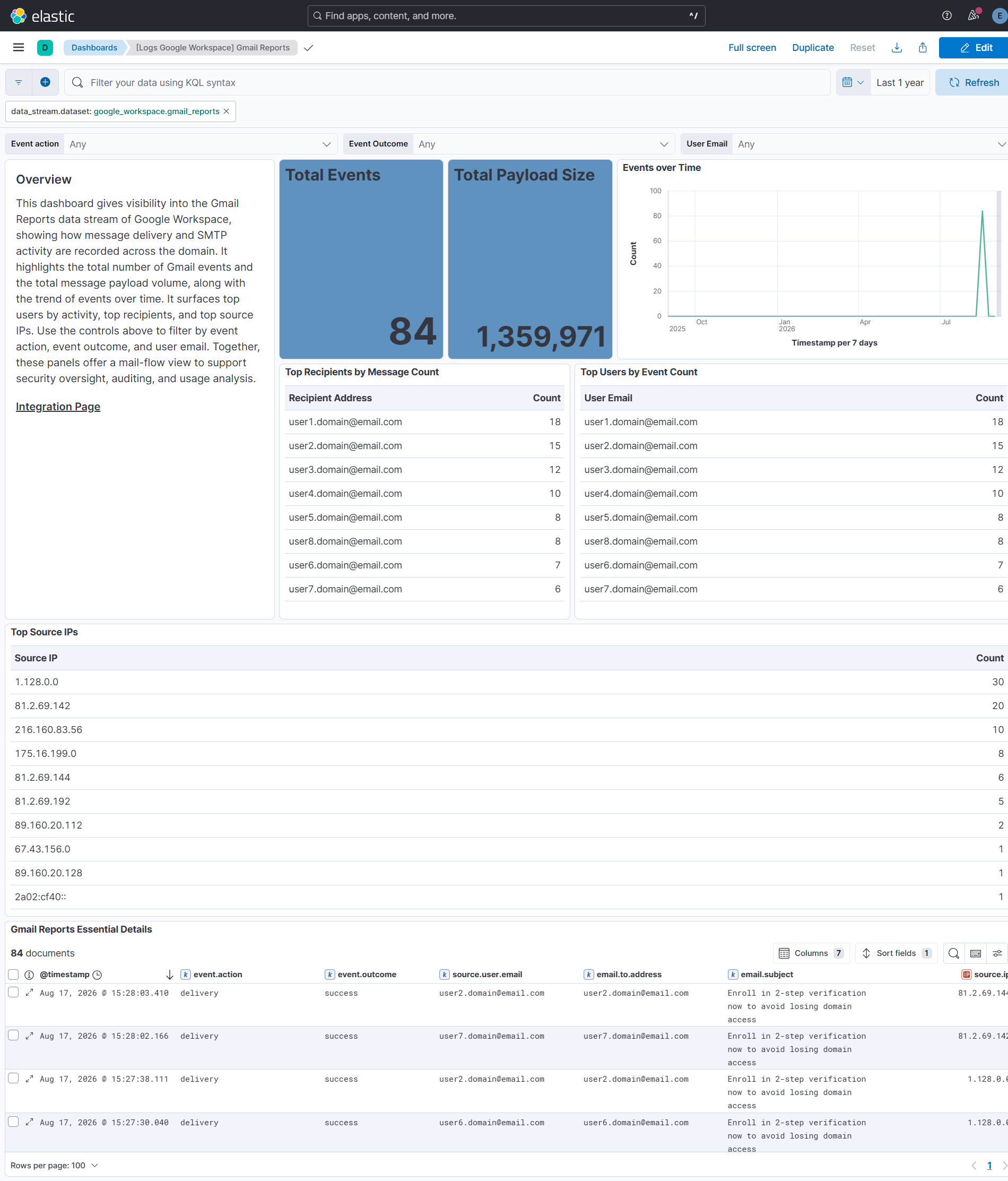
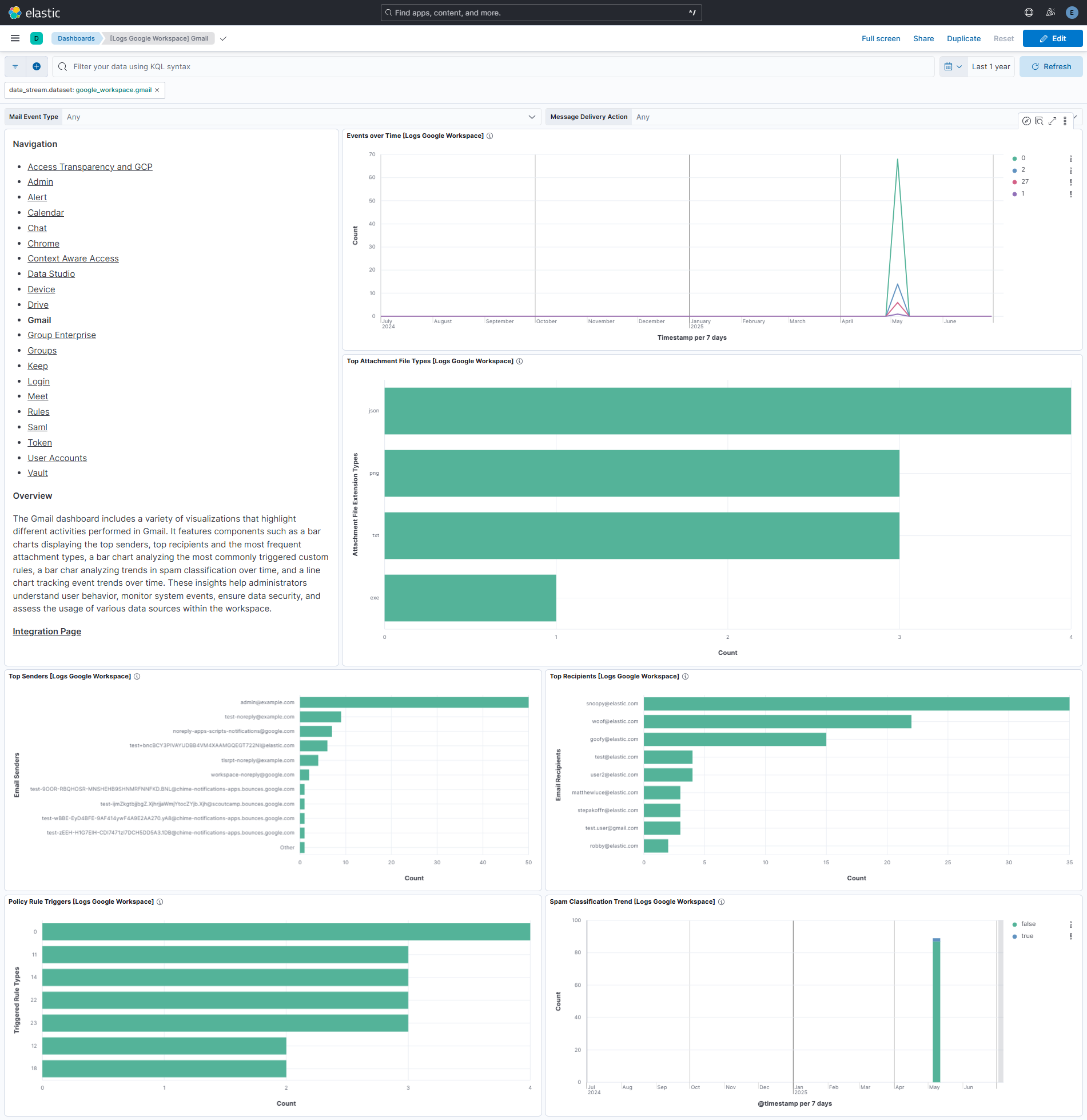
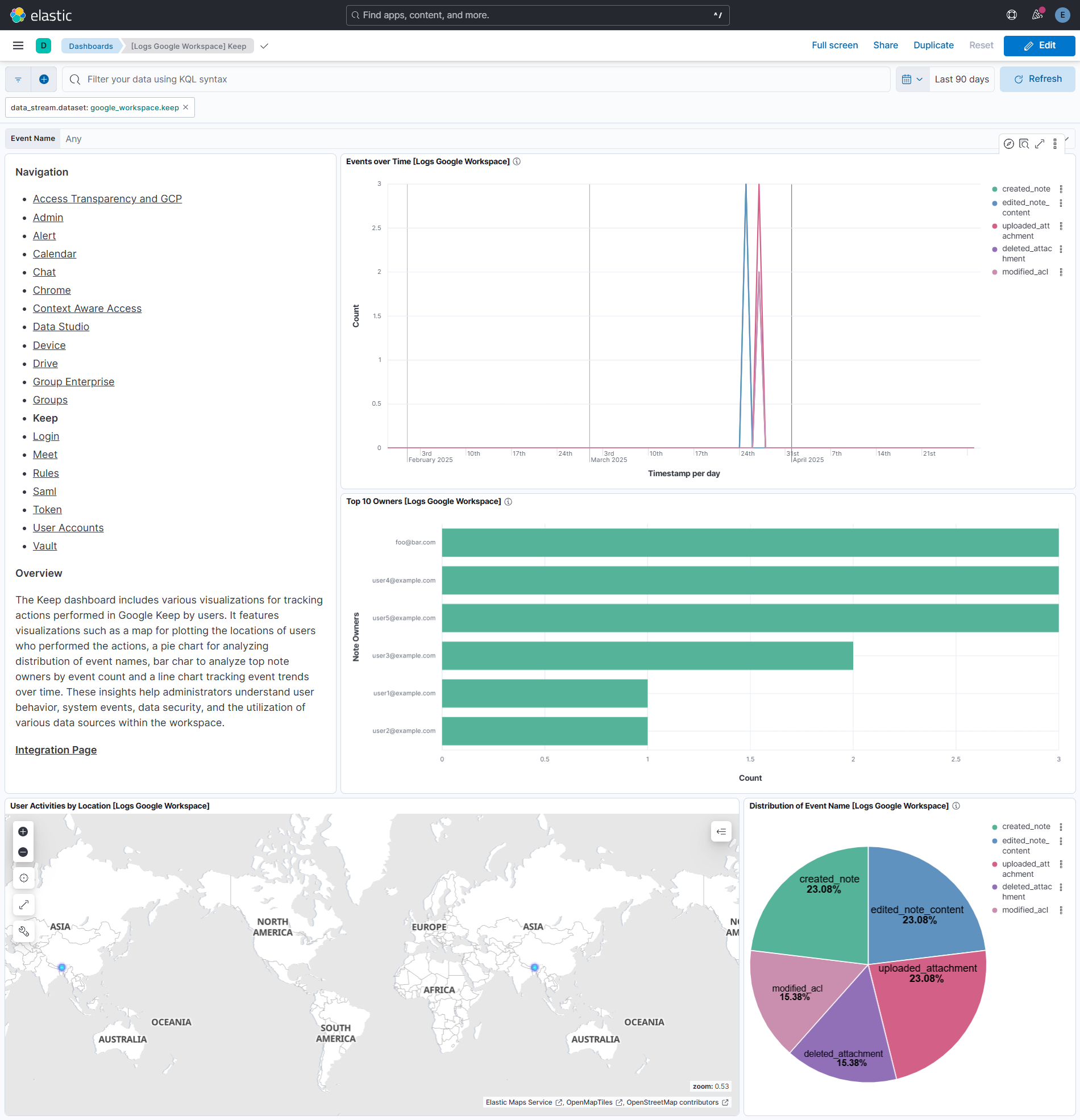
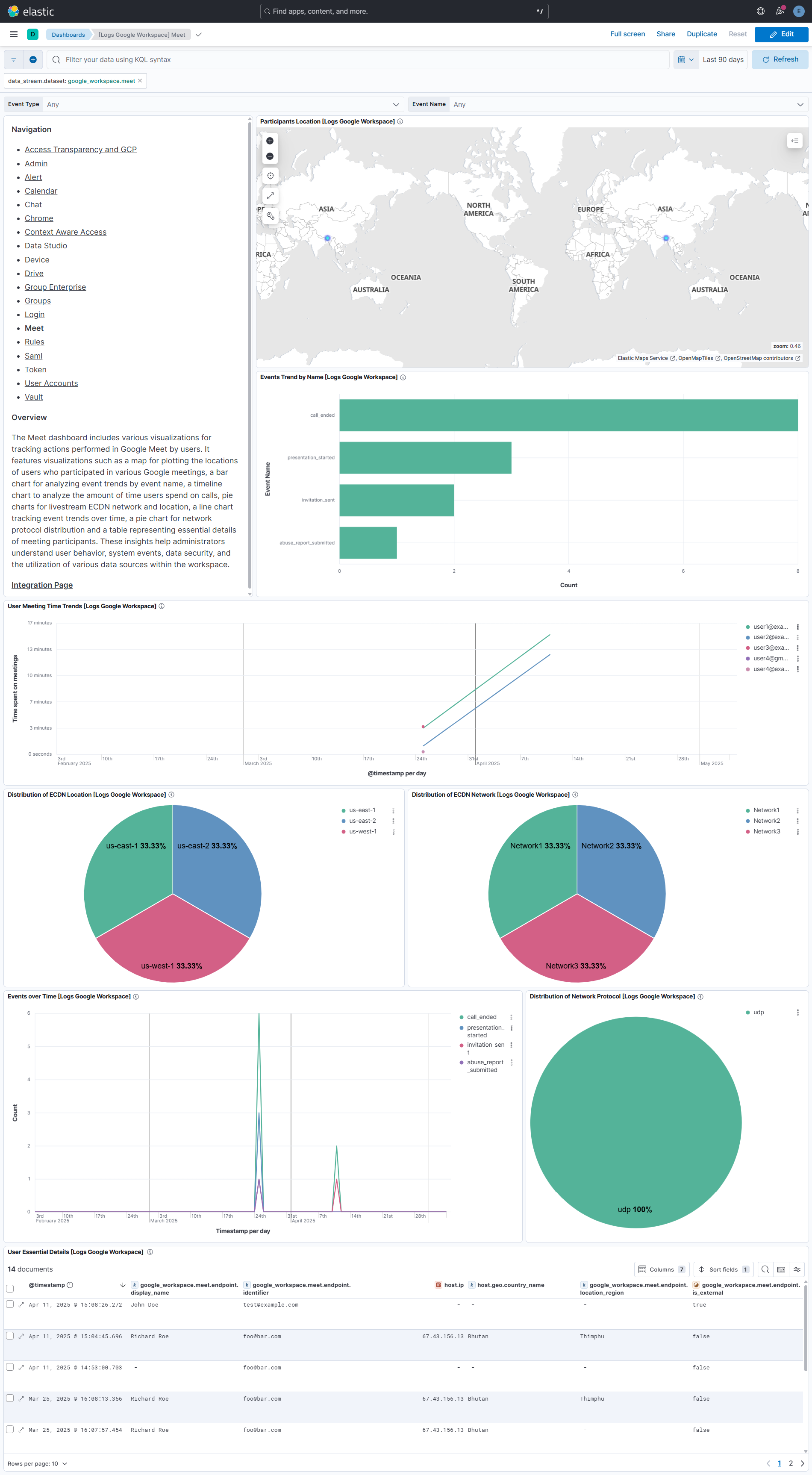
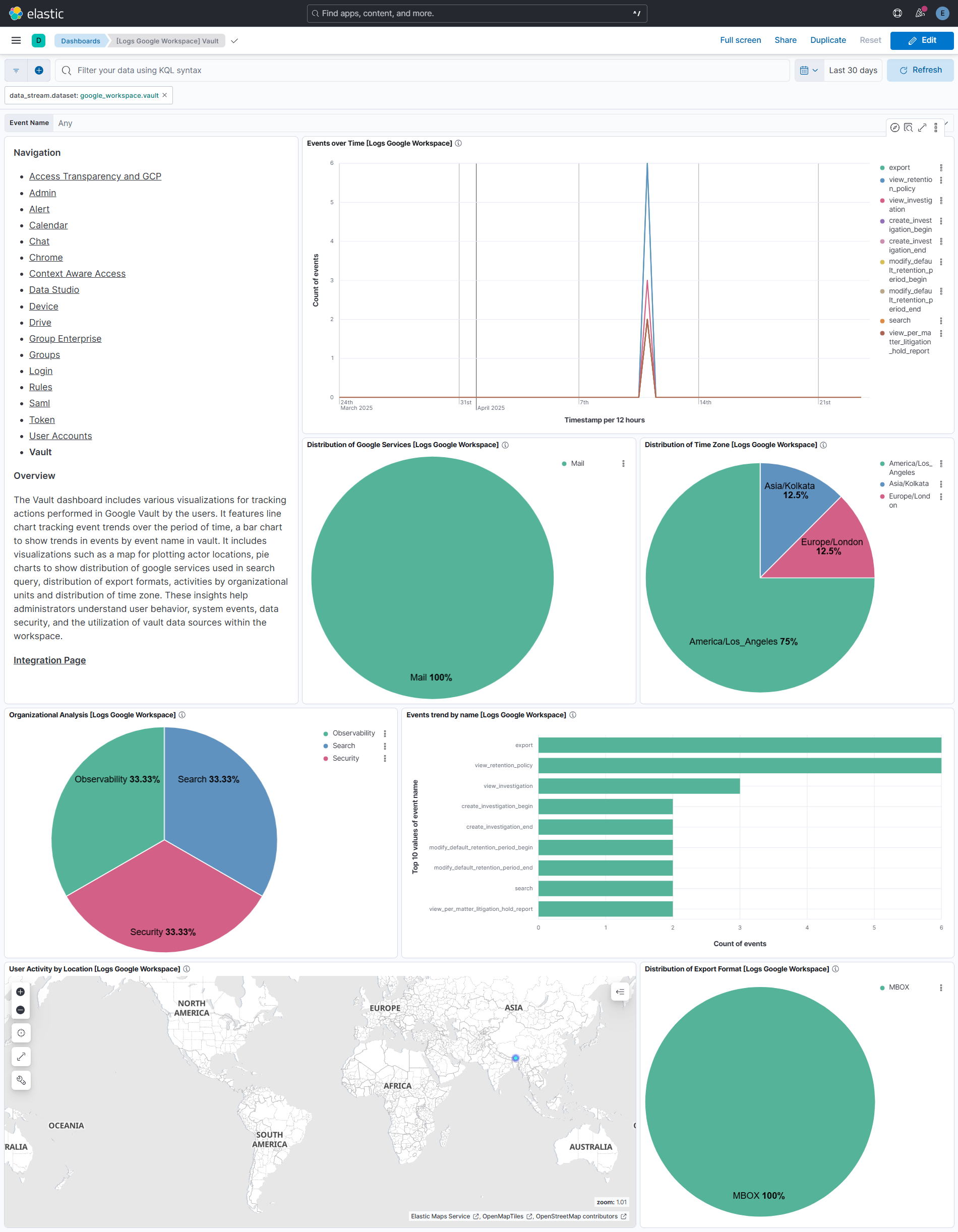
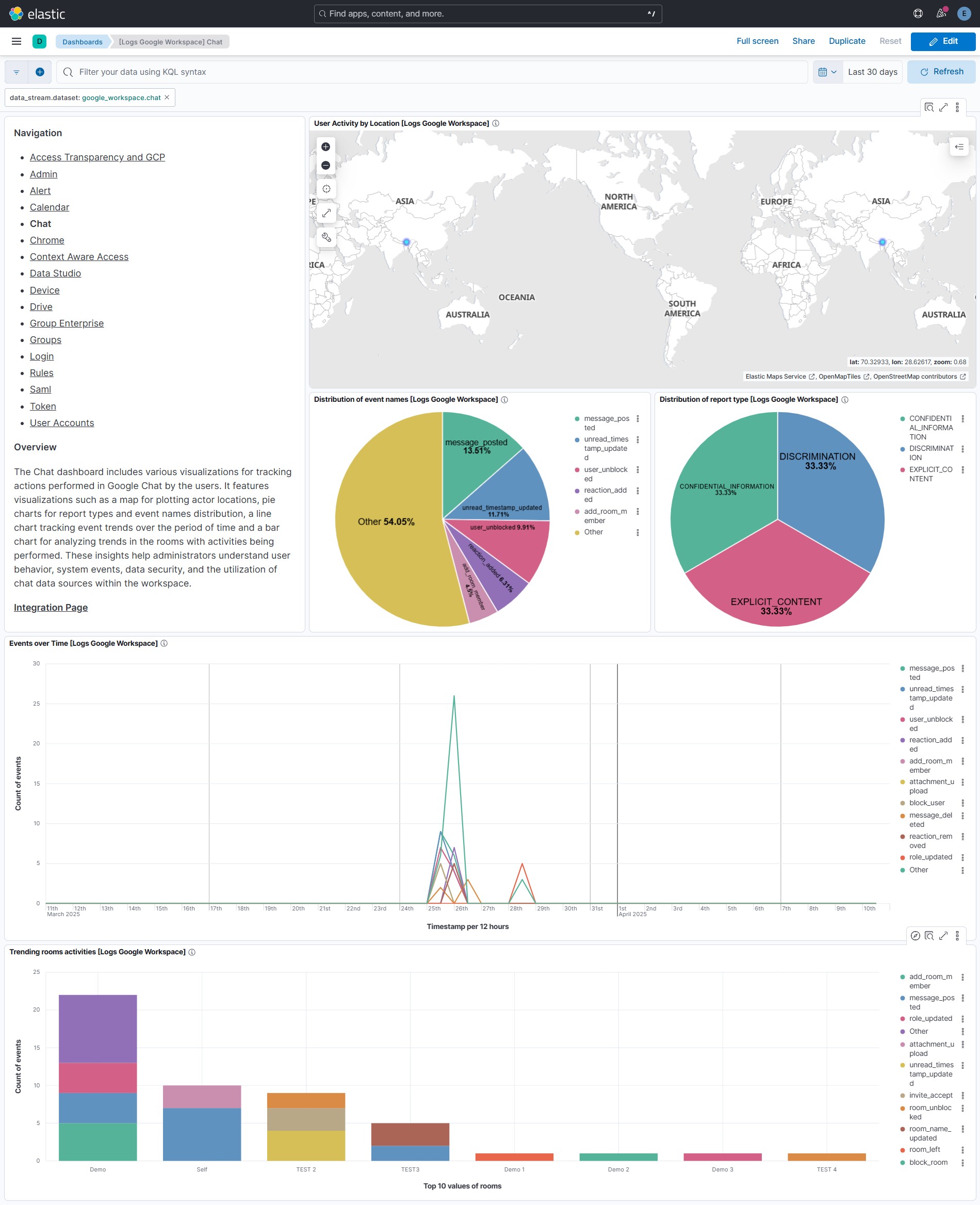
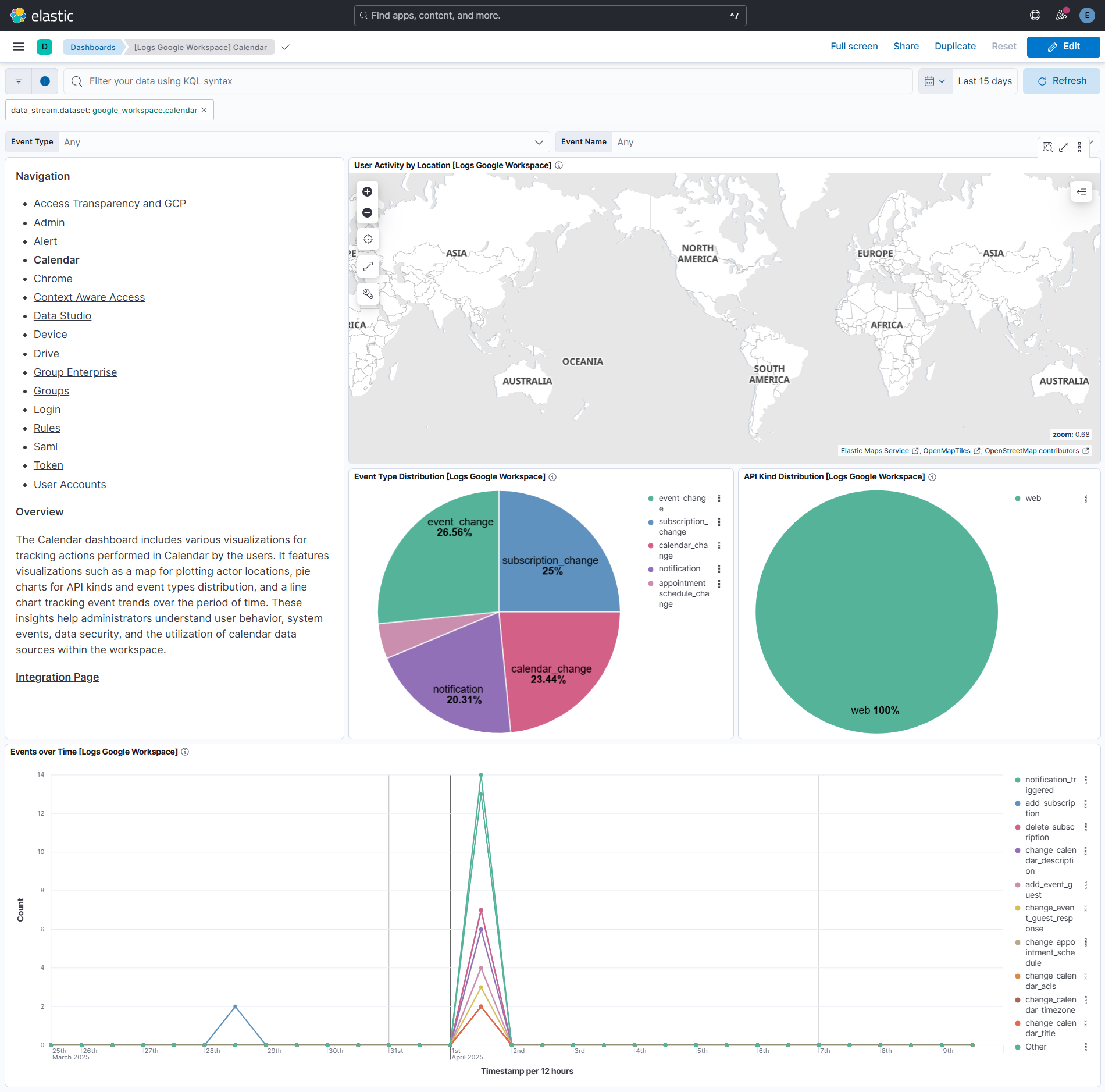
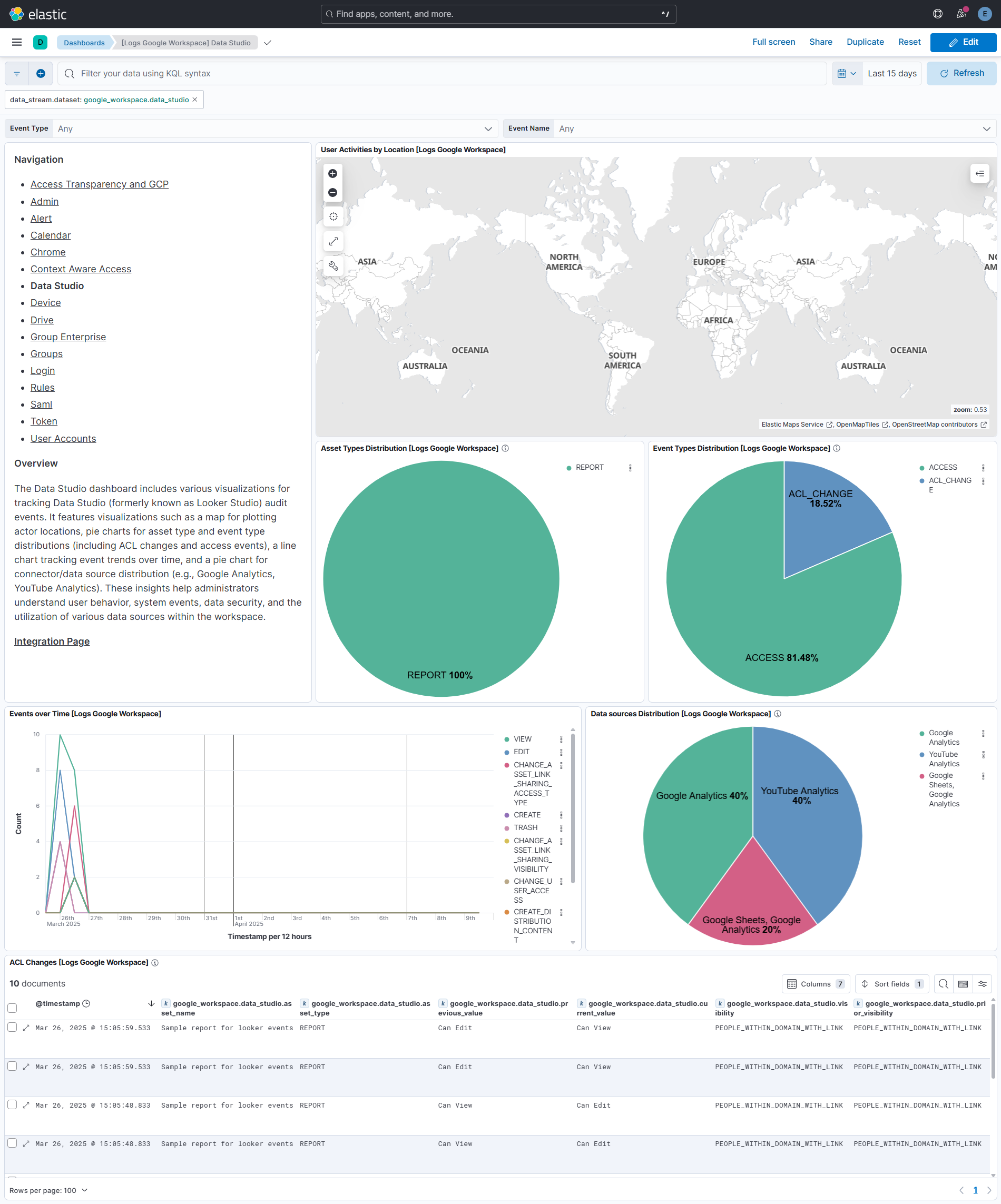
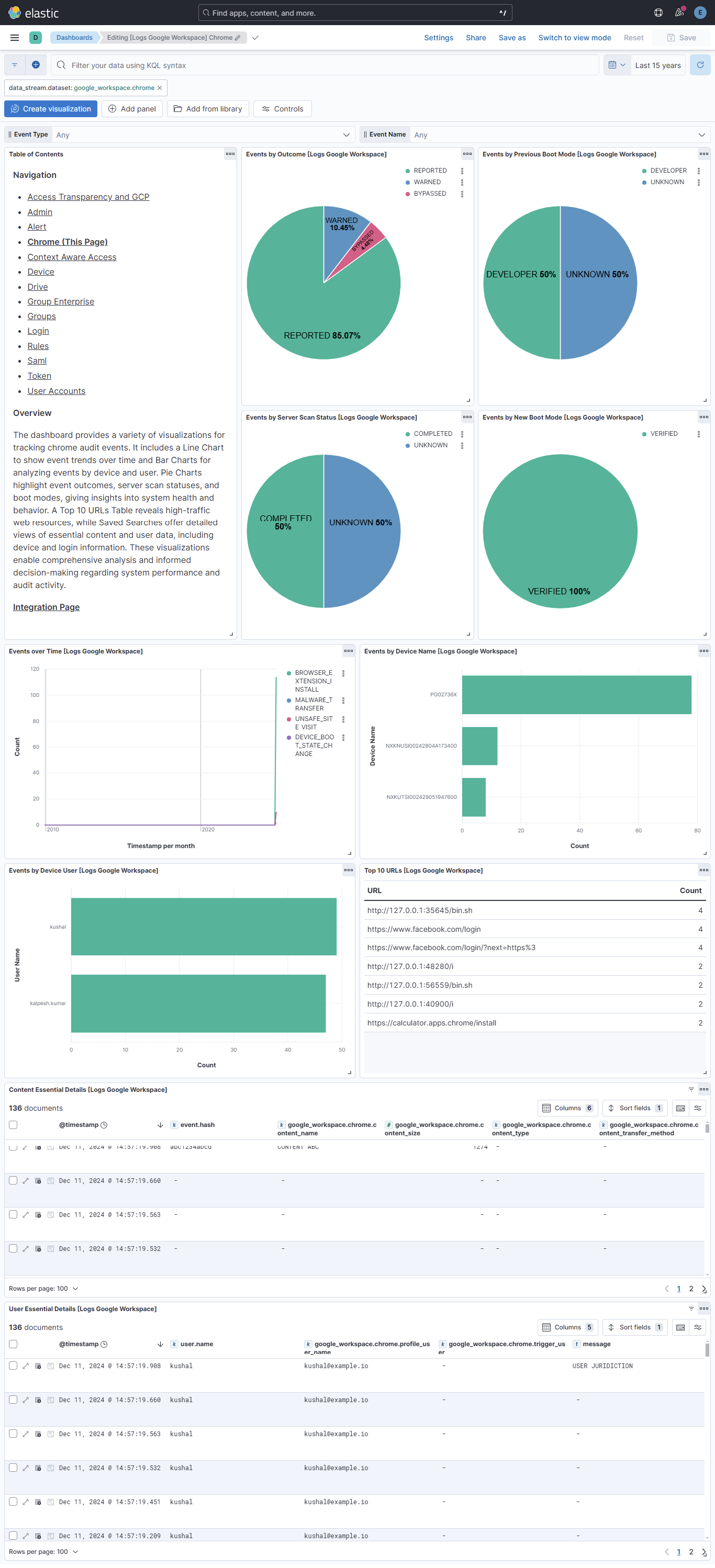
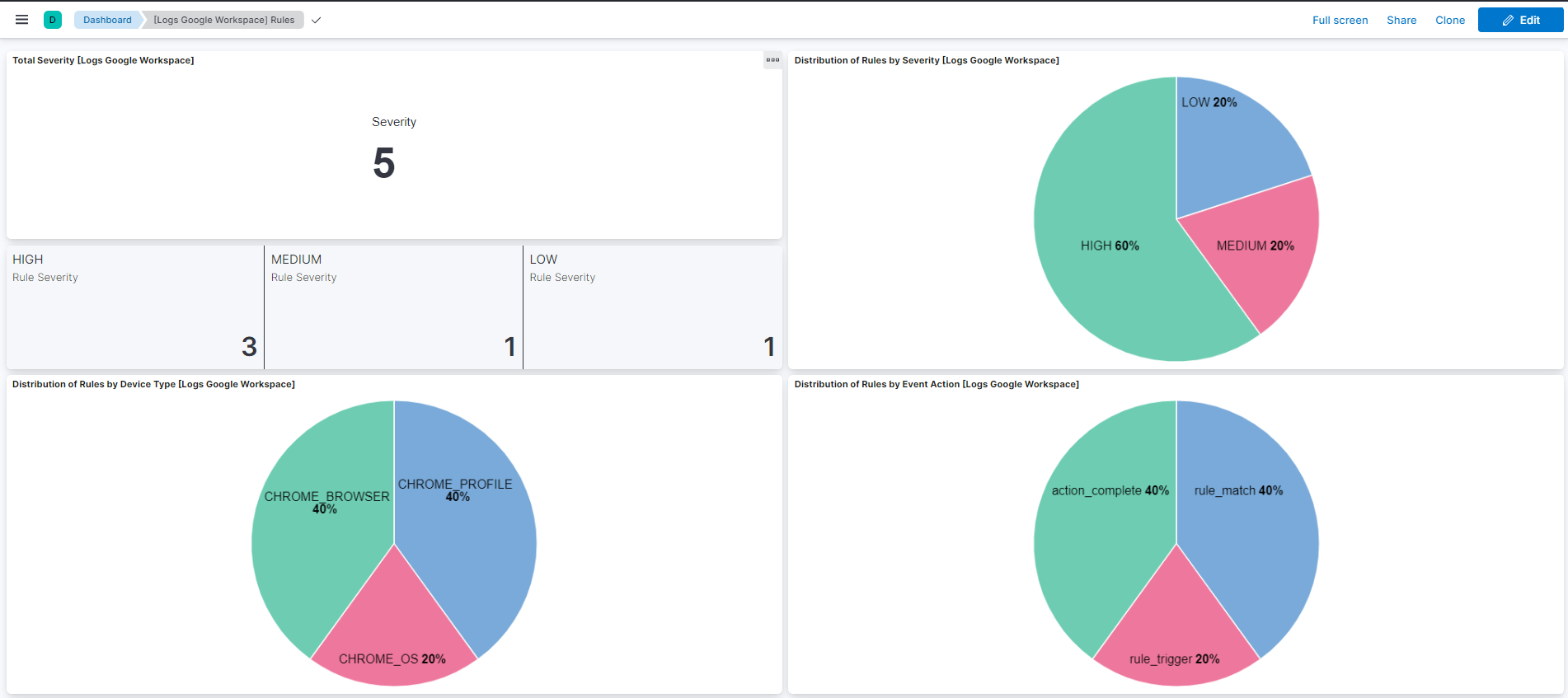
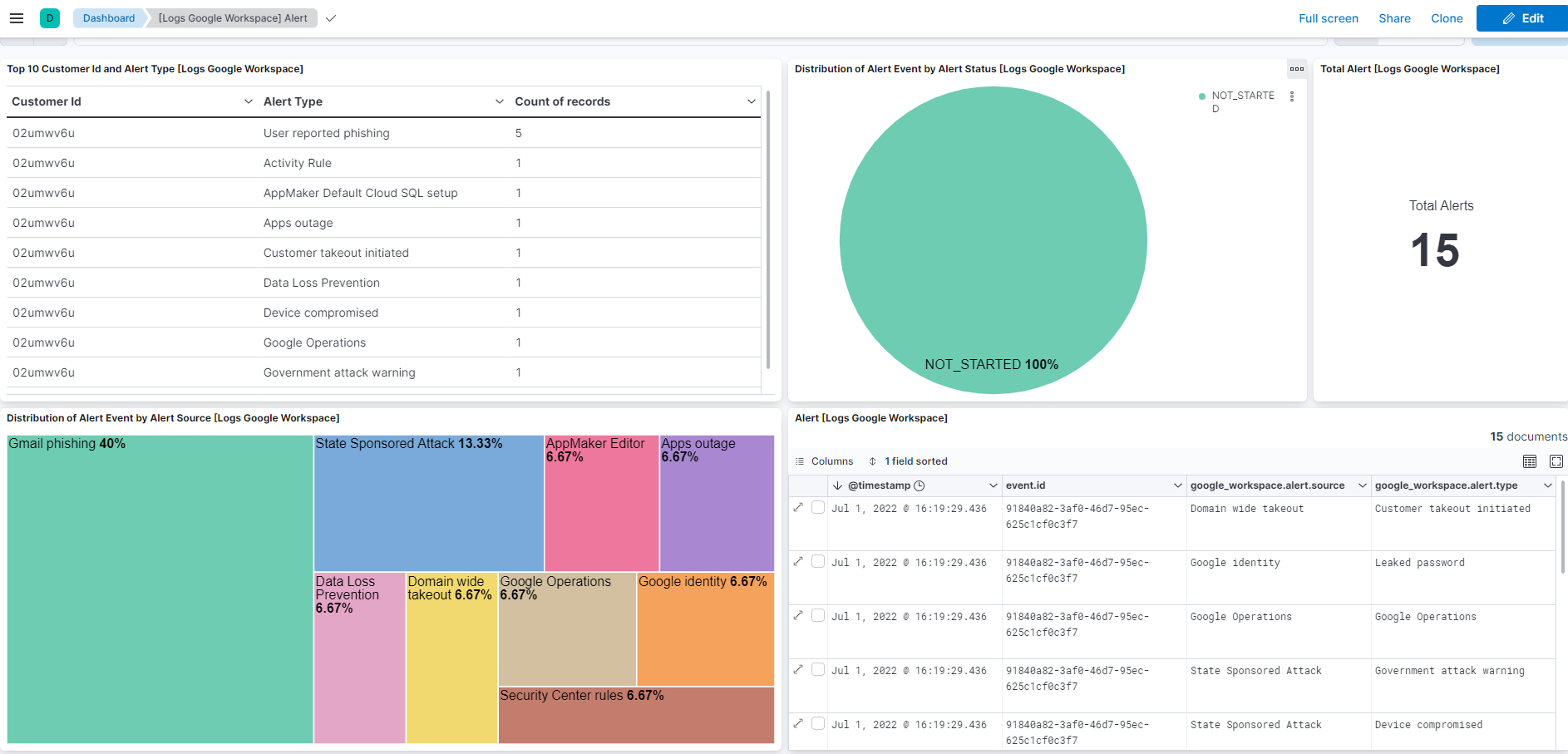
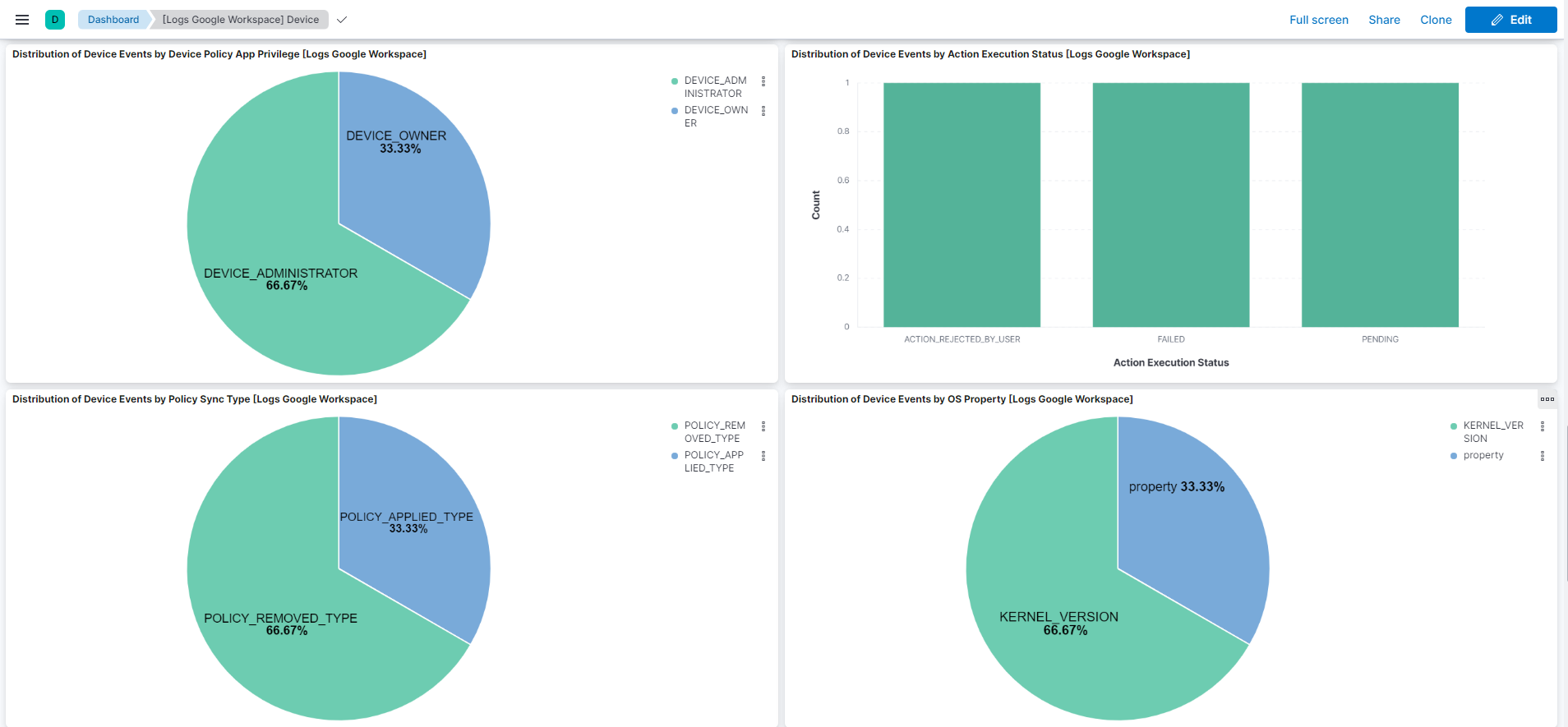
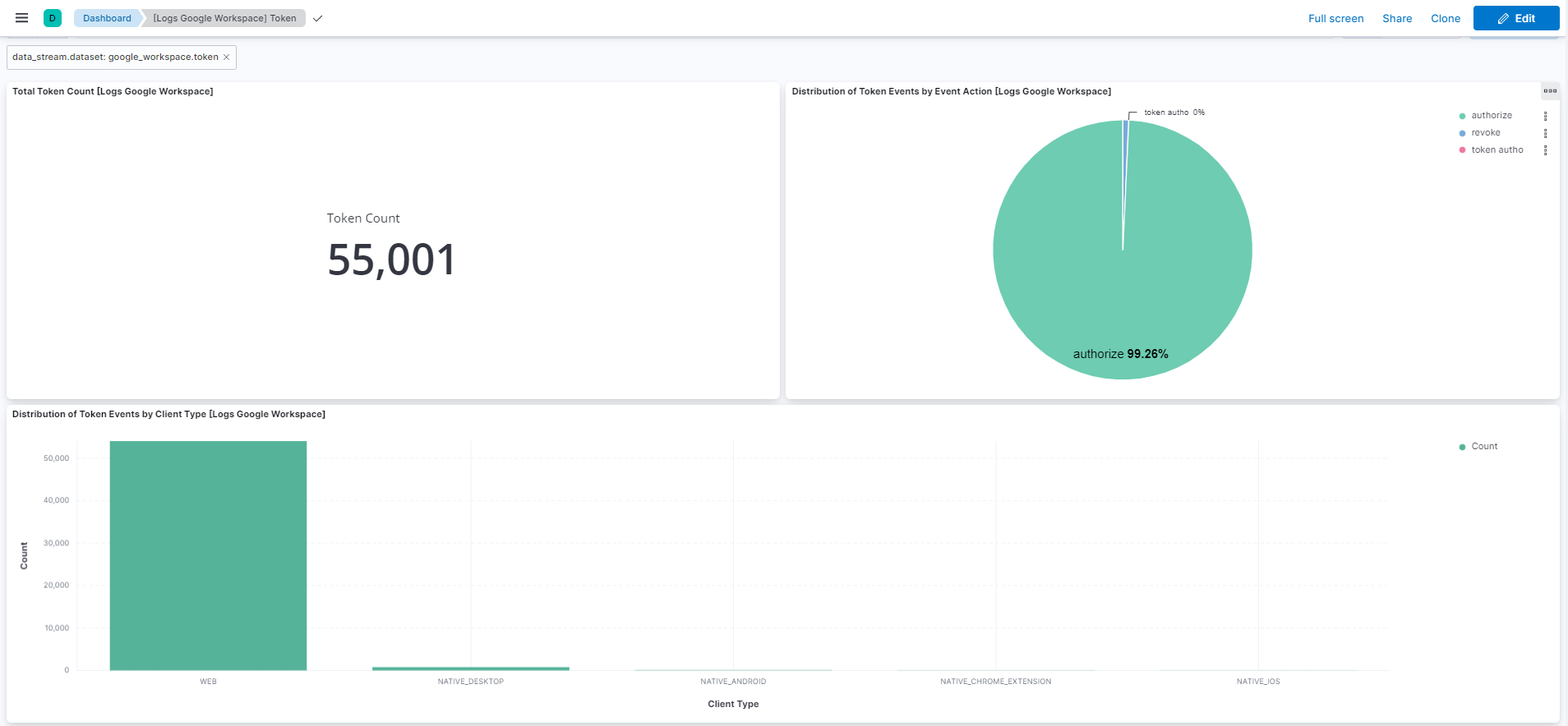
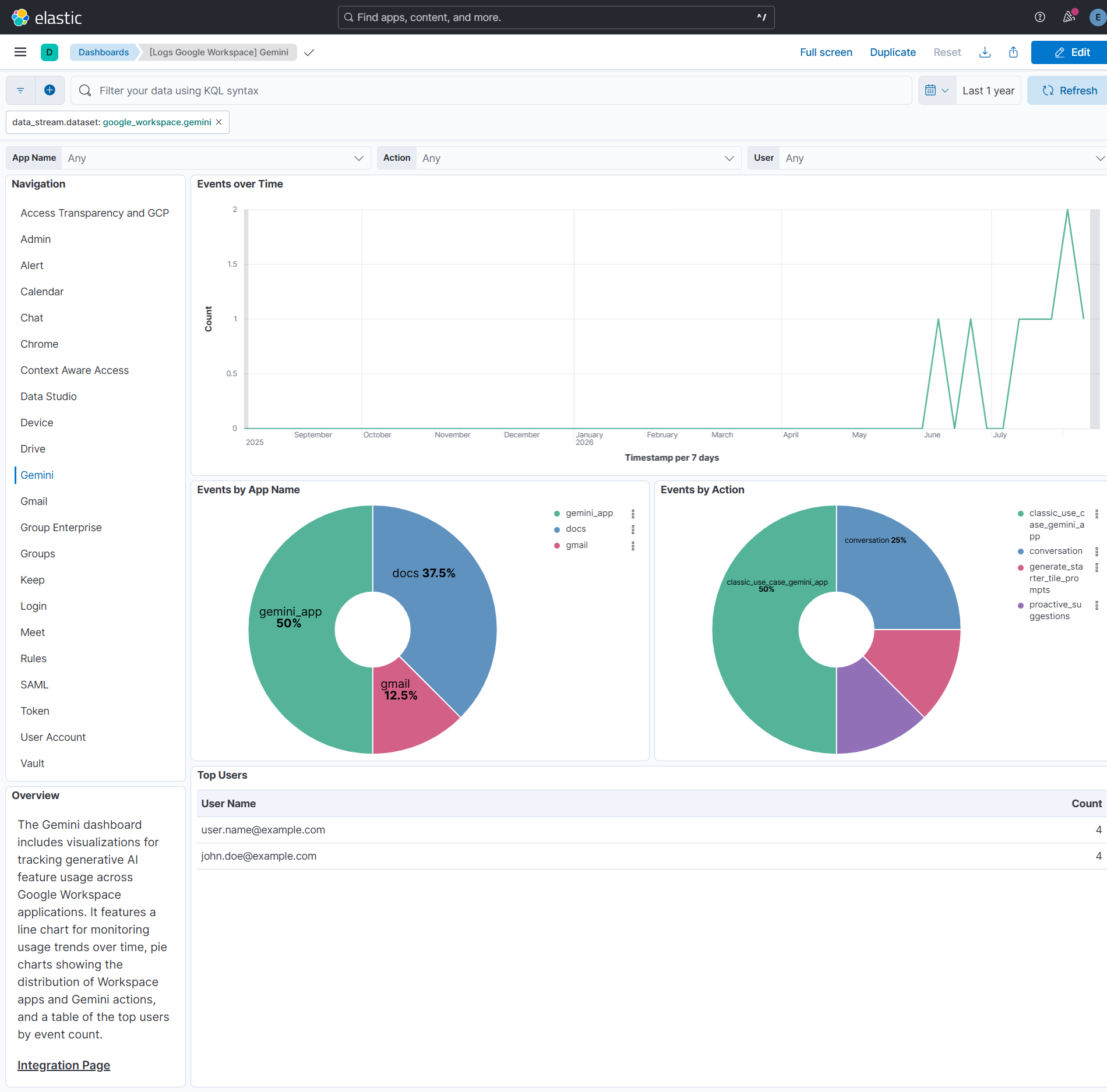
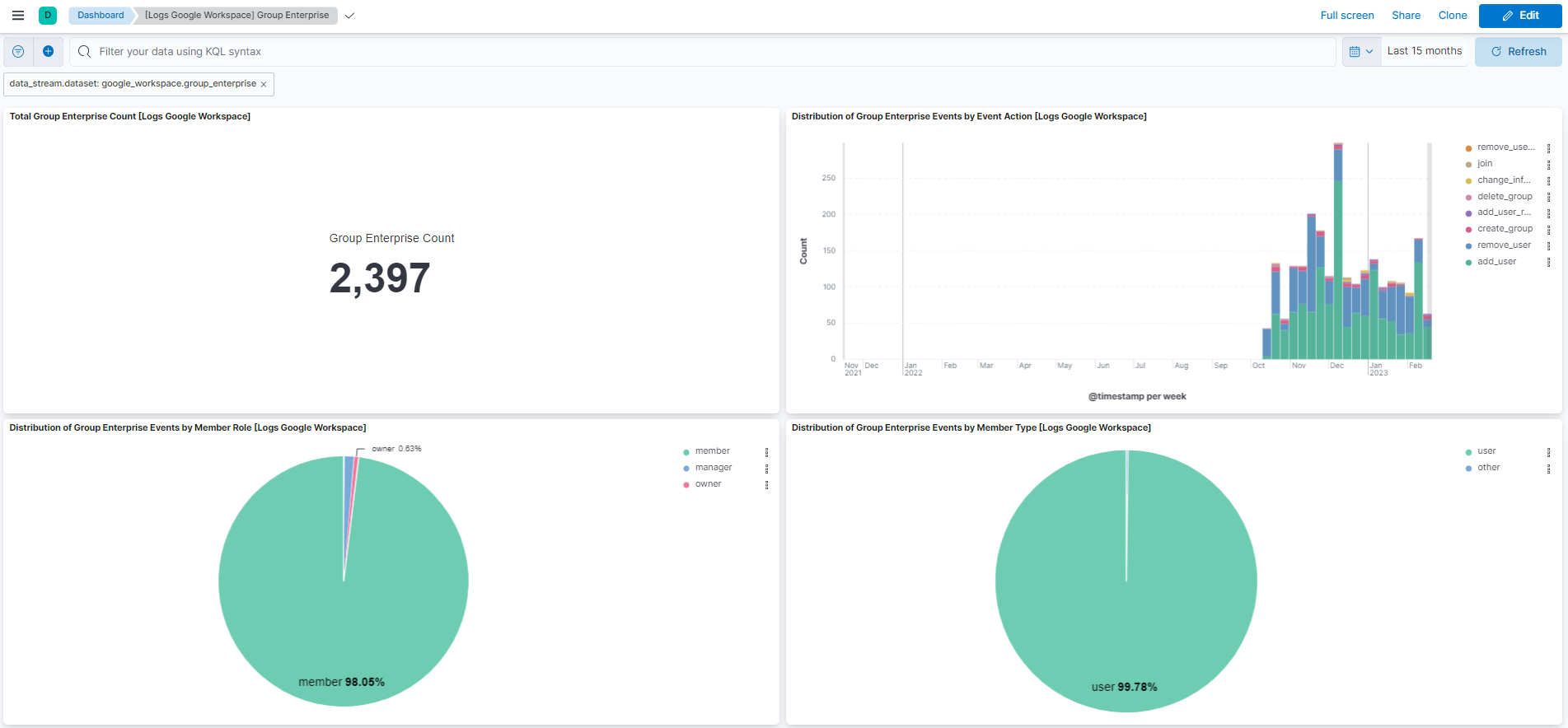
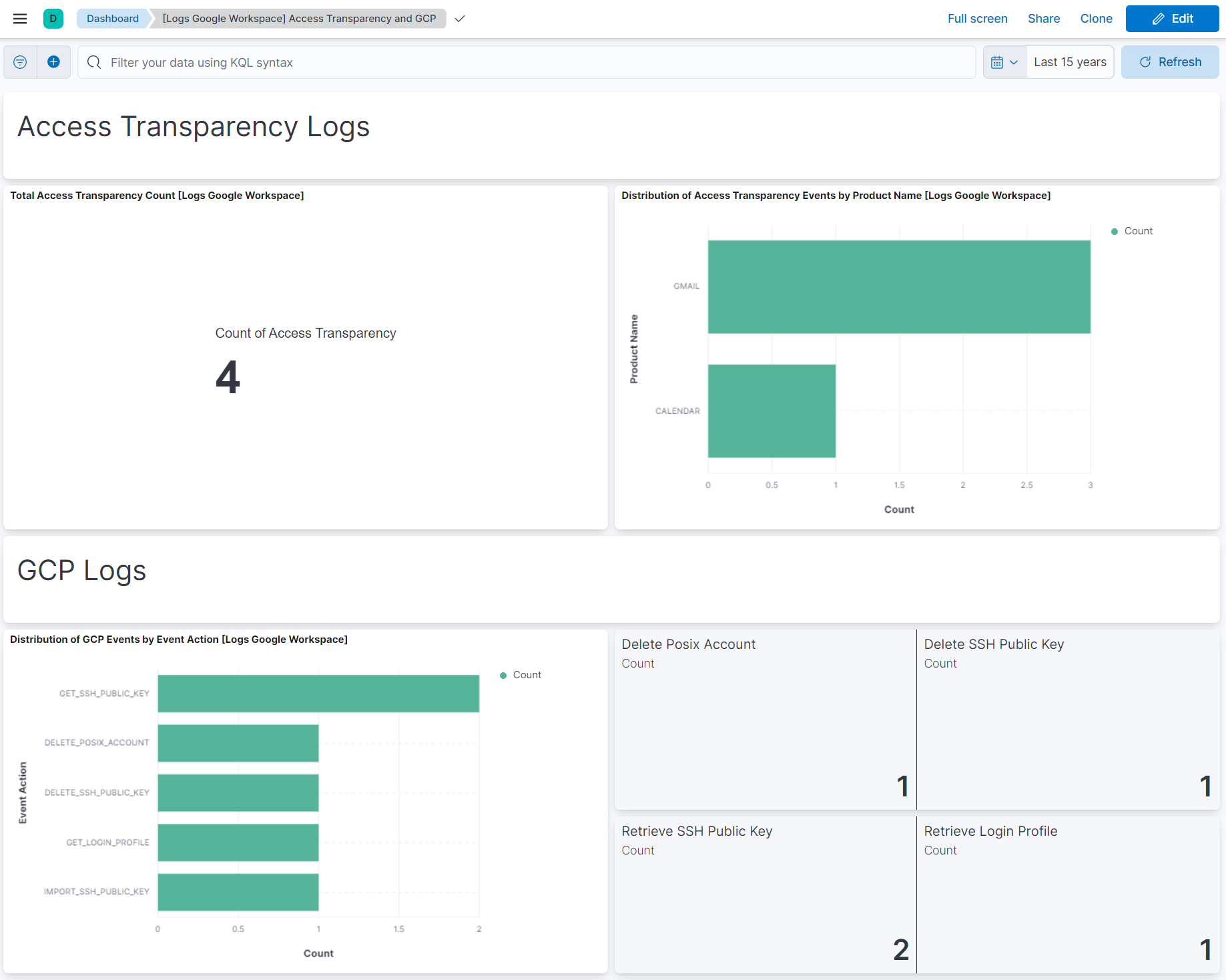
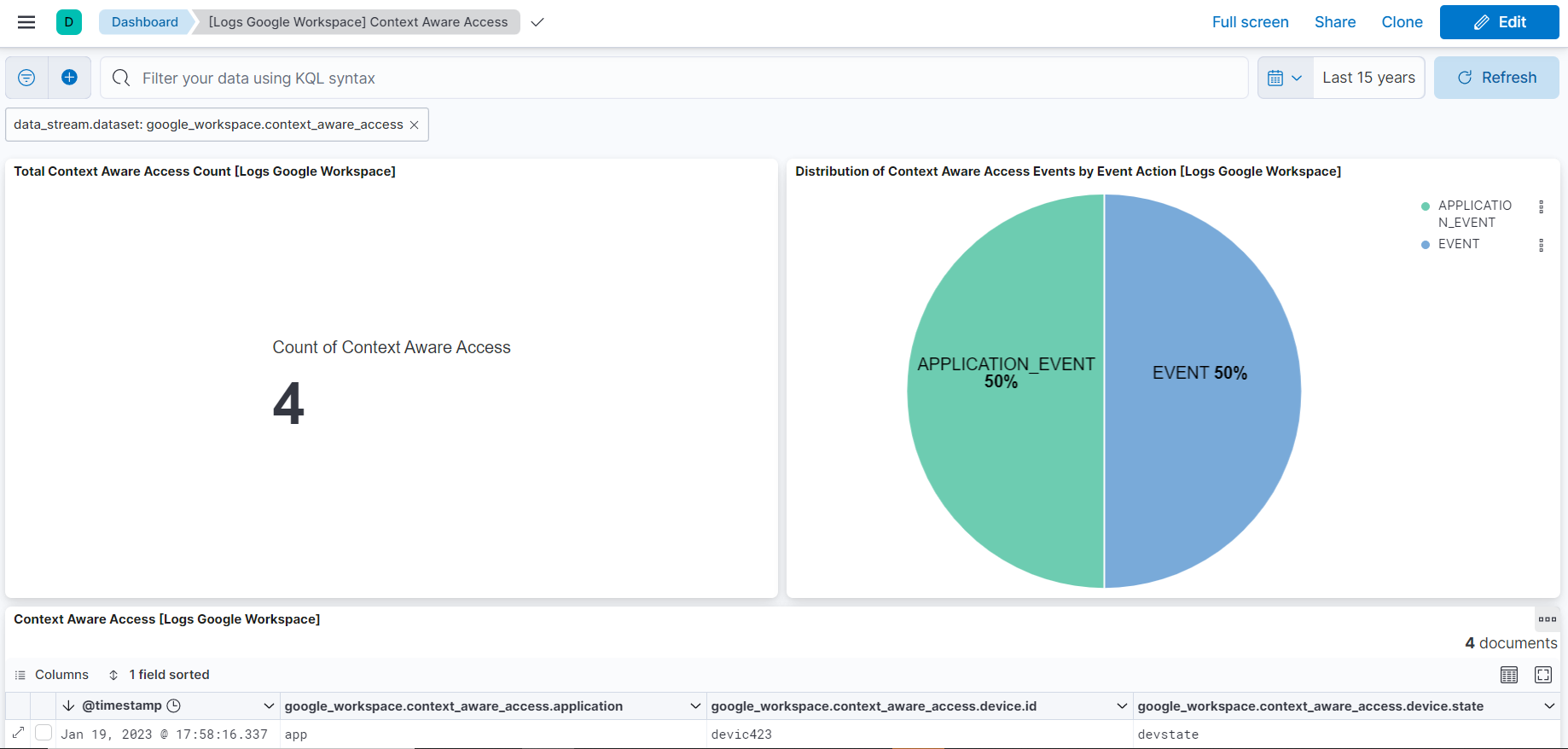
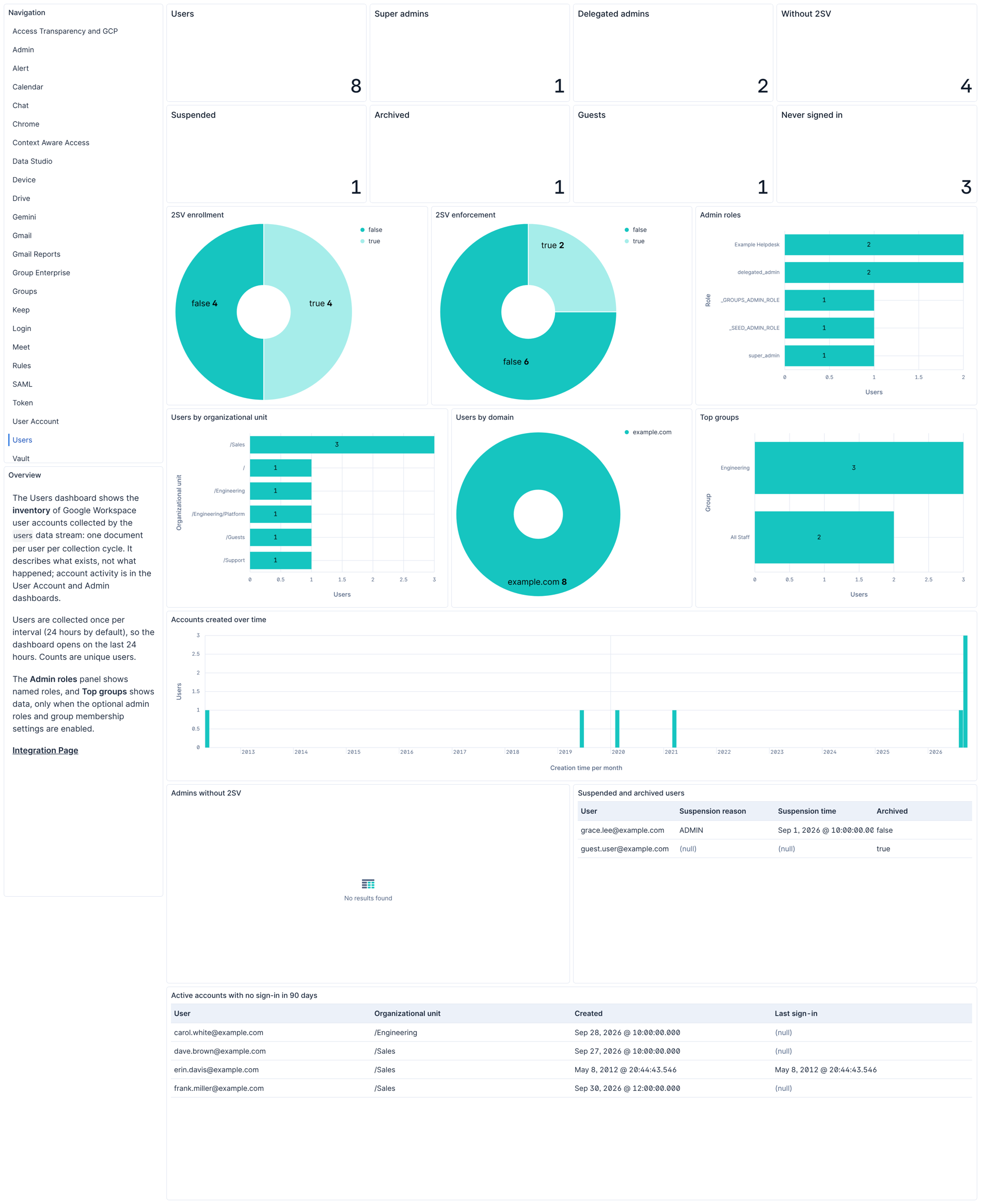
Changelog
| Version | Details | Minimum Kibana version |
|---|---|---|
| 3.11.1 | Bug fix (View pull request) Replace in-page links to the Google Workspace Users heading with plain text, so the generated documentation builds without broken anchor errors. |
9.5.3 9.4.6 8.19.21 |
| 3.11.0 | Enhancement (View pull request) Add the users data stream, an opt-in inventory of Google Workspace user accounts collected from the Admin SDK Directory API, with optional group membership and admin role enrichment. |
9.5.3 9.4.6 8.19.21 |
| 3.10.0 | Enhancement (View pull request) Run the drive and token data streams with the CEL engine (run_as_cel), so the cursor is saved once per page of events rather than once per event. |
9.5.3 9.4.6 8.19.21 |
| 3.9.1 | Enhancement (View pull request) Align Beats field descriptions between data streams. |
9.1.4 9.0.7 8.19.4 |
| 3.9.0 | Enhancement (View pull request) Add an optional chunk_duration setting to the Reports API data streams that bounds the time window requested per interval, so an interrupted collection re-fetches at most one chunk instead of the whole backlog. |
9.1.4 9.0.7 8.19.4 |
| 3.8.1 | Bug fix (View pull request) Lengthen Gemini lag setting to reduce missed events at polling window boundaries. |
9.1.4 9.0.7 8.19.4 |
| 3.8.0 | Enhancement (View pull request) Add gmail_reports data stream to collect Gmail activity events from the Google Reports API. |
9.1.4 9.0.7 8.19.4 |
| 3.7.1 | Bug fix (View pull request) Lengthen login lag setting. |
9.1.4 9.0.7 8.19.4 |
| 3.7.0 | Enhancement (View pull request) Add Gemini in Workspace Apps data stream to collect generative AI usage activity via the Admin Reports API. Enhancement (View pull request) Update ECS version to 9.5.0. |
9.1.4 9.0.7 8.19.4 |
| 3.6.0 | Enhancement (View pull request) Add tags to ingest pipeline processors. Bug fix (View pull request) Remove a redundant no-op rename processor for google_workspace.admin.application.package_id in the admin data stream. |
9.1.4 9.0.7 8.19.4 |
| 3.5.2 | Bug fix (View pull request) Add missing ECS event categorization for the gcp, rules, calendar, group_enterprise, context_aware_access, meet, chat, chrome, login, device, keep, and vault data streams. |
9.1.4 9.0.7 8.19.4 |
| 3.5.1 | Bug fix (View pull request) Guard the httpjson next_start_date cursor so an empty API response no longer fails template evaluation and flaps the input between HEALTHY and DEGRADED. |
9.1.4 9.0.7 8.19.4 |
| 3.5.0 | Enhancement (View pull request) Reduce default lag times for login, gcp, user_accounts, groups, group_enterprise, and calendar data streams to align with Google documented reporting delays. |
9.1.4 9.0.7 8.19.4 |
| 3.4.1 | Bug fix (View pull request) Use the ECS definition for email.attachments. |
9.1.4 9.0.7 8.19.4 |
| 3.4.0 | Enhancement (View pull request) Use new release field for agentless deployment mode to establish as beta. |
9.1.4 9.0.7 8.19.4 |
| 3.3.3 | Bug fix (View pull request) Change page_size/batch_size variable type from text to integer for Fleet input validation. |
9.1.4 9.0.7 8.19.4 |
| 3.3.2 | Bug fix (View pull request) Strip domain prefix from username in Chrome events. |
9.1.4 9.0.7 8.19.4 |
| 3.3.1 | Bug fix (View pull request) Use triple-brace Mustache templating when referencing variables in ingest pipelines. |
9.1.4 9.0.7 8.19.4 |
| 3.3.0 | Enhancement (View pull request) Improve documentation |
9.1.4 9.0.7 8.19.4 |
| 3.2.1 | Bug fix (View pull request) Remove duplicate security-solution-default tag references |
9.1.4 9.0.7 8.19.4 |
| 3.2.0 | Enhancement (View pull request) Parse local_ip, remote_ip, iframe_urls, is_encrypted, content_risk_level fields for chrome data stream. Increase the maximum character limit for the field value of google_workspace.chrome.iframe_urls. |
9.1.4 9.0.7 8.19.4 |
| 3.1.1 | Bug fix (View pull request) Fix Gmail data stream to prevent data gaps by improving BigQuery partition filtering. |
9.1.4 9.0.7 8.19.4 |
| 3.1.0 | Enhancement (View pull request) Prevent updating fleet health status to degraded when pagination completes. |
9.1.4 9.0.7 8.19.4 |
| 3.0.1 | Bug fix (View pull request) Fix Gmail data stream to prevent data gaps by improving BigQuery partition filtering. |
9.0.0 8.18.0 |
| 3.0.0 | Breaking change (View pull request) Add support for setting.metadata.* fields. Move user_defined_setting.name under setting.metadata as per the schema changes. Add ECS categorization support for event name changes for the admin data stream. |
9.0.0 8.18.0 |
| 2.47.2 | Bug fix (View pull request) Discard events that are missing the items[] field during the split operation and are returned as the root object. |
9.0.0 8.18.0 |
| 2.47.1 | Bug fix (View pull request) Fix handling of google_workspace.gmail.message_info.post_delivery_info.interaction.attachment records. |
9.0.0 8.18.0 |
| 2.47.0 | Enhancement (View pull request) Add support for resource_ids, network_info.region_code, network_info.subdivision_code, and network_info.ip_asn fields for login data stream.Bug fix (View pull request) Convert login.timestamp to long for login data stream. |
9.0.0 8.18.0 |
| 2.46.0 | Enhancement (View pull request) Rename google_workspace.admin.RELATED_ALERT_ID to google_workspace.admin.alert.related_id and split its value by commas (,) in the admin data stream. Increase the maximum character limit for the field values of url.query, google_workspace.drive.parsed_query, google_workspace.chrome.tab_url, google_workspace.admin.new_value and google_workspace.admin.old_value. |
9.0.0 8.18.0 |
| 2.45.0 | Enhancement (View pull request) Add support for Gmail events. |
9.0.0 8.18.0 |
| 2.44.0 | Enhancement (View pull request) Add google_workspace.actor.application_name to the drive data stream. |
9.0.0 8.18.0 |
| 2.43.0 | Enhancement (View pull request) Add missing field mappings in the admin, device, drive, login and token data streams. |
9.0.0 8.18.0 |
| 2.42.0 | Enhancement (View pull request) Use terminate processor instead of fail processor to handle agent errors. |
9.0.0 8.18.0 |
| 2.41.2 | Bug fix (View pull request) Handle failures in the convert and rename processors that occur when the organization.id field is already present. |
9.0.0 8.18.0 |
| 2.41.1 | Bug fix (View pull request) Add temporary processor to remove the fields added by the Agentless policy. |
9.0.0 8.18.0 |
| 2.41.0 | Enhancement (View pull request) Add support for Keep event type. |
9.0.0 8.18.0 |
| 2.40.0 | Enhancement (View pull request) Add support for Meet event type. |
9.0.0 8.18.0 |
| 2.39.2 | Bug fix (View pull request) Handle lag time. Enhancement (View pull request) Add Proxy URL and SSL Configuration options where absent. |
9.0.0 8.18.0 |
| 2.39.1 | Bug fix (View pull request) Fix default request trace enabled behavior. |
9.0.0 8.18.0 |
| 2.39.0 | Enhancement (View pull request) Add support for Vault event type. |
9.0.0 8.18.0 |
| 2.38.0 | Enhancement (View pull request) Enhance script to flatten event parameters in the ingest pipeline. Bug fix (View pull request) Fix issue with page token being reused across intervals in the CEL input. Bug fix (View pull request) Prevent cursor from updating on each paginated request in the CEL input. |
9.0.0 8.18.0 |
| 2.37.0 | Enhancement (View pull request) Add support for Chat event type. |
9.0.0 8.18.0 |
| 2.36.0 | Enhancement (View pull request) Add support for Calendar event type. |
9.0.0 8.18.0 |
| 2.35.0 | Enhancement (View pull request) Add support for Data Studio event type. |
9.0.0 8.18.0 |
| 2.34.0 | Enhancement (View pull request) Improve error handling in ingest pipeline. Enhancement (View pull request) Improve handling of JSON parsing failures. Bug fix (View pull request) Fix handing of google_workspace.login.challenge_status. |
9.0.0 8.18.0 |
| 2.33.0 | Enhancement (View pull request) Enable request trace log removal. |
9.0.0 8.18.0 |
| 2.32.0 | Enhancement (View pull request) Enable Agentless deployment. |
9.0.0 8.18.0 |
| 2.31.0 | Enhancement (View pull request) Update Kibana constraint to support 9.0.0. |
9.0.0 8.16.0 |
| 2.30.4 | Bug fix (View pull request) Added filter by suspicious login flag is true to "Successful Logins by Compromised Users" and changed name to "Successful Logins that are Suspicious". |
8.16.0 |
| 2.30.3 | Bug fix (View pull request) Updated SSL description to be uniform and to include links to documentation. |
8.16.0 |
| 2.30.2 | Bug fix (View pull request) Prevent pageToken from incorrectly reappearing in interval requests. |
8.16.0 |
| 2.30.1 | Bug fix (View pull request) Fix flaky test by renaming incorrect as.asn and as.organization_name fields. |
8.16.0 |
| 2.30.0 | Enhancement (View pull request) Increase CEL resource.tracer.maxsize to prevent loss of trace responses. |
8.16.0 |
| 2.29.0 | Enhancement (View pull request) Add support of Chrome Audit Events. Enhancement (View pull request) ECS version updated to 8.16.0. |
8.16.0 |
| 2.28.0 | Enhancement (View pull request) Add "preserve_original_event" tag to documents with event.kind manually set to "pipeline_error". |
8.13.0 |
| 2.27.0 | Enhancement (View pull request) Add "preserve_original_event" tag to documents with event.kind set to "pipeline_error". |
8.13.0 |
| 2.26.1 | Bug fix (View pull request) Fix string literals in painless scripts. Bug fix (View pull request) Add missing empty fields cleanup to admin data stream. |
8.13.0 |
| 2.26.0 | Enhancement (View pull request) Do not remove event.original in main ingest pipeline. |
8.13.0 |
| 2.25.5 | Bug fix (View pull request) Fix broken links in Security Service integrations packages. |
8.13.0 |
| 2.25.4 | Bug fix (View pull request) Use triple-brace Mustache templating when referencing variables in ingest pipelines. |
8.13.0 |
| 2.25.3 | Bug fix (View pull request) Remove link to unpublished security-labs blog from README. |
8.13.0 |
| 2.25.2 | Bug fix (View pull request) Handle json.id.time missing |
8.13.0 |
| 2.25.1 | Bug fix (View pull request) Fix definition of subfields of nested objects |
8.13.0 |
| 2.25.0 | Enhancement (View pull request) Add GeoIP processors to all data streams. |
8.13.0 |
| 2.24.0 | Bug fix (View pull request) Updated google drive event schema and mappings to incorporate missing fields. |
8.13.0 |
| 2.23.0 | Enhancement (View pull request) Removed import_mappings. Update the kibana constraint to ^8.13.0. Modified the field definitions to remove ECS fields made redundant by the ecs@mappings component template. |
8.13.0 |
| 2.22.0 | Enhancement (View pull request) Improve handling of empty responses. |
8.12.0 |
| 2.21.0 | Enhancement (View pull request) Update manifest format version to v3.0.3. |
8.12.0 |
| 2.20.0 | Enhancement (View pull request) Set sensitive values as secret. |
8.12.0 |
| 2.19.2 | Enhancement (View pull request) Changed owners |
8.7.1 |
| 2.19.1 | Bug fix (View pull request) Fixing timestamp format for Admin datastream |
8.7.1 |
| 2.19.0 | Enhancement (View pull request) Limit request tracer log count to five. |
8.7.1 |
| 2.18.0 | Enhancement (View pull request) ECS version updated to 8.11.0. |
8.7.1 |
| 2.17.0 | Enhancement (View pull request) Improve 'event.original' check to avoid errors if set. |
8.7.1 |
| 2.16.2 | Bug fix (View pull request) Fix documentation for initial interval configuration. |
8.7.1 |
| 2.16.1 | Bug fix (View pull request) Fix mapping of group fields |
8.7.1 |
| 2.16.0 | Enhancement (View pull request) ECS version updated to 8.10.0. |
8.7.1 |
| 2.15.0 | Enhancement (View pull request) The format_version in the package manifest changed from 2.11.0 to 3.0.0. Removed dotted YAML keys from package manifest. Added 'owner.type: elastic' to package manifest. |
8.7.1 |
| 2.14.0 | Enhancement (View pull request) Add tags.yml file so that integration's dashboards and saved searches are tagged with "Security Solution" and displayed in the Security Solution UI. |
8.7.1 |
| 2.13.0 | Enhancement (View pull request) Update package to ECS 8.9.0. |
8.7.1 |
| 2.12.0 | Enhancement (View pull request) Document duration units. |
8.7.1 |
| 2.11.0 | Enhancement (View pull request) Convert dashboards to Lens. |
8.7.1 |
| 2.10.0 | Enhancement (View pull request) Ensure event.kind is correctly set for pipeline errors. |
8.7.1 |
| 2.9.0 | Enhancement (View pull request) Update package to ECS 8.8.0. |
8.7.1 |
| 2.8.0 | Enhancement (View pull request) Update package-spec version to 2.7.0. |
8.7.1 |
| 2.7.0 | Enhancement (View pull request) Add a new flag to enable request tracing |
8.7.1 |
| 2.6.0 | Enhancement (View pull request) Improve documentation by linking Security Labs blog post and clarifying the Delegated Account value. |
8.4.0 |
| 2.5.1 | Enhancement (View pull request) Set event categorization for Token data stream. |
8.4.0 |
| 2.5.0 | Enhancement (View pull request) Update package to ECS 8.7.0. |
8.4.0 |
| 2.4.0 | Enhancement (View pull request) Add support for new Access Transparency, Context Aware Access, Device, GCP, Group Enterprise and Token Data Streams. |
8.4.0 |
| 2.3.1 | Enhancement (View pull request) Added categories and/or subcategories. |
8.4.0 |
| 2.3.0 | Enhancement (View pull request) Add recipients domains into related.hosts in Rules data stream. |
8.4.0 |
| 2.2.3 | Bug fix (View pull request) Fix @timestamp value in Rules data stream. |
8.4.0 |
| 2.2.2 | Bug fix (View pull request) Fix ingest pipeline to rename event name after fingerprint |
8.4.0 |
| 2.2.1 | Bug fix (View pull request) Fix pagination and filters for Report API data streams. |
8.4.0 |
| 2.2.0 | Enhancement (View pull request) Update package to ECS 8.6.0. |
8.4.0 |
| 2.1.0 | Enhancement (View pull request) Add New Rules Data Stream. Enhancement (View pull request) Add Missing Dashboards. Enhancement (View pull request) Improve ECS Utilization. |
8.4.0 |
| 2.0.0 | Enhancement (View pull request) Add a new alert data stream and fix the request query parameter inconsistent between intervals. |
8.4.0 |
| 1.9.0 | Bug fix (View pull request) Use event time as cursor instead of current time. Bug fix (View pull request) Fix pagination logic and avoid showing error on last page. Enhancement (View pull request) Allow each data stream to define its own interval. |
8.4.0 |
| 1.8.0 | Enhancement (View pull request) Update package to ECS 8.5.0. |
8.4.0 |
| 1.7.4 | Bug fix (View pull request) Parse event parameters for user_accounts data stream. |
8.4.0 |
| 1.7.3 | Bug fix (View pull request) Change fingerprint processor to avoid skipping events. |
8.4.0 |
| 1.7.2 | Bug fix (View pull request) Remove duplicate fields. |
8.4.0 |
| 1.7.1 | Enhancement (View pull request) Use ECS geo.location definition. |
8.4.0 |
| 1.7.0 | Enhancement (View pull request) Update package to ECS 8.4.0 |
8.4.0 |
| 1.6.1 | Enhancement (View pull request) Update package name and description to align with standard wording |
8.4.0 |
| 1.6.0 | Enhancement (View pull request) Update package to ECS 8.3.0. |
8.4.0 |
| 1.5.1 | Enhancement (View pull request) update readme |
8.4.0 |
| 1.5.0 | Enhancement (View pull request) Allow to set credentials directly in the config. |
8.4.0 |
| 1.4.0 | Enhancement (View pull request) Update to ECS 8.2 |
8.0.0 7.16.0 |
| 1.3.4 | Bug fix (View pull request) Fix pagination to prevent skipped events when more than one page is present. |
— |
| 1.3.3 | Enhancement (View pull request) Add documentation for multi-fields |
8.0.0 7.16.0 |
| 1.3.2 | Bug fix (View pull request) Add mapping for ECS event.created. |
8.0.0 7.16.0 |
| 1.3.1 | Enhancement (View pull request) Remove redundant event.ingested from pipelines.Bug fix (View pull request) Validate IP fields and remove invalid data to prevent index mapping exceptions. |
8.0.0 7.16.0 |
| 1.3.0 | Enhancement (View pull request) Update to ECS 8.0 |
8.0.0 7.16.0 |
| 1.2.3 | Bug fix (View pull request) Fix admin pipeline parameter processing |
— |
| 1.2.2 | Bug fix (View pull request) Regenerate test files using the new GeoIP database |
8.0.0 7.16.0 |
| 1.2.1 | Bug fix (View pull request) Change test public IPs to the supported subset |
— |
| 1.2.0 | Enhancement (View pull request) Add 8.0.0 version constraint |
8.0.0 7.16.0 |
| 1.1.3 | Enhancement (View pull request) Uniform with guidelines |
7.16.0 |
| 1.1.2 | Enhancement (View pull request) Update Title and Description. |
7.16.0 |
| 1.1.1 | Bug fix (View pull request) Fix logic that checks for the 'forwarded' tag |
— |
| 1.1.0 | Enhancement (View pull request) Update to ECS 1.12.0 |
— |
| 1.0.0 | Enhancement (View pull request) make GA |
— |
| 0.7.3 | Enhancement (View pull request) Convert to generated ECS fields |
— |
| 0.7.2 | Enhancement (View pull request) update to ECS 1.11.0 |
— |
| 0.7.1 | Enhancement (View pull request) Escape special characters in docs |
— |
| 0.7.0 | Enhancement (View pull request) Update integration description |
— |
| 0.6.0 | Enhancement (View pull request) Set "event.module" and "event.dataset" |
— |
| 0.5.0 | Enhancement (View pull request) add system tests and remove log input |
— |
| 0.4.0 | Enhancement (View pull request) update to ECS 1.10.0 and add event.original options |
— |
| 0.3.1 | Enhancement (View pull request) add fingerprint processor to avoid duplicated events. |
— |
| 0.3.0 | Enhancement (View pull request) move edge processing to ingest pipelines |
— |
| 0.2.4 | Bug fix (View pull request) add fail_on_template_error on pagination |
— |
| 0.2.3 | Enhancement (View pull request) update to ECS 1.9.0 |
— |
| 0.2.2 | Bug fix (View pull request) fix status code parsing for saml datastream |
— |
| 0.2.1 | Bug fix (View pull request) fixes date formatting for pagination |
— |
| 0.0.1 | Enhancement (View pull request) initial release |
— |